- Blog
- iOS
- Streaming, Mirroring and Casting
- How to Connect iPhone to LG TV: A Simple Guide with 3 Top Methods

How to Connect iPhone to LG TV: A Simple Guide with 3 Top Methods
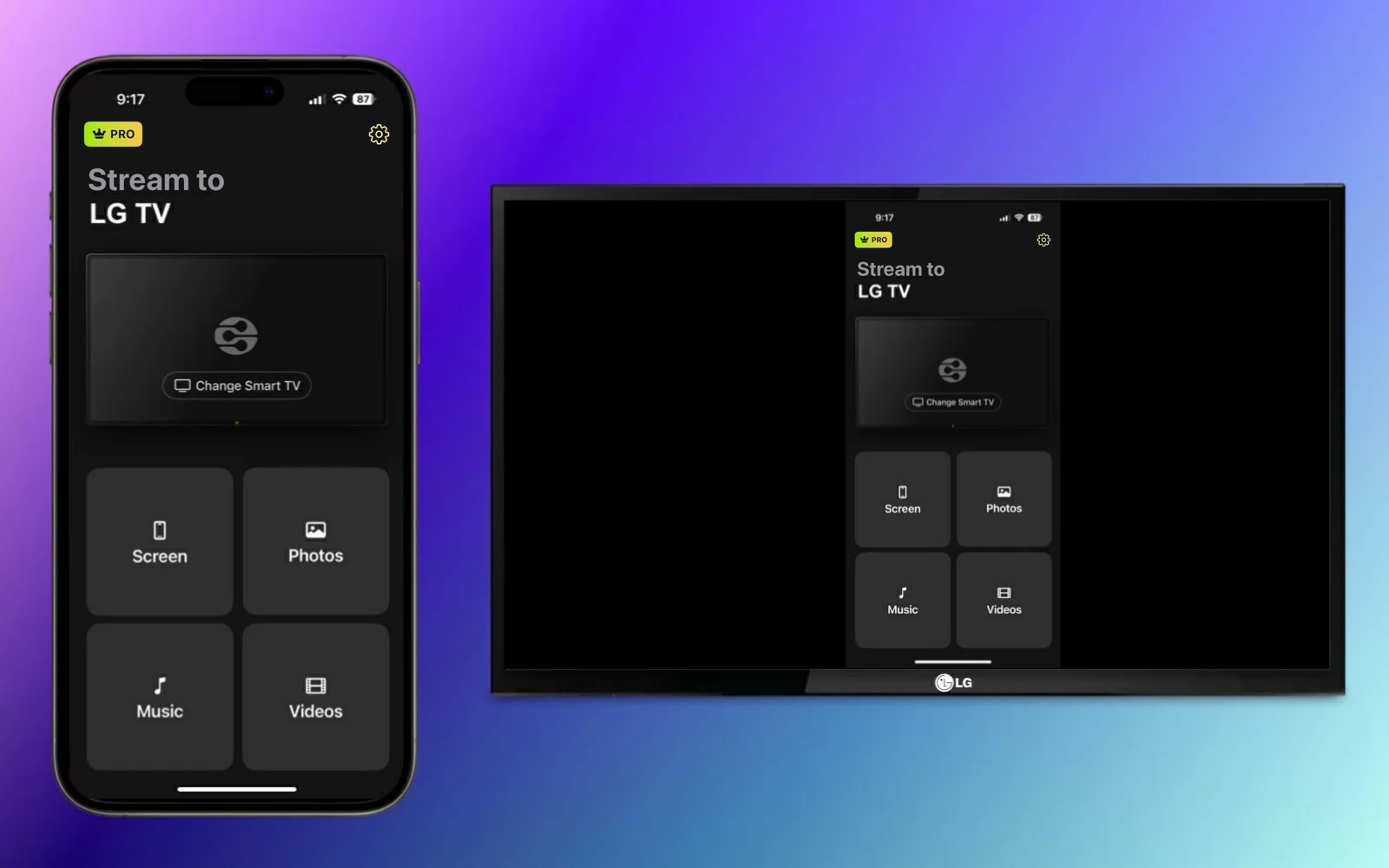
Want to mirror your iPhone to an LG TV but not sure which method to choose? I’ve been there. Between AirPlay, casting apps, adapters, and LG’s own tools, there are more options than you’d expect, and not all of them work with every iPhone or TV model.
So I tested and compared the most reliable ways to connect iPhone to LG smart TV and put everything in one place to save you the trial and error. Below, you’ll find both wireless and wired methods, step-by-step instructions, and fixes for the most common pairing problems.
How to Connect LG TV to iPhone without AirPlay
If you like the thought of a wireless solution but own one of the many LG TV models that doesn’t support AirPlay, consider a third-party screen mirroring app. Along with easily connecting your devices, these apps can provide bonus features like media casting and quality settings.
DoCast
One of the simplest third-party screen mirroring apps to check out is DoCast. With this intuitive app for iPhone and iPad, you can effortlessly connect iPhone to LG smart TV with low latency and excellent picture quality.

You can also screencast media like photos, videos, and DRM-free music, making it a superb option for sharing favorites during family get-togethers and weekend gatherings.
Head to the App Store on your iPhone, download DoCast, and make sure that your TV and iPhone are connected to the same Wi-Fi network.
Step-by-step guide
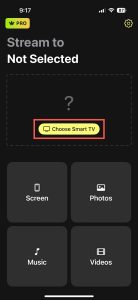
1. Open DoCast on your iPhone and select Choose Smart TV.
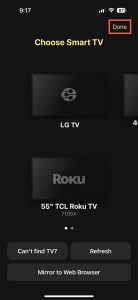
2. Pick your LG TV from the device list and tap Done.
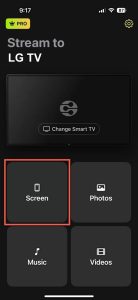
3. Choose Screen.
4. Optionally, select the mirror settings including Auto-Rotate and Low, Medium, or High quality.
5. Tap Start mirroring.
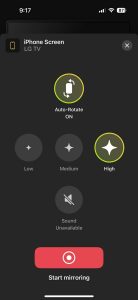
When you see your iPhone appear on your LG TV, you can jump right into mirroring your screen.
DoCast is available for iPhone and iPad, and is compatible with brands like TCL, Samsung, and Sony as well as other DLNA-enabled TVs. With the screen rotation control, quality settings, and ease-of-use, DoCast is a terrific tool. Download DoCast to cast media for free or use the screen mirroring feature with an affordable upgrade.
Notes: Want to control your TV with iPhone? TVRem makes controlling your TV simple!
Alternative Wireless Methods: LG ThinQ App & Built-in Google Cast
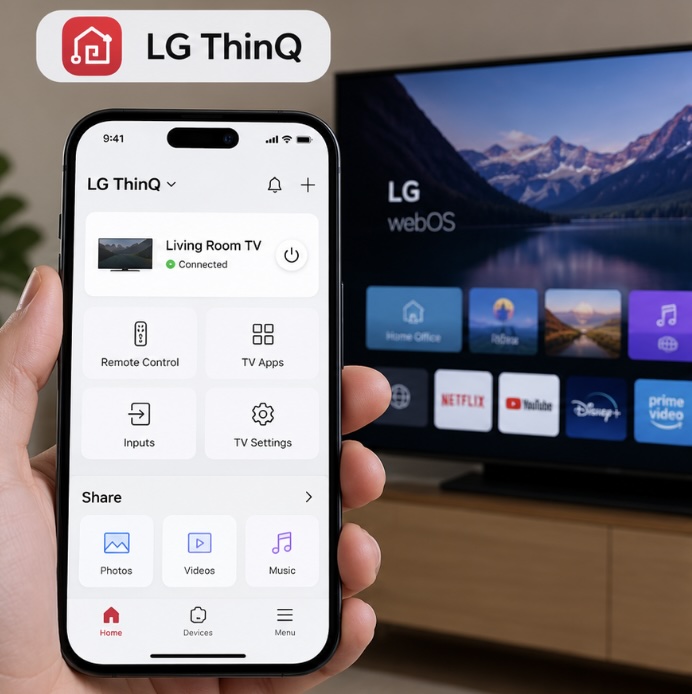
- LG ThinQ App: For TV remote control and media sharing, download the official LG ThinQ app from the App Store. After pairing your iPhone with a compatible LG TV on the same network, you can use your phone as a remote, adjust TV settings, launch apps, switch inputs, and play photos, videos, or music from your phone on the TV.
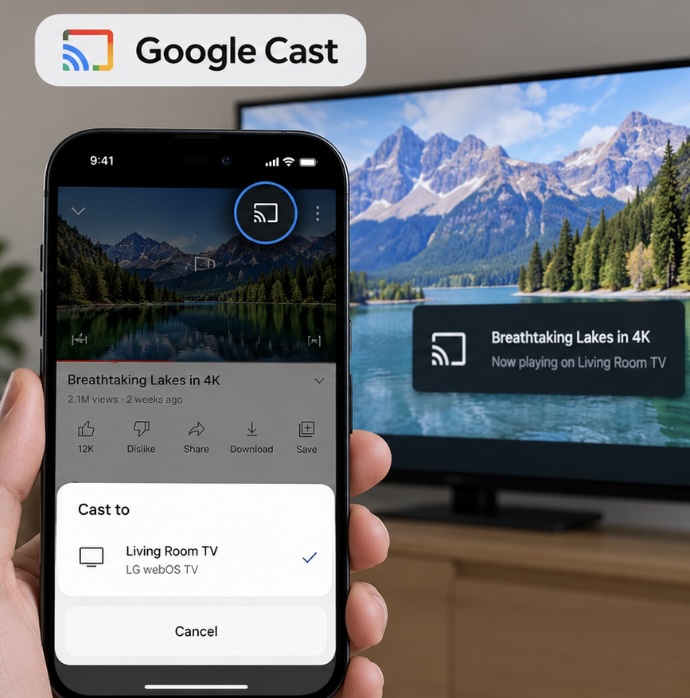
- Built-in Google Cast: Many newer LG TVs, including 2024 models with webOS 24 and later models, support Google Cast built in. Some eligible older LG TVs may also gain Google Cast through webOS Re:New software updates, depending on the model and region. With a compatible TV, you can tap the Cast icon in supported apps such as YouTube to send content directly to the TV instead of mirroring your entire iPhone screen. Your iPhone and TV should normally be connected to the same Wi-Fi network, and on iOS 14 or later, the app needs Local Network permission.
Using AirPlay for Screen Mirroring
For a native wireless solution, you can use AirPlay to mirror your iPhone to your LG TV. AirPlay is Apple’s proprietary technology built-in into devices like iPhone, iPad, and Mac that allows you to duplicate your screen on another device.
To use AirPlay to connect iPhone to LG TV, be sure that you have one of the following TV models from 2018 through 2024.
| Year | Operating System | Models |
| 2024 | webOS 24 | UHD: UT Series, NANO Series OLED: All OLED Models QNED: All QNED Models |
| 2023 | webOS 23 | UHD: UR Series, NANO Series OLED: All OLED Models QNED: All QNED Models |
| 2022 | webOS 22 | UHD: UQ Series, NANO Series OLED: All OLED Models QNED: All QNED Models |
| 2021 | webOS 6.0 | UHD: UP Series, NANO Series OLED: All OLED Models QNED: All QNED Models |
| 2020 | webOS 5.0 | UHD: UN Series, NANO Series OLED: BX/CX/GX/WX/ZX/RX |
| 2019 | webOS 4.5 | UHD: UM Series, SM Series OLED: B9/C9/E9/W9/Z9 |
| 2018 | webOS 4.0 | UHD: UK Series, SK Series OLED: B8/C8/E8/W8/Z8 |
With one of the above LG TV models, you can then enable AirPlay on it and begin a screen mirroring session using your iPhone. Be sure that both devices are connected to the same Wi-Fi network and follow along below.
Step-by-step guide
1. Press the Input button on your LG TV remote and select Home Dashboard.
2. Choose AirPlay.
3. Pick AirPlay and HomeKit Settings.
4. Select AirPlay to turn on the feature.
5. Unlock your iPhone and open the Control Center.
6. Tap Screen Mirroring (connected rectangles).
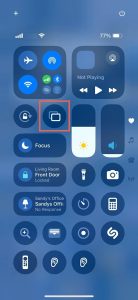
7. Pick your LG TV from the device list.
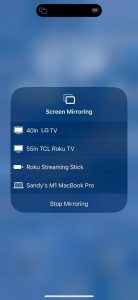
8. If prompted, enter the AirPlay passcode shown on your TV in the pop-up box on your iPhone.
You should then see your iPhone screen on your LG TV allowing you to use apps, play games, check email, and perform other actions with your phone on the big screen.
Connecting with an HDMI Cable
Wondering how to connect to LG TV with iPhone when you have an unstable network connection or if your TV doesn’t support the wireless options? This final method uses a physical connection to directly link the two devices for smooth and reliable screen mirroring.
Along with your iPhone and LG TV, you’ll need the following items to connect the devices:
- An HDMI cable
- An available HDMI TV port
- An AV adapter compatible with your iPhone model
Note that the iPhone 15 series and later uses a USB-C port and the iPhone 5 series through the iPhone 14 series uses a Lightning port. So, be sure to choose an adapter that matches the port on your particular iPhone model.
Step-by-step guide
1. Connect the adapter to the port on your iPhone.
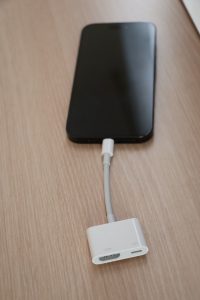
2. Attach the HDMI cable to the adapter.
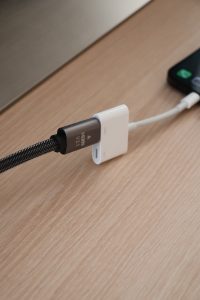
3. Plug the other end of the cable into the TV’s HDMI port.
4. Power on your LG TV if necessary.
5. Choose the correct input source on your TV matching the HDMI port you’re using, for example, HDMI 1, HDMI 2, or HDMI 3.
After a moment, you should see your iPhone screen on your LG TV.
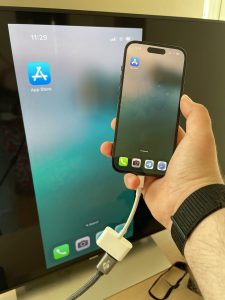
Connecting iPhone 15-17 via USB-C to HDMI
If you have an iPhone 15 model, an iPhone 16 model other than the iPhone 16e, or an iPhone 17 model other than the iPhone 17e, you can connect it directly to an LG TV with a cable. These iPhones support native DisplayPort video output over USB-C. Older iPhones with a Lightning port could use Apple’s Lightning Digital AV Adapter for a wired HDMI connection.
You can use:
- A USB-C to HDMI cable or adapter. For 4K at 60Hz output, it should support HDMI 2.0 or later.
- A USB-C multiport hub with HDMI video output that supports external displays, such as the Apple USB-C Digital AV Multiport Adapter.
Connect the USB-C end to your iPhone and the HDMI end to an available HDMI port on your LG TV. Then switch the TV to the corresponding HDMI input.
Once connected, your TV mirrors your iPhone screen. Apps with a second-screen experience, such as video players, can show content full screen on the TV instead.
iPhone 16e, iPhone 17e, and iPhone Air do not support wired video output to an external display through their USB-C ports. With these models, you can connect to your LG TV wirelessly instead. If your TV supports AirPlay, make sure AirPlay is enabled on the TV, then use Screen Mirroring in Control Center.
If it doesn’t, you can use a third-party app like DoCast to mirror your screen or stream videos, photos, and music to a compatible LG TV. Keep your iPhone and TV on the same Wi-Fi network. When using DoCast with a webOS-based LG TV, you may also need to enable LG Connect Apps in the TV’s network settings; on some older models, the equivalent option is called DLNA DMR.
Which Connection Method Should You Choose?
| Method | Best For | Compatibility | Wi-Fi Needed? | Key Advantage |
| AirPlay 2 | Native screen mirroring & media streaming | Compatible LG TVs with AirPlay 2, including select 2018 models and many newer models | ✅ | Built into iOS and supported LG TVs; no additional iPhone app required |
| LG ThinQ App | Remote control & local media streaming | Compatible LG webOS Smart TVs; features vary by model and year | ✅ | Official LG app for TV control and sharing photos, videos, and music |
| DoCast App | Screen mirroring & media streaming | Compatible LG TVs, including supported DLNA/webOS models | ✅ | Adjustable mirroring quality and broad TV/device compatibility |
| USB-C / HDMI Cable | Low-latency wired mirroring & offline playback | LG TV with HDMI + compatible iPhone and cable/adapter | ❌ | Stable wired connection; no Wi-Fi required |
Ways to Fix Screen Mirroring Not Working
If you’re having trouble screen mirroring from iPhone to LG TV, it can be due to a few possible reasons. Depending on if you’re connecting wirelessly or using the HDMI cable method, check the following:
Wireless methods:
- Confirm that you’re using an AirPlay supported LG TV and that AirPlay is turned on.
- Make sure your iPhone and LG TV are using the same Wi-Fi network and that you have a stable connection.
- See if your third-party app requires you to turn off your VPN. If so, you can disable your VPN app or go to Settings > General > VPN & Device Management on your iPhone to turn the VPN off.
HDMI cable method:
- Confirm that the AV adapter and HDMI cable are securely connected to your devices.
- Make sure the input source on your LG TV matches the port for the HDMI cable on your TV.
- Double-check that you have both devices turned on and unlocked.
If you still experience issues after checking the above, consider restarting both devices and try again.
Conclusion
With these three best methods, you can stop searching the web for “how to connect my iPhone to my LG TV” and start screen mirroring in no time. But which one should you use?
Because not all LG TV models support AirPlay and a wired connection instead of a wireless one can be inconvenient, the third-party screen mirroring option is a great way to go. As mentioned, the DoCast app for iPhone provides low latency, adjustable settings, screencast ability, and superb quality for an all-encompassing package.
Frequently Asked Questions
You can screen mirror your iPhone to your LG TV using Apple AirPlay, a third-party screen mirroring app, such as DoCast or a wired connection using your TV port, an HDMI cable, and an iPhone adapter.
If you’re trying to connect wirelessly, make sure both devices are using the same Wi-Fi network, AirPlay or screen mirroring is enabled, and your devices support the wireless technology you’re attempting to use.
If you’re trying to connect using a cable, make sure that all connections are secure and that the input source on your LG TV matches the port for the HDMI cable you’re using.
Go to the TV’s Home Dashboard, choose AirPlay > AirPlay and HomeKit Settings, and select AirPlay to turn on the feature.
Yes, LG TV is compatible with iPhone allowing you to connect the devices wirelessly on supported models or with a physical wired connection for unsupported LG TVs.
If your LG TV repeatedly asks for an AirPlay code or your iPhone fails to authenticate:
- Open Home Dashboard on your LG TV, then go to AirPlay → AirPlay & HomeKit Settings. Depending on your TV model and webOS version, you may access Home Dashboard using the Home or Input button.
- Select Require Code and choose First Time Only if you don’t want to enter a new code every time you connect.
- If pairing still fails, select Reset Paired Devices in the same Require Code menu. This removes previously authorized AirPlay devices.
- Make sure your iPhone and TV are on the same Wi-Fi network. Then open Control Center on your iPhone, tap Screen Mirroring, select your LG TV, and enter the AirPlay code displayed on the TV.