How to Screen Mirror on Philips TV with iOS Devices in 2026

thumbnail

Looking to mirror iPhone screen to Philips TV? Whether you want to stream video, share photos with family, or play mobile games, setting up a seamless connection is simpler than it seems. In this guide, we’ll walk you through native AirPlay 2 setup, dependable third-party screen mirroring apps, and latency-free HDMI connections so you can get your iPhone on the big screen in minutes.

Using AirPlay for Screen Mirroring

Apple’s AirPlay technology is built into iOS devices, making it an ideal method to screen mirror iPhone to Philips TV. This wireless option allows you to seamlessly connect your iPhone or iPad to your TV and start a mirroring session in just a few steps.

Before you begin, make sure that you have an AirPlay supported Philips TV which (as of this writing) includes the Philips Roku TV 4000 Series.

Next, confirm that both devices are connected to the same network and near each other. Then, follow the guide below to enable AirPlay on your Philips TV and mirror your iPhone or iPad.

Step-by-step guide

1. Go to the Home screen on your Philips Roku TV.

2. Select Settings and pick Apple AirPlay and HomeKit.

3. Pick AirPlay to set it to the On position and optionally return to the Home screen.

4. Unlock your iPhone or iPad and open the Control Center.

5. Select Screen Mirroring (connected rectangles).
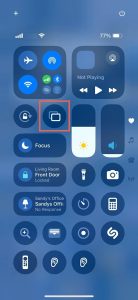
Screen Mirroring button in the iPhone Control Center

6. Choose your Philips TV from the device list.
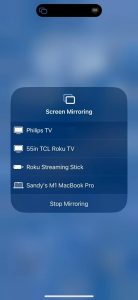
Screen Mirroring devices on iPhone

7. If prompted, enter the AirPlay passcode shown on your TV in the box on your iPhone or iPad.

You should then see your mobile device screen on your Philips TV.

Why Doesn't iPhone Directly Screen Mirror to All Philips TVs?

iPhones don’t support Miracast or native full-screen mirroring via Google Cast. For built-in wireless screen mirroring, Apple uses AirPlay, although iPhones can still cast content from supported apps using Google Cast.

Whether you can mirror an iPhone directly to a Philips TV therefore depends on the TV model and operating system. AirPlay is available on current Philips TVs with Titan OS and on selected earlier models, including some Philips OLED TVs with Google TV. Older Philips TVs running Saphi OS or Android/Google TV without AirPlay cannot receive native iPhone screen mirroring.

For a TV without AirPlay, you can use a compatible third-party app where available, connect an AirPlay-compatible streaming device such as Apple TV or a supported Roku device, or use a wired HDMI connection with a compatible iPhone adapter.

Using Third-Party Screen Mirroring Apps

How to Mirror iPhone to TV | 3 Best Methods

If you have one of the many Philips TV models that doesn’t support AirPlay, you can still use a wireless solution. And keep in mind that although some Philips TVs have Chromecast built in, this feature isn’t natively compatible with AirPlay.

Luckily, with third-party apps available for iPhone and iPad, you can wirelessly connect the devices and mirror your screen while enjoying extra features at the same time.

1. DoCast

Using DoCast to mirror iPhone to Philips TV, you’ll appreciate the intuitive app interface, low latency, and excellent picture quality for a fabulous screen mirroring experience.

DoCast QR code

Along with mirroring, you can easily cast media such as photos, videos, and DRM-free music from your iPhone or iPad to your TV. This is ideal for special occasions, get-togethers, or a fun family night.

Head to the App Store on your iPhone or iPad to download DoCast. Then, make sure your devices are connected to the same Wi-Fi network.

Step-by-step guide

1. Open the DoCast app on your iPhone or iPad and pick Choose Smart TV.
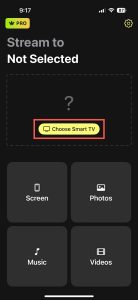
Tap on the Choose Smart TV button in DoCast

2. Select your Philips TV from the device list and tap Done.
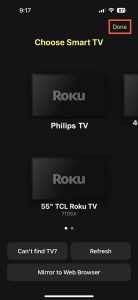
Tap on your Philips TV in DoCast

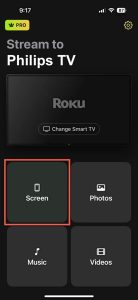
3. Tap the Screen.

Tap on the Screen button in DoCast

4. Optionally, adjust the screen mirror settings for Auto-Rotate and Low, Medium, or High quality.

5. Tap Start mirroring.
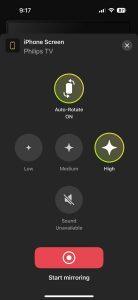
Tap on the Start mirroring button in DoCast

You’ll then see your iPhone or iPad screen appear on your Sony TV and can start mirroring.

DoCast is available for iPhone and iPad and compatible with brands like TCL, LG, Panasonic, Sony, and other DLNA-enabled TVs. Download DoCast for free to cast media or use the affordable upgrade for screen mirroring.

Notes: If, in addition to mirroring, you want to control your TV from your iPhone, try TVRem, a free universal remote app for iPhone.

2. TV Cast – Screen Mirroring +

Another app to check out is TV Cast – Screen Mirroring + available for iOS. This tool provides screen mirroring, screencasting, and screen sharing capabilities to suit your needs. Note that the app does use AirPlay for the connection.

Once you download the app from the App Store on your iPhone or iPad, connect your mobile device and TV to the same Wi-Fi network if you haven’t already.

Step-by-step guide

1. Open the TV Cast – Screen Mirroring + app on your iPhone or iPad and tap Screen Mirroring.
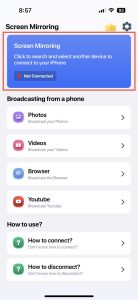
Screen Mirroring option in TV Cast – Screen Mirroring +

2. Select AirPlay and choose your Philips TV.
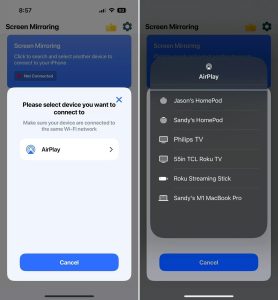
AirPlay and the device list in TV Cast – Screen Mirroring +

3. Open the Control Center on your iPad or iPad.

4. Tap Screen Mirroring and choose your Philips TV.
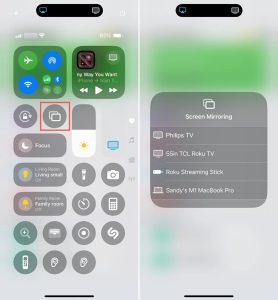
Device list in the iPhone Control Center in TV Cast – Screen Mirroring +

You’ll then see your mobile device screen mirrored to your TV. You can also use the app features to broadcast photos, videos, a web browser, or YouTube.

TV Cast – Screen Mirroring + for iPhone and iPad is compatible with additional smart TV brands such as Samsung, Toshiba, LG, Sony, and others. The app offers a free trial period with paid subscription plans once the trial ends.

No Wi-Fi? How to Mirror iPhone or iPad to Philips TV via HDMI Cable

While a wireless method is the most convenient way to go, it’s not always an option. Maybe your Philips TV doesn’t support AirPlay and you don’t have a stable network connection. In this case, consider a wired solution.

Along with your Philips TV and iPhone or iPad, you’ll need the following items to mirror the devices:

  • An HDMI cable
  • An available HDMI TV port
  • An AV adapter compatible with your iPhone or iPad model


The iPhone 15 series and later use a USB-C port, while the iPhone 5 series through the iPhone 14 series use a Lightning port. Additionally, the iPad models listed below use a USB-C port while other models use a Lightning port. So, make sure you choose an adapter that matches the port on your particular iPhone or iPad model.

  • iPad Pro (M4)
  • iPad Pro 11-inch (1st, 2nd, 3rd, or 4th gen)
  • iPad Pro 12.9-inch (3rd, 4th, 5th, or 6th gen)
  • iPad Air (M2)
  • iPad Air (4th or 5th gen)
  • iPad mini (A17 Pro)
  • iPad mini (6th gen)


With the above items in order, you’re ready to connect the devices and begin mirroring.

Step-by-step guide

1. Connect the AV adapter to the port on your iPhone or iPad.
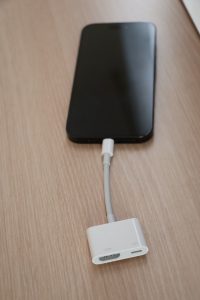
Connect an adapter to your iPhone

2. Attach the HDMI cable to the adapter.
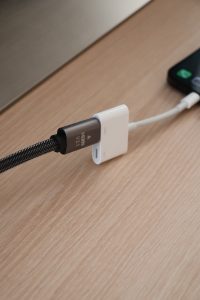
Connect an HDMI cable to the adapter

3. Plug the other end of the cable into the TV’s HDMI port.

4. Turn on your Philips TV if necessary.

5. Select the input source on your TV that matches the HDMI port you’re using, for example, HDMI 1, HDMI 2, or HDMI 3.

After a few moments, you should see your iPhone or iPad screen display on your Philips TV. You can then start enjoying games and other apps with your smaller screen on the big one.
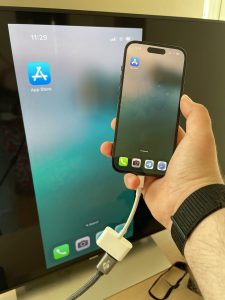
Connecting your iPhone to the Philips TV via an HDMI cable

Important Note on DRM & HDCP Content: 

When using an HDMI connection to watch DRM-protected content, make sure your adapter and TV support HDCP, and use a good-quality HDMI cable. For Lightning iPhones, Apple’s Lightning Digital AV Adapter is the safest option and is specifically supported by services such as Netflix. For USB-C iPhones, Apple’s USB-C Digital AV Multiport Adapter is HDCP-compliant, but compatible third-party adapters can also work if they support the required video standards and HDCP.

An incompatible adapter, faulty cable, or unsupported HDMI input may prevent protected content from playing correctly and can result in a black screen, playback error, or other video issues when using services such as Netflix or Disney+. Some streaming plans also restrict displaying content from a phone on a TV. For example, Netflix’s ad-supported and Mobile plans don’t support using a TV as a display for content played on a mobile device.

Troubleshooting Screen Mirroring Issues

If you have problems screen mirroring iPhone to Philips TV, here are a few troubleshooting methods you can try for both the wireless and wired options.

Wireless method:

  • Confirm that you’re using an AirPlay-supported Philips TV with AirPlay enabled.
  • Make sure that your mobile device and TV are connected to the same Wi-Fi network, are close to each other, and that you have a stable network connection.
  • If you’re using a third-party app that requires you to turn off your VPN, you can either disable your VPN app or head to Settings > General > VPN & Device Management on your iPhone or iPad to turn off the VPN.


Wired method:

  • Confirm that the AV adapter and HDMI cable are securely connected to the devices.
  • Make sure that the TV input source matches the HDMI port on your TV.
  • Verify that both devices are powered on and unlocked.


If you still have problems after checking the above, consider restarting both devices and try your preferred Philips TV screen mirroring iPhone or iPad method again.

Conclusion

Knowing how to screen mirror iPhone to Philips TV gives you a terrific way to play your favorite games or view memorable photos on a larger screen. Just keep in mind the downsides to methods like AirPlay which only works on supported TVs and connected cables which can be inconvenient.

Using a third-party app like DoCast, which is available on both iPhone and iPad, you can screen mirror on any TV and avoid purchasing and connecting physical cables. DoCast also offers features for adjusting the screen quality and casting media while providing low latency and an easy setup.

Frequently Asked Questions

There are various things you can check if screen mirroring is not working on your Philips TV. Confirm that the TV model you own supports the mirroring method you’re using, that both devices are on the same network for wireless mirroring, and that all cables and cords are securely connected for wired mirroring.

Press either the Home or X button on your remote to display the Home screen on your Philips TV. If you do not have your remote, press the Menu button on the front of the TV and use either the Volume button or P/CH button with the plus (+) and minus (-) buttons to navigate to the Home screen.

There can be several reasons that your Philips TV cannot find your Bluetooth device. Make sure that your TV supports the device you want to connect, Bluetooth is enabled in your TV’s settings, your Bluetooth device is in pairing mode, both devices are near each other, and you haven’t reached the limit for the number of paired devices for your TV.

Yes. Connect your iPhone to the TV’s HDMI port using a compatible Lightning or USB-C video adapter. Wireless methods such as AirPlay and mirroring apps like DoCast require both devices to be on the same local network, though that network doesn’t need Internet access.

Some delay is normal, as video must be encoded and transmitted in real time. Noticeable lag is usually caused by a weak or congested Wi-Fi signal. Keep the devices close to the router, use 5 GHz Wi-Fi if available, and pause large downloads or other streams.

Check that the TV isn’t muted and is using the correct audio output, such as its speakers or soundbar, rather than an inactive Bluetooth device. On your iPhone, open Control Center and confirm audio is being sent to the TV. If the issue occurs in only one app, check that app’s settings, as some apps handle AirPlay or protected content differently.

If your Philips TV supports AirPlay 2, connect both devices to the same Wi-Fi network. On your Mac, open Control Center, click Screen Mirroring, and select your TV. AirPlay is available on most current Philips Titan OS TVs, compatible Philips Roku TVs, and selected other models. Otherwise, use a third-party receiver app where available or connect via HDMI.

Many Philips Android TV and Google TV models include Google Cast. Connect your phone and TV to the same Wi-Fi network, open the Google Home app, select your TV, and tap Cast my screen. Some phones also offer a Cast or Screen Cast option in Quick Settings. To send only videos or music, tap the Cast icon in a supported app.

Philips TVs running Titan OS also support casting from compatible apps, but full-screen Android mirroring may depend on the TV model and available receiver apps. Where supported, you can use a third-party casting receiver such as Casting by AirServer, or connect your phone via HDMI with a compatible adapter.