- Blog
- iOS
- Streaming, Mirroring and Casting
- How to Mirror iPhone to TCL TV: A Complete Tutorial

How to Mirror iPhone to TCL TV: A Complete Tutorial
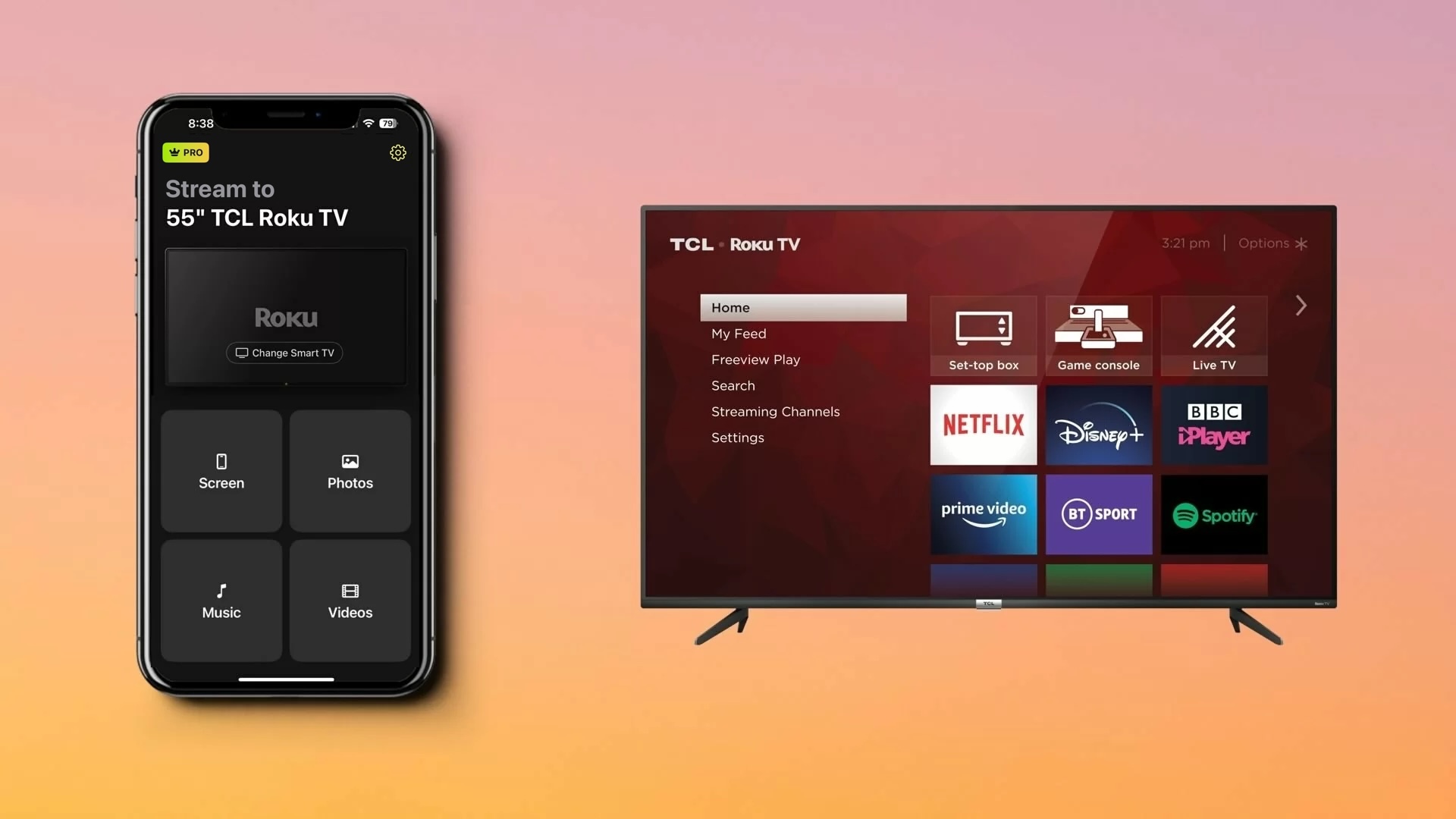
How do you mirror an iPhone to a TCL Smart TV to watch videos, showcase photos, or play mobile games on a bigger screen? The exact method depends on your TCL TV’s platform and model. Current TCL TVs are available with Google TV, Roku TV, and Fire TV, while some older models use Android TV.
In this guide, you will learn the most effective ways to mirror iPhone to TCL TV. We will cover built-in Apple AirPlay on compatible TCL models, third-party screen mirroring apps for TVs without native AirPlay support, and wired HDMI connections, so you can choose the method that works best for your setup.
Does TCL TV Have AirPlay?
Yes, many TCL Smart TVs support Apple AirPlay natively, but availability depends on the TV model, platform, and region. AirPlay is available on supported TCL Google TV models, compatible TCL TVs, and some TCL Fire TV models. Older TCL TVs running Android TV generally don’t include native AirPlay support.
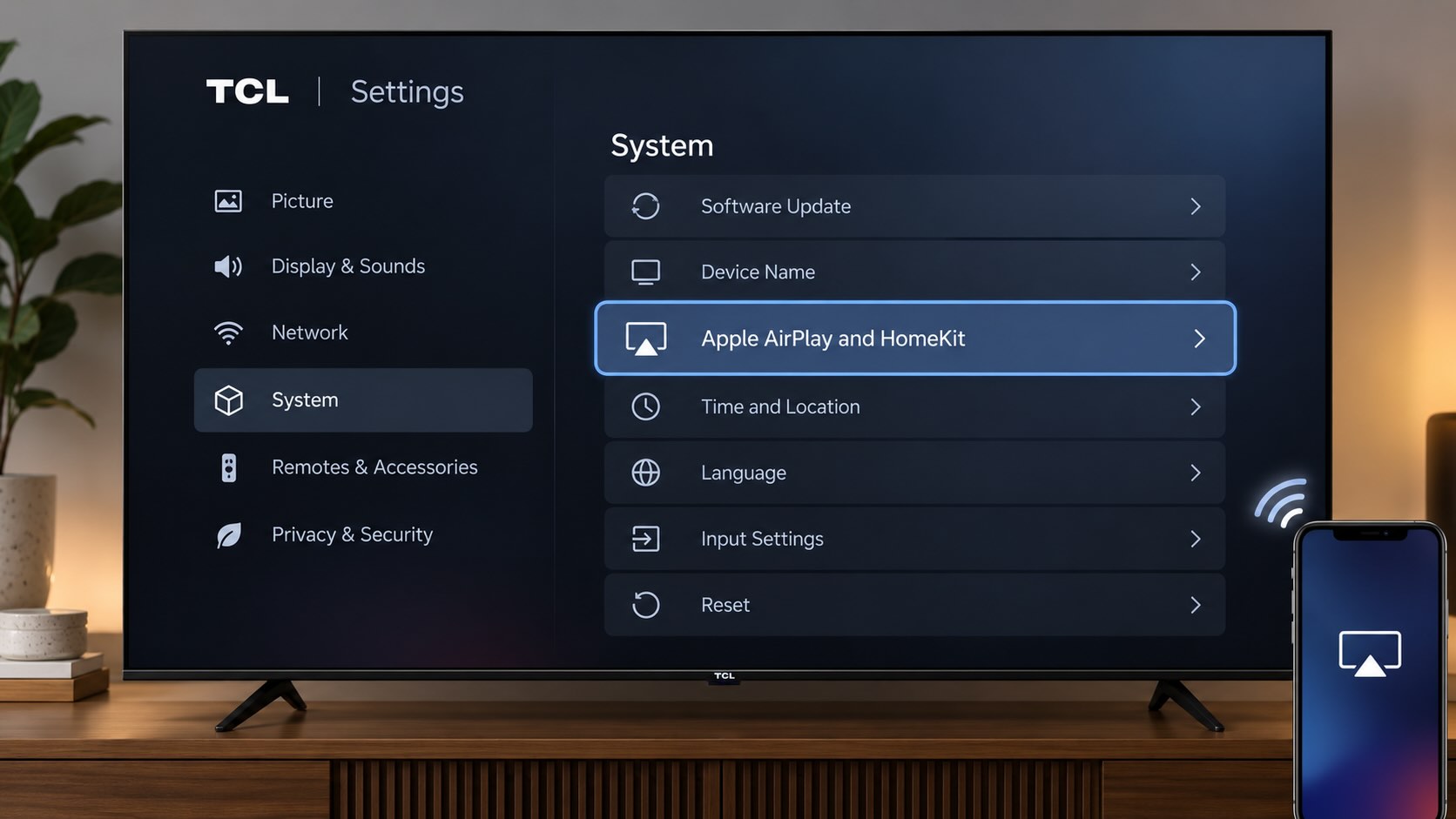
On TCL TVs, AirPlay requires both a supported model and a compatible Roku OS version. Many supported models require Roku OS 9.4 or later, while certain 3-Series models require Roku OS 10.0.
The easiest way to check is to open your TV’s settings. If you see an “Apple AirPlay and HomeKit” or “AirPlay & HomeKit” option, your TV supports AirPlay. If you don’t see it, update your TV’s software first, as the option may appear after the update. With AirPlay available, you can stream videos and photos or mirror your iPhone screen without installing an additional app. If your model doesn’t support AirPlay, you can use a third-party screen mirroring app or connect your iPhone with a compatible HDMI adapter.
Use AirPlay to Mirror Your iPhone Screen
AirPlay is Apple’s proprietary, built-in screen mirroring protocol. Available on devices like iPhone, iPad, and Mac, you can duplicate your screen on another Apple device such as iPad to Mac, or in this case, you can mirror iPhone to TCL TV.
NOTE: If your TCL TV doesn’t support AirPlay, consider using this screen mirroring app instead.
Before you begin, make sure your TCL TV supports AirPlay and is updated to the latest software version. On compatible TCL TVs, AirPlay generally requires Roku OS 9.4.0 build 4190 or later, although some older 3-Series models require Roku OS 10.0. AirPlay is also available on select TCL Google TV and Fire TV models, depending on the model and region.
TCL TV AirPlay Compatibility by Platform
| TCL TV Platform | AirPlay Support | Example Models | Notes |
| TCL TV | Yes, on supported models | 50S535, 55R635, 75Q825, 55S435 | Many supported models require Roku OS 9.4 build 4190+; certain 3-Series models require Roku OS 10.0. Compatibility depends on the exact model. |
| TCL Google TV | Yes, on select models | 85QM751G, 75Q750G | Support is model-dependent. Look for “Apple AirPlay and HomeKit” in Settings. The Google TV version alone does not determine compatibility. |
| TCL Fire TV | Available on select models | Model-dependent | Check Settings → Display and Sounds → AirPlay & HomeKit. |
| Older TCL Android TV | Native AirPlay is not guaranteed | P725, C725 and other legacy models | Do not assume AirPlay support based on the Android TV version. Check the exact model specifications. |
You don’t have to enable AirPlay on your iPhone as it’s turned on by default. You’ll simply begin a mirroring session as you’ll see in the steps below. However, you do have to start by enabling AirPlay on your TCL TV.
Step-by-step guide
1. Make sure your iPhone and TCL TV are connected to the same Wi-Fi network.
2. Make sure AirPlay is enabled on your TV:
- TCL TV: Go to Settings → Apple AirPlay and HomeKit and set AirPlay to On.
- Supported TCL Google TV: Go to Settings → System → AirPlay and HomeKit Settings. Menu names may vary slightly by model and software version.
3. Open Control Center on your iPhone and tap Screen Mirroring.
4. Select your TCL TV from the list of available devices.
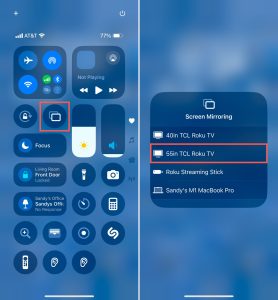
5. If an AirPlay passcode appears on the TV, enter it on your iPhone.
Your iPhone screen will then appear on your TCL TV. You can view photos, browse the web, open apps, or play games on the larger screen.
Mirror iPhone to TCL TV Using A Third-Party App
If your TCL TV doesn’t have AirPlay support, using a third-party app is an alternative solution. Furthermore, screen mirroring apps can provide extra features that go beyond simple mirroring.
DoCast
DoCast is an intuitive app that allows you to easily screen mirror iPhone to TCL TV with excellent picture quality, superb sound, and low latency. This makes it a solid option for enjoying games and displaying presentations with a flawless interactive experience.
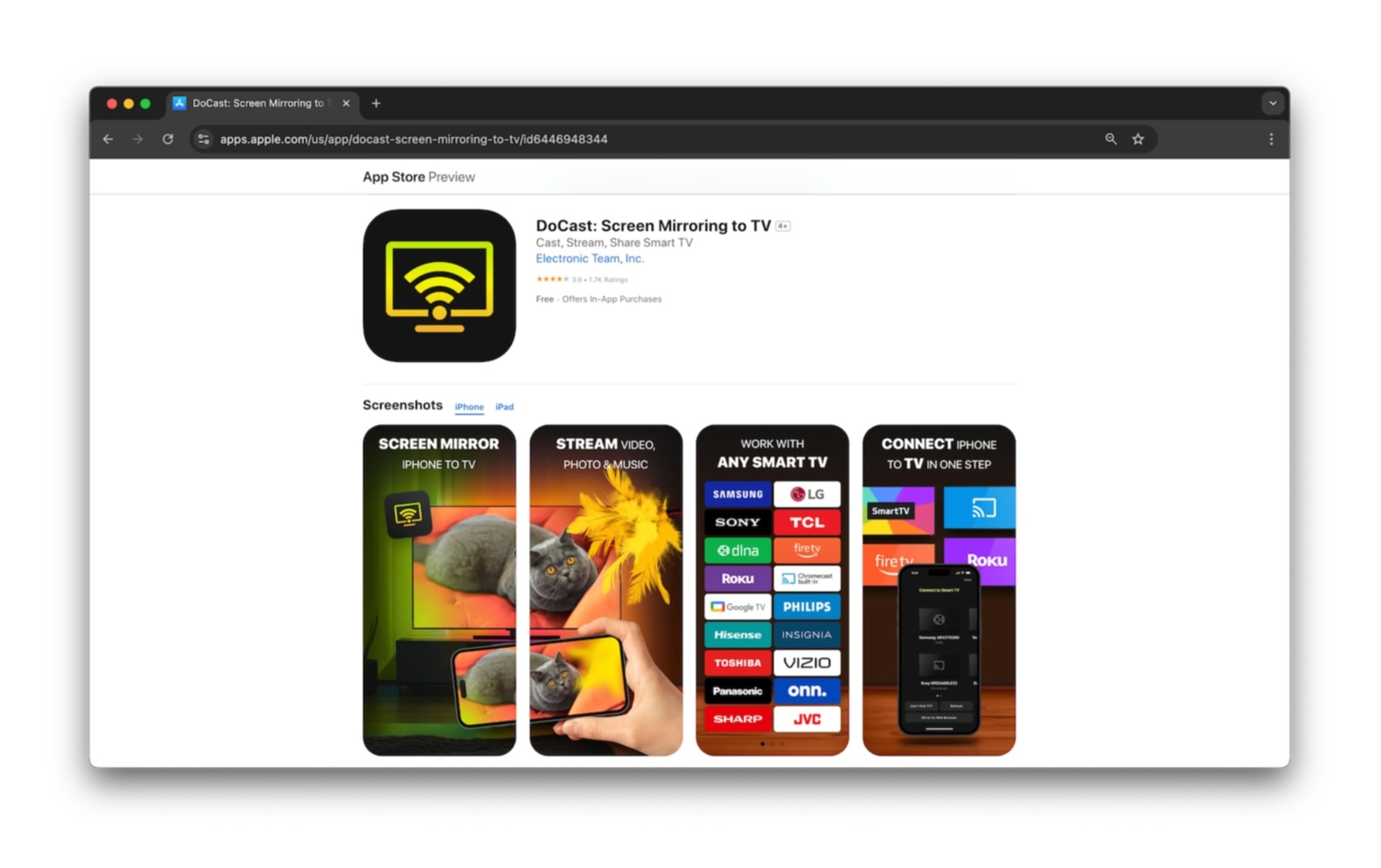
DoCast also provides screencast ability for photos, videos, and DRM-free music. This lets you share all types of media on the big screen for family gatherings, holiday events, and friendly get-togethers.
To get started, make sure your TCL TV and iPhone are connected to the same Wi-Fi network, download DoCast from the App Store, and follow the below steps to start screen mirroring.
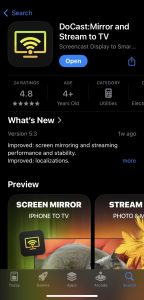
Step-by-step guide
1. Launch DoCast on your iPhone, accept all permissions, and select Choose Smart TV.
2. Choose your Roku TV from the device list.
3. Tap Screen.
4. Select the mirror settings including Auto-Rotate, and Low, Medium, or High quality.
5. Tap Start mirroring.
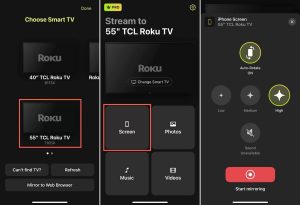
You should then see your device screen on your TCL TV and can use your iPhone like normal.
DoCast is a first-rate TCL TV screen mirroring iPhone app that also works with iPad and offers broad compatibility with brands like Samsung, LG, Panasonic, and other DLNA-enabled TVs. This is convenient if you have additional Roku TVs in your home. You can cast with the free version of DoCast and use the screen mirroring with an affordable subscription option.
Notes: Want to control your TV from your iPhone? Download TVRem, an iPhone remote control app!
Connect iPhone to TCL TV Using an HDMI Cable
Wondering how to screen mirror from iPhone to TCL TV without Wi-Fi? One other mirroring option to consider is connecting the devices with an HDMI cable. This gives you direct tethering between your iPhone and TV which is convenient if you have unstable Wi-Fi or no connection at all.
Along with your TCL TV and iPhone, you’ll need:
- An HDMI cable
- An available HDMI TV port
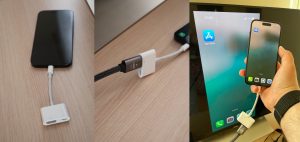
- A digital AV adapter compatible with your iPhone model
Note that the iPhone 15 series and later uses a USB-C port while the iPhone 5 series through the iPhone 14 series uses a Lightning port. So, be sure to obtain an adapter according to your iPhone model’s port.
Step-by-step guide
1. Unlock your iPhone if necessary.
2. Plug the adapter into the port on your phone.
3. Connect the corresponding end of the HDMI cable to the adapter.
4. Attach the other end of the HDMI cable to the port on your TCL TV.
5. Select the correct Input source on your TV per the HDMI port containing the cable. For example, HDMI 1, HDMI 2, or HDMI 3.

You should then see your iPhone screen appear on the TCL TV. Note that it may take a few moments for your screen to mirror.
How to Fix Screen Mirroring Not Working
If you’ve tried screen mirroring iPhone to TCL TV using the above methods and it doesn’t seem to be working, there are a few things you can do to fix the issue.
- Wireless methods: Confirm that your TCL TV supports AirPlay and that AirPlay is enabled. Also, make sure your TV and iPhone are using the same Wi-Fi network, and that you have a stable connection. Additionally, make sure that you turn off your VPN by going to Settings > General > VPN & Device Management on your iPhone or disabling your third-party VPN app.
- HDMI cable method: Verify that the adapter and both ends of the cable are securely connected and that the TCL TV Input source corresponds to the correct HDMI port on the TV.
Still having trouble after checking the above? Try restarting both devices and give it another go.
Conclusion
Wireless screen mirroring is a technical advancement that just makes screensharing easy. But it’s good to know that if your Wi-Fi fails, you can still mirror your iPhone screen to your TCL TV using physical connections.
While the “best” method is the one that’s most effective for you, DoCast should be at the top of the list. This handy app is easy to use, works on TVs that don’t support AirPlay, and provides additional features in its screencast tools and mirroring preferences.
Frequently Asked Questions
Yes, TCL TVs offer built-in screen mirroring support. You can use Apple’s AirPlay, third-party apps like DoCast, Screen Mirroring – TV Cast Air, or Screen Mirroring – Smart View TV.
When using AirPlay or a third-party screen mirroring app, make sure that both your iPhone and TCL TV are using the same Wi-Fi network and that you have a stable Internet connection. Also, it’s possible that your TCL TV does not support AirPlay.
You can use an HDMI cable and digital AV adapter to connect your iPhone to your TCL TV. Connect the adapter to your iPhone, the HDMI cable to the adapter and TV, and use your TV remote to change the Input source to match the HDMI port on the TV.
- Different Wi-Fi networks: Make sure your Apple device and TCL TV are connected to the same Wi-Fi network. They do not necessarily need to use the same 2.4 GHz or 5 GHz band.
- AirPlay is disabled: On TCL TV, go to Settings → Apple AirPlay and HomeKit and make sure AirPlay is turned on. On supported TCL Google TV models, look for AirPlay and HomeKit Settings in the TV settings.
- Network isolation: Guest Wi-Fi or AP/client isolation can prevent devices on the same network from discovering each other. Connect both devices to the main network and disable client isolation if necessary.
- Software or connection issue: Update both devices and restart your Apple device, TCL TV, and router. On TCL TV, you can restart the TV from Settings → System → Power → System Restart.
- Connect your Mac and AirPlay-compatible TCL TV to the same Wi-Fi network.
- Make sure AirPlay is enabled in your TCL TV settings.
- On your Mac, open Control Center → Screen Mirroring.
- Select your TCL TV from the list.
- If an AirPlay passcode appears on the TV, enter it on your Mac.
- To change how the TV is used, open System Settings → Displays, select the TCL TV, and choose whether to mirror your Mac display or use the TV as an extended display.