How to Turn On Samsung TV Without Remote

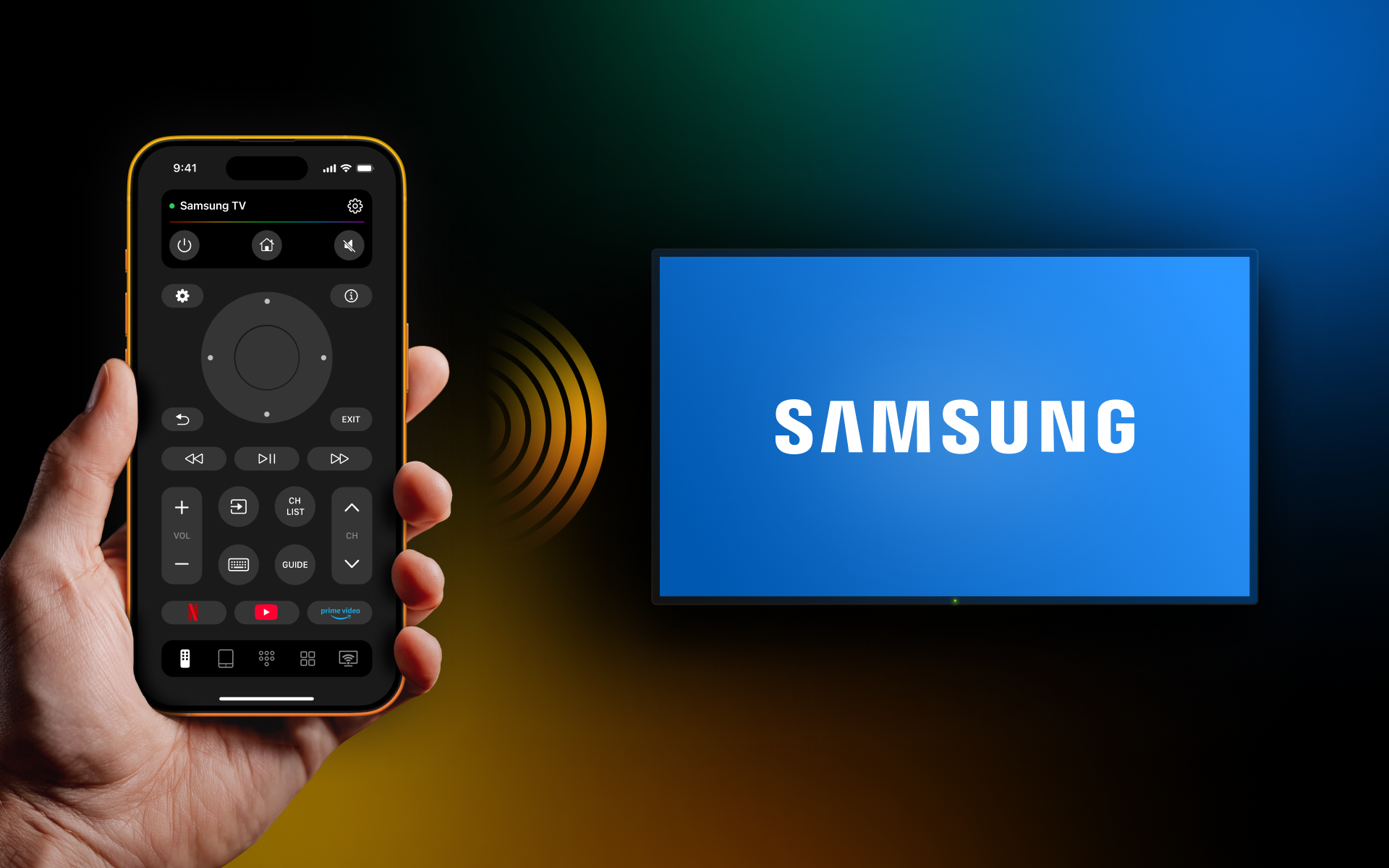
thumbnail

Your Samsung TV is your gateway to all your favorite movies, TV shows, and video games, but it is nothing more than a black mirror if you can’t turn it on. And that’s usually when you realize just how much you rely on that little remote you barely think about -until you can’t find it.

Losing your remote doesn’t mean you’re stuck with a useless screen. Our team has gathered and tested several ways you can turn on Samsung TV without remote, which we will explain in detail for you here.

Use the Power Button on the TV

Even after the TV remote became the standard, the power button never went away but Samsung TV buttons have become harder to find. They are no longer big, bright buttons on the front of your screen but hidden in one of a few common places.

The most common place to find the power button is directly underneath the Samsung logo along the bottom edge of your screen. If you slide your finger under the front, you should be able to feel it.
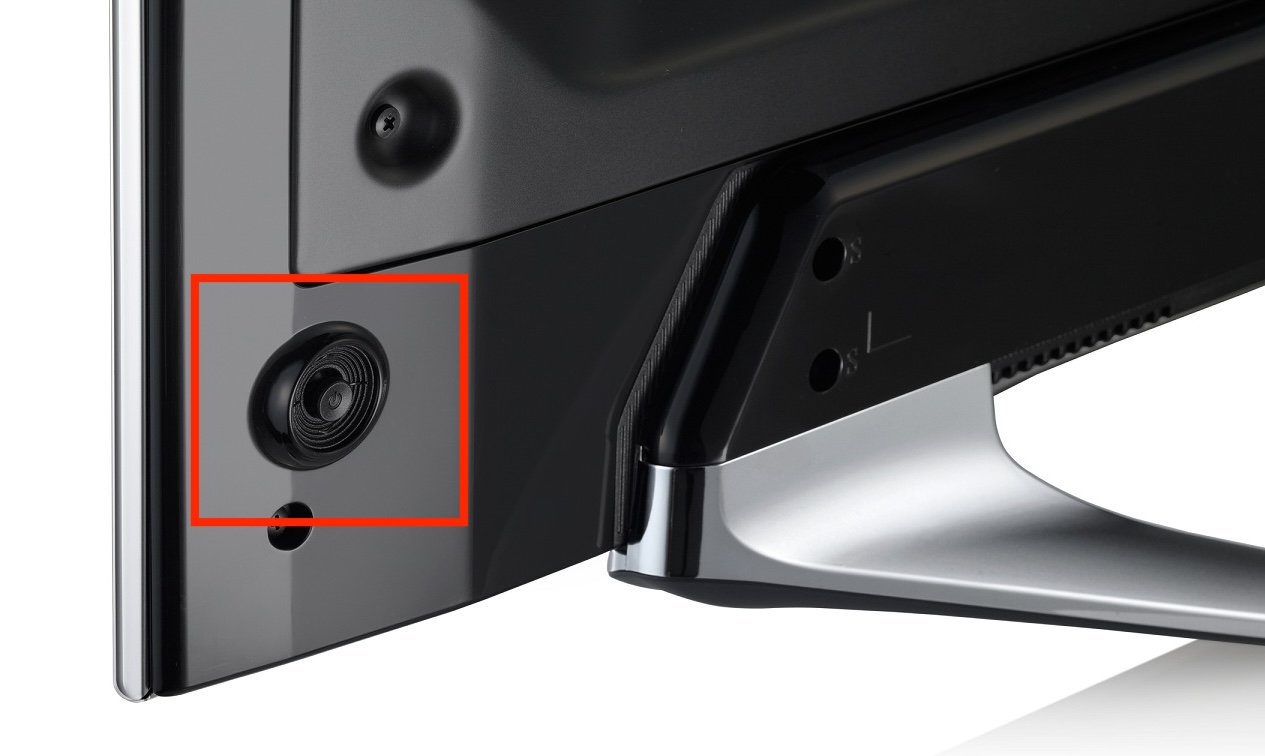
Power button of the Samsung TV

If the button isn’t there, the next most common place is on the back on either the bottom right or left corner. Again, you may need to feel around for it but it shouldn’t be hard to find.

The last common Samsung TV button location is right on the front as a touch control button. These will be indicated with a power button icon that you simply need to tap to power on your TV.

Understanding Your TV’s Physical Controls

Samsung TVs can have different types of physical controls depending on the model.

1. Single-Button Controller:

  • Quick Press: Cycles through on-screen menu options (Volume, Channel, Input, Power Off).
  • Long Press (1.5-3 seconds): Confirms your selection or turns off the TV.


2. 5-Button Jog (D-Pad) Controller:

  • Center Button: Powers ON/OFF and selects options.
  • Surrounding Buttons: Direct mapping for Volume Up/Down and Channel Up/Down.


Pro Tip: To locate the physical button in a dim room, look directly where the red Standby LED light glows at the bottom bezel of your TV.

Try the TVRem App

How to Use Your iPhone as a Remote for Samsung TV: The Complete Guide

TVRem is a free Samsung remote app for iPhone that provides complete control over your Roku TV and many other smart TV brands. Once connected, you can power your TV on and off directly from your iPhone – no physical remote needed. It’s sleek, fast, and intuitive, allowing you to quickly search with the built-in keyboard, navigate smoothly with the touchpad, and access your favorite apps with a tap. Adjust volume, manage playback, and switch between services – all directly from your iPhone.
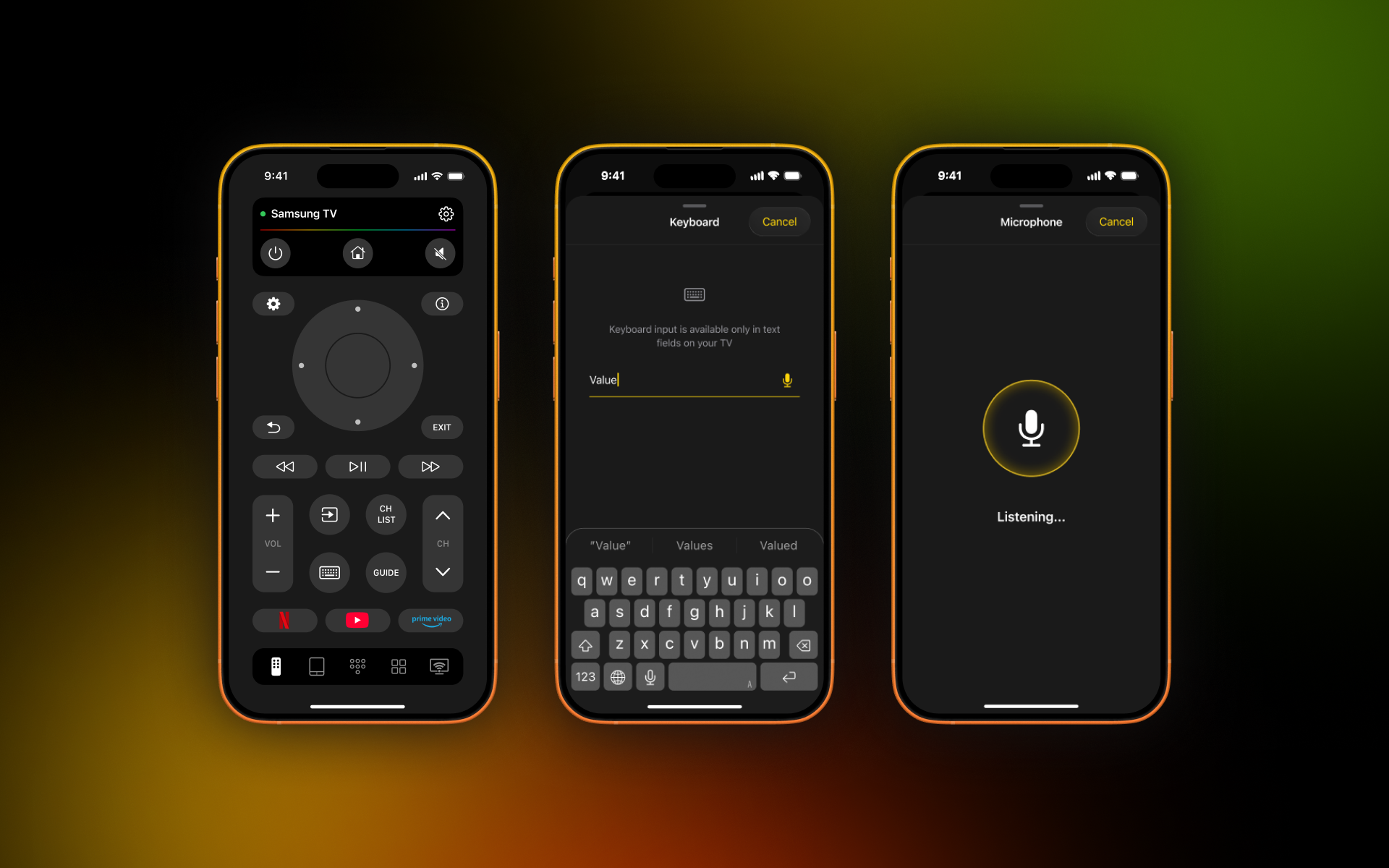
TVRem - universal TV remote app

In addition to Samsung TVs, TVRem works with a variety of devices, including Roku streaming players, Roku-branded TVs, and other TVs with Roku built-in; Fire TV streaming players, Amazon smart TVs, and other TVs with Fire TV built-in; Android TVs, Apple TV, Chromecast with Google TV, and Google TV streamers.

With this app, you can control Samsung TV without a remote.

Step-by-step guide

1. Download TVRem and turn on your Samsung TV.
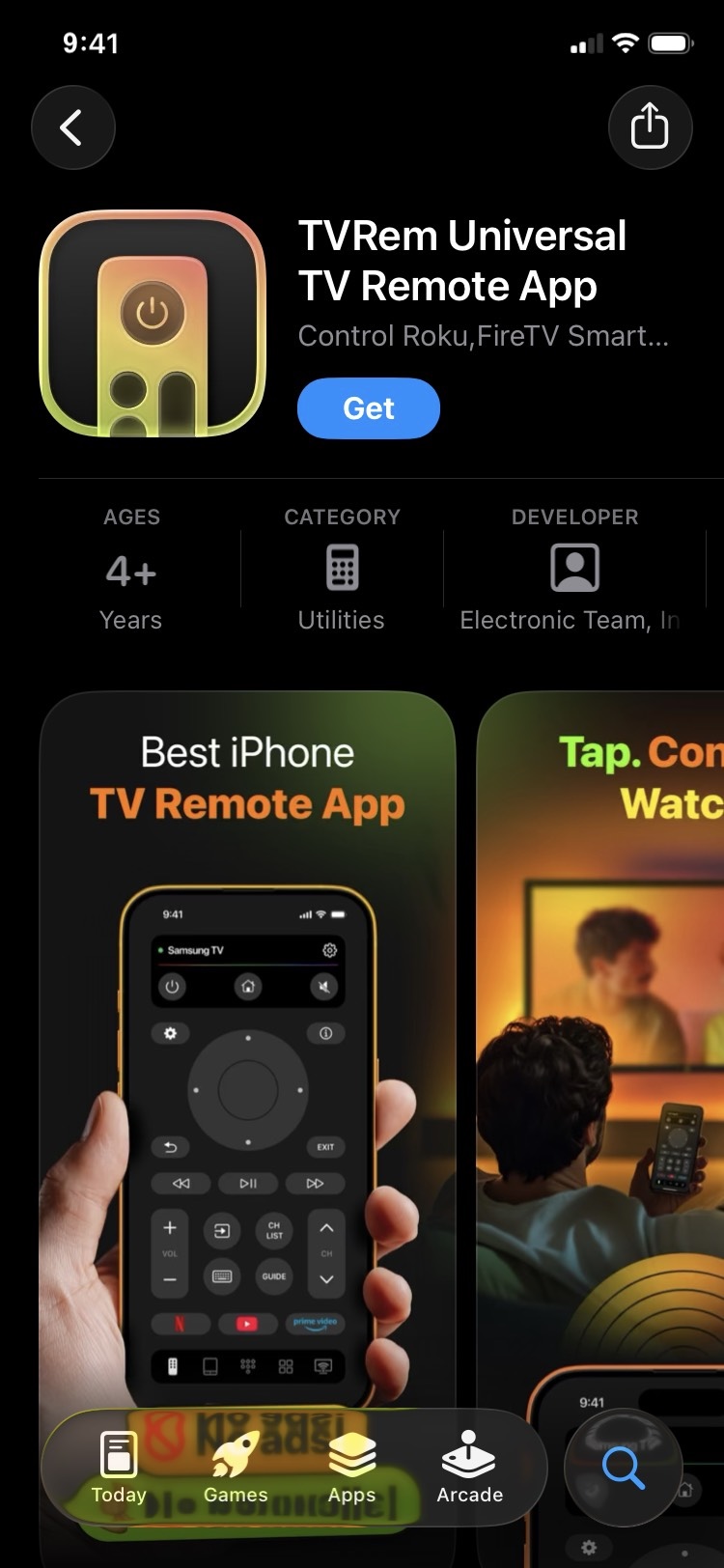
Download TVRem from the App Store

2. Open the app and connect it to the same Wi-Fi network as your TV.
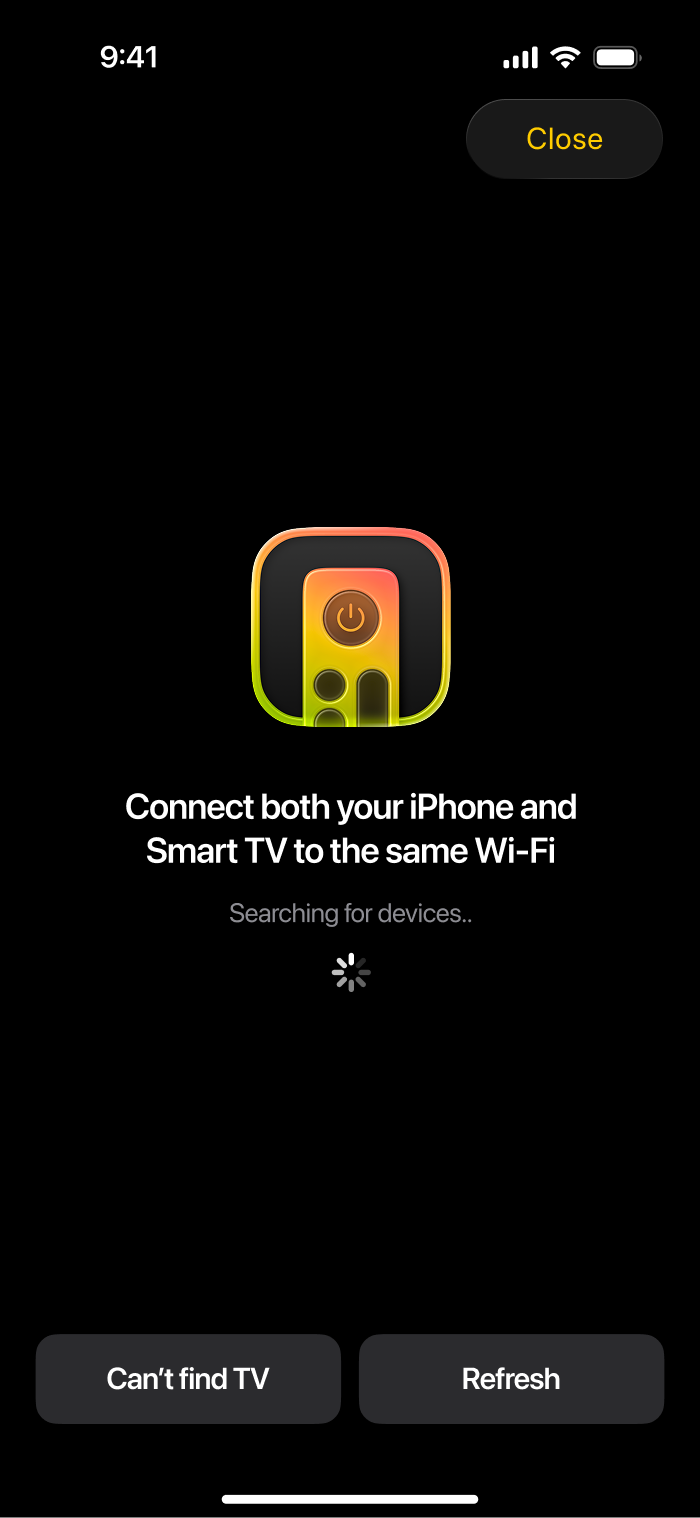
TVRem is searching for nearby devices

3. When prompted, grant any necessary permissions.

4. Tap Choose a TV and select your Samsung TV from the list.
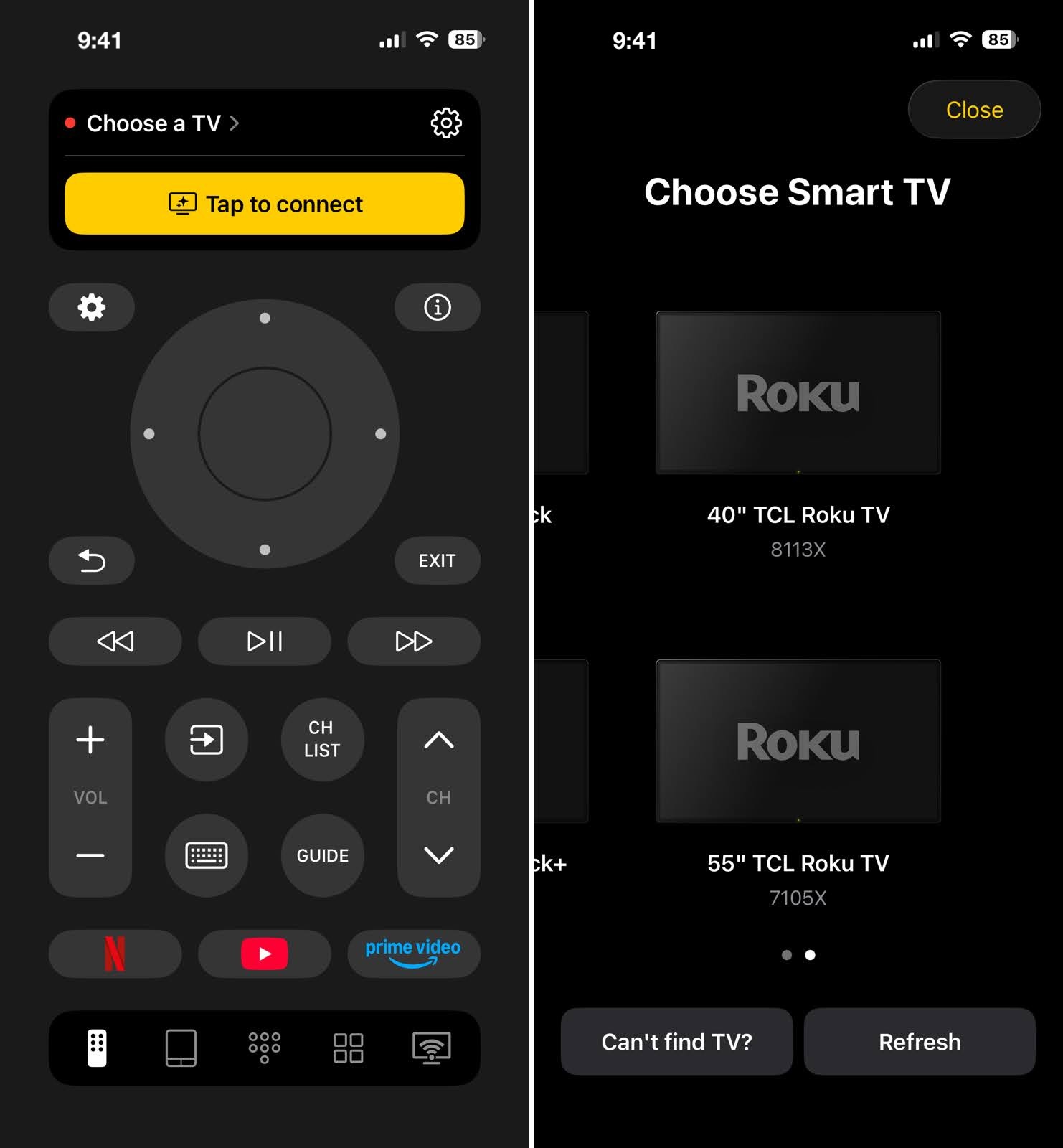
Tap on the Choose a TV button and select your Samsung TV in TVRem

5. Once connected, use the Power button on the top left to turn your TV off and on.

Important Note on TV Remote Apps: TV remote apps, including Samsung SmartThings and third-party options, generally need the TV to be powered on and set up on the network before you can use the app to control it. If you’re pairing the TV with an app for the first time and it isn’t already registered, you may need to turn it on using the physical power button and complete the on-screen setup first.

Use a Smartphone as a Remote Control

Smartphones are a fantastic alternative to a traditional free remote control. You are far less likely to lose your smartphone, and the various apps can offer even better control. With the right app, you can turn on your TV right from your phone.

There are multiple free remote control app options, including SmartThings and Remote for Samsung TV Plus, that you can use to control your TV, including turning it on, navigating apps, adjusting volume, changing channels, and more.

Keep in mind, though, that you will need to turn your TV on another way in order to connect to whichever app you choose. Your smartphone and TV will also need to be connected to the same Wi-Fi network, so this option will not work if you do not have access to a stable Internet connection.

As an example, here’s how to turn on Samsung TV with iPhone using the Remote for Samsung TV Plus app.

Step-by-step guide

1. Download Remote for Samsung TV Plus and turn on your Samsung TV.
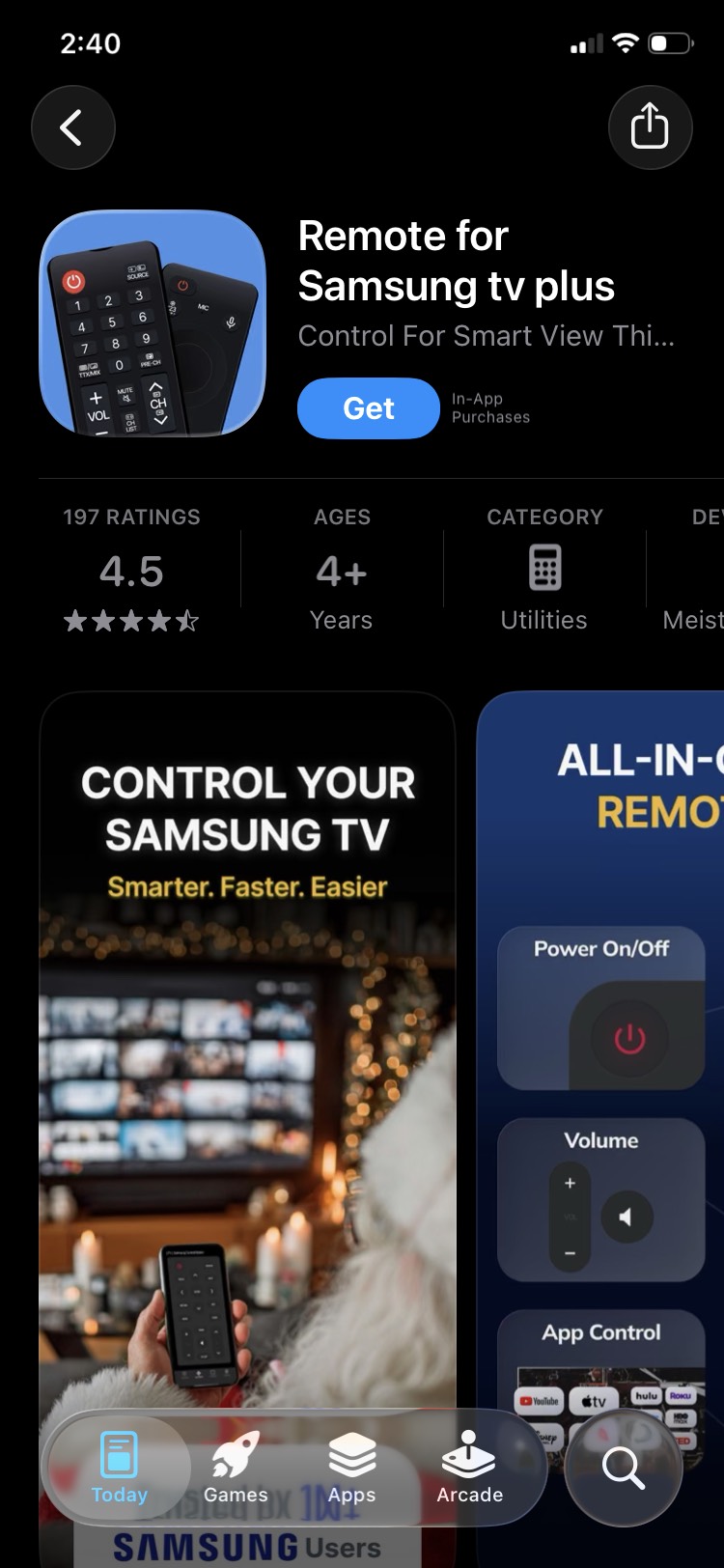
Download Remote for Samsung TV Plus from the App Store

2. Open the app and connect it to the same Wi-Fi network as your TV.

3. If prompted, grant any necessary permissions.

4. Choose your Samsung TV from the list of detected devices.
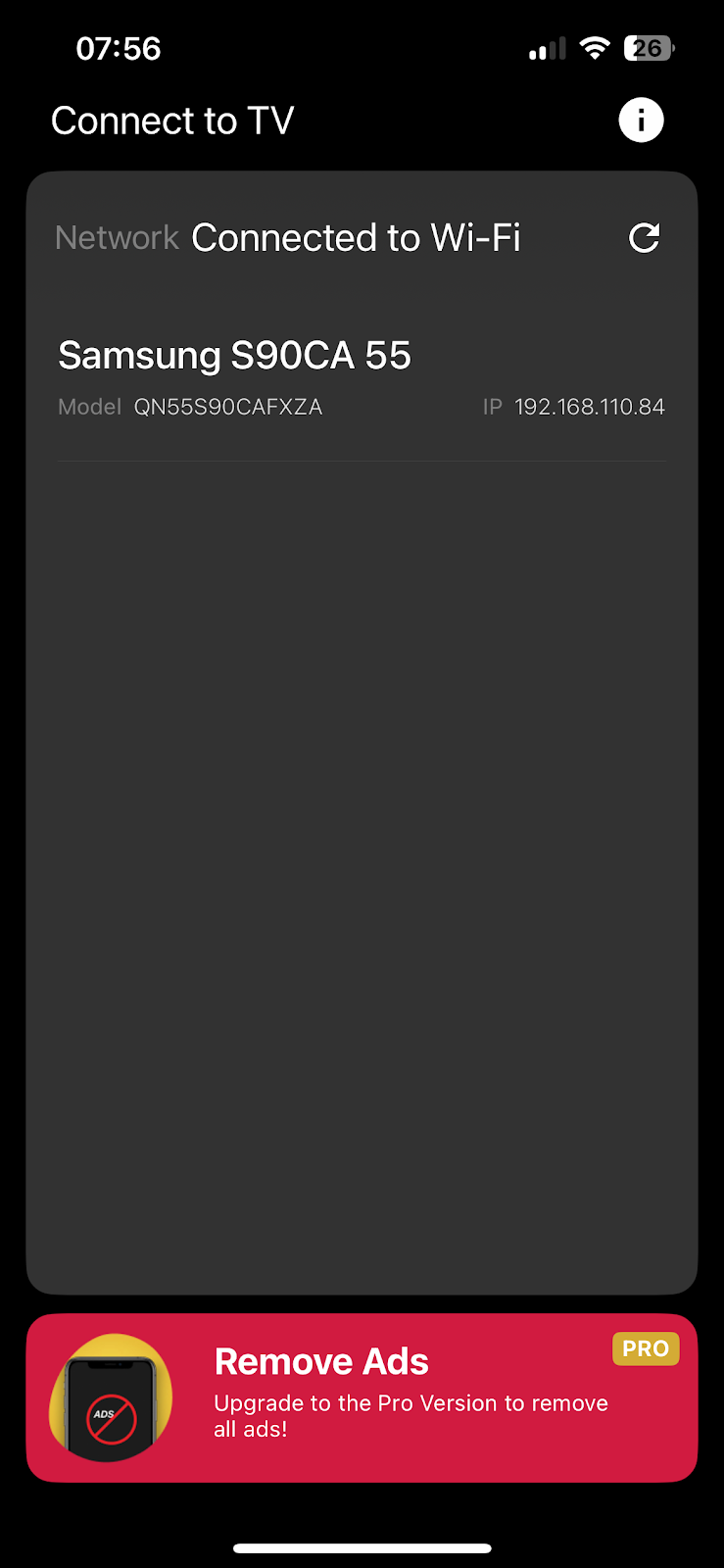
Select your Samsung TV from the list of devices in Remote for Samsung TV Plus

5. Once connected, use the Power button on the top left to turn your TV off and on.
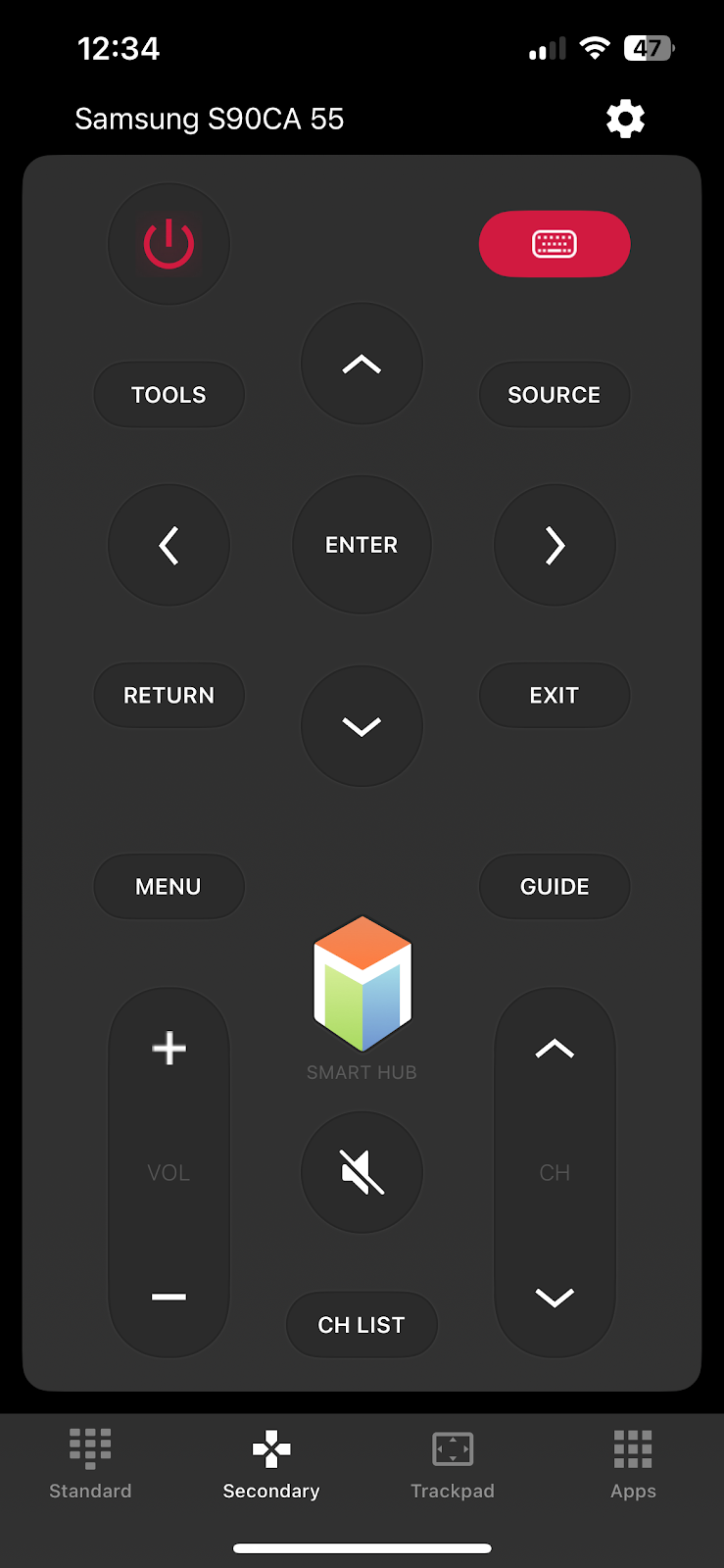
The interface screenshot of the Remote for Samsung TV Plus app

Use External Devices with HDMI-CEC

One sneaky way to turn on Samsung TV without remote is through an external device hooked up to it via HDMI. If you have a device that supports HDMI-CEC, which includes things like current game consoles and streaming devices, then you can already take advantage of this method.
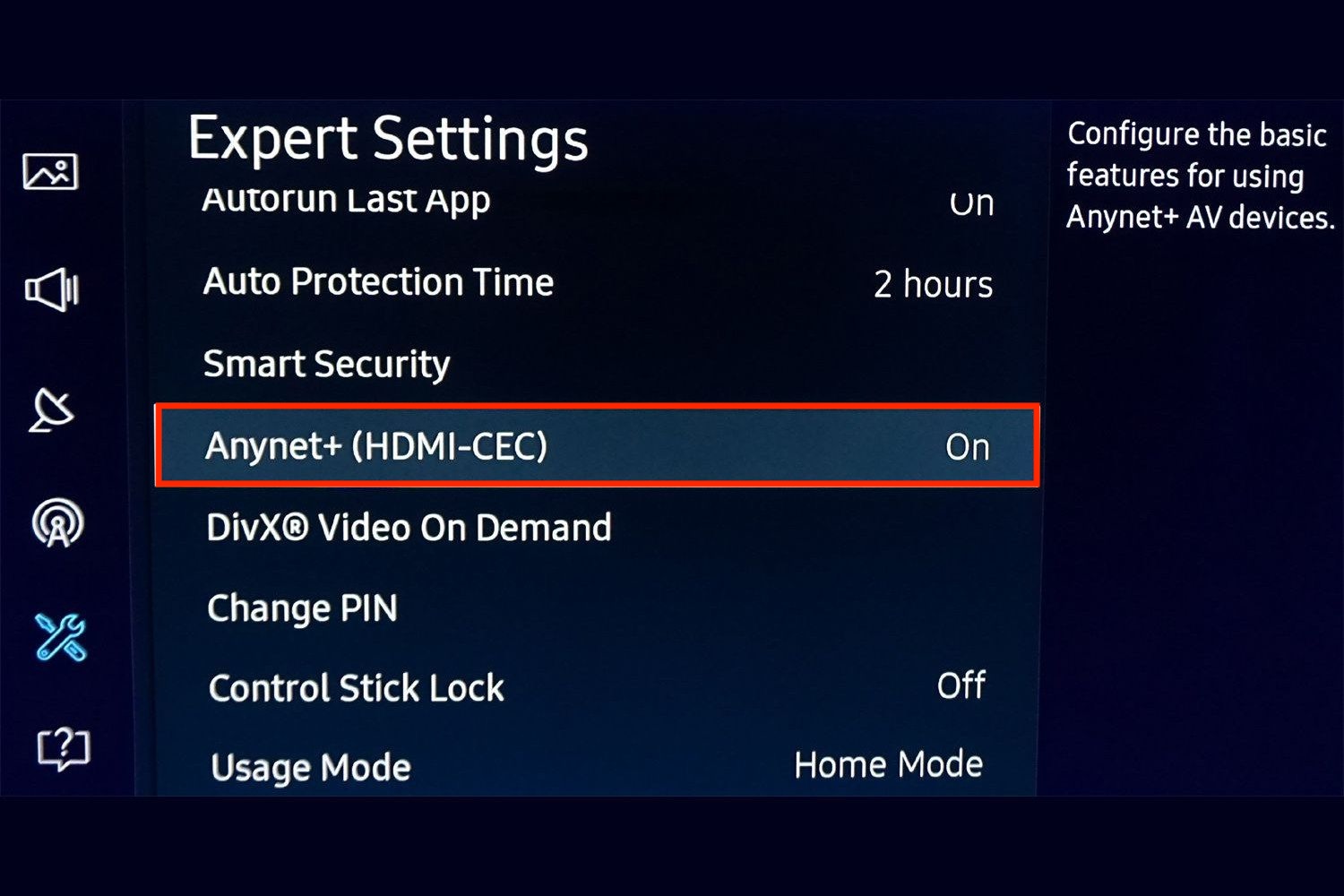
Settings of the Samsung TV with HDMI CEC option

The most common HDMI-CEC-enabled devices you might have include:

  • PlayStation 5
  • PlayStation 4
  • Xbox Series X/S
  • Nintendo Switch
  • Roku
  • Fire Stick
  • Apple TV


By default, most external devices will automatically have HDMI-CEC enabled but you can check that by going to their Settings menu and finding the option in the HDMI, TV & AV, or Remote settings.

Once hooked up, all you need to do is power on your connected device and it will turn on your TV automatically.

Enable Samsung Anynet+ (HDMI-CEC)

Samsung calls its HDMI-CEC feature Anynet+. When it’s enabled, a compatible HDMI-CEC device such as a PlayStation 5 or Xbox Series X|S can turn on the TV when the device is powered on.

To enable Anynet+ on your Samsung TV:

  1. Go to Settings > All Settings.
  2. Select Connection or General & Privacy, depending on your model.
  3. Open External Device Manager.
  4. Select Anynet+ (HDMI-CEC) and turn it on.


Note: The exact menu path varies by model year.

📍 Sources:

https://www.samsung.com/au/support/tv-audio-video/what-is-anynet-plus/

https://www.samsung.com/ae/support/tv-audio-video/how-to-use-anynet-on-your-samsung-tv/

Game Console Step-by-Step Setup

How to Configure Your Console:

  • PlayStation 5: Go to Settings > System > HDMI and turn on Enable HDMI Device Link. Then make sure Enable One-Touch Play is also enabled.
  • Xbox Series X|S: Go to Settings > General > TV & Display Options > Device Control, turn on HDMI-CEC, and enable Console Turns on Other Devices. This allows the Xbox to send a power-on command to the TV.

Conclusion

Losing your remote can feel like the end of the world when you’re sitting down to relax in front of your Samsung TV and can’t even turn it on. Thankfully, there are more than enough simple and free ways to turn on your TV in just a few seconds.

The power button is the fastest option for most, but it’s not always the most convenient. For a more permanent solution, downloading a remote app for your smartphone, like TVRem, will allow you to turn your TV on and control it with ease. TVRem is a free remote control app for iPhone that provides full functionality for your Samsung TV, including turning it on and off, adjusting volume, changing channels, and navigating the menu – all from your phone.

Frequently Asked Questions

The Samsung TV on button can appear in a few different places depending on your model. Most are located under the bottom edge, on the back right corner, or on the front right corner as a touchpad.

Yes, you can turn on your Samsung TV with your phone, but first, you need to set it up. Make sure both your TV and iPhone are connected to the same Wi-Fi network so the app can detect your TV. Once connected, you can use a remote control app for iPhone like TVRem to turn your TV on and off, adjust the volume, change channels, and control your TV directly from your iPhone.

Yes, all Samsung TVs do come with a power button. The location is different depending on what model you have, but you can find one under the bottom, on the back, or as a touchpad on the front.

If your physical remote goes missing, you still have ways to control your Samsung TV. To turn the TV on and off, you can use the Power button directly on the unit. But to change channels, adjust the volume, and control playback, look to full-featured mobile apps. TVRem is a superb free option for its advanced feature set, intuitive design, and ability to control many TV brands and streaming devices.

If you’re unsure how to control Samsung TV without a remote, you can use mobile apps like TVRem, SmartThings, or Remote for Samsung TV Plus. For a full-featured option without ads or in-app purchases, TVRem provides the best experience. You can power your Samsung TV on and off, access quick channels, adjust the volume, and manage playback — all without a physical remote.

First, make sure you’re pressing the correct control, as its location and operation vary by Samsung TV model. Also check whether any protective film is still covering the bottom edge or Samsung logo, as Samsung notes that this can affect the TV’s operation or display. If the TV still doesn’t respond, unplug it from the wall outlet for about 60 seconds, then plug it back in and try again.

📍 Source

Ensure both your smartphone and Samsung TV are connected to the exact same Wi-Fi network. If you recently changed your Wi-Fi password or router, you will need to turn the TV on manually using the physical button to update network settings.

Yes. A basic universal remote that supports Samsung TVs can be a simple replacement for the original remote. The exact setup procedure and codes depend on the remote, but codes such as 10812 or 10060 are used by some universal remote models for Samsung TVs.

You can also use an Android phone with a built-in IR blaster, if you have one. Most Samsung Galaxy and Google Pixel phones don’t include IR transmitters, but they’re still available on many Xiaomi, Redmi, and POCO models. An IR blaster sends commands directly to the TV, so it doesn’t require Wi-Fi or app pairing.