





TVRem
Free Roku Remote App
for iPhone


Use your iPhone
as a Roku remote —
it's easier than
you think
Lost your Roku remote or just tired of hunting for it? TVRem lets you use iPhone as Roku remote in seconds. Connect over Wi-Fi, pick your device from the list, and you're in full control — whether you have a Roku player, a Roku TV, or a TV with Roku built in.

Everything your
Roku remote does,
and more
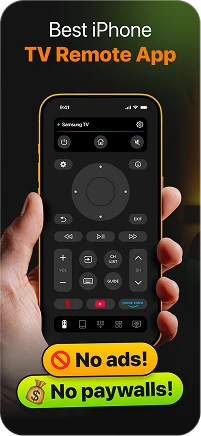
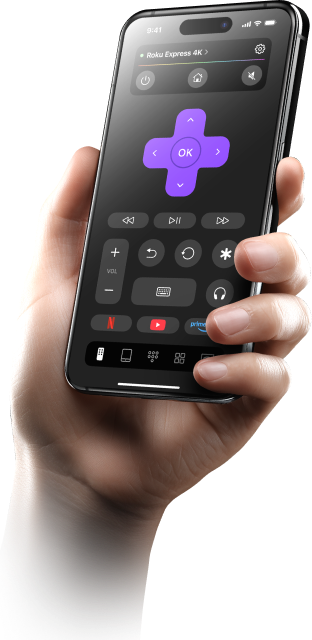
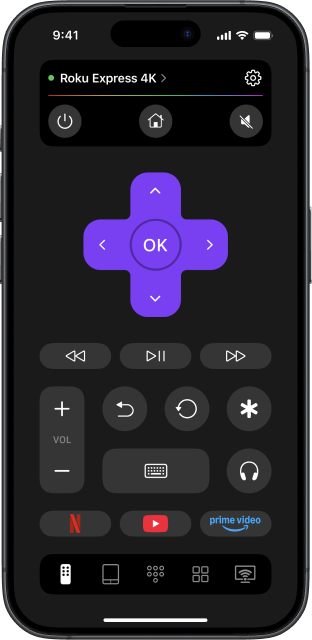
TVRem gives you complete Roku remote control app functionality on your iPhone, including full remote functions and D-pad navigation. Navigate the Roku home screen, browse apps, adjust volume, control playback, and manage your device settings — all without picking up the original remote once.


Voice input —
speak instead
of typing
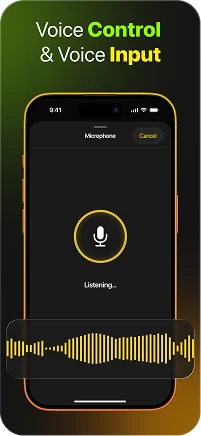
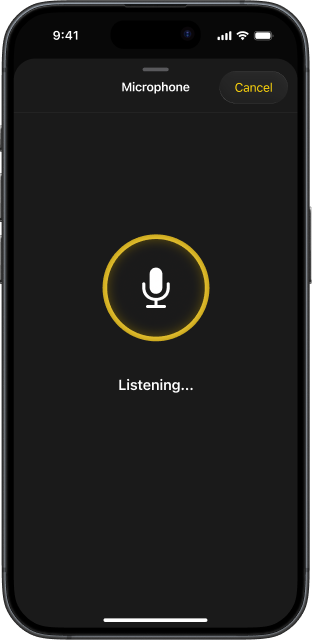
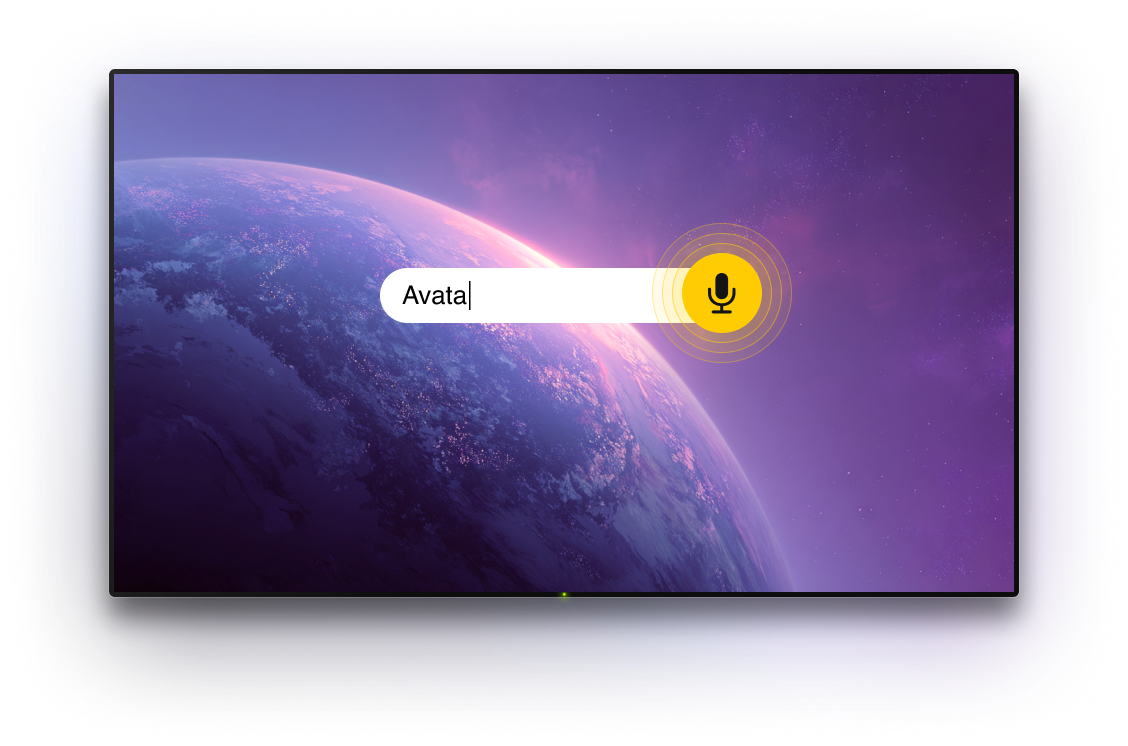
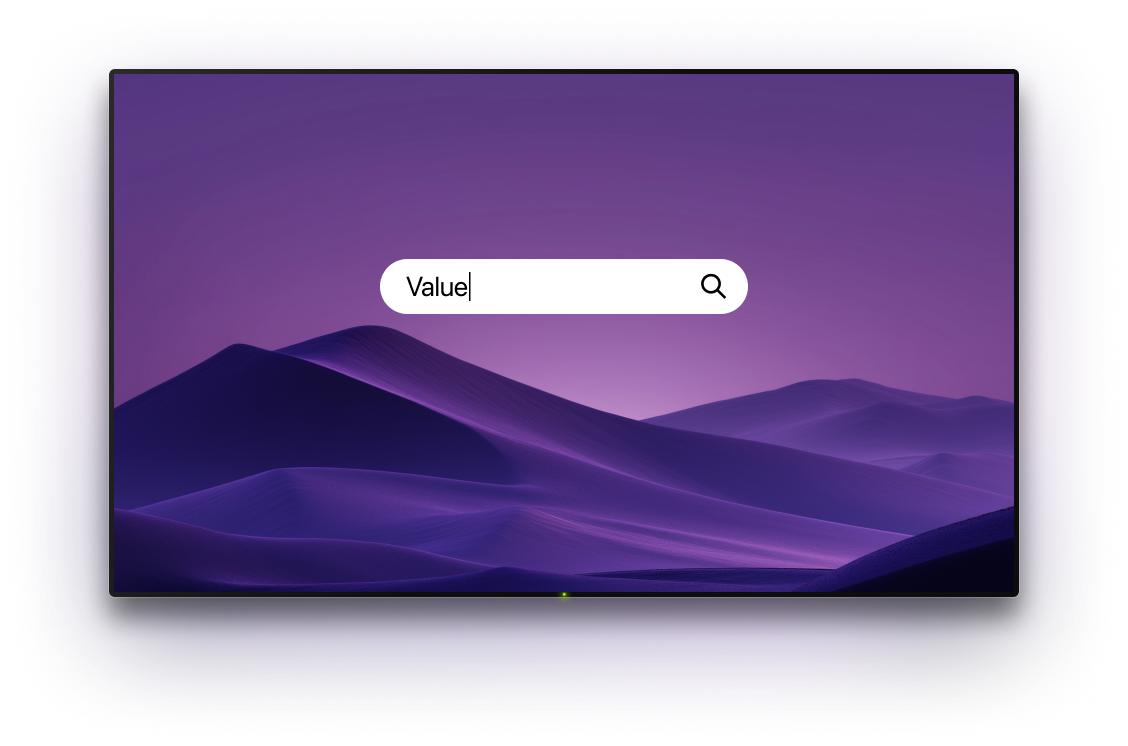
Roku's app grid is great, but searching through it letter by letter is not. With TVRem, avoid the hassle of manual typing on your TV screen. Simply use your iPhone or iPad to speak, and enter text faster and more comfortably.

Type on your Roku
TV with your iPhone
keyboard
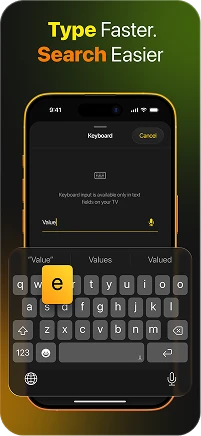
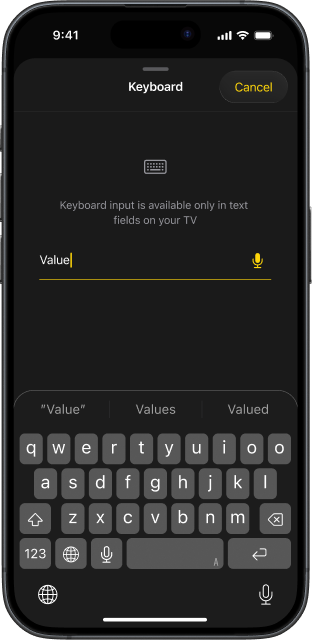
The fastest way to search on Roku is to not use the Roku keyboard at all. TVRem lets you type from your iPhone directly — the text appears on your Roku TV screen instantly. This free Roku remote app for iPhone turns a tedious task into something you barely think about.

Touchpad
navigation
built for Roku's
interface
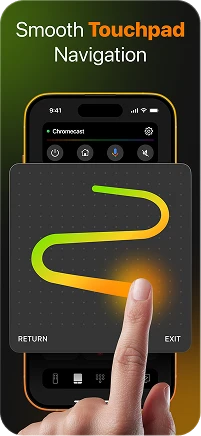
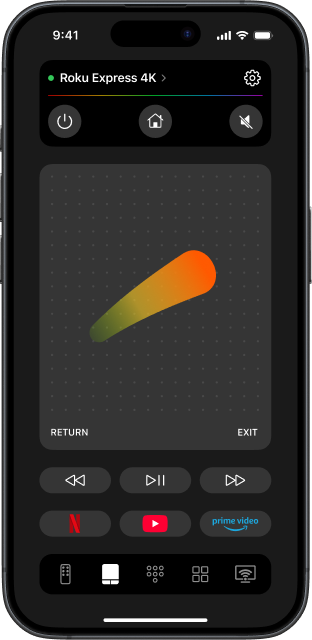
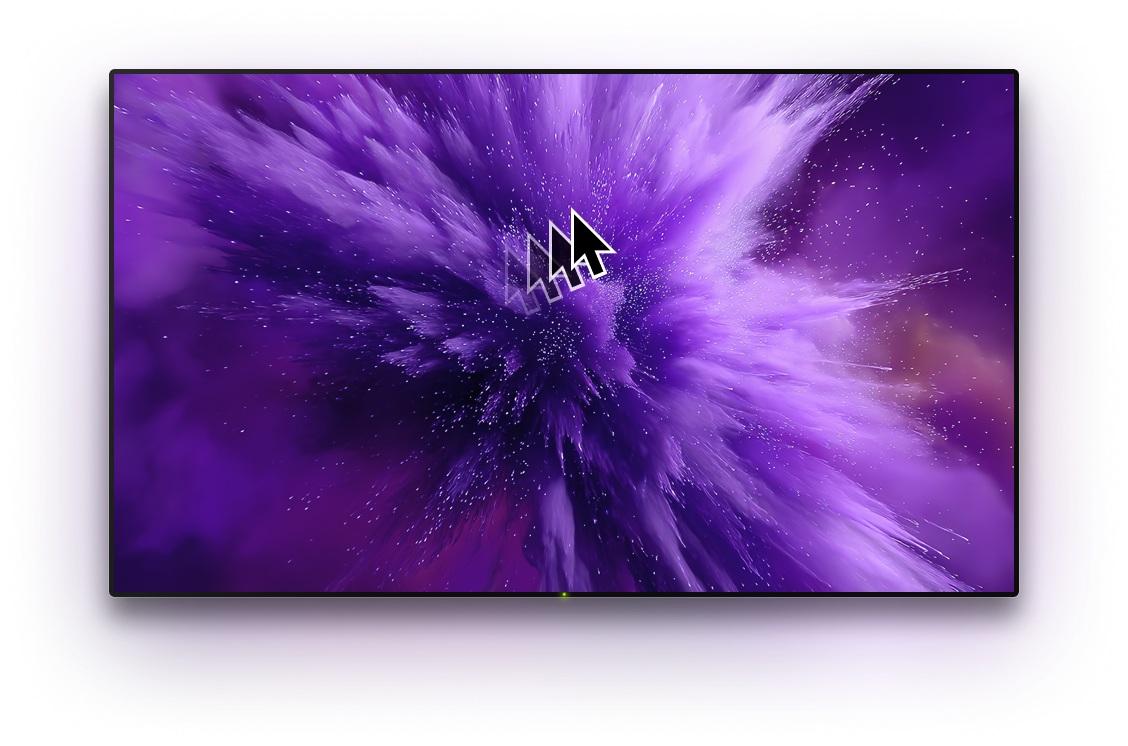
Roku's app grid responds beautifully to swipe gestures. TVRem's touchpad mode maps directly to how Roku works — swipe left and right through rows, swipe up and down through the grid, tap to open. This Roku remote app for iPhone makes browsing feel natural and quick, without a single button press.

Your favourite
apps, one
tap away
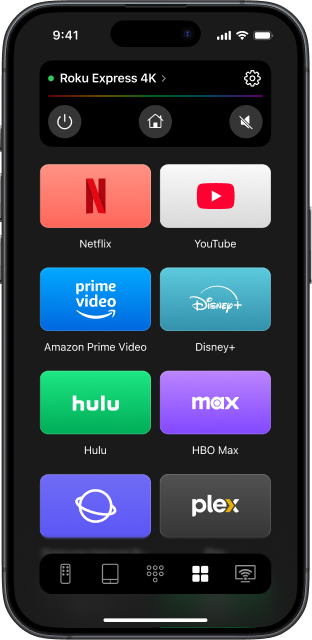
TVRem puts shortcuts to Netflix, YouTube, Disney+, Prime Video, and all your other Roku apps right on your iPhone screen. Skip the home grid entirely and jump straight into what you want to watch.

Works with every
Roku device
— players, TVs,
and built-in
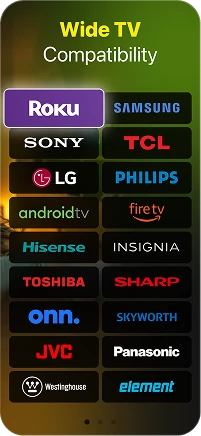
TVRem is a free Roku TV remote app for iPhone that covers the full Roku ecosystem. Roku Express, Roku Streaming Stick, Roku TVs — and any TV brand that ships with Roku built in, including TCL, Hisense, Onn., Philips, Sharp, and more. One app, every Roku device you own.
How to use iPhone
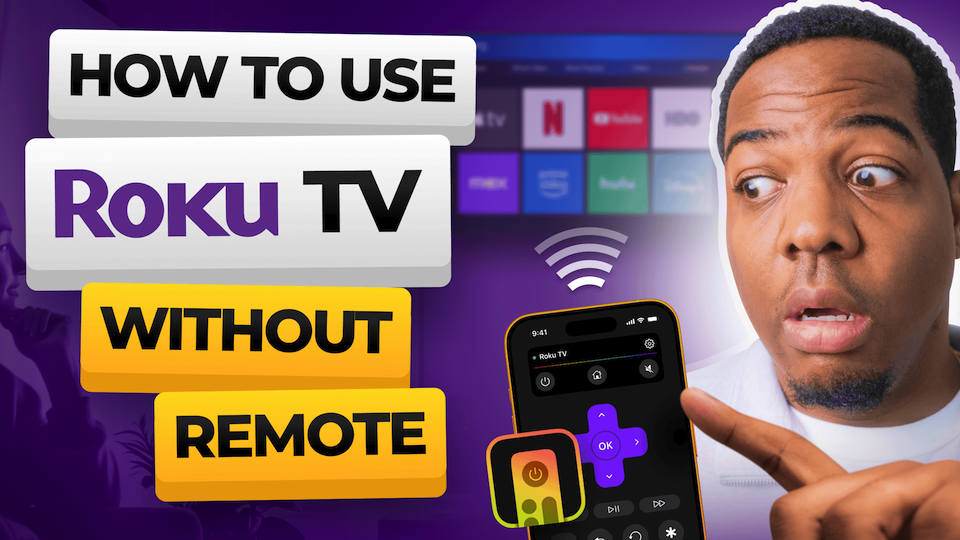
as Roku remote with TVRem
Watch how to connect TVRem to your Roku device and get full control from your iPhone in under a minute.

Works across all major TV platforms
Fully supports Android TV and Google TV devices, including Chromecast streamers. Voice control via Google Assistant is available on compatible models.




Compatible with Fire TV sticks, Amazon Smart TVs, and TVs with Fire TV built in. Manage everything directly from your iPhone.




Works with Roku streaming devices and Roku-powered TVs. Full control without relying on the original remote.




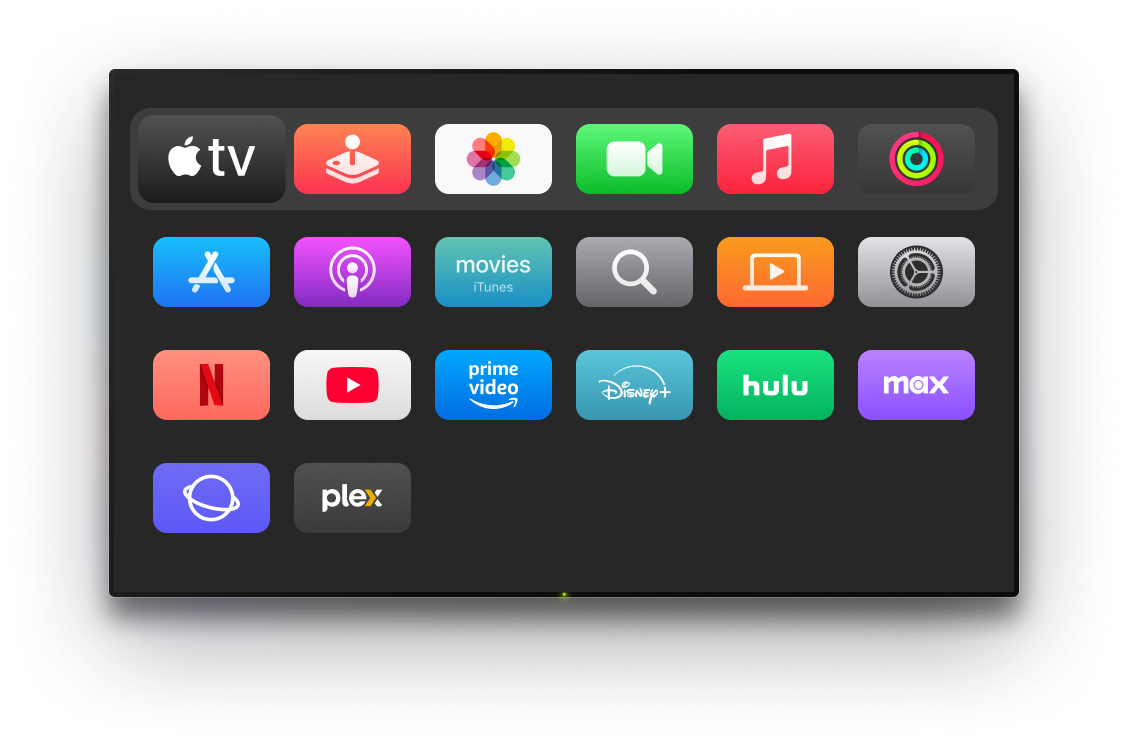
Also supports Samsung and LG Smart TVs with proprietary systems, along with Apple TV devices — including Apple TV 4K, Apple TV HD, and 3rd generation models.




Frequently asked questions
Yes. TVRem can be considered the best free Roku remote app for iPhone, as it works with the full Roku ecosystem — standalone Roku players like the Express and Streaming Stick, dedicated Roku TVs, and any TV brand with Roku built in, including TCL, Hisense, Onn., Philips, and more. It can be used as a Roku remote control app for iPhone for both Roku streaming devices and Roku-powered TVs.
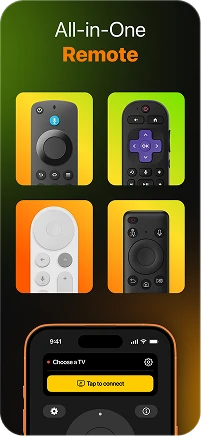
To connect Roku to your iPhone without using the original remote, download TVRem on your iPhone and make sure both your Roku device and iPhone are connected to the same Wi-Fi network. Then open the app, let it scan for available devices, select your Roku from the list, and tap to connect. Once connected, you can use your iPhone as a Roku remote to navigate menus, adjust volume, launch apps, and control playback. If the app needs permission to access your Roku, go to Settings > System > Advanced system settings > Control by mobile apps > Network Access on your Roku and choose Enabled or Permissive.
Yes, TVRem is a completely free TV remote app. No subscription, no trial period, no hidden payments.
No, you don't need to enter any PIN codes to connect TVRem to my Roku. However, make sure to follow all the steps listed in the help guide.
Absolutely. TVRem works with Samsung, LG, Fire TV, Apple TV, Android TV, Google TV, Hisense, and many more.
TVRem remote app works with major Smart TV platforms and streaming devices, including Roku players and Roku TVs, Samsung and LG Smart TVs, Fire TV, Android TV, Google TV, and Chromecast with Google TV. It also supports Apple TV 4K, Apple TV HD, and Apple TV 3rd generation. Compatibility can vary depending on the exact TV model and software version.
You can use the physical power button on your Roku TV, which is usually located on the back, side, or under the bottom center of the screen. Once the TV is on, you can control it from your iPhone with a Roku TV remote control app like TVRem.
The most common reason is that mobile app control is turned off on your Roku. To enable it, go to Settings > System > Advanced system settings > Control by mobile apps > Network access on your Roku and choose Enabled or Permissive. Also make sure your iPhone and Roku TV are connected to the same Wi-Fi network and the same band, preferably 5 GHz if your router supports both. If TVRem still can’t find your Roku, update the app to the latest version, restart your iPhone, unplug the TV for a few seconds, and reboot your router. Some routers also block connections between devices, so check that AP or client isolation is turned off in your router settings.
TVRem for iOS
A Free Universal Remote App to Control Your Smart TV
This iOS application is fully compatible with iOS 17+.
Latest version 1.11
released 16 Nov, 2026