How to Cast Photos from iPhone to Any Smart TV Wirelessly

thumbnail

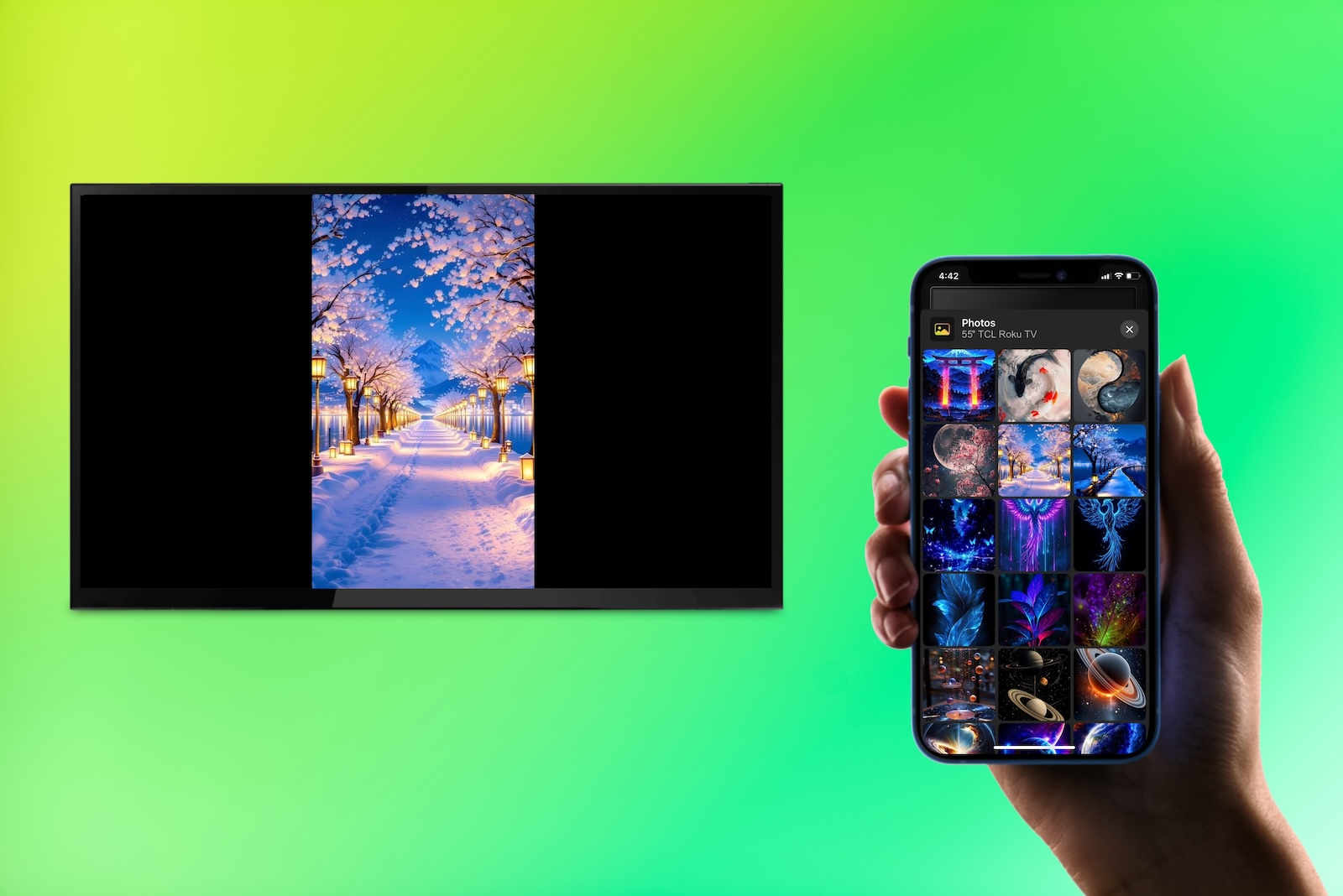
Want to share your iPhone photos on a bigger screen? Whether you’re using a smart TV or Chromecast, there are different ways to cast photos from iPhone to a TV. This guide covers the top wireless methods, so you can pick the one that works best for your setup.

Cast iPhone Photos to Smart TV

There’s no better way to view your vacation, wedding, or special event photos than on a big beautify screen. With wireless technology, you can easily connect your iPhone to your TV and then just sit back and enjoy the show.

How to Show iPhone Photos on TV with Built-In Apps

If you have a smart TV that offers built-in picture apps such as Google Photos, this is a convenient way to stream photos from iPhone. For instance, many brand models from TCL, Hisense, and Sony come with Google TV for casting from Google Photos while other brands like Samsung provide Google Assistant to help cast your photos.

Step-by-step guide

1. To cast pictures from Google Photos, open the app on your iPhone.

2. Do one of the following:

  • Select a picture, tap More (three dots) at the top, and choose Cast.
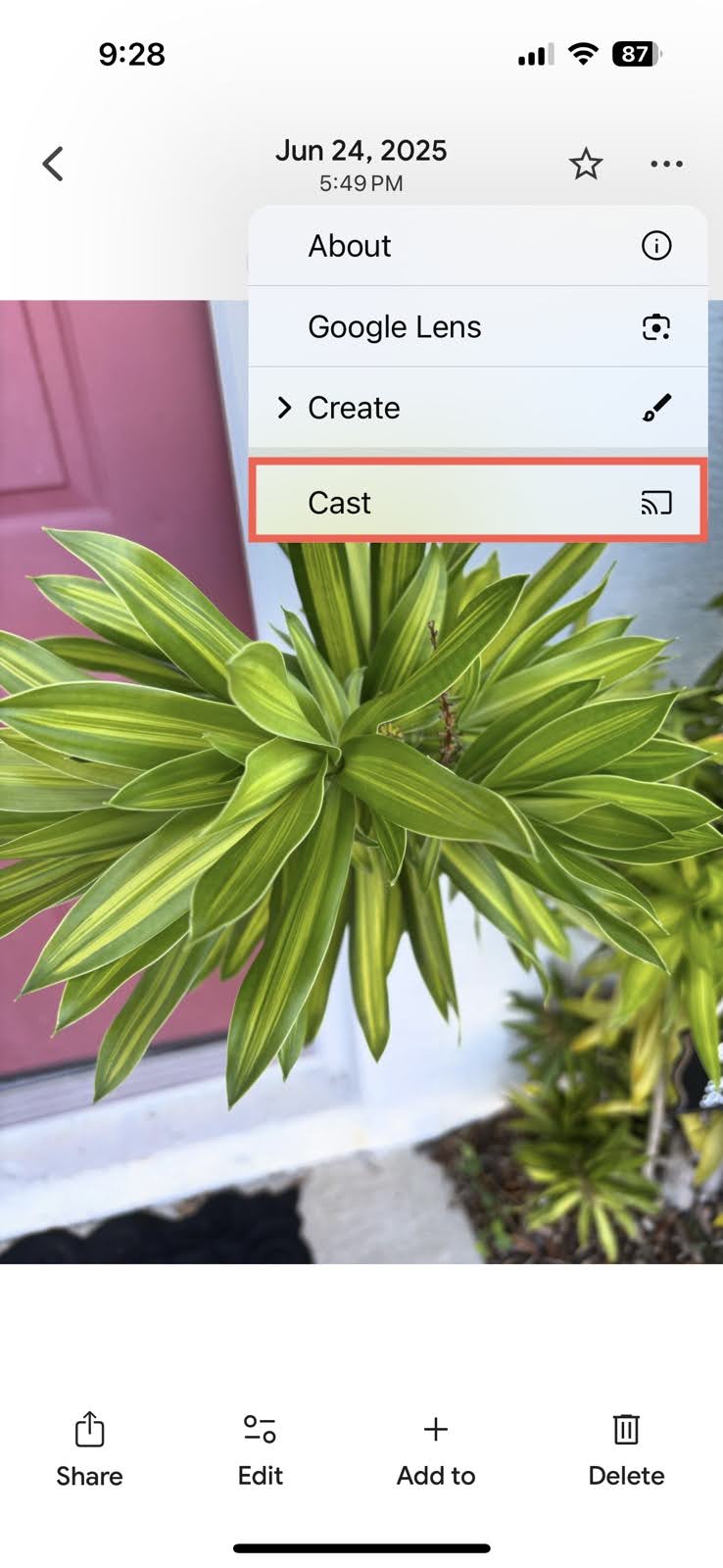
    Tap on the Cast button
  • Select an album and tap the Cast icon at the top.
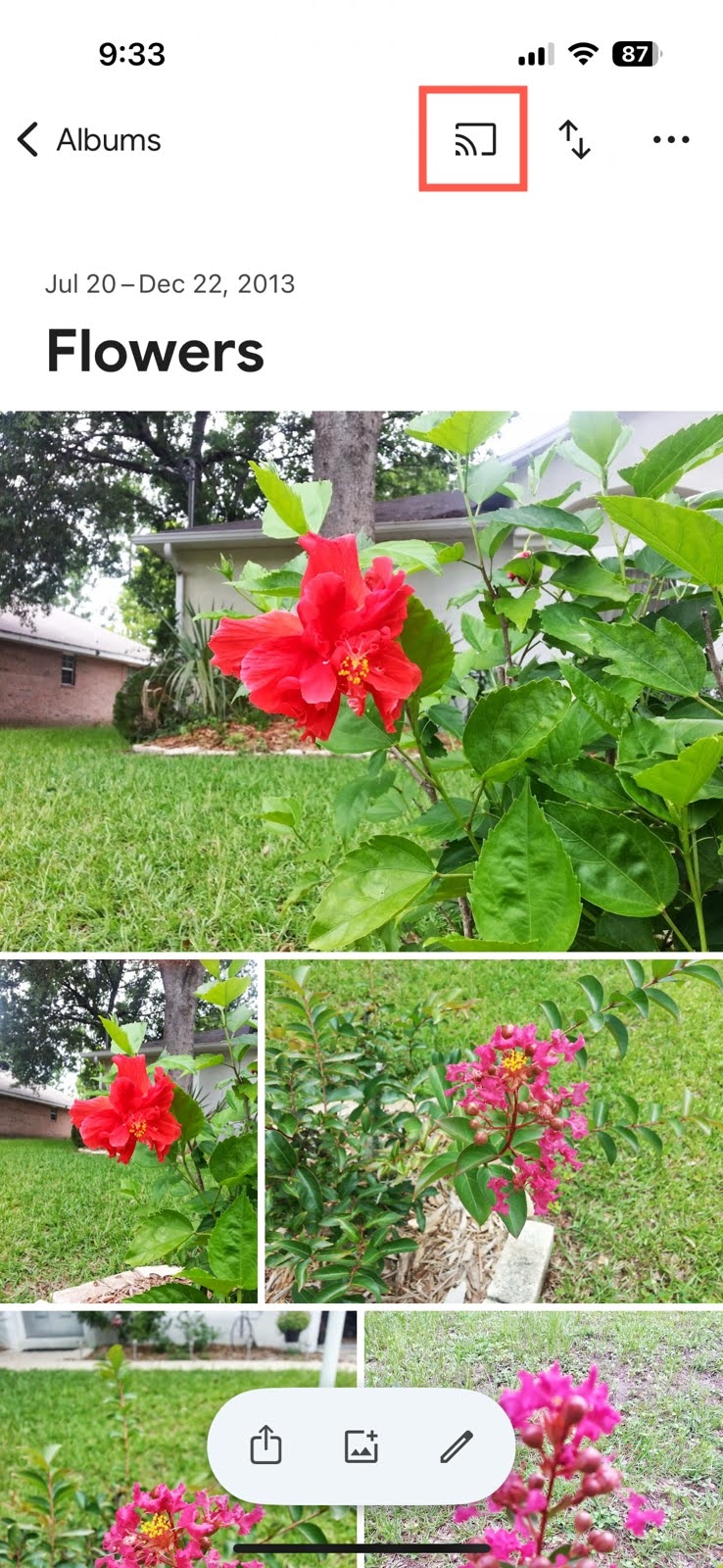
    Tap on the Cast icon

3. Pick your device from the list and you should see your photo or album on the TV.

NOTE: To use the above example and connect an iPhone to Google TV, ensure both devices are on the same Wi-Fi network. Then, use the Google Home and Google TV apps to connect the devices.

How to Show iPhone Photos Using TV Apps

Some TV platforms and manufacturers offer iPhone apps that can display photos on a compatible TV over Wi-Fi. The exact features vary by brand and model.

  • LG ThinQ: On supported LG webOS TVs, open the TV in ThinQ, go to Share, and choose Play Phone’s Photos/Videos/Music on TV to display photos stored on your iPhone.
  • Roku Mobile App: Use Play on Roku to display personal photos and videos stored on your iPhone on a Roku TV or Roku streaming device. 


In most cases, your iPhone and TV need to be connected to the same local Wi-Fi network. Open the corresponding app, connect it to your TV, then select the photo-sharing feature available for your device.

How to Display an iPhone Gallery on TV with AirPlay

Because Apple AirPlay is part of iOS, this is a sensible option for smart TVs that support it like many Samsung, Sony, TCL, and LG models. You can mirror an iPhone screen to a TV wirelessly by making sure your devices are using the same Wi-Fi network and near each other.

Method 1: Screen Mirroring Option

Step-by-step guide

1. Confirm that you have Apple AirPlay enabled in your TV’s settings.

2. Open your iPhone Control Center and tap the Screen Mirroring button (connected rectangles).
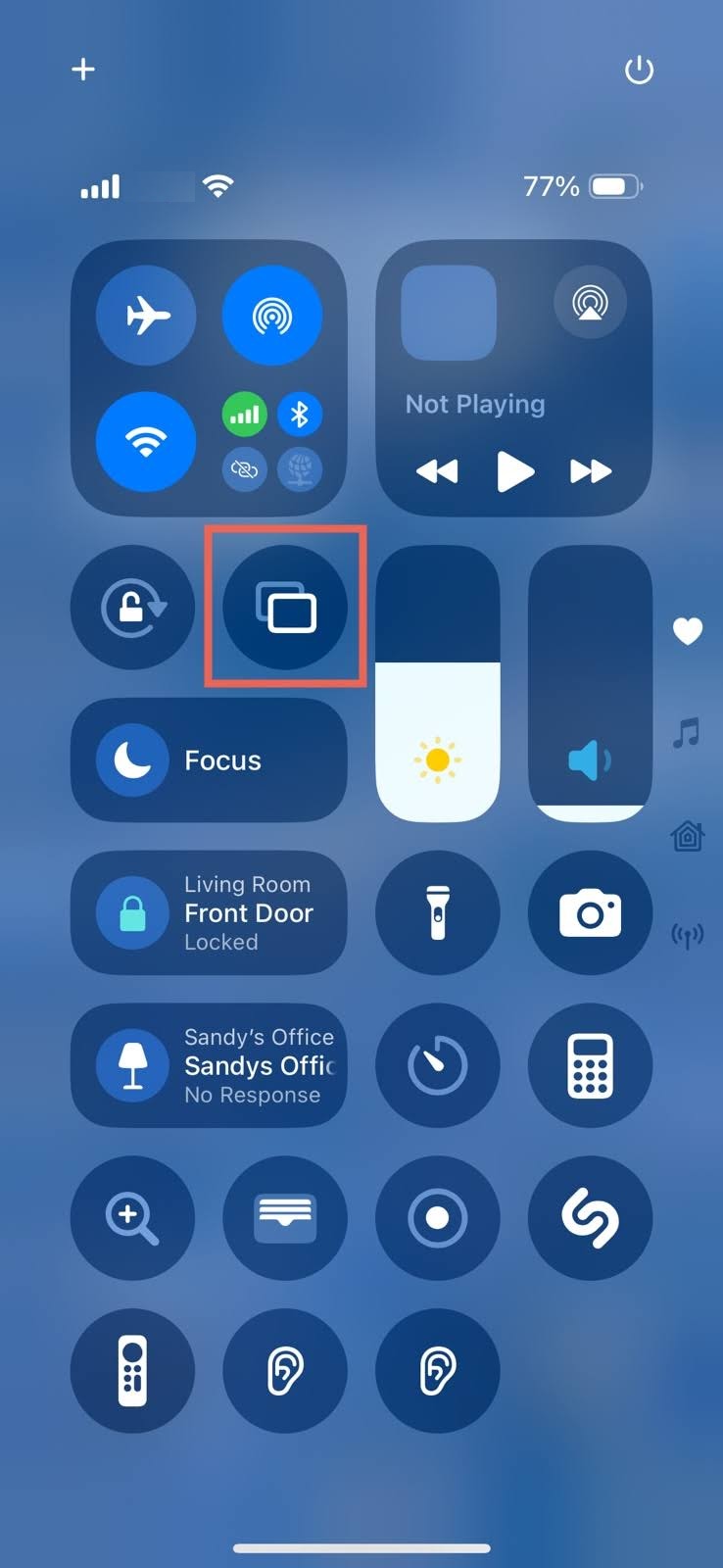
Open the Control Center on iPhone and tap on the Screen Mirroring button

3. Choose your TV from the list of devices.
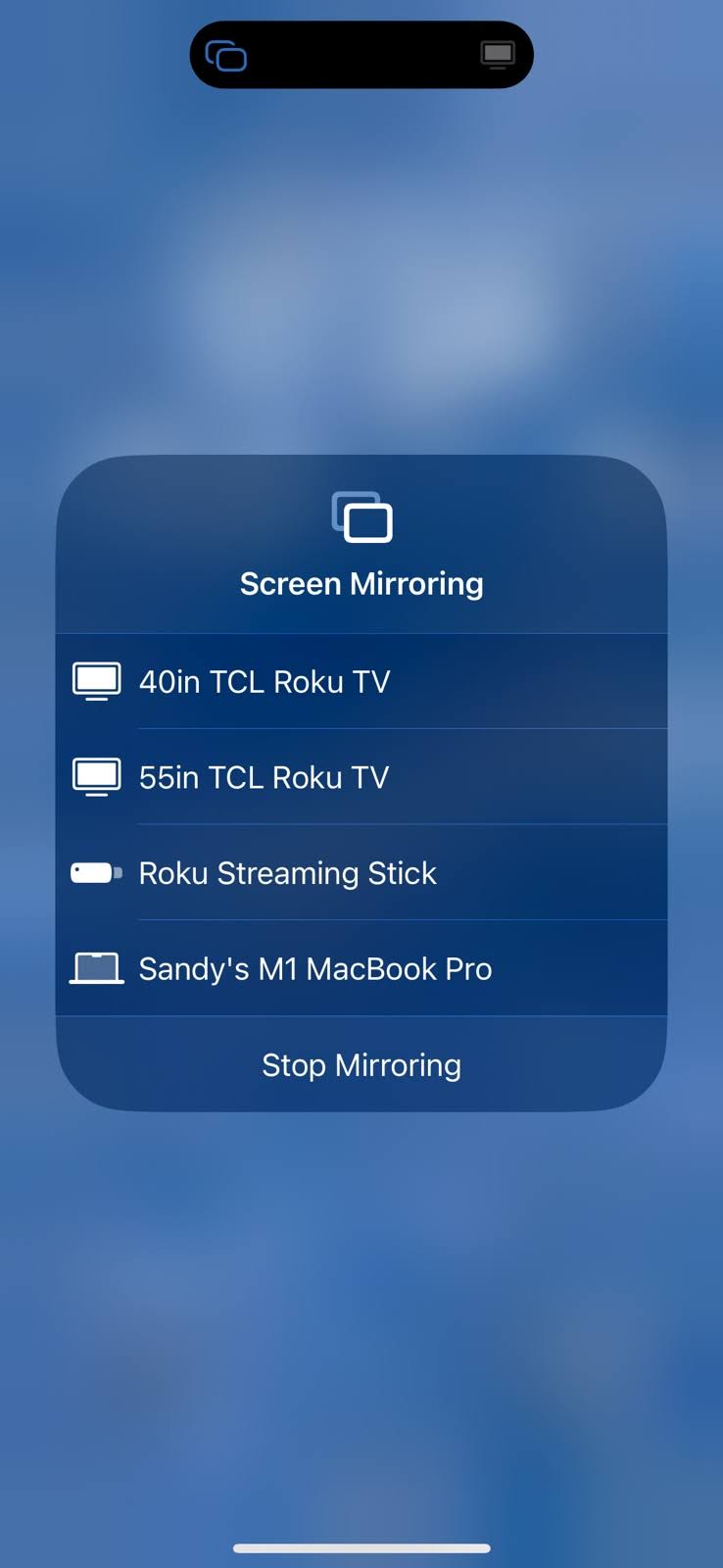
Choose your TV from the list of devices

4. If prompted, enter the provided AirPlay Passcode.

5. Open Photos or another picture app and select a photo, gallery, or album.

NOTE: If you don’t see an AirPlay option in your TV’s settings, check the user manual or look for your brand and model on Apple’s AirPlay-enabled TV list.

Method 2: Stream Photos Directly via AirPlay (Recommended)

If you don’t want to mirror your entire iPhone screen and risk showing personal notifications on the TV, you can stream individual photos directly from the Photos app:
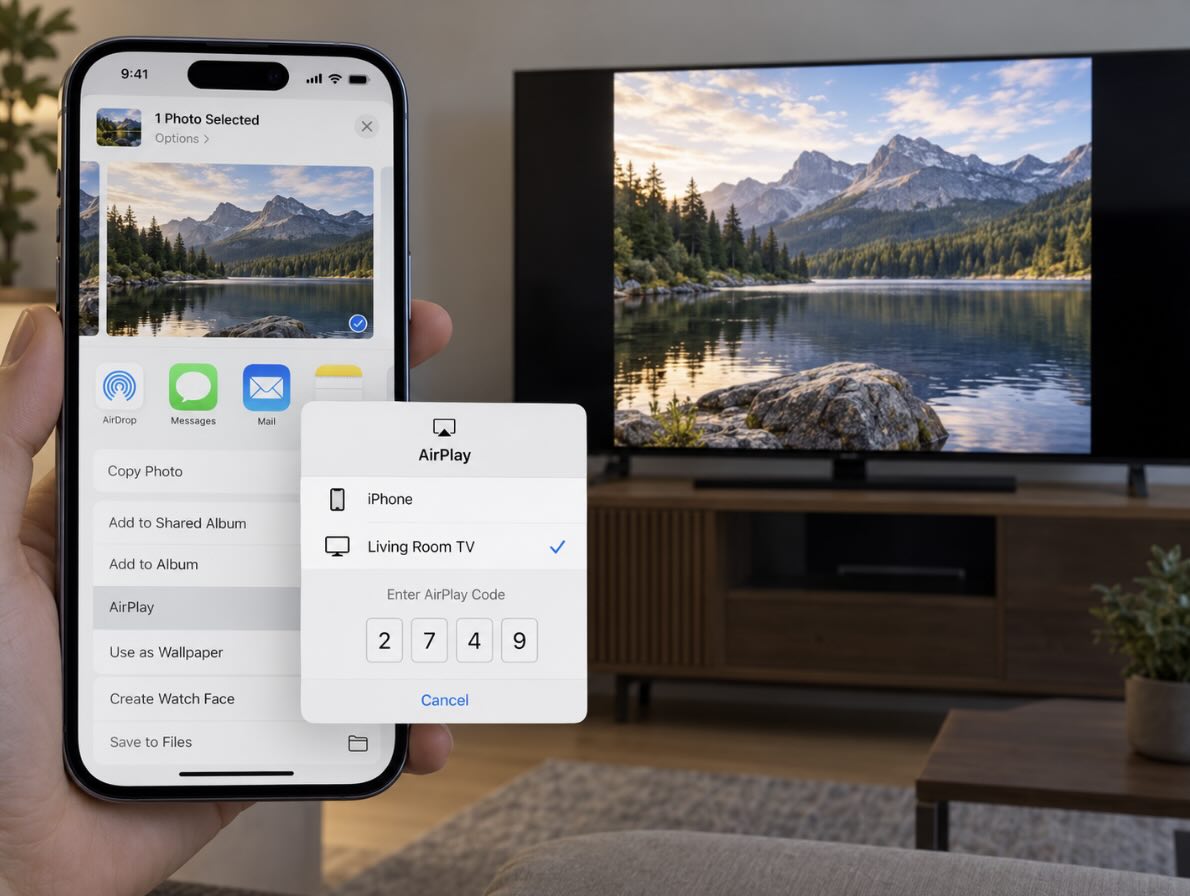
The AirPlay option in the Photos app on the iPhone

Step-by-step guide

1. Make sure your iPhone and your Apple TV or AirPlay 2-compatible smart TV are connected to the same Wi-Fi network.

2. Open the Photos app on your iPhone and select the photo you want to share.
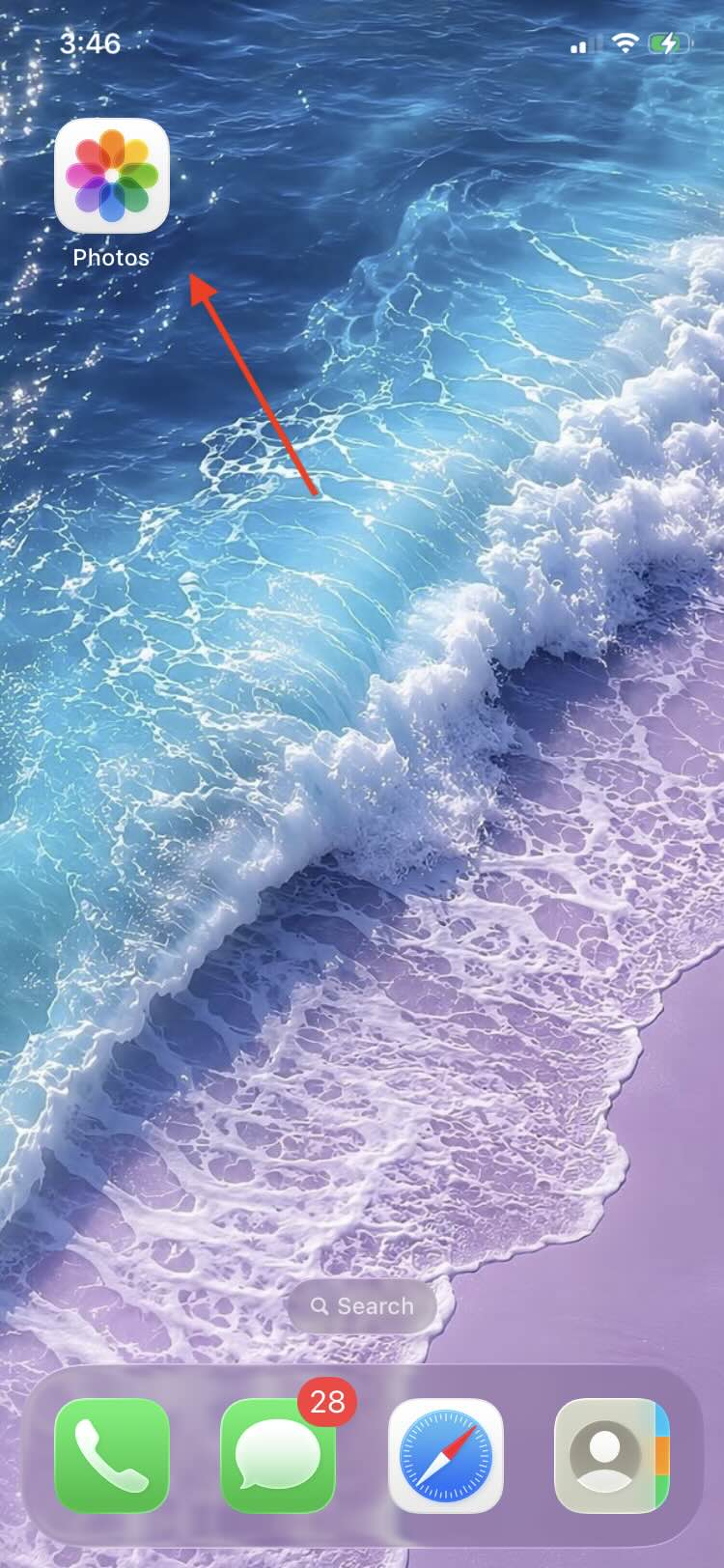
Open the Photos app on the iPhone

3. Tap the Share button.

4. Swipe up if necessary, then tap AirPlay.
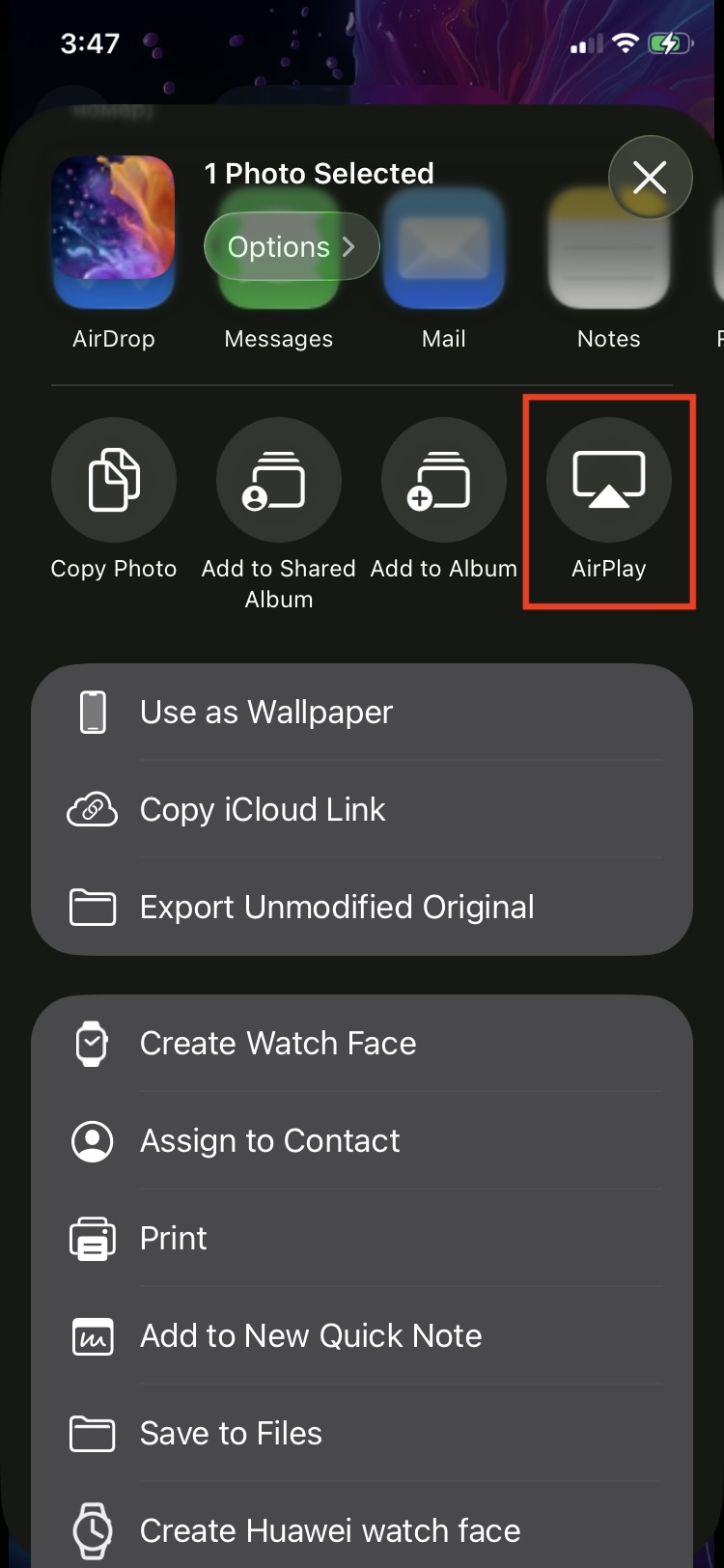
Tap on the AirPlay option in the Photos app on the iPhone

5. Select your Apple TV or AirPlay 2-compatible smart TV from the device list.

6. If an AirPlay code appears on your TV, enter it on your iPhone.

You can continue browsing photos on your iPhone while AirPlay is active. To stop streaming, tap the AirPlay button at the top of the screen, then tap Turn Off AirPlay.

❗️Tip: Unlike Screen Mirroring, AirPlay streams the photo rather than mirroring your entire iPhone screen, so your iPhone interface, status bar, and notifications aren’t displayed on the TV. The photo is shown according to its aspect ratio and the TV’s display settings.

How to Start a Photo Slideshow on Your TV

Want to display a continuous slideshow of your vacation or family photos? You can create one in the Photos app and stream it to an AirPlay-compatible TV:
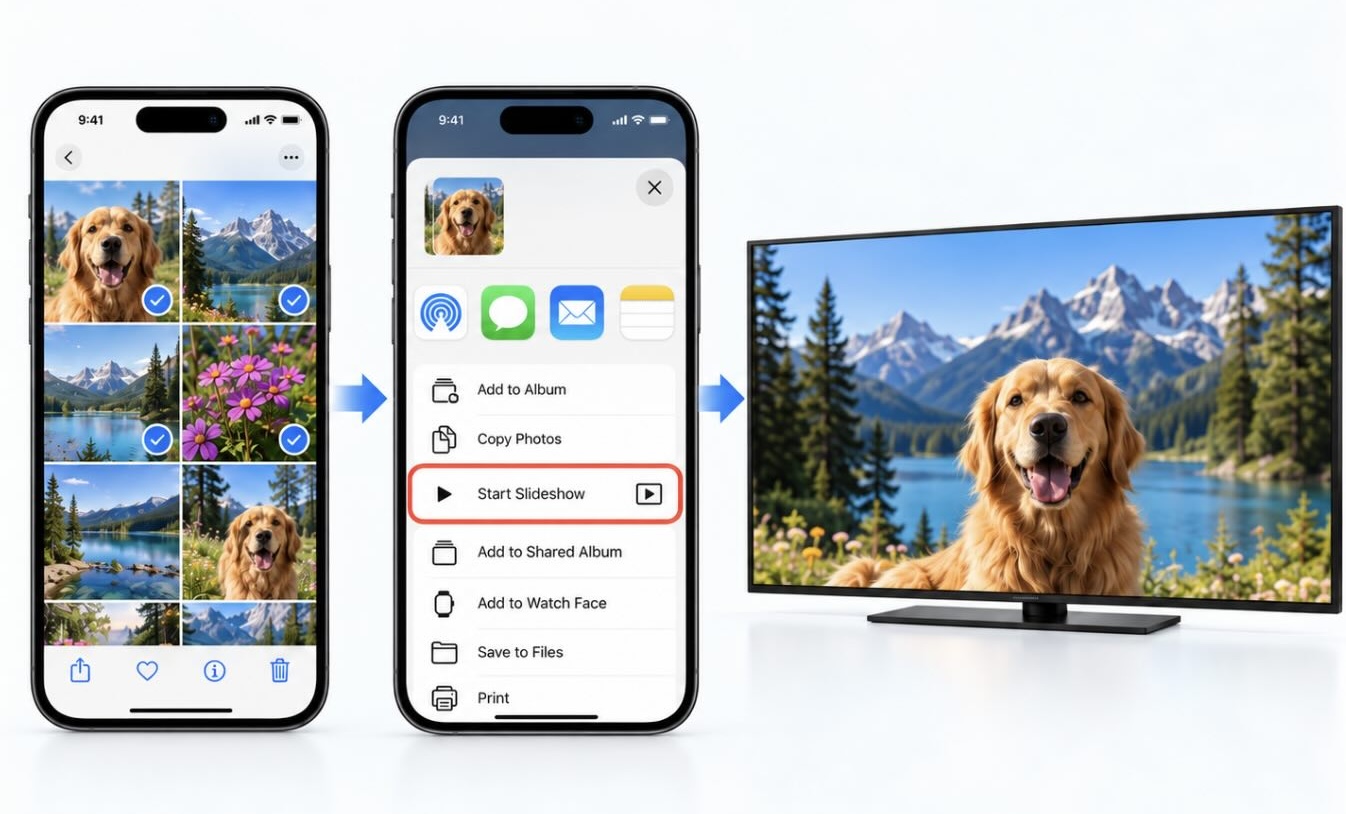
The Photo Slideshow option in the Photos app on the iPhone

Step-by-step guide

1. Open the Photos app on your iPhone.

Open the Photos app on the iPhone

2. To use selected photos, go to Library, tap Select, and choose the photos you want to include. You can also open an album in Collections to create a slideshow from its photos.

3. Tap the More (…) button, then select Start Slideshow (on iOS 26, this option is called Play as Slideshow).
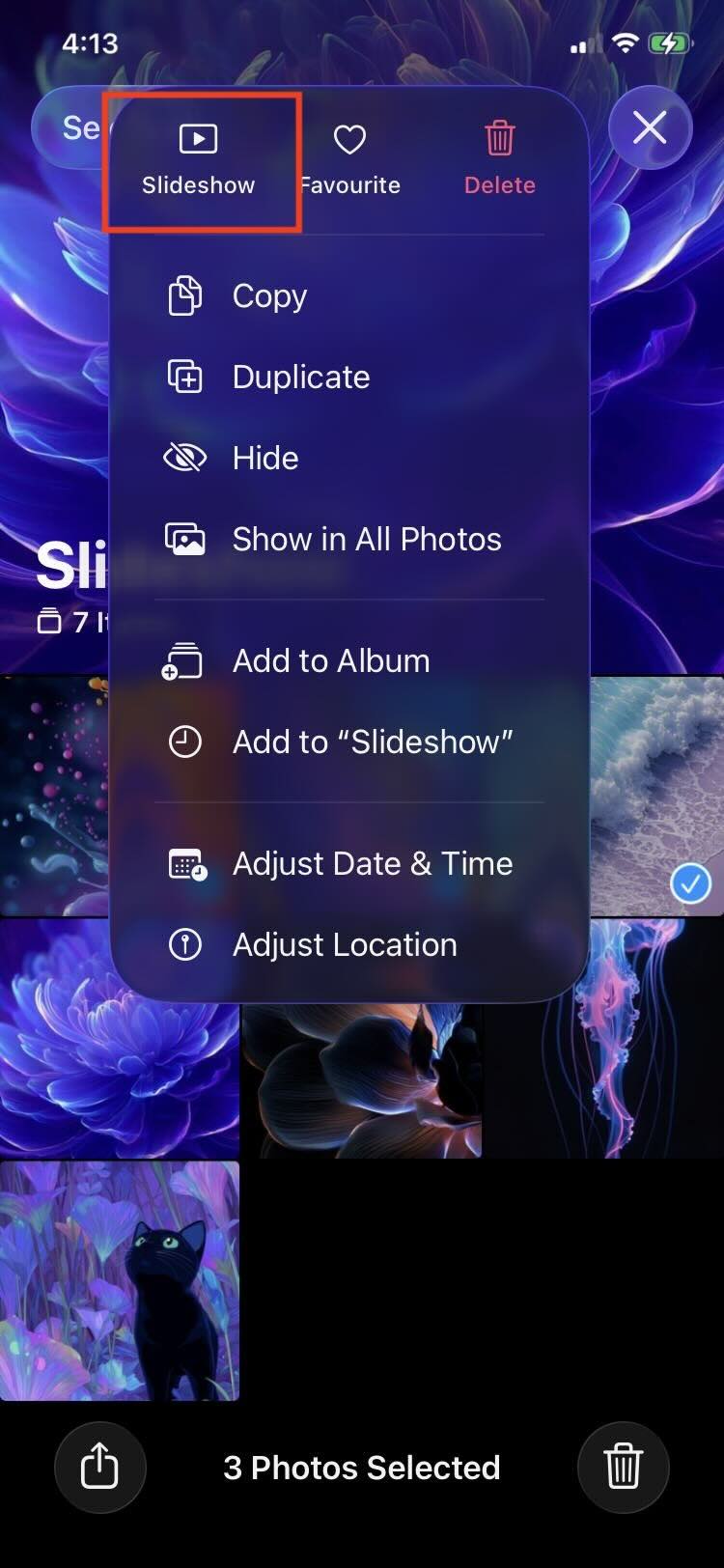
Tap on the Slideshow option in the Photos app on the iPhone

4. While the slideshow is playing, tap the screen and select Customize to adjust the transition, duration, music, or enable looping.

5. To play the slideshow on your TV, tap the screen, then tap More (…) → AirPlay and select your Apple TV or AirPlay 2-compatible smart TV.

How to Use iPhone Photo Casting Apps

One more way to show iPhone photos on a smart TV is using third-party apps. DoCast is a superb option allowing you to wirelessly mirror your screen or cast pictures, videos, and music in just a few taps. This is an ideal solution if your TV doesn’t offer a built-in feature or to cast iPhone to TV without AirPlay or a Google account.

DoCast QR code

Video guide
How to Cast Photos from iPhone to TV using DoCast (For Chromecast-enabled devices)
Step-by-step guide

1. Install DoCast on your iPhone from the App Store.
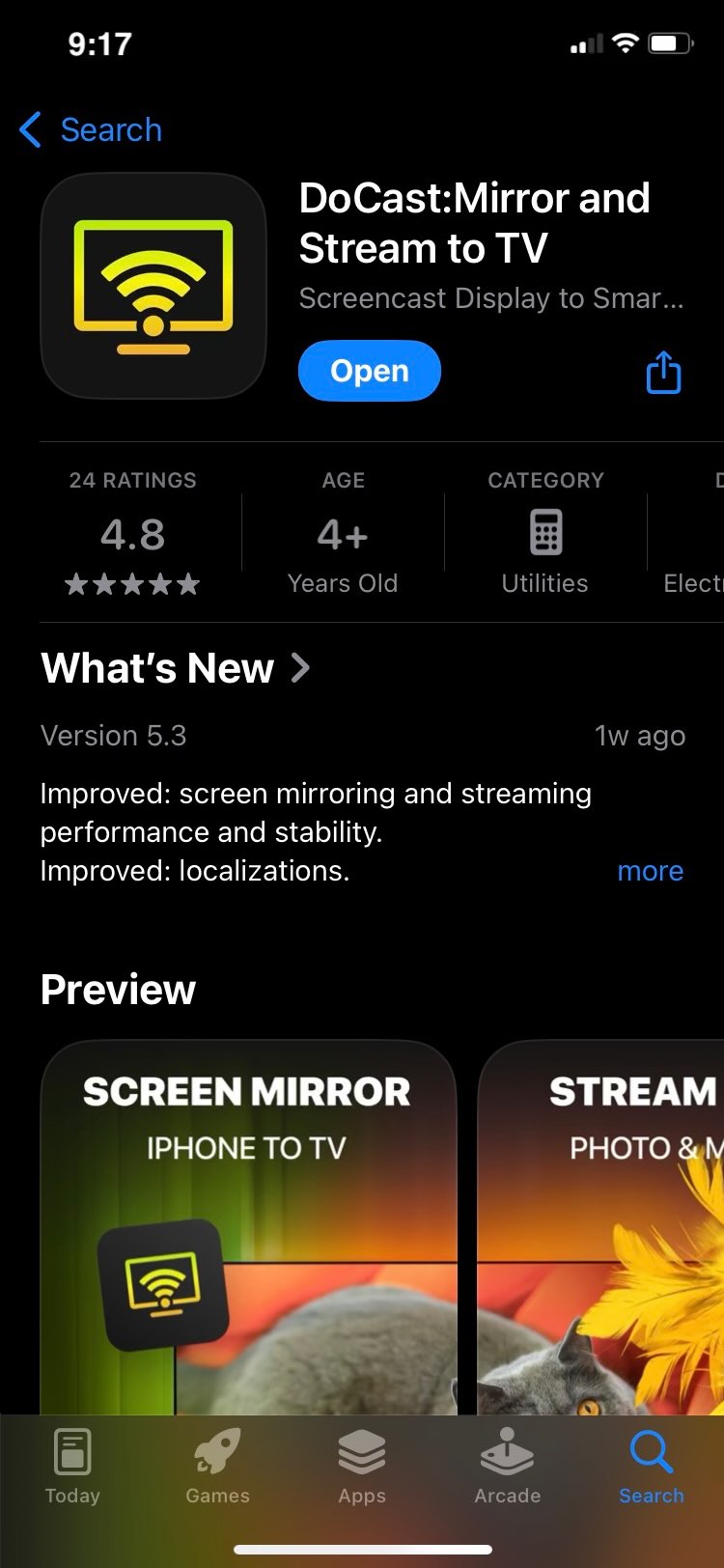
Download DoCast from the App Store

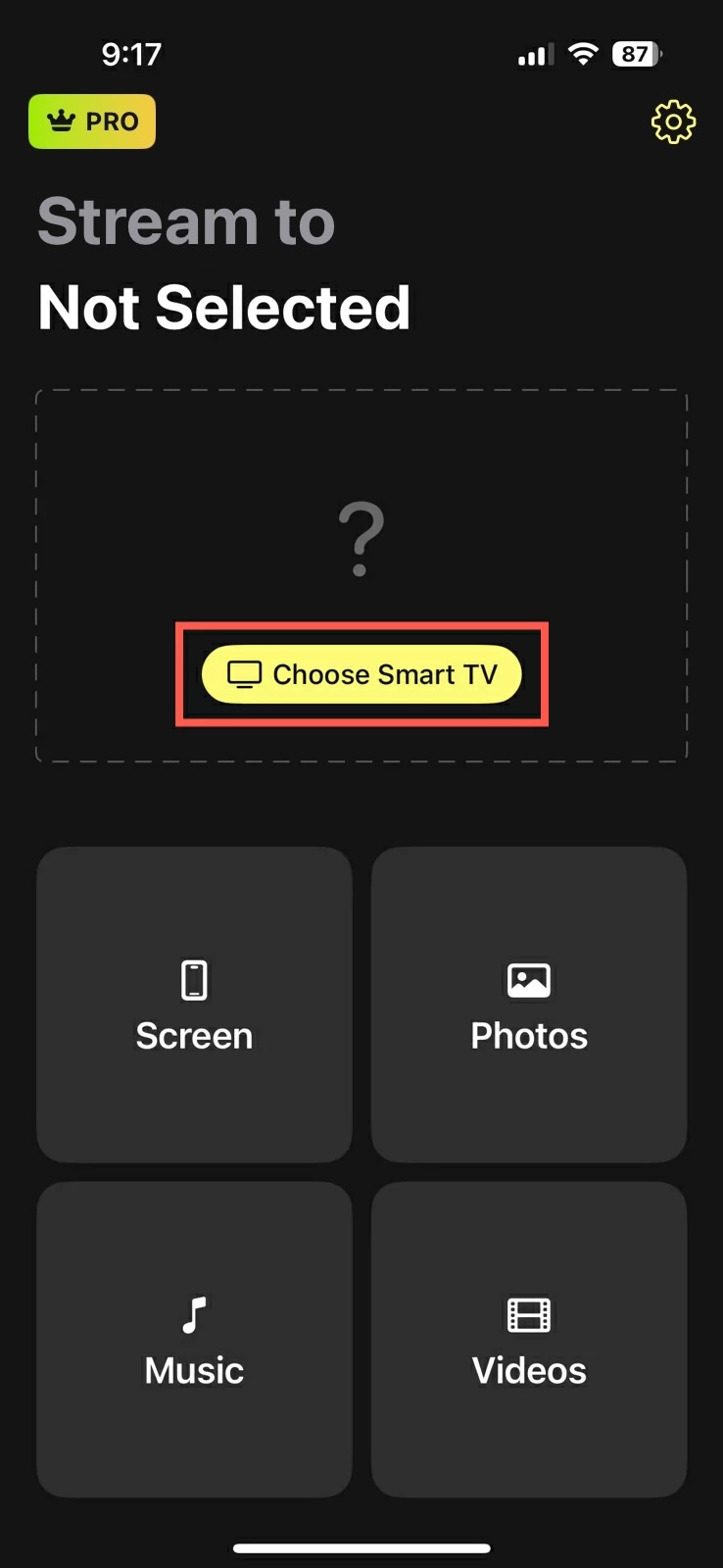
2. Tap Choose Smart TV.

Tap on the Choose Smart TV button

3. Select your TV from the device list and tap Done.
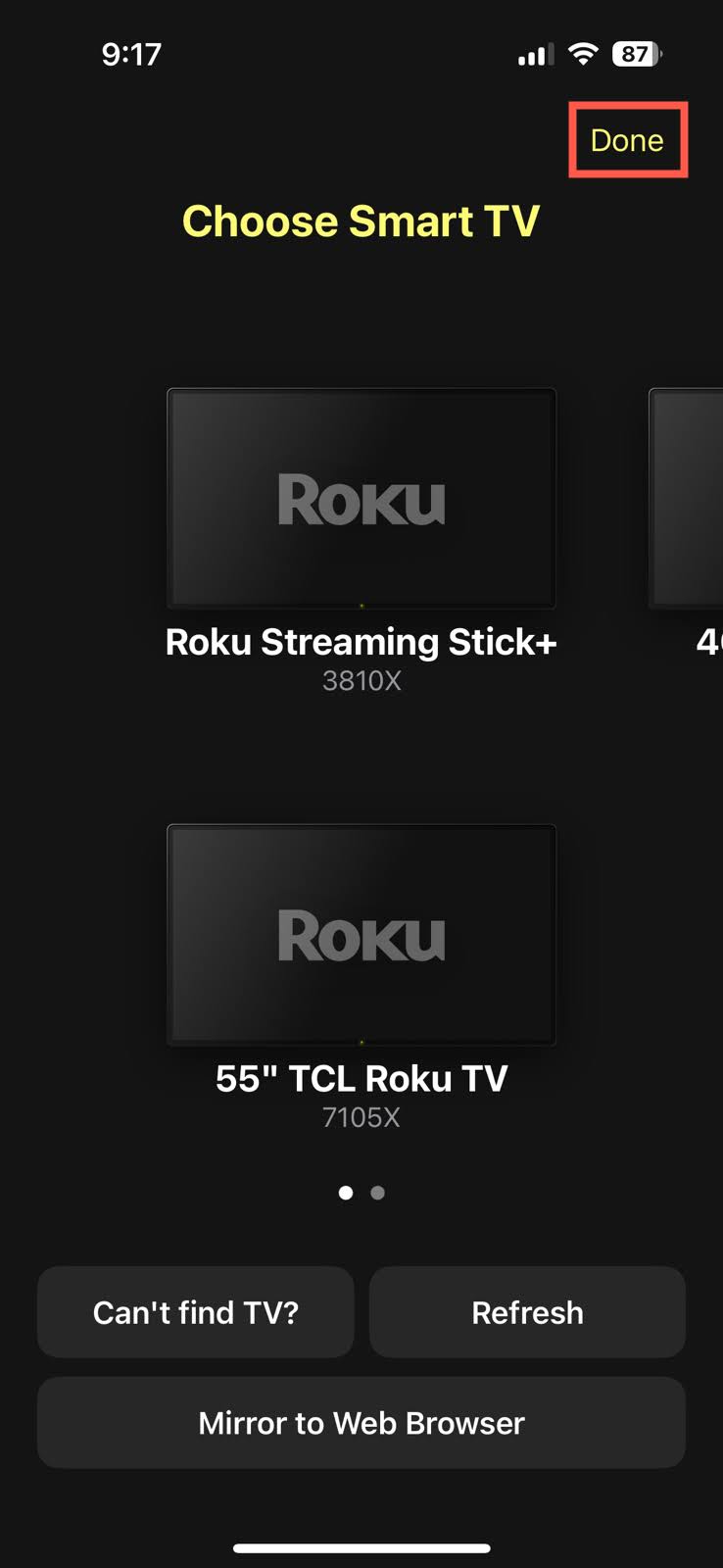
Select your TV device in DoCast

4. Once connected, pick Photos and locate the picture you want to cast.
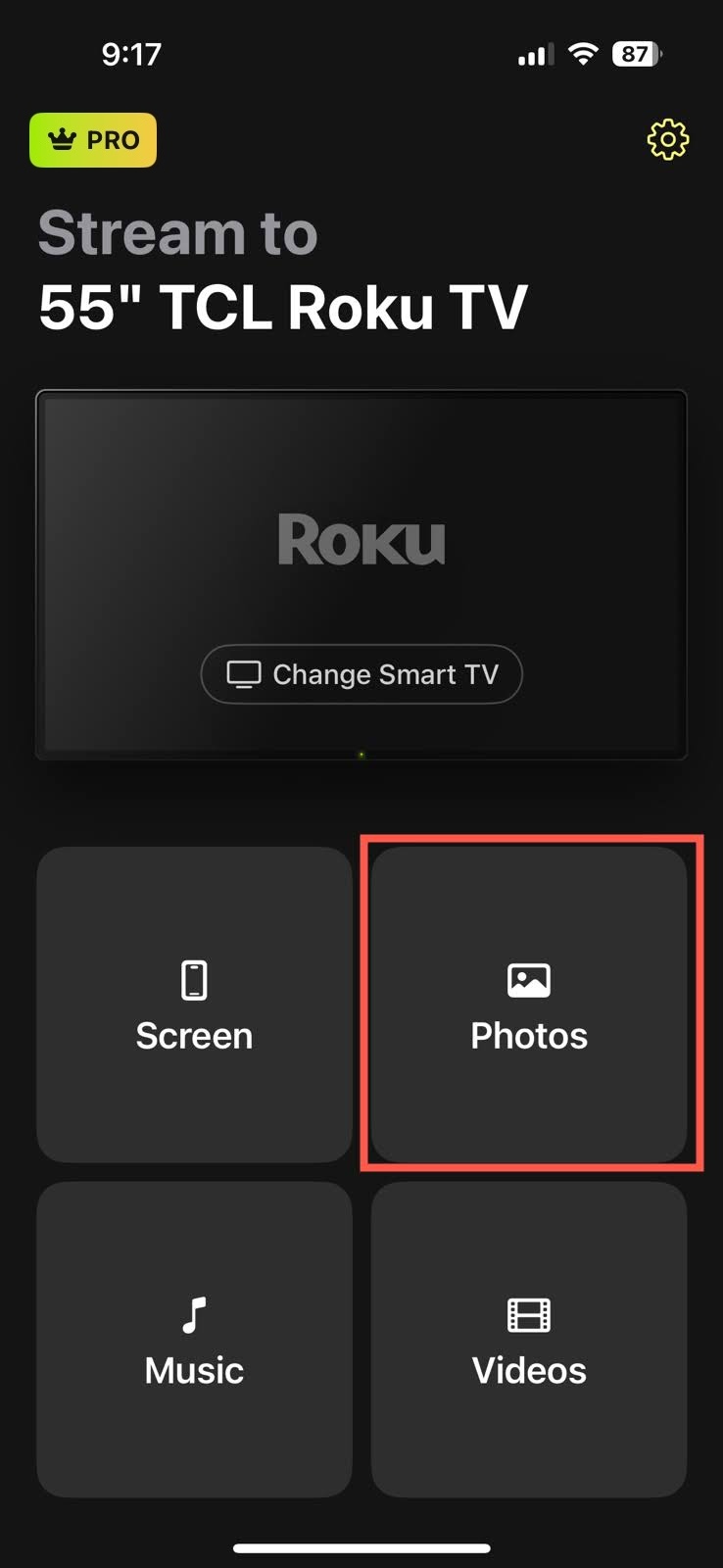
Tap on the Photos button in DoCast

DoCast is available for iPhone and iPad, works with major TV brands and DLNA-enabled devices, and allows you to cast media for free, with an affordable upgrade for screen mirroring. The app provides low latency and a high-quality picture with adjustable settings.

Notes: If you’re looking for a simple remote solution, TVRem is the free TV remote app for iPhone or iPad that’s easy to set up and works reliably.

Troubleshooting Common Photo Streaming Issues

If your iPhone won’t connect to your smart TV or photo streaming freezes, try these quick fixes:

  • ✔️ Check the Wi-Fi network: Make sure your iPhone and TV are connected to the same local Wi-Fi network. They don’t necessarily need to use the same frequency band; for example, one device can be on 2.4 GHz and the other on 5 GHz as long as your router allows devices on both bands to communicate.
  • ✔️ Avoid guest or isolated networks: Hotel, public, and guest Wi-Fi networks may use client or AP isolation, which prevents connected devices from communicating with each other. If your TV can’t be discovered, connect both devices to a regular local Wi-Fi network that allows device-to-device communication.
  • ✔️ Check your TV’s AirPlay settings: Make sure AirPlay is enabled on your TV. Also check any available AirPlay access or security settings to make sure your iPhone is allowed to connect. On Apple TV, for example, access can be limited to devices on the same network or to people sharing the same Home.
  • ✔️ Restart and update your devices: Restart your iPhone, TV, and router, then check for software updates. This can resolve connection drops, discovery problems, and frozen streams.
  • ✔️ Check photo format compatibility: If you’re using a third-party streaming app or a USB drive instead of AirPlay, some older TVs may not support HEIC images. In that case, convert the photo to JPEG first. To capture future photos in a more widely supported format, go to Settings > Camera > Formats > Most Compatible on your iPhone.

Conclusion

Now that you know how to connect iPhone to a TV wirelessly and cast your photos, you can begin enjoying your pictures at family events or friendly get-togethers.

Built-in apps like Google Photos are convenient, but some apps may be limited in their casting abilities, and using your TV’s companion app is an obvious choice, but performance of those tools can vary by brand. Because AirPlay is built into iOS, this is another great option but only if your TV supports it.

For the all-around best photo casting option, without the above-mentioned limitations, tools like DoCast have you covered. The app works with major TV brands, provides low latency, offers screen mirroring, and lets you cast photos, videos, and music in just a few steps.

Frequently Asked Questions

Yes. If you don’t have a Wi-Fi network, you can connect your iPhone directly to the TV with an HDMI cable and a compatible adapter. The required setup depends on your iPhone model:

  • For USB-C iPhones with video output: Use a USB-C to HDMI adapter (such as Apple’s USB-C Digital AV Multiport Adapter) or a compatible USB-C to HDMI cable. This includes iPhone 15 models, iPhone 16 models (except iPhone 16e), and iPhone 17, iPhone 17 Pro, and iPhone 17 Pro Max. iPhone 16e, iPhone 17e, and iPhone Air don’t support wired video output.
  • For Lightning iPhones: Use an Apple Lightning Digital AV Adapter and an HDMI cable. This setup supports video output up to 1080p.


Connect your iPhone to the adapter or cable, connect it to the TV’s HDMI port, then switch the TV to the corresponding HDMI input. No Wi-Fi or internet connection is required for this wired setup.

You can Chromecast photos from iPhone but not natively. The best option is to use a third-party app like DoCast which provides a smooth experience for casting photos and videos to your Chromecast-connected TV.

Currently, Chromecast doesn’t support AirPlay or connecting to iPhone without a third-party tool. You can connect the devices using Google Home and then use a cast-enabled app like Google Photos or check out screen mirroring and casting apps like DoCast that provide a seamless connection.

One of the top mirroring and casting apps for iPhone is DoCast. With it, you can easily connect to your TV and then cast photos, videos, and music. You can also look into the mirroring feature to see everything from your iPhone on the big screen.

Yes, but playback depends on the TV and app. With AirPlay, a Live Photo may appear as a still image or play its motion component. Chromecast and third-party apps may also show it as a still image unless they specifically support Live Photos.

For reliable playback, convert the Live Photo to a video first: open it in Photos, tap More (…) → Save as Video, then stream the video to your TV.