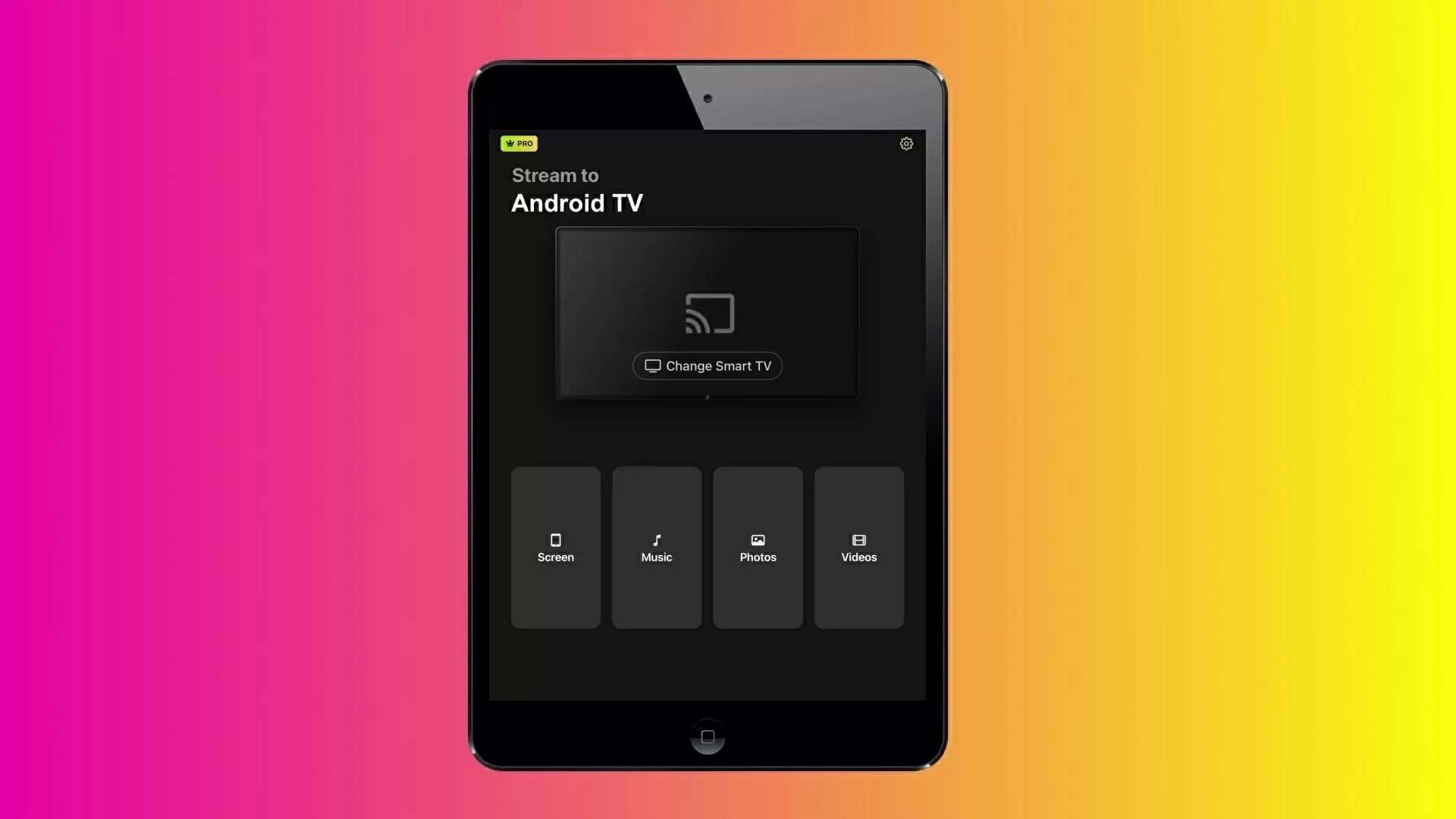
How to Mirror iPad to Chromecast (Step-by-Step Guide)

Looking for a hassle-free way to mirror your iPad to Chromecast? Since Apple’s AirPlay doesn’t support Google TV natively, finding an app that actually works without endless ads can be a headache.
We tested the top mirroring solutions for you to pinpoint which ones offer smooth performance, minimal lag, and fair free trials. Here is your quick, no-nonsense guide to the 6 best working methods.
Screen Mirroring vs. Native App Casting: What’s the Difference?
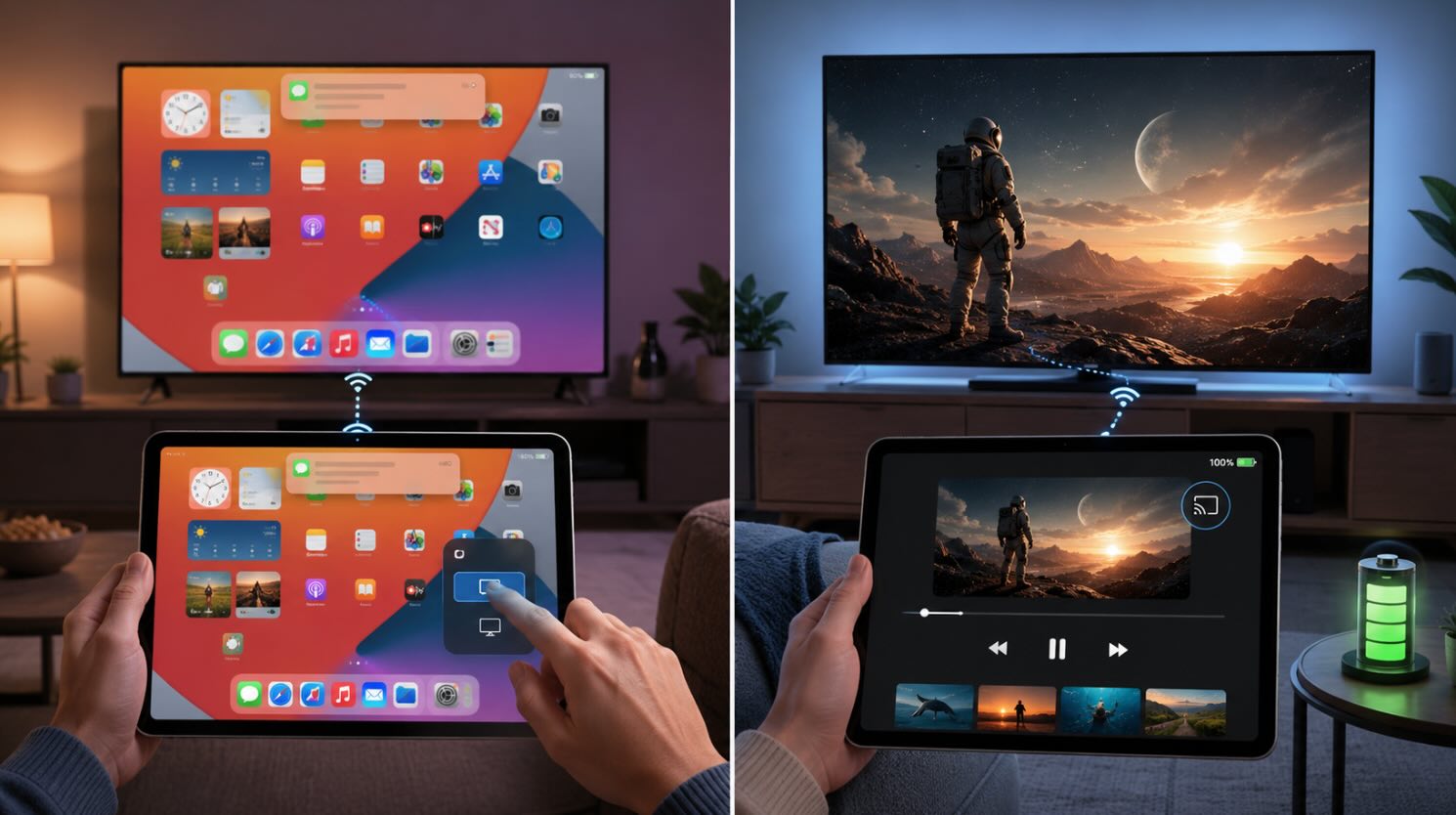
- Screen Mirroring: Duplicates your entire iPad display (including notifications and home screen) to your TV via a third-party app. Essential for slideshows, TikTok, or apps without a built-in cast button.
- Native Casting: Streams media directly from apps like YouTube, Netflix, or Prime Video using the built-in Cast icon. This handles playback on the TV directly, saves iPad battery, and allows HD/4K playback with minimal latency.
1. How to Mirror iPad to Chromecast with DoCast
Video guide
DoCast is an app that you can use for mirroring iPad to TV Chromecast. It’s also capable of casting offline videos and images, and streaming music. What makes this app stand out is the fact that it doesn’t show any ads at all and it has a minimalistic user interface.
To mirror your iPad’s screen, you need the premium version of DoCast. The app has a free 3-day trial version, which you can use to try out the screen mirroring feature. You can get the premium version for just $9.99 per month.
DoCast is a very versatile app as it lets you stream media content and screen mirror to Fire Stick and Roku as well. For Fire Stick, you only need to install the app on your iPad, while for Roku, the app must be installed on both the streaming device and your iPad.
Step-by-step guide
Here’s how you can use DoCast on your iPad:
1. Download DoCast from the App Store.
2. Tap Choose Smart TV in the main menu.
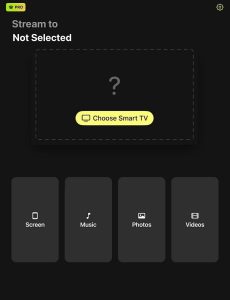
3. Tap your device/TV to connect to it. Make sure it’s on the same Wi-Fi as your iPad.
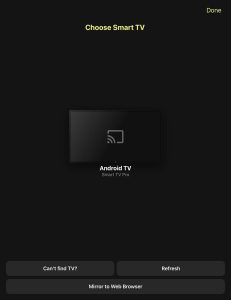
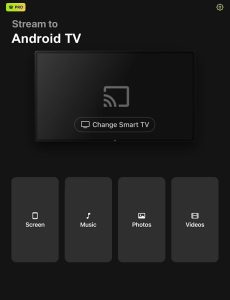
4. On the main dashboard, tap Screen.
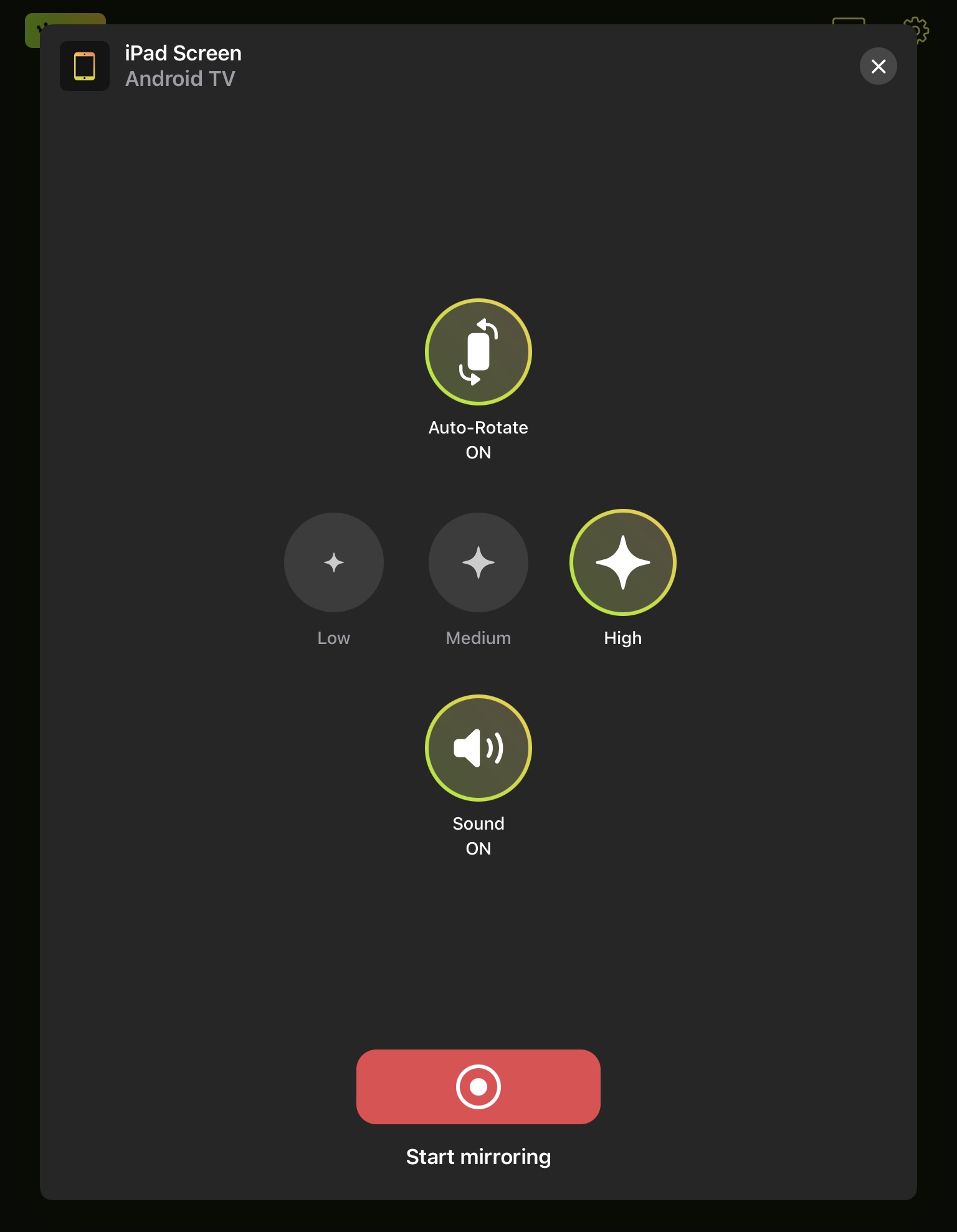
5. After tweaking the settings according to your preferences, tap the red button above the text Start mirroring.
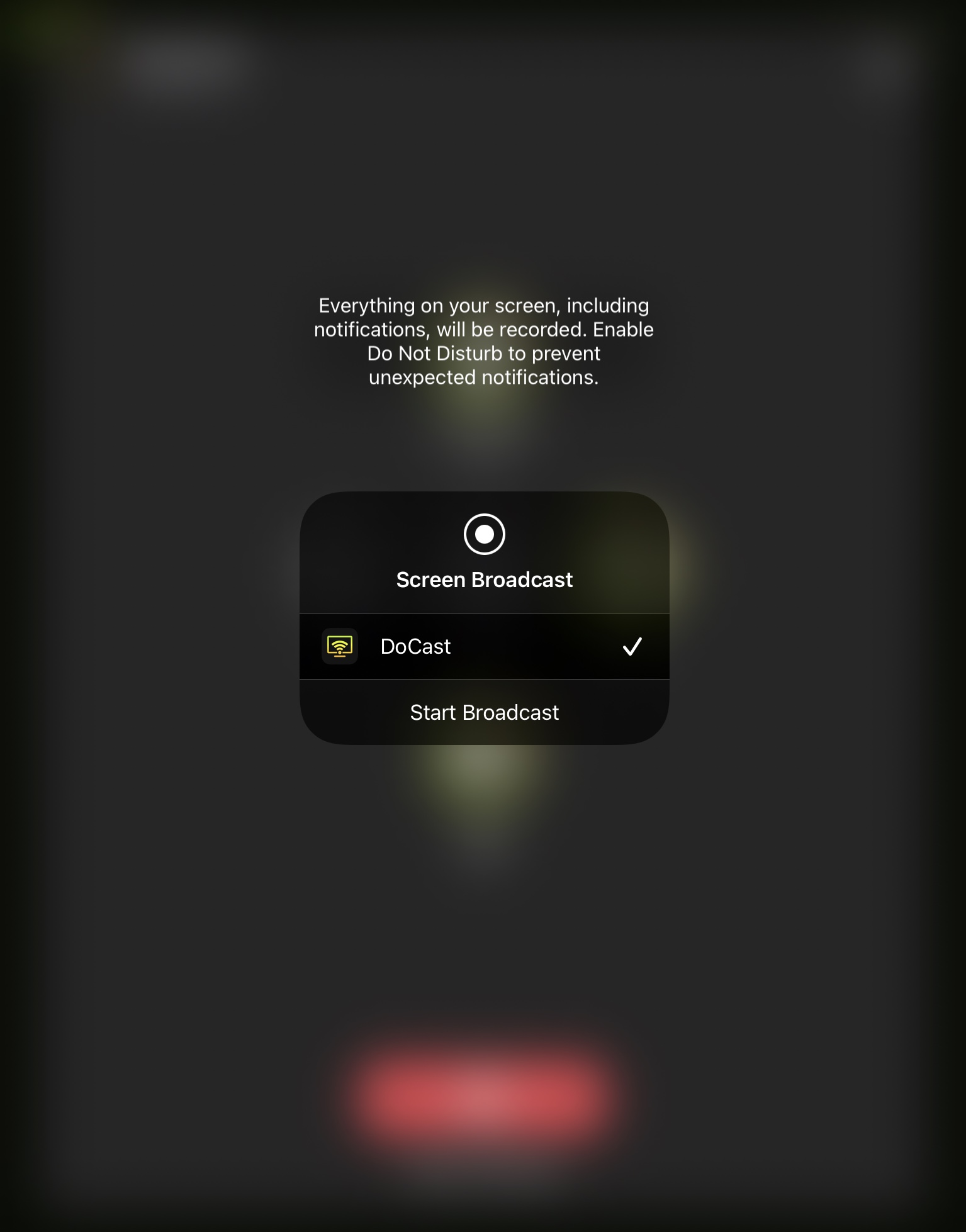
6. Tap Start Broadcast to mirror your iPad to TV Chromecast.
Pros
- The app doesn’t display any intrusive ads
- Can mirror iPad’s screen with sound
- Mirrors iPad’s screen without any latency
Cons
- Screen mirroring is only available in the premium version
Notes: Looking for an iPad universal remote app that works with multiple devices? TVRem is a great option!
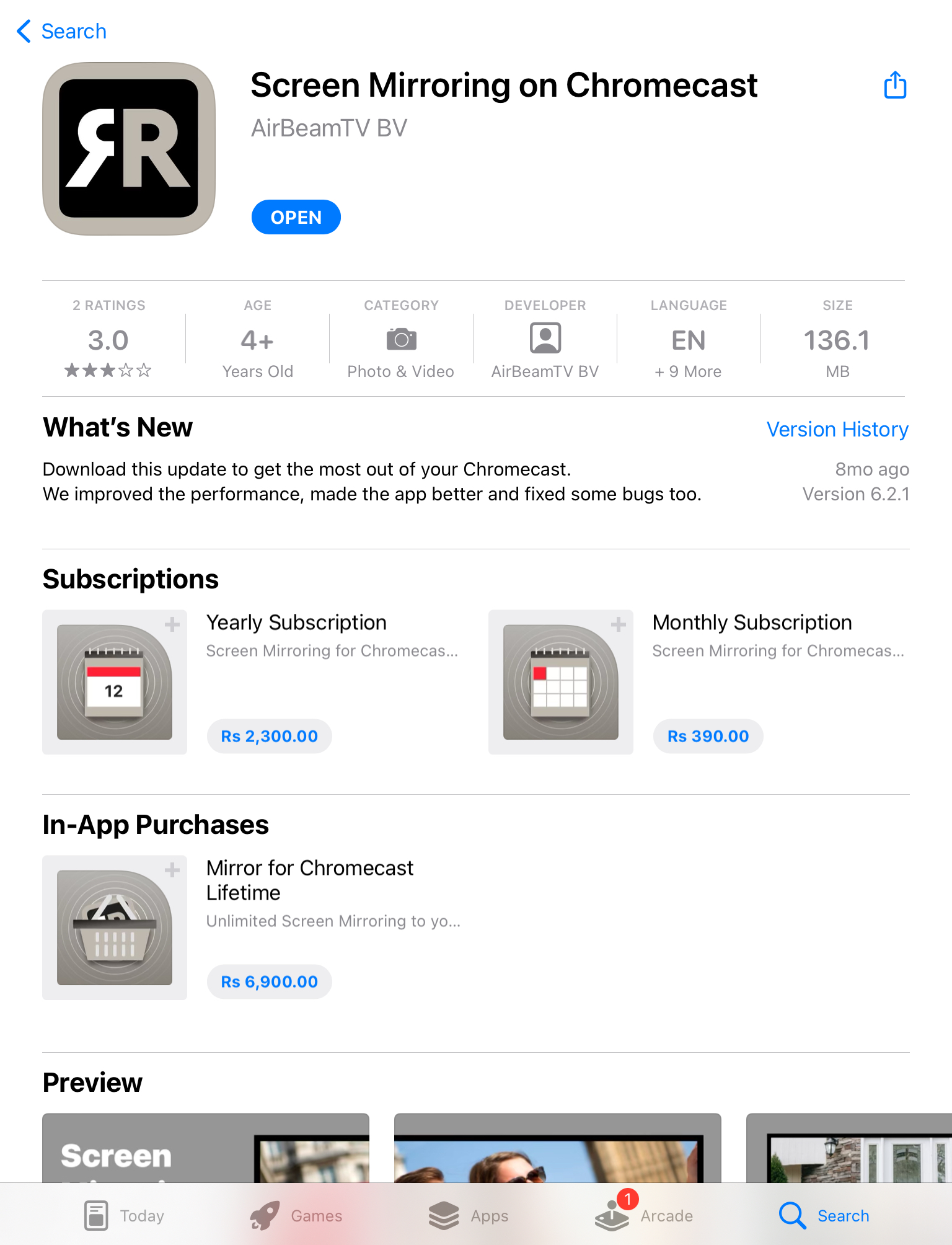
2. Mirroring iPad to Chromecast by Mirror for Chromecast app
Mirror for Chromecast app lets you mirror your iPad’s screen and cast offline/online videos. Apart from iPadOS, you can use the app on iOS, Android, macOS, and Windows.
Step-by-step guide
Here’s how you can Chromecast iPad to TV using Mirror for Chromecast app:
1. Download Mirror for Chromecast app from the App Store.
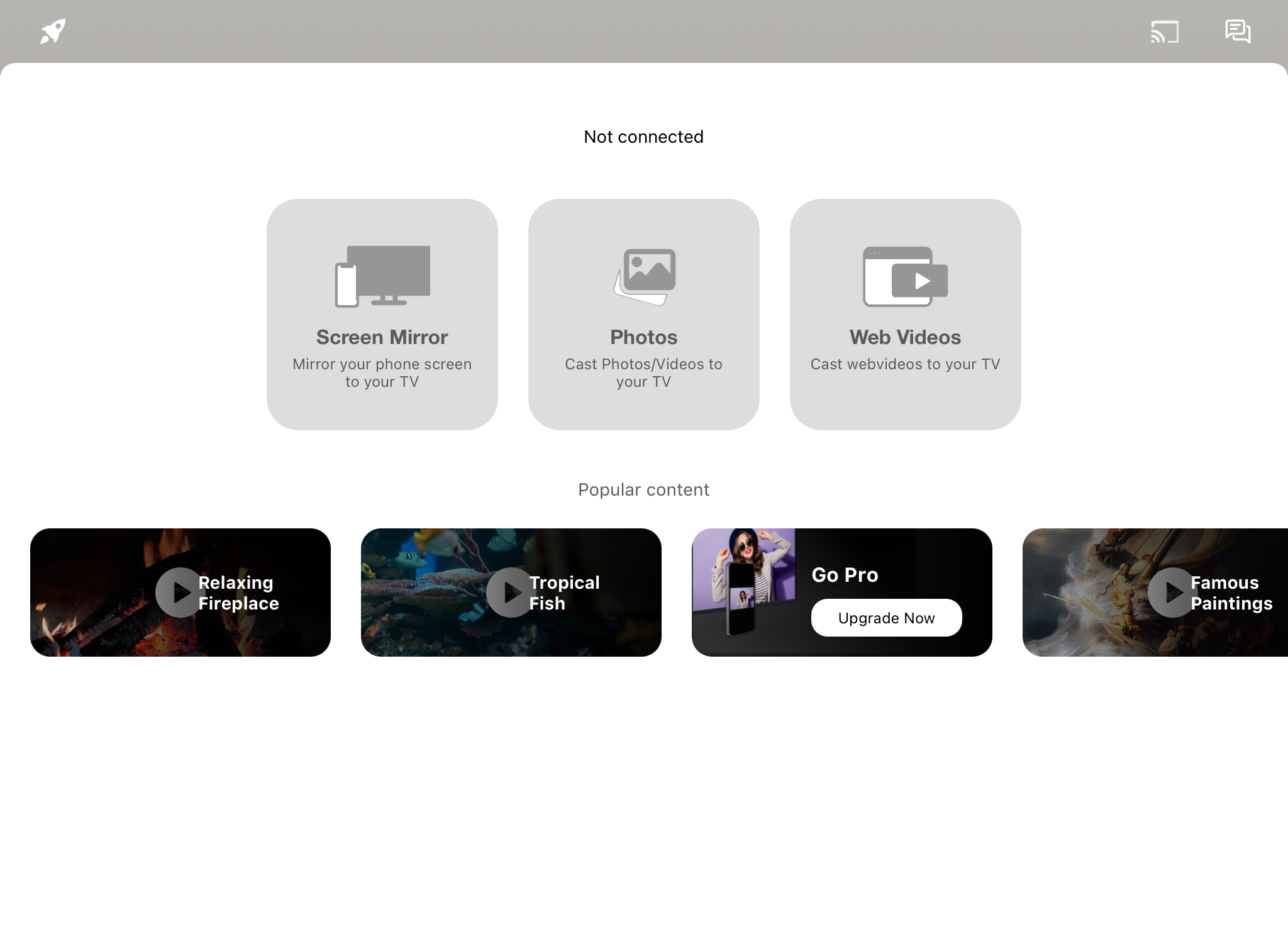
2. Open the app and tap Screen Mirror.
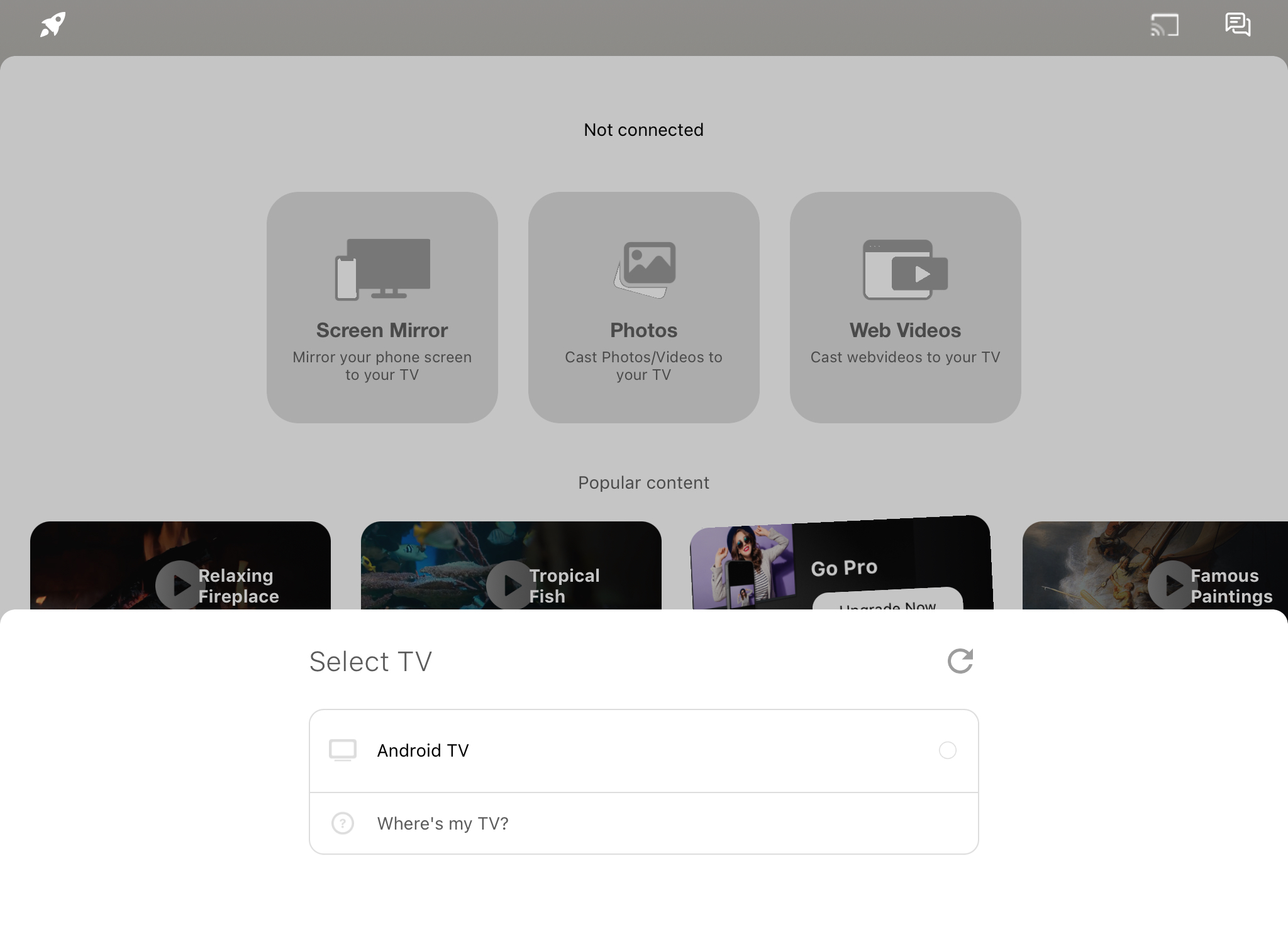
3. Select your Chromecast device from the list that pops up at the bottom.
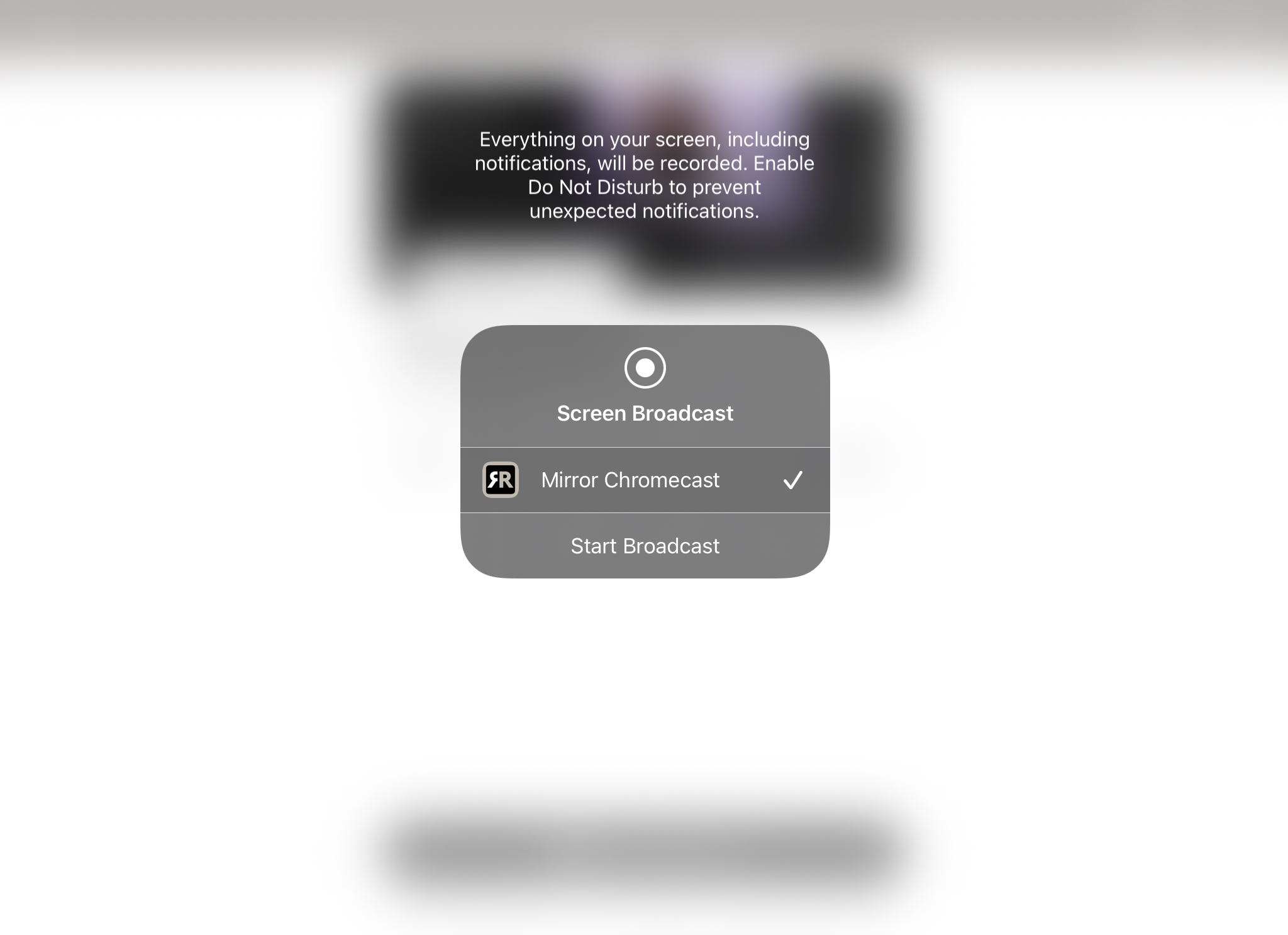
4. Tap Start Broadcast for screen mirroring to begin.
Pros
- Free version doesn’t show too many ads
- Can be used on desktop as well as smartphones
- Main dashboard has a sleek design, making it very user-friendly
Cons
- Not suitable for gaming because it has a 2-3 second lag
3. Screen Mirror iPad to Chromecast with Replica・Screen Mirroring・Cast
Replica・Screen Mirroring・Cast has a free version that lets you mirror your iPad’s screen for 15 minutes. It has other features as well, two of which allow you to Chromecast from iPad to TV.
Step-by-step guide
Here’s how to cast iPad’s screen to Chromecast with Replica・Screen Mirroring・Cast:
1. First, download Replica・Screen Mirroring・Cast from the App Store.
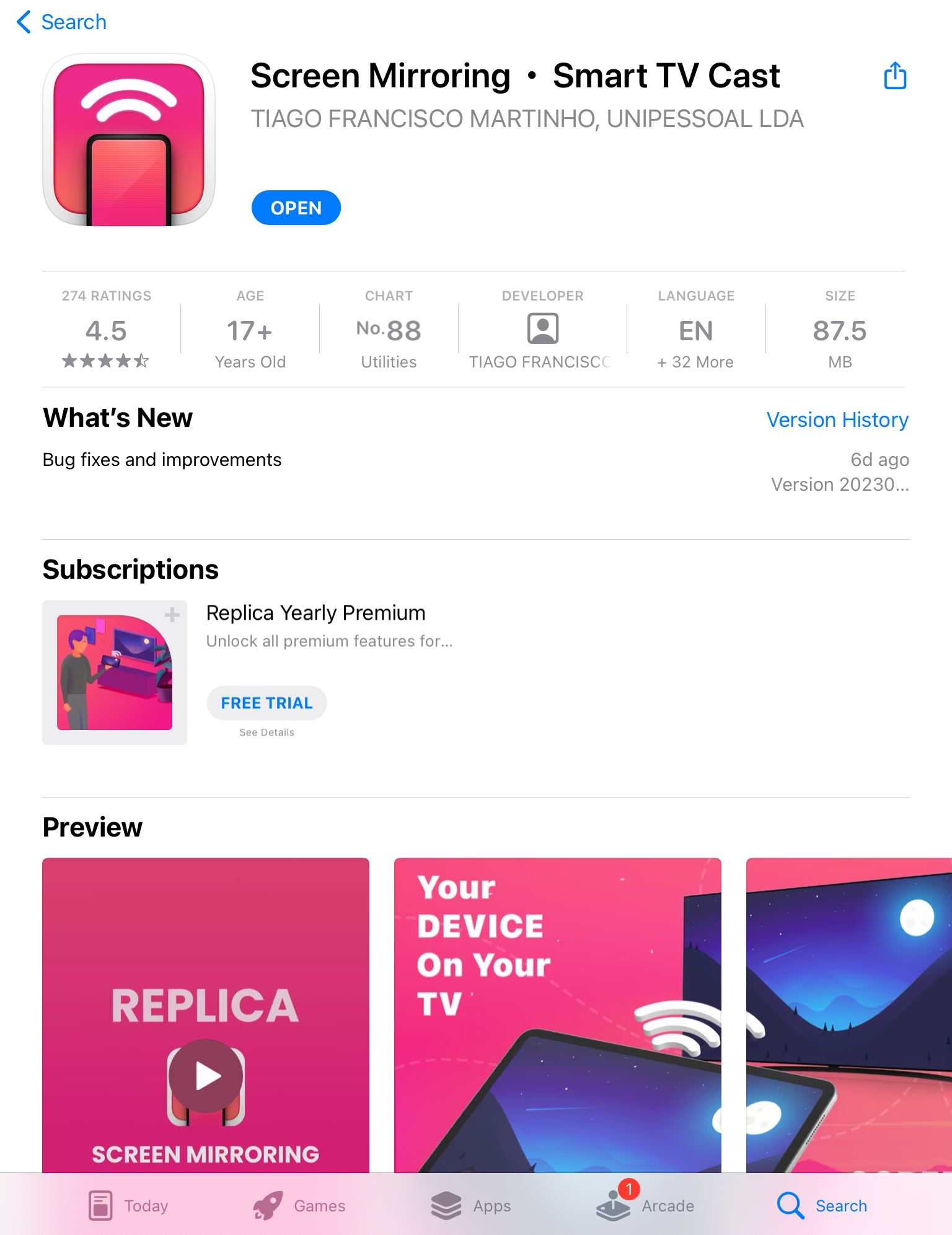
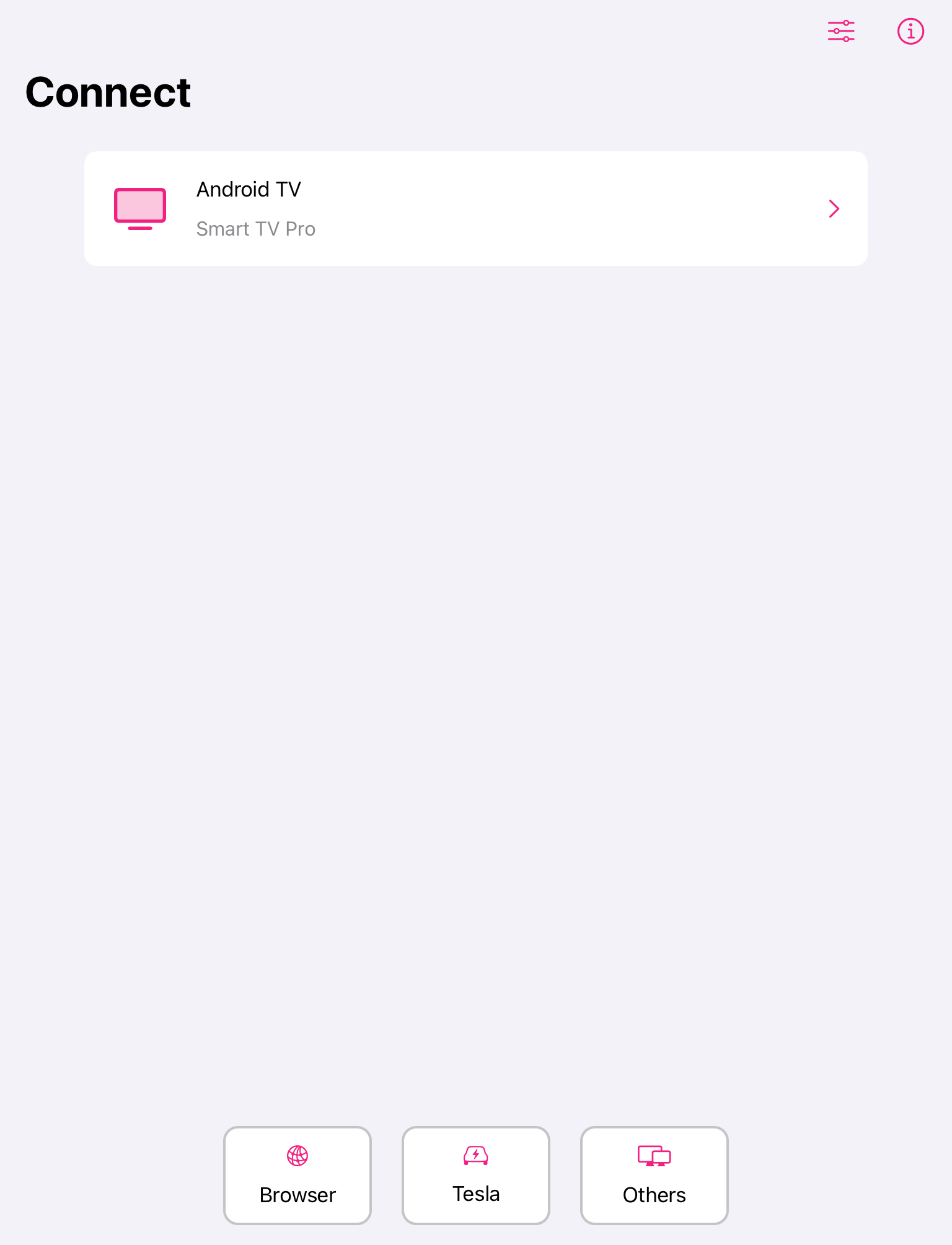
2. The app will detect your Chromecast device if it’s nearby. Tap your Chromecast to connect to it.
3. Tap Screen Mirroring and then Start Broadcast if you want your entire screen to be displayed on the TV.
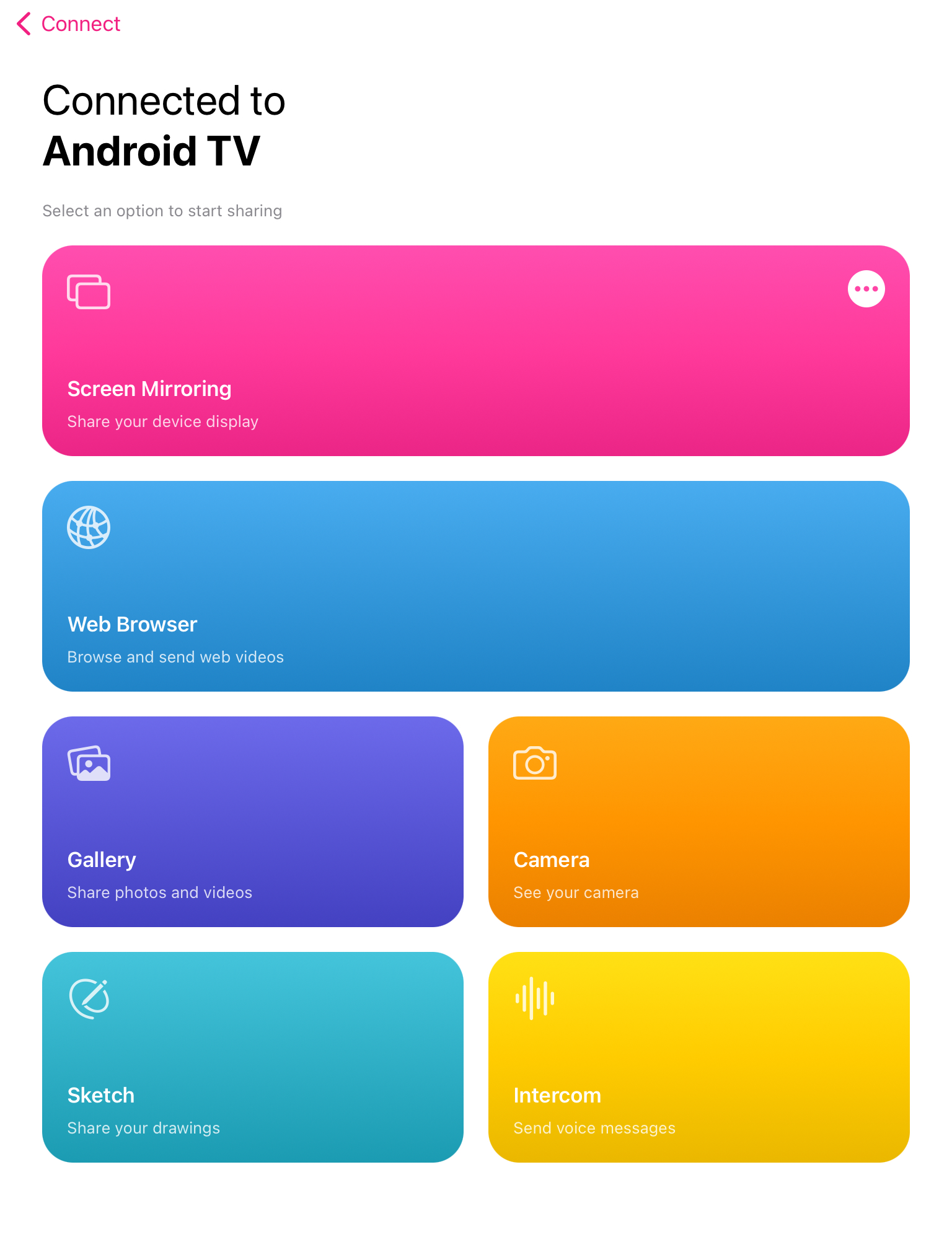
4. For offline casting, tap Gallery and then select the photo or video you want to cast.
Pros
- Has a minimalistic and user-friendly UI
- Offers a free trial version for 3 days
- Has multiple features including screen mirroring and casting
Cons
- Free version supports screen mirroring for just 15 minutes
4. Mirroring iPad to Chromecast - LetsView
LetsView is much more than a casting app. You can use it for remote file sharing, screen mirroring, and casting media to multiple platforms such as Android, Mac, and Windows.
Step-by-step guide
Here’s how to cast iPad to Chromecast via LetsView:
1. Download LetsView on your iPad from the App Store.
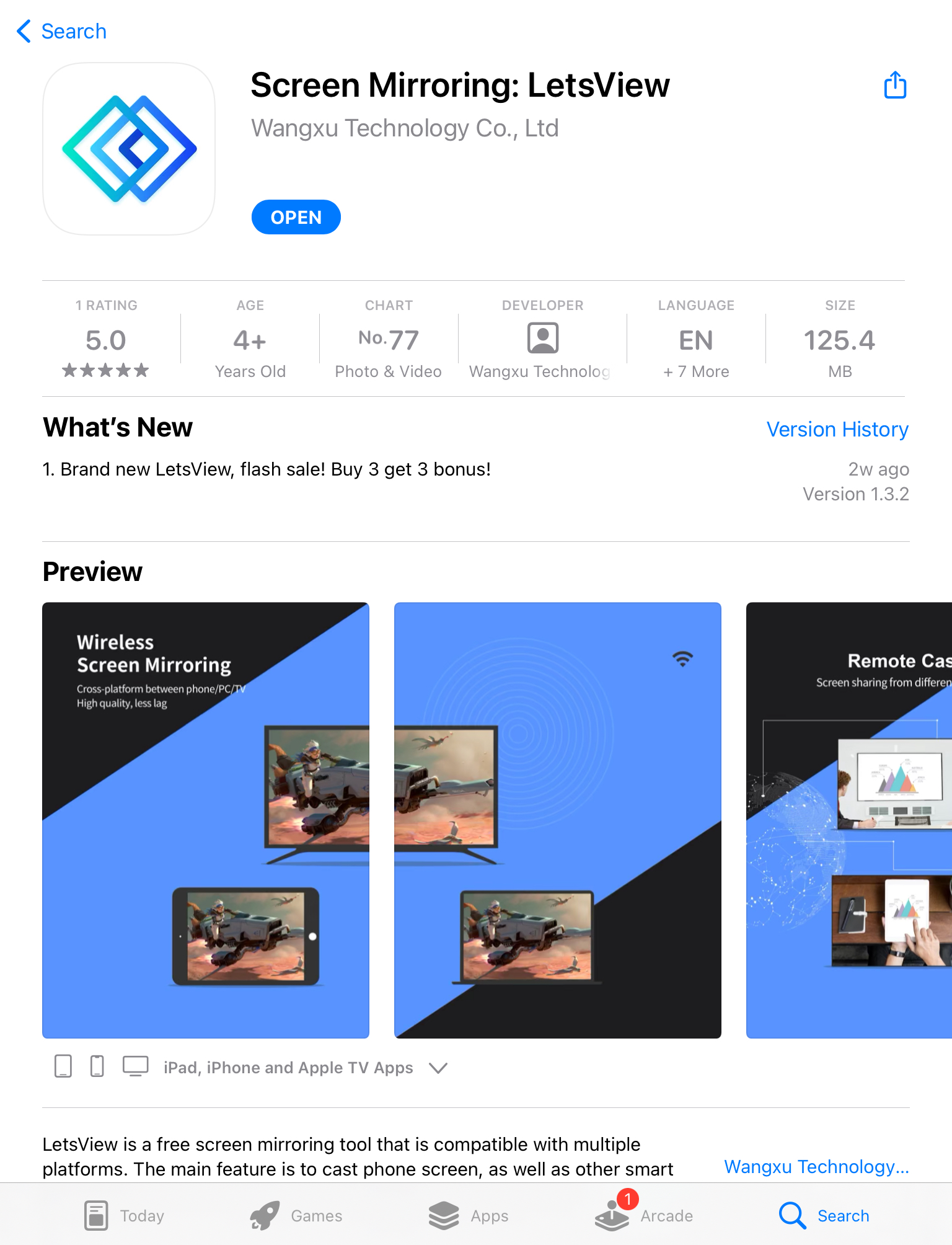
2. On your TV, download the LetsView app from Google Play. Alternatively, download the APK file from its official site and then install it on your TV.
3. Tap the first icon in the upper-right corner on your iPad.
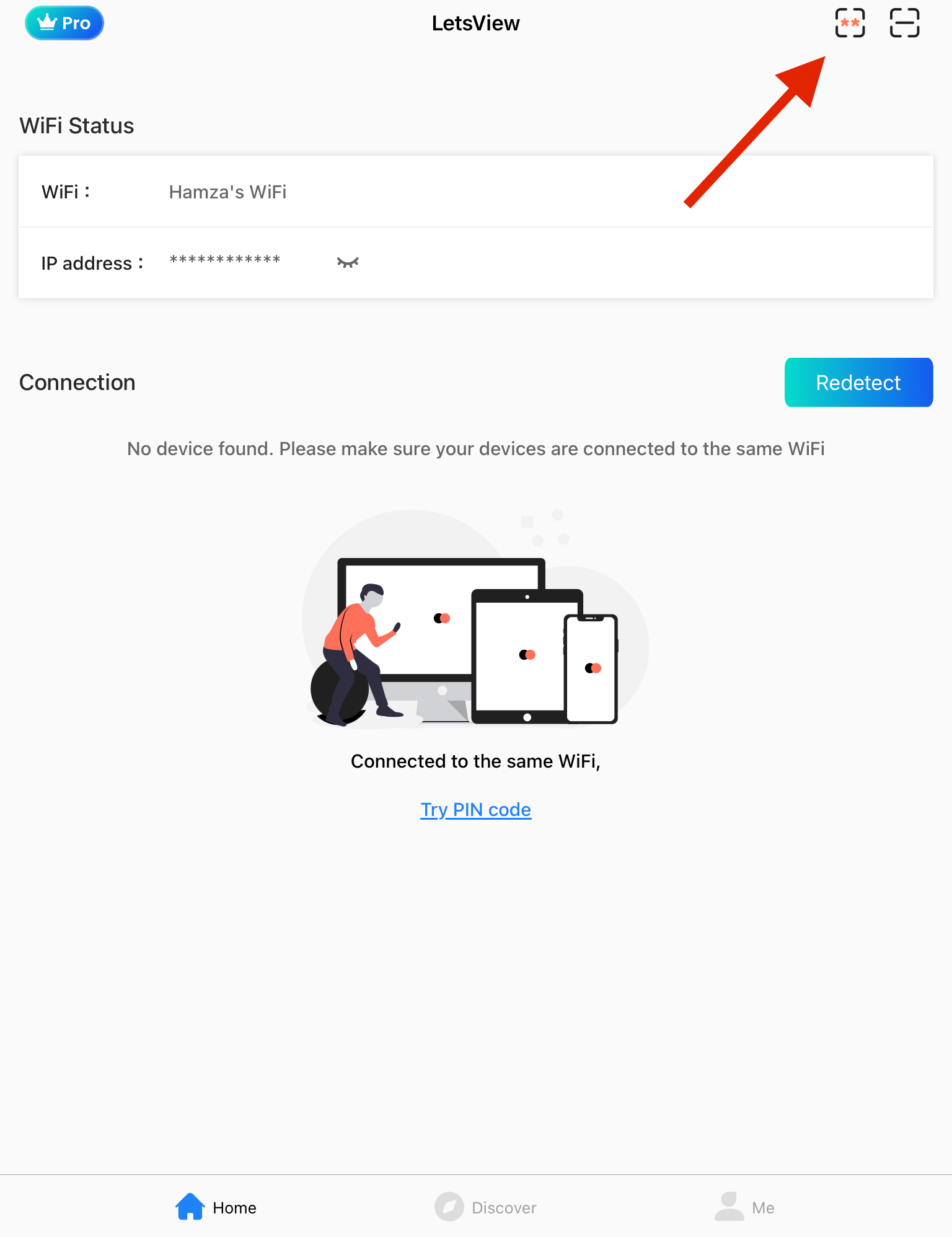
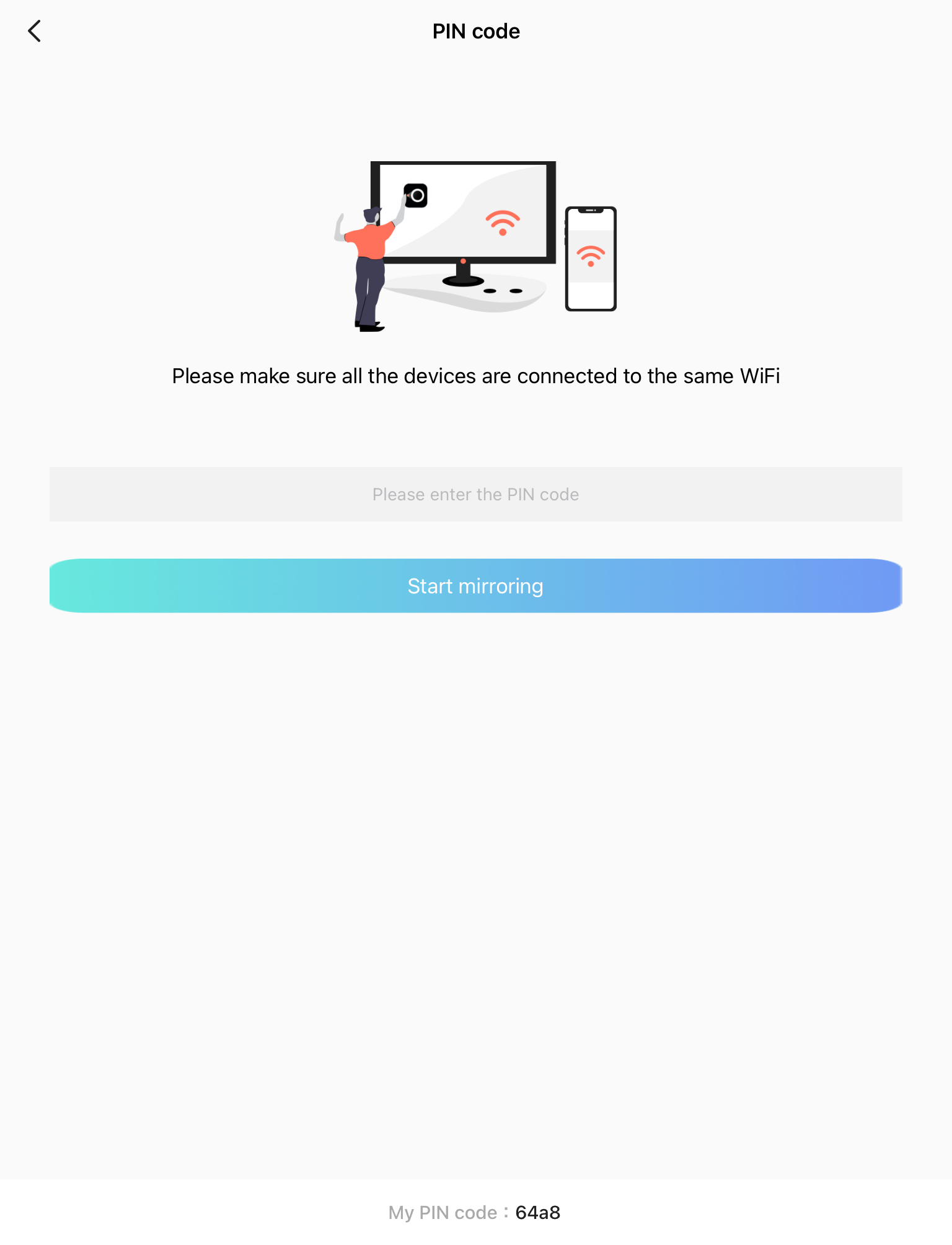
4. Enter the PIN code you see on your TV to start mirroring your iPad’s screen.
Pros
- Compatible with desktop (including Windows) and smartphones
- Screen mirroring only requires a PIN code to set up
- Has a simple and intuitive interface
- Supports cross-platform screen mirroring
Cons
- Consumes excessive battery
5. How to Stream iPad to Google Chromecast via Streamer for Chromecast TVs
Streamer for Chromecast TVs includes various features, such as screen mirroring iPad to Chromecast, streaming music, casting online videos, and even transferring files from PC to phone remotely.
Step-by-step guide
Below, we have explained in step-by-step details how you can mirror iPad screen to Chromecast with this app:
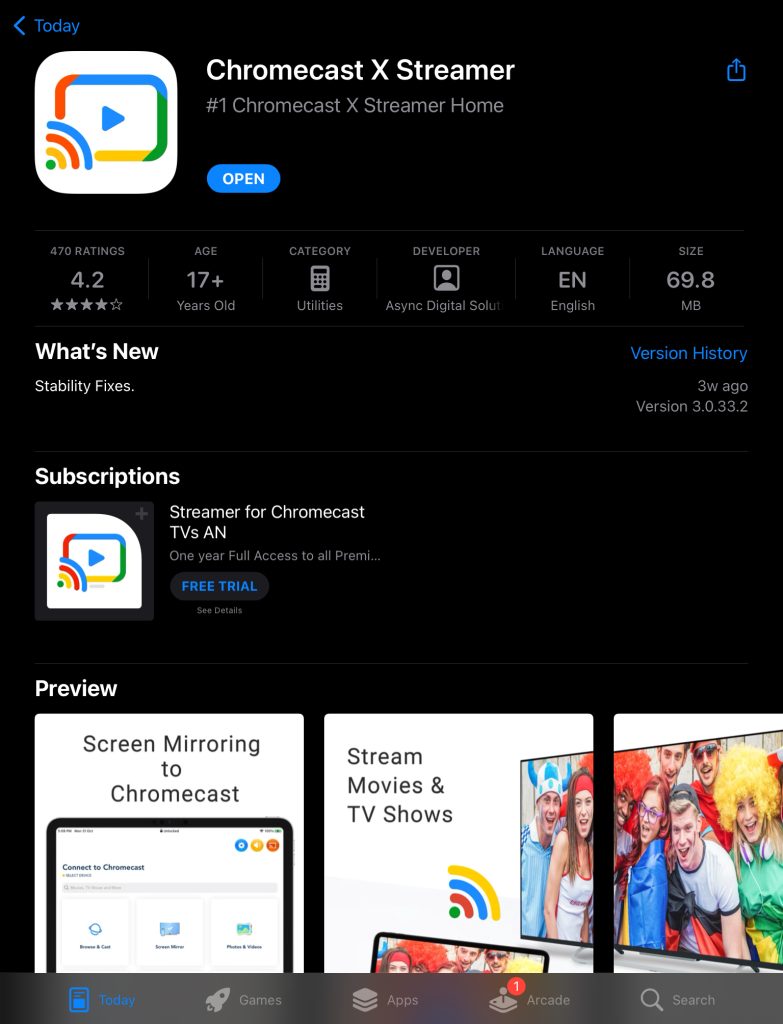
1. Download Streamer for Chromecast TVs on your iPad.
2. Tap Select device at the top to connect to your Chromecast.
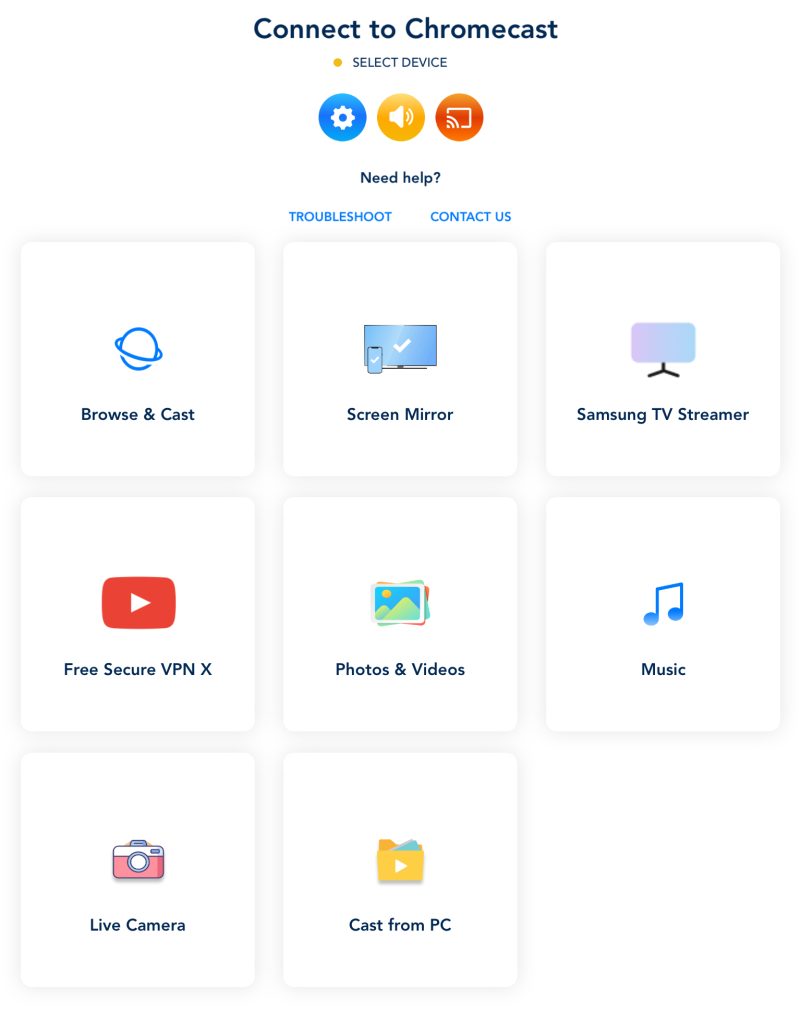
3. Tap your Chromecast device to pair with it.
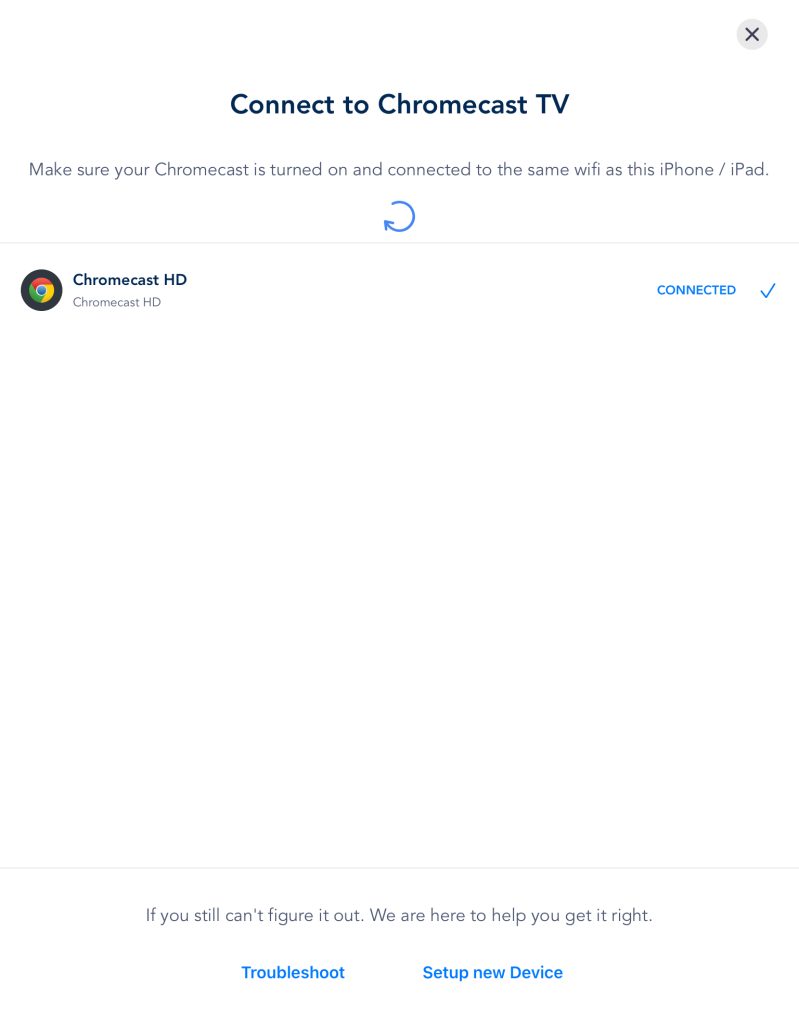
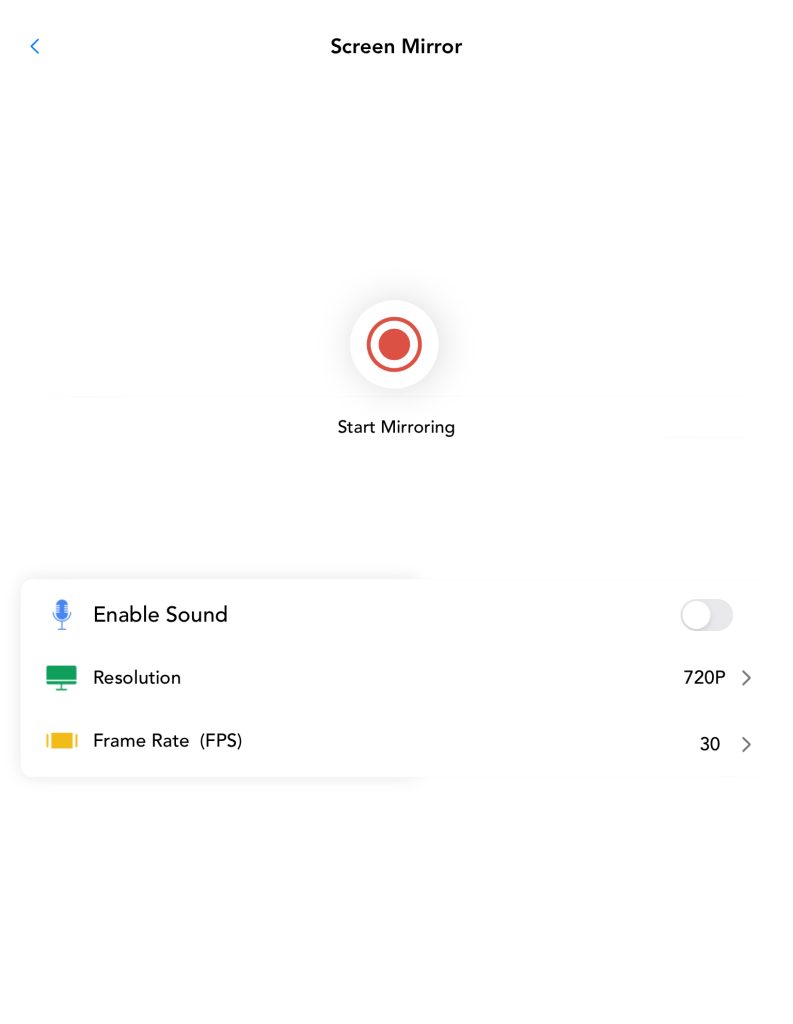
4. Go back to the main menu and tap Screen Mirror.
5. Adjust the settings and tap Start Mirroring.
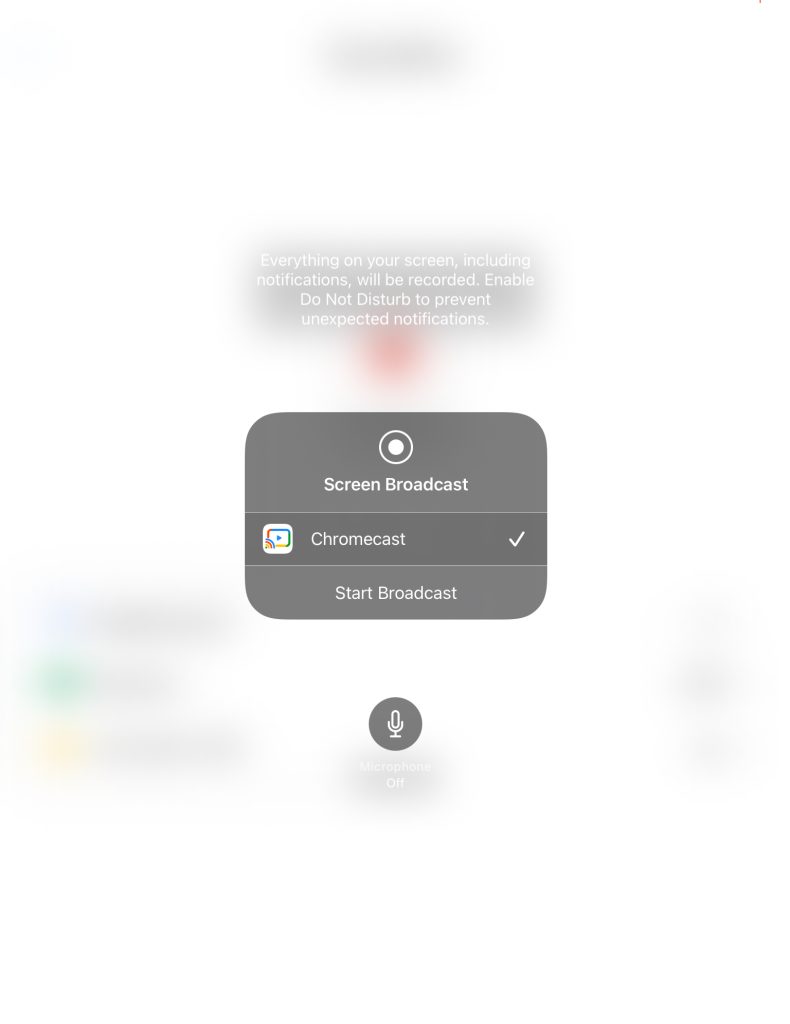
6. Tap Start Broadcast to begin mirroring your iPad.
Pros
- No ads in the free version
- Includes both mirroring and video casting
- Remotely transfer files from PC to phone
Cons
- Can’t mirror with audio in free version
6. Mirror iPad’s Screen to TV with Chromecast - ApowerMirror
With ApowerMirror, you can cast iPad to Chromecast either with a USB cable (which usually results in better quality) or over a Wi-Fi connection.
Step-by-step guide
Here’s how to use ApowerMirror:
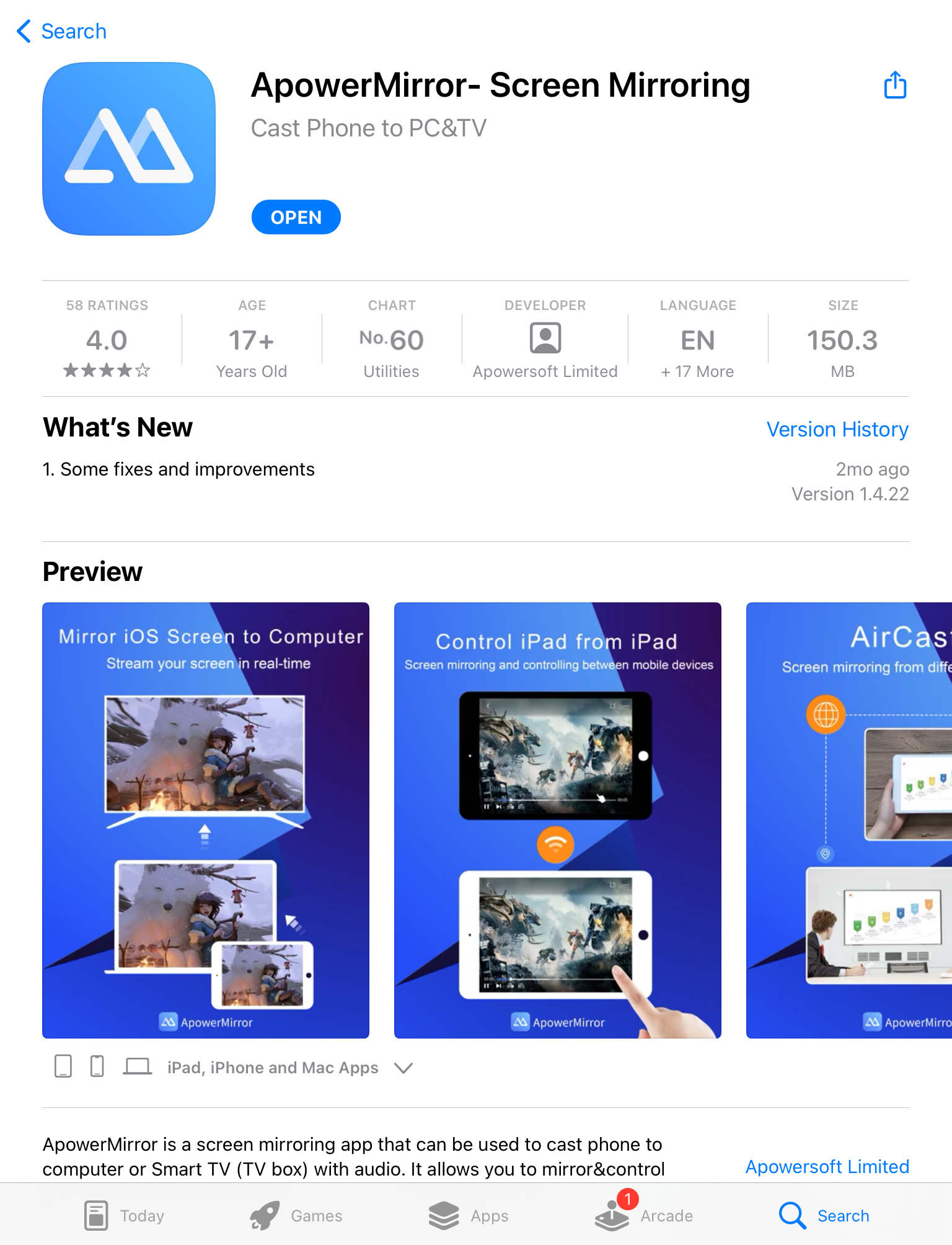
1. Download ApowerMirror on iPad and TV from the App Store and Google Play, respectively.
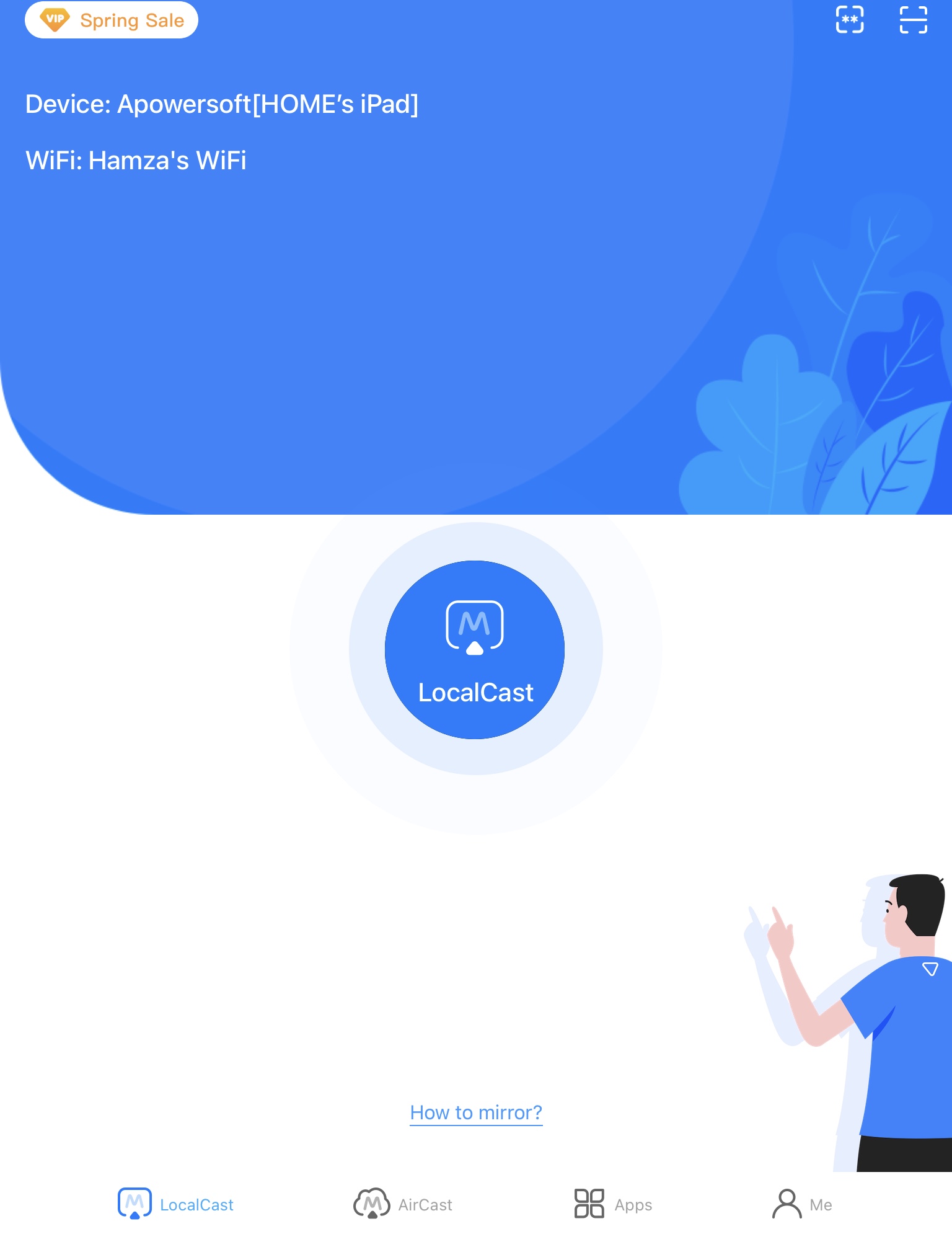
2. Tap the LocalCast button in the center of the screen.
3. Tap the PIN code and enter the 4-digit code you see on your TV.
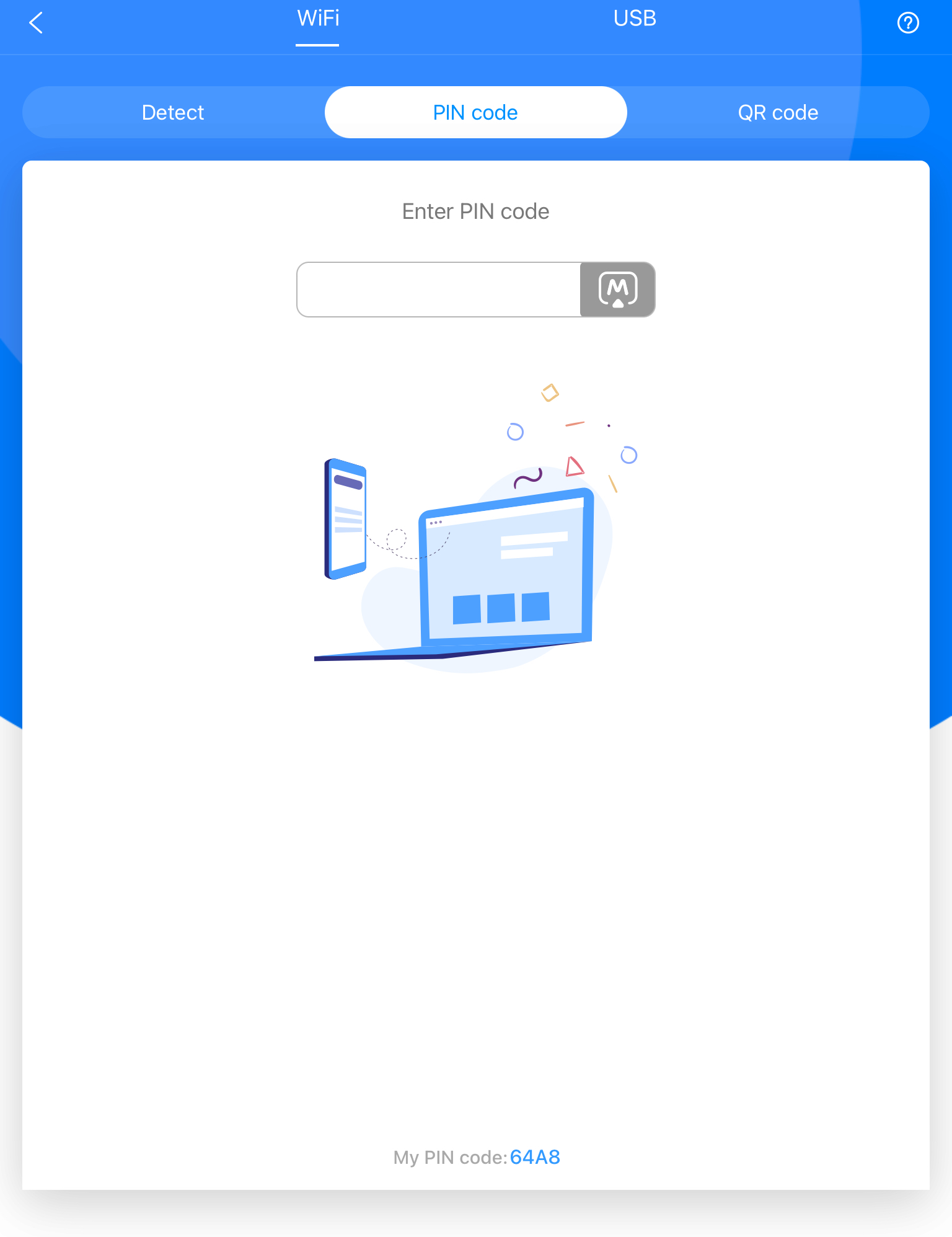
4. You can also tap the QR code on your TV and scan it with ApowerMirror on your iPad.
Pros
- Allows you to mirror your iPad’s screen via a USB
- Has multiple advanced features such as screen recording and a whiteboard
- Works on multiple platforms including Windows, Android, and iOS
Cons
- Most advanced features require a premium subscription
Comparison of the Best Screen Mirroring Apps
| Apps | DoCast | Mirror for Chromecast app | Replica・Screen Mirroring・Cast | LetsView | ApowerMirror | Streamer for Chromecast TVs |
| Screen mirroring with sound | Yes | Yes | Yes | Yes | Yes | Yes (premium version) |
| Photo and video streaming | Yes | No | Yes | No | Yes | Yes |
| Web video streaming capability | No | No | Yes | No | Yes | Yes |
| Works on iPhone | Yes | Yes | Yes | Yes | Yes | Yes |
| Availability of a free trial | Yes | Yes | Yes | No | Yes | Yes |
| Price | From $6.99 per week | From $2.49 per month | From $29.99 per month | From $7.99 per month | From $19.99 per month | From $4.99/month |
How to Cast from iPad to Chromecast
Not interested in screen mirroring and just want to cast specific videos, photos, or music from your iPad to your Chromecast devices? Here are some things to keep in mind:
- You can use apps with native Chromecast support. Popular apps like YouTube, Netflix, Google Photos, and Spotify all have a built-in cast icon. All you have to do is tap the icon to connect your iPad to Chromecast and stream content directly to your TV.
- You can also cast local media with third-party apps. For photos, videos, or music saved on your iPad, use apps like DoCast. These apps allow you to cast offline content from your device straight to Chromecast.
- Before you start casting anything, make sure both the iPad and the Chromecast are connected to the same Wi-Fi network and you’re not connected to a VPN server.
- Once casting starts, you can use your iPad to pause, play, skip, or adjust the volume, giving you full control without needing your TV remote.
- Casting only streams the selected media. It does not mirror your entire iPad screen. For full-screen mirroring, you’ll need other apps or methods. While casting, you can use your iPad without interrupting the content playing on your TV.
Key Factors in Selecting the Best Chromecast App for the iPad
Deciding which app you should use to Google cast from iPad to your TV can be difficult because of how many there are. Here are some factors we recommend you take into consideration:
- 📱 Features – See if the app you want to get has all the features you’re interested in. Most screen mirroring apps offer bonus features such as casting online/offline media content and IPTV.
- ⭐ User reviews – Not every app will work the way it’s been advertised by the developers, so it’s important to read about other people’s experiences with it first.
- 😊 User-friendliness – Make sure the app you want to get has a user-friendly interface and isn’t riddled with ads.
- 💸 Price – Most Chromecast apps are budget-friendly, costing as little as $2.50 per month, but some are more expensive than others. It’s important to check if the one you want to get is within your budget.
Common Connection Issues & How to Fix Them
- Ensure Devices Are on the Same Network: Your iPad and Chromecast must be on the same Wi-Fi network to discover each other. On most modern routers, this works fine even if one device is on 2.4 GHz and the other on 5 GHz. However, some budget routers or mesh systems don’t properly bridge traffic between bands, which can cause discovery issues – if devices aren’t found, try forcing both onto the same band as a troubleshooting step.
- Enable Local Network Permissions: On your iPad, navigate to Settings – Privacy & Security – Local Network and make sure permission is toggled ON for your mirroring app.
- Disable VPNs: VPN services on your iPad can mask local IP addresses, preventing the app from detecting your Chromecast device. Turn off any active VPN before connecting.
- Restart Hardware: Reboot both your iPad and your Chromecast dongle/TV if devices fail to show up during auto-scanning.
Conclusion
Mirroring iPad to Chromecast device takes only a few minutes when you have the right tool. While Apple’s native AirPlay won’t connect directly to Google hardware, DoCast easily bridges the gap with low latency, a clean interface, and an ad-free experience. In our testing, DoCast delivered one of the smoothest and most reliable mirroring experiences among the apps we tried.
Whether you need to present slides, share photos with family, or mirror your favorite non-protected apps, DoCast is a strong all-around pick. Full screen mirroring requires the premium tier (a free trial is available), while casting videos, photos, and music works in the free version. Simply ensure both devices are connected to the same Wi-Fi network, grant local network access, and you’re ready to enjoy your iPad content on the big screen!
Frequently Asked Questions
If you can’t cast from iPad to Chromecast, it might be because your Chromecast is connected to a different Wi-Fi network. iPad or iPhone not connecting to Chromecast is usually not a cause for concern because it can easily be fixed by setting up the streaming device with Google Home.
No, you can’t AirPlay to Chromecast because they’re two different technologies. AirPlay is Apple’s natively casting and mirroring technology, while Chromecast belongs to Google. What you can do is use a third-party app like DoCast to mirror your iPad’s screen to Chromecast.
To cast Netflix from your iPad to your TV using Chromecast, you’ll need the Google Home app. It’ll help you set up your Chromecast device, after which you can open any video on YouTube and tap the casting icon in the top-right corner to stream it.
If your iPad won’t connect to your Chromecast, first make sure both devices are on the same Wi-Fi network. If you’re using a VPN, disable it, as it can interfere with the connection. Restart your Chromecast and the app you’re using for screen mirroring to fix any minor issues. If it still doesn’t work, try a factory reset on your Chromecast as a last resort.
Google TV Streamer can connect to any TV using Wi-Fi and provides access to thousands of Android TV apps. With premium performance, smart home hub functionality, and support for Dolby Vision and Dolby Atmos, Google TV Streamer is a good streaming option that goes beyond Chromecast’s capabilities.
Due to copyright protection, screen mirroring apps cannot transmit video playback from DRM-protected services like Netflix, Hulu, Disney+, or Amazon Prime. If you attempt to mirror these apps, you will see a black screen with audio only. To stream these platforms, use their built-in Cast button directly from the app.