Top Panasonic TV Remote Apps in 2026: Free and Reliable Options

First: Which OS Is Your Panasonic TV Running?
This is particularly important for Panasonic because they use multiple platforms across their models. Depending on when and where you bought your TV, you might be running one of four completely different operating systems:
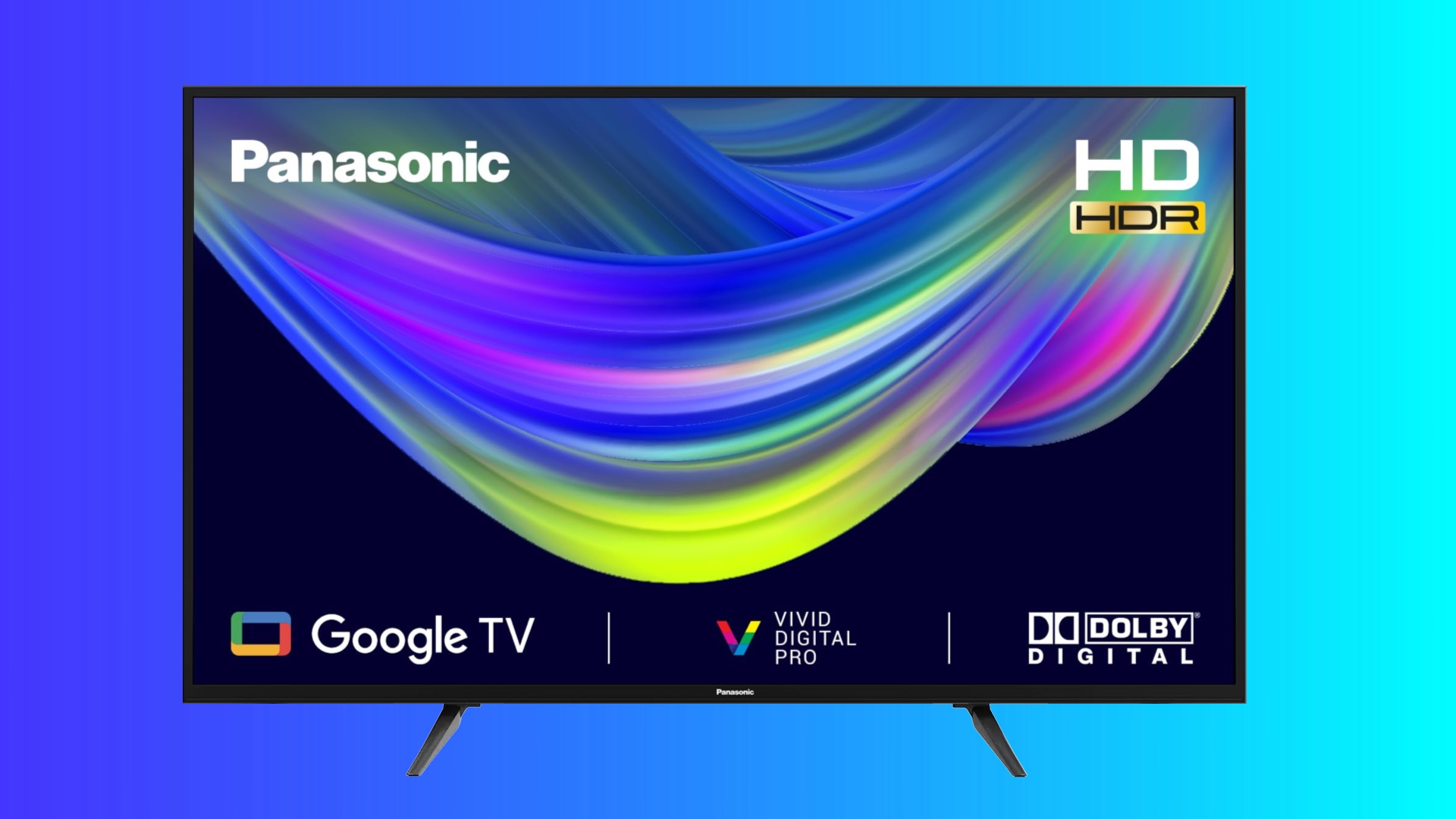
- My HomeScreen (VIERA OS) – Panasonic’s own platform, found on flagship OLED and LCD models like the MZ2000, MZ1500, and MZ980 series. It has a slick interface, great for cinephiles, but it means you can’t just grab any Android TV remote app and expect it to work.
- Android TV / Google TV – Used on mid-range models like the MZ800 and MZ700. Google TV is just Android TV with a better home screen, so apps that work for one usually work for the other.
- Fire TV – Found on select Panasonic models in certain markets. Full Alexa integration and Amazon ecosystem.
- VIERA Connect (legacy) – The older Panasonic Smart TV platform from roughly 2011 to 2018. This is what the official Panasonic remote apps were actually built for.
Check your TV if you are uncertain. Head into Settings, then look for About or Device Preferences. There, the system label shows up clearly. Thirty seconds spent now prevents hassle later picking apps.
1. TVRem — The One App That Handles Everything
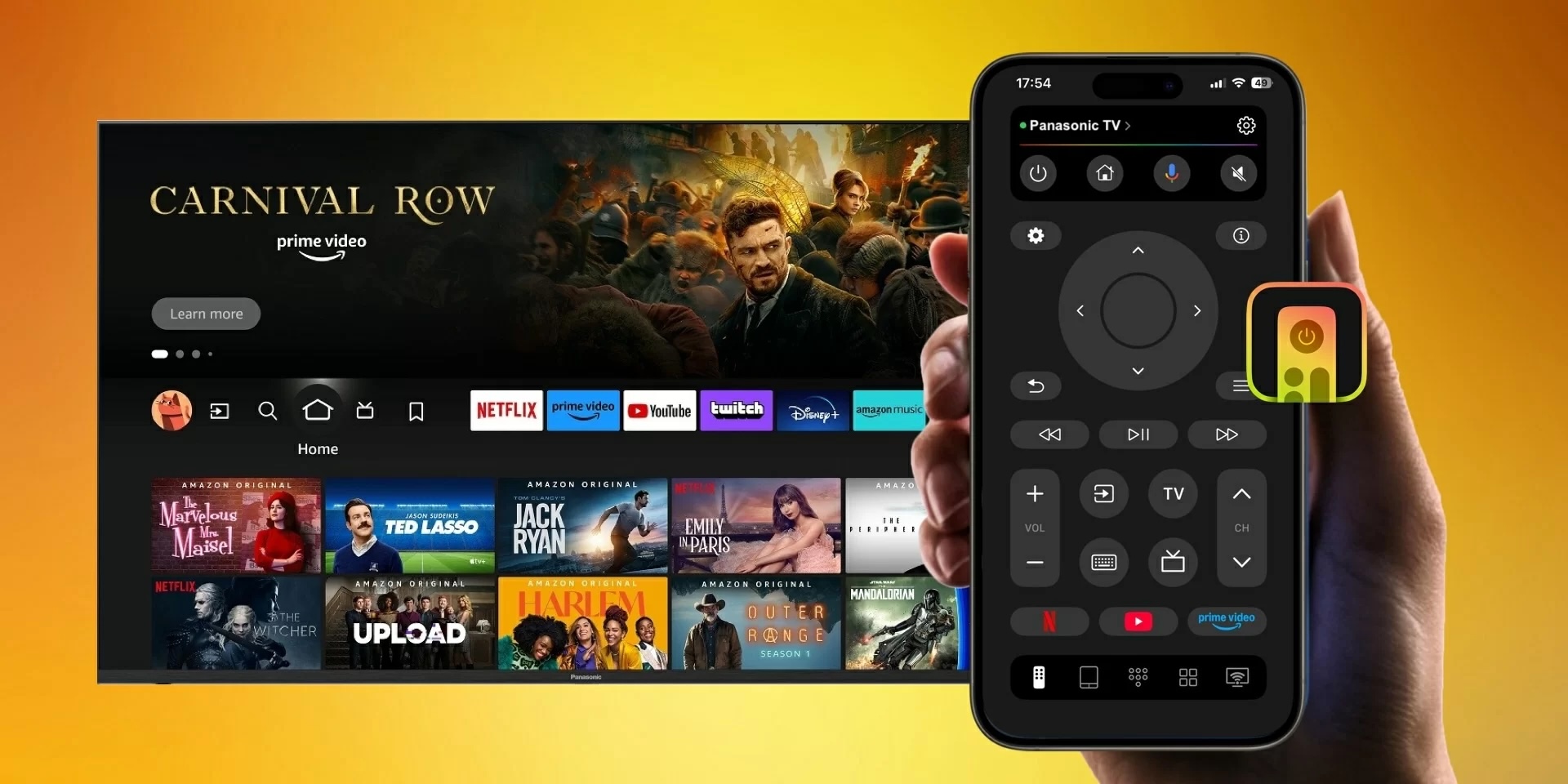
Picture this: you’re 20 minutes into a film on your Panasonic OLED, the room is dark, and the remote has somehow vanished between the cushions again. You grab your iPhone, open TVRem, and within seconds you’re back in control – adjusting volume, skipping back, switching subtitles, all without getting up or squinting at slow on-screen keyboard navigation.
That’s what a good Panasonic Smart TV remote app feels like. TVRem is the closest thing to that experience on iOS.
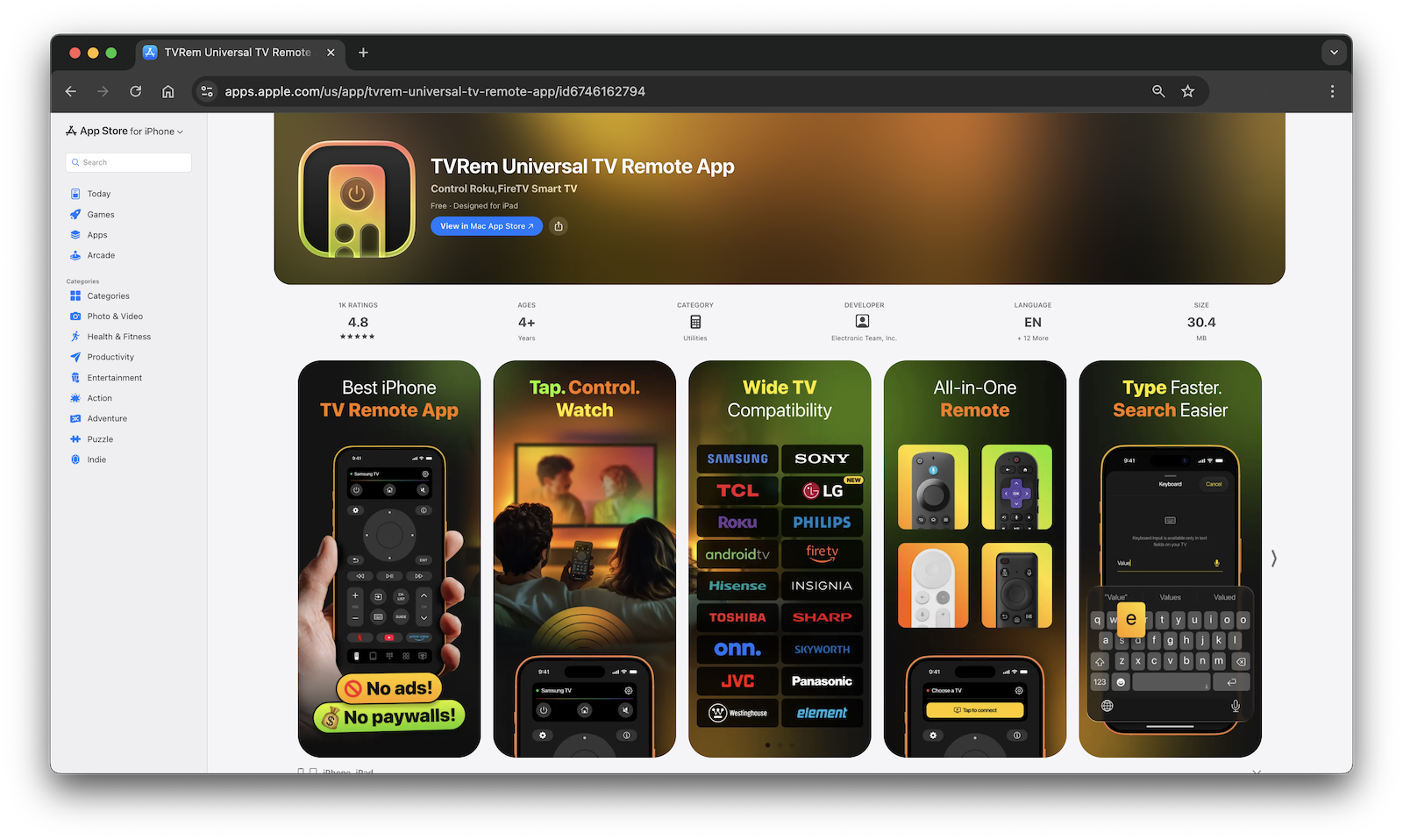
It’s a universal remote app – meaning it supports Android TV, Google TV, Fire TV, and basically every other Smart TV platform in a single app. Rated 4.8 stars with 640+ reviews, and most importantly: it’s completely free with no subscription and no paywalled features.
✔️ What makes it stand out:
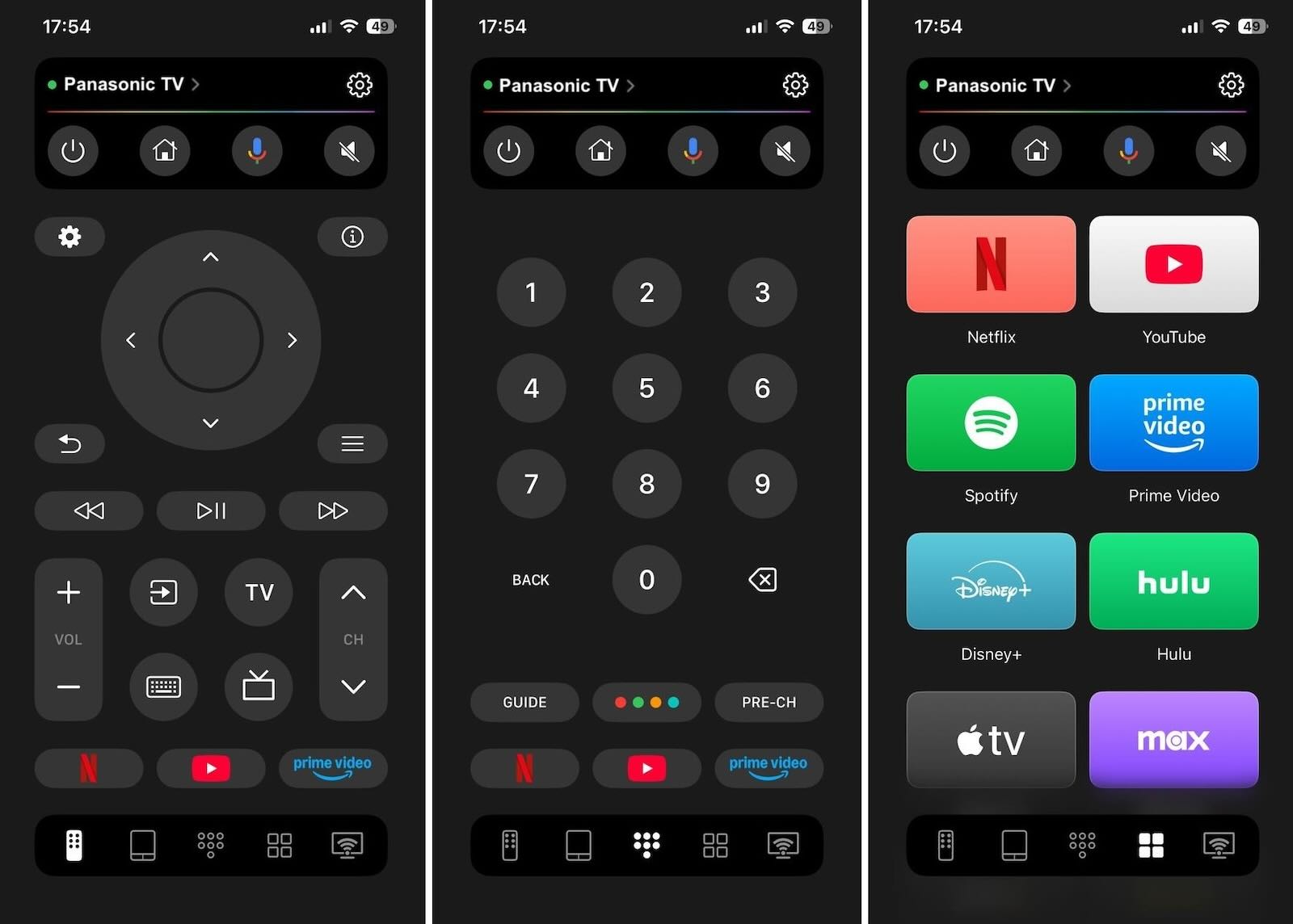
- Touchpad navigation – swipe to move, tap to select, just like a laptop trackpad. Far more natural than D-pad buttons
- Full keyboard input – type search queries and passwords from your iPhone keyboard instead of hunting through on-screen letters one at a time
- Quick-launch streaming buttons – open Netflix, YouTube, Prime Video, Disney+ in one tap
- Voice control support via Google Assistant and Alexa on compatible models
How to Connect TVRem to Your Panasonic TV
1. Download TVRem from the App Store.
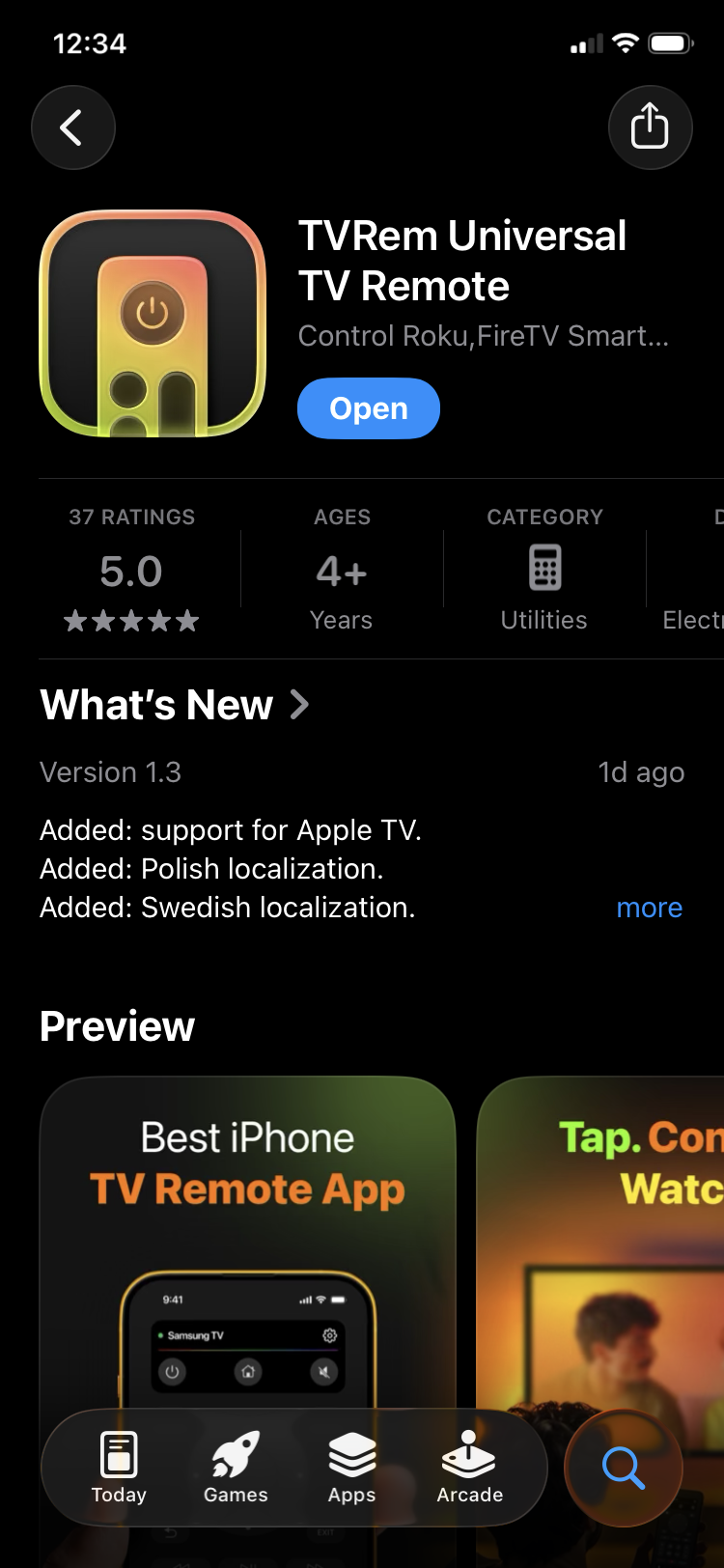
2. Make sure your iPhone and Panasonic TV are on the same Wi-Fi network.
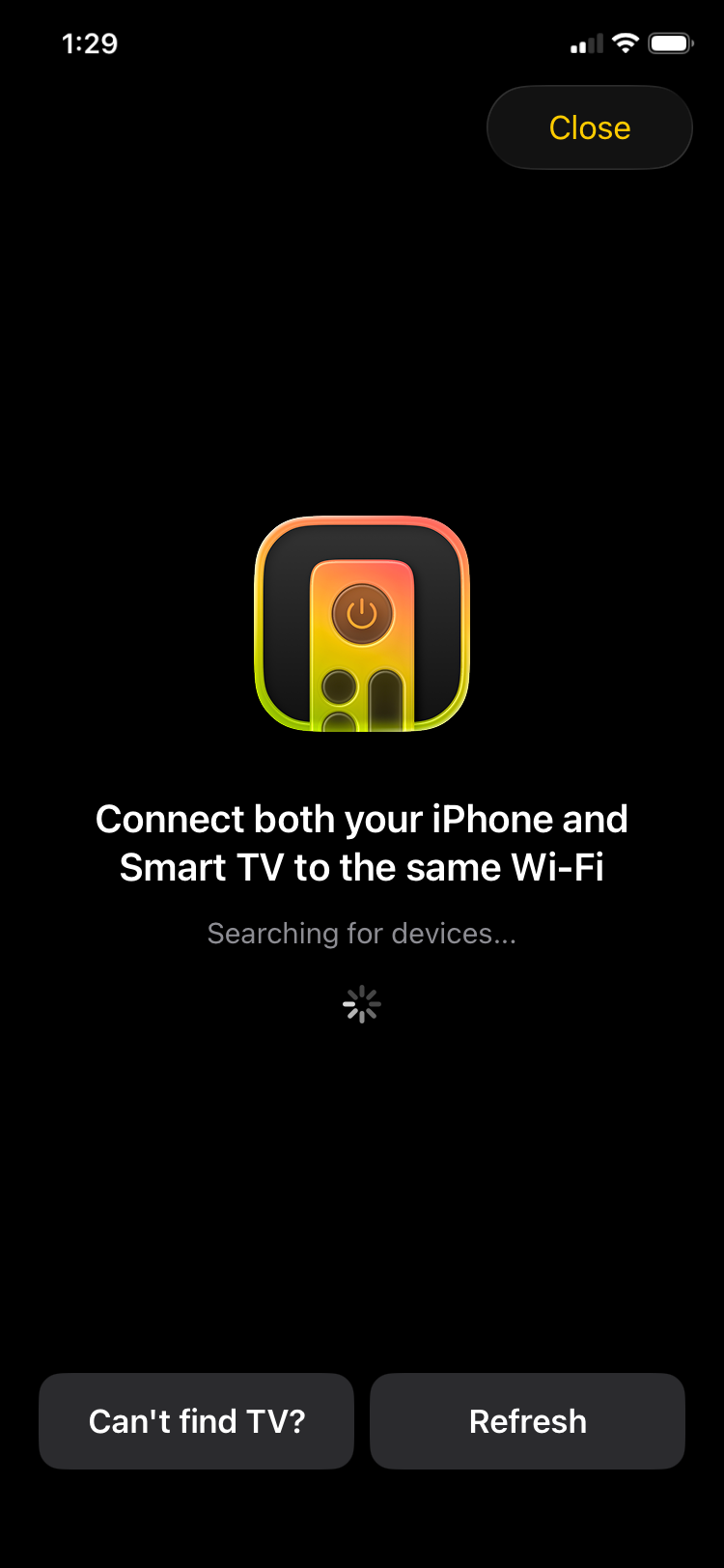
3. Open the app – it scans and finds your TV automatically.
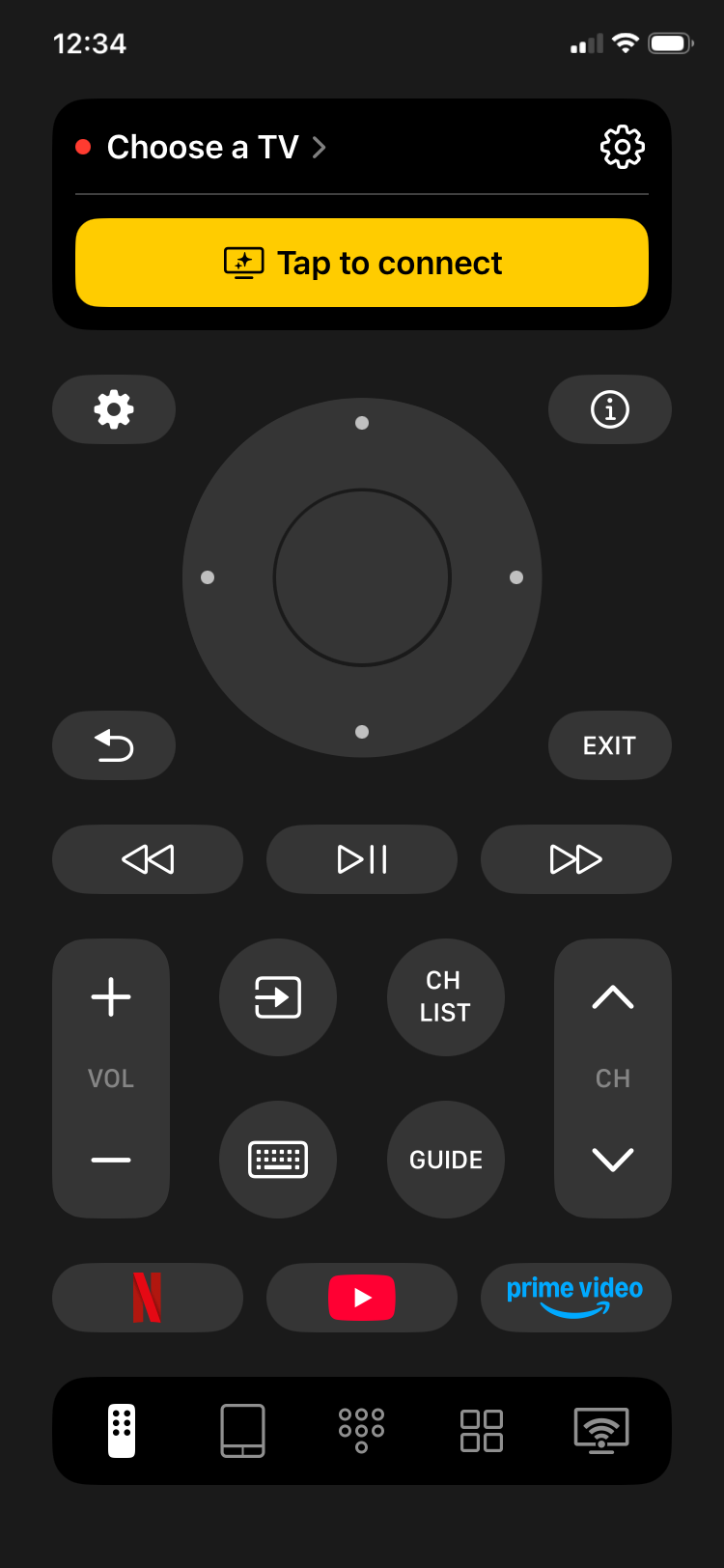
4. Tap your Panasonic TV from the list and enter the code.
5. You’re now in control.
2. Panasonic TV Remote 2 — The Official App (With Caveats)
The official Panasonic Viera TV Remote App exists, it’s free, and for the right TV, it works well. The operative phrase is “the right TV”.
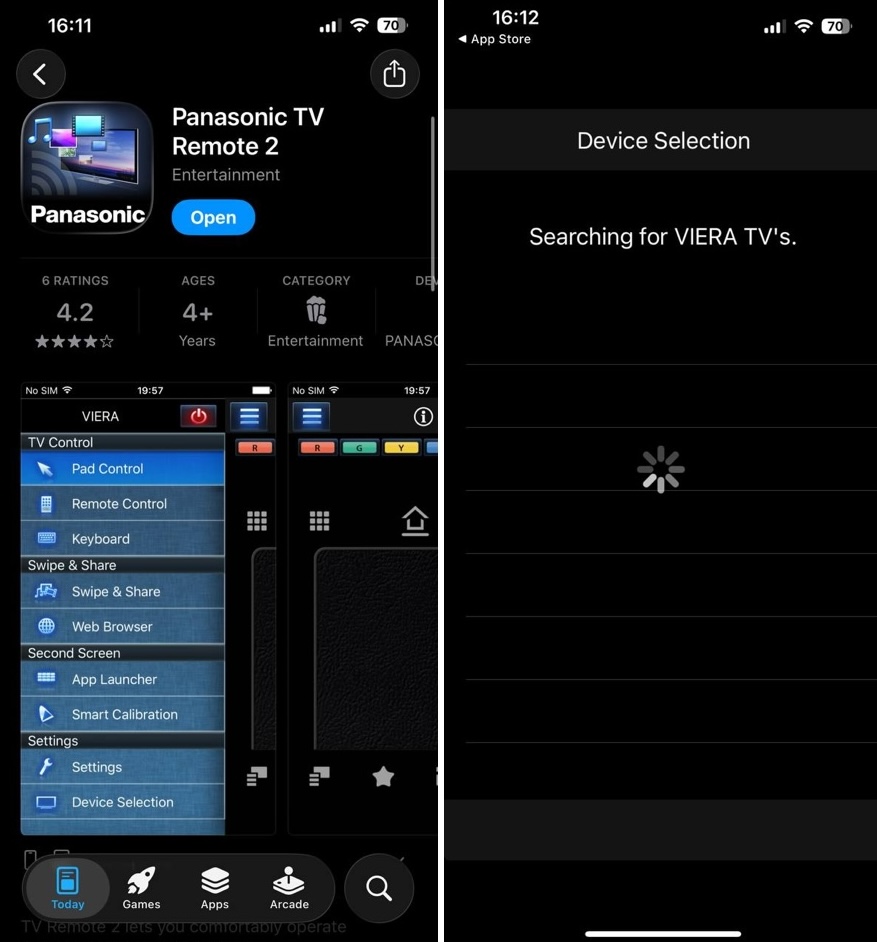
Panasonic TV Remote 2 is built specifically for VIERA flat-panel TVs from 2011 to 2018. If that’s your model, it connects quickly and gives you a clean remote experience – touchpad navigation, keyboard input, power/volume/channel controls, and the “Swipe & Share” feature that lets you push photos and videos from your iPhone directly to the big screen.
The problem is that Panasonic hasn’t updated it meaningfully in years. Newer Panasonic TVs running Android TV, Google TV, or Fire TV are completely unsupported. And even for compatible VIERA models, recent reviews describe a frustrating cycle of reinstalling the app just to get it to detect the TV – something that apparently got worse after recent iOS updates.
Worth trying first if you have a VIERA model from that era. If it works, great.
3. Panamote — Lightweight, Panasonic-Only, No Frills
Panamote is a third-party remote app designed specifically for Panasonic Smart TVs. No Samsung support, no LG, no Roku – just Panasonic. For some people, that’s exactly what they want: one app, one purpose, nothing extra.
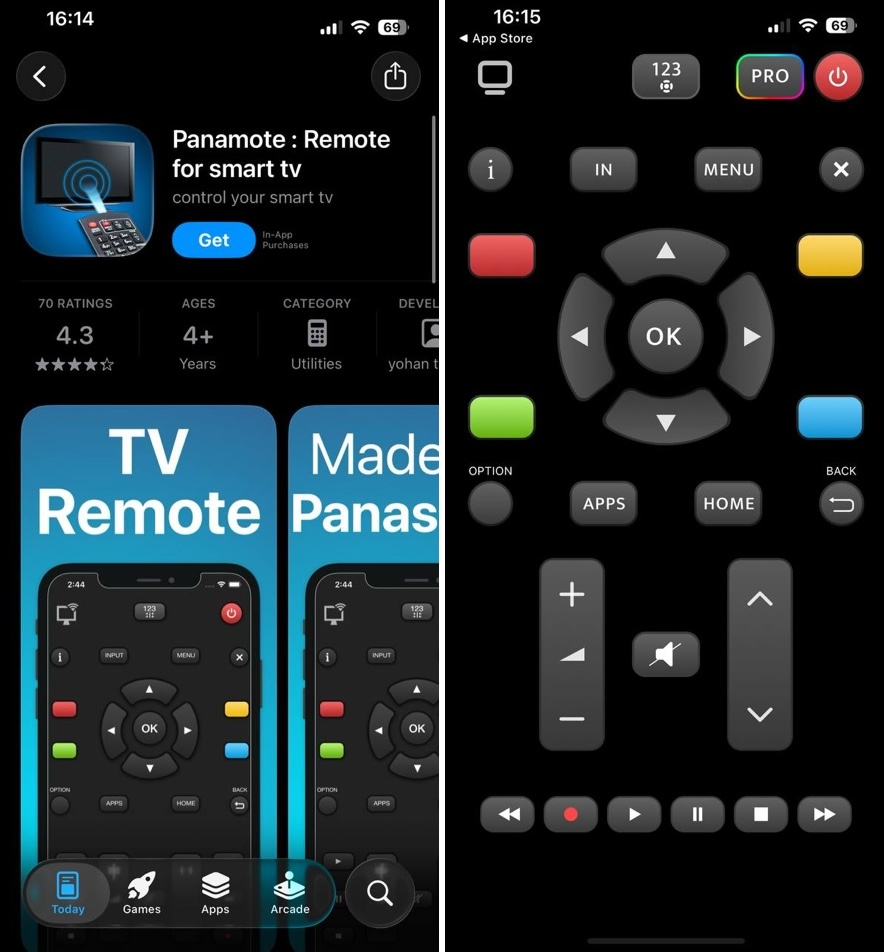
Setup is automatic – open the app, it finds your TV on the network, and you’re done. Controls cover the basics: navigation, volume, mute, channel switching, and app launching. Users with older Panasonic Smart TVs report it working reliably in cases where the official Panasonic app didn’t connect.
The tradeoffs are real though. No keyboard input, no voice control, no streaming shortcuts. It’s a stripped-down free Panasonic TV remote control app with a small but loyal user base. Useful as a backup, but limited as a daily driver.