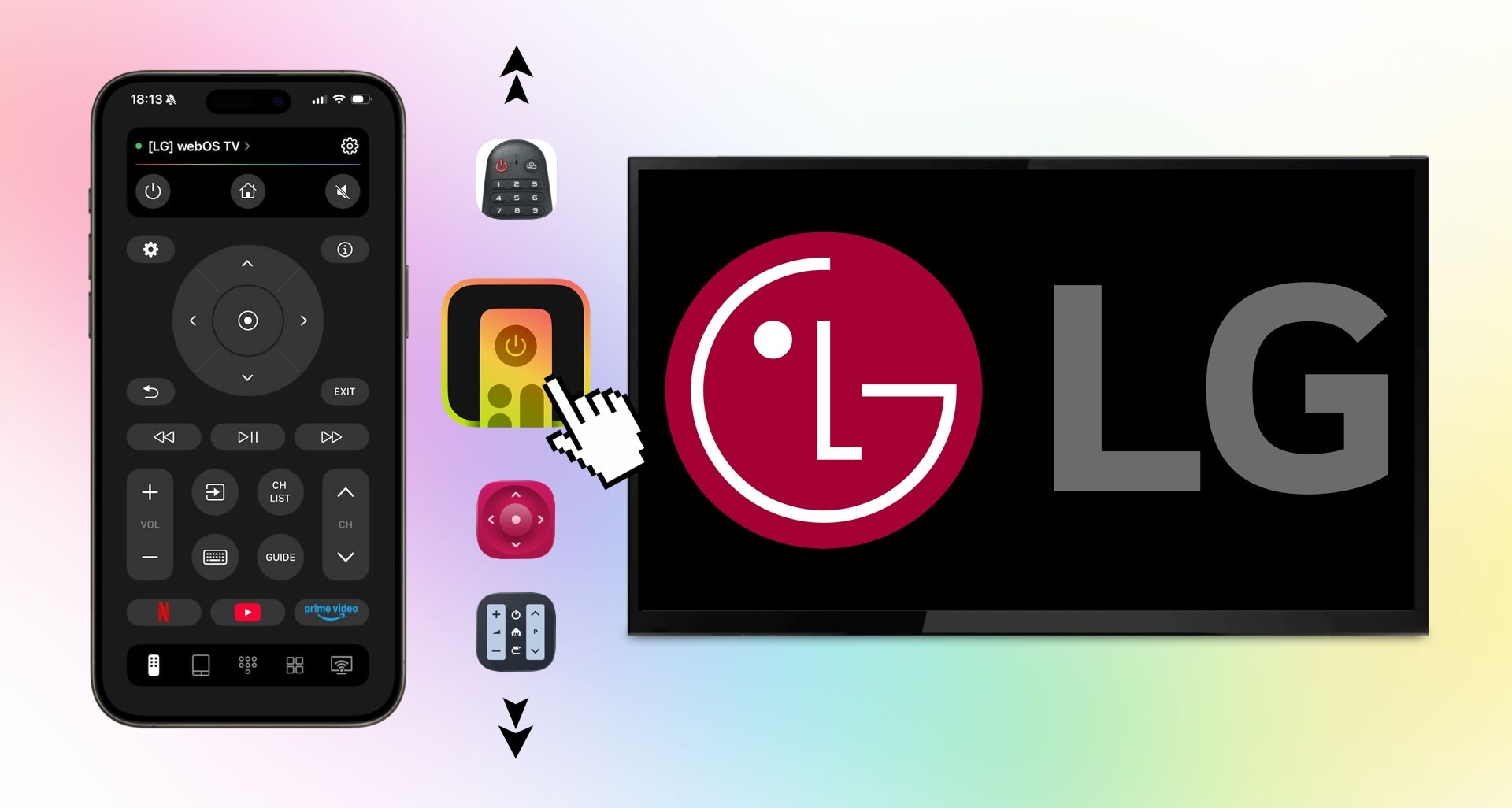
Free LG TV Remote Apps Worth Trying in 2026

Is it time to replace your physical LG TV remote control? Rather than shell out money for another remote that’s constantly lost and requires batteries, consider a handy remote app for iPhone. Our guide describes the top options, including their notable features with pros and cons, so that you can pick the best remote app for LG TV that fits your home.
Best Apps to Control LG TV
With so many remote LG TV apps for iPhone on the App Store, how do you know which one to pick? These four apps are superb choices that won’t waste your time or your money. Each of them works with both iPhone and iPad and is either free or free to try.
1. TVRem - The Best LG TV universal remote app
For a completely free LG TV universal remote app that doesn’t distract with ads, check out this first tool. TVRem is a true universal remote letting you control every TV in your home along with the LG brand. Whether Roku, Samsung, Android TV, Apple TV, Google TV, or a streaming player, this app has you covered.
TVRem provides multiple input methods for flexibility, swipe-through menus for ease-of-use, and a natural feel that you don’t see with many remote apps.
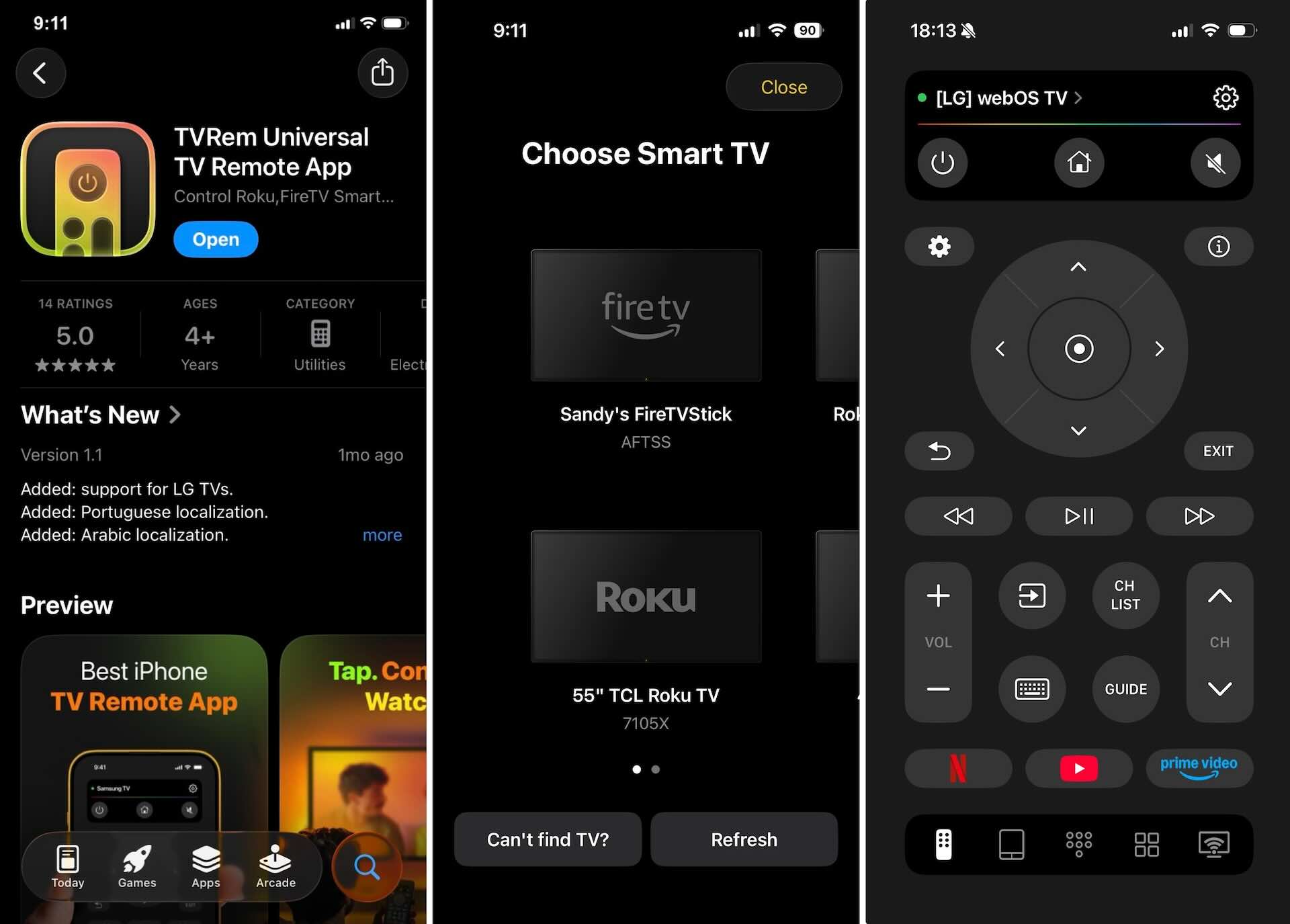
📌 Notable features:
- Intuitive interface for adjusting volume, changing channels, and controlling playback
- Convenient input options using buttons, the touchpad, or your iPhone keyboard
- Voice search and control using Google Assistant or Alexa (supported devices)
- Quick app launch for Netflix, YouTube, and Prime Video
Pros
- Free with no in-app purchases or subscriptions
- Works with many TV brands and streaming players
- Simple setup and easy-to-use interface
- No ads
Cons
- Limited customization options
💵 Pricing: Free
2. Remote Control for LG
For a free LG TV remote app for iPhone that’s easy to use and gives you just the basics you need, this app is worth considering. You simply select the remote you want to use, connect to your TV, and you’re set.
While Remote Control for LG doesn’t offer a ton of extra features, it does let you cast media in addition to controlling your TV.
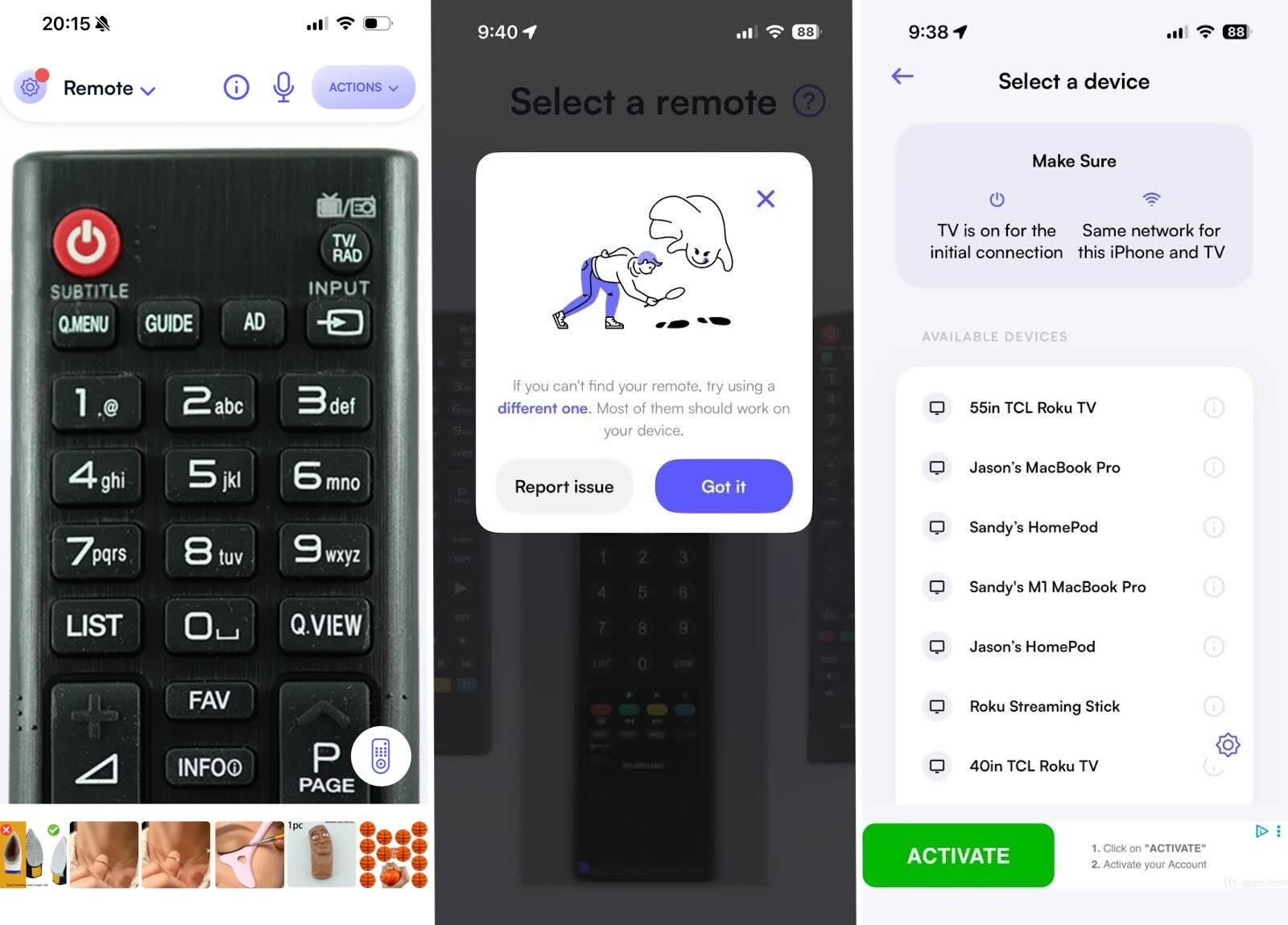
📌 Notable features:
- Option to select a remote that matches your physical control
- Auto-save of your chosen remote control (above)
- Simple input options with the touchpad, keyboard, or voice
- Cast to TV and Slideshow modes
Pros
- Basic remote control options
- Light and dark mode selection
- Ability to manually connect to a TV
Cons
- Minimal bonus features
- Contains ads
- Limited in-app support
💵 Pricing: Free, with ad removal available for $2.99.
‼️ Important Setup Notes for Best Performance
Turning On a Cold TV (Wake-on-LAN): Most Wi-Fi remote apps cannot turn on an LG TV that is completely powered off unless webOS settings permit it. To fix this, navigate to your TV menu: All Settings → Devices → External Devices → TV On with Mobile → toggle on both Turn on via Wi-Fi and Turn on via Bluetooth.
Controlling Soundbars (HDMI-CEC): If your TV uses an external soundbar or AV receiver (like Sonos or Bose) via Optical or HDMI eARC, enable LG SIMPLINK (HDMI-CEC) so the virtual remote can adjust external volume smoothly. The menu path varies by TV year:
- On webOS 6.0+ models (2021 onward): All Settings → General → Devices → HDMI Settings → SIMPLINK (HDMI-CEC) → On
- On webOS 4.5 models (2019): All Settings → Connection → HDMI Device Connection Settings → SIMPLINK (HDMI-CEC) → On
📍 Source:
https://www.lg.com/us/support/help-library/lg-tv-how-to-use-hdmi-cec–20153207563544
3. Remote Control Smart LG TV
If you’re interested in flexibility, look at this option that lets you control your LG TV from your wrist. With support for Apple Watch, you don’t even need your iPhone much less your physical remote to watch your favorite shows.
Remote Control Smart LG TV also gives you an attractive interface, lets you cast media, and offers a sign-in option to sync devices and access special features.
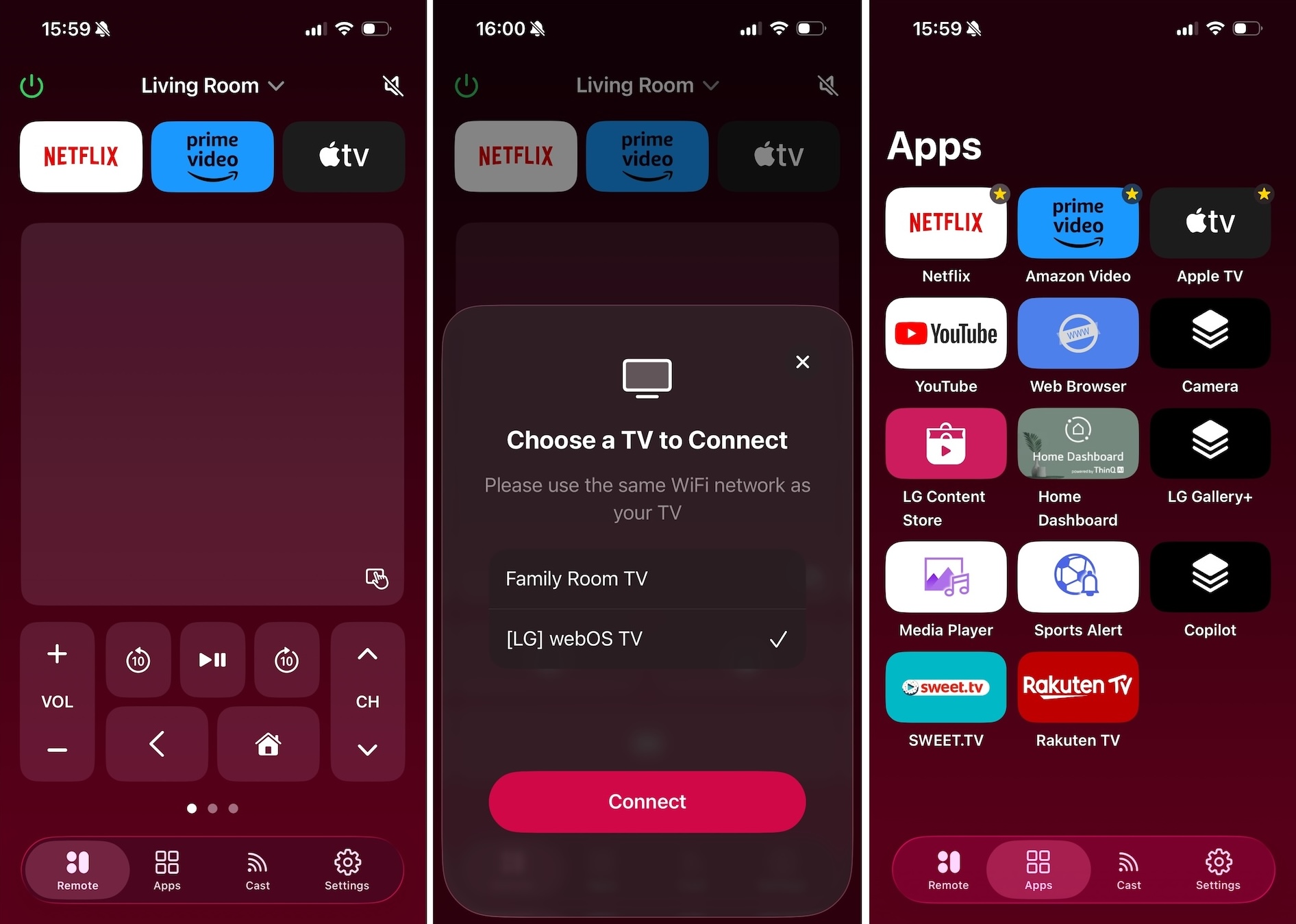
📌 Notable features:
- Control your TV from the app, Apple Watch, iPhone widget, or Siri shortcut
- Power on (supported models) and off the TV
- Access extra functions like Source, Input, and Smart Home
- Cast photos, videos, and music
Pros
- Multiple TV control (in-app purchase)
- Apple Watch support
- Quick app launch
- Simple TV switching
Cons
- Contains ads
- Pricey in-app purchases and subscriptions
💵 Pricing: Free trial with packs and subscription plans starting at $6.99.
4. Smartify – LG TV Remote
One more app to try as a remote control for iPhone is Smartify – LG TV Remote. This remote app lets you swipe across the bottom to access the controls you need, such as channel switching and volume, playback controls, and most-used apps.
Unlike similar apps, Smartify helps you determine whether your devices are compatible if you run into trouble. You can also choose from a large selection of apps and then move your favorites to the top for quick access.
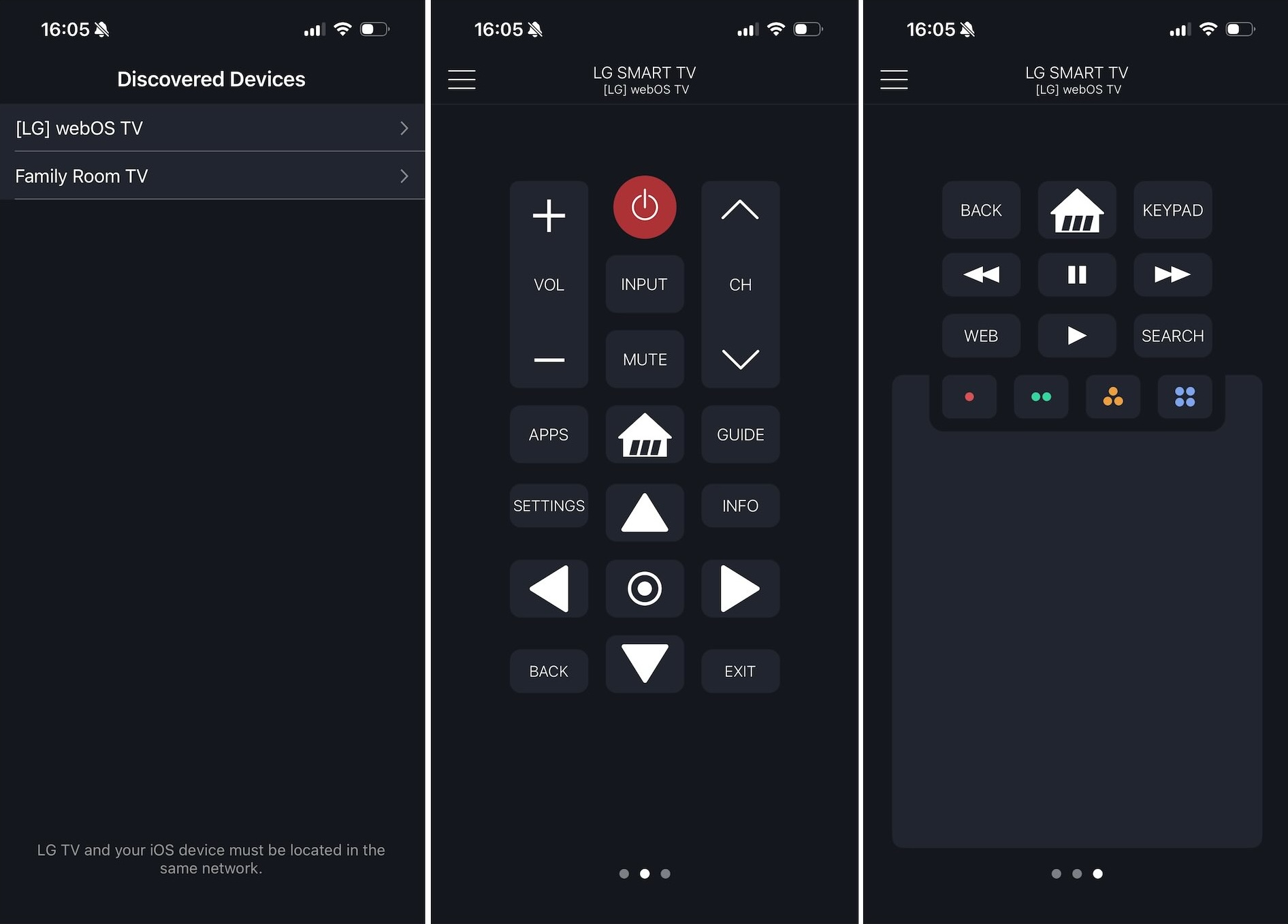
📌 Notable features:
- Ability to add quick launch channels
- TV remote control compatibility test
- Input options using buttons, voice, and keyboard*
- Quickly access TV settings
Pros
- Works with many TV brands and devices
- Simple drop-down switch to change TVs
- Intuitive controls and interface
Cons
- Several basic features require a purchase
- Pairing mode doesn’t work as expected (varies by TV type)
- *Text input available only in TV apps that support LG keyboards
💵 Pricing: Free trial with à la carte features and subscription plans starting at $2.99.
Third-Party Apps vs. Official LG ThinQ: Which Should You Use?
- Choose LG ThinQ if: You already have an LG account, want to control smart home appliances, or need official LG webOS updates and ecosystem integration.
- Choose Third-Party Apps (like TVRem or Smartify) if: You want a fast setup without creating an account or logging in, or if you simply need a quick, lightweight remote control purely for volume, channels, and text typing.
How to Choose the Right Remote App
While a physical remote control for your TV has just what you need, it’s not always the best option. Physical remotes can be lost, get broken, and require batteries. But a remote app for your mobile device is always at hand, can’t be broken, and works as long as your device is charged.
So, whether you want a replacement remote or a backup if your physical control becomes unusable, here’s what to look for in an LG TV remote app.
- ✔️ Features: Review the feature list to make sure the app has everything you need. If the app is free or offers a free trial, take it for a test run to be sure the tools function as you expect and are easy to use. Also, be sure to check out the bonus features for something you didn’t know you wanted!
- ✔️ Compatibility: Confirm that the app works with your TV model and mobile device. If you have additional TVs in your home, look for a universal app that supports multiple brands so you can use it where and when you need it.
- ✔️ Pricing: Check for in-app purchases and/or subscription plans upfront. Many free remote apps require a purchase for additional (and sometimes basic) features or to remove the ads. It’s also a good idea to compare prices if you’re deciding between a few apps.
TV Remote App vs. Physical Replacement Remote: Cost Breakdown
- Official LG Magic Remote (~$30–$50): Offers a physical scroll wheel and built-in microphone, but carries replacement costs if lost or broken.
- Generic IR Remote (~$10–$15): Inexpensive backup, but requires direct line-of-sight and lacks modern webOS touchpad pointer navigation.
- iPhone Remote Apps (Free Subscription): Free or affordable, eliminates lost remotes, and provides an instant touch keyboard for easy searching on Netflix or YouTube.
Troubleshooting: What to Do If the App Cannot Find Your LG TV
If your iPhone app stays stuck on “Searching for TV” or fails to connect, check these common fixes:
- Verify Wi-Fi Bands: Ensure both your iPhone and LG TV are on the exact same local Wi-Fi network. LG specifically recommends connecting both devices to the 2.4 GHz band — if your router separates 2.4 GHz and 5 GHz networks, make sure both devices are on the 2.4 GHz one, even if your phone defaults to 5 GHz elsewhere.
- Enable iOS Local Network Permissions: Go to Settings → Privacy & Security → Local Network on your iPhone and ensure permissions are toggled ON for your remote app.
- Reset TV Connection: Restart your LG TV and router. If the PIN prompt doesn’t appear on screen, disconnect the TV from Wi-Fi in the webOS settings menu and reconnect it.
📍 LG source:
Conclusion
The last thing you want to do is waste time finding a different option when your physical LG TV remote control isn’t cutting it. With remote apps for iPhone, you can simply download, connect, and watch.
If you like the idea of controlling your TV using your Apple Watch, then Remote Control Smart LG TV is the obvious choice. And if you don’t mind ads or paying for extra features, then either Remote Control for LG or Smartify are for you.
But for a true LG universal remote app that’s free without ads, offers an intuitive interface, and provides all the control you need, TVRem is a smart choice. You can take TVRem from room to room to control different TVs and quickly launch your favorite streaming channel with a tap.
Frequently Asked Questions
Yes, TVRem is totally free without ads, in-app purchases, or subscriptions. You receive the entire feature set for free on iPhone or iPad, can use it for multiple TV brands in your home, and will appreciate the convenient input options as you navigate and play your shows.
If you lose your physical remote, you can check out an iPhone remote app for your LG TV. There are a variety of options on the App Store, but for a free app that lets you control LG TV along with other TVs in your home, check out TVRem.
Whether your LG TV remote is lost, broken, or without batteries, you can use a mobile app to control your TV. The benefit of the remote control app is that you’re never without it as long as you have your phone or tablet and don’t have to worry about spending money on a physical replacement. Just connect your TV and phone to the same Wi-Fi, open the remote app, such as TVRem, and connect to your TV.
Yes, each app on the list is safe to use, and you’ll find a link to the privacy policy on the App Store. Before you download the app, you can review that policy or contact the developer with specific safety concerns.
Each of the TV remote apps on the list requires a Wi-Fi connection — your mobile device and TV must be on the same network — as is normally the case with smart TV apps. However, if you use Android and have an IR blaster, for instance, you only need a Wi-Fi connection for the initial setup and not for the app to function.
Most iOS remote apps rely on Wi-Fi to send commands. When your LG TV is powered down, its Wi-Fi module goes into a low-power sleep state and disconnects from the network. To fix this, enable Wake-on-LAN by going to your LG TV menu: Settings → General → Devices → External Devices → TV On With Mobile → Turn on via Wi-Fi and toggle it ON.
Third-party remote apps can only trigger the iOS keyboard when an active text input field is selected on the TV screen. If the virtual keyboard doesn’t appear automatically, tap the dedicated Keyboard icon inside your remote app manually, or try tapping inside the TV’s search bar once more to focus the input field.
Most modern iOS remote apps are built specifically for LG Smart TVs running webOS (2014 and newer). If you have an older LG NetCast TV (prior to 2014), check the app’s compatibility settings, as older models may require legacy infrared (IR) blasters or older protocol support.