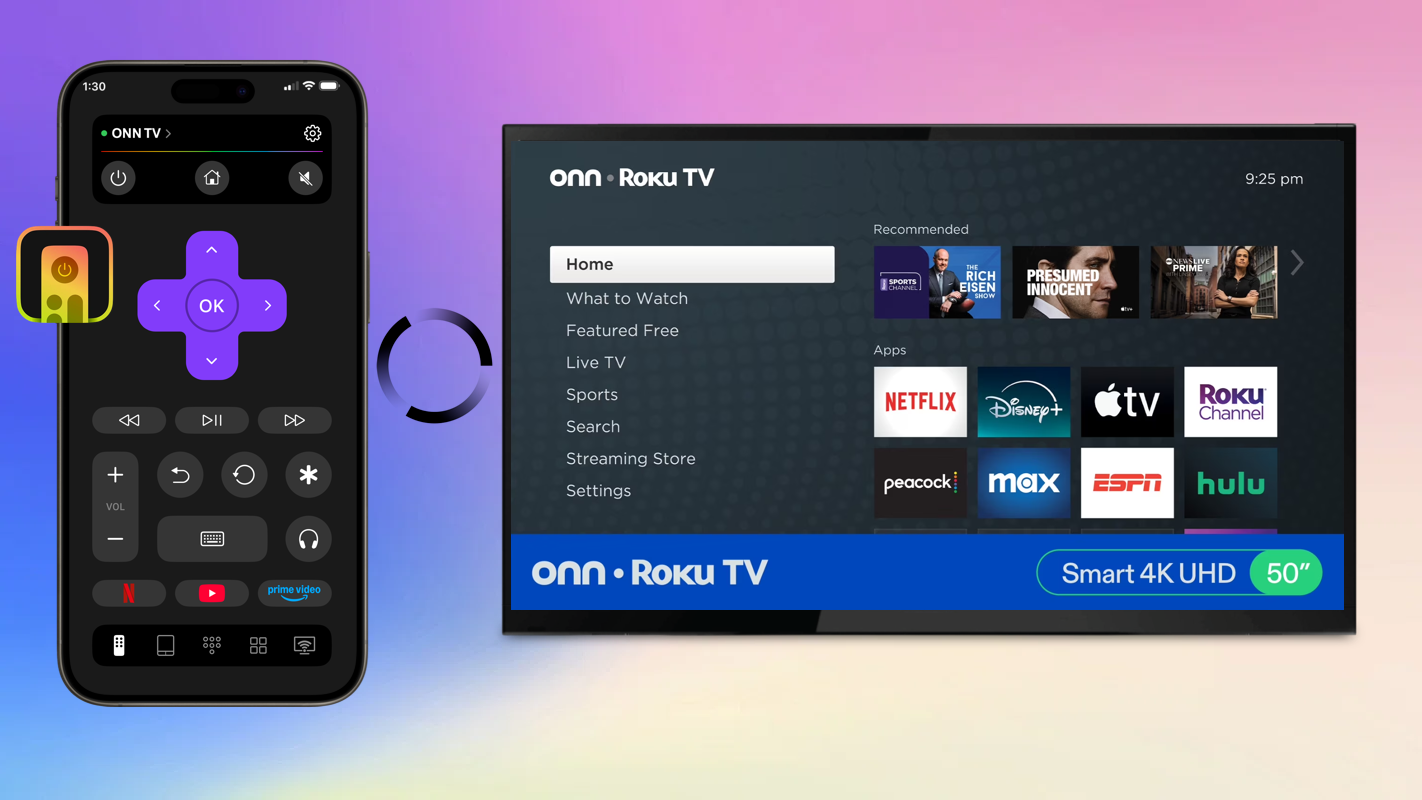
Lost your Onn Roku TV remote? Or maybe you just prefer controlling everything from your iPhone. Either way, you’re in the right place. This guide covers the best Onn TV remote app options for iPhone users, including free picks that work well with Onn Roku TVs.
Why Remote Apps Got Popular
There is a good reason so many people no longer use a traditional TV remote. Remotes get lost, their batteries die at the worst possible time, and they tend to wear out over time. Since your iPhone is usually nearby, charged, and capable of much more than basic remote control, it makes sense that many people now use it instead of a physical remote.
As smart TVs have become more common in recent years, remote apps have grown in popularity. Modern smart TVs run on platforms that let users control their devices over the internet or Wi-Fi in a more convenient way. Remote apps make it easy to use your smartphone as a TV remote while adding helpful features like a full keyboard for search, voice input for voice search, touchpad navigation, and quick-launch buttons for your favorite streaming services. This is especially useful for Onn Roku TV owners who want to replace their physical remote with an Onn TV remote app for iPhone, since it is often faster, more convenient, and typically free to download.
Best Onn Roku TV Remote Apps
1. TVRem – Universal TV Remote App
TVRem is a free ONN Roku TV remote app that turns your iPhone into a full-featured smart TV remote. Built as a universal remote, it works not only with Roku-powered TVs like ONN but also with Samsung, LG, Fire TV, Android TV, Google TV, and more. Rated 4.8 out of 5 stars with over 640 reviews, it is one of the most reliable remote apps for ONN Roku TV available today.
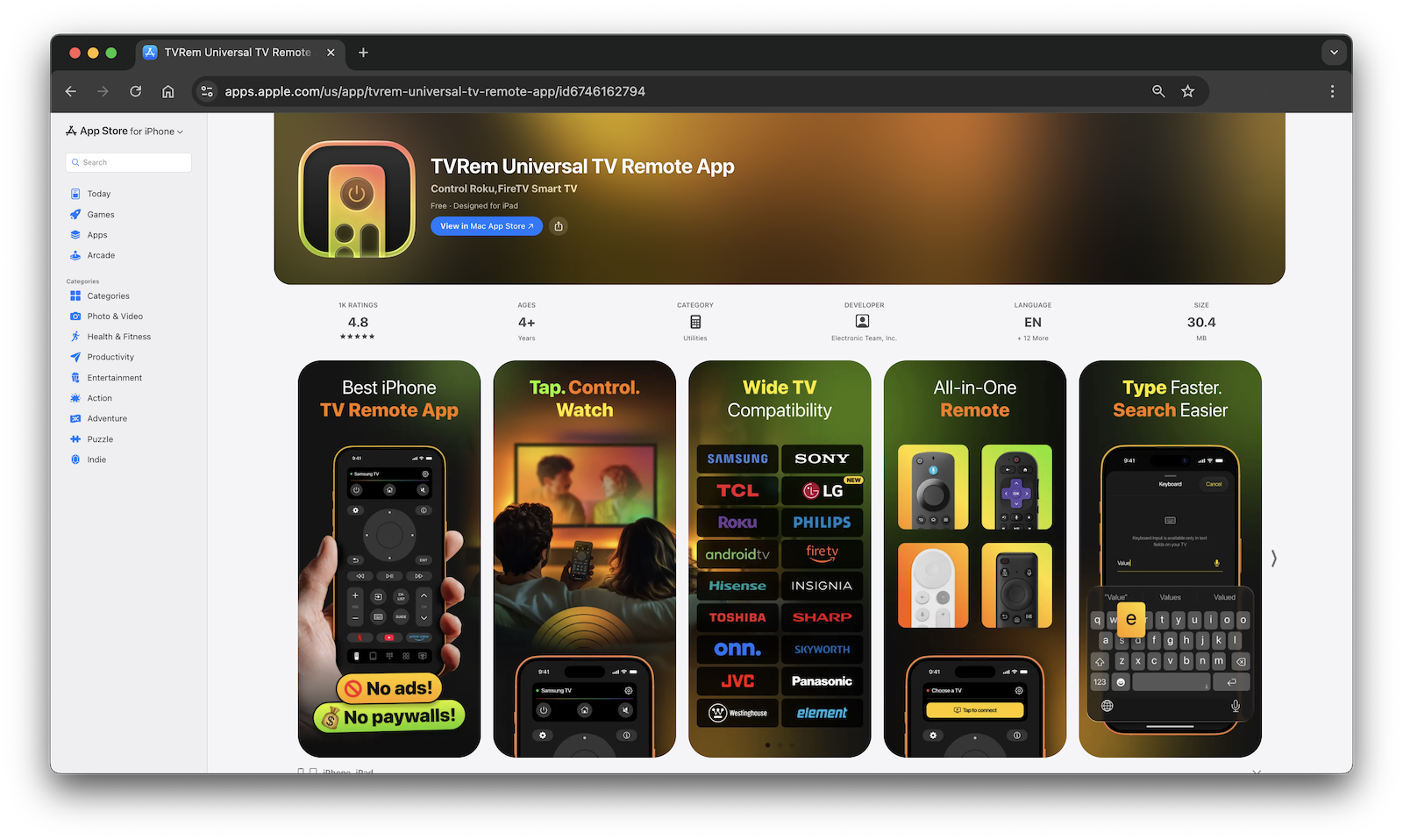
✔️ Key features:
- Full TV control. Adjust the volume, switch inputs, navigate menus, and control playback directly from your iPhone
- Touchpad navigation. Awipe and tap to move through your ONN Roku TV interface, just like using a trackpad
- Smart keyboard input. Type search queries, passwords, and app names with your iPhone keyboard instead of the slower on-screen one
- Voice control. Supports voice search through Google Assistant and Alexa on compatible models
- Quick app launch. Open Netflix, YouTube, Prime Video, and other streaming apps with a single tap
- Free to use. No subscription is required to access the core remote features
How to Set Up TVRem for Onn Roku TV
1. Download TVRem from the App Store.
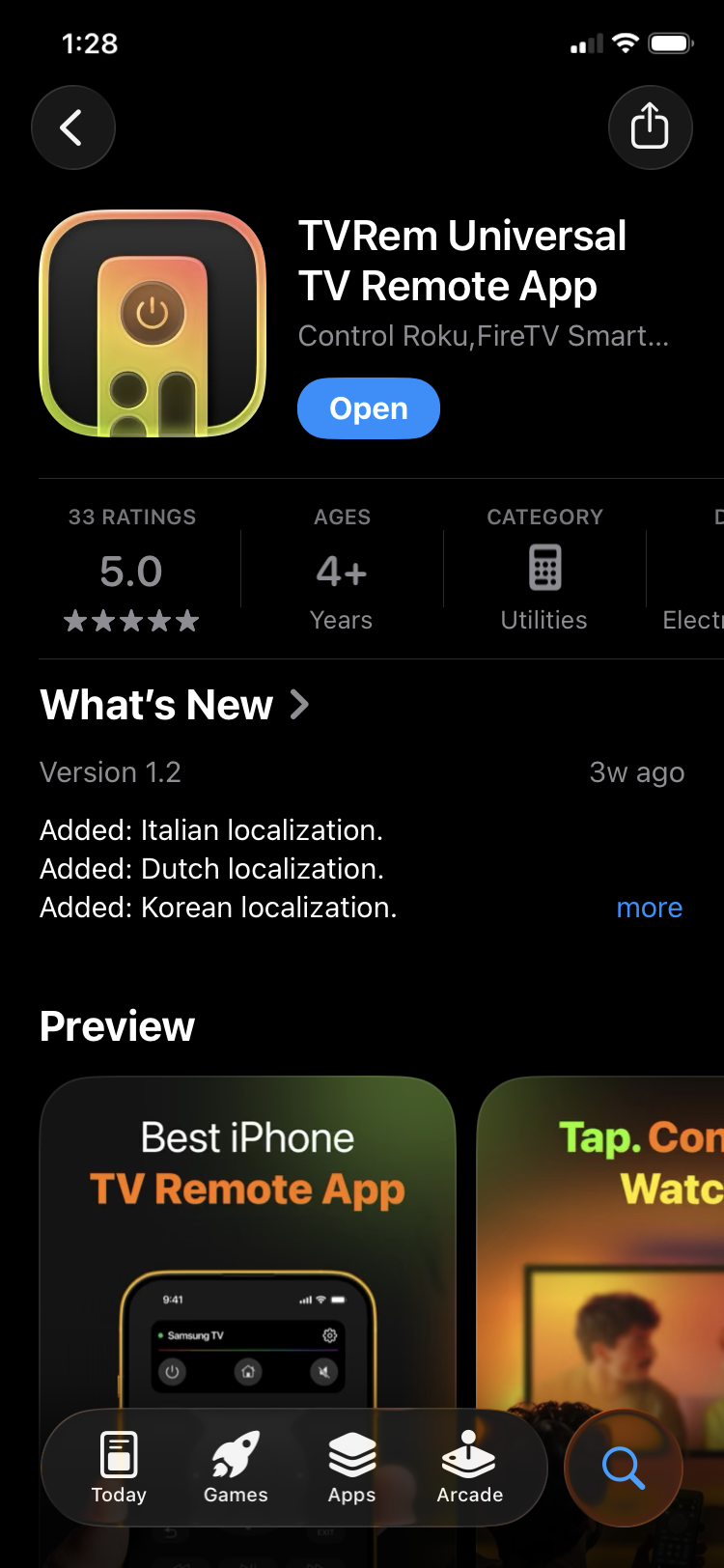
2. Make sure your iPhone and Onn Roku TV are connected to the same Wi-Fi network.
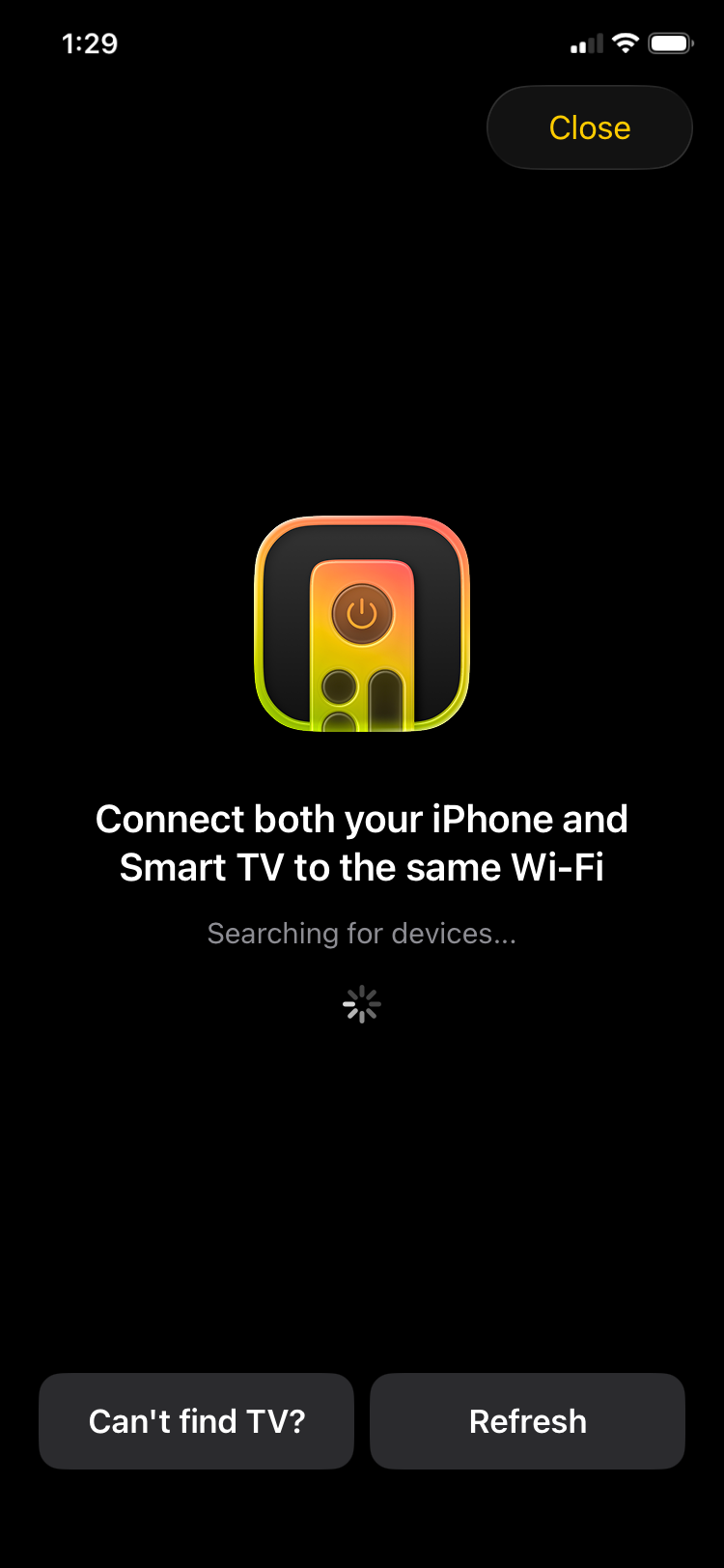
3. Open TVRem. It will automatically scan for available devices on your network.
4. Select your Onn Roku TV from the list.
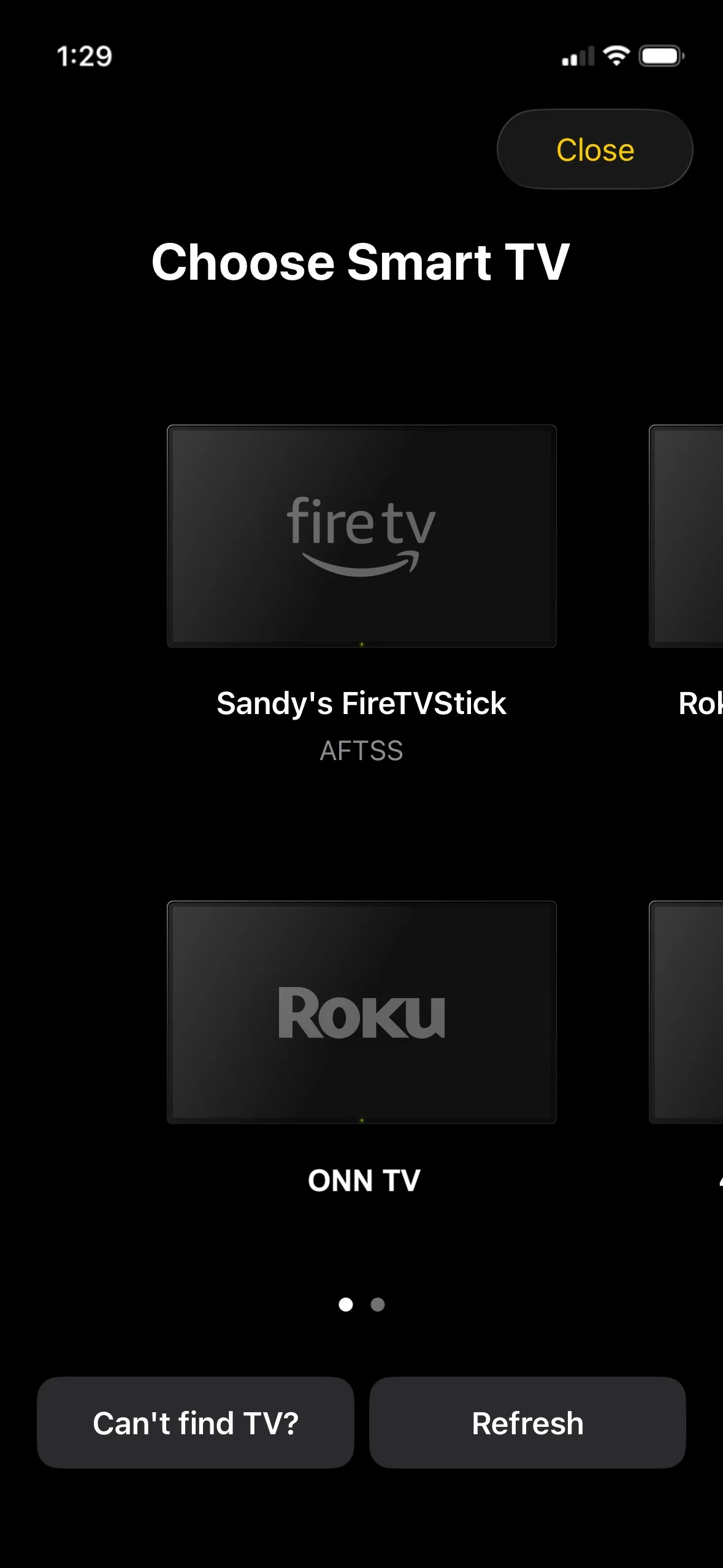
5. Start controlling your TV: navigate, adjust the volume, launch apps, and use the keyboard.
Setup takes less than a minute, and there is no need to create an account or pair anything manually.
2. The Roku App (Official)
The Roku App by Roku is the official app that will help users of the Onn Roku TV to have a solution that is made by Roku and is free to use. The Official Roku App was designed for all Roku devices, including the Onn Roku TVs that use the Roku Operating System (OS).
✔️ Some of the main features of the app include:
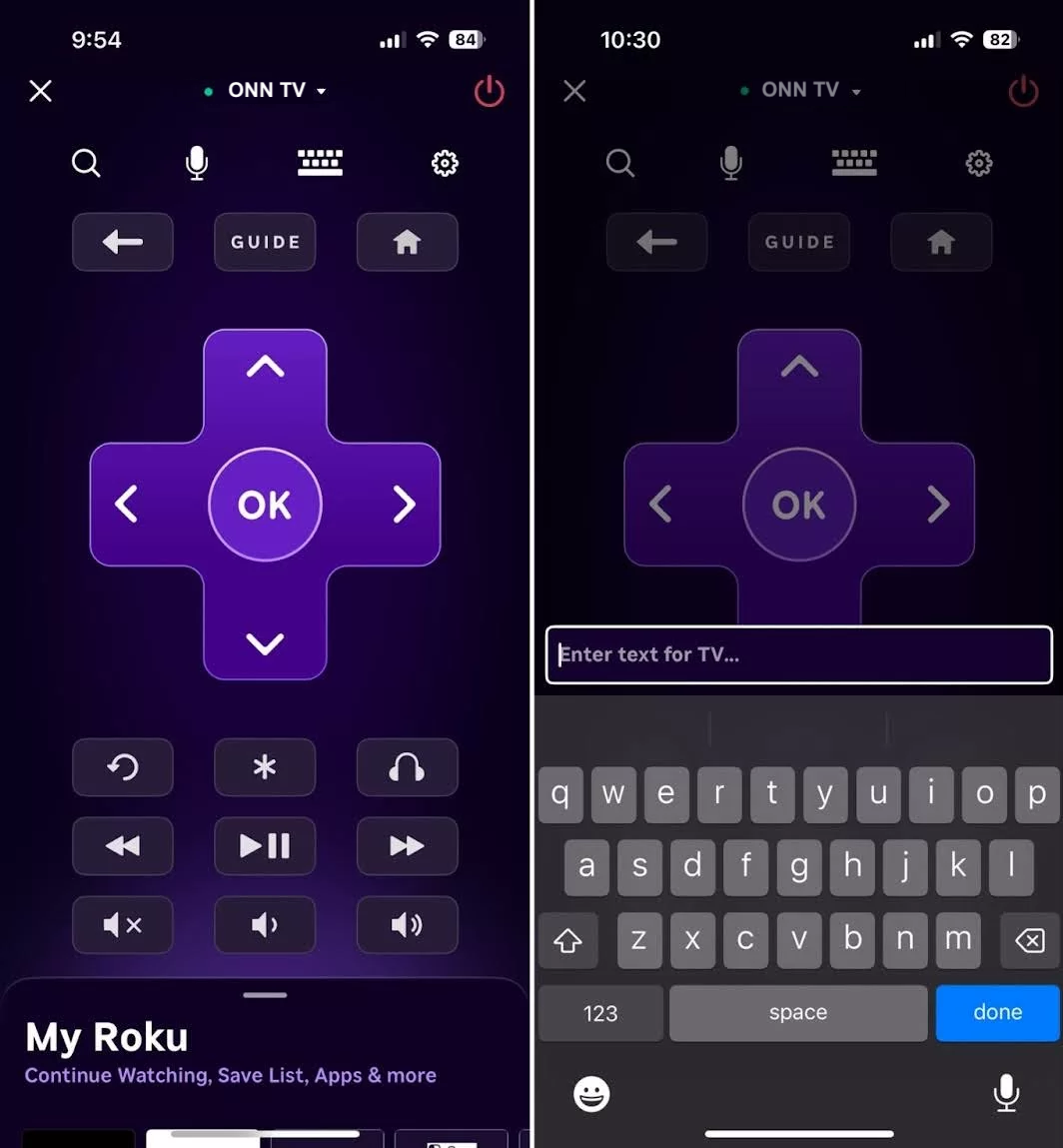
- Remote control. Standard D-Pad navigation and Playback/Volume buttons
- Private listening. If you plug in a pair of headphones to your iPhone, you will be able to listen to your TV audio through your iPhone
- Keyboard and voice search. Search for content using the keyboard or by using voice recognition through the iPhone
- Channel browsing. Browse and add additional channels directly from the app on your phone
- Screen mirroring. Cast content from your iPhone onto the Onn Roku TV
How to Set Up the Roku App for Onn TV
1. Download the official Roku app from the App Store.
2. Open the app and sign in to your Roku account, or create one for free.
3. Make sure your iPhone and Onn Roku TV are connected to the same Wi-Fi network.
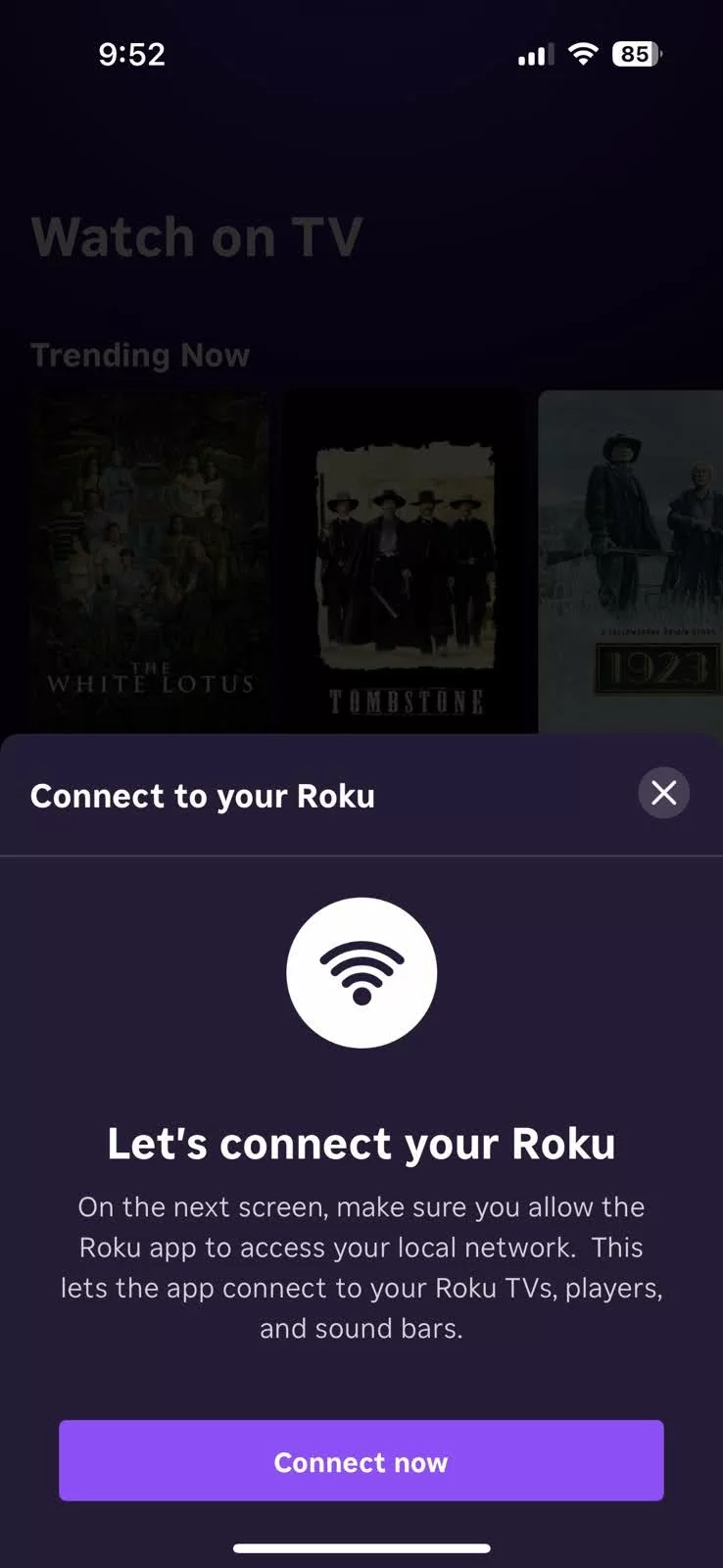
4. Tap the Remote tab. The app will automatically find your Onn Roku TV.
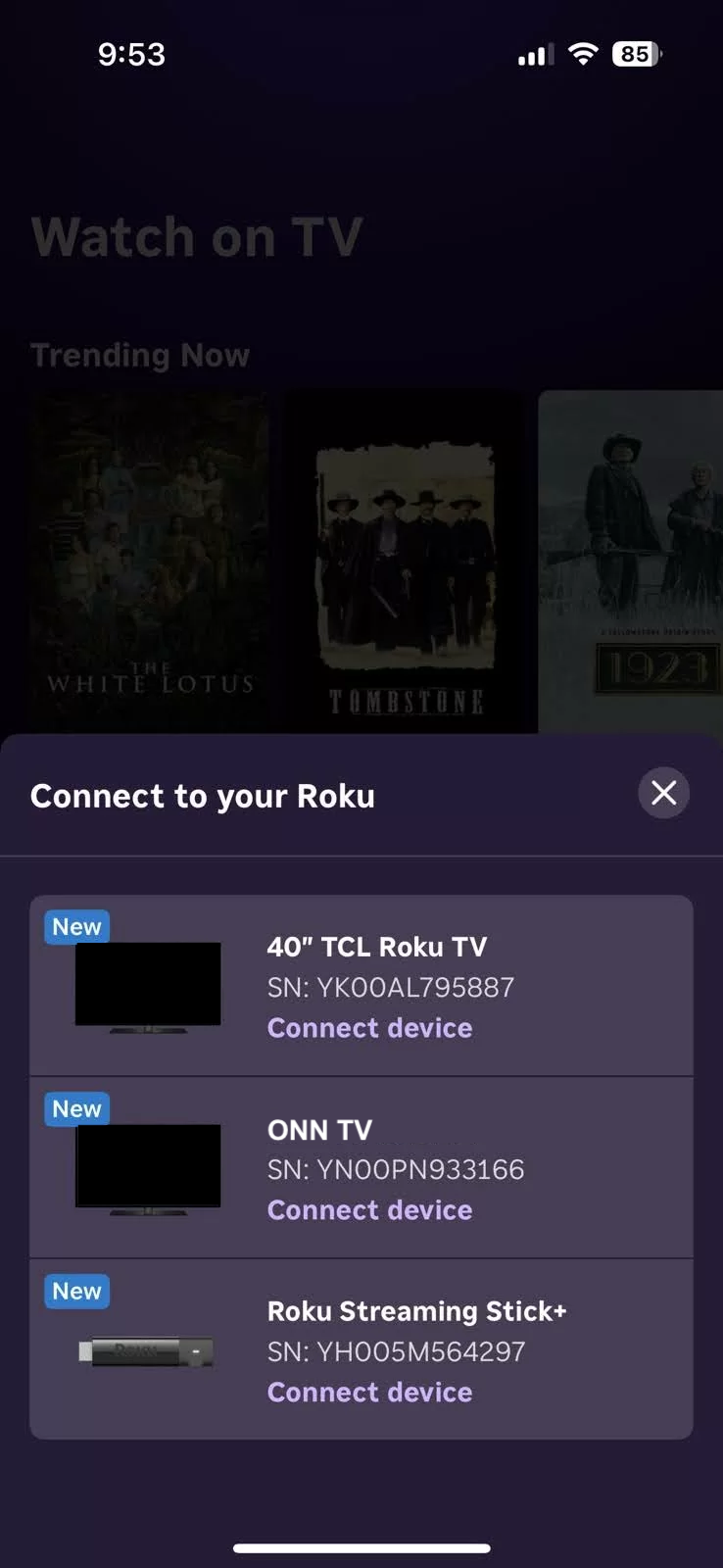
5. Use the on-screen remote to control your TV.
How To Select Your Onn Roku TV's Remote App
The main factors to consider when choosing an Onn Roku TV remote app are compatibility, ease of setup, features, and reliability.
First, the app should work with your Onn Roku TV and any other TVs or streaming devices you use. Some remote apps only support specific brands and may not work with other TVs or Roku players. If you replace your TV or add another device to your setup, a limited app may no longer meet your needs.
Second, the setup should be simple. If you do not want to deal with a long installation or pairing process, choose an app that connects quickly without requiring account creation or repeated setup. The best free Onn Roku TV remote apps are the ones that work almost immediately.
It is also worth looking at features beyond basic navigation. Options like keyboard input, voice control, and quick-launch buttons for streaming apps can make everyday use much easier.
Reliability matters just as much. If the app disconnects often or responds slowly to button presses, it can become more frustrating than helpful.
This is where TVRem has an advantage over the official Roku app. While the official Roku app is limited to Roku devices, TVRem also works with Samsung, LG, Fire TV, Android TV, and Google TV. That means you can use one app to control multiple devices instead of switching between different remote apps.
Conclusion
You do not need a physical remote to control your Onn Roku TV. Both TVRem and the official Roku app offer solid free Onn Roku TV remote app options for iPhone users. The Roku app is a reliable choice if you are fully within the Roku ecosystem. But if you want one app that works across different brands and devices without limitations, TVRem is the better option. It is free, easy to set up, and rated 4.8 stars for a reason.
Frequently Asked Questions
Yes, TVRem is free to download and use as an Onn TV remote app at no cost. Core remote features such as navigation, volume control, keyboard input, and app launching are available without a subscription or payment.
TVRem works with a wide range of smart TVs and streaming devices beyond Onn Roku TVs. Supported brands include Samsung, LG, Amazon Fire TV, Android TV, Google TV, including Chromecast with Google TV, and Roku-based devices of all kinds. It is a true universal remote, which is one of its biggest advantages over brand-specific apps.
Onn TVs that run Roku OS do not have a separate official Onn remote app. Instead, they can be controlled with Roku-compatible apps, including the official Roku mobile app. Some third-party remote apps may also work, but compatibility depends on your specific Onn TV model.