- Blog
- iOS
- Streaming, Mirroring and Casting
- How to Screen Mirror iPhone to LG TV Without Hassle (2026 Update)

How to Screen Mirror iPhone to LG TV Without Hassle (2026 Update)
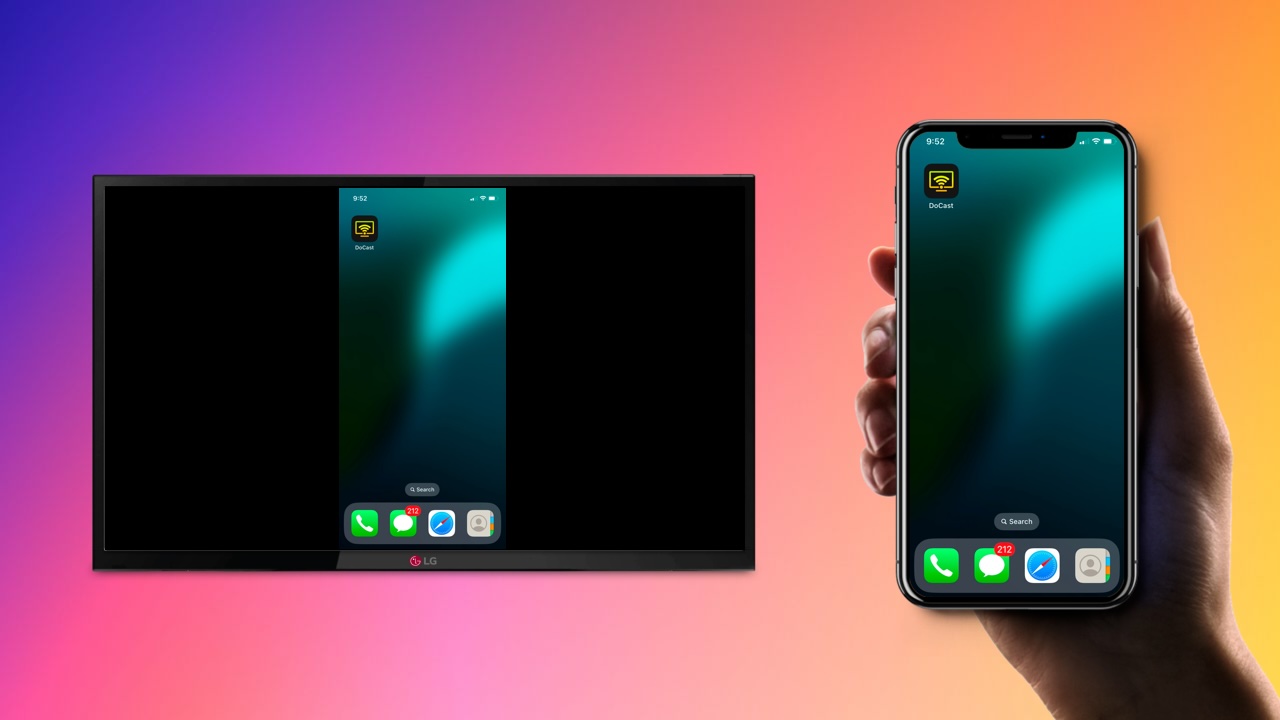
Want to screen mirror iPhone to LG TV? If your LG TV supports AirPlay, you can mirror your screen wirelessly using the built-in feature. On other models, you can use a third-party app or a browser-based receiver. A wired HDMI connection is also available if you prefer a direct connection.
Choose the method that works best with your TV and follow the step-by-step instructions below.
Using Native AirPlay for Mirroring
AirPlay is Apple’s native wireless mirroring technology, specifically for streaming Apple devices such as the iPhone. It makes mirroring iPhone to LG TV intuitive and seamless, as long as your smart TV supports it. LG TVs do come equipped with AirPlay, but only with certain models. Check this list to see if your LG supports AirPlay:
- LG (2022 Models on webOS 22 and newer) – All QLED TVs, All QNED TVs, UQ and Nano Series in UHD
- LG (2021 Models on webOS 6.0 and newer) – All QLED TVs, All QNED TVs, UP and Nano Series in UHD
- LG OLED – RX, ZX, WX, GX, CX, BX series (2020)
- LG OLED – R9, Z9, W9, E9, C9, B9 series (2019)
- LG OLED – B8, C8, G8, E8 Series (2018)
- LG NanoCell – Nano 99, 97, 95, 90, 85, 80 series (2020)
- LG NanoCell – SM99, SM95, SM90, SM86, SM81 series (2019)
- LG UHD TV – UN85, UN73, UN71, UN70, UN69 series (2020)
- LG UHD TV – UM80, UM75, UM73, UM71, UM69 series (2019)
- LG SuperUHD SK 9, 8 series (2018)
- LG UHD UK 62 series or above, UK 7 series (2018)
How to mirror using AirPlay
If your LG TV supports AirPlay, it only takes a few minutes to get set up mirroring.
1. Make sure your iPhone and LG TV are connected to the same wireless network.
2. Make sure AirPlay is enabled on your LG TV by navigating to the Home screen and selecting AirPlay.
3. If it isn’t enabled by default, turn AirPlay On.
4. Open the Control Center on your iPhone and tap Screen Mirroring.
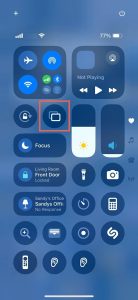
5. Choose your LG TV from the list of options.
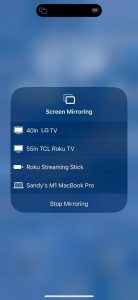
6. Your TV will display a code. Enter this into your iPhone to allow the connection and begin mirroring.
Screen Mirroring to LG TV with Third-Party Apps
While AirPlay is convenient for LG TVs that support it, those without it will require you to download a third-party app to screen mirror to LG TV from iPhone. Fortunately, once installed,, it can be just as convenient as AirPlay – or even better, thanks to additional customization options. Because of this, some may even prefer a third-party app over AirPlay.
DoCast
There are dozens of third-party apps that can help you mirror iPhone to LG smart TV, but DoCast is the most robust and convenient for most users. Designed specifically for casting from iPhones and iPads, no delay or loss in quality.

Note that the mirroring feature of DoCast does require users to purchase the paid version of the app, while the free version still allows photo casting, music sessions of up to 15 minutes, and up to 3 minutes of video sessions.
Here’s how to set up mirroring with DoCast
1. Download the DoCast app from the App Store.
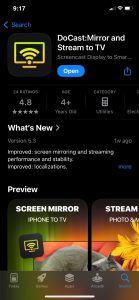
2. Accept all permissions
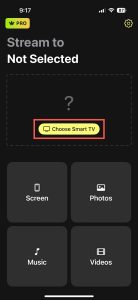
3. Tap Choose Smart TV to open a menu of available TVs on your network.
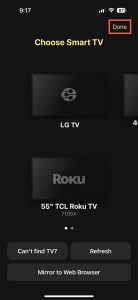
4. Find your TV on the list of devices and tap on it to establish a connection with the app and tap Done.
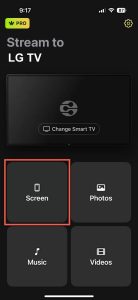
5. Once connected, tap the Screen button to begin mirroring.
6. Change any settings you like and then hit Start mirroring.
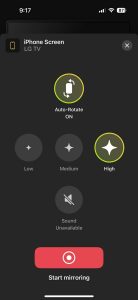
7. When you want to stop, simply hit Stop mirroring.
Notes: If you want to control your TV device from iPhone, choose a TV remote app for iPhone – TVRem.
Universal Browser-Based Method (No App Required on TV)
If your LG TV is an older model that doesn’t support AirPlay and you don’t want to install a third-party app on the TV itself, you can mirror your iPhone using the TV’s built-in web browser:
- Connect your iPhone and LG TV to the same Wi-Fi network.
- Open the Web Browser on your LG TV and go to tvee.app. A QR code and a 6-digit ID will appear on the TV screen.
- Scan the QR code with your iPhone’s camera to download the Screen Mirroring App from the App Store.
- Open the Screen Mirroring App on your iPhone.
- Scan the QR code again using the app, or enter the 6-digit ID shown on your TV.
- Tap the broadcast button, select Screen Mirroring, and tap Start Broadcast,/span>.
How to Screen Mirror on LG TV from iPhone Using an HDMI Cable
If all the other methods for screen mirroring haven’t worked or aren’t an option for you, the last resort is to connect your phone directly using an HDMI cable.
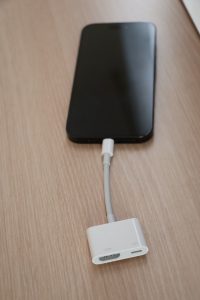
Before you can do this, you will need to purchase an HDMI adapter that is compatible with your iPhone. For older models, this will be a Lightning-to-HDMI adapter, while newer models (like iPhone 15) require a USB-C-to-HDMI adapter. If you don’t have a spare HDMI cord already, you will also need to collect this as well.
Once you have both of these items, here is how to mirror using an HDMI cable:
1. Connect your HDMI adaptor to your iPhone to one end of your spare HDMI cable.
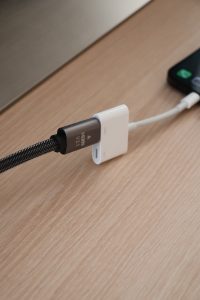
2. Plug your HDMI cable into your adapter and the other end into a free HDMI port on your LG TV.
3. Change your TV input to the appropriate HDMI signal.
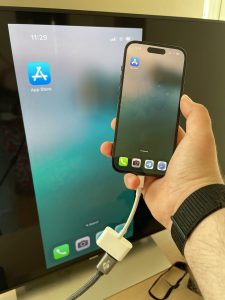
4. Your phone’s content should now start playing on your TV screen.
Choosing the Right HDMI Adapter for Your iPhone Model
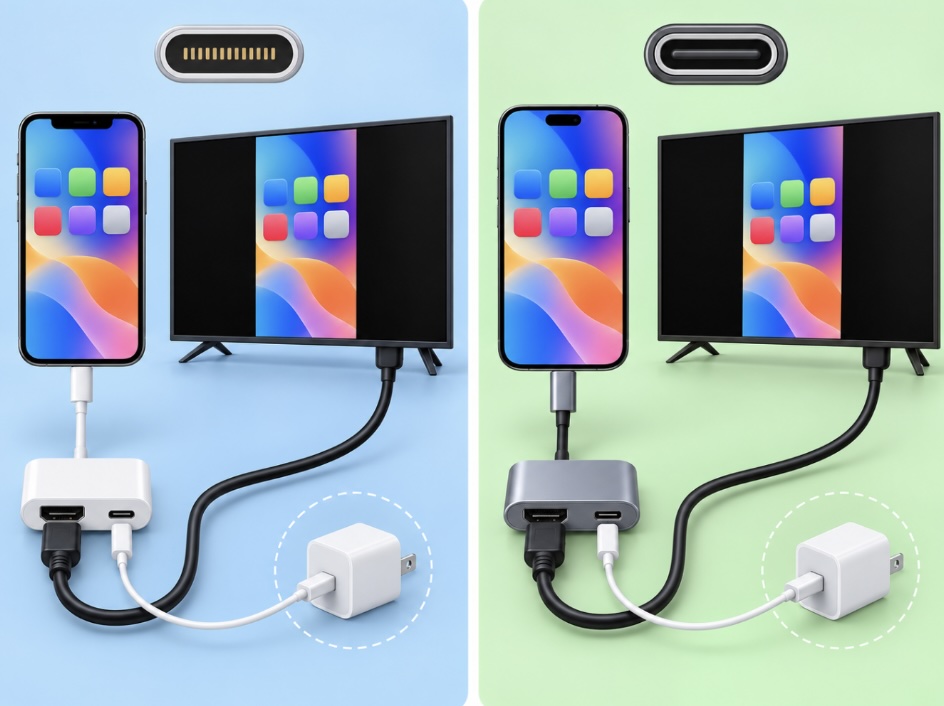
- For iPhone 14 and Older (Lightning Port): Use the Apple Lightning Digital AV Adapter or a compatible Lightning-to-HDMI adapter. The Apple adapter includes an extra Lightning port so you can charge your iPhone while it is connected to the TV, but external power is not required for normal video output. Video output through Apple’s Lightning Digital AV Adapter is limited to 1080p HD. Third-party adapters may vary in compatibility, particularly with protected video content.
- For Compatible USB-C iPhones: Supported USB-C iPhone models use the DisplayPort protocol for external video output at up to 4K and 60 Hz. You can connect them to an HDMI TV using a USB-C-to-HDMI cable or adapter that supports HDMI 2.0, such as the Apple USB-C Digital AV Multiport Adapter. External power is generally not required, although pass-through charging can be useful for longer sessions. In most cases, the TV mirrors the iPhone display, although some video apps can use a separate second-screen experience.
- Not every USB-C iPhone supports wired video output: As of October 2026, Apple’s compatibility list includes the iPhone 15 series, iPhone 16 models except iPhone 16e, iPhone 17 models except iPhone 17e, and iPhone 18 Pro models. Models such as the iPhone 16e and iPhone 17e have USB-C but don’t support wired external displays; use AirPlay or another wireless mirroring method instead. Check Apple’s official compatibility list for your specific model.
Screen Mirroring vs. App Casting
Before setting up a connection, it’s important to choose the right method for your needs:
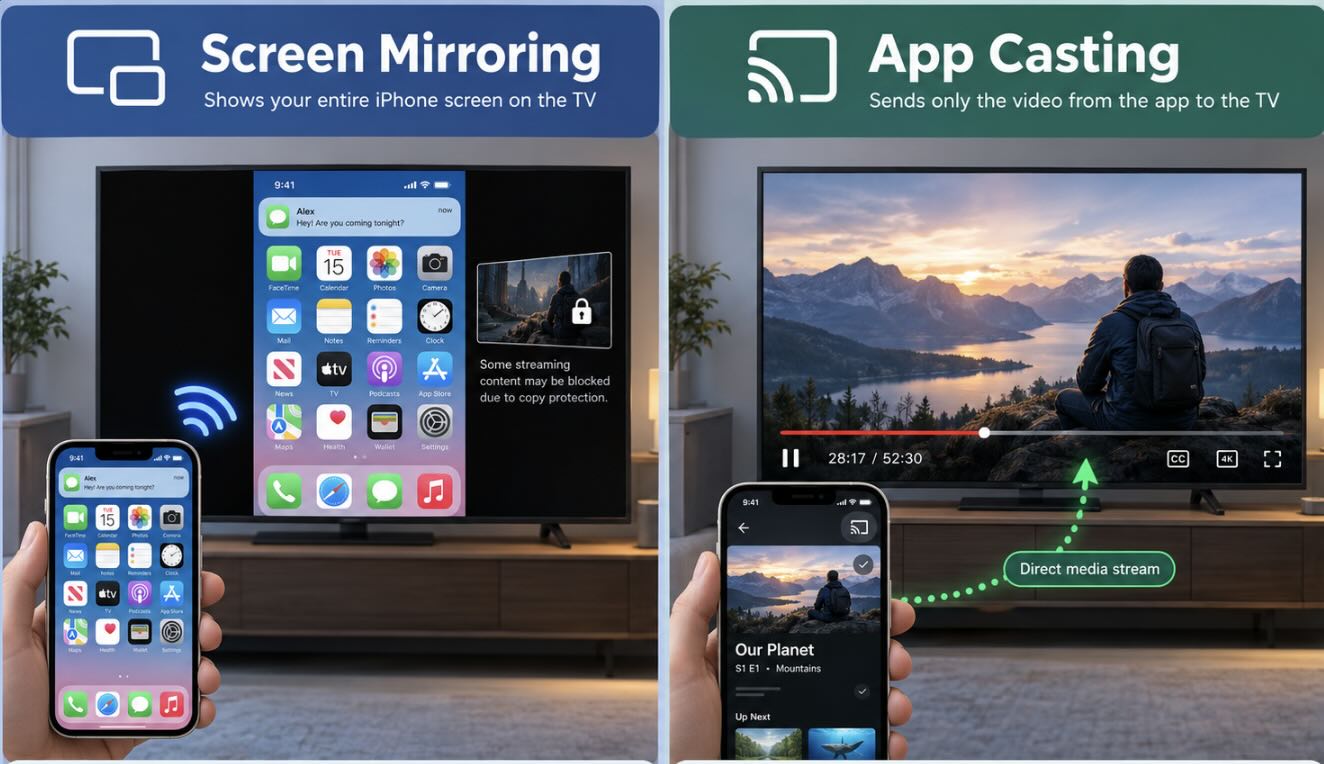
- Full Screen Mirroring: Duplicates your entire iPhone screen – including the interface, navigation, and most on-screen content – on the TV. It’s useful for presentations, photos, websites, or apps that don’t provide their own casting option. Keep in mind that notifications may also appear on the TV unless you disable them for screen sharing, and some streaming apps may block mirroring of protected content.
- App Casting: Sends supported media from a compatible app, such as YouTube, to the TV without mirroring the entire iPhone screen. The TV plays the content independently, so you can usually use other apps or lock your iPhone without stopping playback. Casting can also provide more consistent video quality than full-screen mirroring because the media is streamed directly to the TV or receiving app. Availability depends on the app and your LG TV model.
Troubleshooting Screen Mirroring Issues Between iPhone and LG TV
There are several problems that can appear when you’re trying to screen share iPhone to LG TV, but all the most common ones have simple solutions.
If you’re not seeing your device show up when trying to connect either through AirPlay or a third-party app like DoCast, the most common issue is that your iPhone and TV are not connected to the same WiFi network. Confirm that not only are both devices connected to the Internet, but the same network, since your router may have more than one.
If you’re using AirPlay, make sure your LG TV model supports AirPlay and that the feature is enabled in the settings.
If you’re able to connect but there’s no sound, there are a few things to check. First, make sure your iPhone’s volume isn’t muted since that will cut out the sound even if your TV volume is up. If that’s not the case, next would be to check your TV volume. Finally, try turning off your iPhone’s Bluetooth in case it is automatically connecting to wireless headphones in your house. If none of those methods work, the most effective solution is to disconnect and reconnect your device.
Conclusion
LG TVs are great smart TVs, made even better by the ability to let you mirror iPhone content to them. Most modern models allow you to connect via AirPlay, which takes the least effort to set up, but third-party apps like DoCast can work with any LG TV with wireless connectivity, offering even greater customization options. Connecting your phone using an HDMI cable should be your last resort to set up iPhone screen mirroring to LG TV, as it requires extra cables and accessories and keeps your phone tethered to your TV.
Frequently Asked Questions
Apple TV isn’t required to screen mirror iPhone to LG TV. If your TV is compatible with AirPlay then you can connect using that method, otherwise a third-party app like DoCast will work. If neither of these options is available, you can use an HDMI cable to screen share.
To turn on AirPlay on compatible LG TVs, go to the home menu, select the AirPlay button, and make sure it is set to ‘On’.
Many LG TV models support screen mirroring through AirPlay, but those that don’t can still use DoCast or HDMI cables for mirroring.
Your LG TV may not show up when trying to screen mirror for a few reasons. First, if it is not on the same wireless network as your phone. Second, if you are trying to use AirPlay and your TV doesn’t support it or it is not enabled.
Not wirelessly through AirPlay in the usual LG TV setup. AirPlay-compatible LG TVs require your iPhone and TV to be connected to the same Wi-Fi network. That network does not necessarily need internet access for local screen mirroring.
Apple’s peer-to-peer AirPlay feature is documented for Apple TV devices rather than AirPlay-compatible smart TVs. If you don’t have a Wi-Fi network available, the most reliable alternative is a wired HDMI connection using a compatible adapter for your iPhone.
A black screen with audio can occur when a streaming service restricts screen mirroring because of DRM or HDCP protection, although cable, adapter, or HDMI compatibility issues can cause similar symptoms.
Netflix does not support AirPlay or Screen Mirroring from an iPhone or iPad. On an LG TV, use the Netflix app installed on the TV or a supported wired video connection instead.
Disney+ supports AirPlay on compatible devices, so use the AirPlay button inside the Disney+ app instead of mirroring your entire iPhone screen. On a compatible LG TV, you can also use the native Disney+ app.