- Blog
- iOS
- Streaming, Mirroring and Casting
- How to Screen Mirror iPhone to Sony TV: Wireless & Wired Options

How to Screen Mirror iPhone to Sony TV: Wireless & Wired Options
How to mirror iPhone to Sony TV seamlessly and without hassle? Our guide explains the easiest and most reliable wireless and wired methods to get your iPhone screen on the big screen, plus expert troubleshooting tips and bonus steps to mirror your Mac, Android device, or browser to your Sony TV.
Sony TV & iPhone Compatibility
- Native AirPlay 2 Support: Available on all Sony Google TV models and selected Sony Android TV models. Some compatible models may require a software update, so check your TV model in Sony’s compatibility information.
- Older Sony TVs: If AirPlay isn’t supported, you can still cast from compatible apps like YouTube using Google Cast. For full screen mirroring, use a wired HDMI adapter. Sony’s built-in Miracast/Screen Mirroring does not work natively with iPhone.
- iPhone Requirements: Third-party mirroring app requirements vary, so check the app’s current iOS, device, and TV compatibility in the App Store.
Screen Mirror iPhone to Sony TV Without AirPlay
If you happen to own a Sony TV model that doesn’t support AirPlay, don’t worry because there are other wireless solutions. Third-party screen mirroring apps not only allow you to connect your devices, but often provide extra features that can enhance your experience.
DoCast
DoCast is one such app that lets you easily screen mirror iPhone to Sony TV. Along with a seamless connection between devices, you’ll enjoy a high-quality picture and low latency with an easy-to-use app.
In addition to screen mirroring, you can use DoCast to effortlessly share media at your next party or event. You can cast your favorite photos, videos, and DRM-free music from your iPhone to your Sony TV for an entertaining and memorable backdrop.
Visit the App Store on your iPhone to download DoCast and then make sure your devices are connected to the same Wi-Fi network to begin.
Step-by-step guide
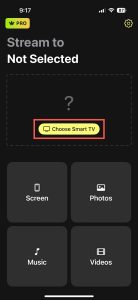
1. Open the DoCast app on your iPhone and pick Choose Smart TV.
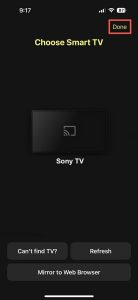
2. Choose your Sony TV from the device list and tap Done.
3. Select Screen.
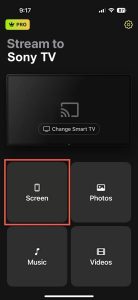
4. Optionally, adjust the screen mirror settings for Auto-Rotate and Low, Medium, or High quality.
5. Tap Start mirroring.
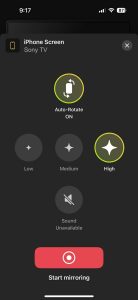
You’ll then see your iPhone appear on your Sony TV and can begin your screen mirroring session.
DoCast is available for iPhone and iPad and is compatible with brands like LG, Panasonic, TCL, and other DLNA-enabled TVs. You can download DoCast for free to cast media or upgrade to use screen mirroring with quality settings and screen rotation control.
Notes: If you need to control your TV from your iPhone, consider a TV remote app for iPhone – TVRem.
Screen Mirror with Apple AirPlay
Apple offers a built-in technology called AirPlay on its iPhone, iPad, and Mac for connecting to other Apple devices or third-party devices like TVs, printers, and speakers. Using AirPlay, you can wirelessly and seamlessly mirror an iPhone screen to a Sony TV.
To get started, confirm that you have one of the following AirPlay supported Sony TV models.
| Sony A8H series (2020) | Sony X80J series (2021) |
| Sony A9F series (2018) | Sony X85J series (2021) |
| Sony A9G series (2019) | Sony X90J series (2021) |
| Sony A9S series (2020) | Sony X91J series (2021) |
| Sony X85G series (2019 55”, 65”, 75”, and 85” models) | Sony X95J series (2021) |
| Sony X95G series (2019) | Sony Z9F series (2018) |
| Sony X80H series (2020) | Sony Z9G series (2019) |
| Sony X85H series (2020) | Sony Z8H series (2020) |
| Sony X90H series (2020) | Sony Z9J series (2021) |
| Sony X95H series (2020) |
With one of the above Sony TV models, a stable Wi-Fi connection, and your iPhone in hand, simply make sure that your devices are connected to the same network and near each other. Follow these steps to enable AirPlay on your TV and successfully begin a screen mirroring session.
Step-by-step guide
1. Press either the Quick Settings or Home button on your Sony TV remote.
2. Select Settings and choose System.
3. Pick Apple AirPlay and HomeKit.
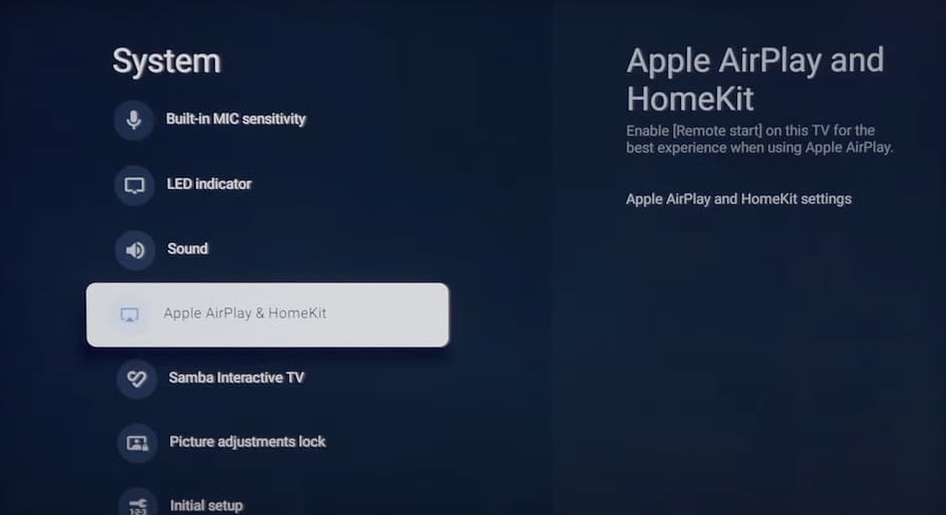
4. Choose Apple AirPlay and HomeKit Settings.
5. Select AirPlay and press the Enter button on your remote to turn AirPlay On.
6. Unlock your iPhone and open the Control Center.
7. Tap Screen Mirroring (connected rectangles).
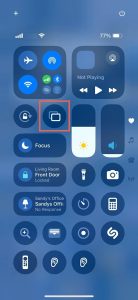
8. Pick your Sony TV from the device list.
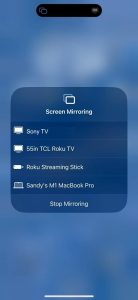
9. If prompted, enter the AirPlay passcode displayed on your TV in the box that appears on your iPhone.
You should then see your iPhone screen on your Sony TV giving you a larger screen for interacting with apps, games, email, and more.
Screen Mirror with an HDMI Cable Connection
This wired screen mirroring method is ideal if your Sony TV doesn’t support AirPlay and you have an unstable network connection. You can physically connect your iPhone and TV using a cable and adapter which provides a reliable and steady screen mirroring experience.
In addition to an iPhone and Sony TV, you’ll need the items below to connect and mirror the devices:
- An HDMI cable
- An available HDMI TV port
- An AV adapter compatible with your iPhone model
Keep in mind that the iPhone 15 series and later uses a USB-C port while the iPhone 5 series through the iPhone 14 series uses a Lightning port. So, make sure you choose an adapter that matches the port on your specific iPhone model.
Step-by-step guide
1. Plug the AV adapter into the port on your iPhone.
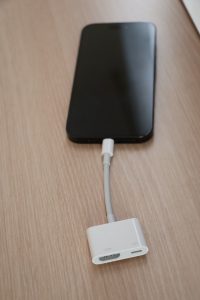
2. Connect the HDMI cable to the adapter.
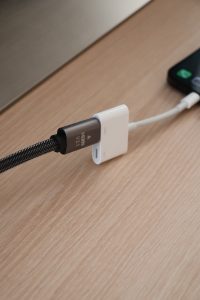
3. Attach the other end of the cable to the TV’s HDMI port.
4. Turn on your Sony TV if necessary.
5. Pick the correct input source on your TV matching the HDMI port you’re connected to, for instance, HDMI 1, HDMI 2, or HDMI 3.
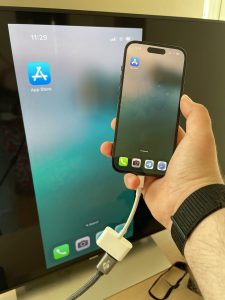
You should see your iPhone screen display on your Sony TV within a few moments. Like with wireless methods, you can play games, open apps, and enjoy your small screen on the big one.
Alternative: Stream Media via Built-In Google Cast
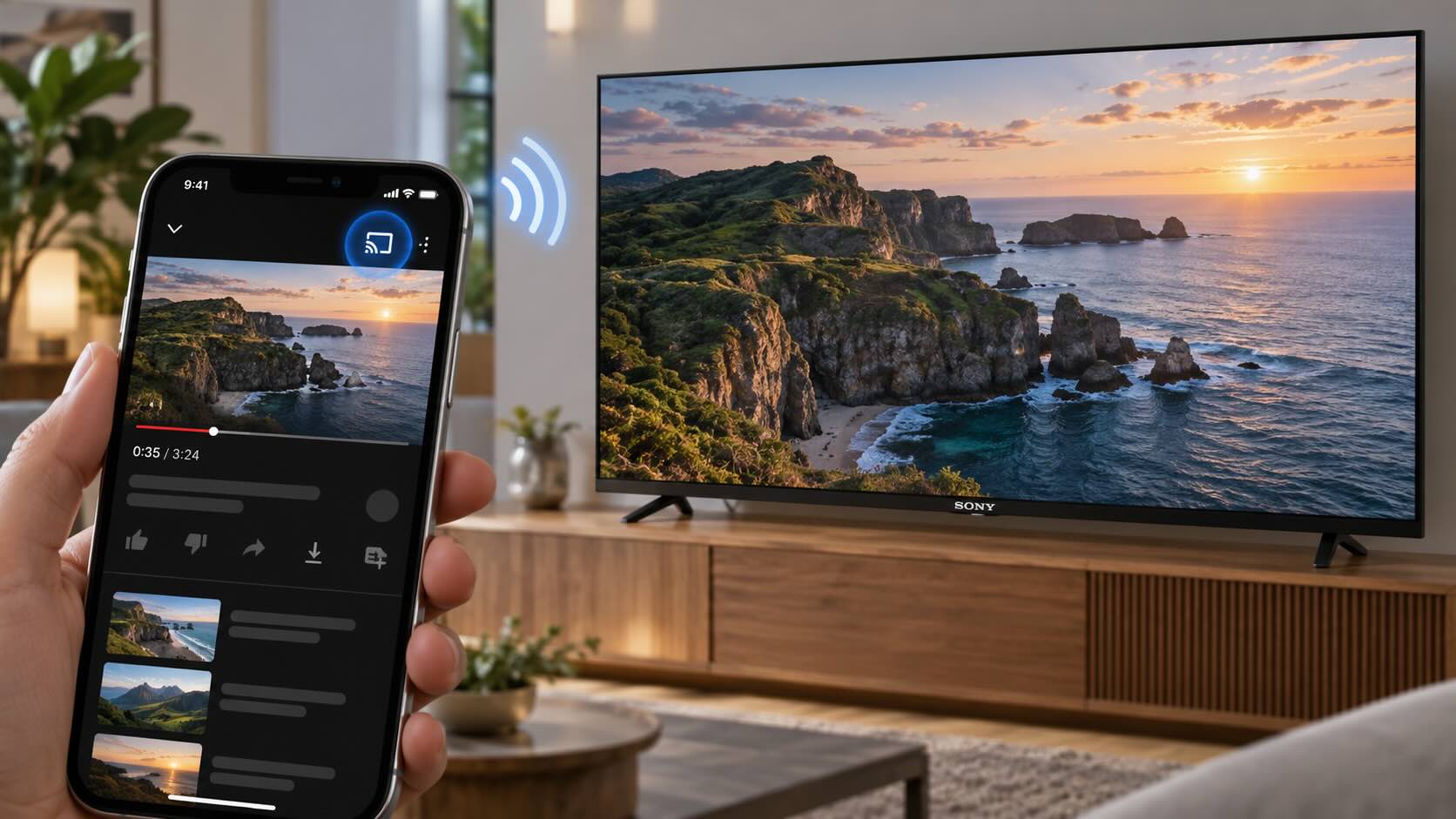
If you only want to play video from a Google Cast-enabled app without mirroring your entire iPhone screen:
- Connect your iPhone and Sony Google TV or Android TV to the same Wi-Fi network.
- Open a Cast-enabled app, such as YouTube.
- Tap the Cast icon. In some apps, it appears only after you start playing a video.
- Select your Sony TV.
If the Cast icon doesn’t appear or your TV isn’t listed, make sure the app has Local Network access on your iPhone: go to Settings, select the app, and turn on Local Network.
How to Fix Screen Mirroring Not Working
If you’re running into problems screen mirroring iPhone to Sony TV using any of the above wireless or wired methods, here are several things to check.
Wireless methods:
- Make sure that you’re using an AirPlay supported Sony TV with AirPlay enabled.
- Verify that the software on your Sony TV is up to date.
- Confirm that your iPhone and TV are using the same Wi-Fi network, are near each other, and that you have a stable connection.
- If your third-party app requires you to turn off your VPN, you can disable your VPN app or head to Settings > General > VPN & Device Management on your iPhone to turn off the VPN.
Wired method:
- Make sure that the AV adapter and HDMI cable are securely connected to the devices.
- Verify that the TV input source matches the port on your TV for the connected HDMI cable.
- Confirm that both devices are powered on and unlocked.
If after confirming the above you still experience issues, restart both devices and try again.
Fixing Partial Display & Aspect Ratio Issues
If your iPhone screen appears cropped, zoomed in, or partially displayed on your Sony TV:
- If your remote has a Wide or Zoom button, press it to cycle through the available display modes.
- Otherwise, go to Settings → Display & Sound → Screen → Wide Mode. The exact menu path varies by Sony TV model.
- Avoid Zoom or Wide Zoom if they crop the edges of the image. Try Normal or Full, if available.
Note that Wide Mode may be unavailable during Screen Mirroring or when streaming content from certain apps. If the option is greyed out or the TV shows “Feature not available”, adjust the picture on your iPhone or in the app instead, for example by rotating the iPhone to landscape or changing the video’s display settings.
Keep in mind that some aspect-ratio differences come from the iPhone or the content itself, so black bars may be normal and cannot always be removed without stretching or cropping the picture.
Fixing Audio Playing on the iPhone Instead of the TV
If the video appears on your Sony TV but the sound continues playing through your iPhone:
- Open Control Center on your iPhone.
- In the media playback controls, tap the Playback Destination/AirPlay button and check that your Sony TV is selected.
- If you’re using Screen Mirroring and the problem continues, stop mirroring and reconnect to the TV from Control Center → Screen Mirroring.
If the AirPlay connection is active but you still can’t hear sound, check the TV’s volume and audio output settings. If a soundbar or AV receiver is connected to the TV, make sure it is turned on and selected as the audio output.
Quick Reset for AirPlay Without Restarting the TV
If AirPlay stops working or your Sony TV no longer appears on your iPhone, try toggling AirPlay off and back on before restarting the TV.
On many Sony Google TV models, go to Settings → System → Apple AirPlay & HomeKit → Apple AirPlay & HomeKit settings → AirPlay, turn AirPlay off, and then turn it back on. On older Sony Android TV models, the AirPlay settings may appear elsewhere in the TV settings or under the AirPlay input. The exact menu path varies by model and software version.
Also make sure your iPhone and TV are connected to the same Wi-Fi network. AirPlay also requires Sony Smart TV services to be enabled in the TV’s privacy settings.
If that doesn’t help, update your TV and iPhone to the latest software and restart both devices.
Bonus: How to Mirror Mac to Sony TV
Now that you know how to screen mirror on Sony TV with iPhone, you may be wondering if you can do the same with your computer. By connecting your Mac to your TV, you can mirror your screen for a larger view or to extend your display for a roomier workspace.
The quickest and simplest way to do this is using AirPlay, if your Sony TV supports AirPlay because it’s built into macOS just like iOS.
Step-by-step guide
1. Enable AirPlay on your Sony TV using the steps listed earlier.
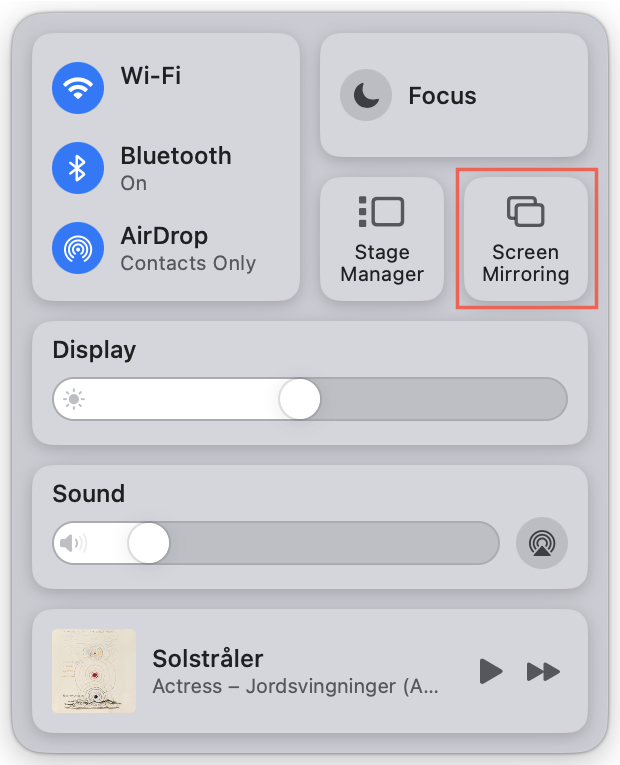
2. Open the Control Center using the menu bar on your Mac.
3. Select Screen Mirroring.
4. Pick your Sony TV from the device list.
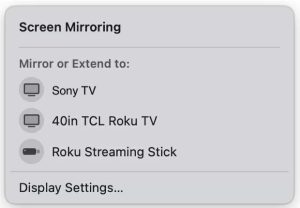
5. If prompted, enter the AirPlay passcode displayed on your TV in the box on your Mac.
You should then see your Mac screen on your Sony TV and can interact with your apps as normal.
How to Mirror Android to Sony TV
Have a friend with an Android phone? Or maybe you use Android on a secondary device. With a third-party app, you can mirror your screen to your Sony TV.
One app to check out that works with major TV brands, including Sony, is Screen Mirroring MirrorMeister. With it, you can enjoy high-quality streaming, synchronized audio, and a simple setup.
Step-by-step guide
1. Download and install Screen Mirroring MirrorMeister from Google Play.
2. Open the app and wait for it to locate nearby devices.
3. Choose your Sony TV from the list.
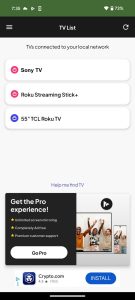
4. Tap Start Mirroring.
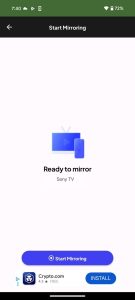
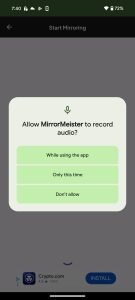
5. Select an option to allow audio.
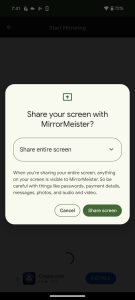
6. Choose Share screen.
How to Mirror to Sony TV from a Browser
Maybe you have a particular website you’d like to pop onto the big screen. One more option to explore is mirroring from your web browser to your Sony TV. Using either Microsoft Edge or Google Chrome, you can share a single browser tab or your entire screen.
Step-by-step guide
1. Make sure that your computer and TV are using the same network.
2. Launch Edge or Chrome on your computer and optionally visit a website you’d like to mirror.
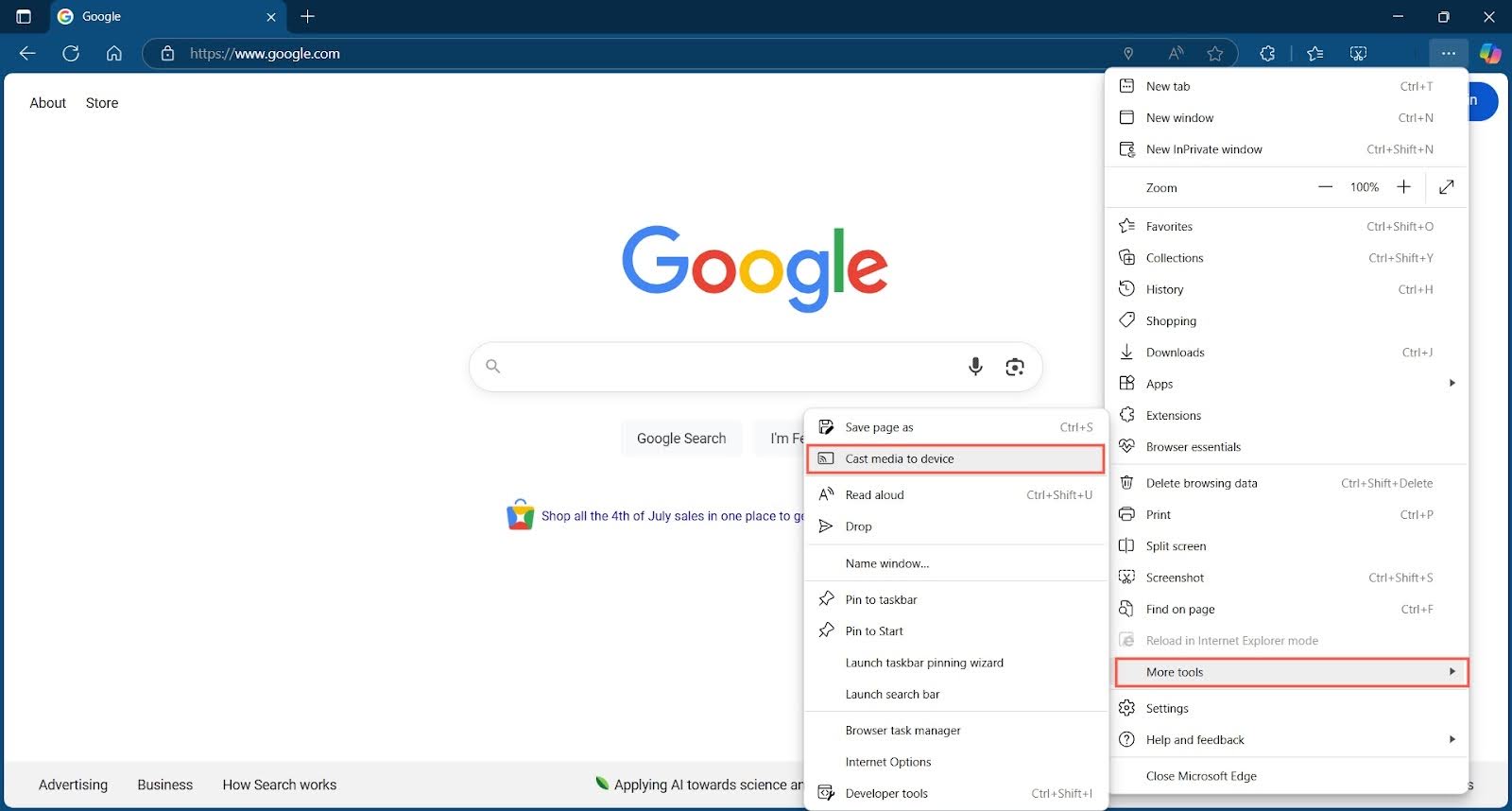
3. Open the main menu using the More (three-dots) option on the top right.
4. Do one of the following:
- On Edge, select More Tools > Cast Media to Device.
- On Chrome, select Cast, Save, and Share > Cast.
5. If prompted, grant access to the devices on your network.
6. Choose your Sony TV from the pop-up list that appears.
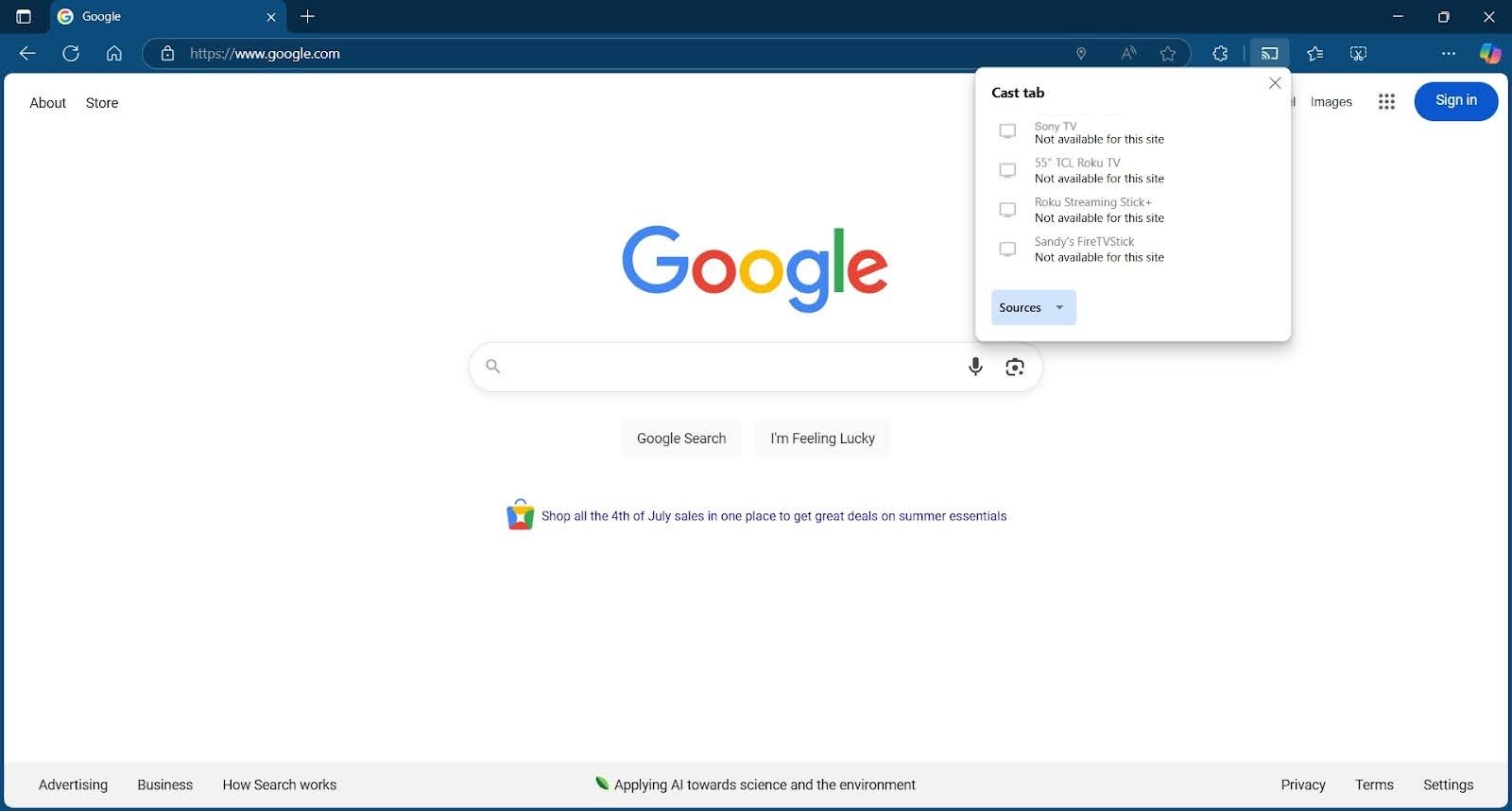
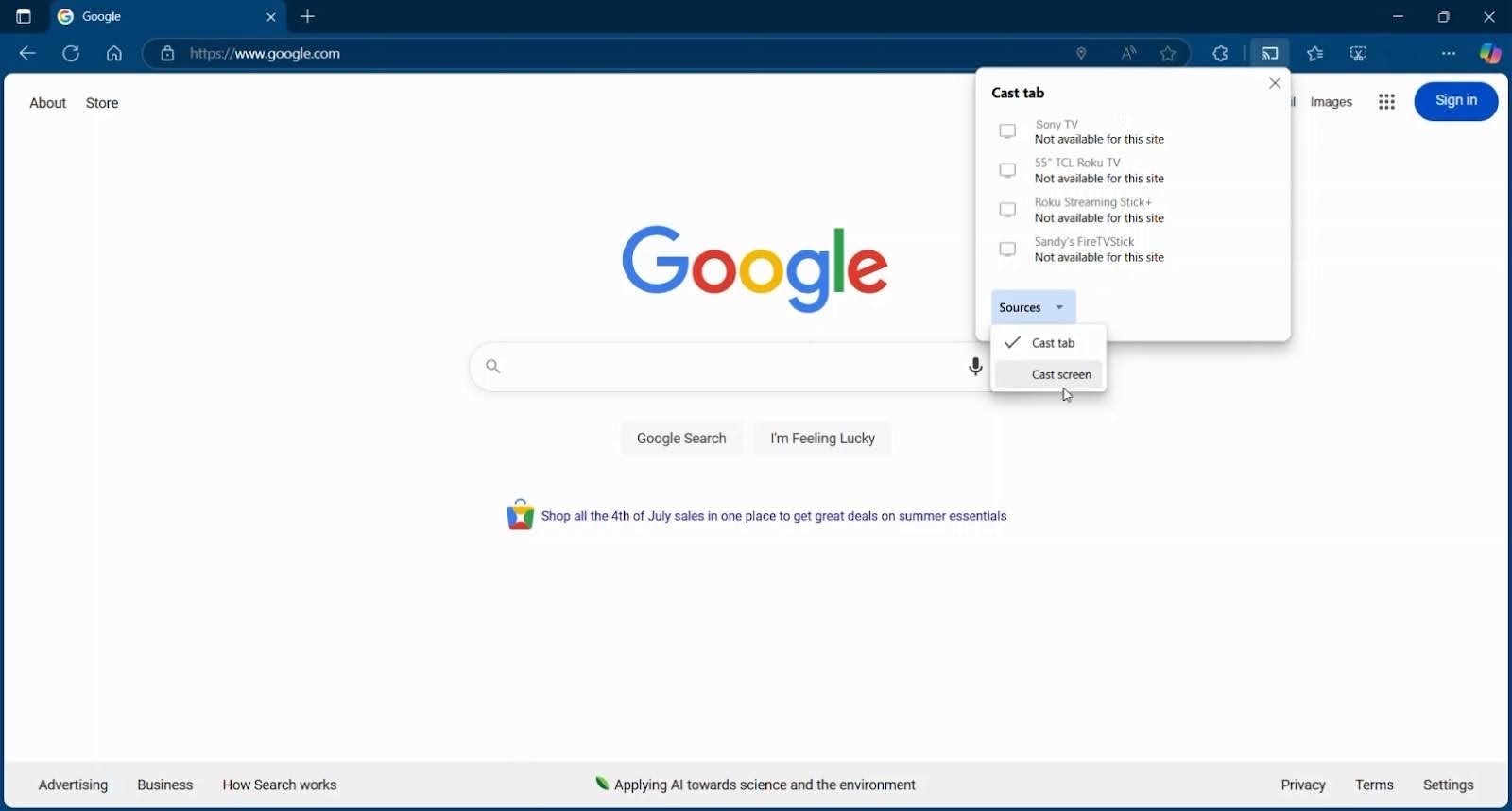
If you prefer to share your entire screen rather than just a browser tab, open Sources in the pop-up window and pick Cast screen.
Conclusion
These Sony TV screen mirroring iPhone methods are good solutions and have their advantages and disadvantages. For instance, AirPlay works great, but only if you have a supported Sony TV and the HDMI connection is a reliable method, but only if you don’t mind wires strung about.
For these reasons, the third-party screen mirroring app DoCast is a terrific way to go. The tool works with all DLNA-supported TVs and doesn’t require any cabled connections. Plus, you can take advantage of extra features like adjustable screen quality and casting ability along with low latency for a smooth and superb viewing experience.
Frequently Asked Questions
If you don’t see your Sony TV as an available screen mirroring option on your connected device, there can be various reasons. For wireless mirroring with AirPlay, make sure that you have an AirPlay supported TV with AirPlay turned on and that both devices are using the same network. For wired mirroring, confirm that the cable and adapter are securely connected to your devices.
The Bravia TV screen mirroring iPhone process with AirPlay works like other Sony TVs. Enable AirPlay on your TV by going to Settings > System > Apple AirPlay and HomeKit. Choose Apple AirPlay and HomeKit Settings, select AirPlay, and press Enter on your remote to turn AirPlay On. Then, connect to your TV with the Screen Mirroring button in your device’s Control Center.
You can use Wi-Fi Direct, screen mirroring, or a physical cable to connect the devices. The available options and steps depend on the type of Bravia TV you own such as Google TV, Android TV, or another TV as well as the type of phone you use such as Android or iPhone.
An app that tops the list for a Sony screen mirroring iPhone solution is DoCast. It provides low latency, a high-quality picture, and an intuitive interface for a simple setup. You can also take advantage of the casting feature to display photos and videos on the big screen.
All Sony Google TV models support AirPlay 2, while only selected Sony Android TV models do. Compatible Android TV models include several 2020 series, as well as some 2018–2019 BRAVIA TVs that gained AirPlay 2 through a software update. Some Google TV models also require a software update. Model lists may vary by region, so check your exact model in Sony’s compatibility information.
If your Sony TV doesn’t support AirPlay, you can use Google Cast for compatible apps, a third-party mirroring app, or a wired HDMI connection.
Screen mirroring lag is often caused by Wi-Fi congestion or a weak signal. Keep your iPhone, TV, and router relatively close together and, when using AirPlay or a third-party mirroring app, use a 5 GHz Wi-Fi connection if available. If your TV has an Ethernet port, connecting it to the router with a cable can also help.
When watching videos, use the AirPlay button inside the video app instead of mirroring your entire screen when possible. This can provide smoother playback because the video is streamed rather than continuously mirroring the full iPhone display.
If you’re using a third-party mirroring app, lowering the video quality or bitrate in the app’s settings may also reduce delay. For the lowest possible latency, use a wired HDMI connection.