Apple TV Remote Not Working? Easy Fixes That Actually Work

1. Low or Dead Battery
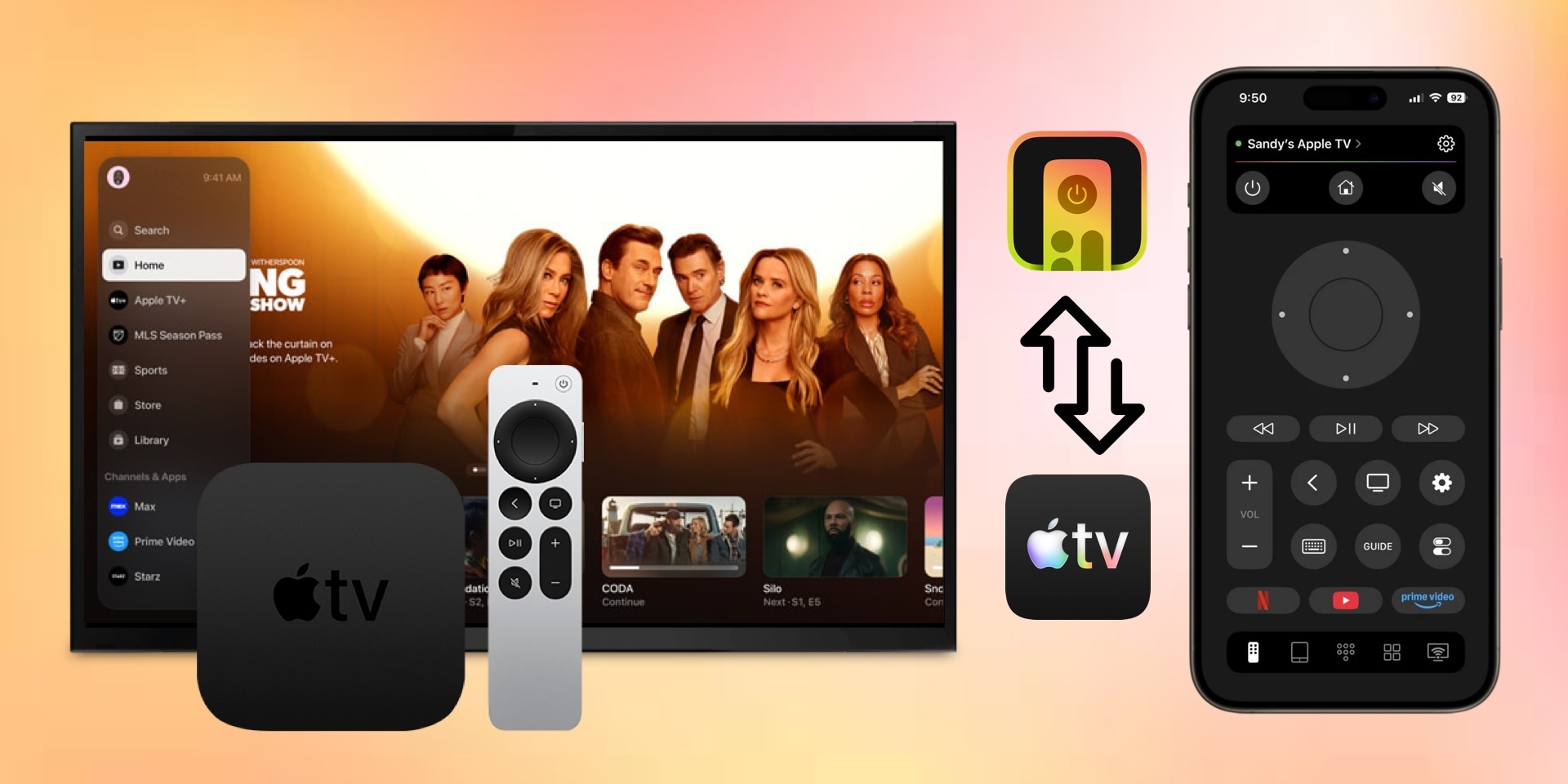
If your Apple TV remote control is completely unresponsive, it could be a dead battery or even a battery level that’s too low to function properly.
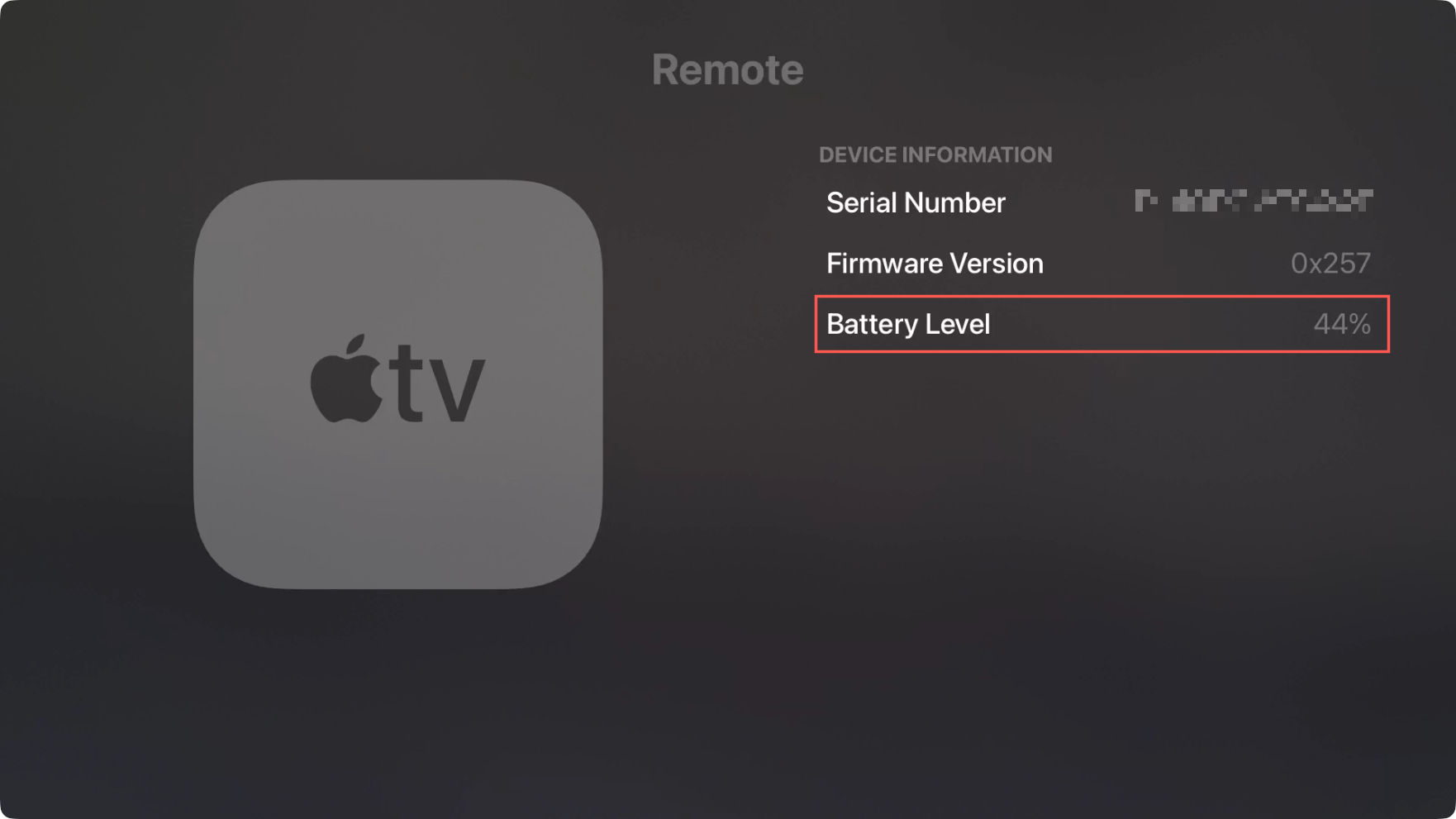
You should see an alert on your Apple TV when your remote control battery is getting low, letting you know it’s time to charge it. To check the exact level for a low battery, go to Settings > Remotes and Devices > Remote.
To charge your Apple TV remote or Siri Remote, connect a Lightning cable or USB-C cable to the port at the bottom of the remote. Then, connect the other end of the cable to a power source such as a wall power adapter or USB port on your computer.
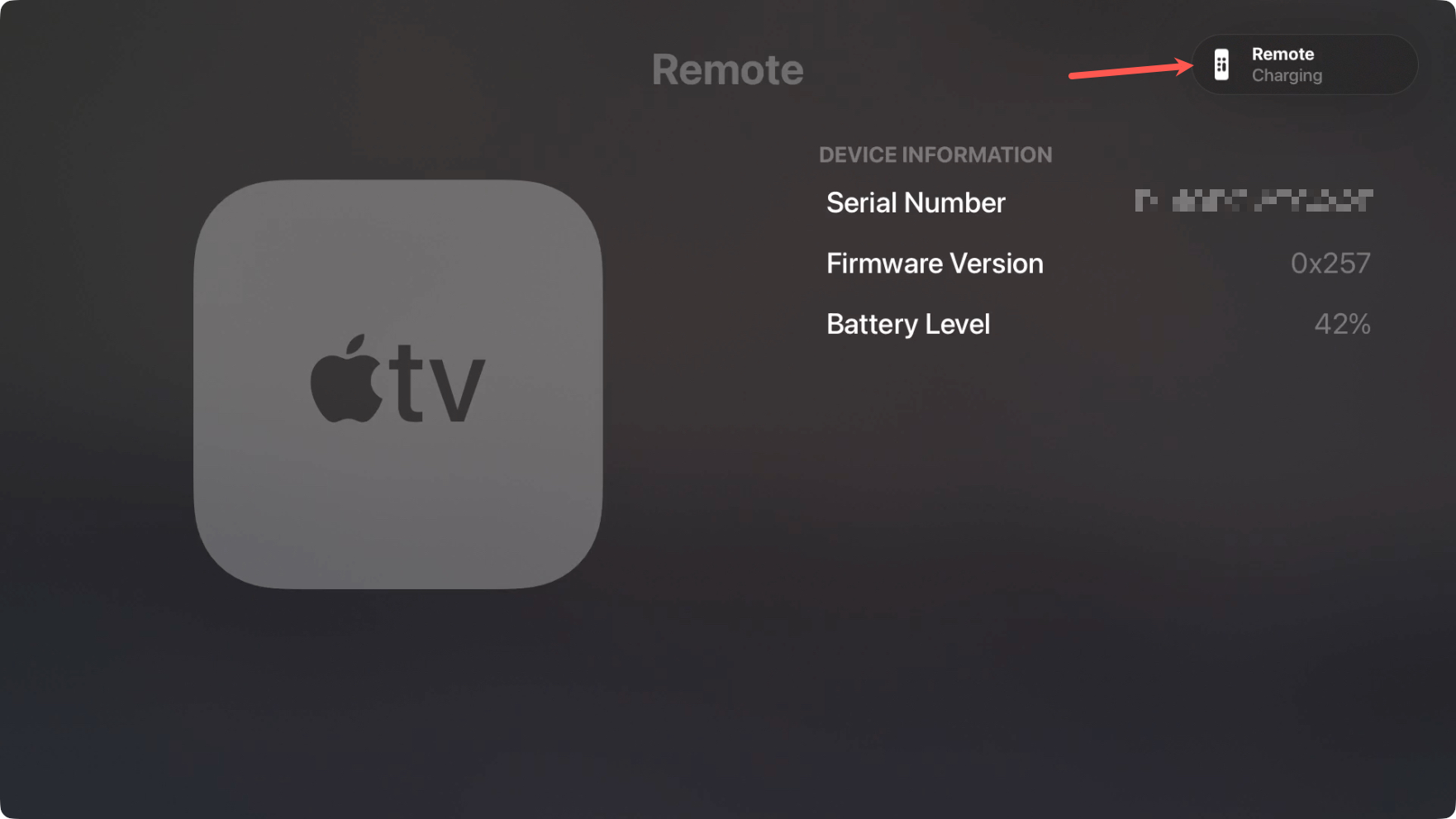
It takes approximately three hours to fully charge an Apple TV remote control, and you’ll see a message on your TV for Remote Charging during the process.
❗️ Note for Older Remote Models:
If you are using an Apple Remote or Apple TV Remote from the 1st, 2nd, or 3rd-generation era – the white plastic model released with the original Apple TV in 2007, or the aluminum models released with Apple TV 2nd generation (2010) and 3rd generation (2012) – these devices do not use a Lightning or USB-C charging port. Instead, they run on a replaceable CR2032 (or BR2032) coin-cell lithium battery.
To replace it, turn the remote around, insert a small coin into the battery door slot on the back, and rotate it counterclockwise to pop open the compartment. Insert the new battery with the positive (+) side facing up, then rotate the cover clockwise to lock it back into place.
5. Software Glitches
Sometimes, apps that freeze, audio syncing problems, and laggy navigation can be a result of a software glitch on your Apple TV.
Try the following fixes to overcome these types of issues:
- ✔️ Force quit the app: Double-click the TV/Control Center button and swipe the app up and off the screen.
- ✔️ Restart the Apple TV: Go to Settings > System > Restart.
- ✔️ Clear the network cache: Restart your router per the instructions for your particular device.
- ✔️ Correct signal loss: Unplug the HDMI cable from the Apple TV and your television, and then plug it back in or try a different cable.
- ✔️ Fix remote control issues: Reset the remote control by holding the Menu button and Volume Down button for 5 to 10 seconds until the Apple TV status light flashes.
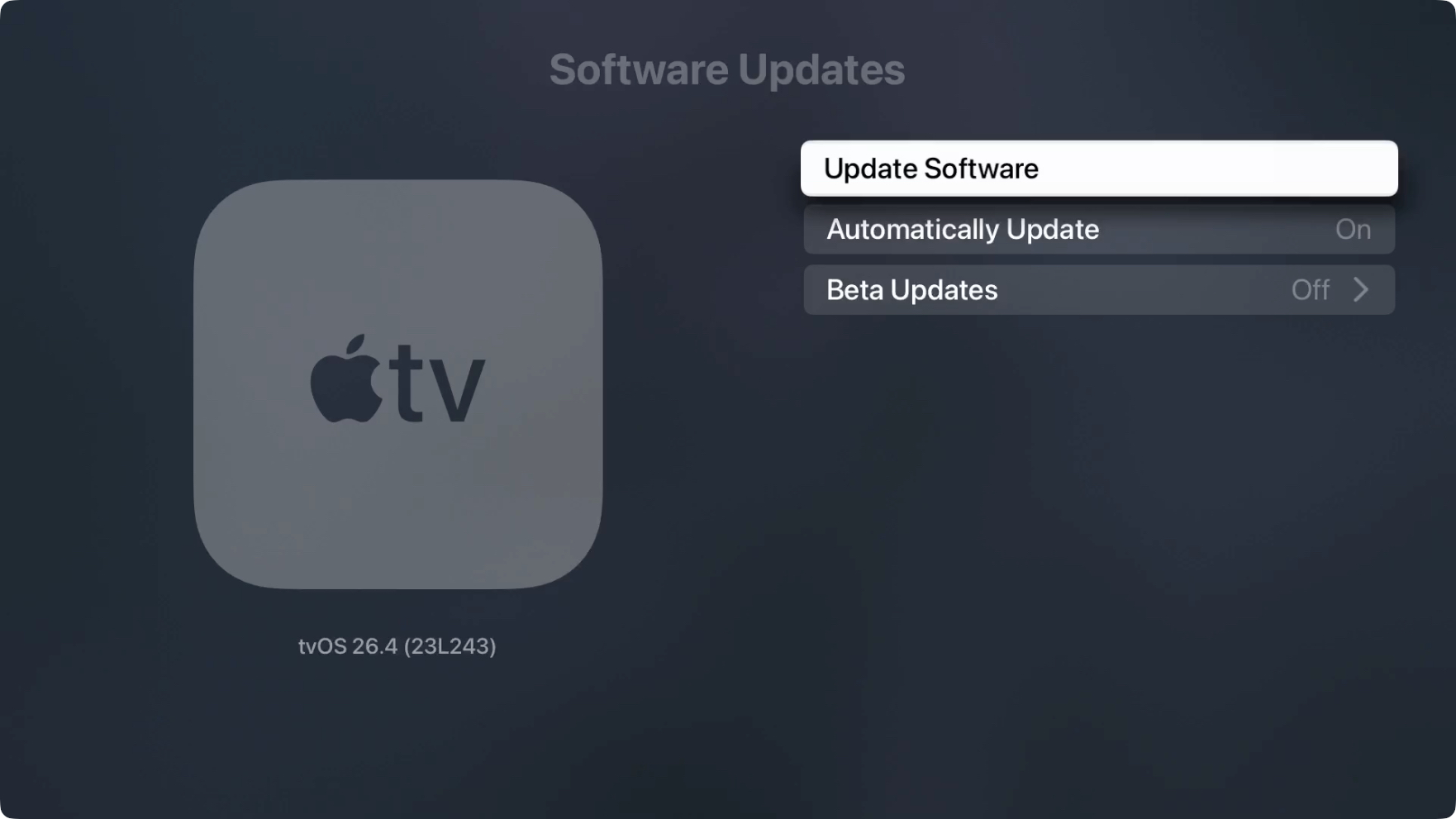
- ✔️ Check for updates: Go to Settings > System > Software Updates. If there’s a newer version available, select Update Software and follow the prompts.
How to Use iPhone Control Center as a Backup Remote
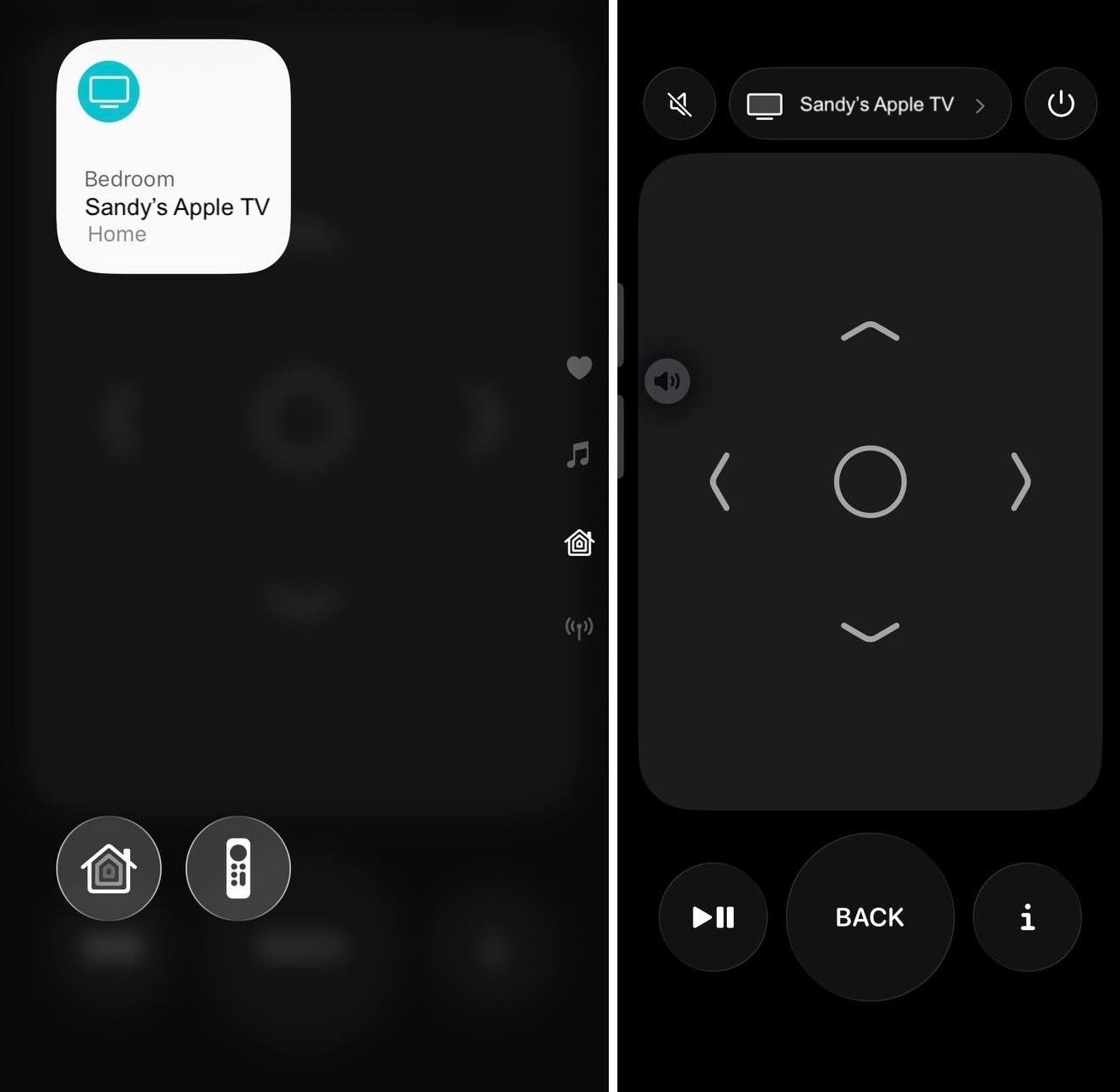
If your physical remote is lost or completely dead, you can instantly control your Apple TV using your iPhone or iPad:
- Go to Settings > Control Center on your iOS device.
- Tap the green + icon next to Apple TV Remote.
- Swipe down from the top-right corner of your screen (or up from the bottom on older devices) to open Control Center.
- Tap the Apple TV Remote icon, select your TV, and enter the 4-digit passcode displayed on your television screen.
Note: This method works seamlessly for Apple TV HD, Apple TV 4K (all generations), and AirPlay-compatible smart TVs. If you have an Apple TV 3rd generation, the passcode flow is reversed – the code appears on your iPhone and must be entered using your Apple TV’s original remote, meaning this backup method won’t help if that remote is completely lost. Apple TV 2nd generation isn’t compatible with the Control Center remote at all.
When your Apple TV remote is broken or even misplaced, you can certainly seek out an Apple TV remote replacement. But there’s a better, more affordable, and convenient option — a remote app for your iPhone.
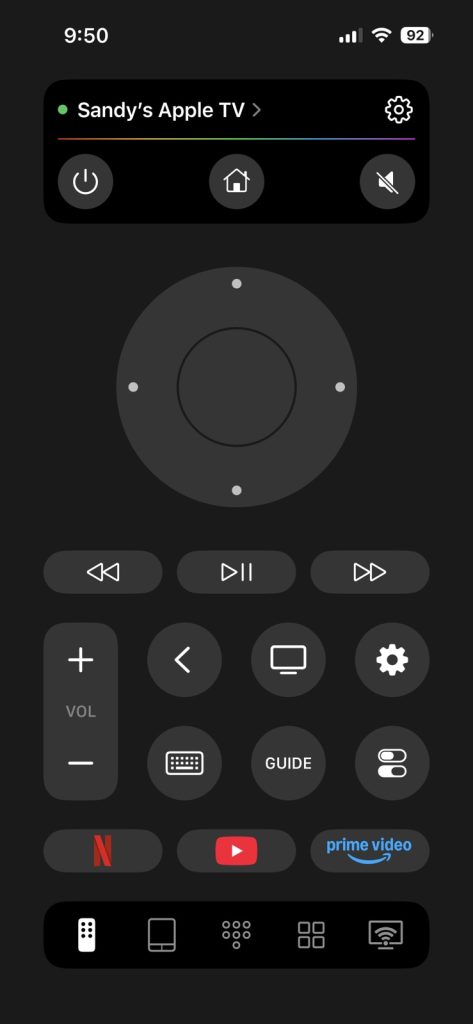
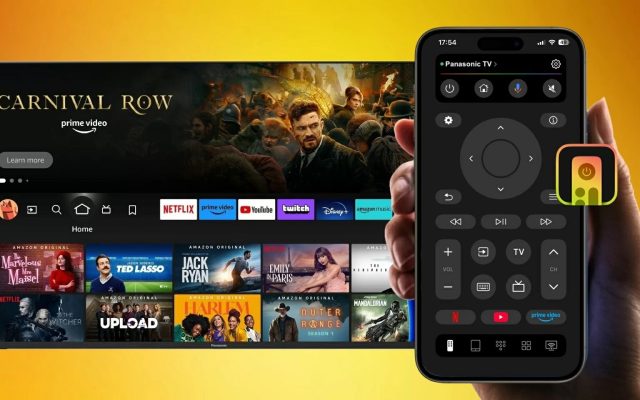
TVRem, one of the best universal remotes for Apple TV, is available for free on both iPhone and iPad with a host of robust features you’ll appreciate.
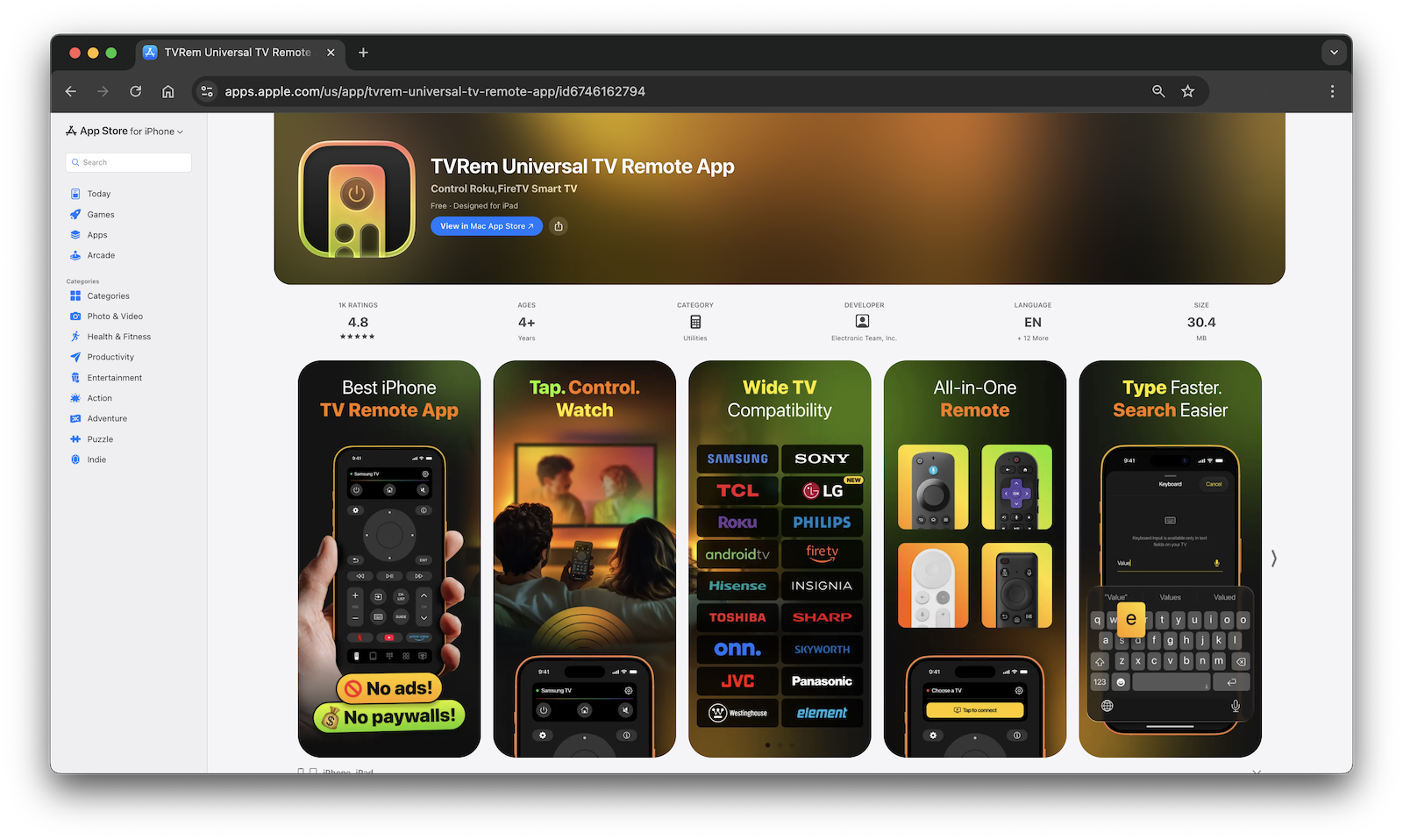
The app provides multiple input options like buttons, a touchpad, a built-in keyboard, and voice. You’ll also appreciate quick app launch buttons for Netflix, YouTube, and Prime Video, along with intuitive volume, channel, and playback controls.
How to Quickly Connect and Use TVRem with Your Apple TV
1. Download TVRem from the App Store.
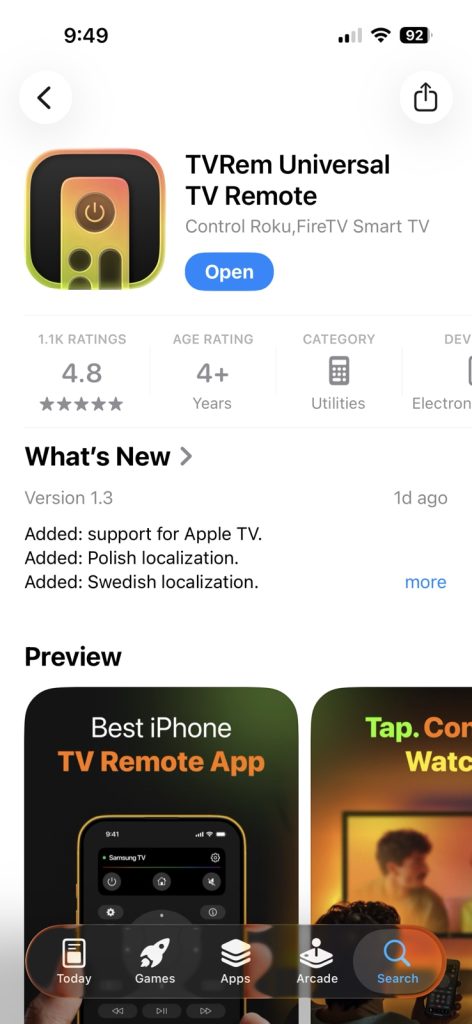
2. Make sure your TV and iPhone are on the same Wi-Fi network.
3. Turn on your Apple TV and open TVRem on your iPhone.
4. Tap Choose a TV and pick your Apple TV from the list of detected devices.
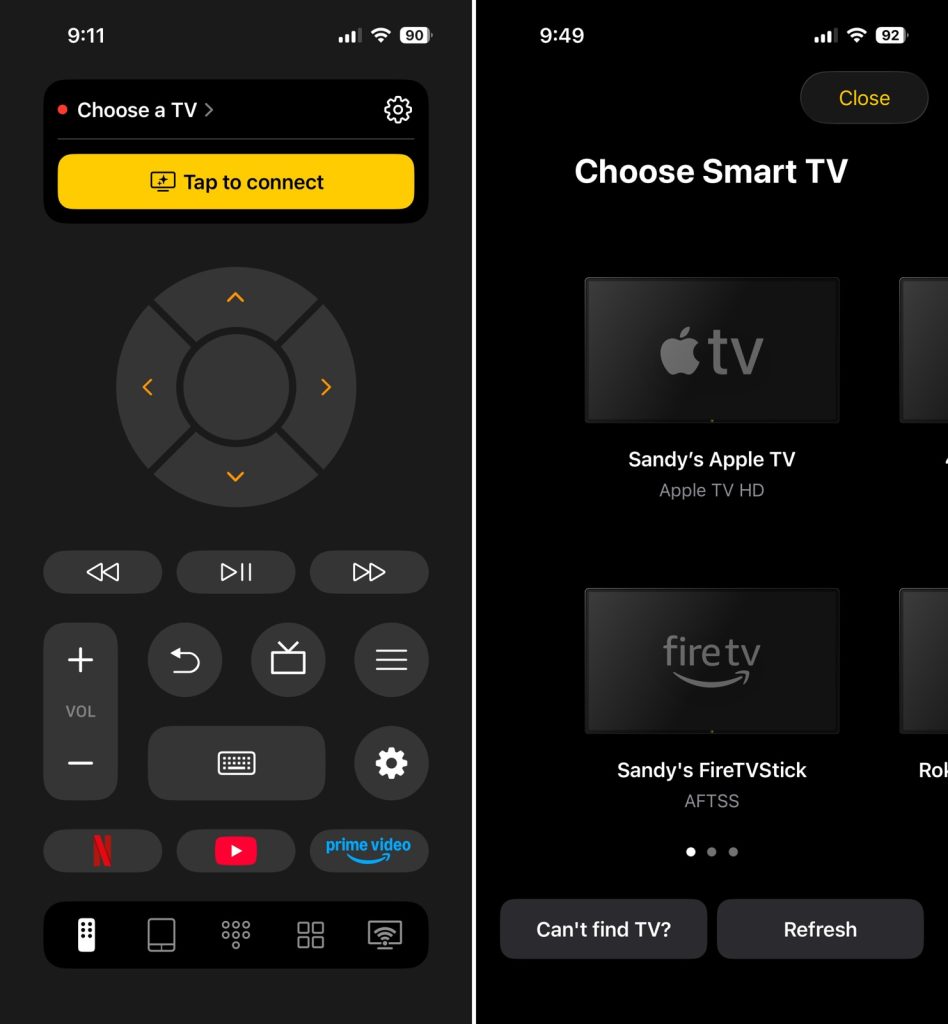
5. Enter the code shown on your TV screen and tap Pair.
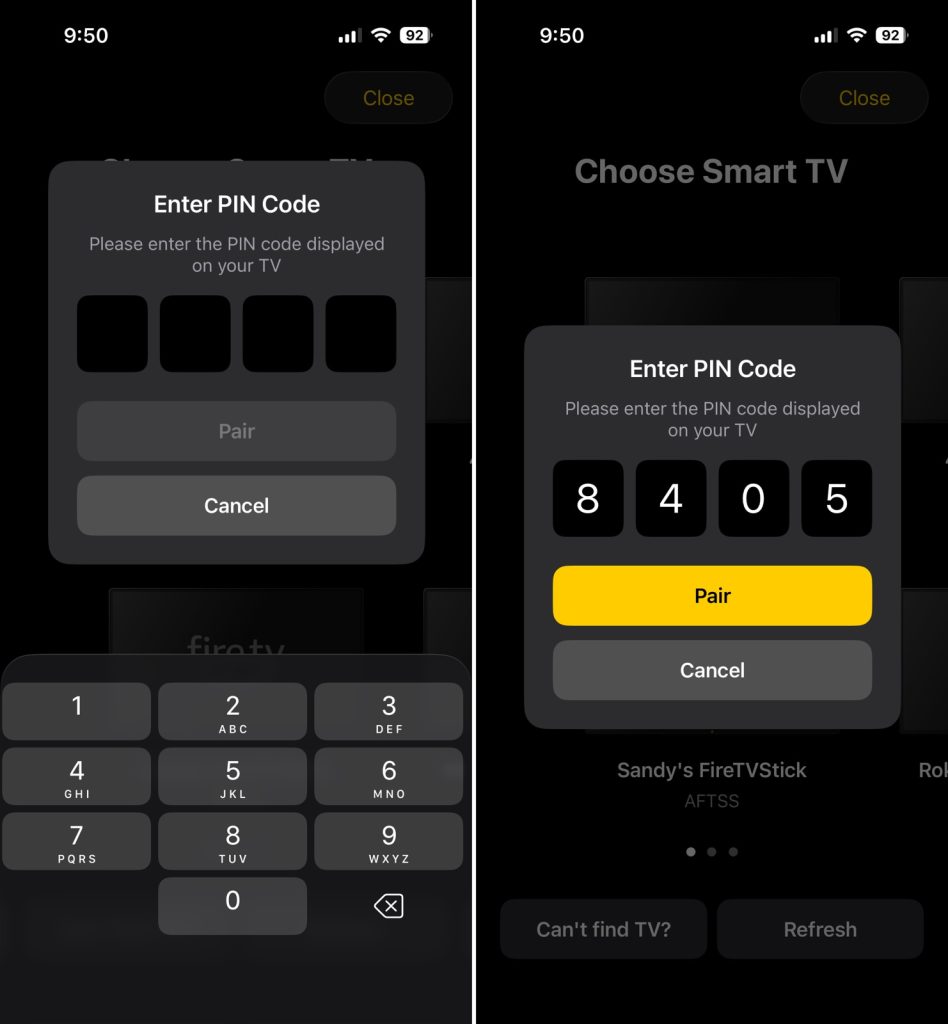
6. You’re then ready to control your Apple TV right from your iPhone.