Roku Remote App Not Working? Try These Fixes

thumbnail

So, you downloaded the official Roku app to your iPhone as an alternative to using the physical remote control for your Roku TV, and there’s a problem. If you’ve found The Roku App remote not working correctly or at all with your iPhone and Roku TV, our guide walks you through possible reasons, how to fix them, and how to use alternative free apps like TVRem.

How to Fix Roku Remote App Connection Issues

Below are several potential causes and solutions for the Roku TV remote app not working on iPhone. You may notice that each one is a simple issue and fix that’ll have you watching your favorite shows in no time.

Check Your Wi-Fi Network

Both your Roku TV and iPhone must be connected to the same Wi-Fi network, and you should have a stable connection.

To check the Wi-Fi on your Roku TV, go to Settings > Network > About. You should see the Network Name and Status as Connected.

To check the Wi-Fi on your iPhone, go to Settings > Wi-Fi. The Wi-Fi toggle should be turned on, and you’ll see the name of the network you’re connected to directly beneath.
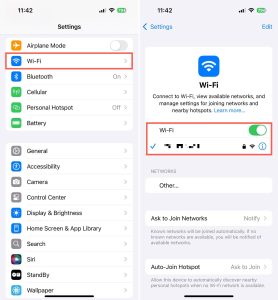
Checking Wi-Fi network on iPhone

Dual-Band Wi-Fi & AP Isolation:

Even if your phone and Roku are on the same Wi-Fi network name (SSID), mesh routers or dual-band setups often assign your phone to 5 GHz and Roku to 2.4 GHz. If your router has AP / Client Isolation enabled, devices on different bands cannot discover each other.

Verify Local IP Subnet: Go to Settings > Network > About on your Roku. Ensure the IP address starts with 192.168.x.x or 10.x.x.x. If it has a public IP or sits on a Guest Network, local app discovery will fail.

📍 Roku sources:

https://support.roku.com/article/fix-roku-mobile-app

https://support.roku.com/article/connect-your-phone-to-a-roku-tv-system-or-streaming-player

Enable Mobile App Control & OS Permissions

Sometimes the network is fine, but security settings on either your Roku or phone block the connection:

  • Enable Roku Mobile App Access: On your Roku TV/device, navigate to Settings > System > Advanced system settings > Control by mobile apps > Network access and set it to Enabled or Permissive. (Note: naming varies by Roku OS version. Newer versions use Limited / Enabled / Permissive / Disable; older versions may show Default / Permissive / Disable. Whatever the exact labels, choose the option that allows control from devices on your local network — avoid “Limited” or “Disable” if you want full remote functionality.)
  • iOS Local Network Permission: If you are using an iPhone, go to iOS Settings > Roku (or your remote app) and ensure the Local Network toggle is switched ON. If this is turned off, iOS silently blocks the app from scanning your network.


📍 Roku sources:

https://support.roku.com/article/connect-your-phone-to-a-roku-tv-system-or-streaming-player

https://support.roku.com/article/install-the-mobile-app

Update the Software

Make sure that your devices and the Roku remote iPhone app are up to date.

For The Roku App updates, open the App Store on your iPhone and tap your profile icon on the top right. You’ll see apps awaiting updates at the bottom. Alternatively, you can look for Update next to The Roku App on the App Store.

For Roku TV updates, go to Settings > System > Software Update.

For iPhone updates, go to Settings > General > Software Update.
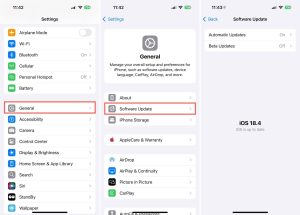
Checking software updates on iPhone

Android App Cache & Google Play Services: On Android devices, connection discovery relies heavily on system background services. If updating the Roku app doesn’t resolve the issue, clear the Roku app’s own cache via Settings > Apps > Roku > Storage & Cache > Clear Cache. It’s also worth clearing the Google Play Store cache the same way and confirming Google Play Services is up to date, since a stalled Play Store update can occasionally prevent the app itself from updating correctly.

Restart Your Devices

Oftentimes, a simple restart of the devices can fix temporary glitches and issues. Turn off your iPhone and Roku TV, turn them both back on, and then give The Roku App another try.

Try a Different Device

Have more than one Roku TV in your home? If you’re unable to connect to a specific TV, try another one. You can switch devices in The Roku App by going to the Devices tab and choosing the TV from the list.
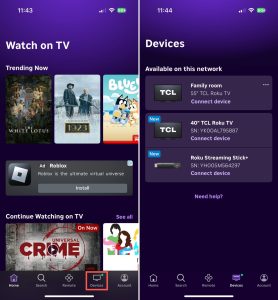
Switching device in The Roku App

You can also use The Roku App with an iPad, so if you own an iPad in addition to your iPhone, try using the app on that device.

Disable Your VPN

If you’re using a VPN, this can cause interference with the connection between your Roku TV and The Roku App. 

On iPhone, go to Settings > General > VPN & Device Management to disconnect or use your VPN app to temporarily disable it.
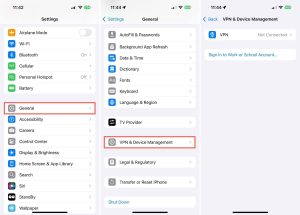
Disabling the VPN on iPhone

Manually Add Your Device

If the problem is the Roku remote app not connecting to TV and you don’t see it as a selection option, you can add your TV to the app manually.

Step-by-step guide

1. On your Roku TV, go to Settings > Network > About and copy down the IP Address.

2. Open The Roku App, go to the Devices tab, and choose Need help?.

3. Pick Connect manually.

4. Enter the IP Address from your Roku TV and tap Connect.
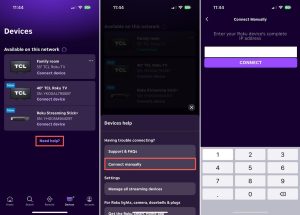
Manually adding a device

Reinstall the App

Sometimes it’s necessary to reinstall an app that’s giving you trouble. You can uninstall and reinstall the iPhone Roku remote app in just a few steps.

Step-by-step guide

1. Long-press (tap and hold) The Roku App icon on your iPhone Home screen.

2. Select Remove App and choose Delete App.
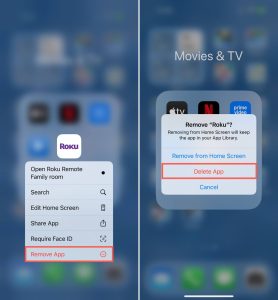
Reinstalling The Roku App on iPhone

3. Open the App Store on your iPhone, locate The Roku App, and tap the cloud icon to reinstall it.

Use an Alternative Roku Remote App

How to Use a Roku TV Without a Remote (Free Roku Remote App)

If all else fails, it may be time to take a different approach. You can use another app as the remote for your Roku TV. There are plenty of options on the App Store, but here are a couple of excellent options to consider.

1. TVRem

For a completely free Roku remote app for iPhone, check out TVRem. The app gives you full control for switching channels, adjusting the volume, and controlling playback with ease. It also offers intelligent keyboard and voice input, touchpad navigation, quick app launch, and works with smart TVs like Roku, Android TV, Fire TV, Apple TV, LG, Google TV, Samsung TV, and more.

Step-by-step guide

To start using the app:

1. Download TVRem from the App Store.
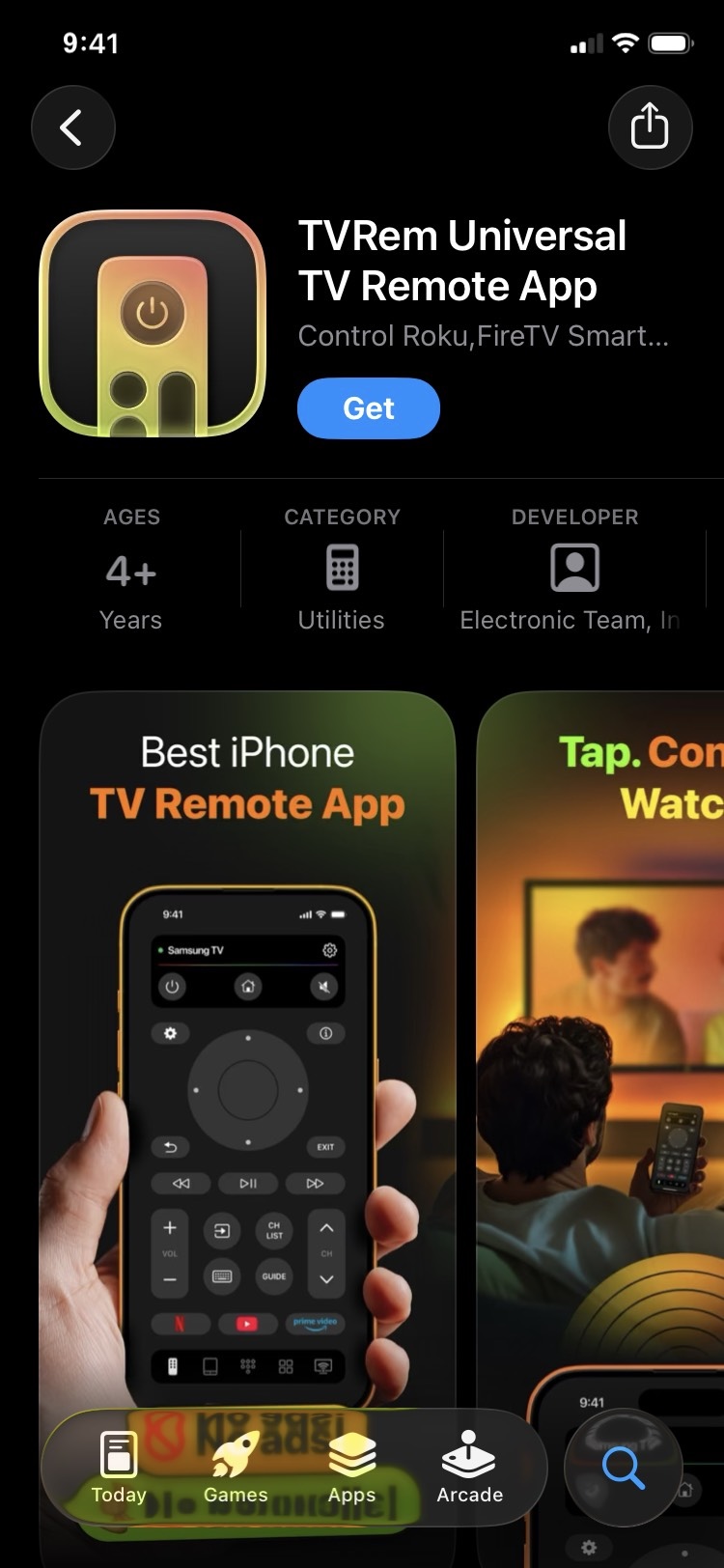
Download TVRem from the App Store

2. Open the app on your iPhone.

3. Confirm that your TV and iPhone are using the same Wi-Fi network.
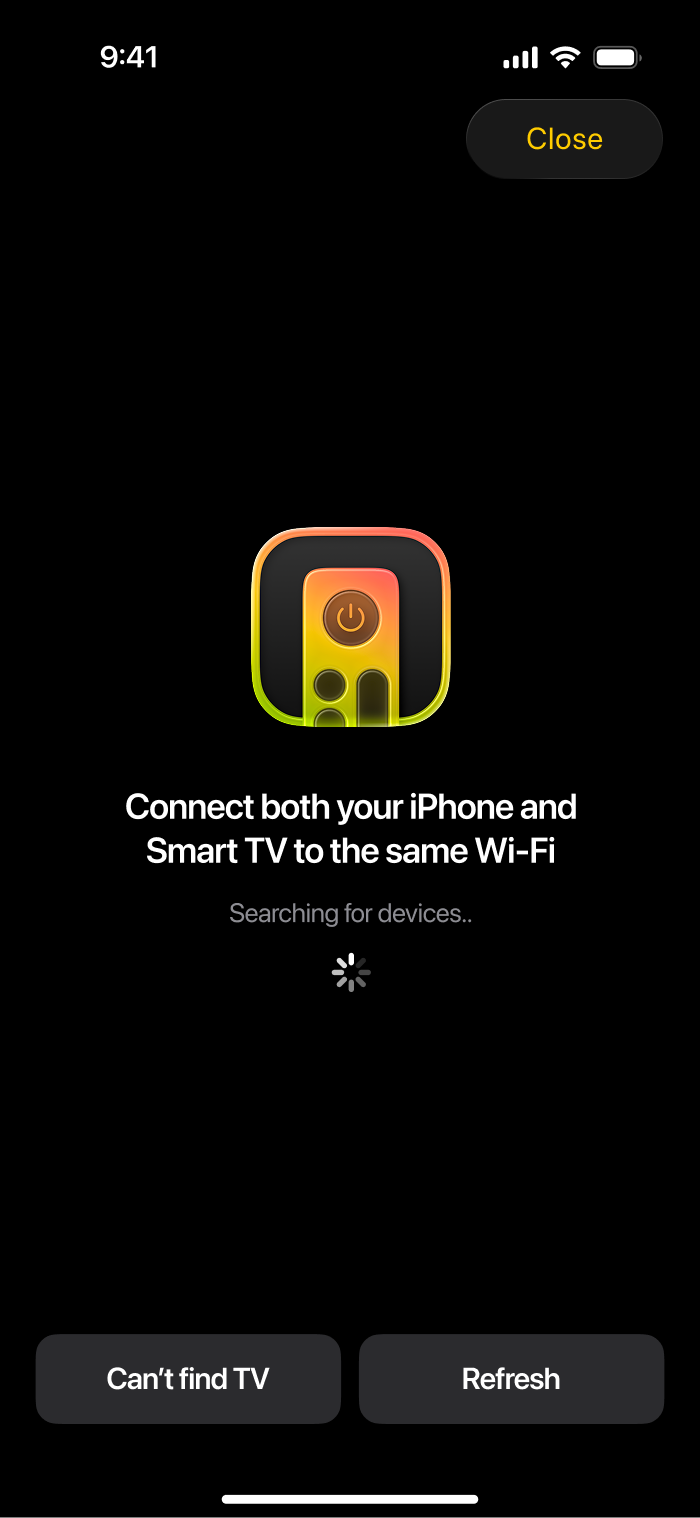
TVRem is searching for nearby devices

4. If prompted, grant access to your device.

5. Tap Choose a TV and pick your Roku TV from the list of detected devices.
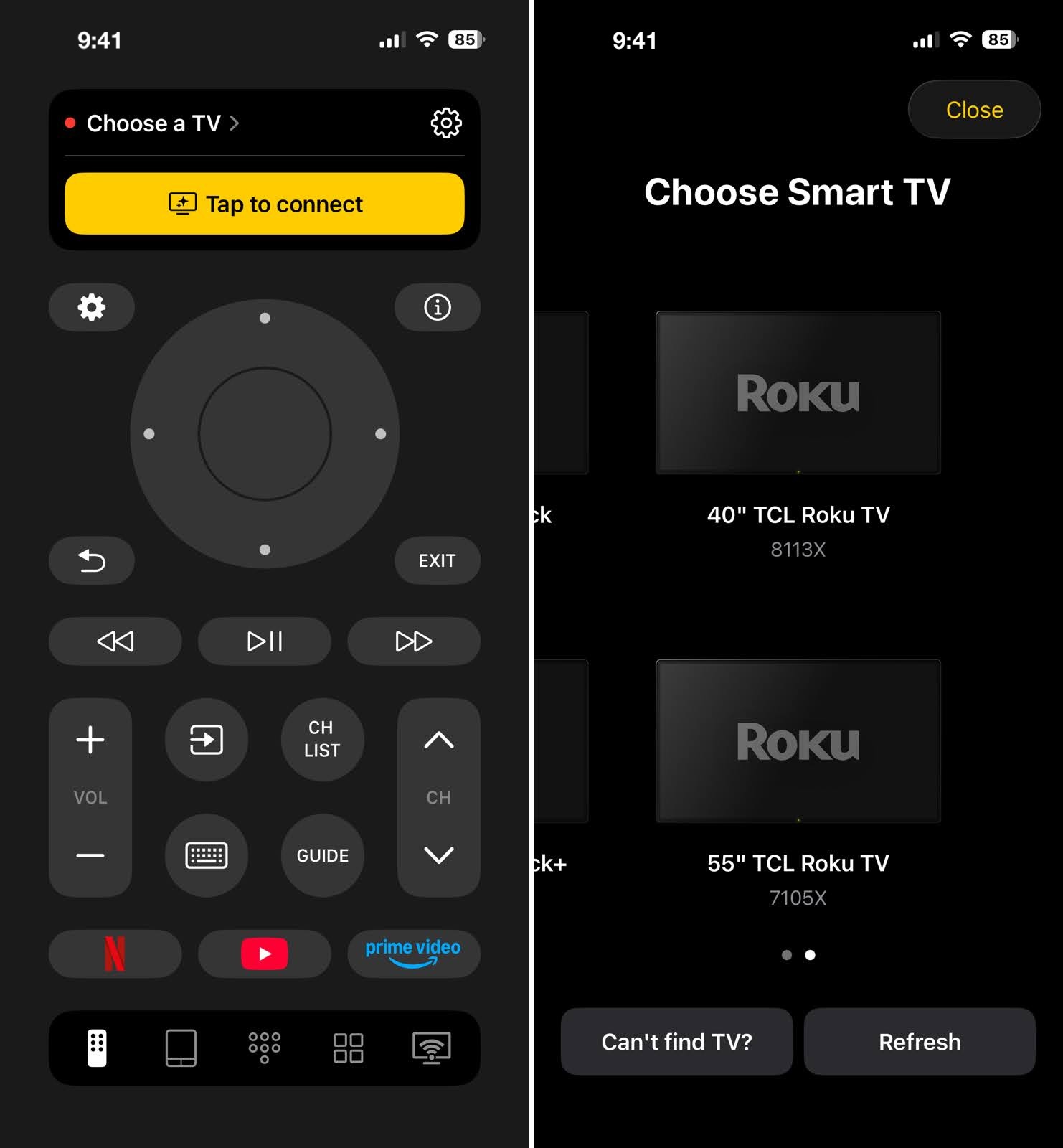
Tap on the Choose a TV button and select your Roku TV in TVRem

You’re then set to enjoy your favorite shows on most any smart TV in your home using just your iPhone and TVRem!

2. TV Remote – Universal Control

If all else fails, it may be time to take a different approach. You can use another app as the remote for your Roku TV. There are plenty of options on the App Store, but one to consider is TV Remote – Universal Control.

The app provides easy button controls along with a quick channel selection option. You can also use it to cast media and connect it to other TV brands besides Roku, including Sony, Samsung, Fire TV, and more. TV Remote – Universal Control is available for free on iPhone and iPad and offers additional features with an upgrade.

Step-by-step guide

To start using the app:

1. Download TV Remote – Universal Control from the App Store.
Using of the TV Remote - Universal Control app on iPhone

2. Open the app and follow the prompts for network access and app tracking.

3. Choose your Roku TV from the list of devices.

You should then be able to control your Roku TV with the app, share media using the Cast tab, and adjust the options on the Settings tab.

Note that some features, such as the touchpad and voice controls, channel selection, and volume adjustments, are only available with a paid upgrade.

Quick Troubleshooting Decision Tree

Follow this quick guide to pinpoint your exact connection issue:

  1. App doesn’t detect the Roku at all? ➔ Check Wi-Fi bands (2.4 GHz vs 5 GHz), turn off VPN/Private Relay, and verify Local Network permission in iOS settings.
  2. Device appears, but fails to connect or gives an error? ➔ Verify that Control by mobile apps on your Roku is set to Enabled or Permissive.
  3. App connects, but the Power button doesn’t turn the TV on/off? ➔ Ensure HDMI-CEC is enabled in your TV’s system settings. (This applies to Roku Streaming Sticks/Players connected via HDMI — built-in Roku TVs control power directly and don’t require CEC.)

Conclusion

When you’re asking yourself, “Why isn’t my Roku app remote working?” and frustration starts to set in, remember that it’s usually a simple issue that can be fixed quickly.

From using the same Wi-Fi network or disabling your VPN to updating your devices or reinstalling the app, you should be able to solve the problem in time for movie night.

And keep in mind, if you still can’t get The Roku App working with these common causes and solutions, you can always opt for a different iPhone remote app for your Roku TV like TVRem.

Frequently Asked Questions

There are several possible reasons for the Roku TV remote app not working. Your devices may not be connected to the same Wi-Fi network, the app or your devices might not be up to date, or your VPN may be interfering with the connection.

You can use a remote control iPhone app for your Roku device instead of a physical remote. Consider the built-in Remote app in the Control Center or a free universal TV remote app such as TVRem if you have additional TV brands in your home or are interested in bonus features.

Yes, The Roku App (Official) is a free Roku remote app for iPhone, available without worries of in-app purchases like upgrades or subscription plans. However, if you’re looking for another great free Roku remote app for iPhone, TVRem is also a fantastic option. It offers full control over your Roku device and works seamlessly with a wide range of TV brands, all without any hidden fees.

The Roku App (Official) is available for free, but for an app with extra features and broad support for multiple smart TV models, TVRem is completely free and easy to use.

You can create a mobile hotspot on a second smartphone using the exact same SSID (network name) and password as your old home Wi-Fi network. Since Roku devices remember the credentials of the last network they joined, your Roku should attempt to reconnect to the hotspot automatically, mistaking it for the old network.

This isn’t an officially documented Roku behavior, so give it a few minutes before assuming it hasn’t worked. Once connected, use the Roku app on a separate device joined to the same hotspot to point your Roku at your actual new Wi-Fi network via Settings > Network > Set up connection.

This is usually caused by aggressive battery-saving settings on your phone, which restrict background activity for apps that aren’t actively in use. On Android, go to your phone’s battery settings and disable Battery Optimization for the Roku app. On iPhone, enable Background App Refresh for the Roku app under Settings > General > Background App Refresh.