Fire TV Remote Not Working? Troubleshooting Tips & Solutions

thumbnail

An Amazon Fire TV remote not working can be aggravating. Luckily, there are common reasons for this that can be corrected in just a few steps. If these steps don’t fix the issue, you can opt for a new remote or free Fire TV remote app for your mobile device. Let’s explore each cause and solution along with those alternatives.

Why Is My Fire TV Remote Not Working?

When your Fire TV or Fire Stick remote stops working, it can be frustrating. Fortunately, there are some common causes that are easily fixable.

  • Dead batteries
  • LED diagnostics
  • Outdated Fire TV
  • Disconnected remote
  • Continued remote problems

Solutions for a Non-Working Fire TV Remote

Let’s walk through each of the above possible reasons why your Fire TV remote isn’t working along with how to fix each issue.

Dead Batteries

You can check the battery level by going to Settings > Controllers & Bluetooth Devices and selecting your Amazon Fire TV Remote from the list. You’ll then see the battery level as a percentage on the right.

If the level is low or the remote isn’t working well enough to check, you can replace the batteries with two AAA’s by sliding off the back cover of the remote.

How to Use Built-In Troubleshooting Mode (LED Diagnostics)

If your remote has an LED light at the top, you can trigger its built-in diagnostic mode to identify the exact connection or hardware issue:

1. Press and hold the Rewind and Right buttons simultaneously for 3 seconds.

2. Press the Menu button (three horizontal lines). The LED will flash green to confirm you have entered troubleshooting mode.

3. Press any button on the remote and observe the LED color:

  • Slow-Blinking Red: The battery power is critically low (replace with fresh alkaline batteries).
  • Fast-Blinking Red: The remote has encountered an internal error and requires a full reset.
  • Orange: The remote is not paired with your Fire TV.
  • White: Your Fire TV device is turned off or receiving no power.
  • Blue: The remote is working normally and connected via Bluetooth.


4. To exit diagnostic mode: Press and hold Play/Pause + Up for 3 seconds, then press Menu.

Compatibility note: This feature isn’t available on all Fire TV remotes – only on models with an LED indicator at the top (compatible: Alexa Voice Remote with LED, Alexa Voice Remote Pro; older remotes without an LED don’t support it). To check if your remote is compatible, press the Alexa/microphone button – if the LED flashes, troubleshooting mode is available. If there’s no LED or it doesn’t respond, use the general troubleshooting steps instead (checking batteries, re-pairing, resetting the remote).

Outdated Fire TV

To see if your Fire TV or Fire Stick needs an update, go to Settings > My Fire TV > About > Check for (System) Updates. If an update is available, it should download immediately. Then, select Install Update and wait for your TV to restart with the update.
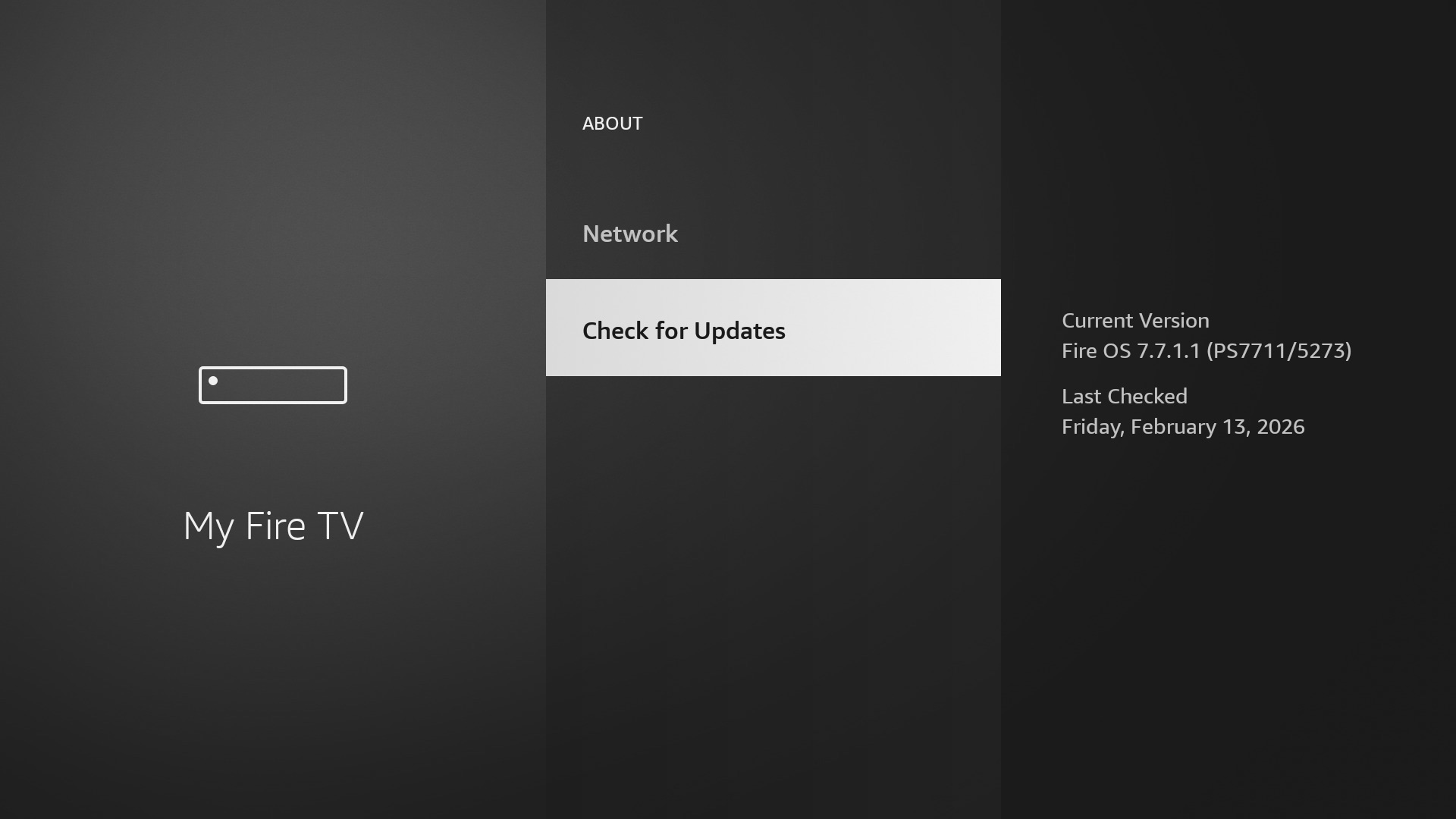
Fire TV settings

Disconnected Remote

If you experience unresponsiveness with the remote, see a “No remote detected” message on the TV screen, or notice a rapid flashing LED light, then your remote is likely disconnected.

Follow these steps to reconnect your remote:

Step-by-Step Hard Reset Sequence

If holding the Home button for 10 seconds fails to re-pair your remote, perform a full hardware reset using this exact shortcut combination:

1. Unplug your Fire TV from its power outlet (and HDMI port, if possible) and wait 60 seconds.

2. On your remote, press and hold the Left + Back + Menu buttons simultaneously for 12 seconds.

3. Release the buttons and wait 5 seconds.

4. Remove the batteries from your remote.

5. Plug your Fire TV back into power and wait until you see the Cannot detect your remote message on the TV screen.

6. Reinsert the batteries into your remote and press the Home button. If your remote has an LED indicator, it should blink blue once the connection is restored. If it doesn’t pair, hold the Home button for 10 seconds to force pairing.
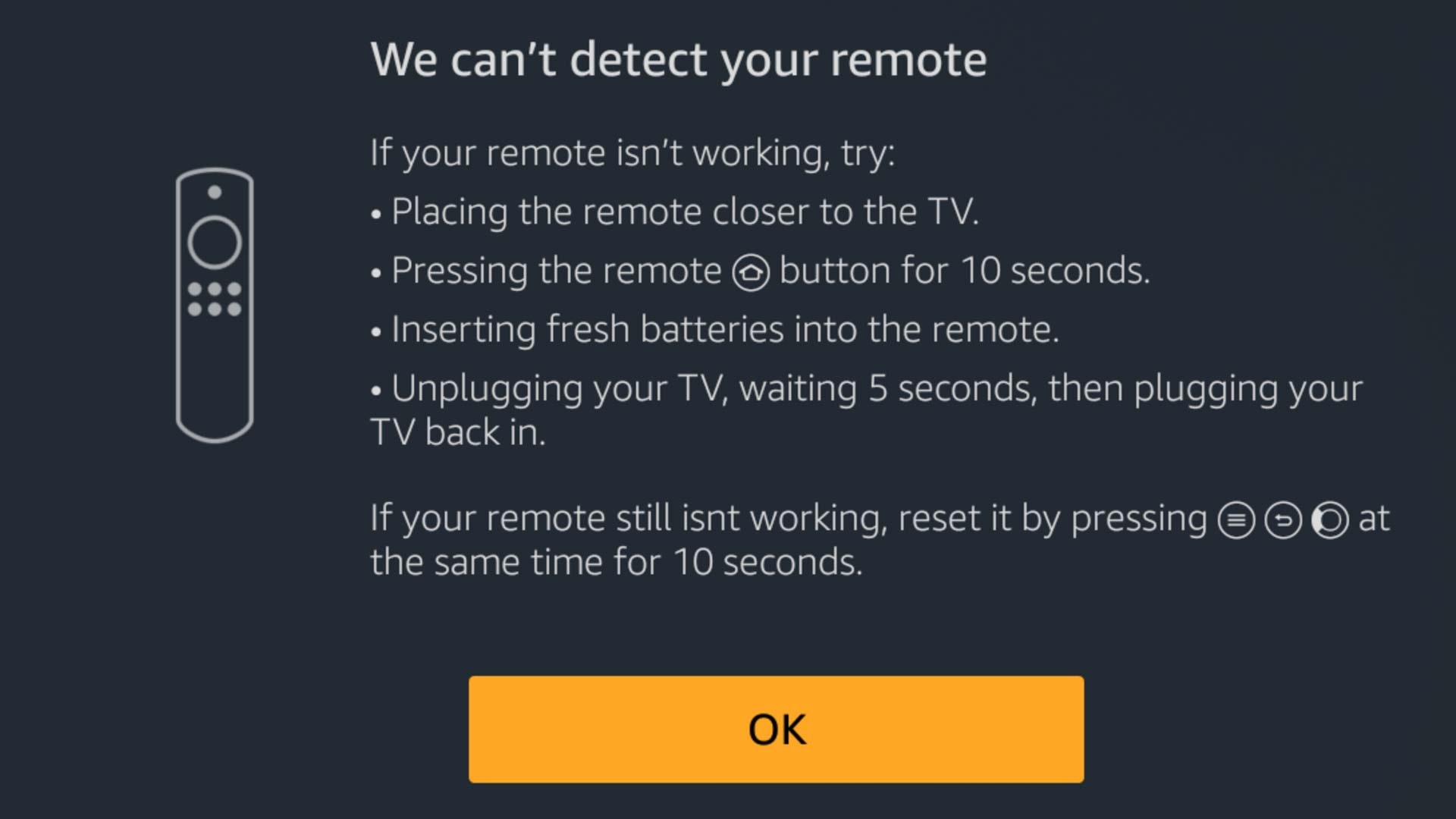
Fire TV message for remote detection

Continued Remote Problems

If, after trying the above, you still have trouble, you can reset your Fire TV remote.

Step-by-step guide

1. Unplug your Fire TV from the power source and HDMI input, then wait 60 seconds.

2. Press and hold the Left button, Menu button, and Back button at the same time for 12 seconds.
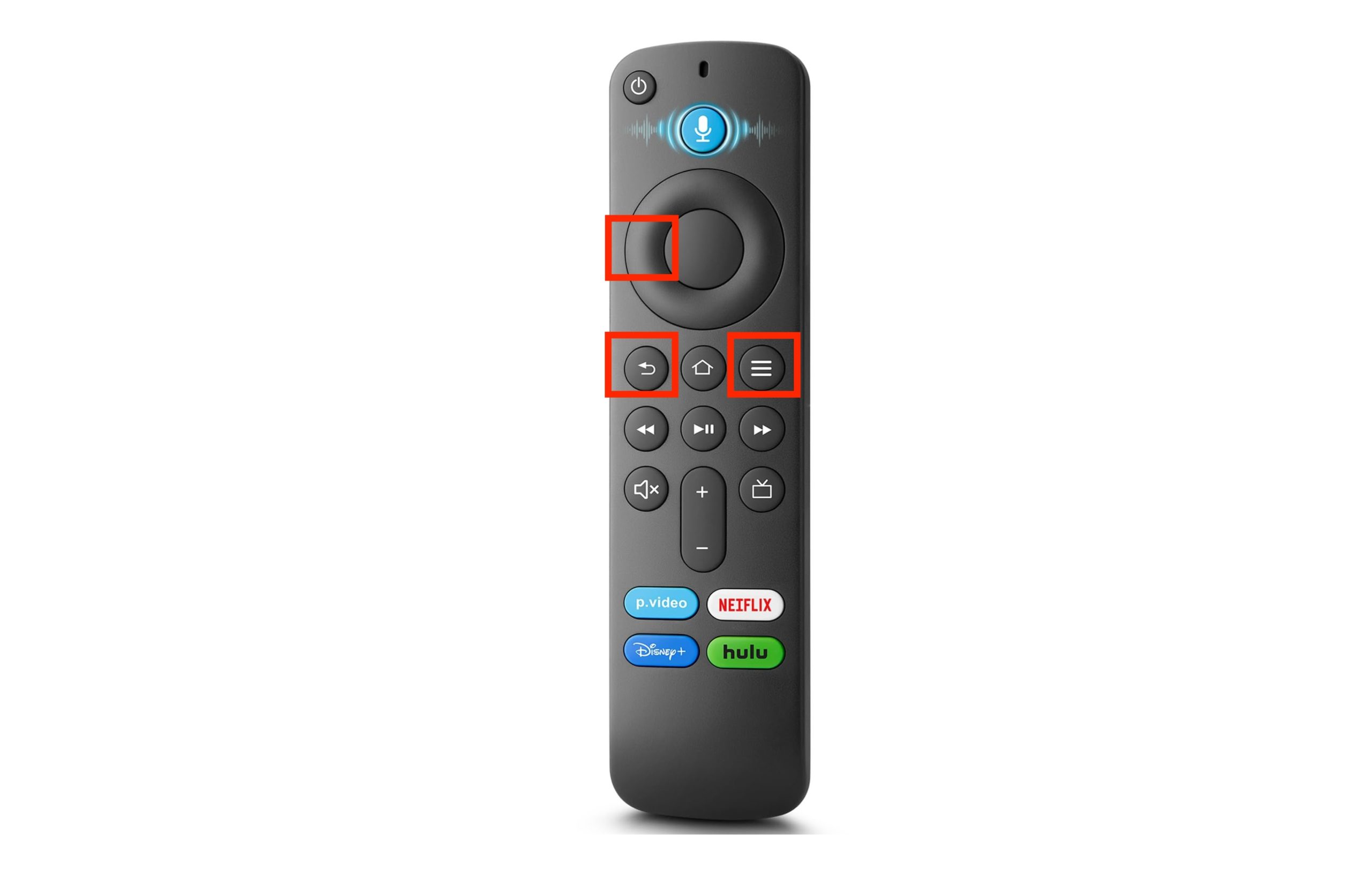
Tap buttons on the Fire TV remote

3. Release the buttons and wait 5 seconds.

4. Remove the batteries from your remote by sliding off the back cover.

5. Plug your Fire TV back into the source and input.

6. Put the batteries back in your remote.

7. Press the Home button.

If you see the blinking blue LED light, your remote is paired. If you don’t see the light, press the Home button for 10 seconds.

Turn Your iPhone into a Universal Remote App
for Fire TV

How to Control Firestick Without a Remote (Using Your iPhone)

When all else fails, you can purchase a new Fire TV remote or opt for a free Fire TV remote app for your mobile device.

Buy a New Fire TV Physical Remote

You can perform a search to find Fire TV remote replacements at retailers like eBay and Best Buy or head straight to Amazon for a decent selection. 

Currently on Amazon, prices range from $8 to $30, depending on your Fire TV or Fire Stick model or if you want additional features such as Alexa Voice.

Use a Universal Remote App: TVRem

As an alternative to a physical remote, consider a free Amazon Fire TV remote app such as TVRem. The advantages to this option are the convenience of an easily accessible mobile app, no worries of replacing batteries, reconnecting, or resetting a physical remote, and more money in your pocket because TVRem is completely free with no in-app purchases.
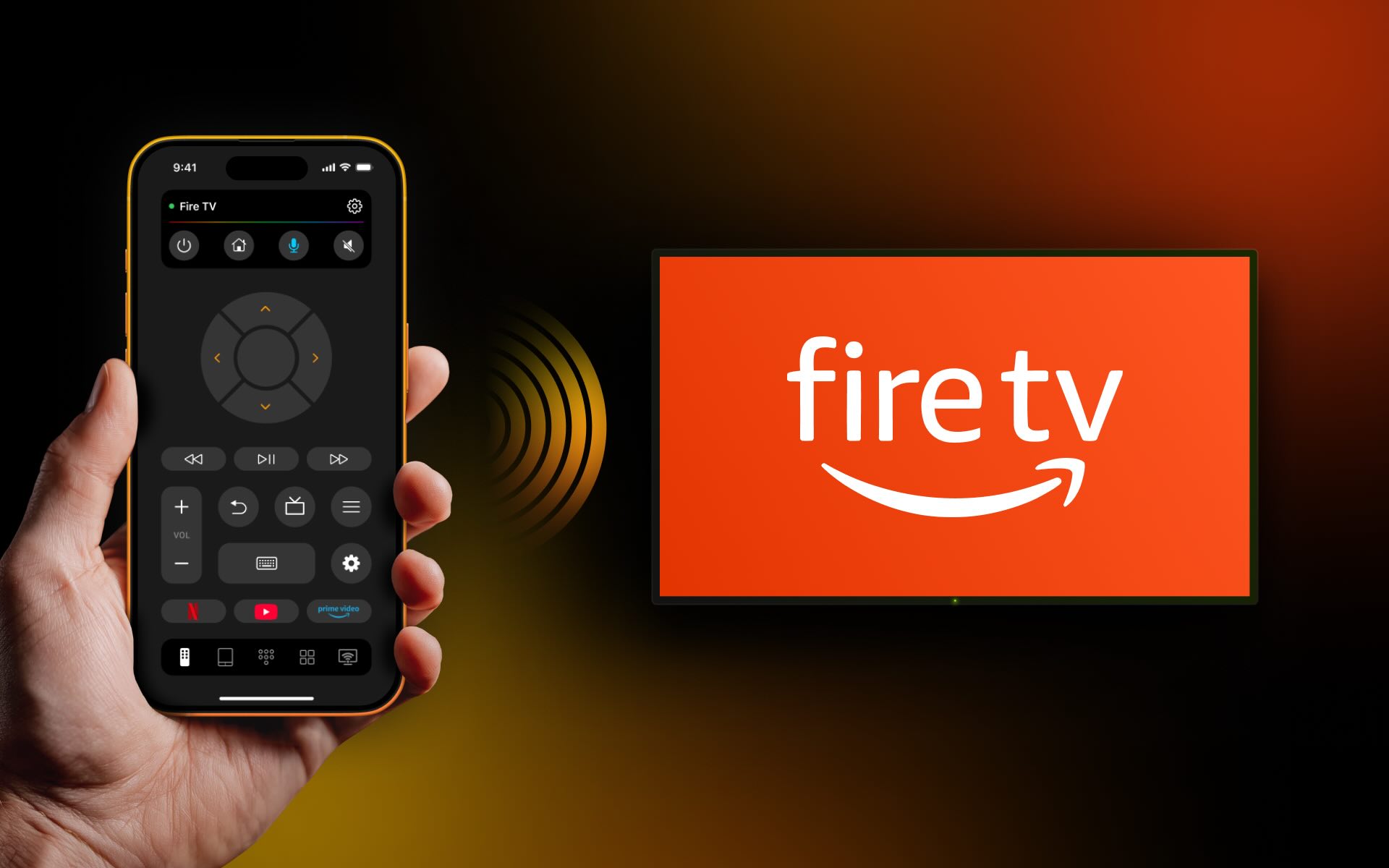
TVRem is the best Fire TV app alternative

With TVRem, you can also control additional TVs in your home, including Roku and streaming players, Amazon Smart TVs, and other TVs with Fire TV built in, Android TV, LG, Apple TV, Chromecast with Google TV, Google TV Streamers, and Samsung TVs.

For features and navigation, you can use button, touchpad, or voice controls, enjoy quick channel switching, and receive haptic and sound feedback — all within an intuitive interface.

To use the app:

Step-by-step guide

1. Download TVRem to your iPhone or iPad and power on your Fire TV.
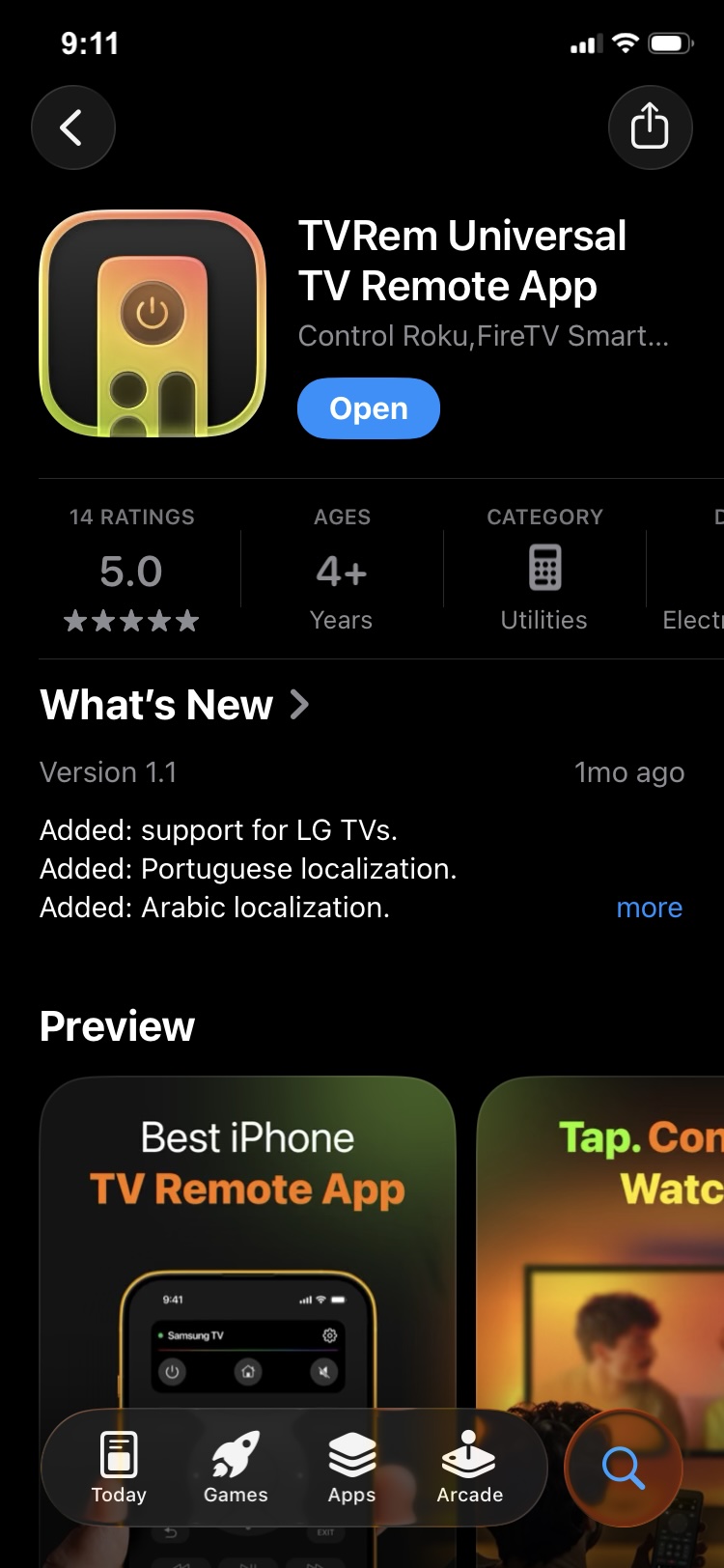
Download TVRem from the App Store

2. Open the app and connect it to the same Wi-Fi network as your TV.

3. When prompted, grant the necessary permissions.

4. Tap Choose a TV.
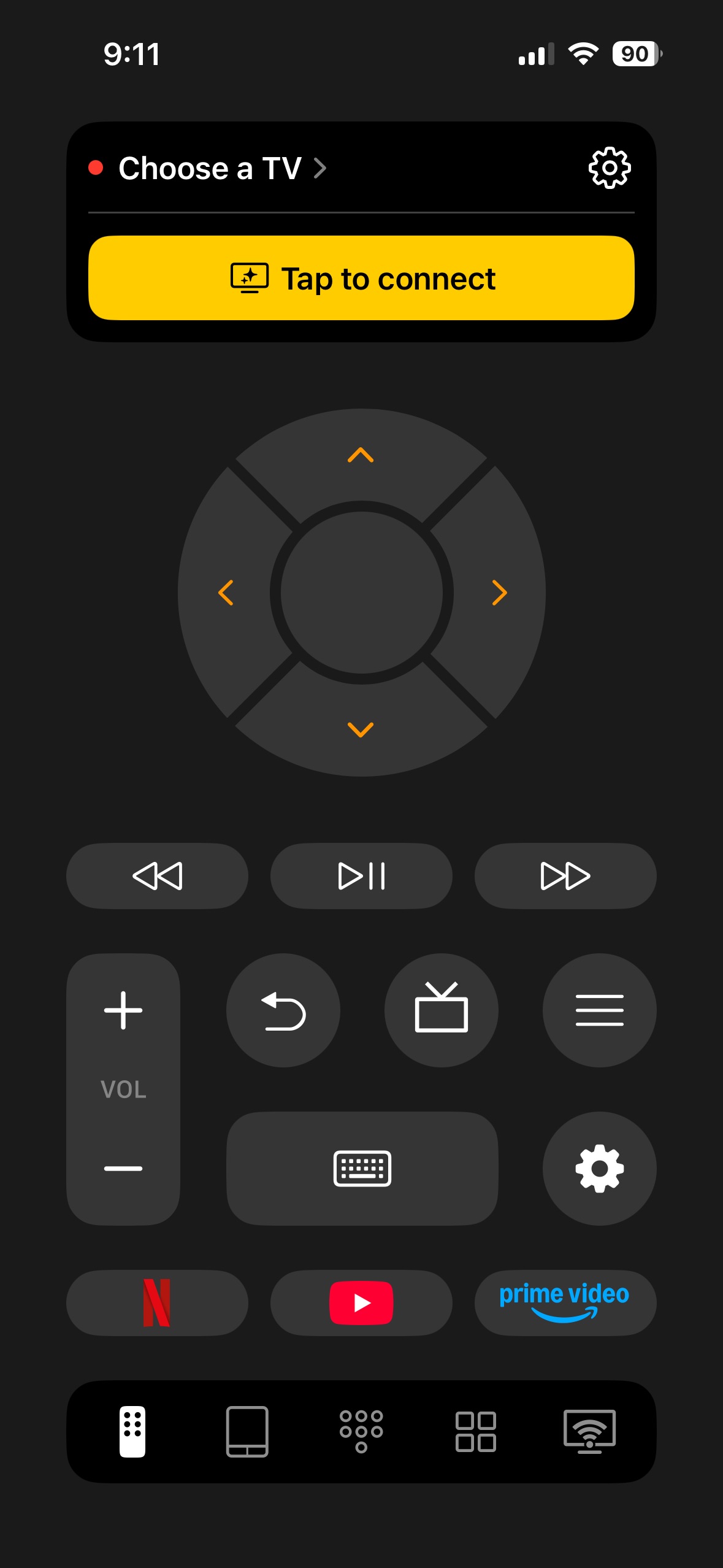
Tap on Choose a TV button in TVRem

5. Select your Fire TV or Fire Stick from the device list.
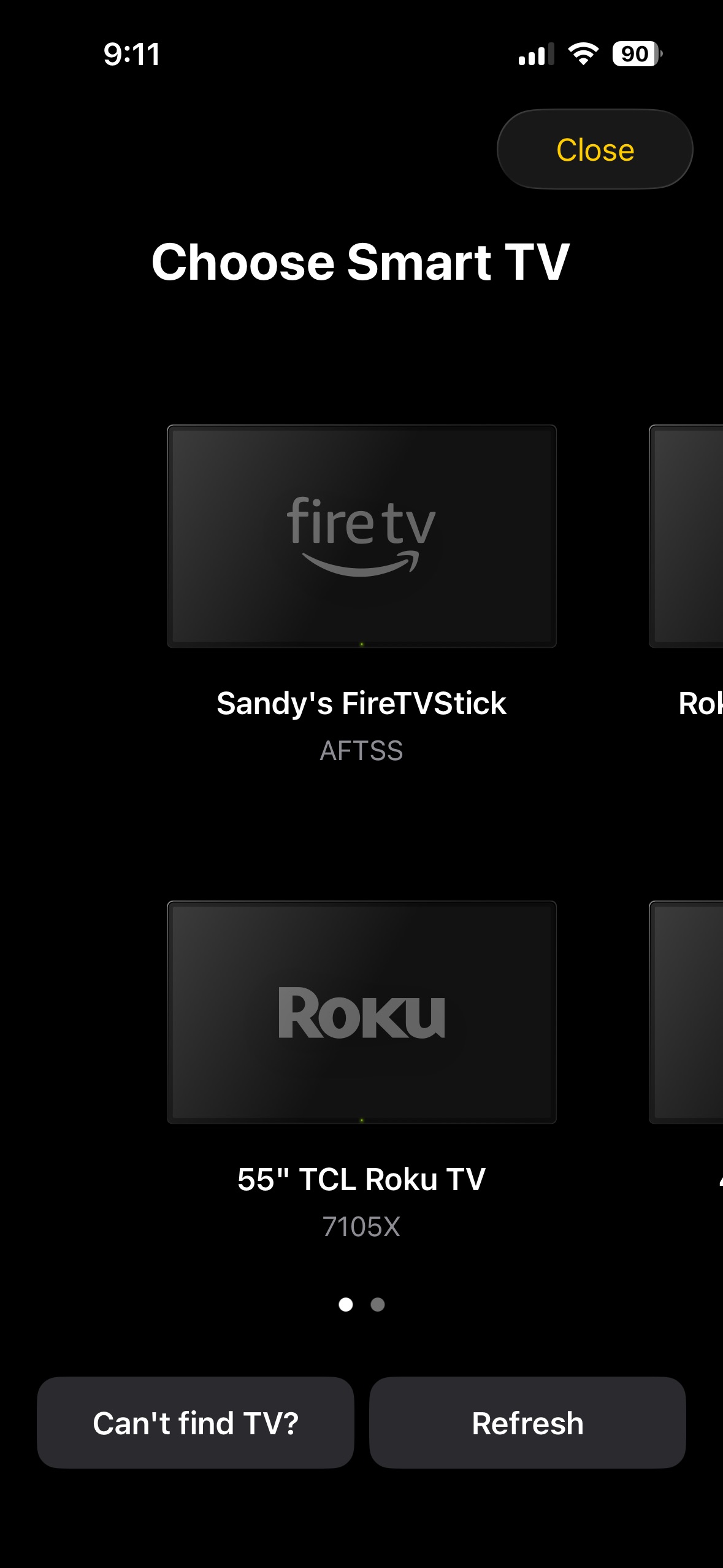
Select your Fire TV from the list of devices in TVRem

6. You’re then ready to get back to your favorite shows and Fire TV channels.
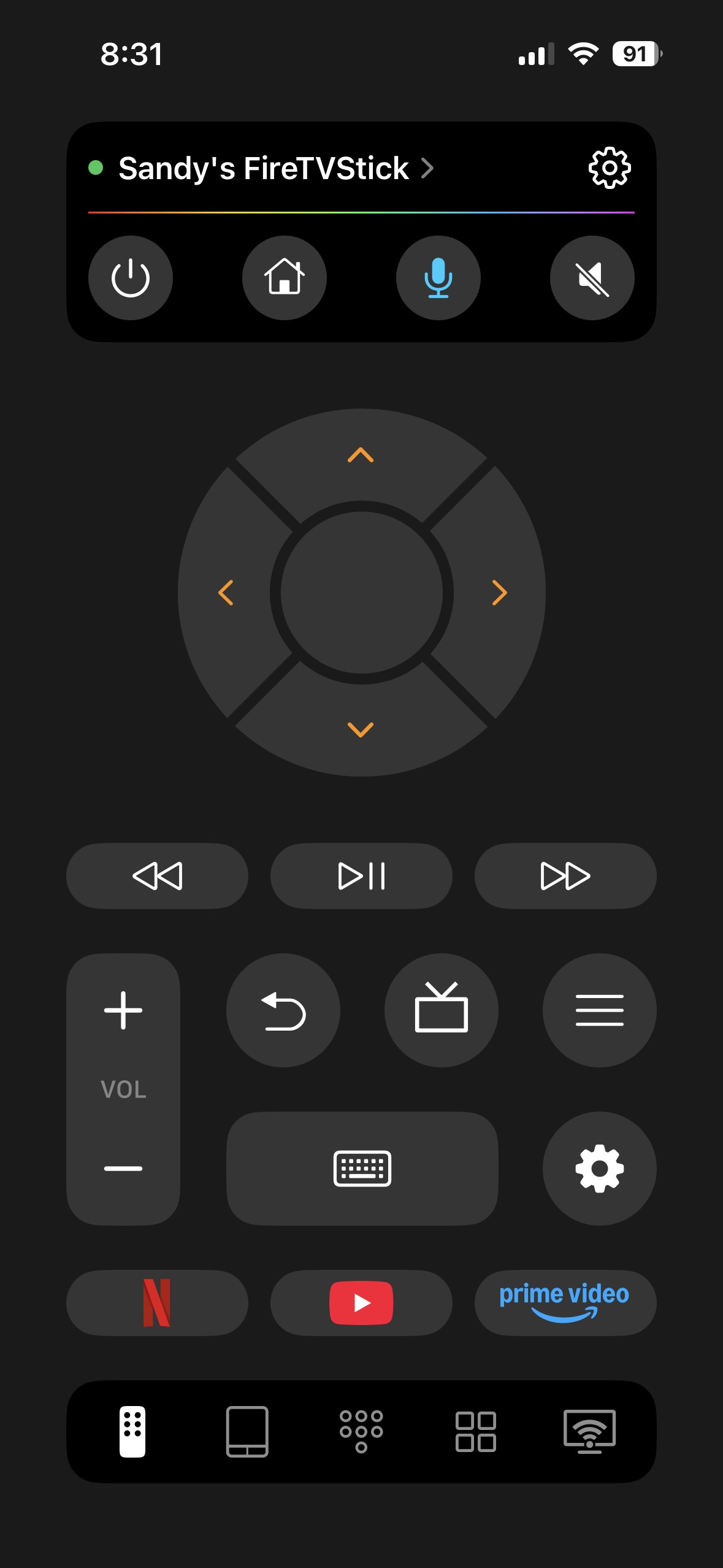
The main screen of the TVRem app

Again, TVRem is available for free on iPhone and iPad without any in-app purchase or subscriptions for additional features or functionality.

Alternative Fix: Use Your Original TV Remote via HDMI-CEC

You can control your Fire TV using your standard TV remote (Insignia, Samsung, LG, Sony, etc.) without downloading an app:

  1. Use your TV’s native remote to open your TV Settings menu.
  2. Locate the HDMI-CEC setting (manufacturers name this differently: Samsung calls it Anynet+, LG calls it SimpLink, Sony calls it BRAVIA Sync, Panasonic calls it VIERA Link).
  3. Turn HDMI-CEC ON.
  4. On your Fire TV device itself, go to Settings → Display & Sounds → HDMI CEC Device Control, and turn it ON as well. (This step is required — CEC won’t work if it’s enabled on only one side.)
  5. Switch your TV input to your Fire TV. You can now navigate the Fire TV menus using the directional arrows on your original TV remote.

Conclusion

There’s nothing more frustrating than an Amazon Fire TV Stick remote not working. Luckily, the reasons and solutions are easily correctable. If you walk through the troubleshooting options without resolve, you can opt for a new physical remote or remote app for your mobile device.

Overall, the better option is a mobile remote app such as TVRem. This gives you the convenience of having your Fire TV remote in-hand whenever you need it without worries of replacing batteries or even losing your physical remote.

TVRem is a universal remote app, which means that it works with other TV brands and streaming players beyond Fire TV and Fire Stick. This lets you use it for other TVs in your home, for a flexible option. Plus, TVRem’s feature set gives you everything you need to control your TV without spending a dime.

Frequently Asked Questions

Unplug your Fire TV and wait 60 seconds. On your remote, press and hold the Left, Menu, and Back buttons at the same time for 12 seconds, then release the buttons and wait 5 seconds. Remove the batteries from your remote, plug your Fire TV back in, and put the batteries back in your remote. Finally, press the Home button on your remote.

Dead batteries are only one reason that your remote for Fire TV is not working. Your Fire TV or Fire Stick may need an update, your remote may be disconnected from your TV, or you may simply need to reset your Fire TV remote.

A blinking yellow light means that your Fire Stick remote is unpaired and in discovery mode (searching for Fire TV devices). If the remote does not connect, this can be due to dead batteries, substantial interference, or the need to reset the remote.

Yes! TVRem is a completely free universal remote app that works with Fire TV, along with other TV brands and streaming players like Roku, Samsung TV, Android TV, LG, Apple TV, Chromecast with Google TV, and more.

TVRem offers voice control and input, touchpad navigation, quick app launch, and smart keyboard input without any worries of in-app purchases or subscriptions.

Different LED light colors indicate the exact operational status of your remote:

  • Flashing Orange: The remote is unpaired and in discovery mode – this can happen after losing connection, due to low batteries, Bluetooth interference, or if it’s being paired for the first time. Hold the Home button for 10 seconds to re-pair. If that doesn’t work, restart your Fire TV device (unplug for 60 seconds) and try again.
  • Slow-Blinking Red: The batteries are low on power and need replacement.
  • Fast-Blinking Red: The remote has encountered a system error. Perform a hardware reset using the Left + Back + Menu button shortcut.
  • Blinking Blue: The remote is successfully paired and functioning normally.


Note: Not all Fire TV remote models have an LED indicator (e.g., the Alexa Voice Remote Lite doesn’t).