How Easily to Control a Smart TV with an iPhone App

Tired of your physical TV remote constantly going missing? Want a backup remote that doesn’t require batteries? Why not use the device that’s always by your side? So, is there a way to use your iPhone as a remote? Yes, you can easily turn your iPhone into a TV remote with a modern, easy-to-set-up remote control app. We tested several remote control apps for iPhone and picked out the best ones, so you don’t have to sort through the rest.
Choose a Third-Party Remote Control App on iPhone
Maybe your TV doesn’t support AirPlay or you’d like an app to control more than one type of TV in your home. You can choose from many third-party tools or opt for a universal TV remote control app for iPhone that works with multiple television brands.
Before you begin your search for the perfect tool, here are some tips and suggestions for finding the right app for you.
📎 Compatibility: Be sure the app works with your TV brand. You can usually find this information in the App Store description or by visiting the developer’s website or company’s help page. If you plan to use a universal remote, confirm that it supports all of your TV brands.
📎 Control options: Review the control options for apps that offer buttons, a touchpad, a keyboard, and/or voice control per your preference. Some apps provide more than one method for controlling the TV while others only offer this feature with a paid upgrade.
📎 Intuitive interface: Check out the main screen of the app to make sure that it’s easy to use. You can review screenshots on the App Store or give the app a try for yourself to see if the interface is uncomplicated and works for you.
📎 Customization: Some TV remote control apps offer customization options like the ability to change the app’s icon on your iPhone Home screen or pick the design of the main control screen in the app.
📎 Other features: Like customizations, many apps offer extra features you might enjoy. Examples include a channel search, sleep timer, and media casting options. Just keep in mind that some apps only provide these bonus features with an in-app purchase.
📎 Cost: A lot of apps in this genre are available for free or with a try-before-you-buy option. Look through the pricing and subscriptions for an affordable tool that’s a good value for the money such as providing those extra features or removing the ads.
1. TVRem
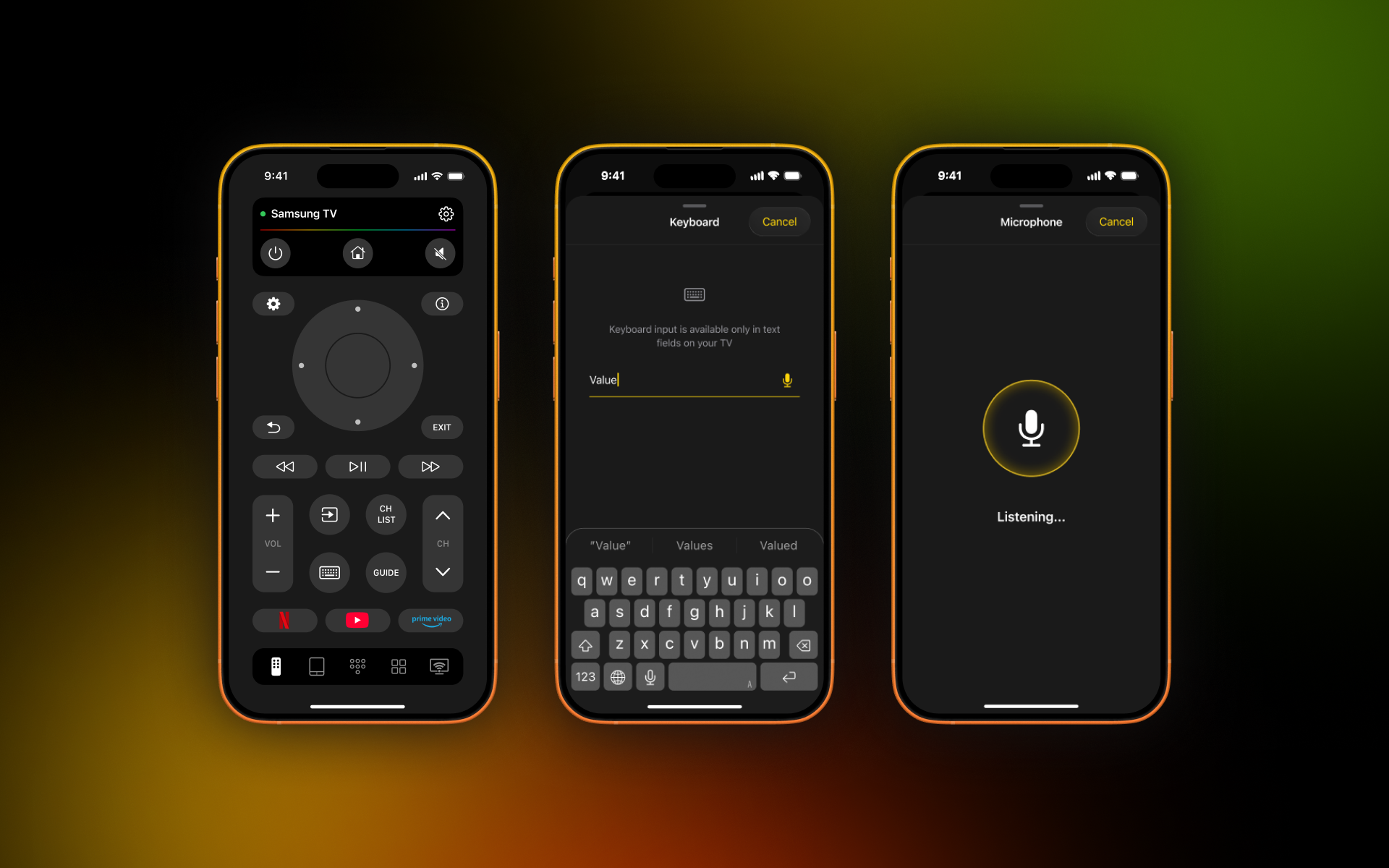
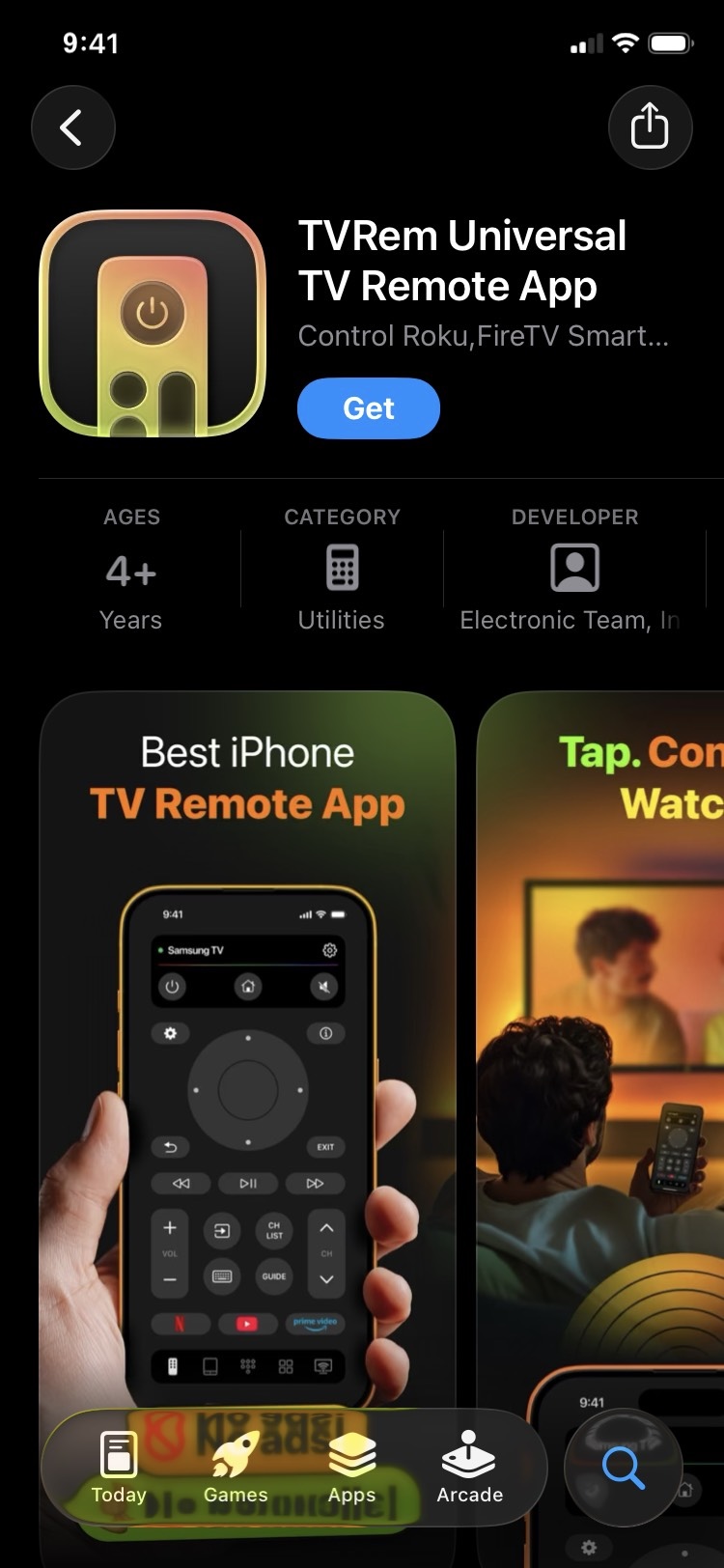
TVRem is a completely free app to use iPhone as TV remote. It provides an intuitive interface and quick launch options for Netflix, YouTube, and Prime Video on the main screen with other apps available with a tap.
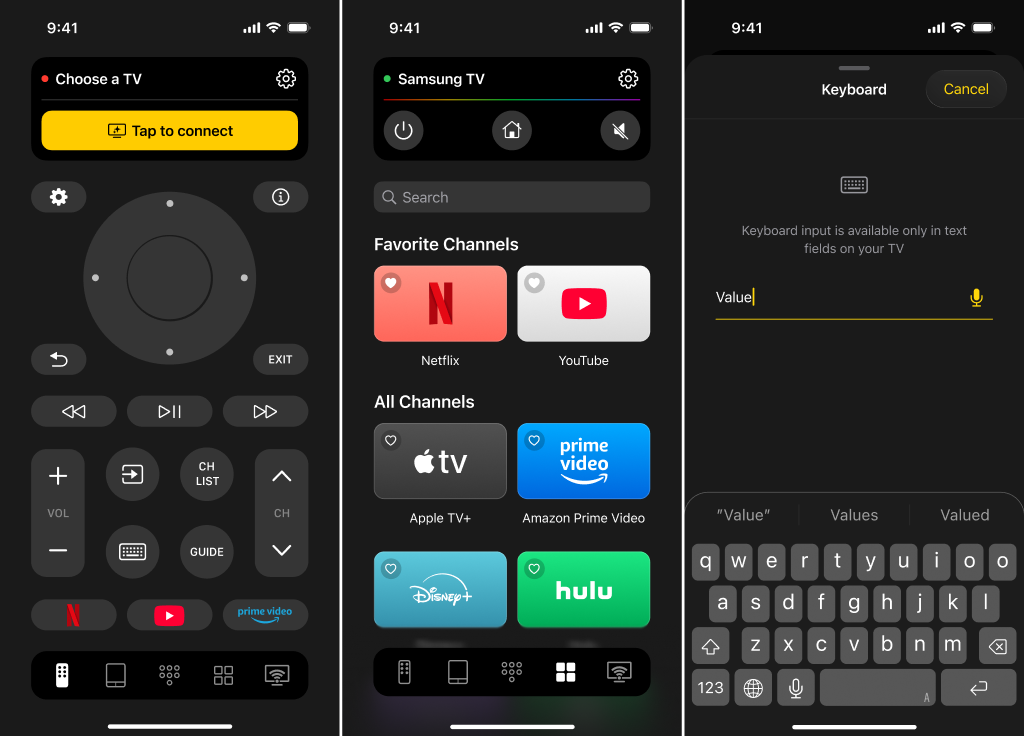
You can use button, touchpad, keyboard, number pad, or voice controls, access the guide, enable haptic and sound feedback, and power your TV on and off.
iPhone as a TV Remote via TVRem App
1. Download TVRem from the App Store.
2. Confirm that your TV and iPhone are connected to the same Wi-Fi network.
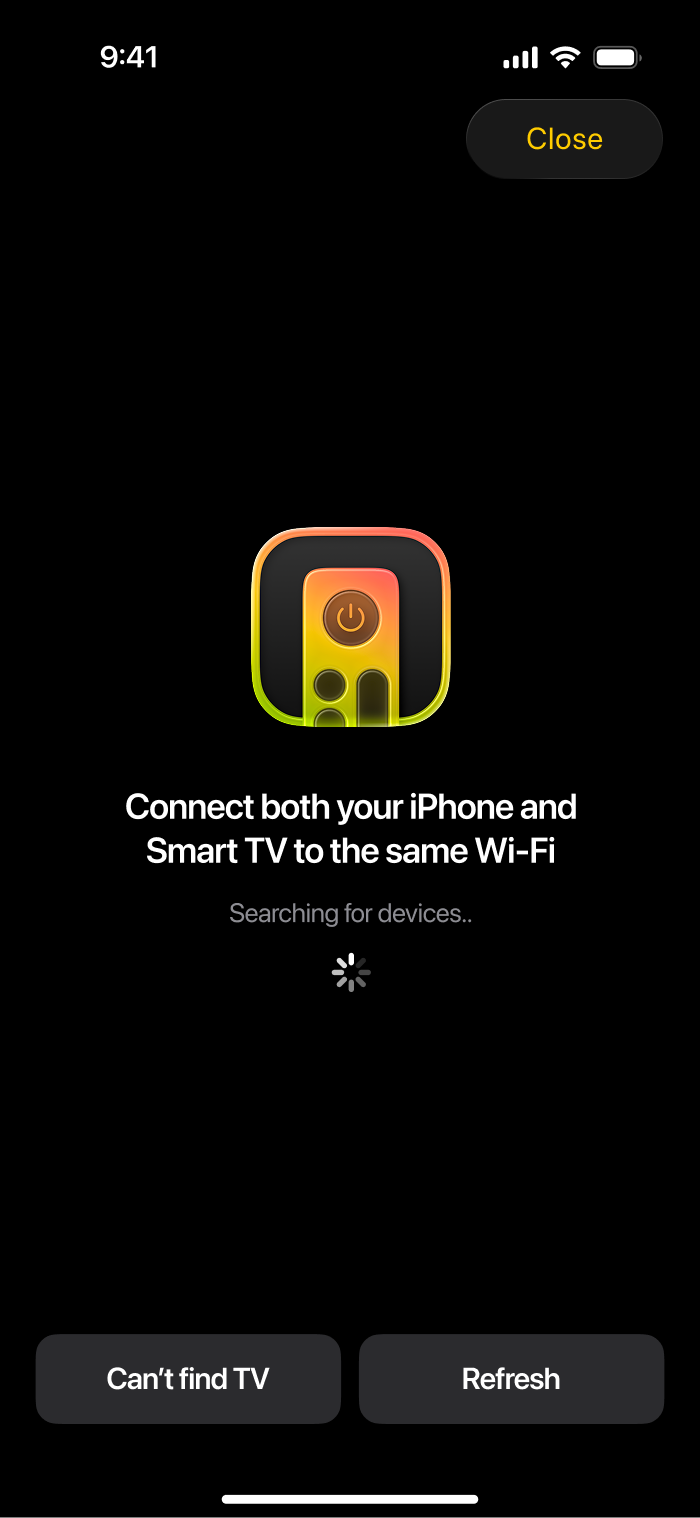
3. Open the app and follow the prompts for device access.
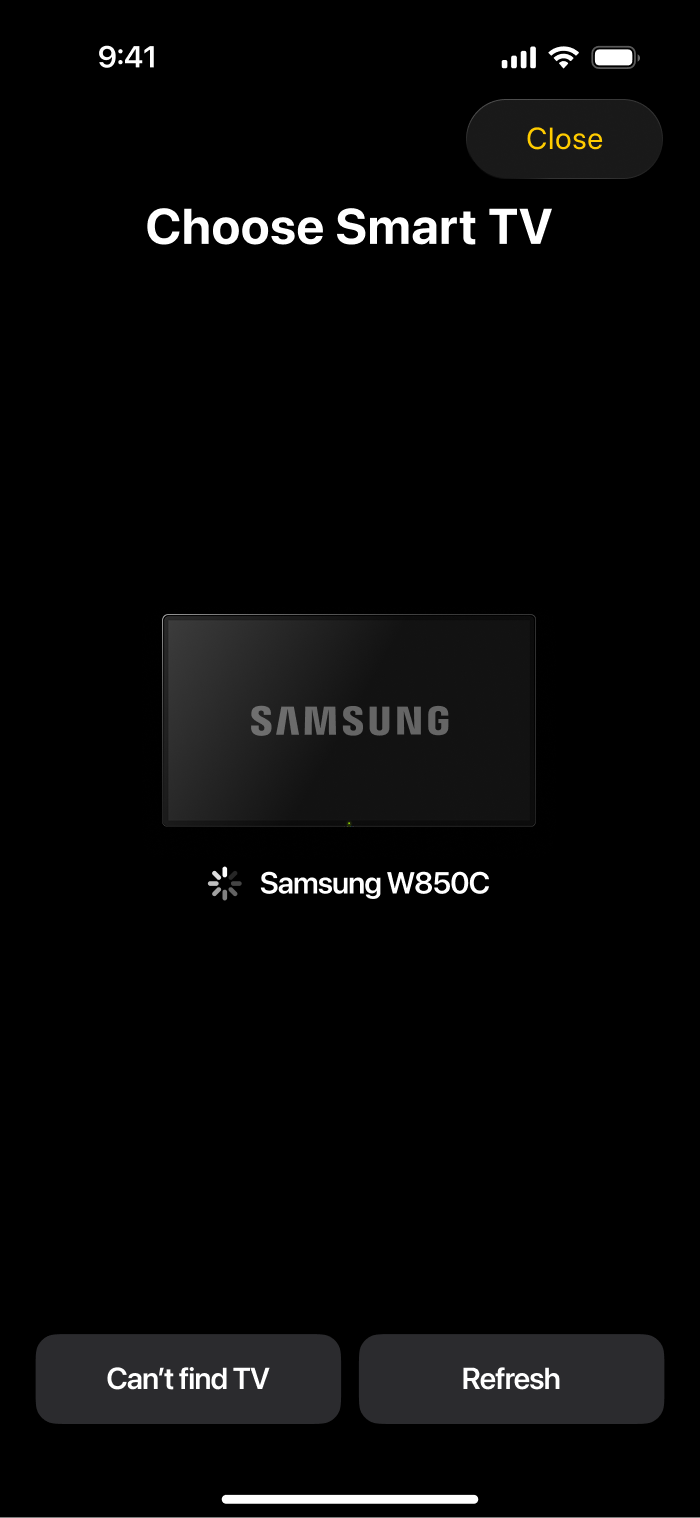
4. Tap Choose a TV and pick your TV from the list of discovered devices.
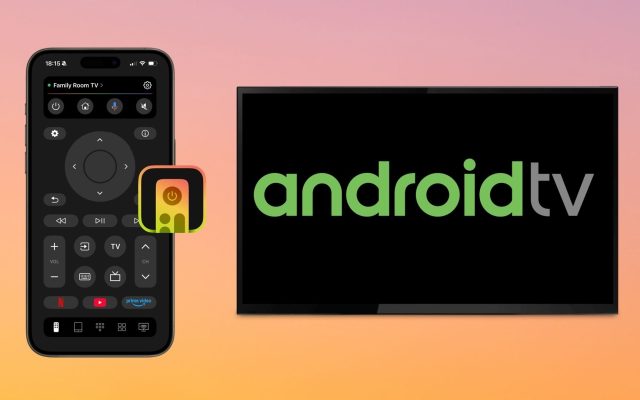
TVRem is available for free with no worries of additional purchases. The app works with Roku, Samsung, LG, Apple TV, Fire TV, Android TV, Google TV, streaming players, Amazon Smart TVs, and other TVs with Fire TV built-in.
2. TV Remote - Universal Control
Another handy app to control TV with iPhone is TV Remote – Universal Control. This solution gives you buttons for Netflix, YouTube, and Apple TV right on the main screen.
You can use button, touchpad, or voice controls, enable haptic feedback, cast media like photos or videos, and take advantage of screen mirroring for your device.
Keep in mind that some of the app’s more advanced features are locked behind a paid subscription.
Step-by-step guide
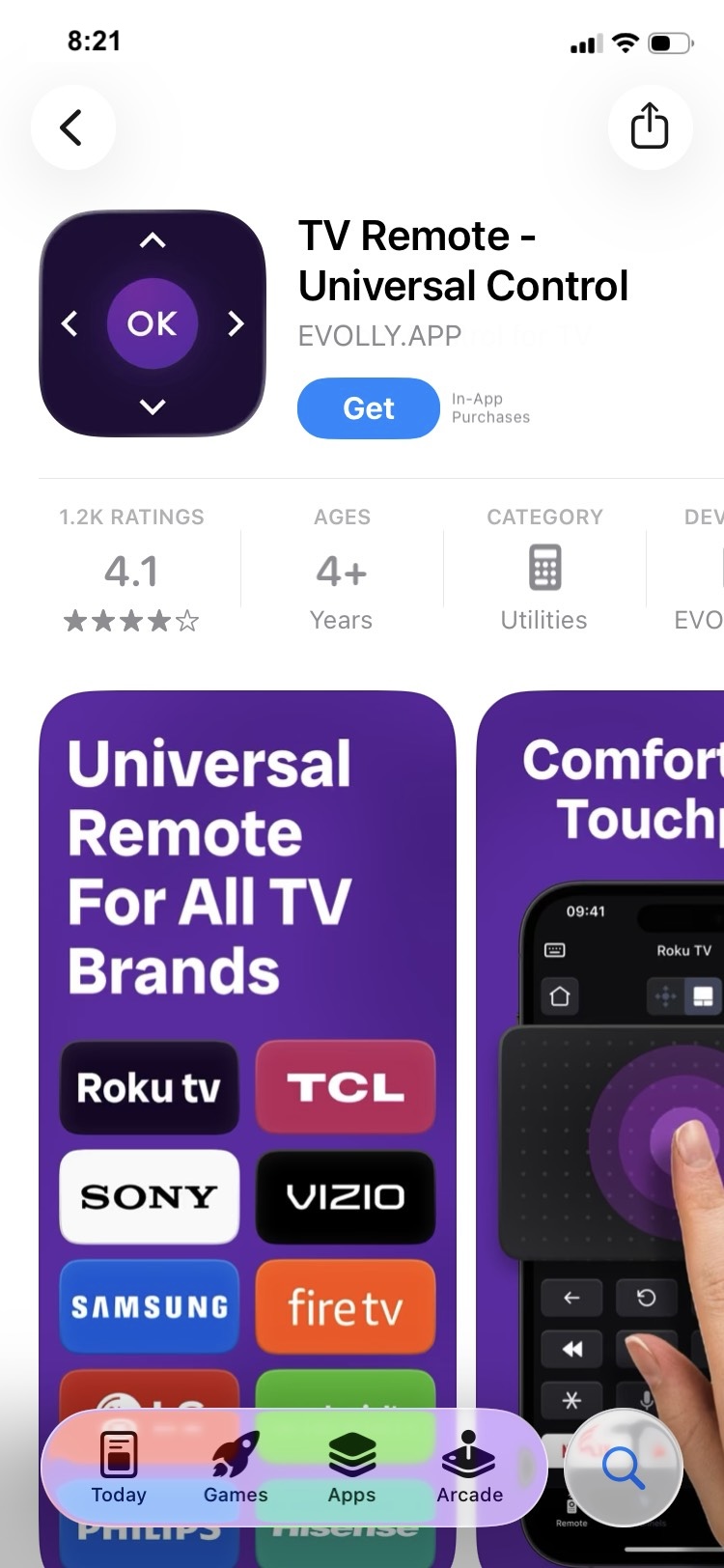
1. Download TV Remote – Universal Control from the App Store.
2. Verify that your TV and iPhone are using the same Wi-Fi network.
3. Open the app and follow the prompts for network access.
4. Choose your TV from the list of detected devices.
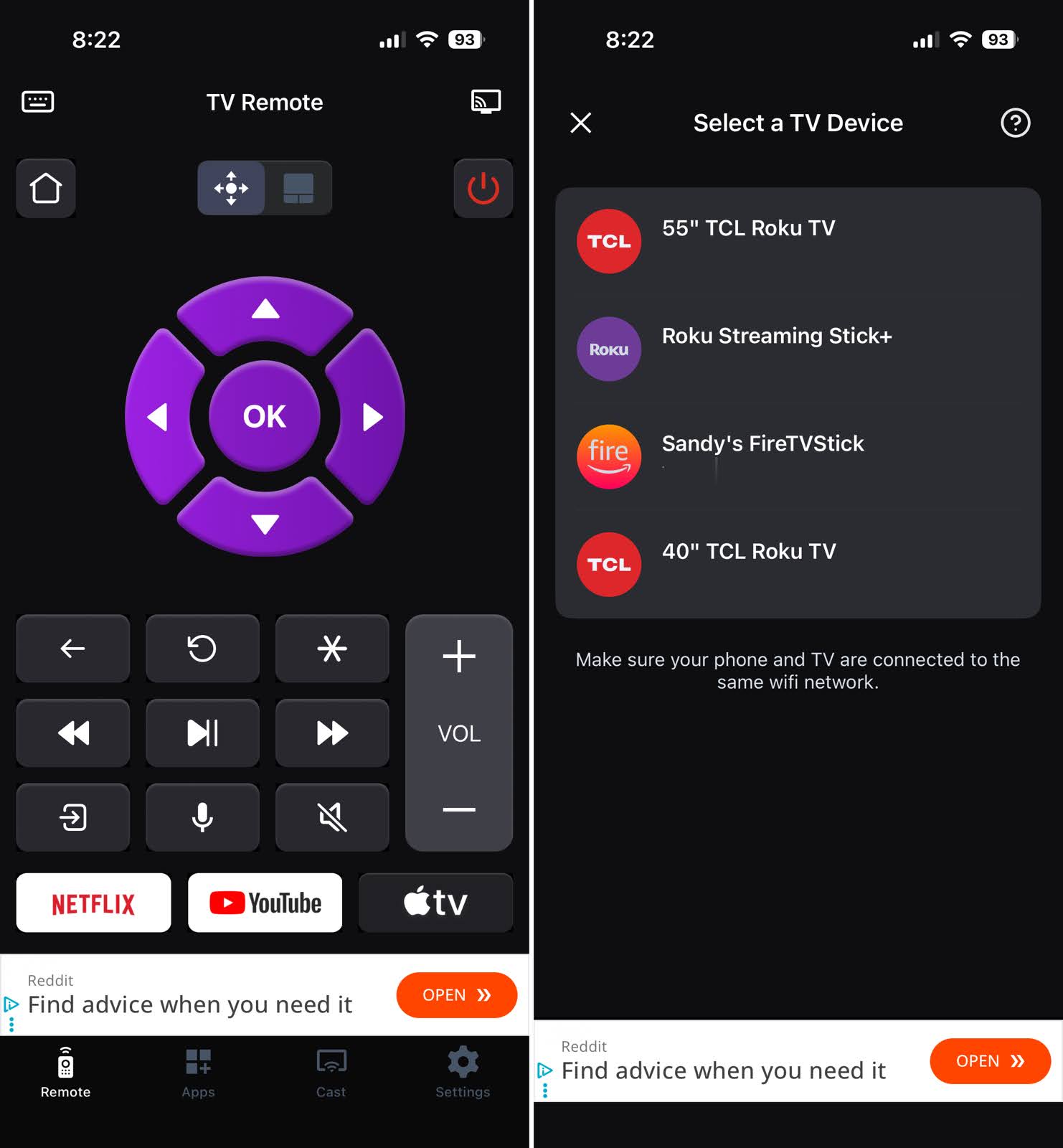
TV Remote – Universal Control is available for free with subscription plans for additional features. The app works with Roku, Samsung, Sony, LG, Hisense, Fire TV, and other smart TVs.
3. TV Remote Universal
One more remote control app for TV available for iPhone is TV Remote Universal. The app offers quick launch buttons for Netflix, Apple TV+, YouTube, and Disney+.
You can use button or keyboard controls, search for shows and channels, access installed apps on your TV, and use Dark Mode on movie nights.
Note that the free version displays ads, and a subscription is required to remove them and unlock every feature.
Step-by-step guide
1. Download TV Remote Universal from the App Store.
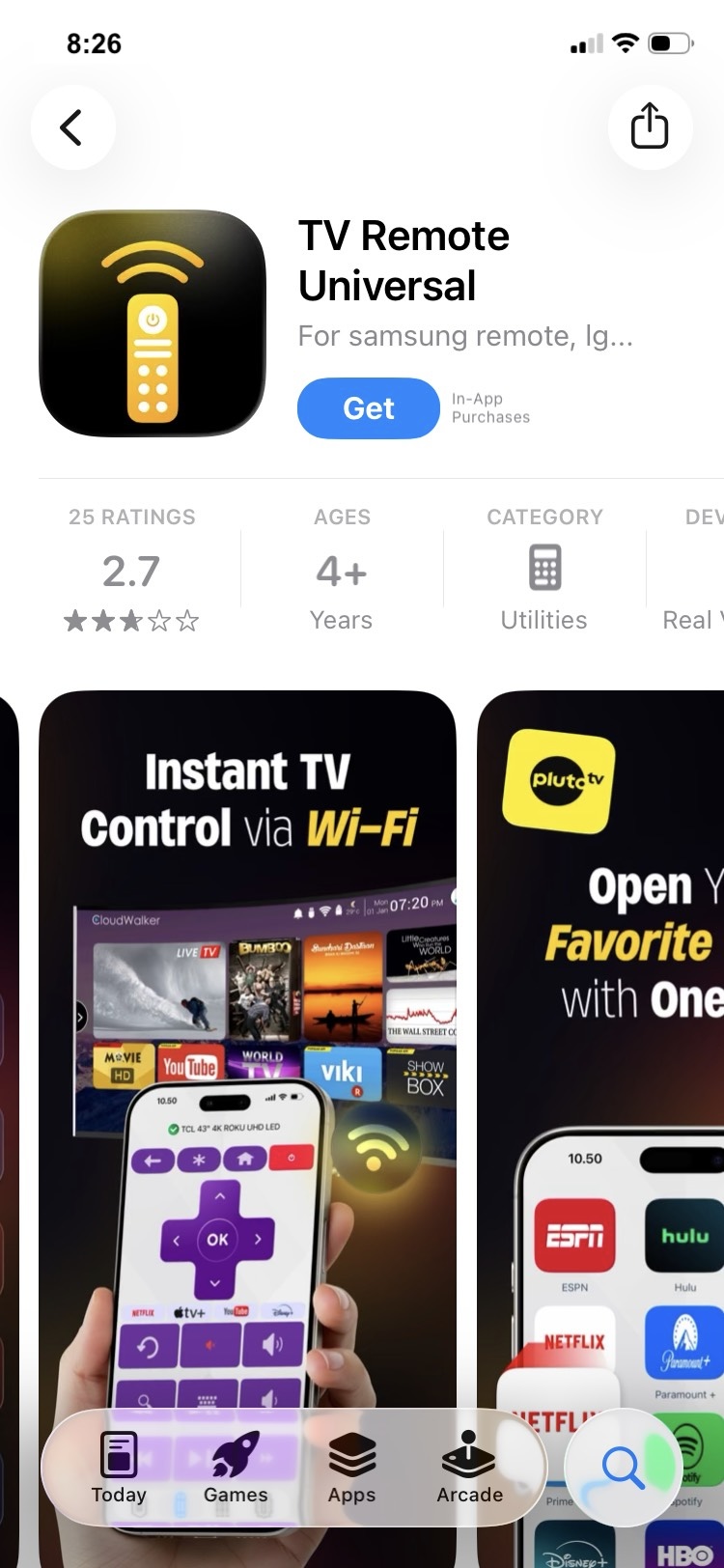
2. Confirm that your TV and iPhone are using the same Wi-Fi network.
3. Open the app and follow the prompts to grant access.
4. Choose Connect for your TV from the list of devices.
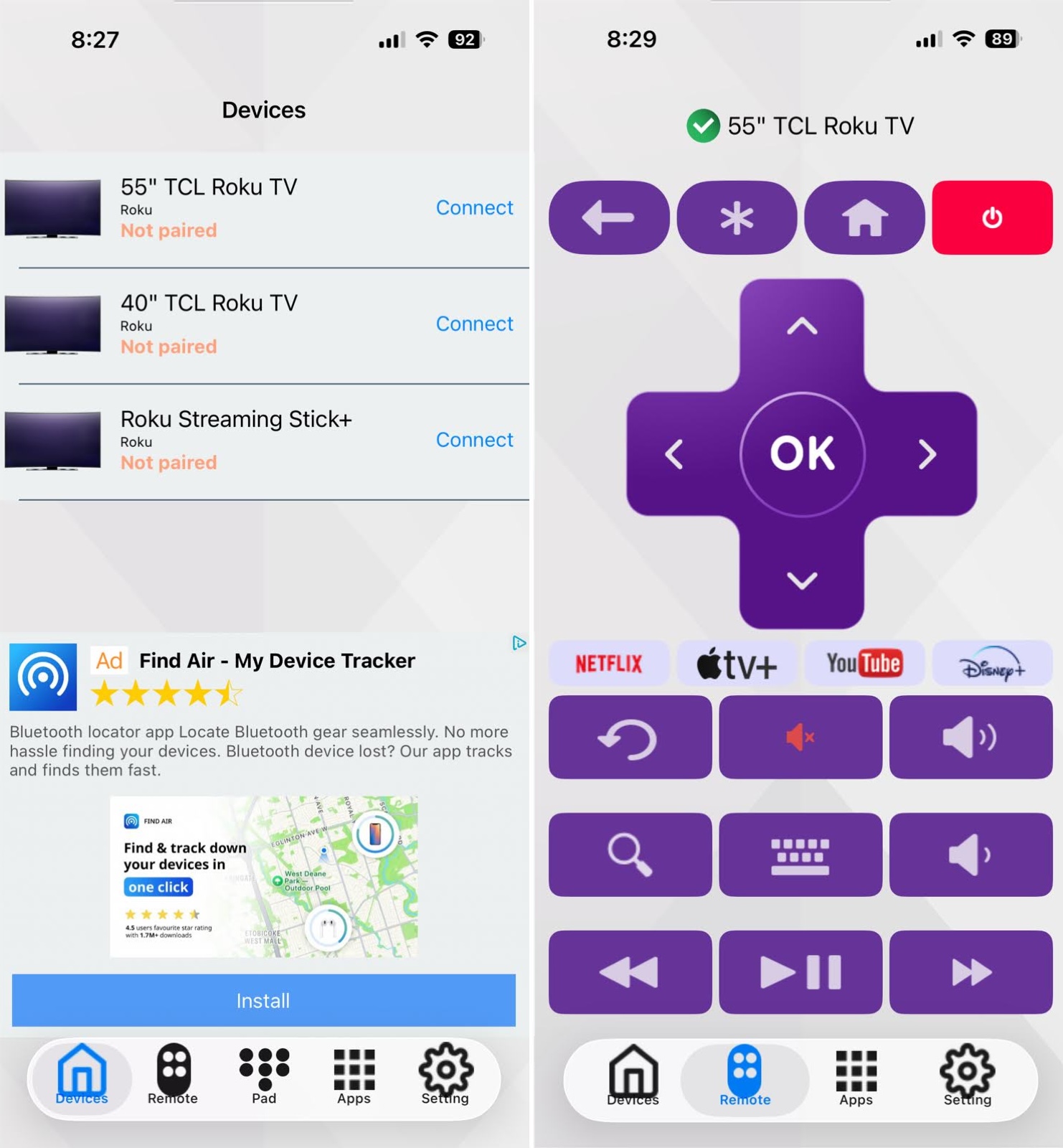
TV Remote Universal is available for free with subscription plans to remove the ads and unlock additional features. The app works with Samsung, Sony, LG, Philips, Roku, and other smart TVs.
4. Use the Apple TV Remote Control App for iPhone
If you want to try something basic, consider using your iPhone’s built-in tool, the Apple TV Remote app. Although more limited than the above third-party options, you can use it to control an Apple TV and other AirPlay-supported smart TVs that you add to the Apple Home app.
- Confirm that your TV supports AirPlay and that the feature is enabled. You can usually find the feature in your TV’s settings with the option to turn on AirPlay.
- Make sure to add the TV to the Home app on iPhone. Open Home, select the plus sign at the top, and pick Add Accessory. Then, follow the prompts to add your TV.
Step-by-step guide
1. Unlock your iPhone and open the Control Center.
2. Select the Remote app.
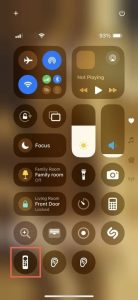
3. With the app open, use the Choose a TV drop-down box at the top to choose your TV.
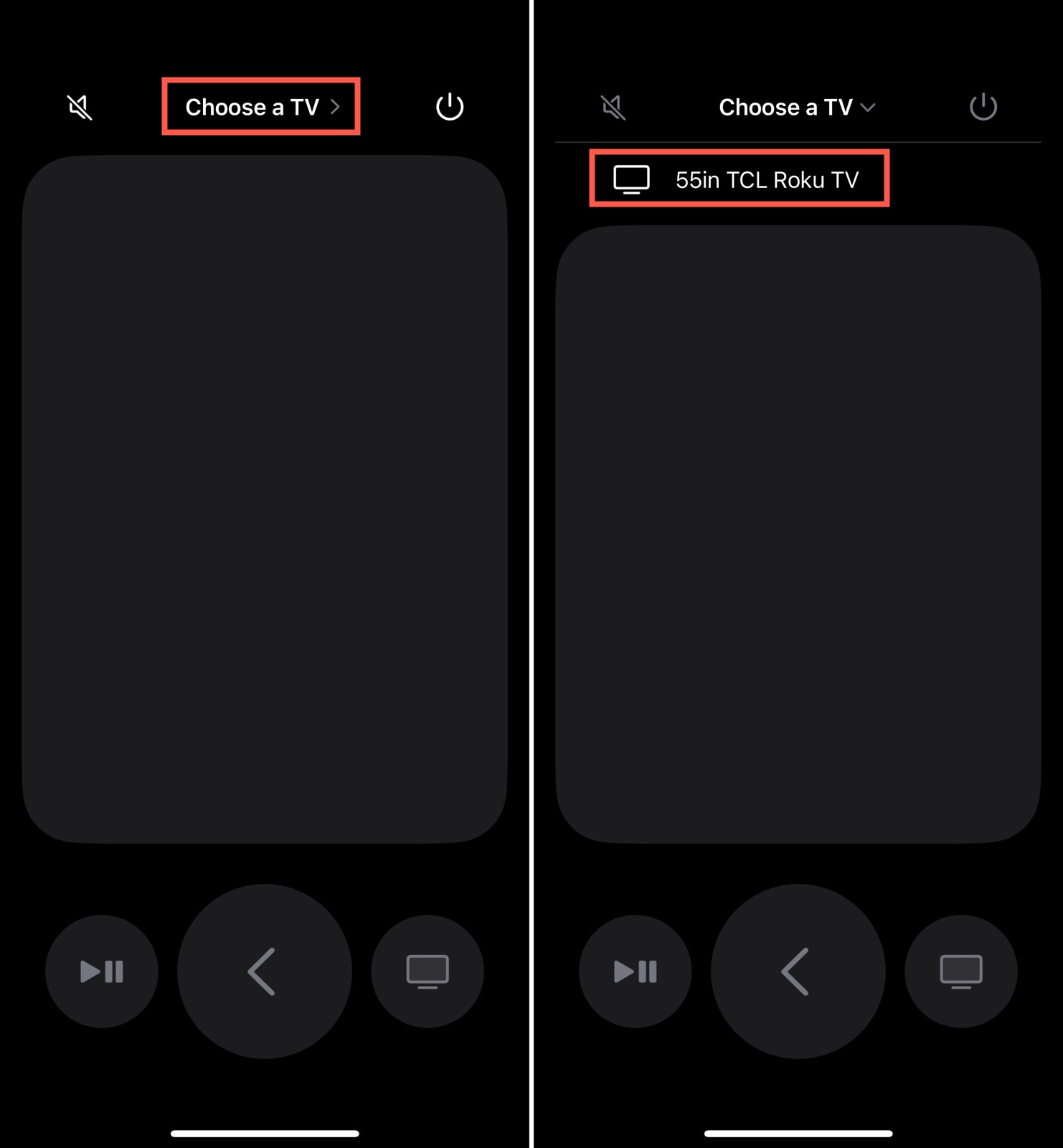
4. If prompted, enter the passcode displayed on your TV into the box on your iPhone.
The feature should then be ready to use!
Step-by-step guide
If you don’t see this app in your Control Center:
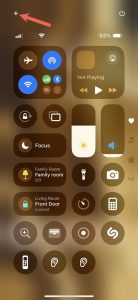
1. Tap the plus sign on the top left.
2. Pick Add a Control at the bottom.
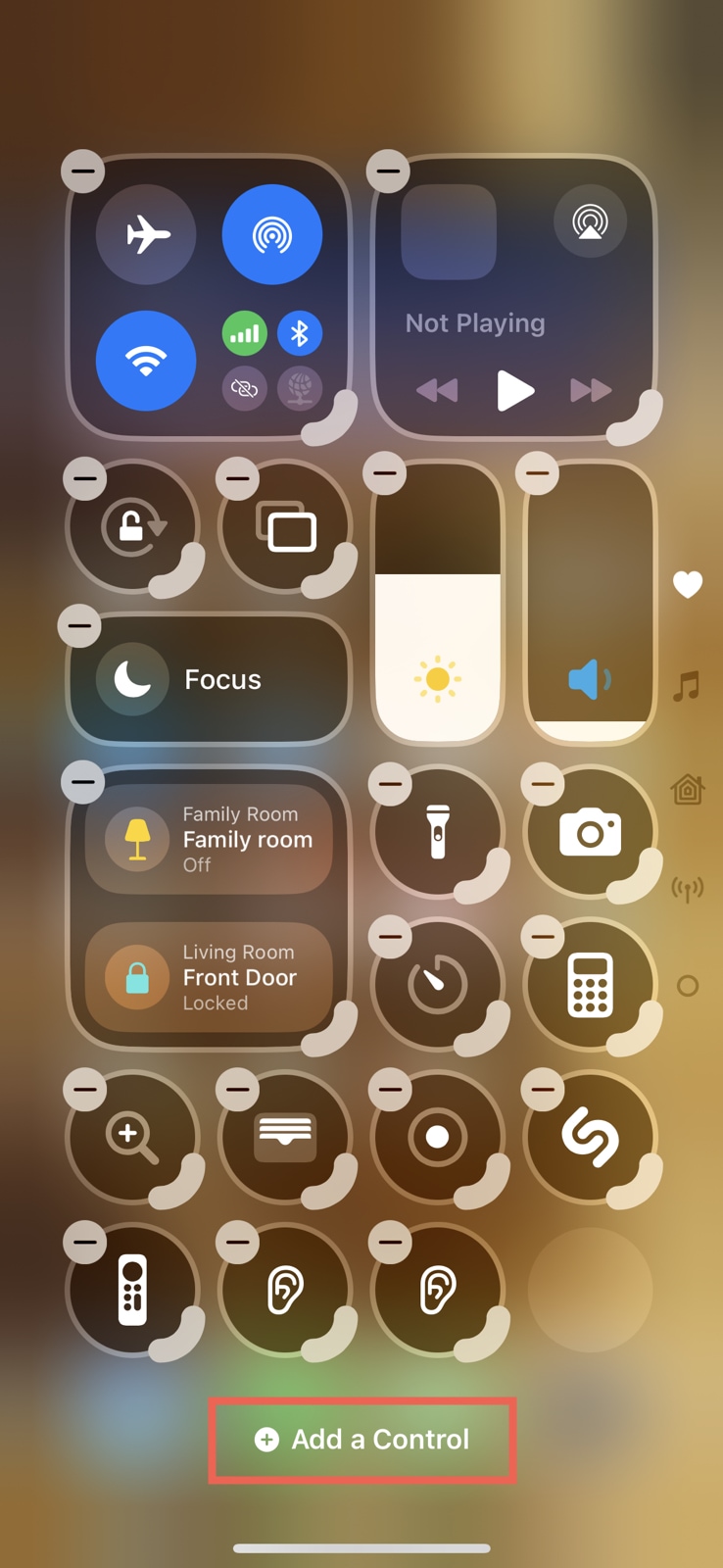
3. Choose Remote to add the app.

4. Tap a blank spot in the Control Center to exit edit mode.
You can then open the Apple TV Remote app and follow the above steps to begin using it.
App Comparison at a Glance
| App | Key Features | TV Support | Price |
| TVRem | Button, touchpad, keyboard, number pad, and voice controls; quick app launch (Netflix, YouTube, Prime Video); haptic & sound feedback | Roku, Samsung, LG, Apple TV, Fire TV, Android TV, Google TV, Amazon Smart TVs | Free, no in-app purchases |
| TV Remote – Universal Control | Button, touchpad, and voice controls; quick-launch buttons for Netflix/YouTube/Apple TV; screen mirroring & media casting; haptic feedback | Roku, Samsung, Sony, LG, Hisense, Fire TV, and other smart TVs | Free (subscriptions for extra features) |
| TV Remote Universal | Button and keyboard controls; quick-launch for Netflix, Apple TV+, YouTube, Disney+; show/channel search; Dark Mode | Samsung, Sony, LG, Philips, Roku, and other smart TVs | Free (subscription to remove ads & unlock features) |
| Apple TV Remote (built-in) | Touch navigation, Siri voice control, volume/power controls | Apple TV and AirPlay-compatible smart TVs only | Free (built into iOS) |
Apple TV Remote vs. a Universal Remote App: Which Should You Use?
Both options turn your iPhone into a remote, but they serve different needs.
Choose the Apple TV Remote if:
- You own an Apple TV, or a smart TV with native AirPlay support
- You only need to control one TV
- You want a built-in tool with zero downloads, ads, or subscriptions
- Your needs are basic: navigation, volume, and Siri search
Choose a universal remote app (like TVRem) if:
- You have multiple TVs from different brands (TCL, Samsung, LG, Fire TV, etc.)
- Your TV doesn’t support AirPlay
- You want extra features like channel search, app quick-launch, or a full on-screen keyboard
- You want one consistent remote experience across every TV in your home
If you’re not sure which camp you fall into, the safest bet is a free universal app – it covers Apple TV and AirPlay TVs too, so you’re not limited if you add a non-Apple TV to your home later.
Troubleshoot Common Issues
Whether you’re using a third-party iPhone remote control app or the Apple TV Remote feature, check the items below if you’re running into trouble.
- 📌 Wi-Fi network mismatch – Your iPhone and TV must be on the exact same Wi-Fi network (same SSID) – not just the same router. Watch out for routers that broadcast separate 2.4GHz/5GHz networks, guest networks, or mesh systems that place devices on different nodes. Turn off any VPN, since it can block local device discovery.
- 📌 TV not appearing in the app – Restart the TV and reopen the app to trigger a new scan. Make sure the TV isn’t in deep sleep mode, and check that its network/remote-sharing feature is turned on in the TV’s settings.
- 📌 Connected but buttons don’t respond – Force-close and reopen the app, then reconnect. Some TVs also cap how many devices can be paired as a remote at once – disconnect old phones or tablets that were previously linked.
- 📌 Outdated software – Confirm you’re running the latest iOS version and the newest release of the app. Many TV brands also push their
- 📌 Router or network restrictions – Some routers isolate connected devices from each other for security (“client isolation” or “AP isolation”). If your remote app can’t find the TV despite matching Wi-Fi, check your router settings and disable this feature.
- 📌 Compatibility issues – For third-party apps, confirm the app explicitly supports your TV brand and model – not all apps cover every manufacturer. For the Apple TV Remote, make sure AirPlay is enabled on your TV; adding the TV to the Home app is mainly needed for HomeKit-compatible models, not required in every case.
📍 Sources from Apple:
https://support.apple.com/en-us/108778
https://support.apple.com/en-us/102569
https://support.apple.com/en-us/108778
https://support.apple.com/en-us/108789
If the problem persists after checking all of the above, try restarting both your iPhone and TV, or uninstall and reinstall the third-party remote app to reset any corrupted settings.
Conclusion
There are plenty of good reasons to use your iPhone as a remote for your TV. First, you don’t have to worry about replacing batteries or dealing with broken physical remotes. Second, you can take advantage of the device already in hand by just opening an app. Finally, a remote app serves as a handy backup in case you lose your physical remote control.
With these things in mind, why not check out an iPhone TV remote control app like TVRem that provides you with everything you need for free?
Frequently Asked Questions
While most remote apps rely on Wi-Fi, some support infrared (IR) technology or a Bluetooth connection to control your TV with your iPhone. Review the app and connection features for any offered non-Wi-Fi options.
Yes, TVRem is completely free for iPhone and iPad. It allows you to control your smart TV using multiple controls like buttons, a touchpad, and voice. TVRem works with major TV brands like Roku, Samsung, LG, Apple TV, and Amazon Smart TVs, as well as streaming players.