The Best Google TV Remote App for iPhone: Top Picks in 2026

thumbnail

Google TV isn’t a TV brand – it’s a platform. And that’s what makes this topic more interesting than your average “best remote app” listicle. Sony, TCL, Hisense, Philips, and others all ship TVs running Google TV. So when you’re looking for a Google TV remote app for iPhone, you’re not looking for a solution from just one brand – you’re looking for something that works across all of them.

This guide covers three solid options, breaks down what each one excels at, and provides a clear recommendation backed by an honest comparison.

What Is Google TV – And Which TVs Run It?

Google TV is a smart TV operating system developed by Google, launched in 2020 as the successor to Android TV. It runs on top of Android and adds a content-first home screen: instead of displaying a grid of apps, it surfaces recommendations from across your streaming services – Netflix, YouTube, Disney+, HBO Max – right on the main screen.

Under the hood, Google TV is still Android TV. Apps that work on Android TV also work on Google TV, and remote apps that support Android TV generally support Google TV too. The platform is licensed to TV manufacturers worldwide.

Major brands currently shipping Google TV include:

  • 📌 Sony – BRAVIA XR series and many mid-range models (A95L, X95L, X85L, and more)
  • 📌 TCL – a wide range of 4K and 8K sets, including the QM8, Q7, Q6, S5 series
  • 📌 Hisense – U8N, U7N, U6N series, and others
  • 📌 Philips – OLED807, OLED707, and various LCD lines (primarily in Europe)
  • 📌 Element – select Xumo and Google TV models
  • 📌 Sharp, Skyworth – various international models


So, if you have a Sony Bravia, TCL, or Hisense Google TV and you’re looking for a remote app, you’re in the right place. The apps below work across all of them.

Best Google TV Remote Apps for iPhone

Try TVRem – The Free Universal Remote App for iPhone & iPad

1. TVRem – Best Overall Google TV Remote App for iPhone

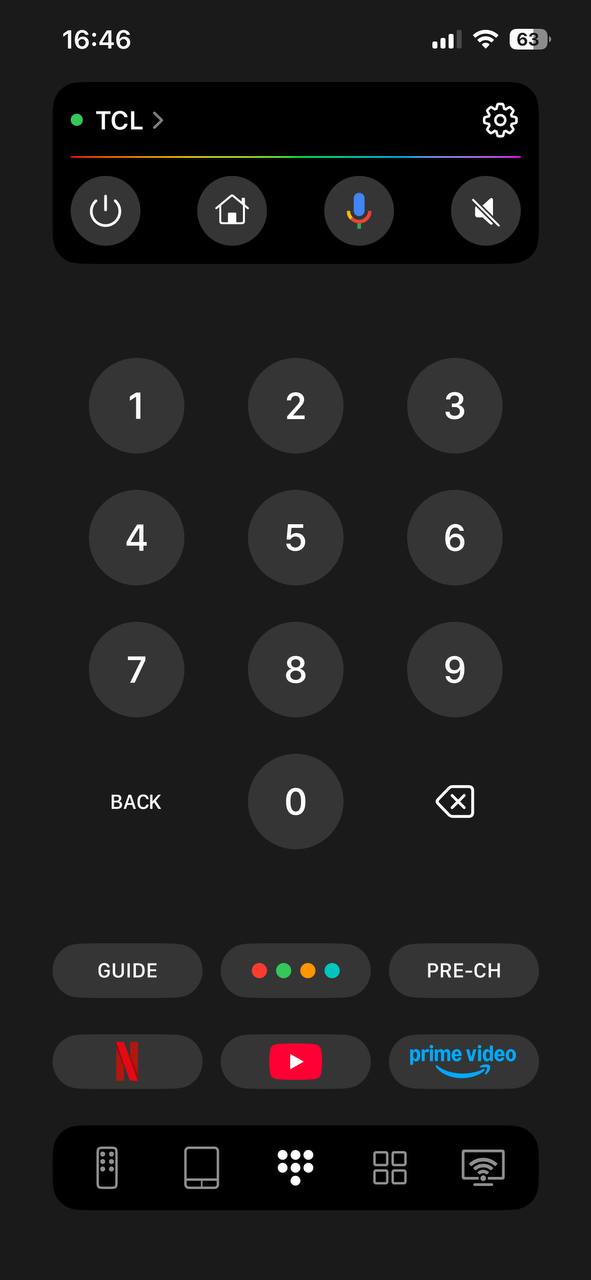
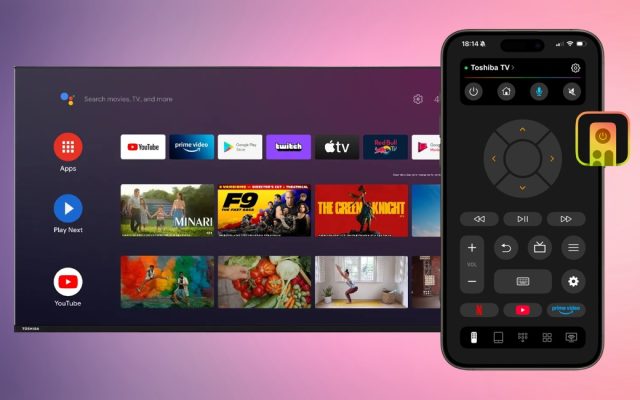
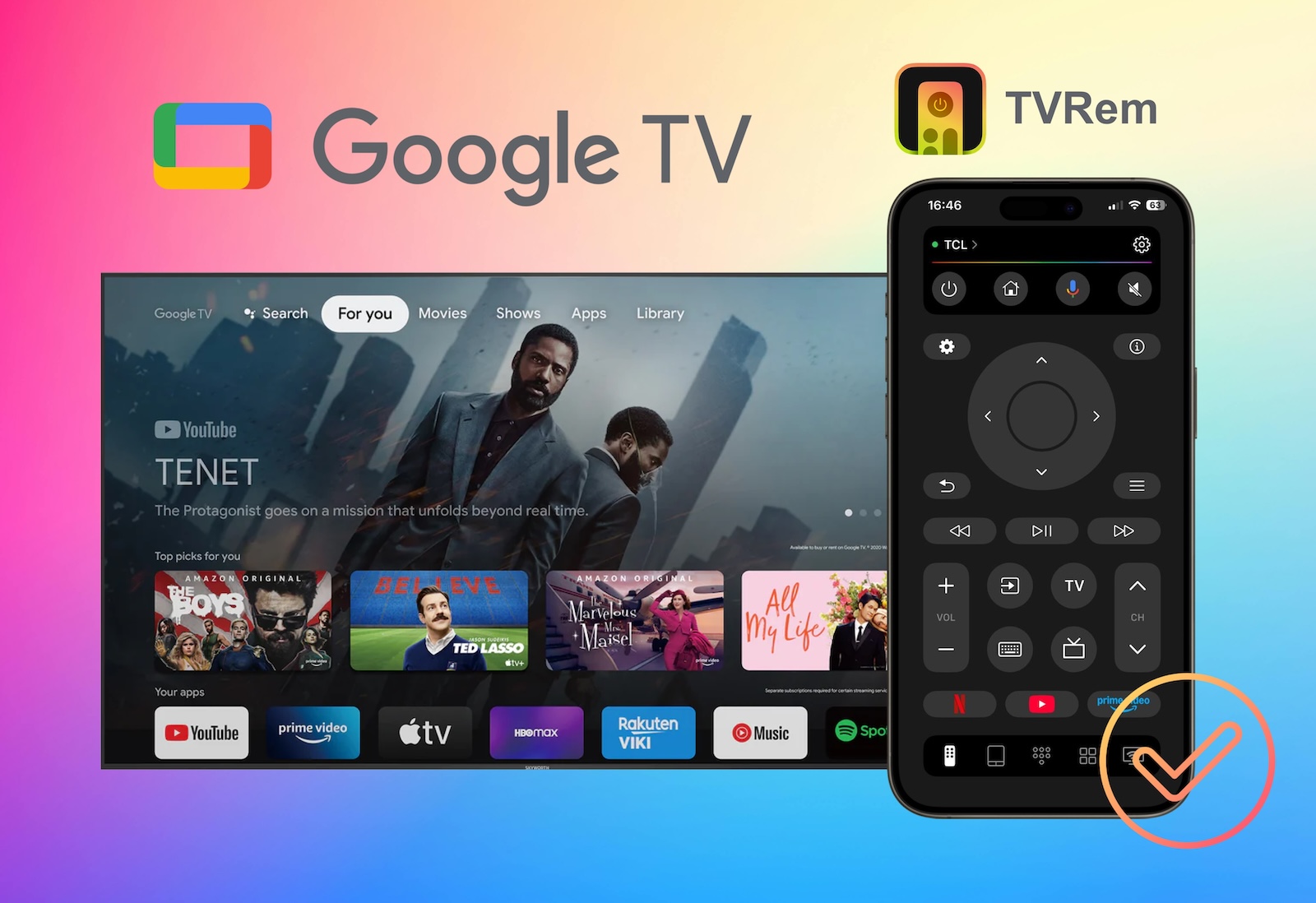
TVRem is the strongest pick here, and the reason isn’t complicated. It’s a true universal remote app that supports Google TV, Android TV, Fire TV, Roku, Samsung, LG, and more – all from a single app. Whether you have a Sony Google TV, a TCL Google TV, or a Hisense Google TV, TVRem handles all of it without requiring separate downloads for each brand.
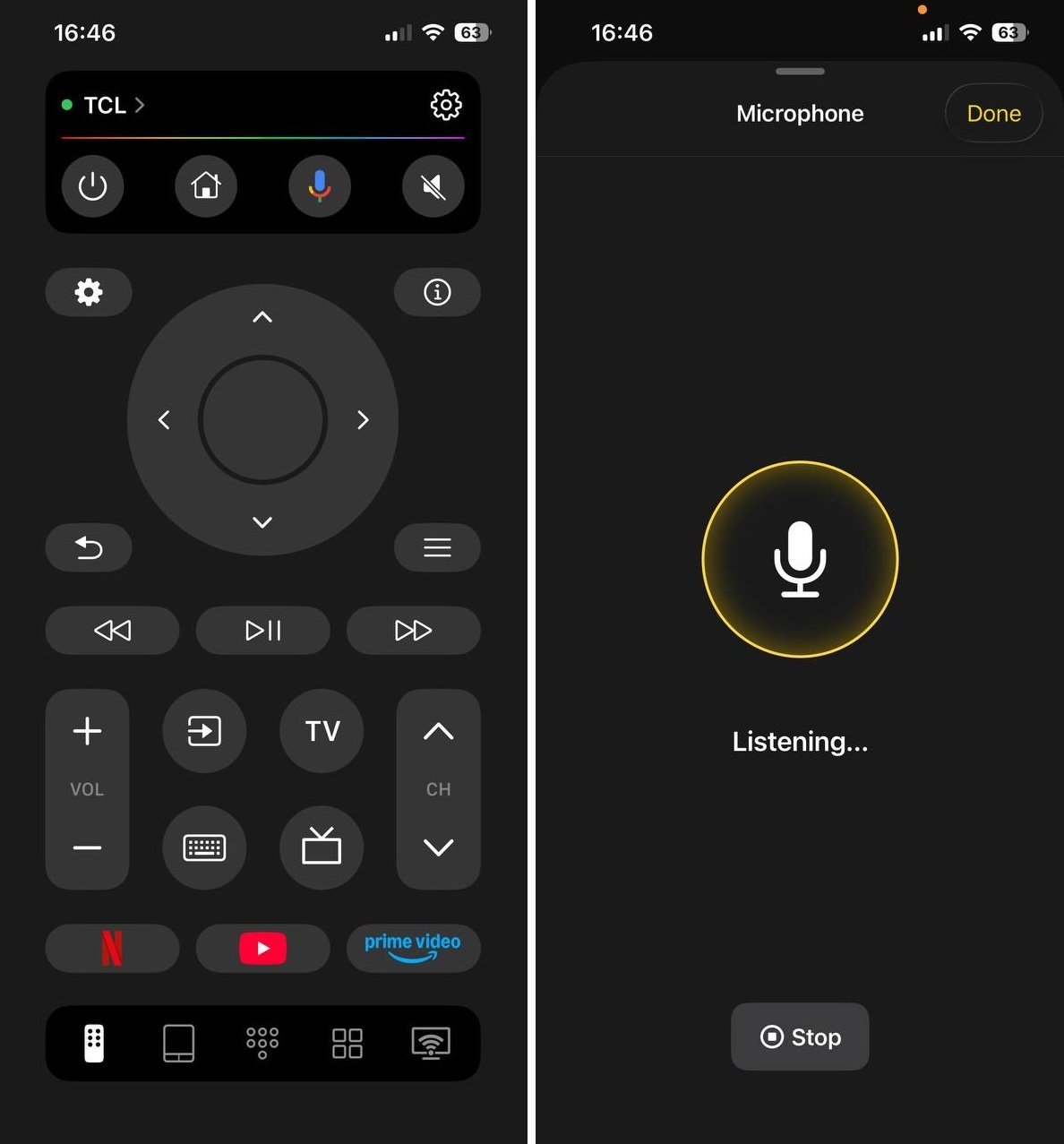
TVRem is the best remote app for Google TV

⭐️ Rated 4.8 stars and completely free with no paywalled features. ⭐️

Pros

  • Works with every major Google TV brand – Sony, TCL, Hisense, Philips, Element, and more
  • Full touchpad navigation – smooth, natural, no lag
  • Smart keyboard – type from your iPhone instead of the painful on-screen keyboard
  • Quick-launch buttons for Netflix, YouTube, Prime Video, Disney+
  • Voice control via Google Assistant and Alexa on supported models
  • Auto-detects your TV over Wi-Fi
  • No account required, no subscription, no trial period

Cons

  • Requires Wi-Fi – won't work if your TV isn't connected to the same network
  • No IR (infrared) support – older non-smart TVs aren't compatible

💵 Price: Free

How to set up TVRem with your Google TV

1. Download TVRem from the App Store.
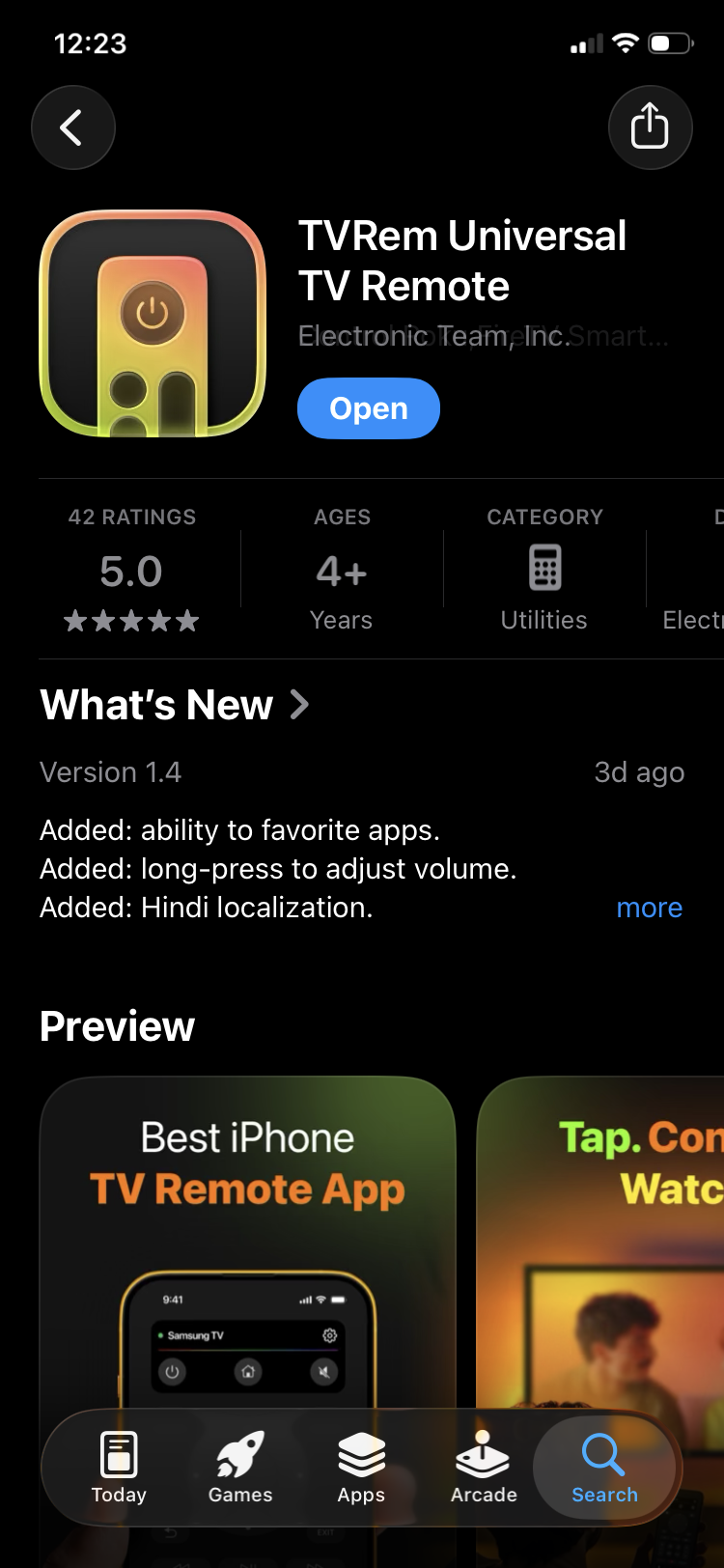
Download TVRem from the App Store

2. Connect your iPhone and Google TV to the same Wi-Fi network.

3. Open TVRem – it will scan the network and detect your TV automatically.
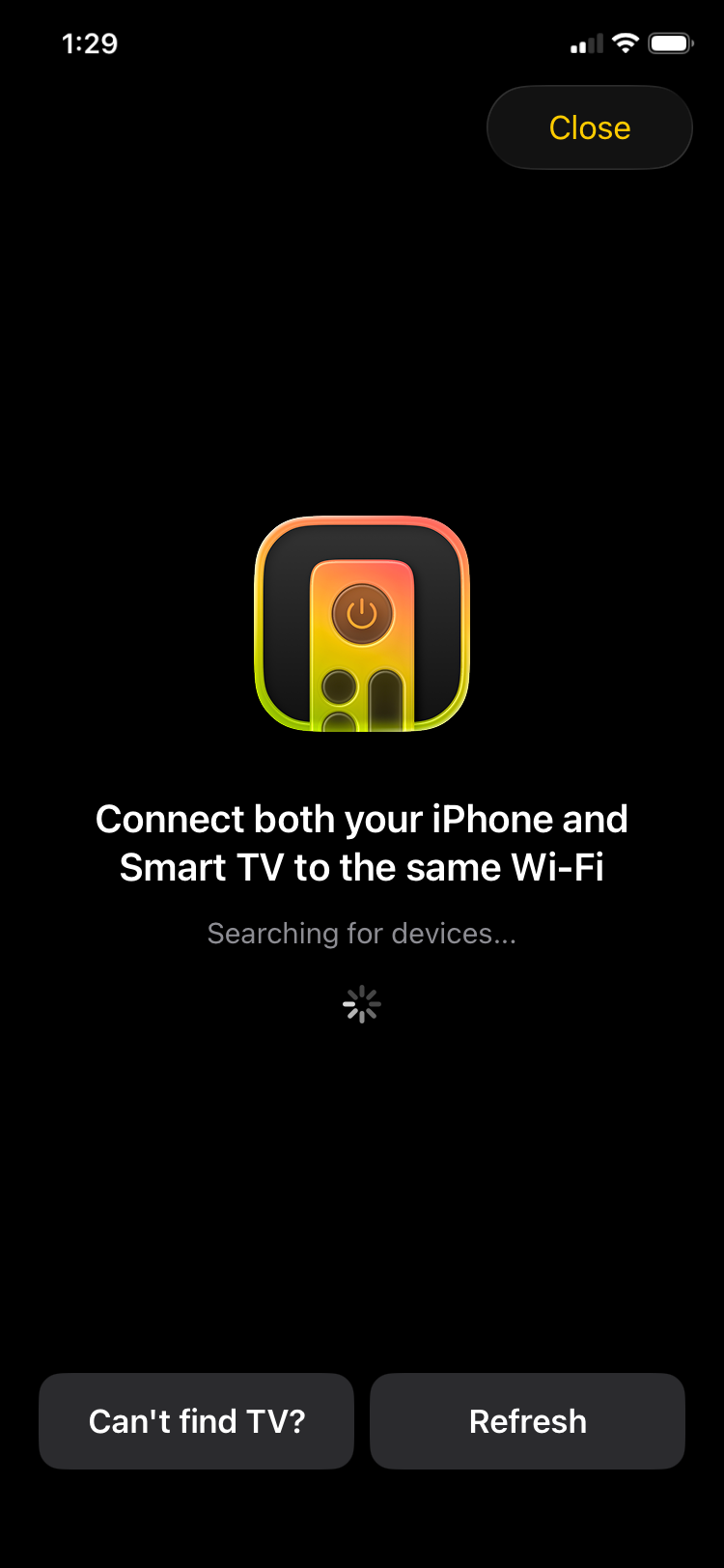
TVRem is searching for nearby devices

4. Tap your TV from the list and enter the code displayed on your TV.
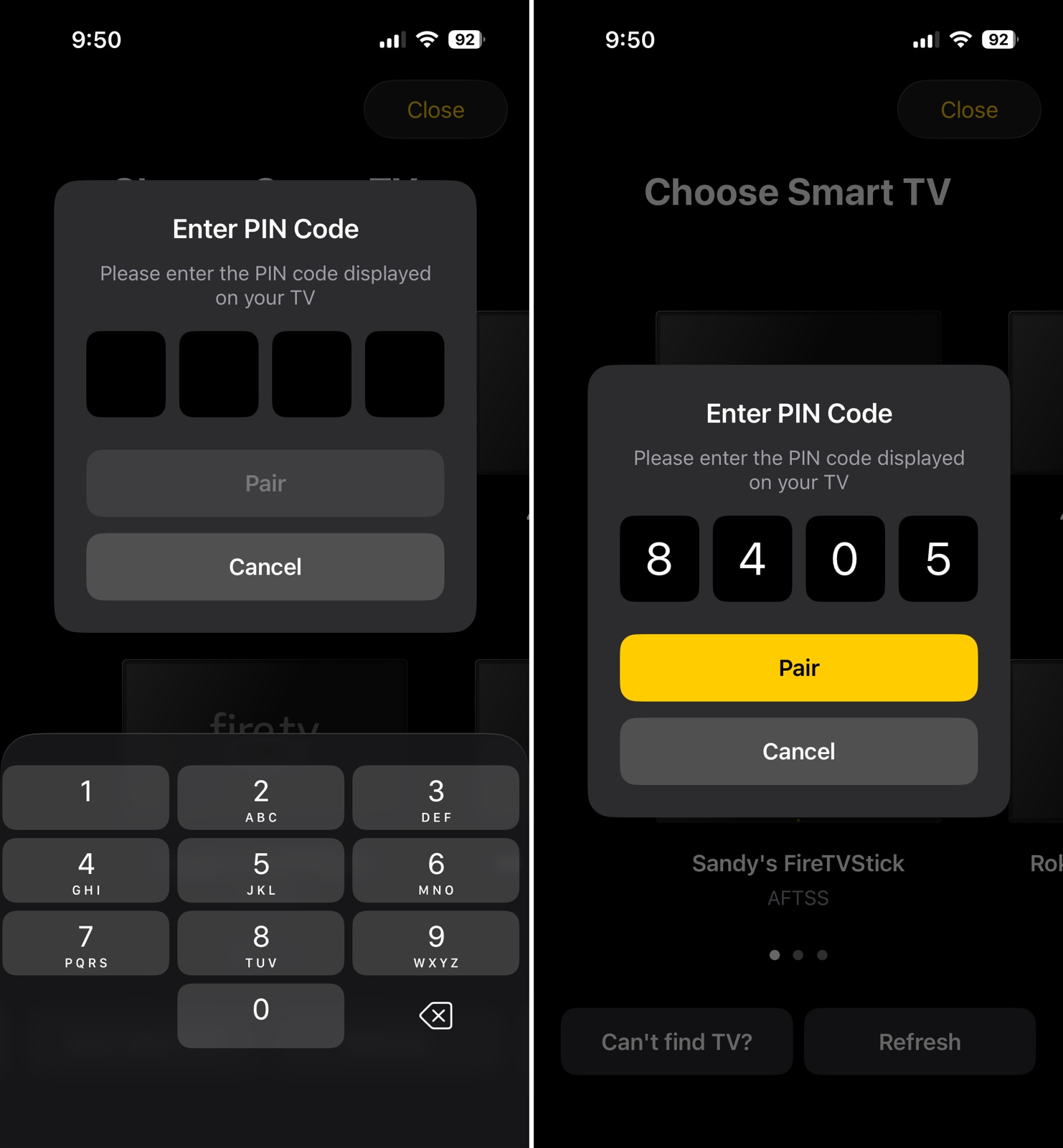
Enter PIN code in TVRem

5. Start controlling immediately.

TVRem is connected to Google TV

2. Google TV App (Official) – The Platform App That Does Remote Too

The official Google TV app is primarily a content discovery platform – it aggregates movies and TV shows from across your streaming subscriptions, manages a Watchlist, and syncs recommendations across devices. The remote control feature is secondary, tucked into the app rather than being its main purpose.
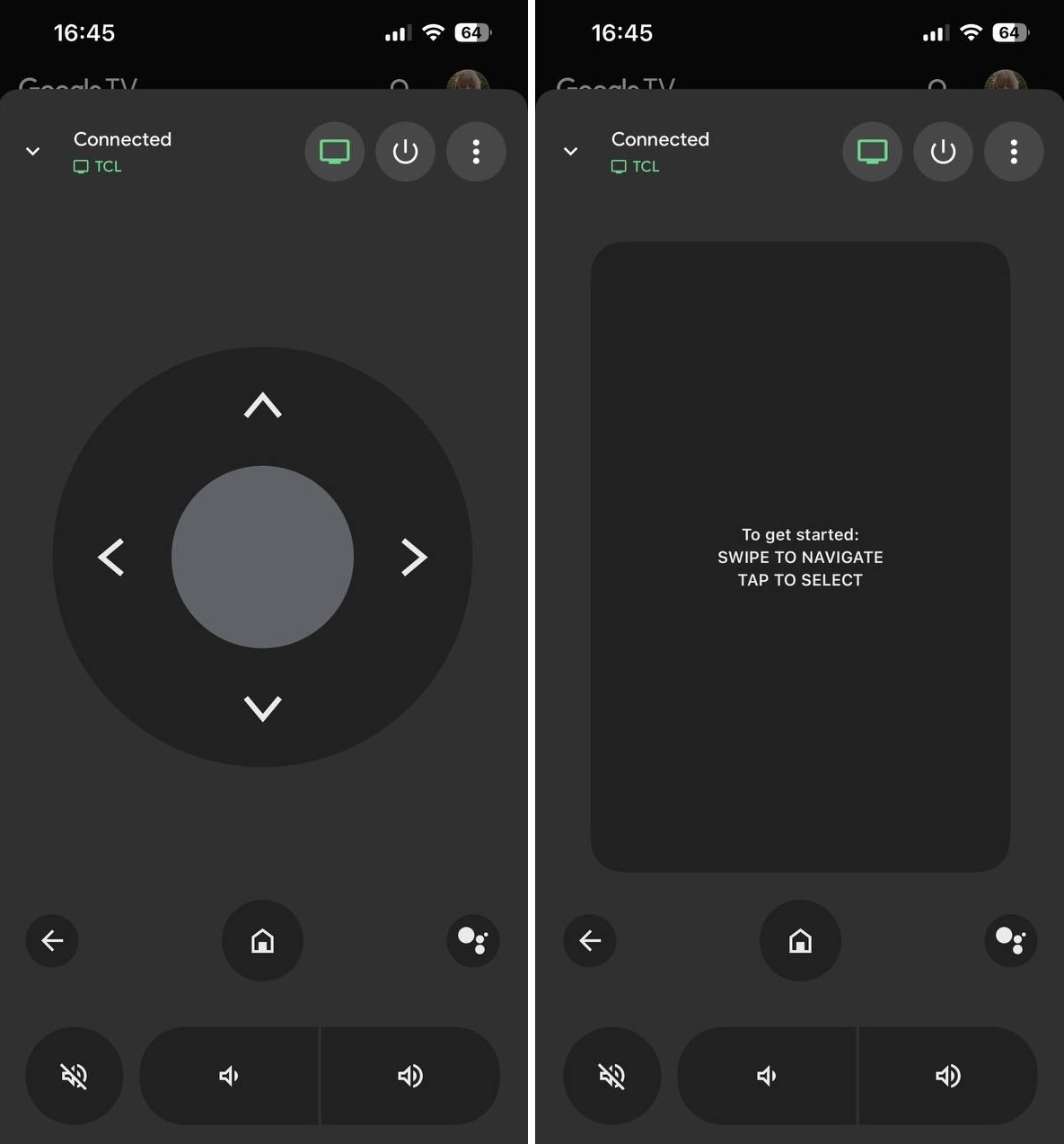
Interface screenshots of the Official Google TV app

That said, the remote does work for Google TV and Android TV OS devices. It connects over Wi-Fi and lets you use your phone’s keyboard for text input, which is genuinely useful.

Pros

  • Official Google app – reliable integration with Google TV OS
  • Keyboard support for typing on the TV
  • Content discovery and Watchlist sync across devices
  • Free

Cons

  • The remote is a side feature, not the main focus – the interface reflects this
  • Requires a Google account to use
  • Remote functionality is limited to Google TV and Android TV OS only – doesn't work with Roku, Samsung, LG, or any non-Google platform
  • No touchpad navigation – D-pad only
  • No quick-launch streaming shortcuts
  • Bulky app at 86MB for what is largely a content browsing tool; if you only want a remote, it's a lot to install

💵 Price: Free

⭐️ App Store ⭐️

3. Universal Remote TV Smart – Wide Brand Coverage, But With a Catch

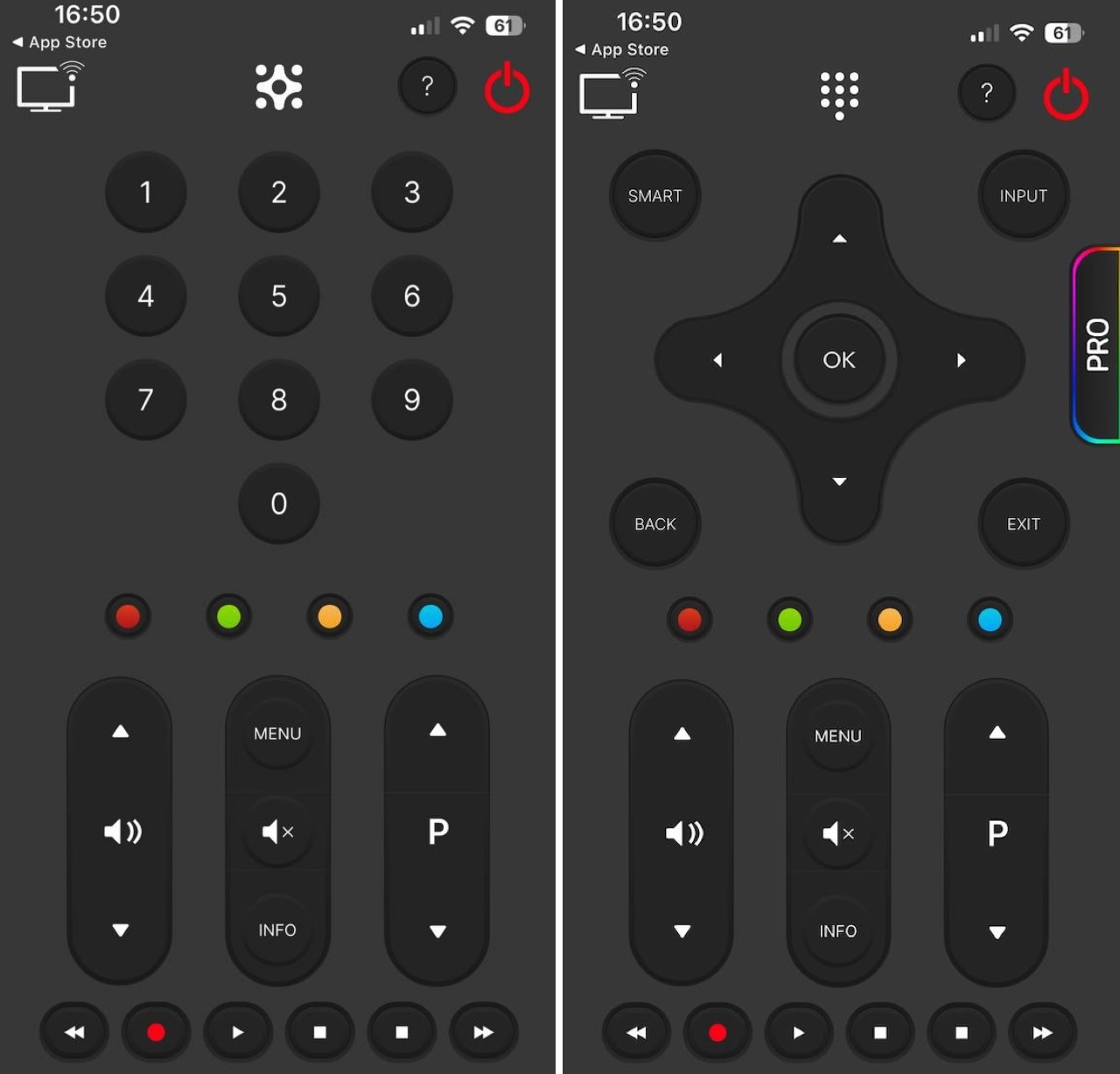
Universal Remote TV Smart by Yohan Teixeira is a broad-coverage remote app supporting Samsung, LG, Sony, Philips, Panasonic, TCL, Roku, Hitachi, and others. With a 4.2-star rating, it has the largest review base of the three apps here, which indicates it has been around and has a real user base.
Interface screenshots of the Universal Remote TV Smart app

For Google TV users with Sony, TCL, or Philips sets, it will detect and connect to the TV. Basic controls – volume, channels, navigation, power – work in the free tier.
Pros

  • Very large brand compatibility list
  • Realistic remote interface design
  • Automatic TV detection

Cons

  • Core features are locked behind a subscription – the app offers weekly, monthly, and yearly plans, and the free tier is noticeably limited
  • 193MB install size – the heaviest app on this list by far
  • No touchpad navigation in the free tier
  • No voice control
  • Subscription model can feel aggressive for what's essentially a remote replacement

💵 Price: Free to download; full features require a subscription

⭐️ App Store ⭐️

Google TV Remote Apps Comparison Table

App TVRem Google TV App Universal Remote TV Smart
Supported TVs Google TV, Android TV, Roku, Fire TV, Samsung, LG, and more Google TV & Android TV only Samsung, LG, Sony, Philips, TCL, Panasonic, Roku, and more
Key Features Touchpad, keyboard, voice, quick-launch, auto-detect, volume Keyboard, content discovery, Watchlist D-pad, volume, channels, power
Price Free (no subscription) Free (Google account required) Free download; subscription for full access
App Store Rating ⭐ 4.8 ⭐ 4.3 ⭐ 4.2
Ease of Use 😍 Instant setup, intuitive touchpad 😩 Remote is buried inside the content app 😩 Simple but limited in the free tier

How to Choose the Right Remote App for Your Google TV

When selecting a Google TV remote control app, it’s important to evaluate a few key factors to ensure the app is reliable and convenient to use:

  • ✔️ Compatibility – Ensure the app supports your specific Google TV model and works smoothly with your device over the same Wi-Fi network.
  • ✔️ Ease of Setup – Look for apps that connect quickly without complicated steps or repeated pairing.
  • ✔️ User Interface – A simple, well-organized layout with clear buttons makes navigation faster and more comfortable.
  • ✔️ Useful Features – Extras like voice search, built-in keyboard input, touchpad navigation, and quick app launch buttons can significantly improve usability.
  • ✔️ Connection Stability – Check user reviews to see if the app maintains a stable connection without frequent disconnections.
  • ✔️ Regular Updates – Apps that are updated regularly tend to offer better performance, improved compatibility, and fewer bugs over time.

Conclusion

Google TV is available on many TVs right now – Sony, TCL, Hisense, Philips – and the remote app situation is actually pretty good if you pick the right one. TVRem is the clear winner for anyone who wants a free Google TV remote app for iOS that works without hoops, subscriptions, or Google account requirements. The official Google TV app earns its place if you want content discovery alongside a remote control, but its limited remote interface and Google-only reach hold it back. Universal Remote TV Smart has the numbers but requires payment to unlock full functionality. For most people, TVRem is the best choice.

Frequently Asked Questions

If you’ve lost your Google TV remote, start by checking common spots like couch cushions, under furniture, or nearby tables where it might have slipped. You can also try using voice commands with a Google Assistant-enabled device, such as a Google Nest, by saying, “Hey Google, find my remote”. While it won’t physically locate the remote, it can help with controlling the TV.

If you’re still having trouble, TVRem is a great alternative. This free universal remote app works with Google TV and many other TV brands, offering full control with no ads or subscriptions, making it an easy and convenient solution.

TVRem works across Google TV brands (Sony, TCL, Hisense, Philips, Element), as well as Android TV, Fire TV, Apple TV, Roku, Samsung, LG, and more. It’s designed as a universal remote – one app for any smart TV – rather than being locked to one platform or brand. This makes it particularly useful if you have more than one TV at home running different platforms.

To connect your Google TV to Wi-Fi without a remote, simply plug a USB keyboard or mouse into the TV’s port to manually navigate to the network settings. Alternatively, connect the device directly to your router with an Ethernet cable, which will allow you to use the Google Home or Google TV app on your smartphone as a virtual remote once the TV is online. You can also “trick” the TV into connecting by setting your mobile hotspot or router to the exact same name and password as a previous network the TV already remembers, granting you instant app-based control to update your settings.

To pair a standard Google TV voice remote: press and hold the Home and Back buttons simultaneously for about 3 seconds until the LED blinks, then release. The remote will enter pairing mode and connect to your TV. If you’re using a TVRem remote app instead of a physical remote, no pairing is needed – just connect both devices to the same Wi-Fi network, and the app will find your TV automatically.