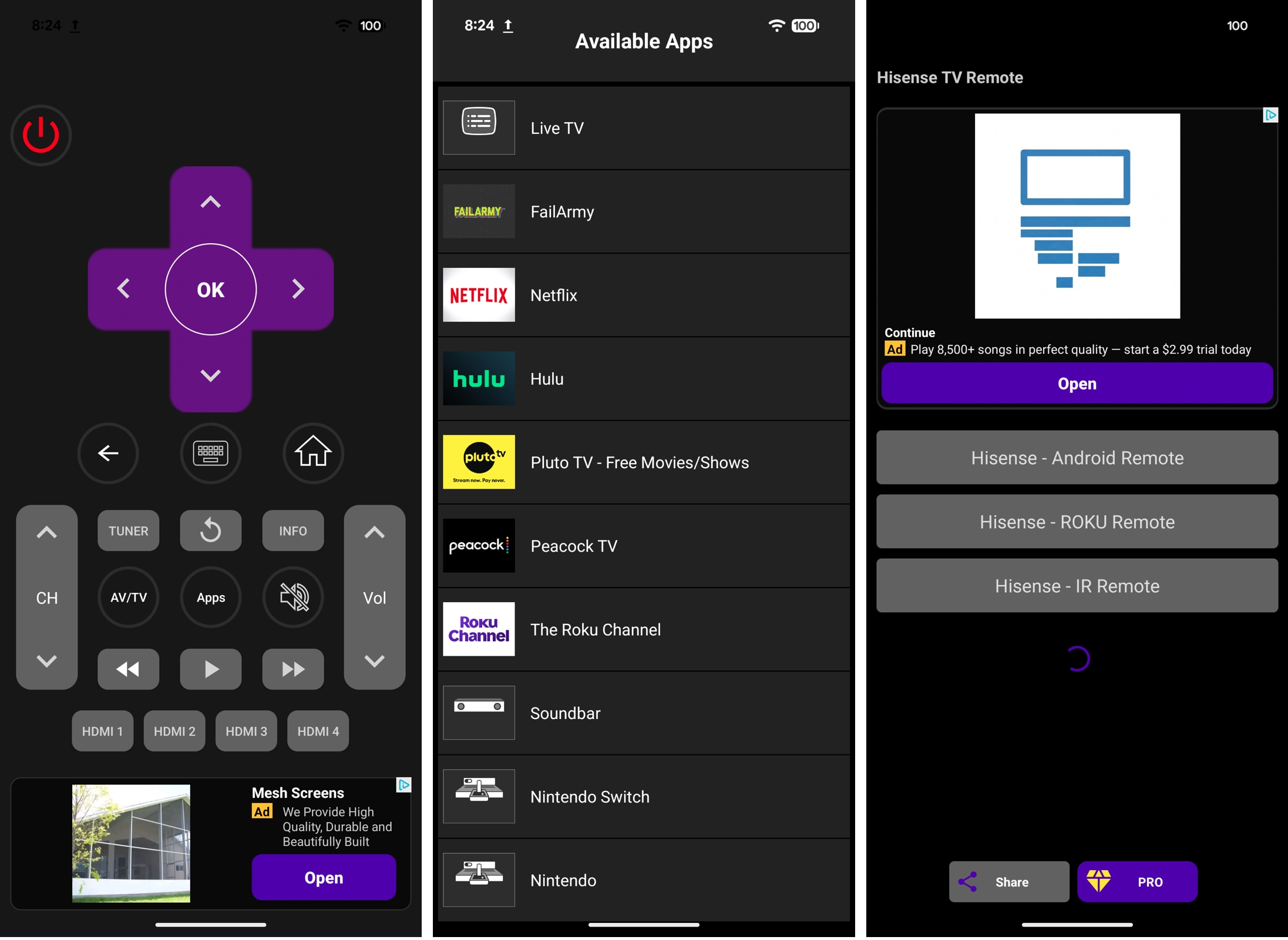
Hisense TV Remote App: The Best List for Your Needs

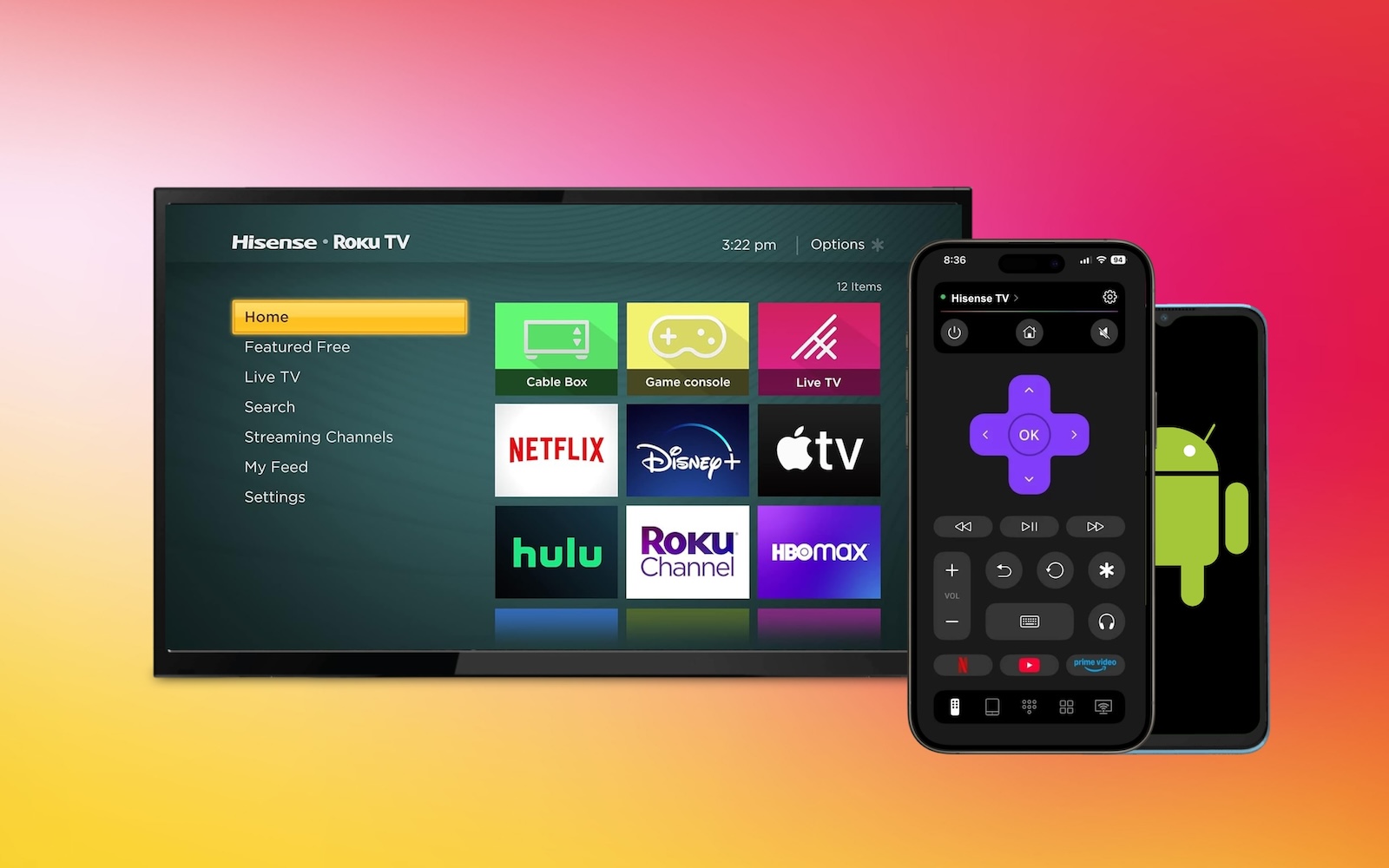
Traditional TV remotes are quickly becoming a thing of the past. Why worry about losing it, changing batteries, or clicking through endless soft keyboards letter-by-letter when a mobile app turns your phone into a full keyboard and touchpad? Having evaluated various streaming options, we’ve rounded up the best Hisense TV remote apps for iOS and Android – along with a quick guide to help you pick the right one for your TV’s exact operating system.
Before Choosing a Remote App for Hisense TV
Hisense TVs use a variety of operating systems, including Roku TV, Google TV/Android TV, and Fire TV, along with VIDAA OS and Xuma OS.
Before picking a TV remote app for iPhone or Android, be sure to check the operating system for your Hisense TV model to ensure compatibility.
| Operating System | Hisense TV Models |
| Roku TV | R6 Series R7 Series QD50R |
| Google TV / Android TV | U9 Series U8 Series U7 Series U6 Series M7 Series UX Series A7 Series A6 Series |
| Fire TV | U65QF QD7QF QD6QF A7 Series |
| VIDAA OS | A6/A6K/A6KV Series A4/A4KV Series E6QF/E8Q Series U7N/U7NQ Series A9H Series A7H Series |
| Xumo OS | A6 Series |
If you don’t see your model listed above, you can check on the TV itself by going to Settings > System or Device Preferences > About.
After you determine which system your Hisense TV uses, you can choose the remote app that will work best for you.
Hisense TV Remote Control Apps for iPhone
If you’re an iPhone user, a Hisense TV remote app for iOS is a no-brainer. Just grab your iPhone or iPad, pop open the app, and enjoy controlling your TV without the need for a traditional remote control.
1. TVRem

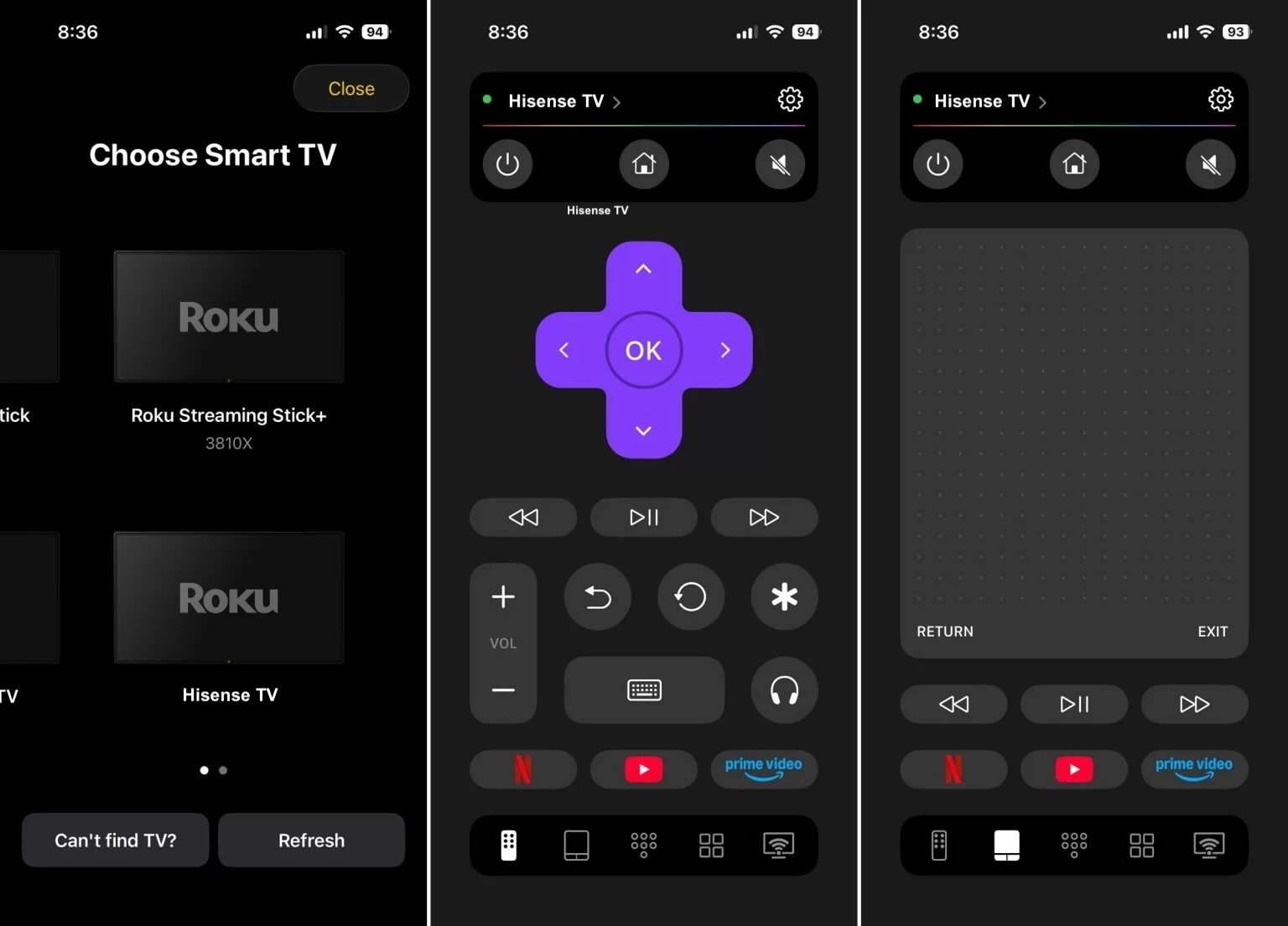
For an all-encompassing tool that works with Hisense models using Roku TV, Google/Android TV, or Fire TV, look no further than TVRem – a free Hisense TV remote app for iPhone. Along with controlling your Hisense TV, you can use TVRem for TCL, Samsung, LG, Philips, Panasonic, Apple TV, and other major brands, along with streaming players for a simple whole-house remote solution.
📌 Key features:
- Use button, touchpad, and device keyboard inputs for flexibility.
- Control the volume, switch channels, and manage playback.
- Search with your voice using Google Assistant or Alexa (supported devices).
- Use quick app launch for Netflix, YouTube, and Prime Video.
Pros
- Available for free without ads
- Works on iPhone and iPad
- Simple setup and easy-to-use interface
- Connects quickly to most TV models and streaming players
Cons
- Limited customization options
💵 Price: Free
2. VIDAA

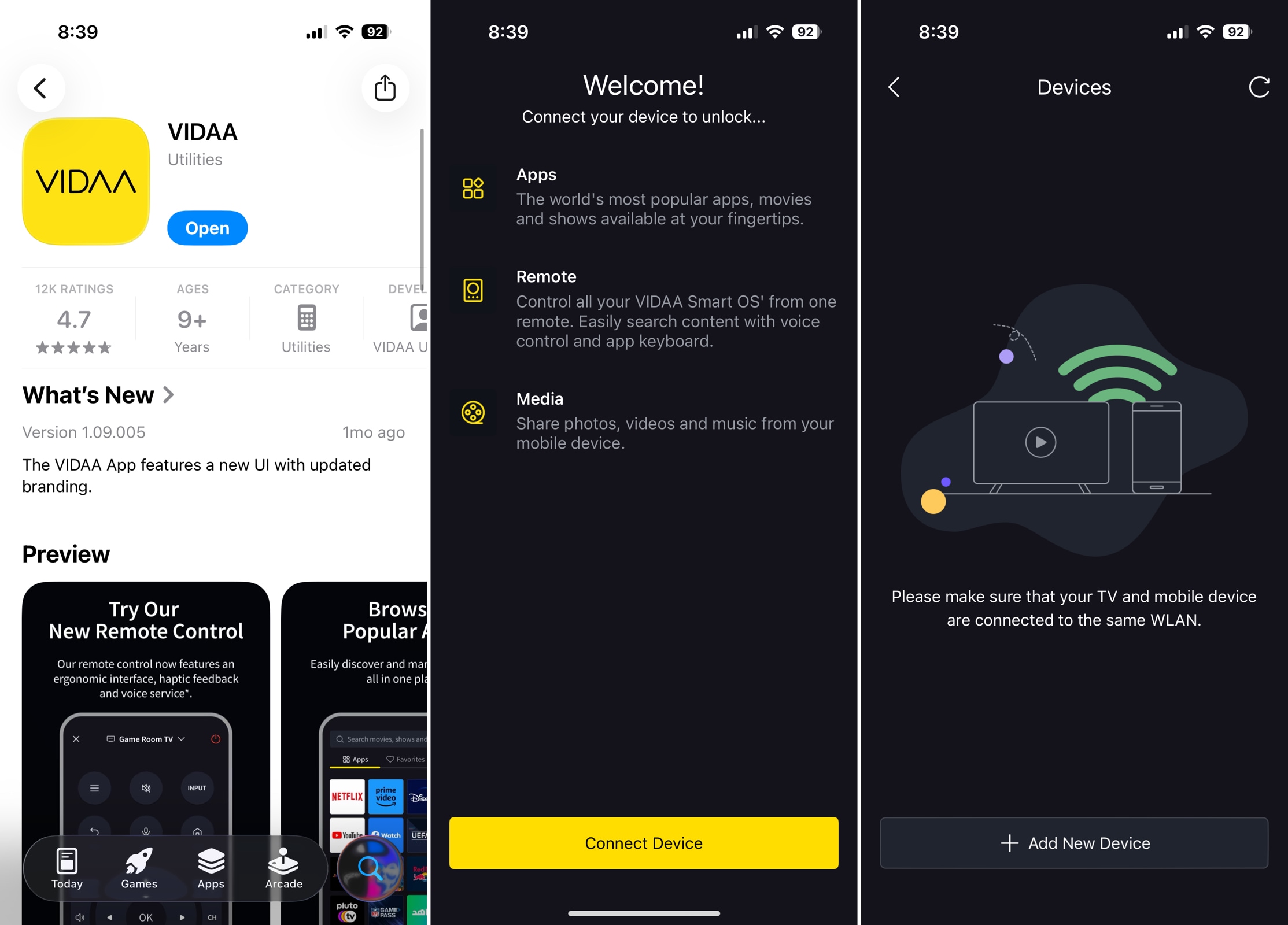
If your Hisense TV uses the VIDAA operating system, consider the official VIDAA app. With this app, you can control your smart TV with just the features you really need on iPhone or Android.
📌 Key features:
- Power your TV on and off.
- Adjust the volume, change channels, and use voice commands.
- Share media like music, photos, and videos.
- Search for content and add shows to your favorites.
Pros
- Available for free on iPhone, iPad, and Android
- Simple interface with tabs for Apps, Favorites, and Media
- Account section for managing subscriptions, payments, and notifications
Cons
- Only works with VIDAA OS devices
- Can’t explore the app without connecting a device
💵 Price: Free
3. Remote for Hisense TV

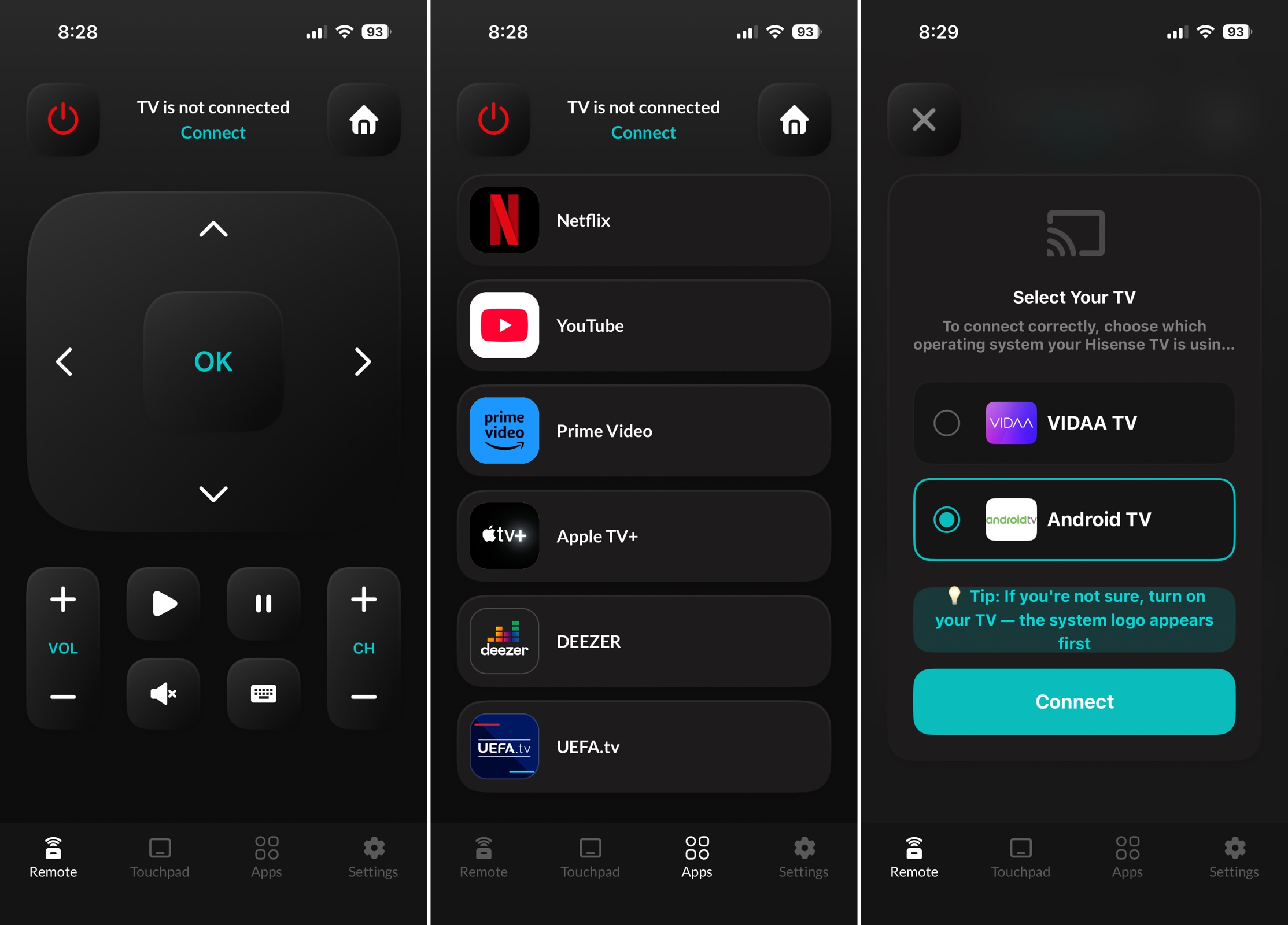
For Hisense TVs with either VIDAA or Android TV, look at the Remote for Hisense TV app. This option gives you large buttons on an easy-to-use screen with the option to power your TV on and off.
📌 Key features:
- Type with your device keyboard to search or browse for shows.
- Control the volume, switch channels, and access popular apps.
- Navigate using buttons or the touchpad.
- Use the app with either VIDAA TV or Android TV models.
Pros
- Works on iPhone and iPad
- Home screen icon selection
- Intuitive interface
Cons
- Doesn’t support Roku TV or Fire TV devices
- Some features, like keyboard and touchpad access, require a subscription
💵 Price: Free with subscriptions starting at $4.99
Hisense TV Remote Control Apps for Android
Maybe your preferred device is an Android phone. Not to worry, you can take advantage of digital remote apps for controlling your Hisense TV too.
1. Hisense TV Remote

Whether your TV uses Android TV, Roku TV, or IR, consider the Hisense TV Remote. This app gives you the basics you need to easily navigate and control your Hisense TV right from your Android phone.
📌 Key features:
- Power your TV on and off.
- Use button, trackpad, or number pad input options.
- Adjust the volume, change channels, and open apps.
- Customize the interface by arranging buttons to your preference.
Pros
- Easy to connect
- Basic playback controls
Cons
- Contains many ads
- The Interface can be glitchy
💵 Price: Free with subscriptions starting at $1.99
Official Ecosystem Apps for Specific Hisense Models
If your Hisense runs on Roku TV, Fire TV, or Google TV, the official apps from each platform are the simplest way to control your set without a physical remote. Here’s a look at all three iPhone/iPad apps and how each one fits with the corresponding Hisense lineup.
1. The Roku App (Official) - for Hisense Roku TV
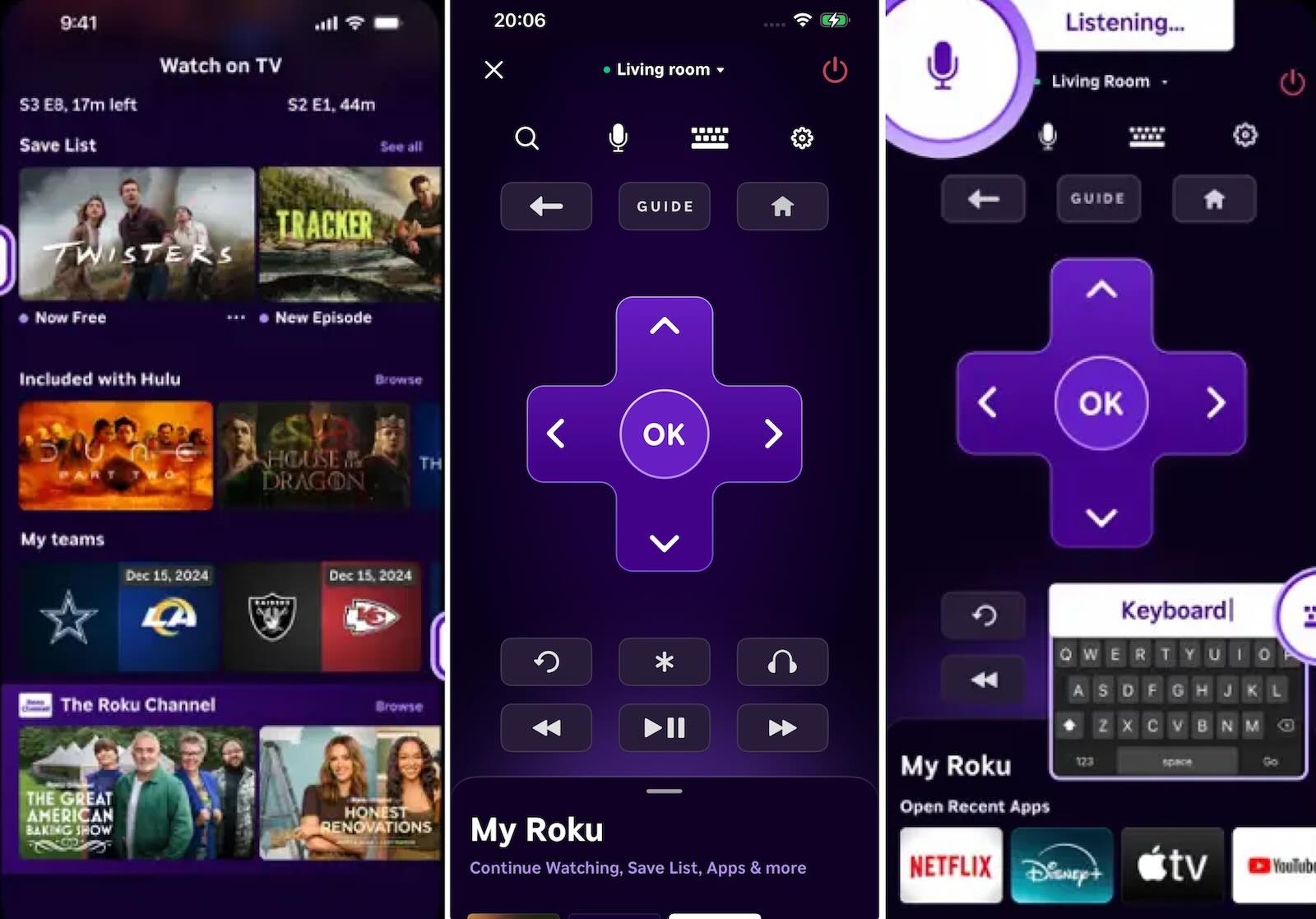
If your Hisense model is built on Roku TV (think the R6 Series, R7 Series, or QD50R), the official Roku app is the easiest way to control the TV without a physical remote.
📌 Key features:
- A full on-screen remote with volume, channel, and navigation controls.
- Voice or keyboard search for content.
- Private listening through headphones connected to your phone.
- Casting your own photos and videos from your phone to the TV.
- Adding and launching channels directly from the app.
- Free movies and live TV through The Roku Channel.
Pros
- Official app from the platform maker, with millions of ratings and a 4.7 score
- Handy voice search and keyboard text entry
- Frequently updated with support for the latest iOS features
Cons
- Some users report connection issues after updates or Wi-Fi resets
💵 Price: Free
2. Amazon Fire TV - for Hisense Fire TV
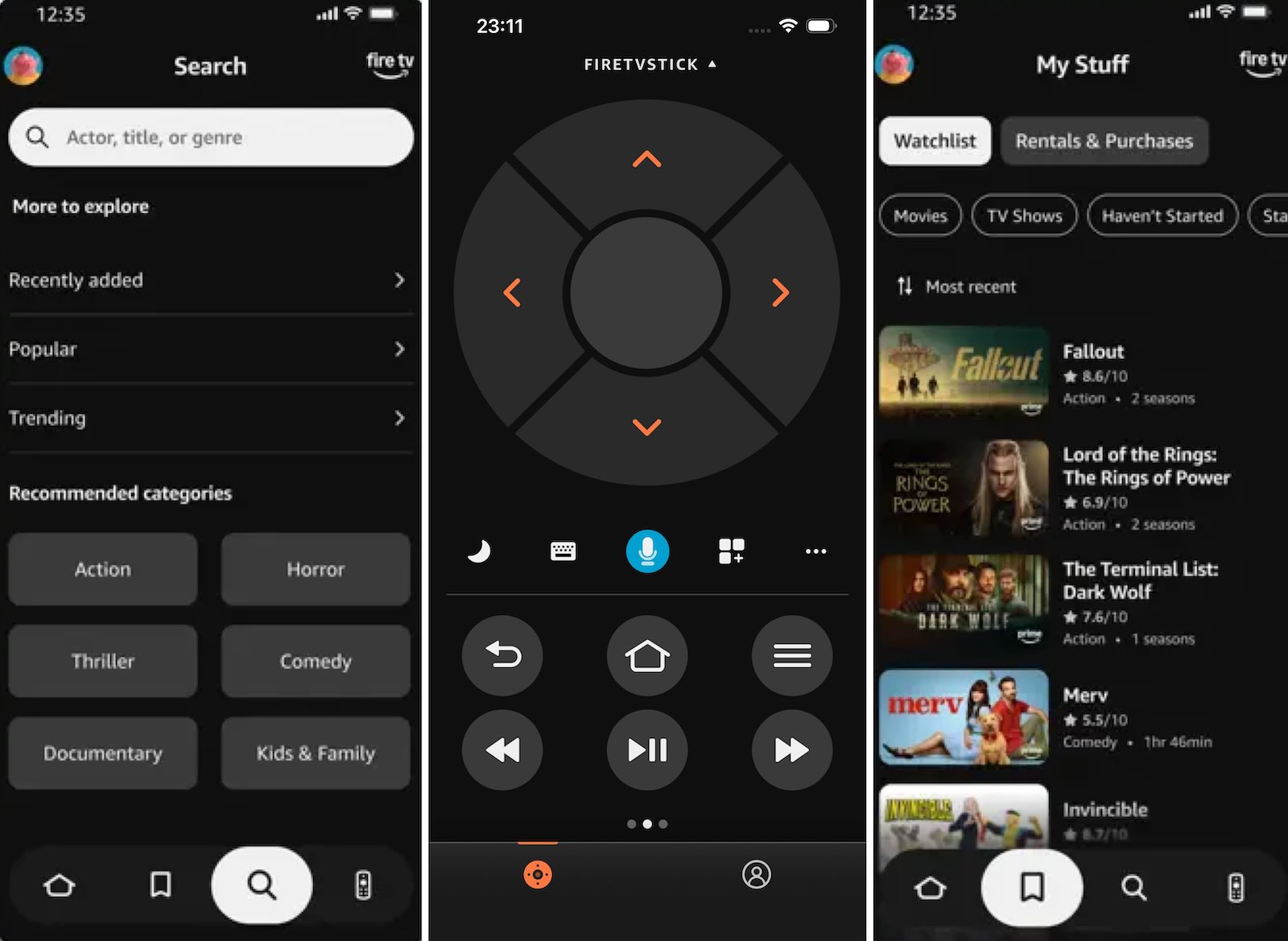
Models like the Hisense U65QF, QD7QF, QD6QF, or some A7 Series units run on the Fire TV platform. For those, the official Amazon Fire TV app is the natural pick.
📌 Key features:
- Personalized recommendations and browsing through content hubs (Movies, TV Shows, Sports).
- Fast text entry using your phone’s keyboard instead of a clunky remote.
- Building and managing your Watchlist right from your phone.
- Quick setup for new Fire TV devices.
- Volume, playback, and menu navigation controls.
Pros
- Strong 4.5 rating from over a million reviews.
- Multiple people can connect to the same TV at once.
- Includes a touchpad mode for more precise navigation.
Cons
- Users report input lag and occasional Wi-Fi reconnection issues.
- Requires an Amazon account for full functionality.
💵 Price: Free
3. Google TV: Watch Movies & TV - for Hisense Google TV
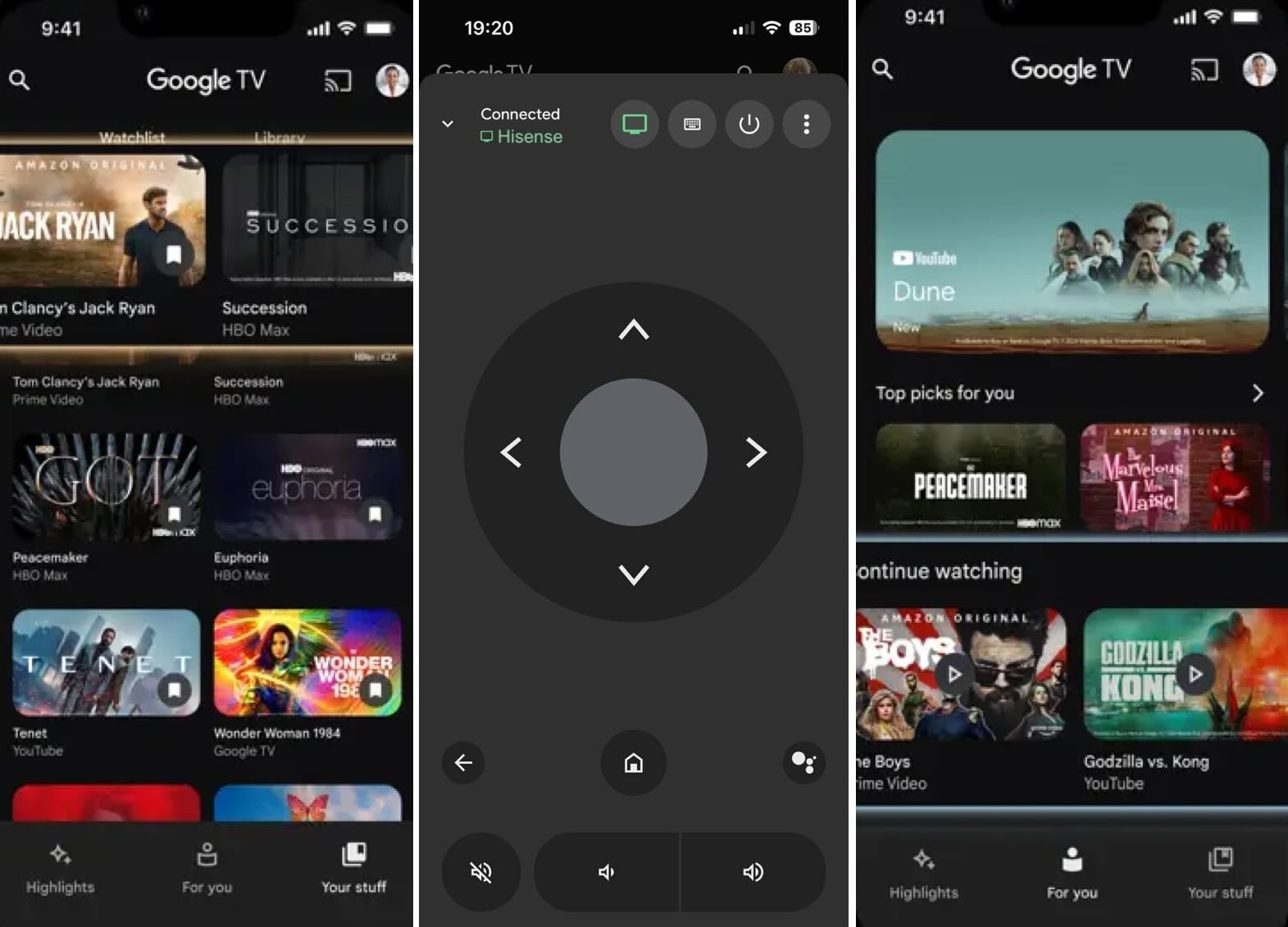
A large part of the Hisense lineup runs on Google TV / Android TV – typically the higher-end and mid-range series. Google’s official Google TV app (formerly Play Movies & TV) has a built-in remote for exactly these models.
Note: Hisense sells multiple operating systems across its TVs, and which platform a given series uses can change from year to year or even vary within the same series. Before choosing a remote app, confirm your TV’s actual platform via Settings → System → About – don’t rely on the series name alone.
📌 Key features:
- Search for movies and shows across all your installed streaming apps at once.
- Personalized recommendations based on your viewing habits and what’s trending.
- A shared Watchlist synced across your TV, phone, and browser.
- A built-in remote for controlling Google TV or any other Android TV OS device.
- Keyboard text entry for passwords, titles, and search terms.
Pros
- Official Google-built app that works with most major streaming services.
- Your Watchlist follows you across devices, including any browser.
Cons
- Lower rating of 4.3 - users point to a dated interface and fewer supported services compared to apps like JustWatch.
- Some reports of issues downloading purchased content for offline viewing.
💵 Price: Free
Remote App Comparison
For a quick look at the apps on this list, review this comparison table.
| App Name | TVRem | VIDAA | Remote for Hisense TV | Hisense TV Remote Android | The Roku App (Official) | Amazon Fire TV | Google TV |
| Platform | iOS | iOS / Android | iOS | Android | iOS / Android | iOS / Android | iOS / Android |
| Universal Support | ✅ | ❌ | ❌ | ❌ | ❌ | ❌ | ❌ |
| Price | Free | Free | Free/ Subscription |
Free/ Subscription |
Free | Free | Free |
| Ease of Use | High | Medium | Medium | Low | High | Medium | Medium |
| Built-in Keyboard & Touchpad | ✅ | ❌ | ❌ | ❌ | ✅ | ✅ (touchpad mode) | ✅ (keyboard only) |
| Voice Control | ✅ | ✅ | ❌ | ❌ | ✅ | ✅ (via Alexa only) | ❌ |
Why You Should Switch to a Digital Remote for Your Hisense TV
Along with the convenience of a mobile TV remote app always being within reach, a free remote app for Hisense TV won’t get lost or need fresh batteries. Whether you want to replace your physical remote control or download a mobile app as a backup, there are some things you should consider before deciding which app is best for you.
- ⚠️ Features: Remote apps offer features that physical remotes don’t. Consider tools that provide a built-in keyboard, touchpad navigation, and voice search for the most flexible control options. Also, look at bonus features like the ability to power your TV off and on or buttons for quickly launching apps.
- ⚠️ Compatibility: Make sure the app you choose works with both your TV and mobile device. Confirm your TV model and the operating system it uses before spending time connecting and exploring a remote app. You can confirm compatibility by viewing the app’s description and optionally visiting the developer’s website.
- ⚠️ Price / Value: Free apps are obvious choices, but be sure that the app gives you the essential features you need without in-app purchases or subscriptions. Many free apps also include ads, which can distract from the entire experience, so try to find an app that’s ad-free.
- ⚠️ Eco-friendly: Mobile apps don’t require batteries like traditional remote controls. Plus, using a mobile app means you don’t have to replace a physical remote either.
Quick Troubleshooting: What to Do If Your App Won't Connect
- Check the Wi-Fi Band: Ensure your smartphone is connected to the same band (2.4 GHz vs. 5 GHz) as your Hisense TV.
- Power-Cycle the TV: Unplug your Hisense TV from the wall outlet for 30 seconds to restart its network card.
- Disable VPNs: Turn off any active VPN connections on your mobile device, as VPNs prevent local network device discovery.
- Check TV Network Settings: Go to Settings > Network > Network Information on your TV to verify an active IP address assignment.
Conclusion
Whether you’ve lost your physical remote or don’t have replacement batteries for it, you can get back to the action using a mobile remote control app for your Hisense TV.
While all of the mobile apps on our list work fine, TVRem is the preferred option if you use an iPhone. Along with Hisense, you can control other TVs in your home and use all of its features without worries of pricey purchases or annoying ads.
Frequently Asked Questions
Yes, TVRem for iPhone and iPad is completely free without ads, subscriptions, or in-app purchases. You can use the entire feature set without worries – multiple input controls including touchpad and voice, voice search, and quick app launch. Plus, TVRem works with major TV brands along with streaming players.
Yes, you can replace a physical Hisense TV remote with options from retailers like Amazon and eBay. Alternatively, you can opt for a mobile remote app that’s always at your fingertips – like TVRem.
TVRem is a totally free universal remote app for Hisense TV that works with many other TV brands, along with streaming players. It provides an easy-to-use interface, quick app launch, variety of input options, and no ads or subscriptions.
There are a few possible reasons your Hisense TV isn’t responding to the remote, including dead batteries, a frozen TV system, or a disconnection from Bluetooth. Check/Replace the batteries, power cycle the TV, reset or re-pair the remote, and/or clean the IR sensor on the TV.
Many users have shared unsatisfactory experiences with the VIDAA remote. These include Bluetooth and pairing issues, lack of advanced features, no backlighting, poor quality for voice control, unchangeable dedicated app buttons, and missing basic shortcuts like easy app switching. So using remote apps is a great idea!
No, smart remote apps require both your smartphone and Hisense TV to be connected to the exact same Wi-Fi network to discover and control the device. If your TV is not connected to Wi-Fi, you will need a physical IR remote or an Ethernet cable connected to your router to complete the initial network setup.
You can easily check your TV’s system by navigating to Settings > System (or Device Preferences) > About on your Hisense TV screen. It will indicate whether your set runs VIDAA OS, Google TV / Android TV, Roku TV, Fire TV, or Xumo OS.
Yes, official ecosystem apps (like the official Roku App or Google TV App) require you to log in with your respective Roku or Google account. If you prefer a quick plug-and-play solution without logging in, third-party apps like TVRem remote do not require account registration.