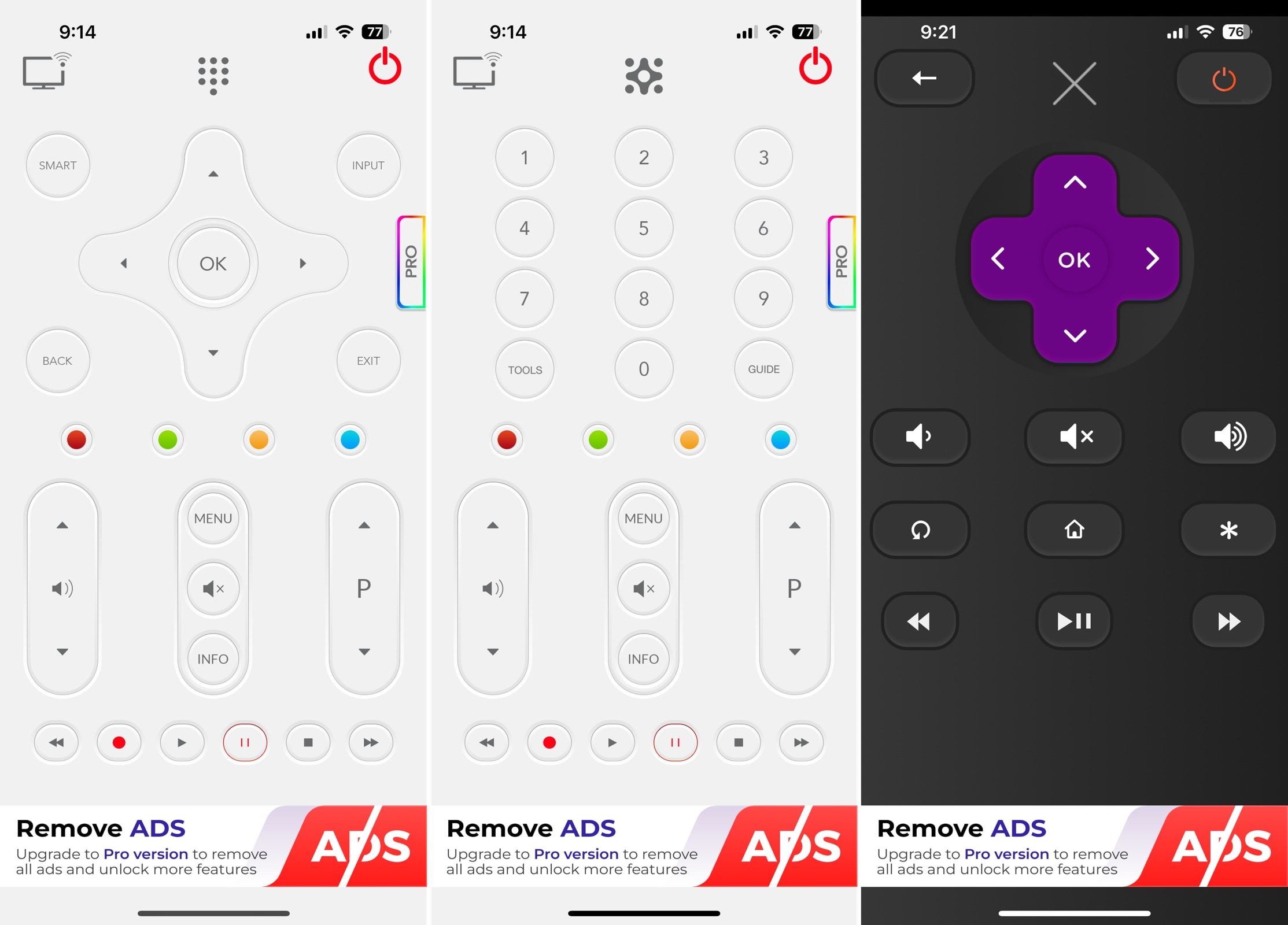
Free Universal Remote App For iPhone: Top Picks For 2026

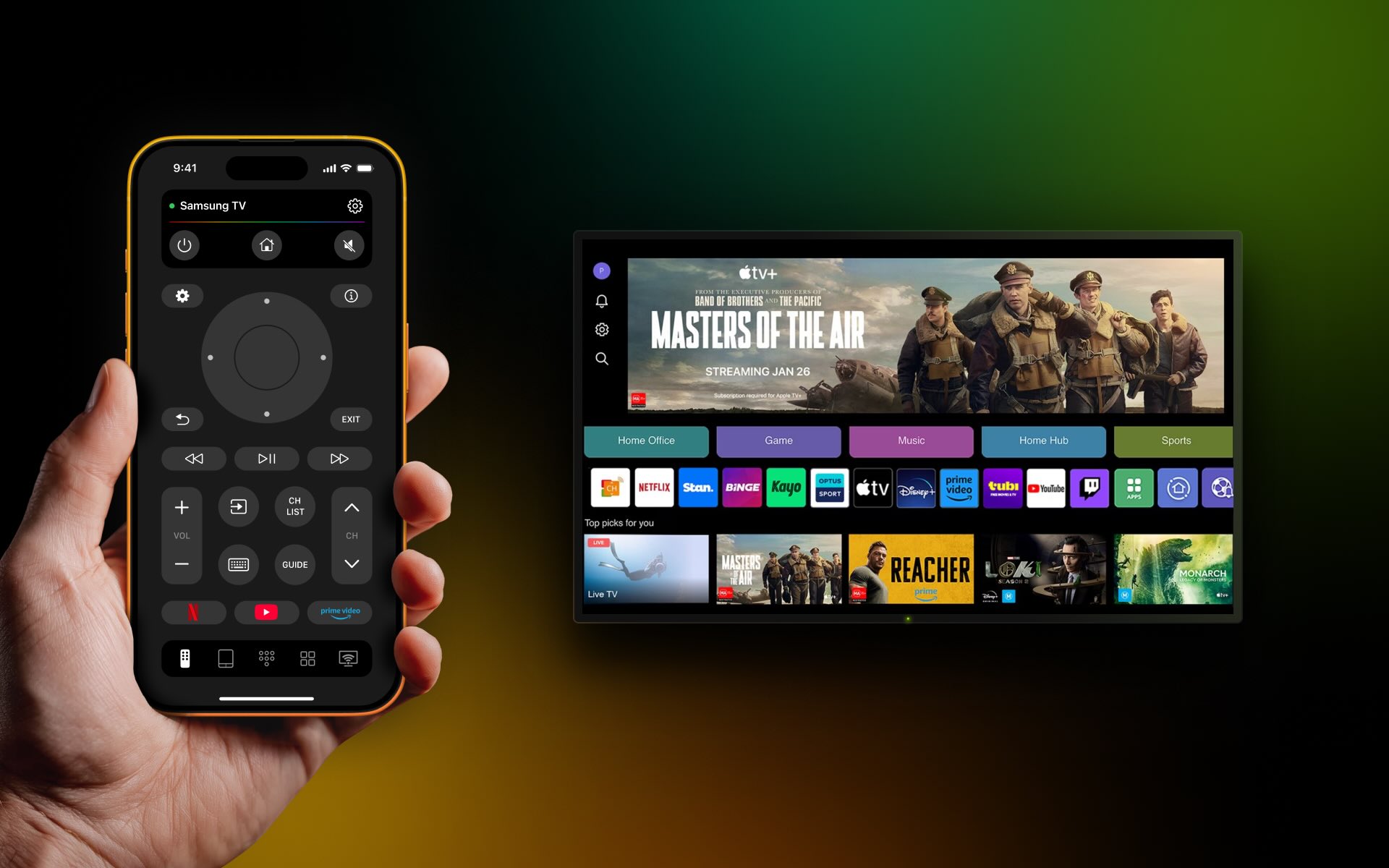
thumbnail

If you have multiple TVs in your home that encompass more than one brand, a universal remote is ideal. But why worry about a physical remote that can control all your TVs when you can use a simpler, more convenient digital one? We tested a wide range of remote control apps, and to help you find a free universal TV remote app for iPhone, we’ve gathered our top picks below.

9 Best Free Universal Remote Apps for iPhone

Below are the top nine free universal TV remote apps for iPhone for you to review. Each offers the basics you’d expect with some standout features. You can also check out the pros and cons along with available in-app purchase prices for unlocking additional features.

Try TVRem – The Free Universal Remote App for iPhone & iPad

1. TVRem Universal Remote App

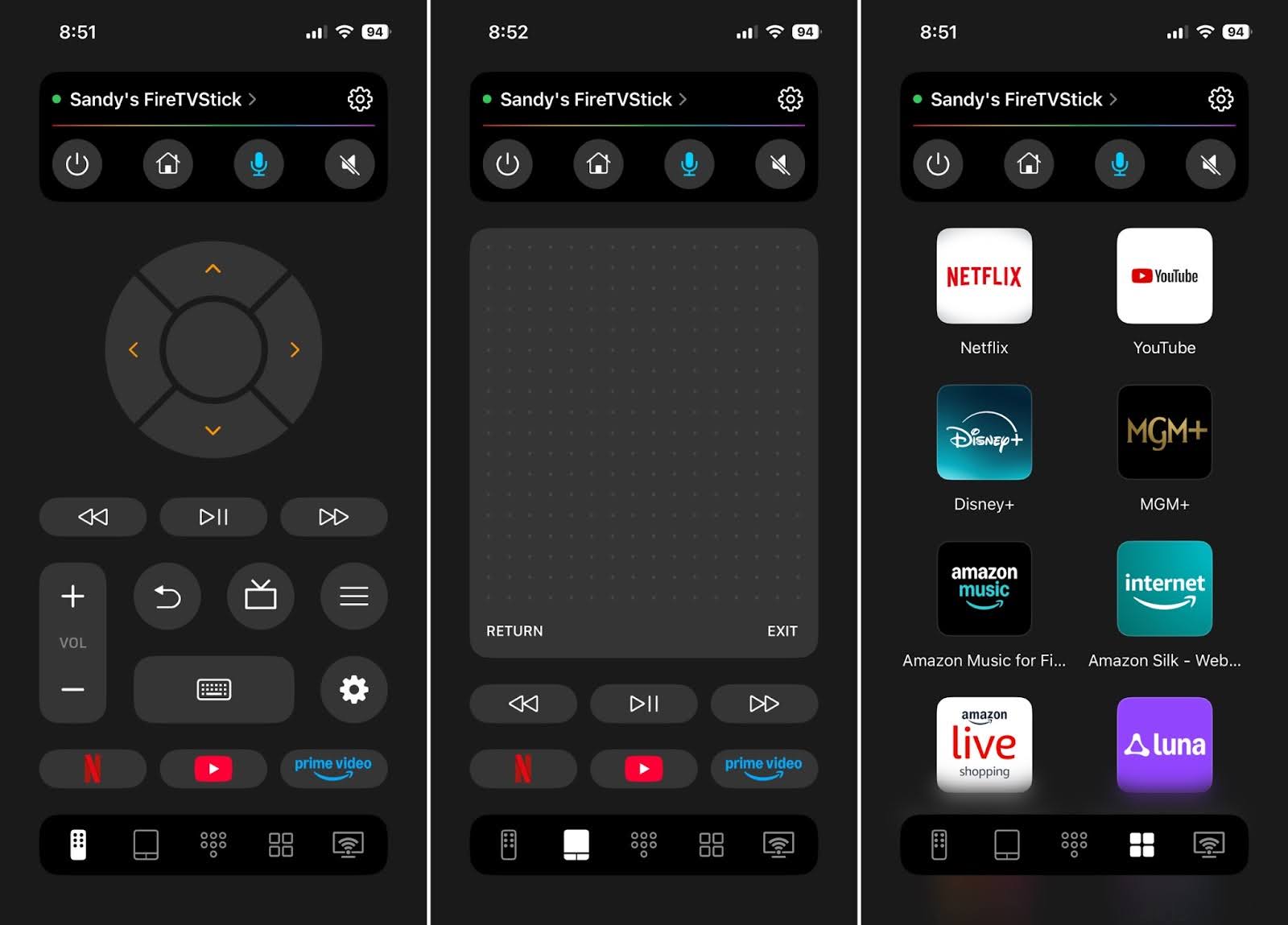
TVRem - universal TV remote app on the iPhone

TVRem gives you complete control over your smart TV, including core remote functionality and often robust setup flows and regular updates. It works with most any TV brand such as Roku, Fire TV, Android TV, Google TV, Apple TV, LG, Samsung, and more. TVRem also provides an easy-to-use interface, favorite channel access, and responsive navigation.

Notable features:

  • Button, touchpad, number pad, keyboard, and voice controls
  • Quick app launch for Netflix, YouTube, Prime Video, and more
  • Google Assistant and Alexa input control (supported TV models)
  • Haptic and sound feedback settings

Pros

  • Easy setup
  • Intuitive interface
  • Smart keyboard input
  • Channel search
  • Responsive controls

Cons

  • Can’t change preset channel buttons
How to Use TVRem Universal TV Remote: Step-by-Step Guide

Setting up TVRem to control your TV from your iPhone is simple and fast. Just follow these steps:

1. Download and install the TVRem app from the App Store.
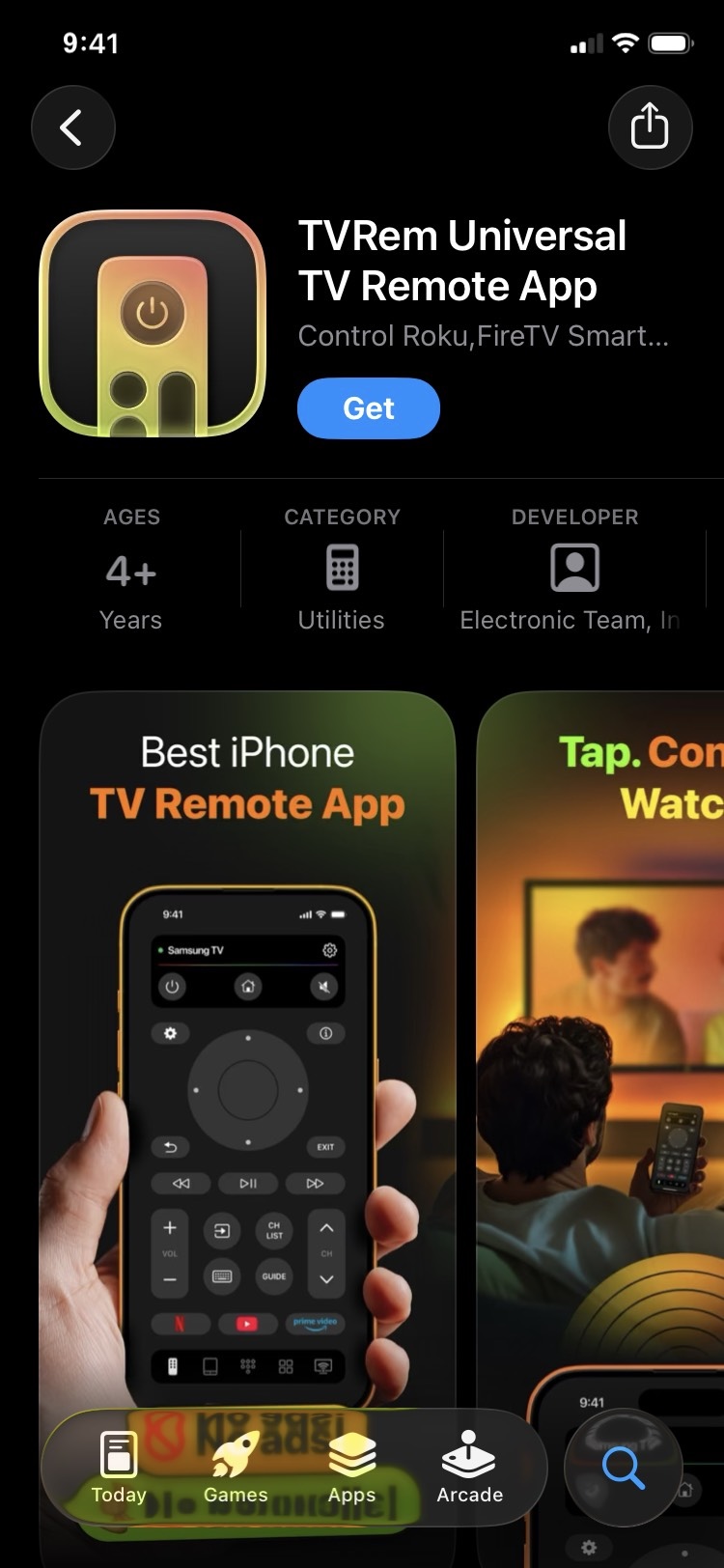
Download TVRem from the App Store

2. Power on your TV.

3. Ensure that both your TV and iPhone are connected to the same Wi-Fi network for smooth communication.
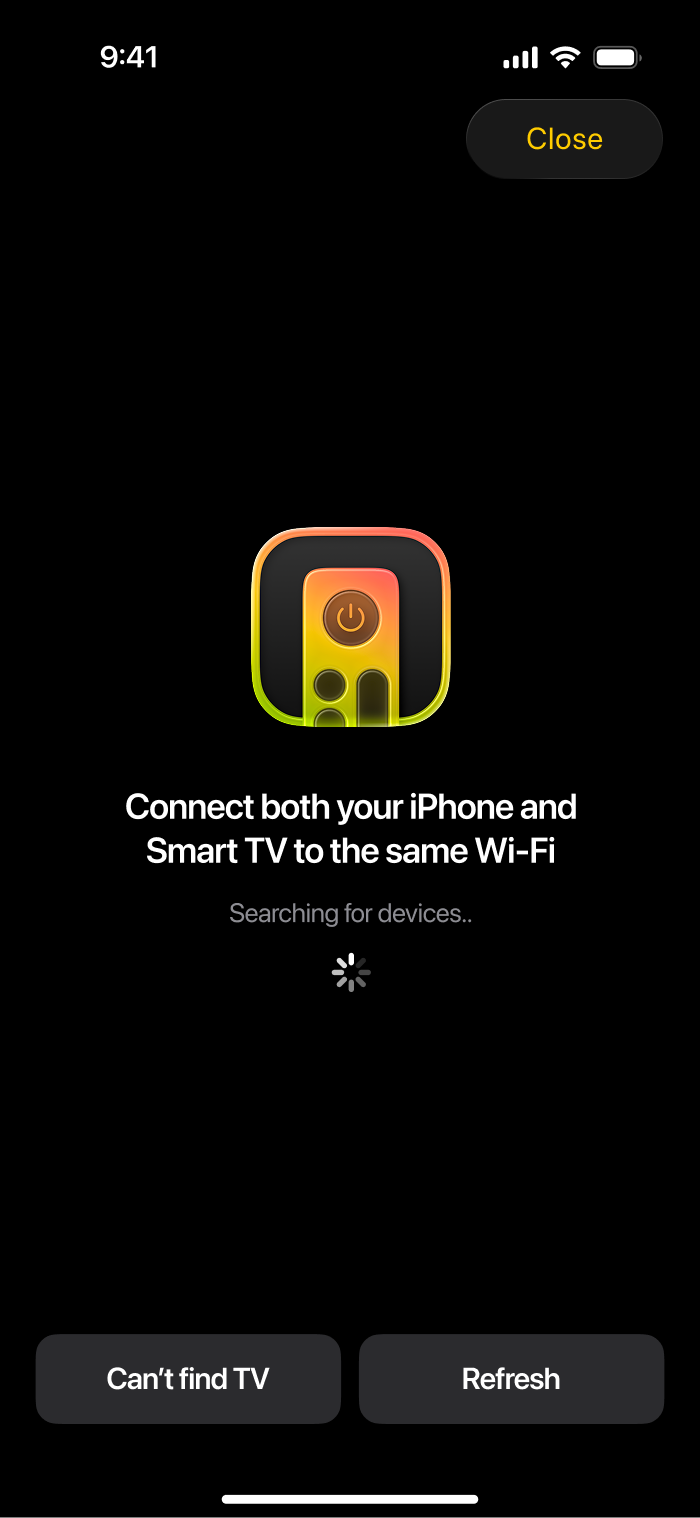
TVRem is searching for nearby devices

4. Launch the TVRem app on your iPhone and grant any necessary permissions.

5. Tap Choose a TV and select your TV from the available list.
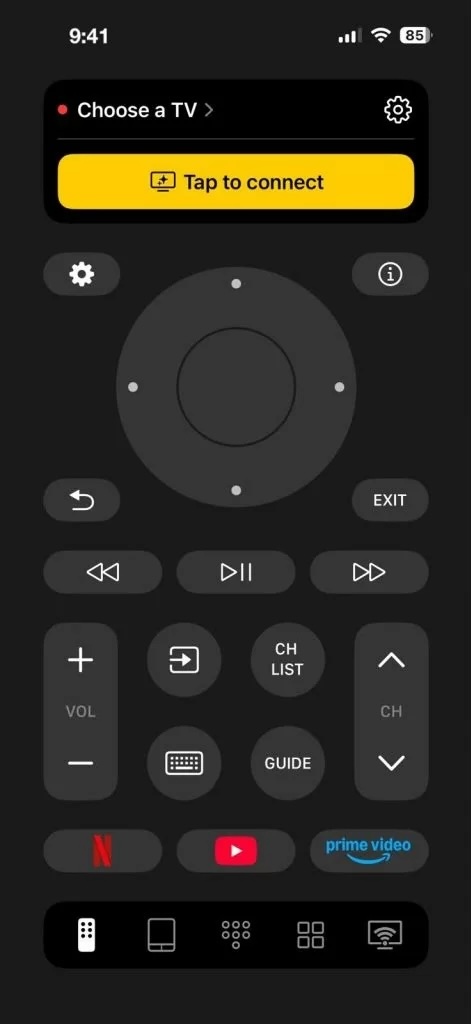
Tap on the Choose a TV button in TVRem

6. Hit Connect – and you’re all set!

With TVRem, you can now control your TV directly from your iPhone. Enjoy the convenience of changing channels, adjusting the volume, and navigating through menus with ease.

⭐️ Rating in the App Store: 4.8 out of 5

💵 Pricing: Free 

2. Apple TV Remote (Built-in)

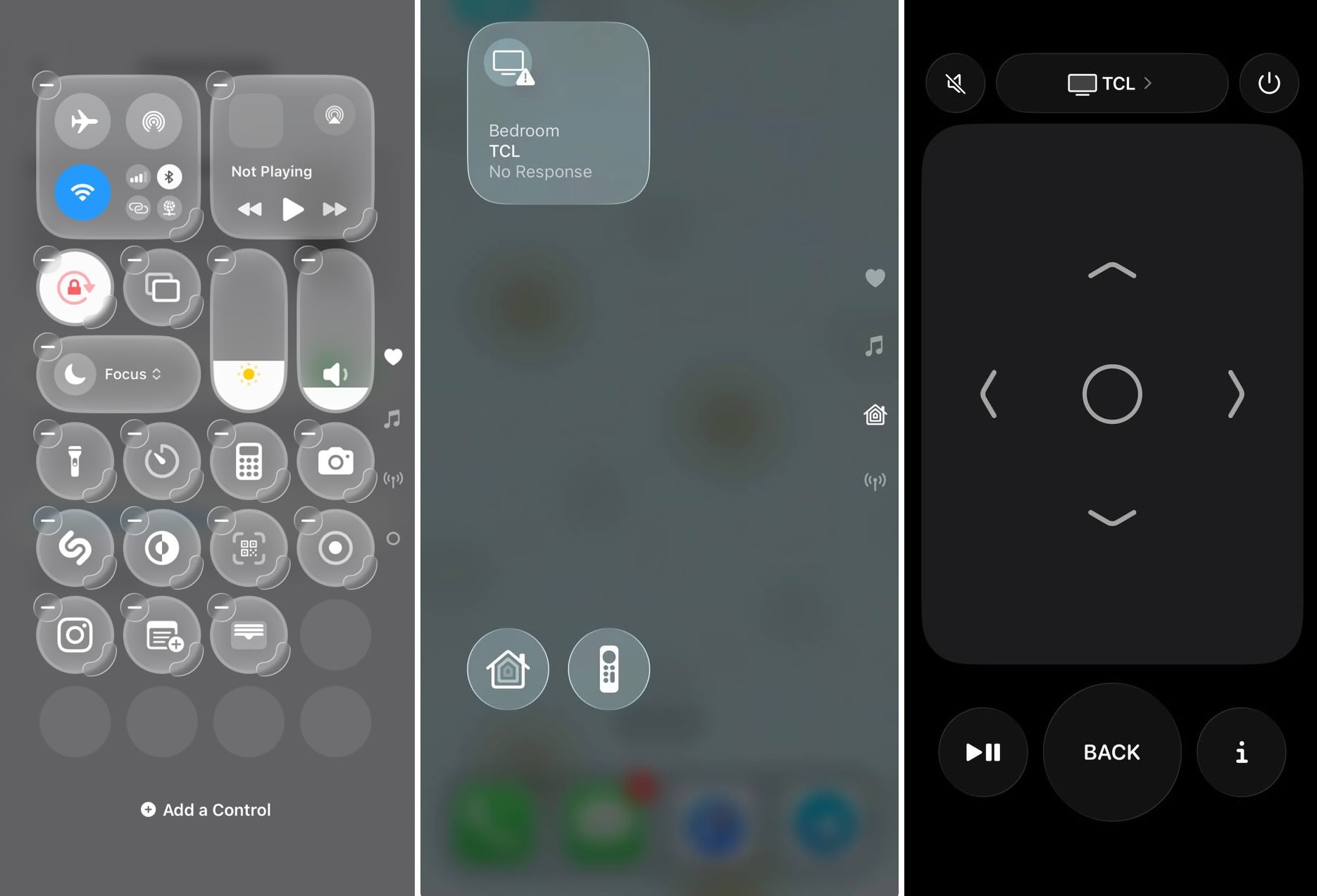
Built in Apple TV remote on iPhone

If you don’t want to install a third-party app at all, your iPhone already comes with a remote for Apple TV. You can find it in Control Center and use it with Apple TV or an AirPlay-compatible smart TV.

Notable features:

  • Touch-surface navigation with swipe gestures, plus dedicated Menu, Home, and Play/Pause buttons
  • Siri support for voice commands on Apple TV
  • Volume and power controls for your Apple TV or an AirPlay-compatible smart TV
  • Works with Apple TV HD or later and AirPlay-compatible smart TVs
  • Available from Control Center without installing a separate app

Pros

  • Already installed - nothing to download
  • No account sign-up or ads
  • Clean, minimal interface
  • Siri support for voice search
  • Works across Apple devices (iPhone, iPad)

Cons

  • Only works with Apple TV or AirPlay-compatible TVs - no support for brands without AirPlay 2 (older LG, Samsung, Sony models, most Fire TV and Roku devices)
  • No IR blaster support or advanced universal-remote features such as channel presets and custom app shortcuts
  • To use it with a smart TV rather than an Apple TV, you first need to add the TV to the Home app and assign it to a room
  • No screen mirroring/casting extras beyond AirPlay itself
How to Use Apple TV Remote: Step-by-Step Guide

1. Make sure your iPhone and your Apple TV or supported AirPlay-compatible smart TV are connected to the same Wi-Fi network. 

2. If you’re using a smart TV rather than an Apple TV, first add it to the Home app and assign it to a room.

3. Open Control Center on your iPhone (swipe down from the top-right corner).

4. If you don’t see the remote tile, add it: go to Settings → Control Center and tap the Add button next to Apple TV Remote.

5. Tap the Apple TV Remote tile in Control Center.

6. Select your Apple TV or smart TV from the list of available devices.

7. If prompted, enter the pairing code shown on your TV screen.

Once connected, you can swipe the touch surface to navigate menus, tap to select, press and hold the Home button for Siri, and use the volume buttons to adjust sound.

⭐️ Rating in the App Store: N/A – built into iOS, not a separate download

💵 Pricing: Free (included with every iPhone)

3. Universal Remote TV Controller

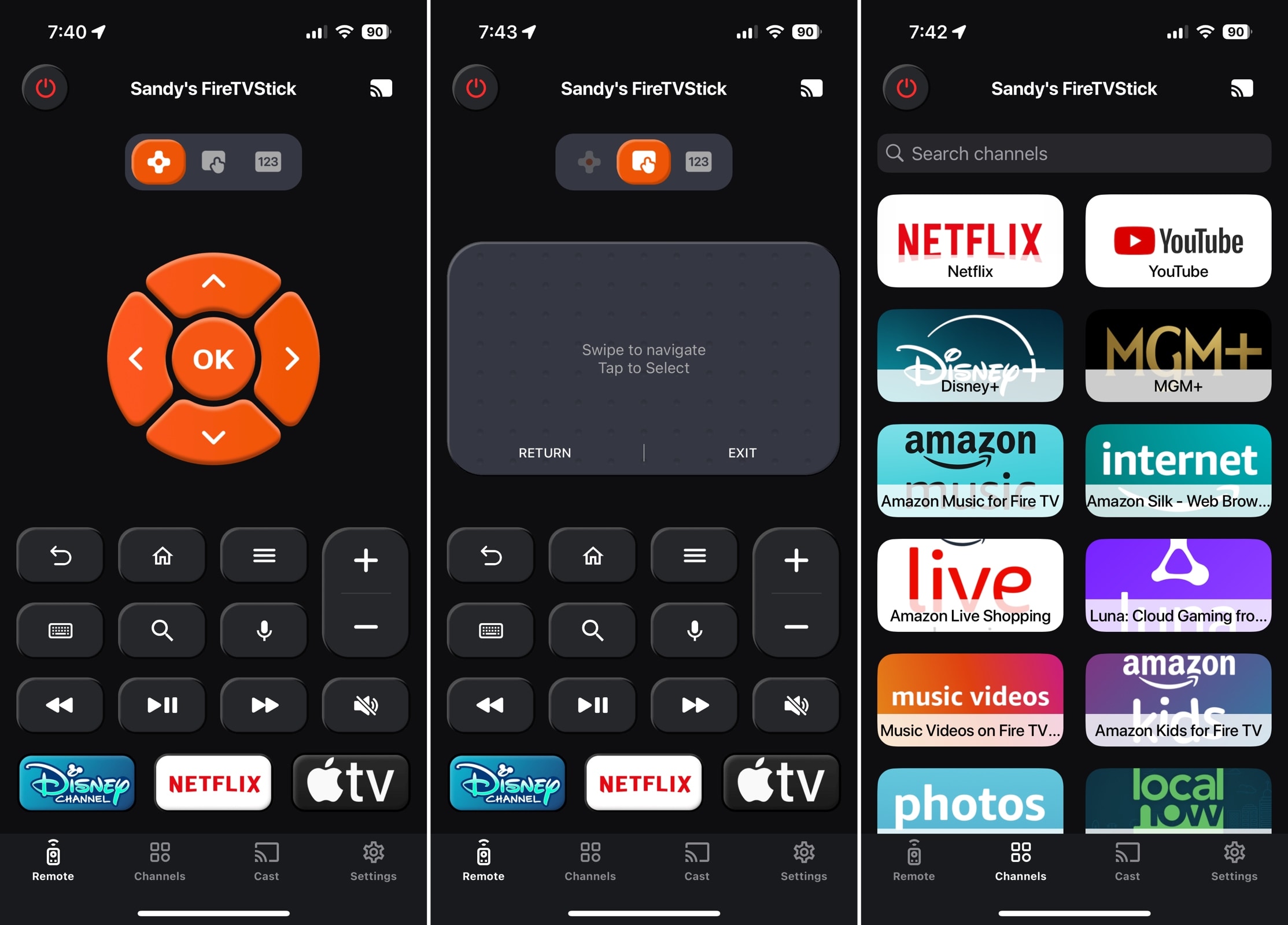
Universal Remote TV Controller app on the iPhone

Universal Remote TV Controller offers an easy setup process on iPhone and works with most TV brands. All controls are responsive, the channel search is handy, and you can customize a few options for a personalized experience.

Notable features:

  • Button, touchpad, number pad, keyboard, and voice controls
  • Quick channel selection with search
  • Screen mirroring and casting options
  • Customization of vibration, click sounds, and app icon
  • Preset buttons for three channels

Pros

  • Simple setup
  • Screen mirroring quality settings
  • Several app icon designs
  • Channel search
  • iPad support

Cons

  • Free option only for a 3-day trial
  • It can’t change preset channel buttons

⭐️ Rating in the App Store: 4.7 out of 5 

💵 Pricing: Free (Trial, Subscriptions, and Premium Packs start at $3.99)

4. Universal Remote TV Control

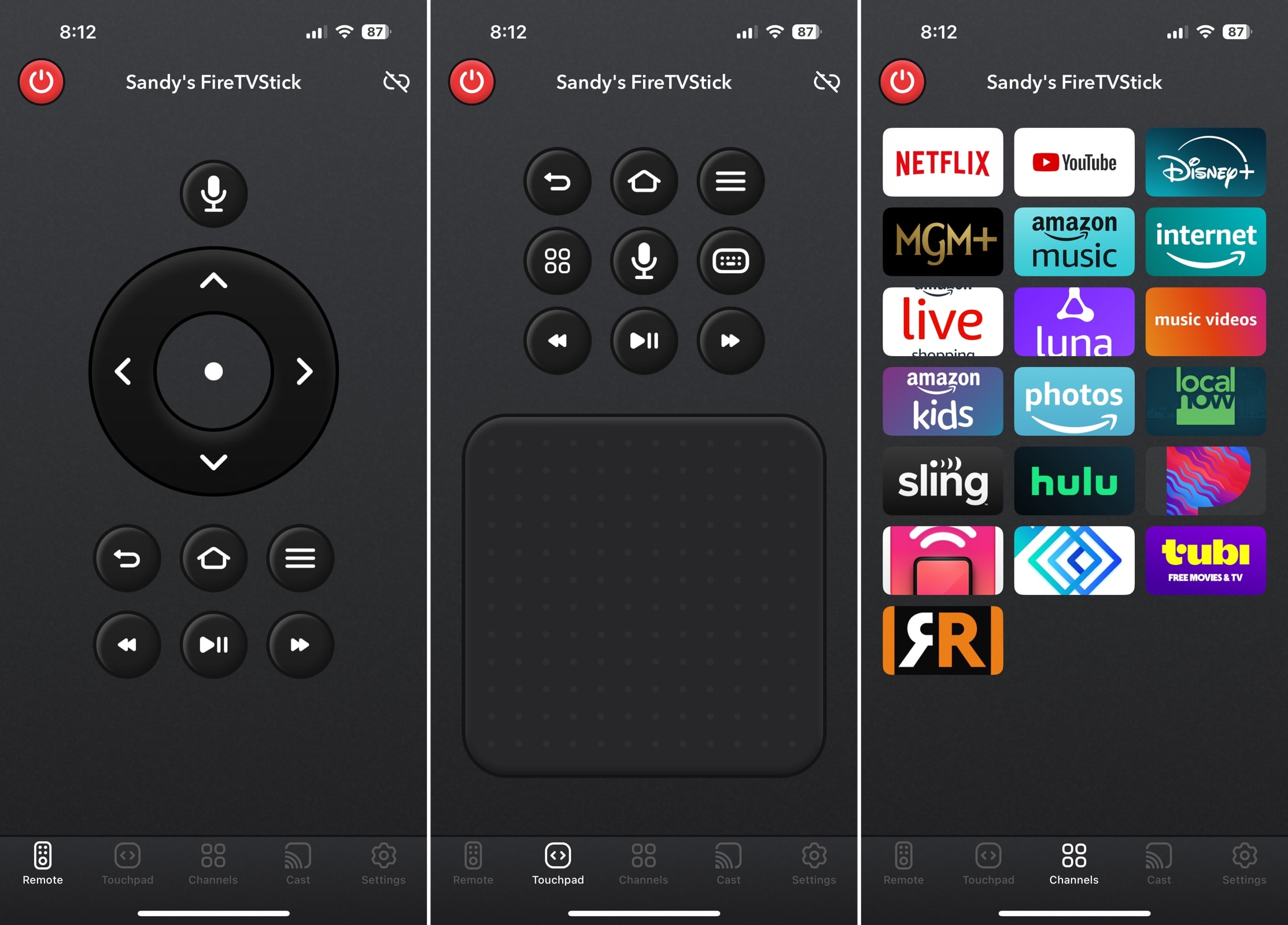
Universal Remote TV Control app on the iPhone 

Universal Remote TV Control features a simple, uncluttered interface for iPhone users. You can switch between the button and touchpad controls with a tap and access voice control from either area.

Notable features:

  • Button, touchpad, voice, and basic text input controls
  • Quick channel selection
  • Screen casting options
  • Haptic feedback setting

Pros

  • Easy setup
  • Simplistic interface
  • iPad support

Cons

  • Free option only for a 3-day trial
  • Limited customization options

⭐️ Rating in the App Store: 4.3 out of 5

💵 Pricing: Free (Trial, Subscriptions, and Pro Packs start at $4.99)

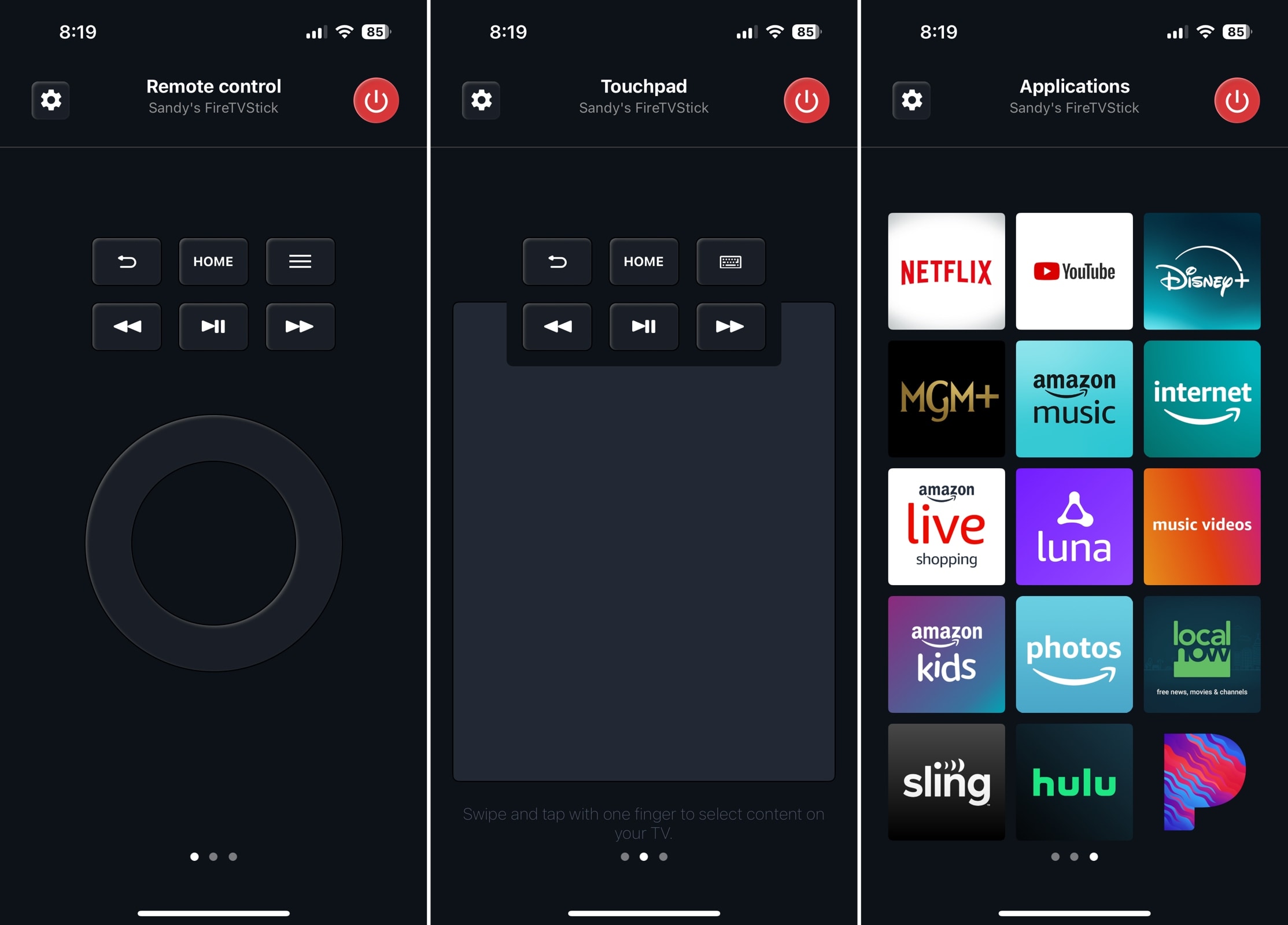
5. Universal TV Remote

Universal TV Remote app on the iPhone

This TV Remote app for iPhone provides a minimalistic interface with swipe gestures rather than tabs for the different app areas. The app is a bit limited with its free offering, giving you the button control only, but if you want a basic universal remote, this is it.

Notable features:

  • Circular button control (touchpad and keyboard options via upgrade)
  • Quick channel selection
  • Simplistic three-screen design

Pros

  • Free for basic use
  • Simple setup
  • Intuitive interface
  • iPad support

Cons

  • No touchpad or keyboard without upgrade
  • No customization options
  • No extra features (mirroring, casting, etc.)
  • Pop-up ads during use

⭐️ Rating in the App Store: 4.6 out of 5

💵 Pricing: Free (Subscriptions start at $2.99)

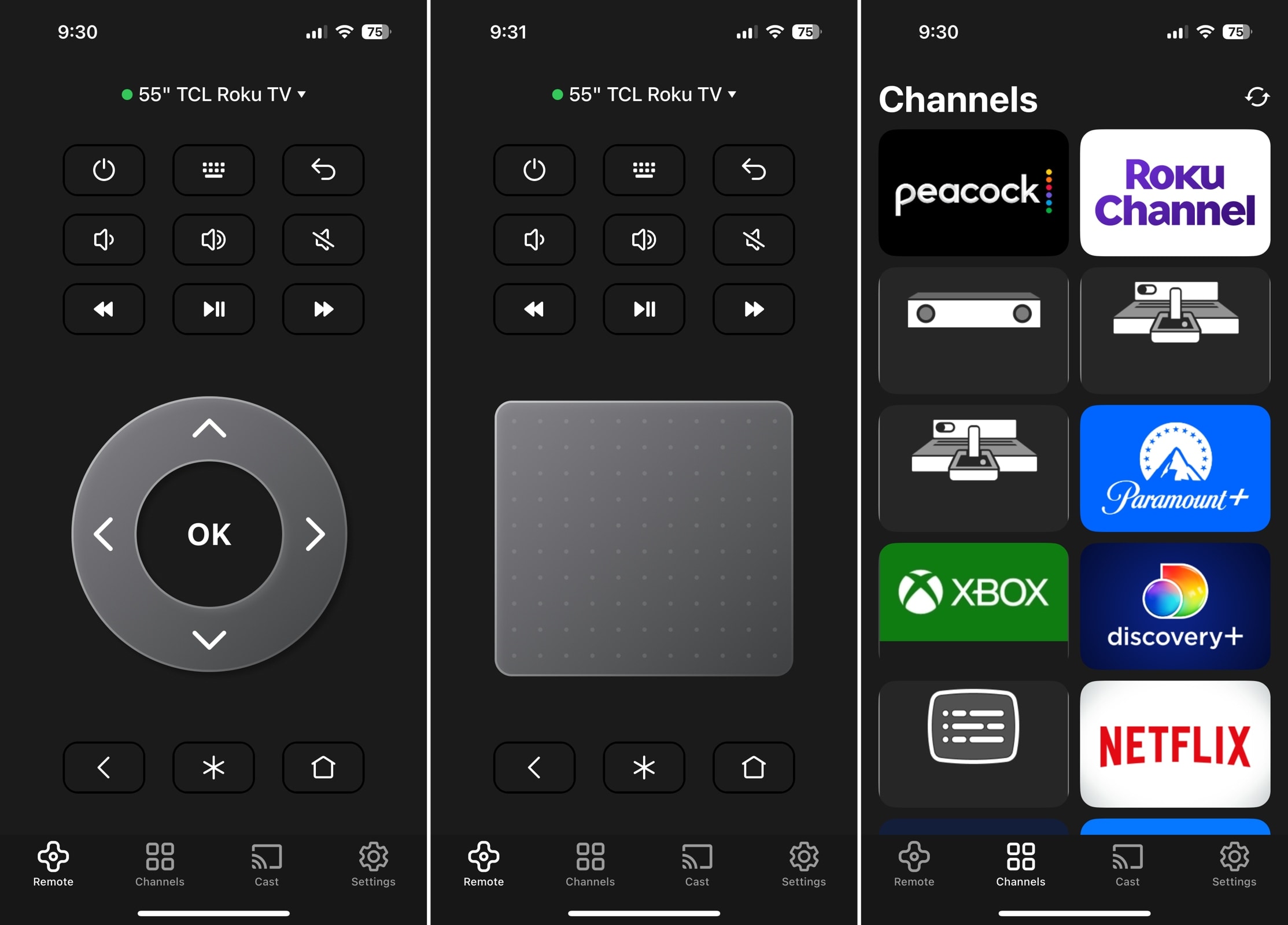
6. Universal Remote | Smart TV

Universal Remote | Smart TV app on the iPhone

Universal Remote | Smart TV for iPhone offers impressive extras like different remote screen styles, a physical remote locator, and a sleep timer. You can also take advantage of the built-in screen casting options for websites, media, and YouTube.

Notable features:

  • Button and touchpad controls
  • Quick channel selection
  • Choice of remote screen designs
  • Sleep timer
  • Screen casting options
  • Haptic feedback setting

Pros

  • Easy setup
  • Useful extra features
  • Nice customization options
  • iPad support

Cons

  • Free option only for a 3-day trial
  • Requires ADB for Fire TV devices

⭐️ Rating in the App Store: 4.7 out of 5

💵 Pricing: Free (Subscriptions and Premium Access start at $6.99)

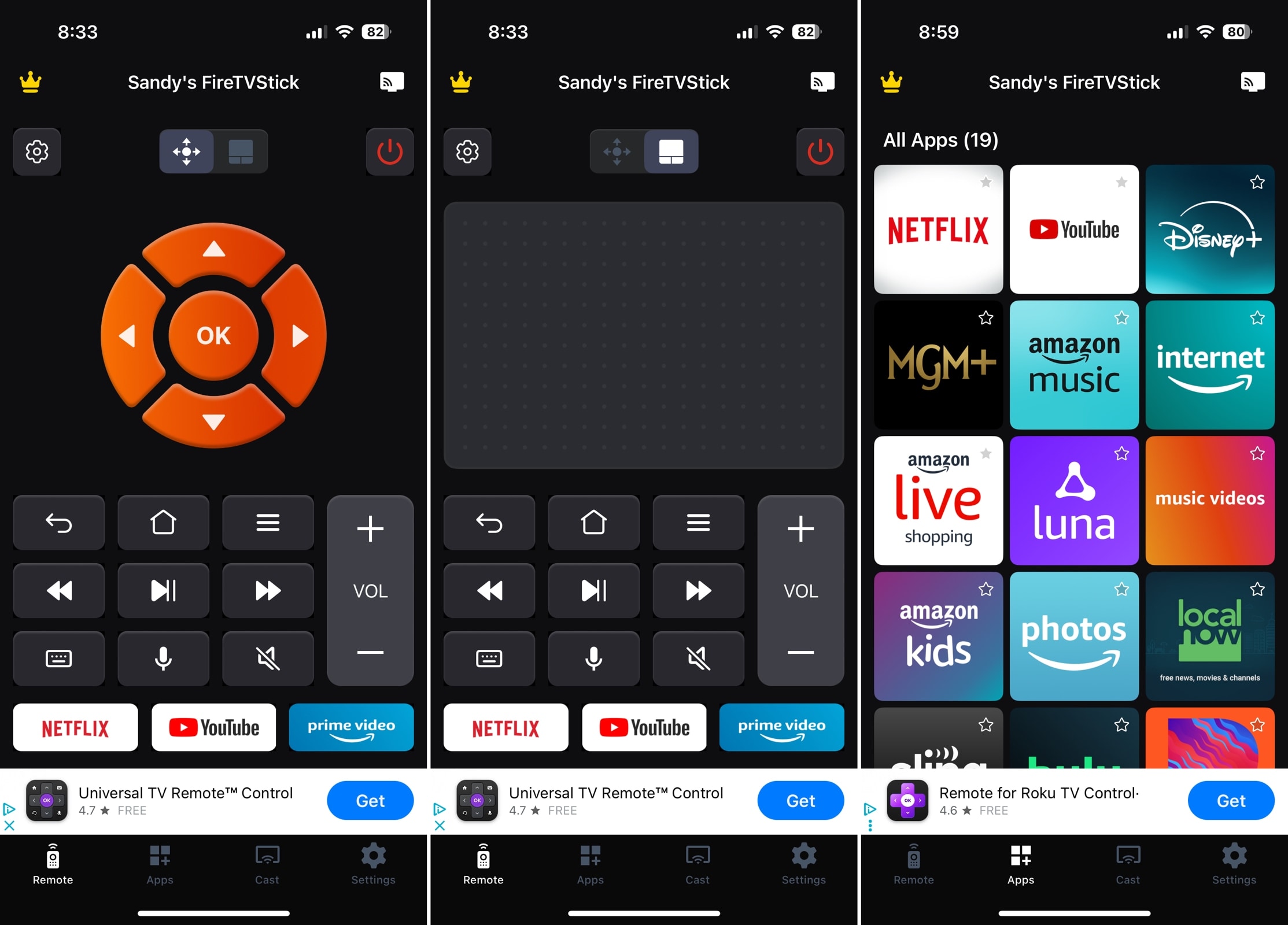
7. TV Remote - Universal Control

TV Remote - Universal Control app on the iPhone

TV Remote – Universal Control for iPhone is a great option thanks to its ease of use and responsiveness. After a few button taps, the app only allows you to continue by upgrading which is disappointing. However, you can unlock the other basic features and remove the ads via an in-app purchase. 

Notable features:

  • Button control (touchpad, keyboard, and voice options via upgrade)
  • Quick channel selection
  • Screen casting options
  • Preset buttons for three channels (with upgrade)
  • Haptic feedback setting

Pros

  • Simple setup
  • Responsive controls
  • iPad support

Cons

  • Limited use for free
  • No touchpad, keyboard, or voice without upgrade
  • Limited customization options
  • Banner ads at the bottom

⭐️ Rating in the App Store: 4.4 out of 5

💵 Pricing: Free (Subscriptions start at $4.99)

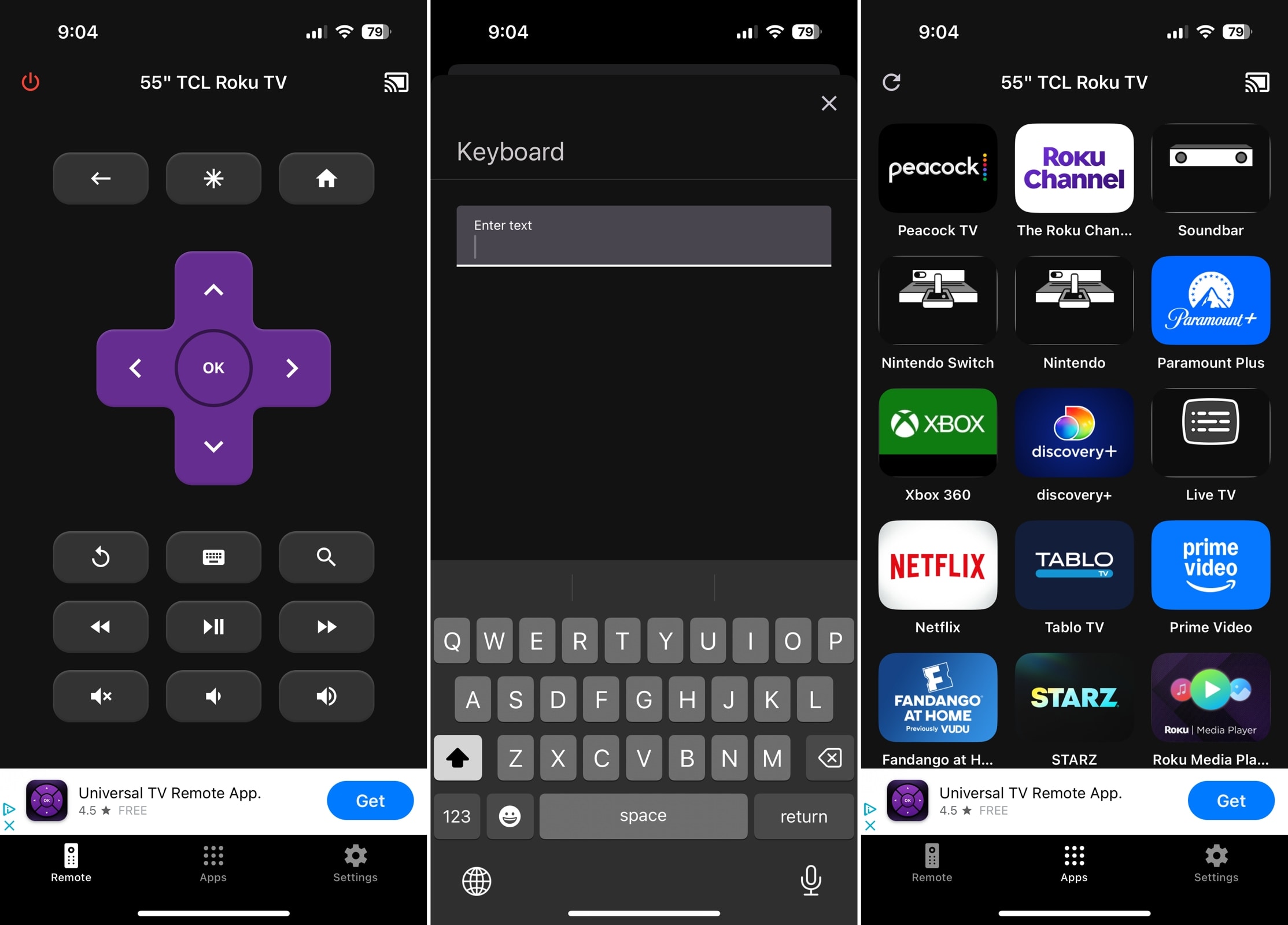
8. TV Remote – Universal

TV Remote – Universal app on the iPhone

TV Remote – Universal for iPhone is a reliable choice for popular TV brands like Roku, LG, Samsung, Sony, and Philips. You can switch between TVs easily and access your channels or apps with a tap.

Notable features:

  • Button control and basic text input
  • Quick channel selection
  • Haptic feedback and Power On with Mobile settings

Pros

  • Easy setup
  • Responsive controls
  • iPad support

Cons

  • Limited TV brand support (e.g. no Fire TV)
  • Limited customization options
  • No extra features (mirroring, casting, etc.)
  • Banner ads at the bottom

⭐️ Rating in the App Store: 4.6 out of 5

💵 Pricing: Free (Subscriptions start at $4.99)

9. Universal Remote TV Smart

Universal Remote TV Smart app on the iPhone

Universal Remote TV Smart for iPhone is compatible with Samsung, LG, Sony Bravia, Philips, and other smart TV brands. The initial remote screen offers extra buttons you’d normally see on a physical remote like Input, Info, and Guide which is handy if you use those often.

Notable features:

  • Button and number pad controls
  • Additional buttons for Input, Menu, Guide, and Info
  • Power button

Pros

  • Set up for other devices like computers
  • Responsive controls
  • iPad support

Cons

  • Limited TV brand support (e.g. no TCL or Fire TV)
  • Limited customization options
  • No extra features (mirroring, casting, etc.)
  • Cluttered initial interface (changes by device)

⭐️ Rating in the App Store: 4.2 out of 5

💵 Pricing: Free (Premium versions and ad removal start at $3.99)

App Name Supported TVs & Technologies Key Features Ease of Use & Connection Simplicity Price
TVRem Roku (streaming players, branded TVs), Fire TV (streaming players, Amazon Smart TVs, and other TVs with Fire TV built in), Android TV, Chromecast with Google TV, Google TV Streamers, Samsung TVs, Apple TV. Multiple input controls, quick channel launch, Google Assistant and Alexa input,  haptic feedback settings, and more Simple setup and intuitive interface Free
Apple TV Remote (Built-in) Apple TV HD or later, and supported AirPlay-compatible smart TVs Touch navigation, Siri voice control, volume controls, built into Control Center Simple setup, but requires Home app pairing for non-Apple TVs Free (built into iOS)
Universal Remote TV Controller Roku, TCL, Sony, LG, Samsung, Android TV, Hisense, and more Multiple input controls, channel search, screen mirroring & casting, and more Simple setup and intuitive interface Free (Trial, Subscriptions, and Premium Packs start at $3.99)
Universal Remote TV Control Samsung, LG, Sony, Philips, Panasonic, Vizio, TCL, and more Basic input controls, quick channel selection, screen casting, & haptic feedback setting Easy setup and basic interface Free (Trial, Subscriptions, and Pro Packs start at $4.99)
Universal TV Remote Samsung, LG, Sony, Philips, Panasonic, & Vizio Button control, quick channel selection, three-screen design Easy setup and basic interface Free (Subscriptions start at $2.99)
Universal Remote | Smart TV Roku, Fire TV, and more Button and touchpad controls, quick channel selection, sleep timer, screen casting, and more Easy setup and basic interface Free (Subscriptions and Premium Access start at $6.99)
TV Remote – Universal Control Roku, TCL, Sony, Vizio, Samsung, Fire TV, LG, and more Button control, quick channel selection, screen casting, presets, & haptic feedback setting Easy setup and basic interface Free (Subscriptions start at $4.99)
TV Remote – Universal Roku, LG, Samsung, Sony, & Philips Button and basic text input controls, quick channel selection, & haptic feedback setting Easy setup and basic interface Free (Subscriptions start at $4.99)
Universal Remote TV Smart Roku, LG, Hisense, Samsung, Sony, Philips, TCL, and more Button and number pad input controls, menu and guide, & power button Basic setup and interface Free (Premium versions and ad removal start at $3.99)

Why Use a Universal Remote App?

A universal remote app is a digital alternative to a physical TV remote and works with multiple types of TVs. As easy as using apps for emails, notes, and reminders, you can simply pop open the remote app on your iPhone to control any TV in your home. 

⏰ Save Time: Eliminate hunting for a lost remote when you’re ready for the show to begin; just grab your iPhone universal remote app.

🤑 Save Money: Avoid the costs of buying a replacement remote should one break and purchasing batteries for each remote you own.

⚙️ Save Aggravation: Use the same device to control all of the TVs in your home. You can move from room to room without having to switch remote controls.

How to Choose the Right Remote App

With so many good free or try-before-you-buy tools available, how do you know which universal remote app for iPhone is best? Here are some things to look for when choosing the right free TV remote app for iPhone for your home.

  • ✅ Compatibility: Broad TV brand compatibility or for your specific devices.
  • ✅ Ease of Use: Simple switching between TVs, an uncluttered remote screen, and easy setup.
  • ✅ Control Options: Preferred control options such as buttons, touchpad, keyboard, and/or voice.
  • ✅ Responsiveness: Immediate input and feedback for controls and navigation.
  • ✅ Customization: Personalization options like the app icon or remote screen style.
  • ✅ Extra Features: Channel search, TV power on/off option, sleep timer, mirroring and casting, etc.


Remember, the app you pick may not be the same one your friend chooses. What matters is which one you prefer and, ultimately, which one works best for your home setup!

Troubleshooting: Common Connection Issues

Even the best universal remote app for iPhone can run into hiccups. Here are the most common problems and how to fix them.

❗️Wrong or Mismatched Wi-Fi Network

This is the most frequent issue. Your iPhone and TV need to be on the same Wi-Fi network – not just the same router brand, but the exact same name (SSID).

  • Check both your iPhone’s Wi-Fi settings and your TV’s network settings to confirm they match.
  • Guest networks often isolate devices from each other – if your iPhone is on a guest network and the TV isn’t (or vice versa), the app won’t find your TV.
  • Turn off any VPN on your iPhone, since it can interfere with local-network device discovery.


❗️TV Not Showing Up in the App

  • Restart both the TV and the app, then try the connection again.
  • Make sure the TV is powered on and connected to the network. Some TV models may limit network availability while in certain standby modes.
  • Check your TV’s settings for options related to mobile device control, network control, or remote access. The exact name varies by manufacturer.
  • Check that both devices have a stable Wi-Fi connection and, if possible, move them closer to the router.


❗️App Connects But Buttons Don’t Respond

  • Force-close and reopen the app, then reconnect to the TV.
  • Check for pending app or TV firmware updates – outdated software is a common cause of unresponsive controls.
  • Disable Bluetooth interference by toggling Bluetooth off and back on, especially if other smart home devices are nearby.
  • Make sure the TV isn’t already being controlled by another remote app or mobile device, and disconnect other paired devices if necessary.


❗️Firewall or Router Settings Blocking the Connection

  • Some routers and access points use AP isolation or client isolation to prevent devices on the same Wi-Fi network from communicating with each other. If enabled, this can prevent a remote app from discovering your TV. Check your router settings and disable this feature if present.
  • If you’re using a mesh Wi-Fi system, make sure both devices are on the same local network and that client isolation or network segmentation isn’t enabled. If discovery still fails, temporarily connect both devices to the same mesh node and try again.

Conclusion

A universal TV remote app for iPhone is ideal if you have a home with multiple TV brands. It can save you time, money, and aggravation because you can control all TVs using your mobile device, without the dependency on physical remotes.

When it comes to the best universal TV remote app free for iPhone, each tool on this list is a solid choice. Whether it’s for the control options, intuitive interface, simplicity, customizations, or extra features, each app is unique in its own way. One great option to consider is TVRem, which offers a smooth, all-in-one solution for controlling TVs with ease. But if you’re looking for a completely free app with no in-app purchases, look to TVRem.

Frequently Asked Questions

The Apple TV Remote is available in your iPhone’s Control Center. This app can control a connected Apple TV or AirPlay-supported smart TV. However, if you’re looking for a universal remote that works not only with Apple TV but also with other TV brands, you can use the TVRem app, which supports a wide range of smart TVs and offers more flexible control options.

There are many TV remote apps for iOS available for free on the App Store, but most require extra purchases for the full feature set. Instead, check out TVRem for a completely free option without worries of in-app purchases or upgrades, broad smart TV support, and extra features for total remote control.

Yes, you can connect your iPhone to a TV for mirroring or streaming using a few methods. You can use AirPlay with supported smart TVs or a third-party app, both for wireless connections. You can also connect your iPhone to your TV using an adapter and HDMI cable for a wired option.

You can use the LG TV Remote Control Plus app specifically for the LG brand or opt for a universal app that works with multiple TV brands. 

TVRem works with LG TVs. Just download the universal remote app on your iPhone and connect to your LG TV over Wi-Fi.

Yes, the Apple TV Remote is built right into your iPhone’s Control Center. It works with Apple TV and supported AirPlay-compatible smart TVs, so you don’t need to install another app. The downside is compatibility, so if you want a remote that also works with Fire TV, Android TV, and other non-AirPlay brands, a dedicated universal remote app like TVRem is a better fit.