Fire TV Remote Not Working? Troubleshooting Tips & Solutions

thumbnail

An Amazon Fire TV remote not working can be aggravating. Luckily, there are common reasons for this that can be corrected in just a few steps. If these steps don’t fix the issue, you can opt for a new remote or free Fire TV remote app for your mobile device. Let’s explore each cause and solution along with those alternatives.

Why Is My Fire TV Remote Not Working?

When your Fire TV or Fire Stick remote stops working, it can be frustrating. Fortunately, there are some common causes that are easily fixable.

  • Dead batteries
  • Outdated Fire TV
  • Disconnected remote
  • Continued remote problems

Solutions for a Non-Working Fire TV Remote

Let’s walk through each of the above possible reasons why your Fire TV remote isn’t working along with how to fix each issue.

Dead Batteries

You can check the battery level by going to Settings > Controllers & Bluetooth Devices and selecting your Amazon Fire TV Remote from the list. You’ll then see the battery level as a percentage on the right.

If the level is low or the remote isn’t working well enough to check, you can replace the batteries with two AAA’s by sliding off the back cover of the remote.

Outdated Fire TV

To see if your Fire TV or Fire Stick needs an update, go to Settings > My Fire TV > About > Check for (System) Updates. If an update is available, it should download immediately. Then, select Install Update and wait for your TV to restart with the update.
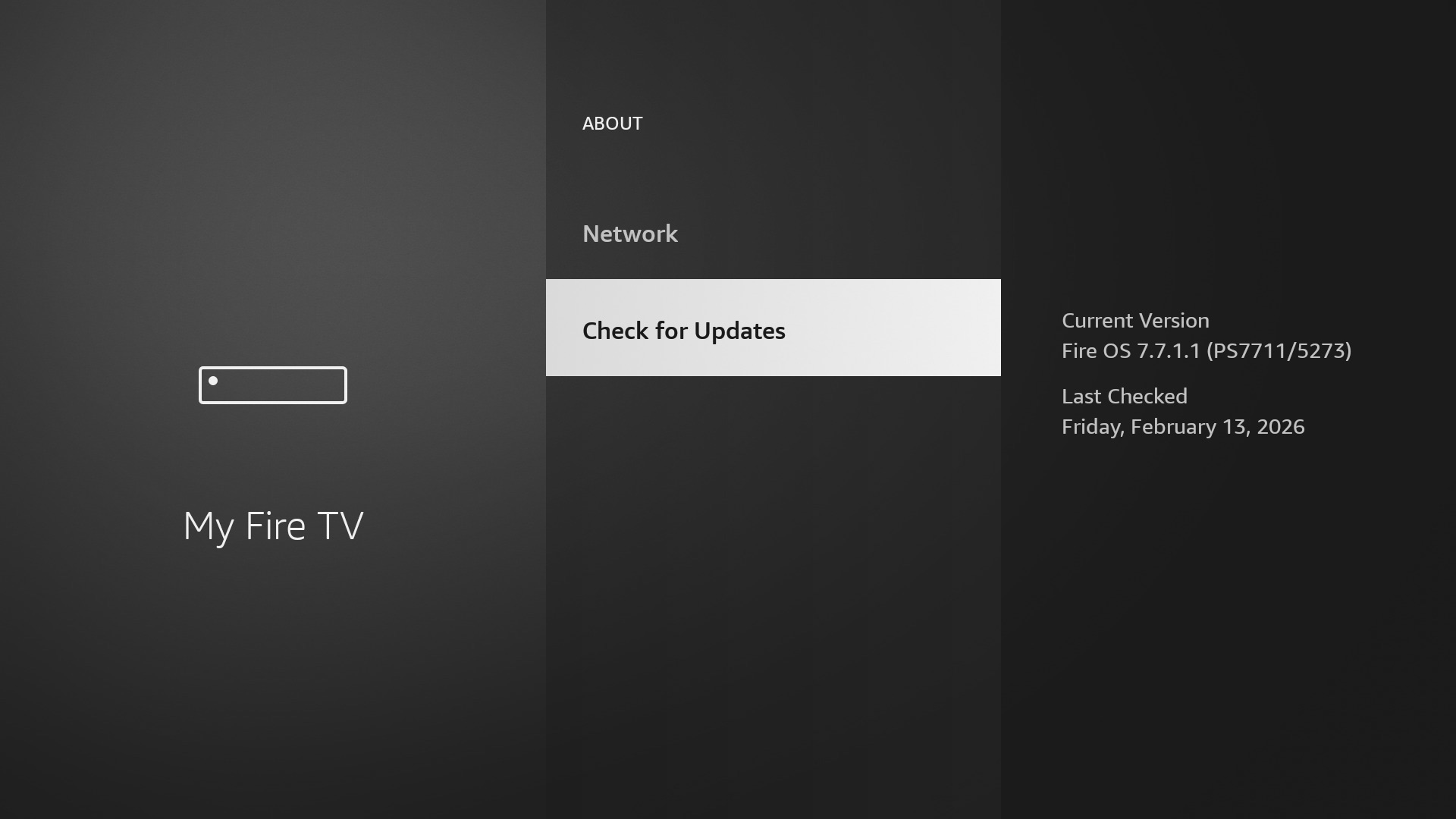
Fire TV settings

Disconnected Remote

If you experience unresponsiveness with the remote, see a “No remote detected” message on the TV screen, or notice a rapid flashing LED light, then your remote is likely disconnected.

Follow these steps to reconnect your remote:

Step-by-step guide

1. Keep your remote within 10 feet (3 meters) of your TV.

2. Unplug your Fire TV from the power source and wait 60 seconds.

3. Remove the batteries from your remote by sliding off the back cover.

4. Plug in your Fire TV.

5. Put the batteries back in your remote.

6. When you see the remote detection error message on the screen, press and hold the Home button for 10 seconds.
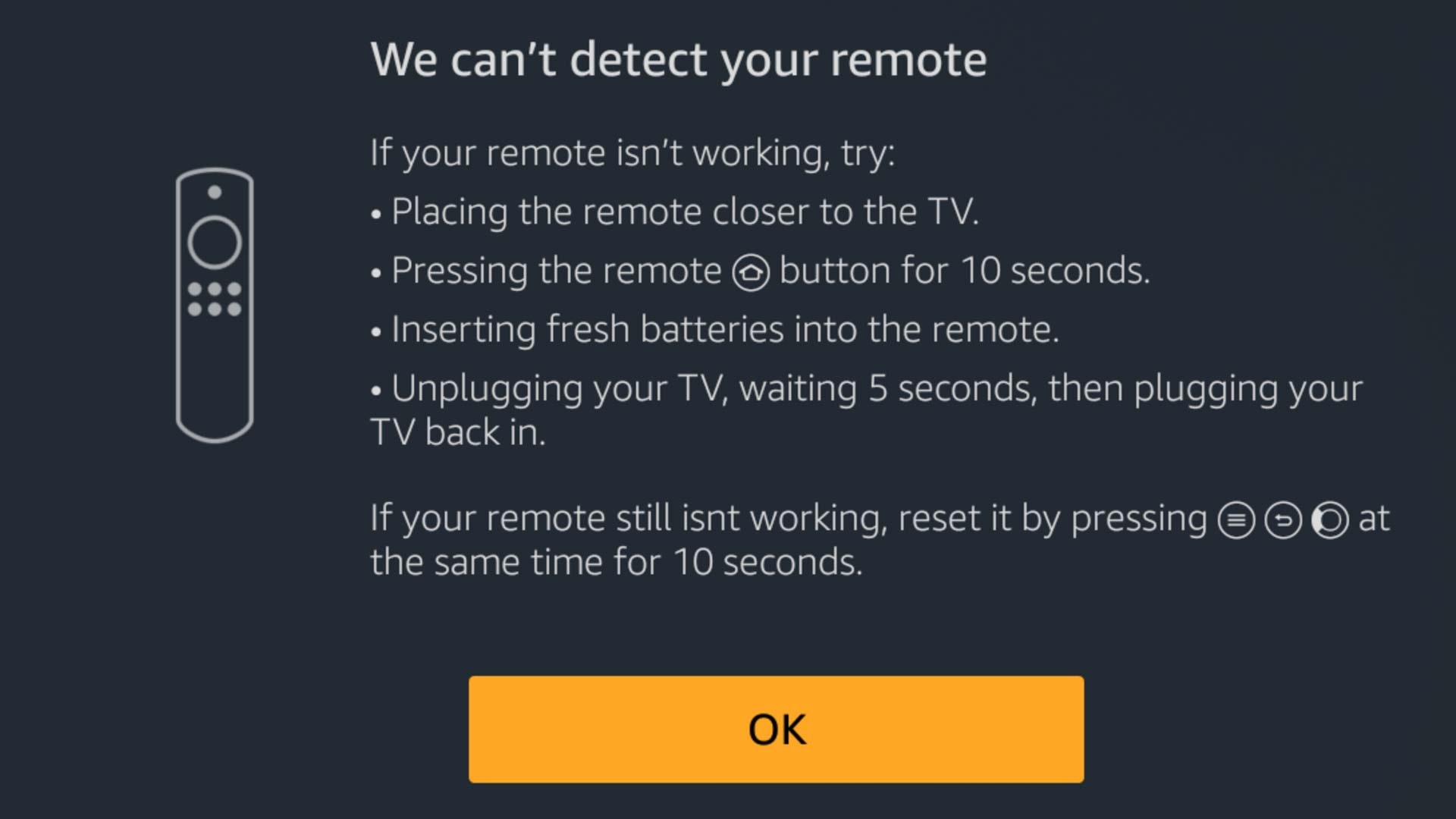
Fire TV message for remote detection

Continued Remote Problems

If, after trying the above, you still have trouble, you can reset your Fire TV remote.

Step-by-step guide

1. Unplug your Fire TV from the power source and HDMI input, then wait 60 seconds.

2. Press and hold the Left button, Menu button, and Back button at the same time for 12 seconds.
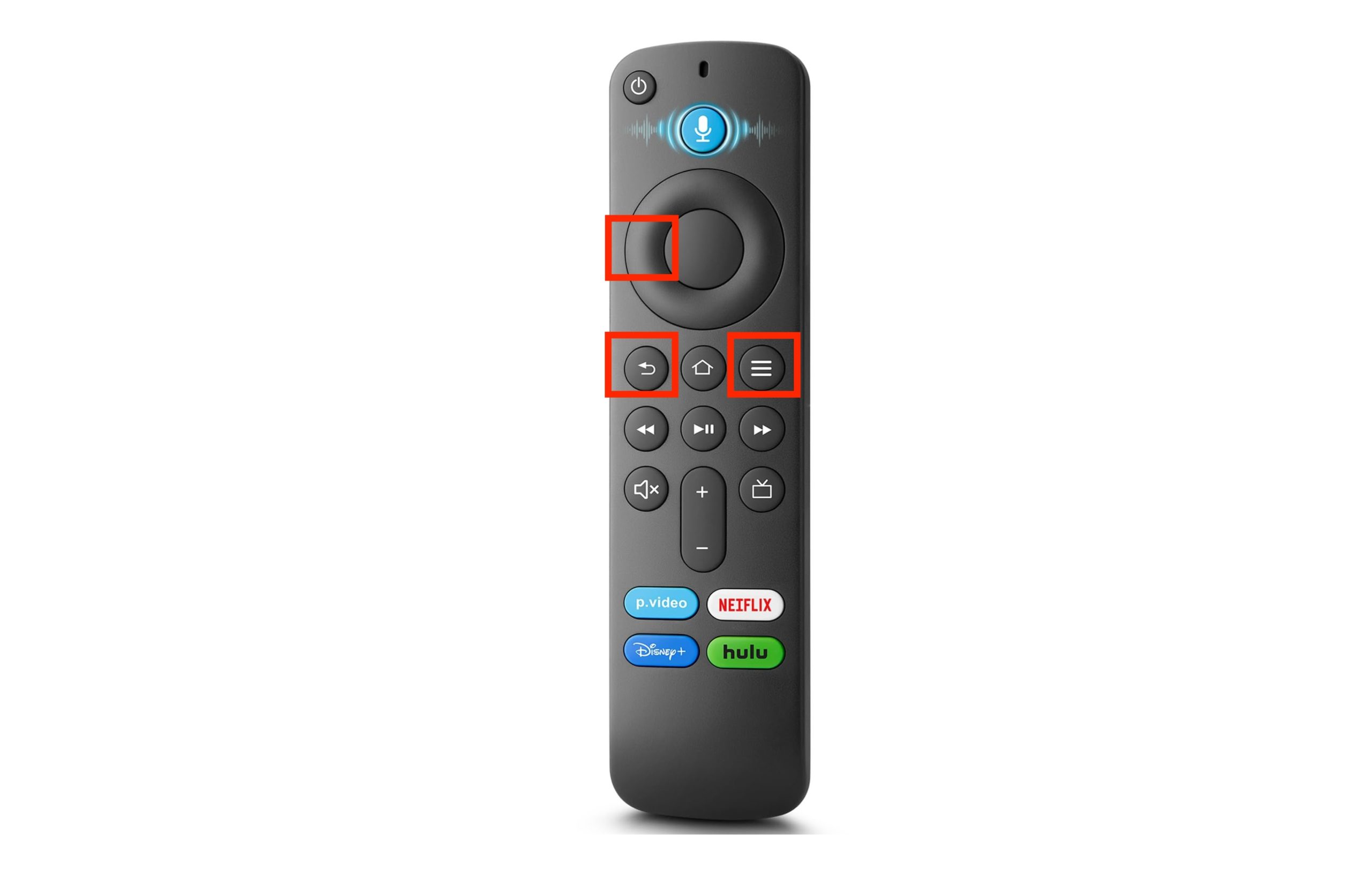
Tap buttons on the Fire TV remote

3. Release the buttons and wait 5 seconds.

4. Remove the batteries from your remote by sliding off the back cover.

5. Plug your Fire TV back into the source and input.

6. Put the batteries back in your remote.

7. Press the Home button.

If you see the blinking blue LED light, your remote is paired. If you don’t see the light, press the Home button for 10 seconds.

Try Using a Replacement or Universal Remote App

How to Control Firestick Without a Remote (Using Your iPhone)

When all else fails, you can purchase a new Fire TV remote or opt for a free Fire TV remote app for your mobile device.

Buy a New Fire TV Physical Remote

You can perform a search to find Fire TV remote replacements at retailers like eBay and Best Buy or head straight to Amazon for a decent selection. 

Currently on Amazon, prices range from $8 to $30, depending on your Fire TV or Fire Stick model or if you want additional features such as Alexa Voice.

Use a Universal Remote App: TVRem

As an alternative to a physical remote, consider a free Amazon Fire TV remote app such as TVRem. The advantages to this option are the convenience of an easily accessible mobile app, no worries of replacing batteries, reconnecting, or resetting a physical remote, and more money in your pocket because TVRem is completely free with no in-app purchases.
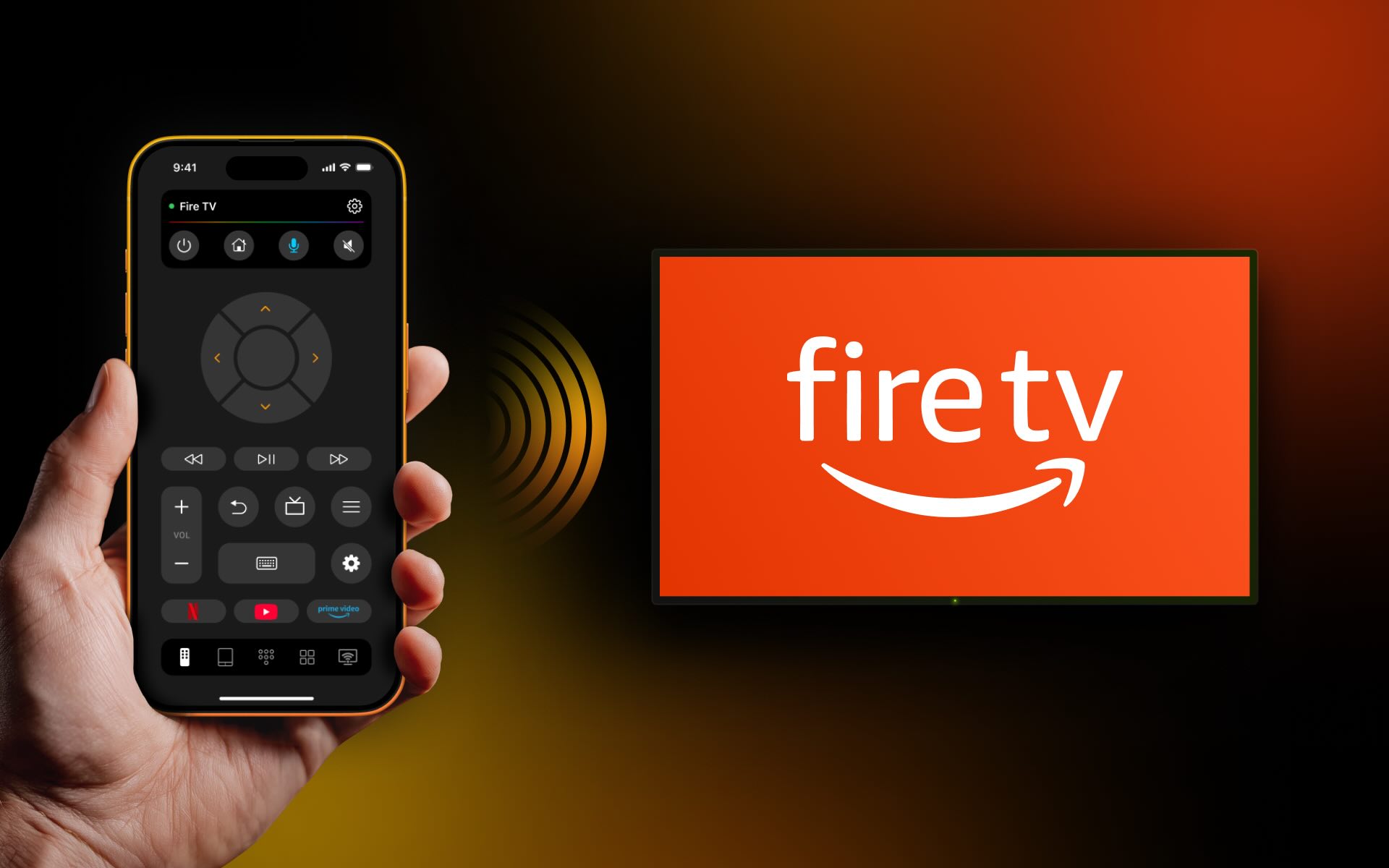
TVRem is the best Fire TV app alternative

With TVRem, you can also control additional TVs in your home, including Roku and streaming players, Amazon Smart TVs, and other TVs with Fire TV built in, Android TV, LG, Chromecast with Google TV, Google TV Streamers, and Samsung TVs.

For features and navigation, you can use button, touchpad, or voice controls, enjoy quick channel switching, and receive haptic and sound feedback — all within an intuitive interface.

To use the app:

Step-by-step guide

1. Download TVRem to your iPhone or iPad and power on your Fire TV.
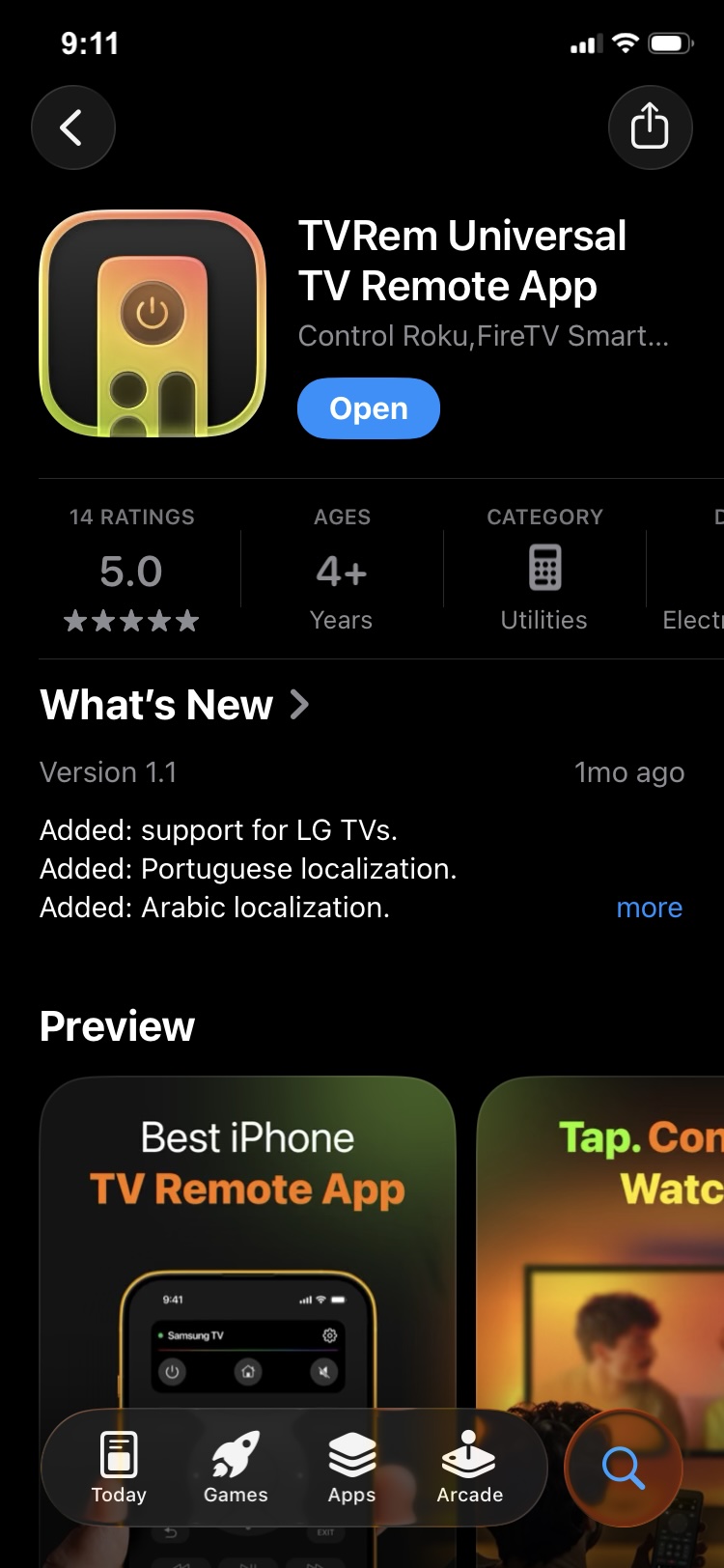
Download TVRem from the App Store

2. Open the app and connect it to the same Wi-Fi network as your TV.

3. When prompted, grant the necessary permissions.

4. Tap Choose a TV.
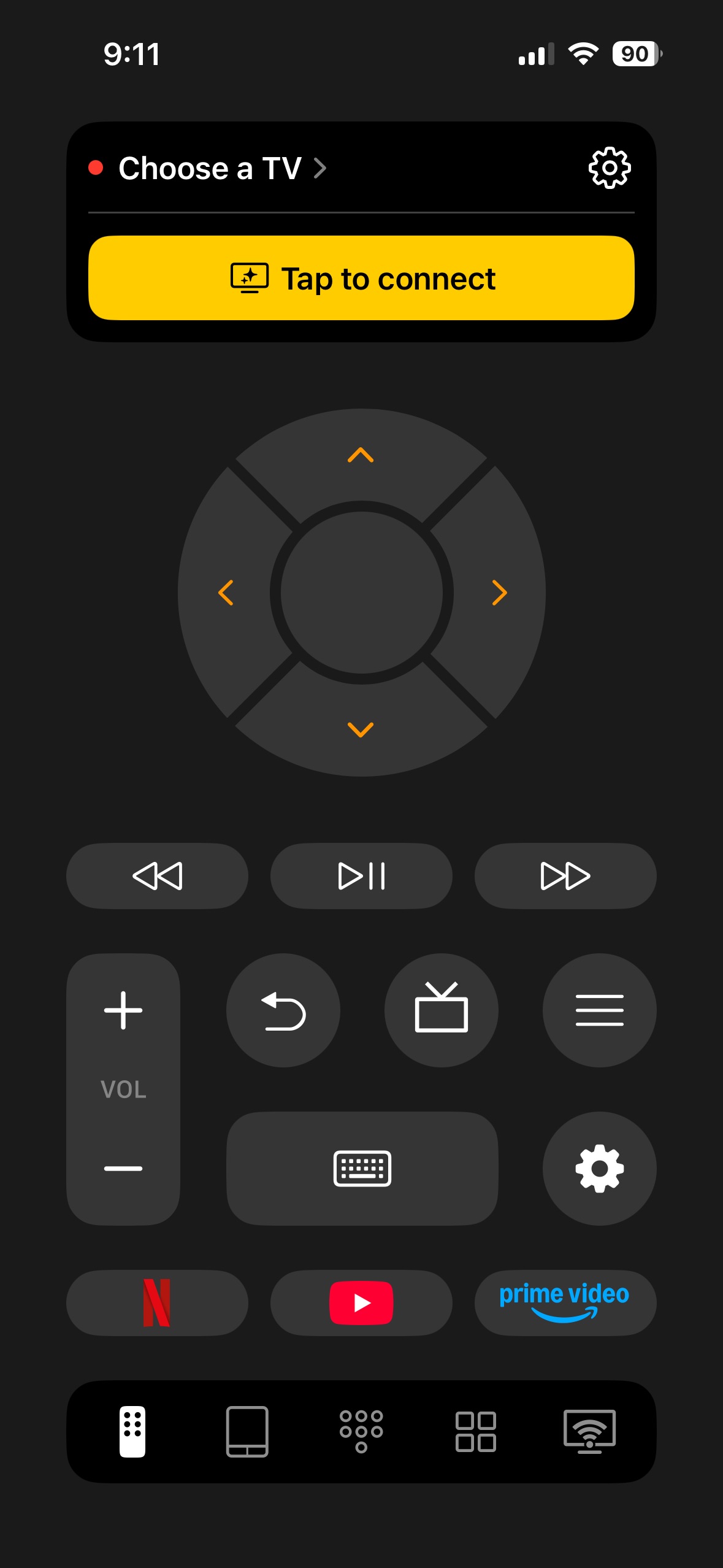
Tap on Choose a TV button in TVRem

5. Select your Fire TV or Fire Stick from the device list.
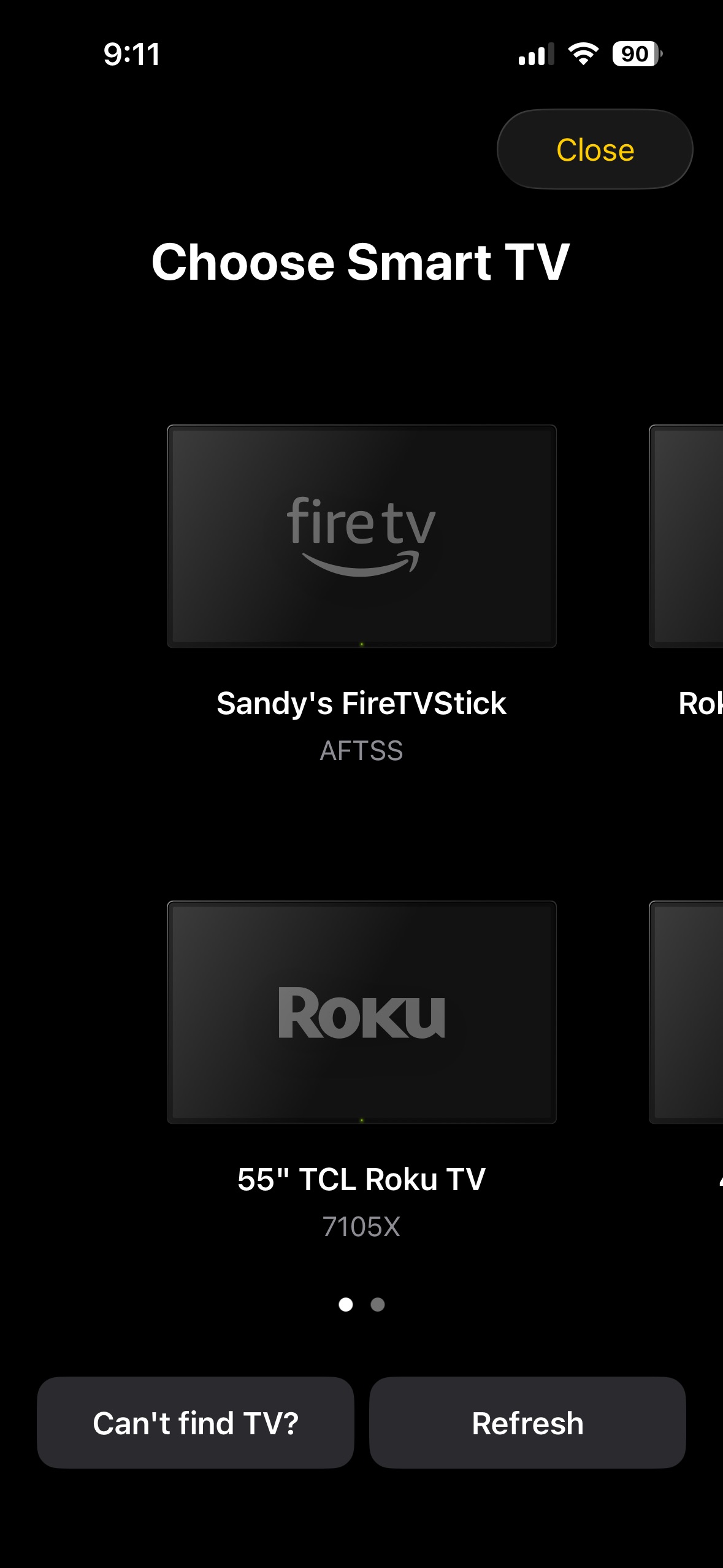
Select your Fire TV from the list of devices in TVRem

6. You’re then ready to get back to your favorite shows and Fire TV channels.
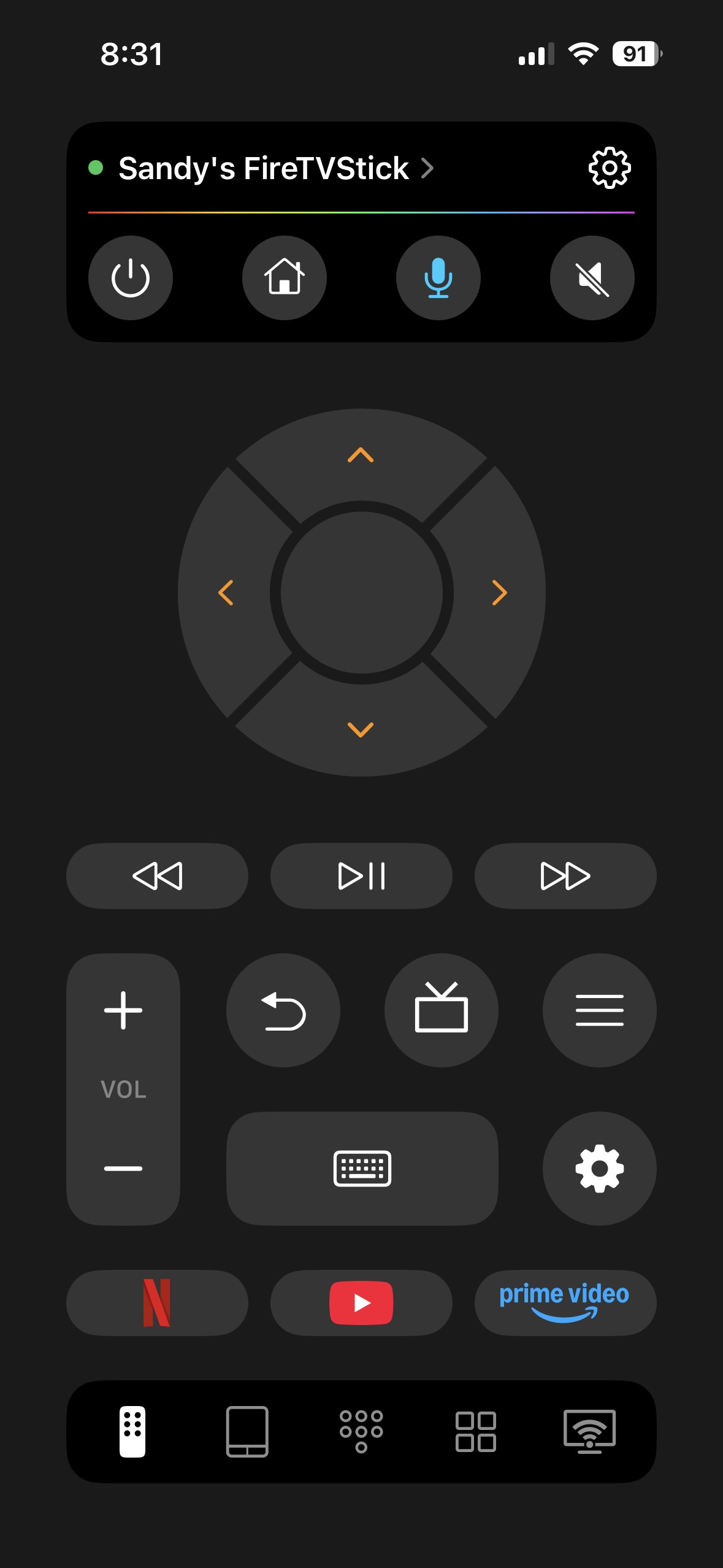
The main screen of the TVRem app

Again, TVRem is available for free on iPhone and iPad without any in-app purchase or subscriptions for additional features or functionality.

Conclusion

There’s nothing more frustrating than an Amazon Fire TV Stick remote not working. Luckily, the reasons and solutions are easily correctable. If you walk through the troubleshooting options without resolve, you can opt for a new physical remote or remote app for your mobile device.

Overall, the better option is a mobile remote app such as TVRem. This gives you the convenience of having your Fire TV remote in-hand whenever you need it without worries of replacing batteries or even losing your physical remote.

TVRem is a universal remote app, which means that it works with other TV brands and streaming players beyond Fire TV and Fire Stick. This lets you use it for other TVs in your home, for a flexible option. Plus, TVRem’s feature set gives you everything you need to control your TV without spending a dime.

Frequently Asked Questions

Unplug your Fire TV and wait 60 seconds. On your remote, press and hold the Left, Menu, and Back buttons at the same time for 12 seconds, then release the buttons and wait 5 seconds. Remove the batteries from your remote, plug your Fire TV back in, and put the batteries back in your remote. Finally, press the Home button on your remote.

Dead batteries are only one reason that your remote for Fire TV is not working. Your Fire TV or Fire Stick may need an update, your remote may be disconnected from your TV, or you may simply need to reset your Fire TV remote.

A blinking yellow light means that your Fire Stick remote is unpaired and in discovery mode (searching for Fire TV devices). If the remote does not connect, this can be due to dead batteries, substantial interference, or the need to reset the remote.

Yes! TVRem is a completely free universal remote app that works with Fire TV along with other TV brands and streaming players like Roku, Samsung TV, Android TV, Chromecast with Google TV, and more.

TVRem offers voice control and input, touchpad navigation, quick app launch, and smart keyboard input without any worries of in-app purchases or subscriptions.