Best Ways to Operate Your TV with a Philips TV Remote Control App

thumbnail

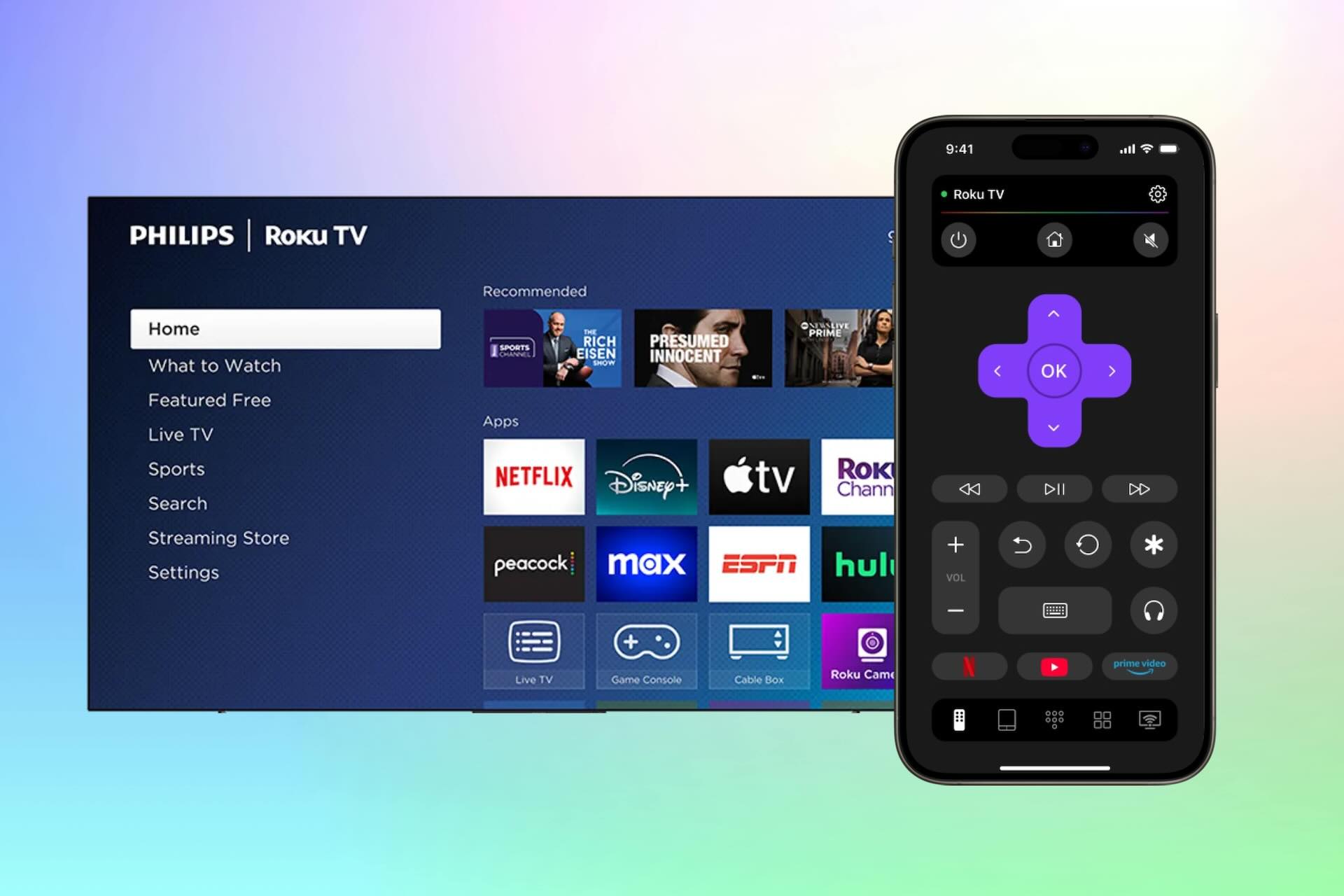
When the Philips remote vanishes, the power fades out of its cells, or tapping letters on screen feels like punishment, using a phone makes sense. Here’s how to choose the right Philips TV app remote based on the operating system your TV runs – whether it runs Roku TV, Android TV, Google TV, or earlier versions made by Philips.

Why Remote Apps Got Popular (and Why They Usually Win)

Remote control apps on phones became popular once televisions turned into internet-connected gadgets. Since these apps connect through Wi-Fi or wired networks instead of infrared signals, pointing at the screen isn’t necessary anymore – nor is struggling with sluggish arrow-based typing.

Top versions bring full keyboards, speech-to-text entry, instant access to favorite shows, plus navigation that feels like using a trackpad rather than pushing plastic keys. Even better, one device manages several TVs around the house without juggling separate clickers for each room or setup.

Understanding Your Philips TV Operating System

Before choosing a remote app, it is essential to identify your TV’s operating system:

  • Titan OS (2026 models and newer): As of the 2026 lineup, Philips has moved its entire global range – including flagship OLED+ models – to Titan OS, its own Linux-based, web-app platform, replacing Google TV entirely outside North America.
  • Google TV / Android TV (2018-2025 models): Used on Philips TVs from these years, mainly mid-to-high-end sets outside North America. No longer used on new 2026 models.
  • Roku TV: The primary platform for Philips-branded TVs sold in North America (via licensee P&F USA), across almost the entire lineup, not just “common”.
  • Saphi (Linux-based): Used on older and entry-level Philips Smart TVs, mainly in European and select Asia-Pacific markets.

Best Remote Apps for Philips TV

In this list, you can find the best remote apps for any type of Philips TV. Read carefully and choose the one that best suits your needs.

1. TVRem Universal TV Remote App

Try TVRem – The Free Universal Remote App for iPhone & iPad

One way to start? Try TVRem if you need a free Philips TV remote app that actually works across common Philips setups. It stands out because it speaks both Roku and Android TV – two systems where most modern Philips sets live today. That overlap makes life easier when switching between them. Real talk: fewer headaches mean less time fiddling, more time watching.
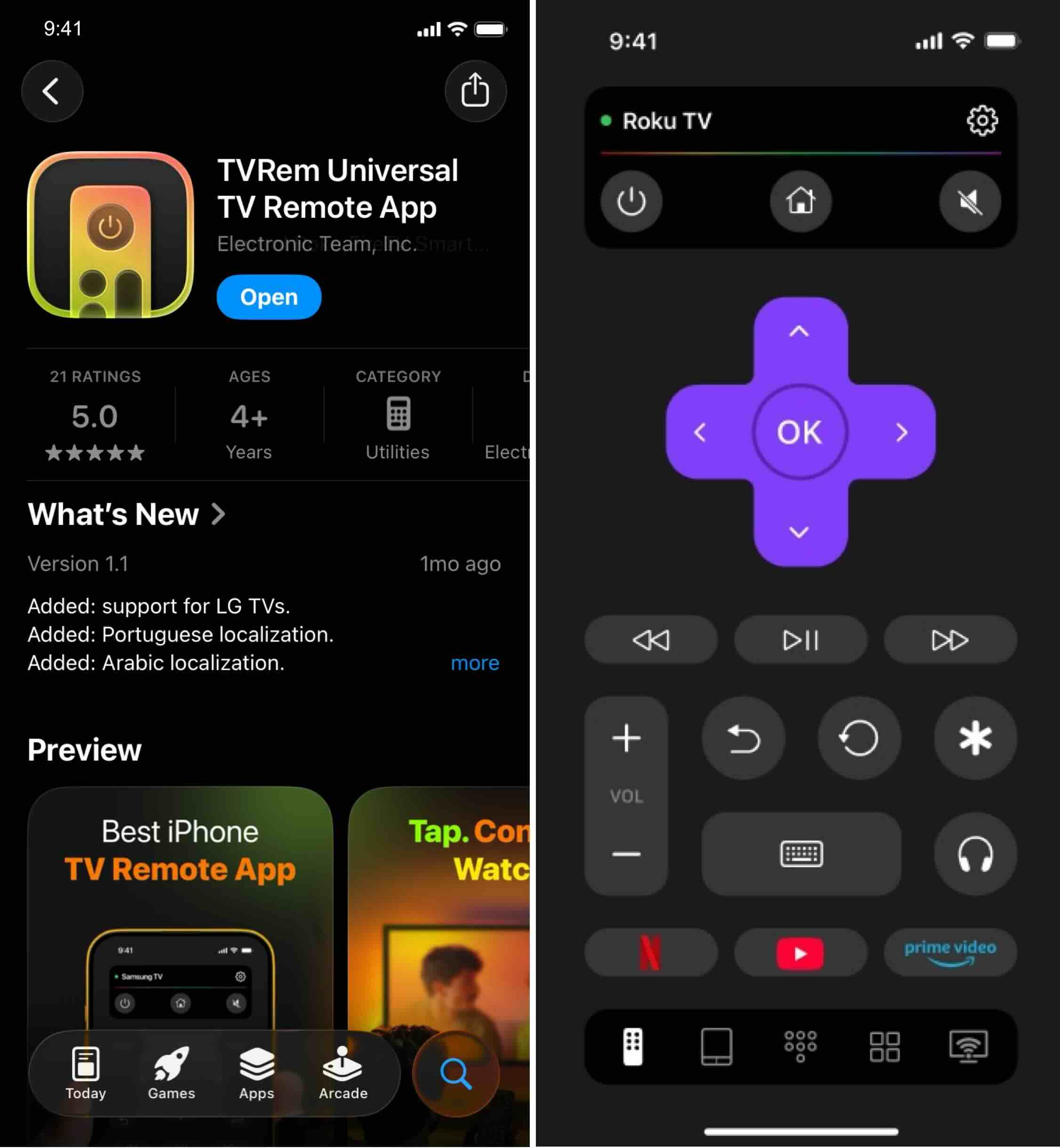
Choose TVRem - the best Philips TV remote app for iPhone or iPad

Key features:

  • 📌 Cross-platform coverage. One app works on Roku, plus it runs smoothly on Android TV and Google TV. Other big names like Samsung, TCL, Apple TV, and LG are included too. Not limited to just a few – most major TVs connect without issue.
  • 📌 Keyboard input for searches/logins and faster typing than on-TV keyboards. Fingers tap keys instead of swiping across screens. That makes searching feel smoother. Logging in takes less time too. Typing stays quicker compared to using menus on televisions.
  • 📌 Voice control paths. Starting with voice commands – Google Assistant or Alexa work where allowed – navigation shifts smoothly. Instead of tapping, a touchpad guides choices.
  • 📌 Quick app launch. Open your favorite shows fast, thanks to instant access on popular platforms.

Pros

  • Best "one install" option when you don’t want to guess whether your Philips is Roku-based or Android/Google TV-based.
  • The keyboard + touchpad combo is a real usability upgrade for search-heavy use

Cons

  • If your Philips TV is on Titan OS / Saphi / some older Linux-smart variants, Philips’ own companion app may be a more predictable match

2. Roku app as a Remote App for Philips TV

This app works if your Philips television runs on Roku. While that setup is required, it functions only under those conditions. Where the model supports Roku, access becomes possible. Without Roku built-in, forget about using it.
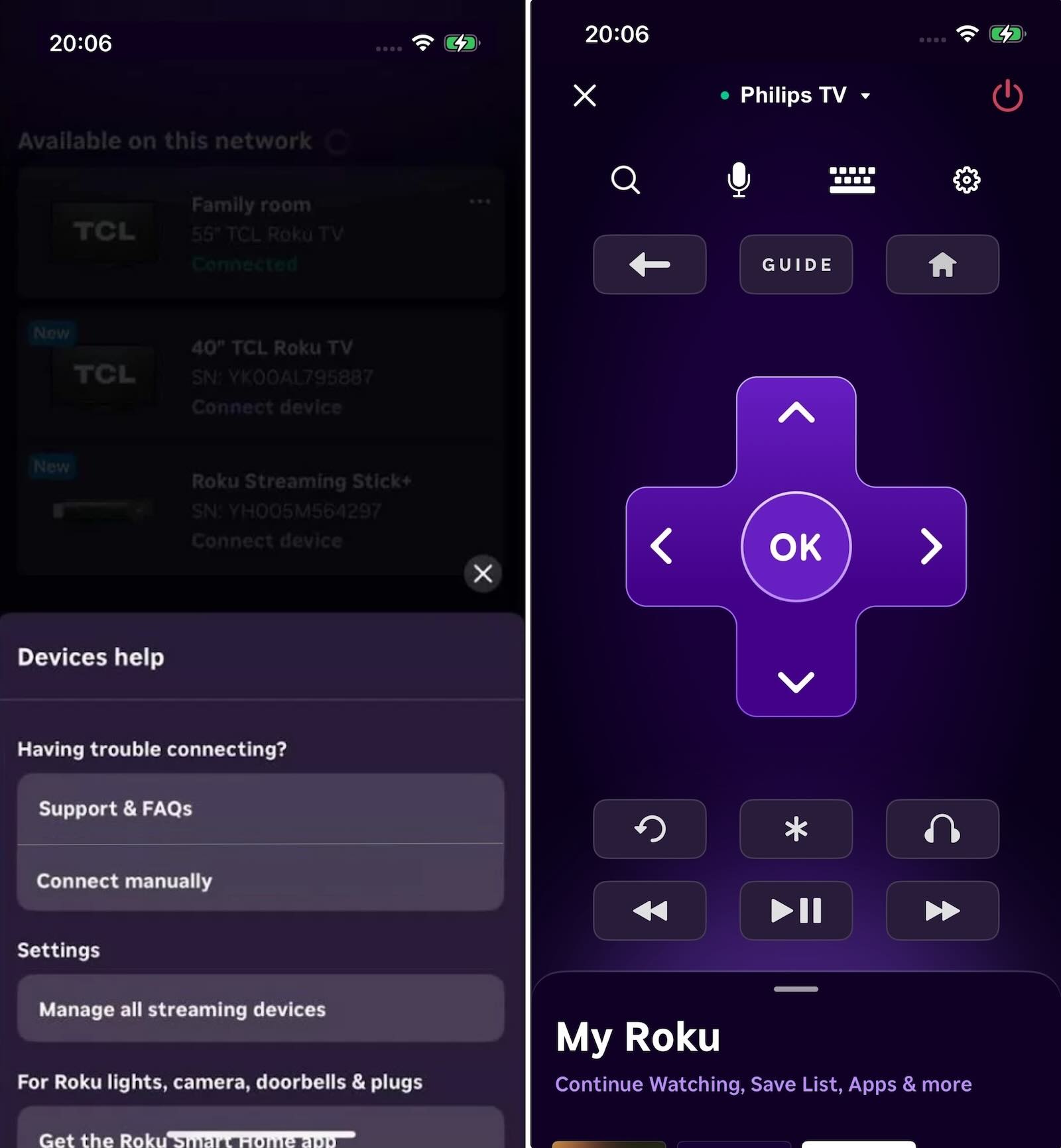
The Official Roku App as an alternative to the remote connect to Philips TV

Key features:

  • 📌 Full remote control functionality. Grab your phone. It turns into a remote for your Roku TV. Move through menus, start shows, skip scenes – just tap.
  • 📌 Voice and keyboard search. Quickly find movies, shows, and channels by speaking into your phone or typing with the mobile keyboard.
  • 📌 Cast media from your phone. Cast videos, photos, and other media from your phone directly to your Roku TV.

Pros

  • Philips Roku TVs run the most consistently due to ownership of the platform
  • Fine-tuned for speaking tasks along with speedy lookups

Cons

  • Works mainly with Roku - built that way on purpose

3. Google TV App

Tap around your television using this Philips Google TV Remote App on your iPhone. Instead of flipping through menus, speak what you want – voice search makes it quick. Type titles easily thanks to a keyboard tucked inside the app. Control play, pause, skip forward, backward – just like holding a real remote. It works smoothly with Philips TVs powered by Google TV. Every command feels instant, natural.
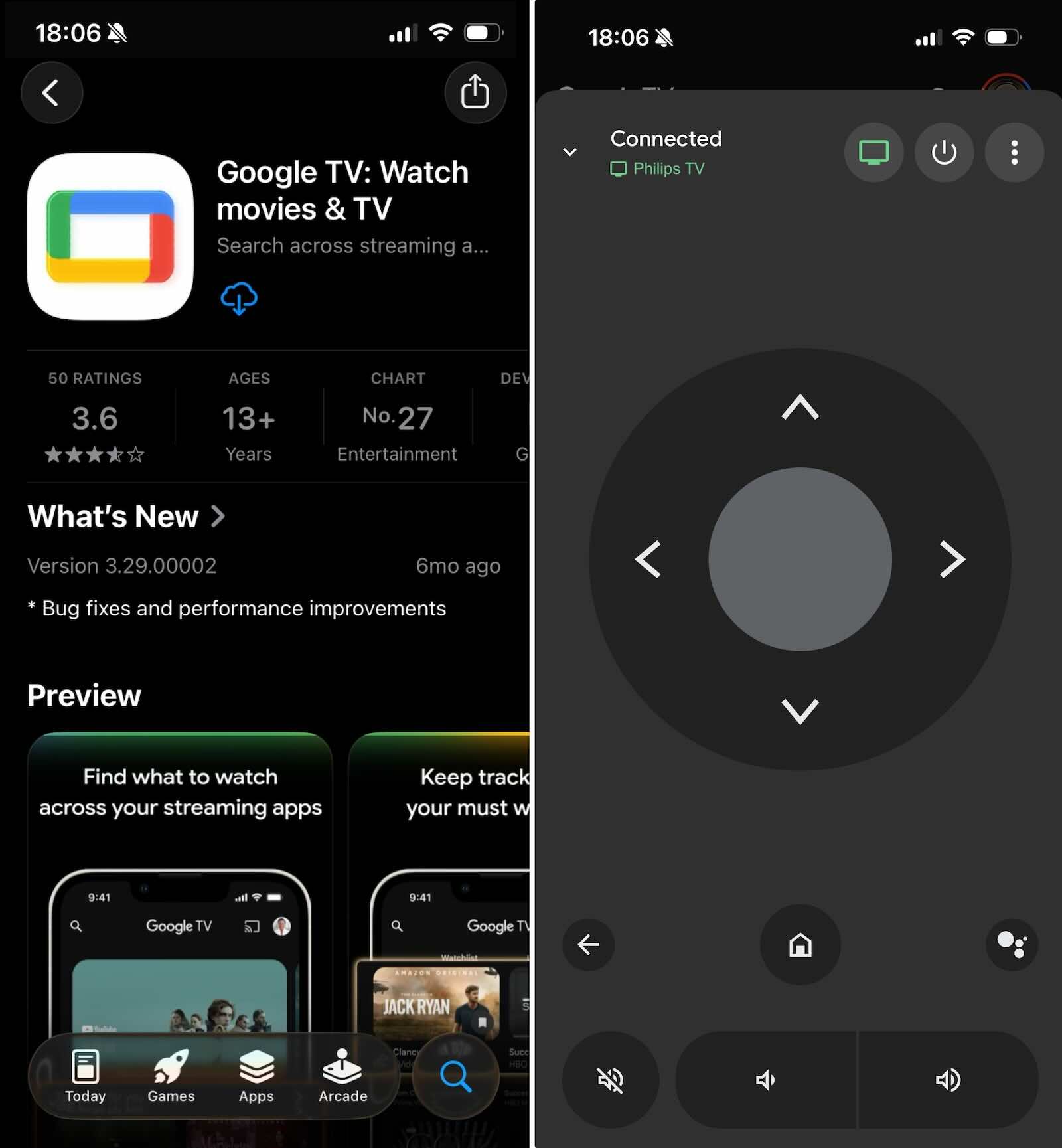
Google TV app as an alternative to the remote connect to Philips TV

Key features:

  • 📌 Simple keyboard entry. Start typing on your phone’s keypad when you need to enter a password, look something up, or fill out forms inside apps – it beats navigating through the TV menu every time. That little screen just works quicker than pointing and clicking from across the room.
  • 📌 Unified streaming hub. From right inside one spot, check out TV and films on every app you’ve linked up. Jumping from service to service? Not needed here.
Important Note for iPhone Users: While older Philips documentation states that the Google TV virtual remote is restricted to Android, the official Google TV App for iOS fully supports virtual remote functionality on iPhone and iPad. Ensure both your iPhone and Philips Google TV are connected to the same Wi-Fi network (same SSID) during initial pairing. If your router broadcasts separate 2.4 GHz and 5 GHz networks, connecting both devices to the same band can also help avoid discovery issues.

Pros

  • Built-in controls handle everything, so there’s no extra app required for operation. Discovery of content happens right within the same space
  • Fingers glide across the iPhone screen, tapping letters instead of wrestling with clunky remote buttons
  • Fresh picks pop up daily, pulling films plus series from every major platform into a single scroll

Cons

  • Fewer features show up when using remotes on iPhones than on Androids, plus extra steps might be needed. Some settings take more time there
  • Just runs on TVs made by Philips that use Google or Android systems

How to Connect a Remote App When Your Philips TV is Offline

If your Philips TV loses Wi-Fi connection, standard remote apps cannot discover the device. Use these step-by-step workarounds to reconnect:

  1. Use a USB Keyboard or Mouse: Plug a standard USB keyboard into the USB port on the back or side of your TV. Use the arrow keys, Enter, and Escape to navigate to Settings > Network & Internet and reconnect to Wi-Fi.
  2. Physical TV Controls: Locate the physical directional joystick or power button under the lower frame or back panel of the TV to open the on-screen menu and access network settings.
  3. Use a Connected Streaming Box’s Remote to Power On the TV: If you have a connected streaming box (such as Apple TV or Fire Stick) with HDMI-CEC enabled, its remote can typically power the TV on and control volume. However, CEC generally cannot navigate the TV’s own system settings menu (like Wi-Fi setup) – for that, you’ll still need the TV’s original remote, a USB keyboard, or the physical controls on the TV itself.
  4. Wired Ethernet: Connect an Ethernet cable temporarily from your router to the TV to give it an instant internet connection, allowing your phone app to detect it on the local network.

Conclusion

There are a multitude of different remote applications available for Philips television sets that are made for specific devices, such as Roku and Google TV.

However, if you’re looking for one remote application that works on your iPhone and provides a solution that can control both major categories of Philips televisions with added convenience while providing smooth typing, navigation, and day-to-day management of your Philips televisions, TVRem is the best remote solution.

With TVRem, the end user gets the flexibility of a universal remote, in addition to the functional ease of using platform-specific features, thus enabling you to control more than one Philips television, while eliminating the need to switch from one application to another. For seamless all-in-one functionality, TVRem will be the application to initially evaluate.

Frequently Asked Questions

Yes. TVRem is free to download and use. There’s no required subscription to get basic remote functionality – install it on your iPhone, connect it to your TV, and control power, volume, navigation, and apps even if the original remote is missing.

Yes. Both your iPhone and television must be on the same wireless network so that the application can discover your television through the local network (as it does not work as an infrared remote control).

TVRem can also control multiple popular smart TV ecosystems and brands, including Samsung, LG, and Sony, plus Fire TV devices and TVs with built-in Fire TV, and Apple TV. Support can vary by model and platform, but it’s designed for multi-brand households.

Most Wi-Fi remote apps cannot turn on a Philips TV from a cold power-off state unless the TV supports Wake-on-LAN (WoL) or has “Network Standby / Switch on with Wi-Fi” enabled in the TV’s power settings. Without this setting active, Wi-Fi turns off when the TV shuts down.

The most common cause is network isolation or dual-band Wi-Fi split. Ensure your iPhone and Philips TV are connected to the same Wi-Fi SSID and frequency (e.g., both on 2.4GHz or both on 5GHz). Additionally, disable “AP Isolation” or “Guest Network” modes on your router, as these prevent devices from communicating with each other.

No. Modern iPhone remote apps communicate with Philips Smart TVs over the local Wi-Fi network (IP control), so no IR blaster is needed. Note that no iPhone model has ever included a built-in IR blaster at all – so even for older, non-smart Philips TVs that rely on infrared signals, an iPhone would need an external Lightning/USB-C IR adapter accessory to act as a remote; it’s not something built into the phone regardless of the TV type.