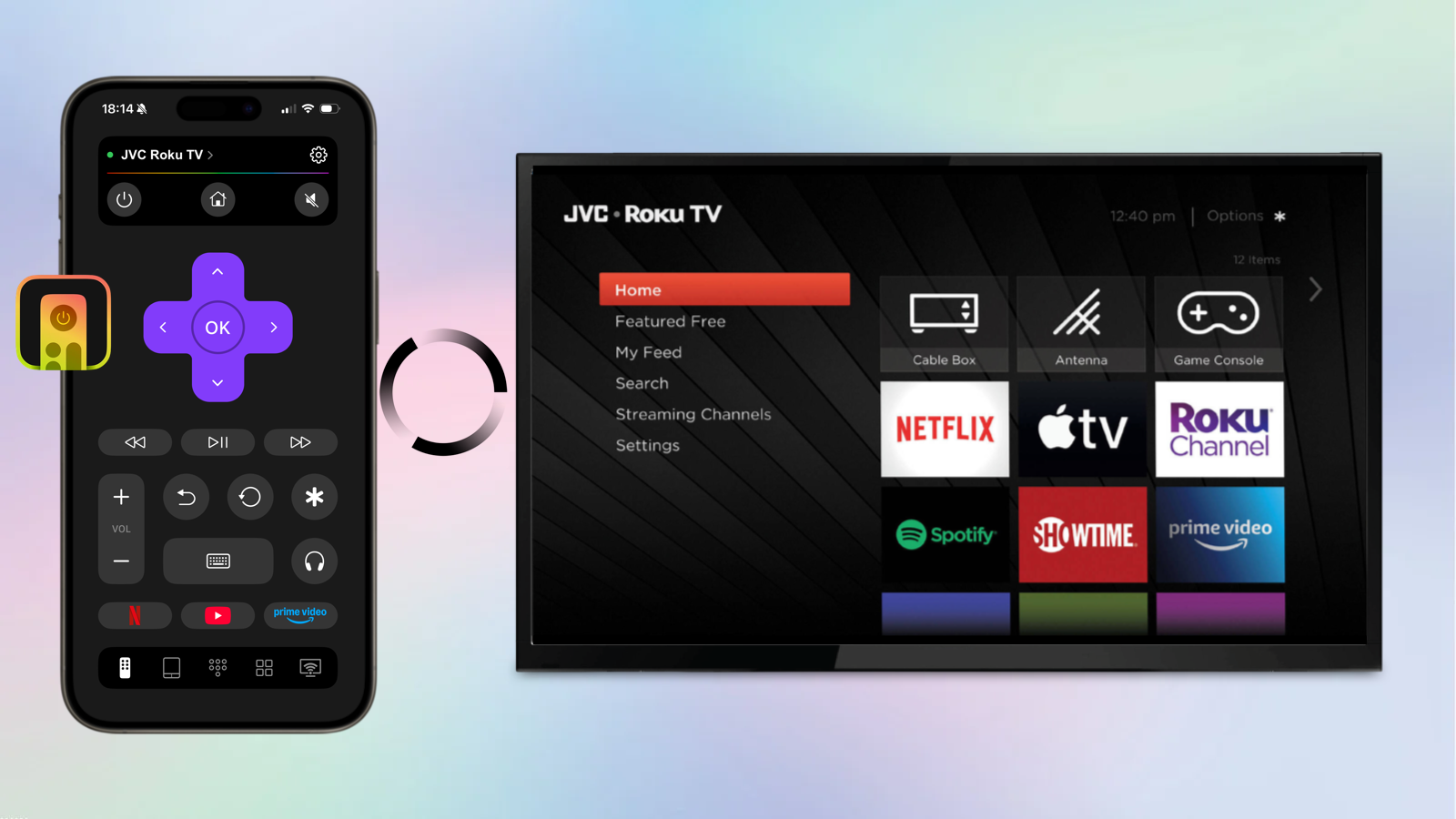
Best iPhone Remote App for JVC TV: No Physical Remote Needed

thumbnail

Misplaced your JVC remote? Or just tired of juggling multiple remotes? The good news is that your iPhone can fully replace a physical remote – and in many cases, it can work even better. This article covers the best JVC TV remote app options for iPhone users, including what they offer, what they cost, and which one is worth downloading.

Best JVC TV Remote Apps for iPhone

How to Use a Roku TV Without a Remote (Free Roku Remote App)

1. TVRem – Universal TV Remote App

TVRem is a free JVC TV remote app that works with a wide range of smart TVs and streaming devices. It is built as a true universal remote, with support for JVC, Roku, Samsung, LG, Fire TV, Android TV, Google TV, and more — all from a single app. Rated 4.8 out of 5 stars, it is one of the most reliable and well-reviewed remote apps on the App Store.
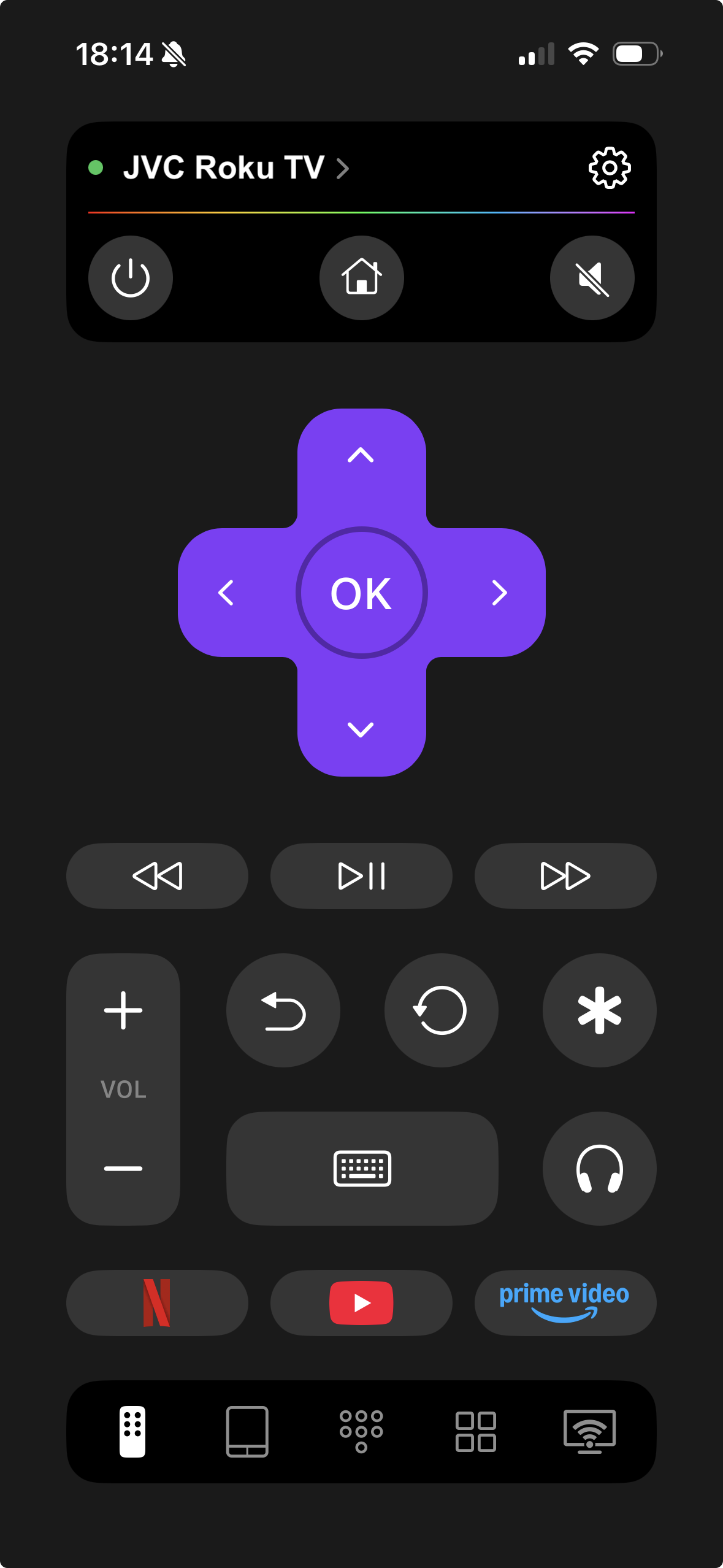
TVRem is the best remote app for JVC Roku TV

✔️ Features:

  • Full navigation control: volume, channels, playback, and input switching
  • Touchpad navigation — swipe and tap just like on a trackpad
  • Smart keyboard for faster text input instead of slow on-screen typing
  • Voice control support through Google Assistant and Alexa
  • Quick-launch buttons for Netflix, YouTube, Prime Video, and other apps
  • Automatic device detection — no manual pairing required

Pros

  • Completely free, with no core features behind a paywall
  • Truly universal – works across many TV brands and platforms
  • Clean, intuitive interface
  • Fast setup with no account required
  • Highly rated by users (4.8 stars, 640+ reviews)

Cons

  • Requires a Wi-Fi connection and does not work through IR on iPhone

💵 Price: Free

2. TV Remote – Universal Remote

TV Remote by Inston is another universal remote app for JVC TV that supports more than 1,000 TV models across 100+ countries. It is designed for quick setup: choose your brand, connect, and start controlling your TV. Rated 4.8 out of 5 with more than 2,600 reviews, it has a solid user base.
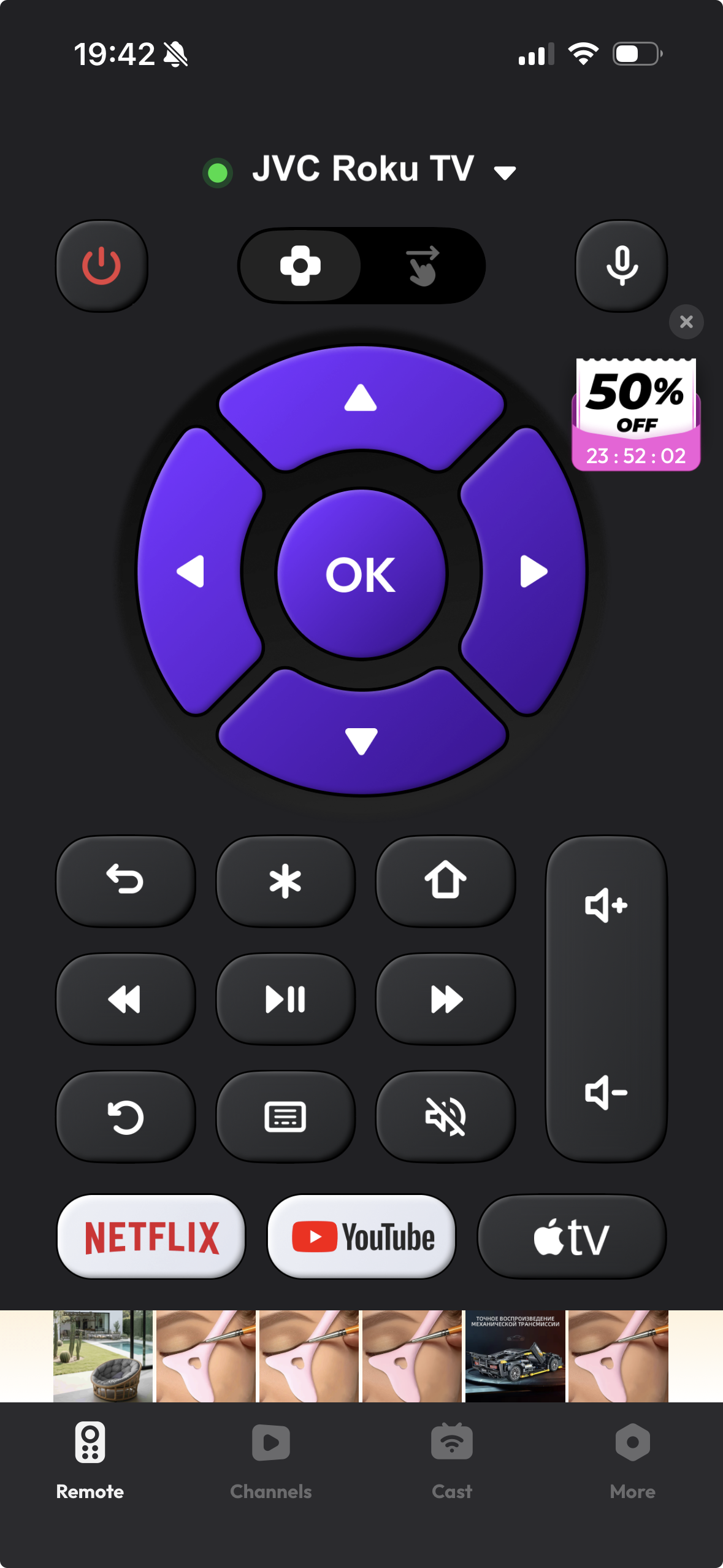
Interface screenshot of TV Remote app by Inston

✔️ Features:

  • Power on/off, volume, mute, and channel navigation
  • Direct channel number entry
  • AV/TV mode switching
  • Menu access
  • Simple one-tap connection to your TV

Pros

  • Wide brand compatibility, with support for more than 1,000 models
  • Simple, beginner-friendly setup
  • Large number of user reviews

Cons

  • Core functionality is locked behind a subscription; the free version is limited mainly to volume controls, which many users find frustrating
  • A subscription is required to access full remote features
  • Some users say the app is misleading about what is free and what is paid

💵 Price: Free to download; full access requires an in-app subscription

Things to Consider Before Picking a JVC TV Remote App

Not all remote apps are created equal, and there are a few things worth checking before you download one.

✏️ Wi-Fi requirement. Most modern JVC TV remote control apps work over Wi-Fi rather than infrared. This means your phone and TV need to be connected to the same network. If your JVC TV is a smart TV, that is usually not a problem. Older non-smart models may not support app-based remote control at all.

✏️ JVC TV platform. Some JVC TVs run Roku OS, others run Android TV or Fire TV, and some use proprietary software. Knowing your TV’s platform helps you choose the right JVC TV remote app. A universal remote app like TVRem can handle all of these, while a platform-specific app may not support your setup.

✏️ Free vs. paid features. Some apps advertise themselves as free but lock the most useful features behind a subscription. Always check what the free version actually includes before downloading. TVRem offers full remote functionality for free, while some competitors, such as TV Remote by Inston, limit the free tier to volume-only controls.

✏️ Reliability and updates. Check the review history. Apps with consistent recent reviews are more likely to be actively maintained and less likely to stop working after a TV firmware update.

Troubleshooting: What to Do If Your JVC TV Remote App Won’t Connect

Most connection issues with a JVC TV remote app come down to a few common causes, and they are usually quick to fix.

The app cannot find the TV at all.

Start with the basics: make sure your iPhone and JVC TV are connected to the exact same Wi-Fi network, including the same SSID and band. If your router uses separate names for 2.4 GHz and 5 GHz networks, try switching one device so both are on the same one. Then close and reopen the app to trigger a fresh scan.

The TV appears in the list, but does not respond to commands.

This usually means the connection started but did not complete properly. Try restarting the remote app, then restart your JVC TV by unplugging it for 30 seconds. Also, make sure no other device is actively controlling the TV at the same time, since some TVs accept only one remote connection at once.

The app connected before, but stopped working after a TV update.

TV firmware updates can sometimes reset network settings or change how the TV handles remote connections. Open your JVC TV settings, look for the network or remote access section, and make sure remote control or mobile app control is still enabled. Then reconnect through the app.

The app shows “device not supported”.

Not every JVC TV model is a smart TV. Older or budget JVC models may not support Wi-Fi at all, which means app-based remotes will not work. In that case, a hardware universal remote with IR is usually the best option.

The connection drops frequently.

This is almost always caused by a weak Wi-Fi signal. If your JVC TV is far from your router, the connection may be unstable enough to interrupt app commands. Moving the router closer, using a Wi-Fi extender, or switching to a 5 GHz network, if both devices support it, will often solve the problem.

Conclusion

If you are looking for a JVC TV remote app that is free, easy to set up, and actually works, TVRem is the clear winner. It is genuinely free, supports JVC TVs along with many other smart TV brands, and takes less than a minute to connect. TV Remote by Inston has a large compatibility database and strong ratings, but its limited free tier makes it less practical for most users. For the best JVC TV remote app experience on iPhone, TVRem offers more value without requiring a subscription.

Frequently Asked Questions

If you do not have a remote, there are still a few options. Most JVC TVs have a physical power button on the side or bottom of the unit, so check along the edges of the bezel. You can also use a JVC TV remote app on your iPhone. As long as the TV is in standby mode and connected to the same Wi-Fi network as your phone, many apps can send a power-on signal wirelessly.

Yes. A universal remote app for JVC TV, such as TVRem, can work with JVC smart TVs over Wi-Fi. The app detects your TV on the network and gives you full control without physical pairing. Hardware universal remotes that use IR also work with many JVC TVs, since JVC generally uses standard infrared protocols.

Yes, there are several. TVRem is a free TV remote app that does not lock core features behind a paywall. You get full navigation, keyboard input, voice input, and quick-launch buttons at no cost. Some other apps are free to download but restrict functionality unless you subscribe, so it is worth checking the details before choosing one.

For Wi-Fi-based remote apps like TVRem, pairing is usually automatic. Make sure your iPhone and TV are connected to the same Wi-Fi network, then open the app. It should scan for your TV and detect it within seconds. Tap your TV’s name to connect, and you are ready to go. In most cases, no Bluetooth pairing or manual IP entry is required.