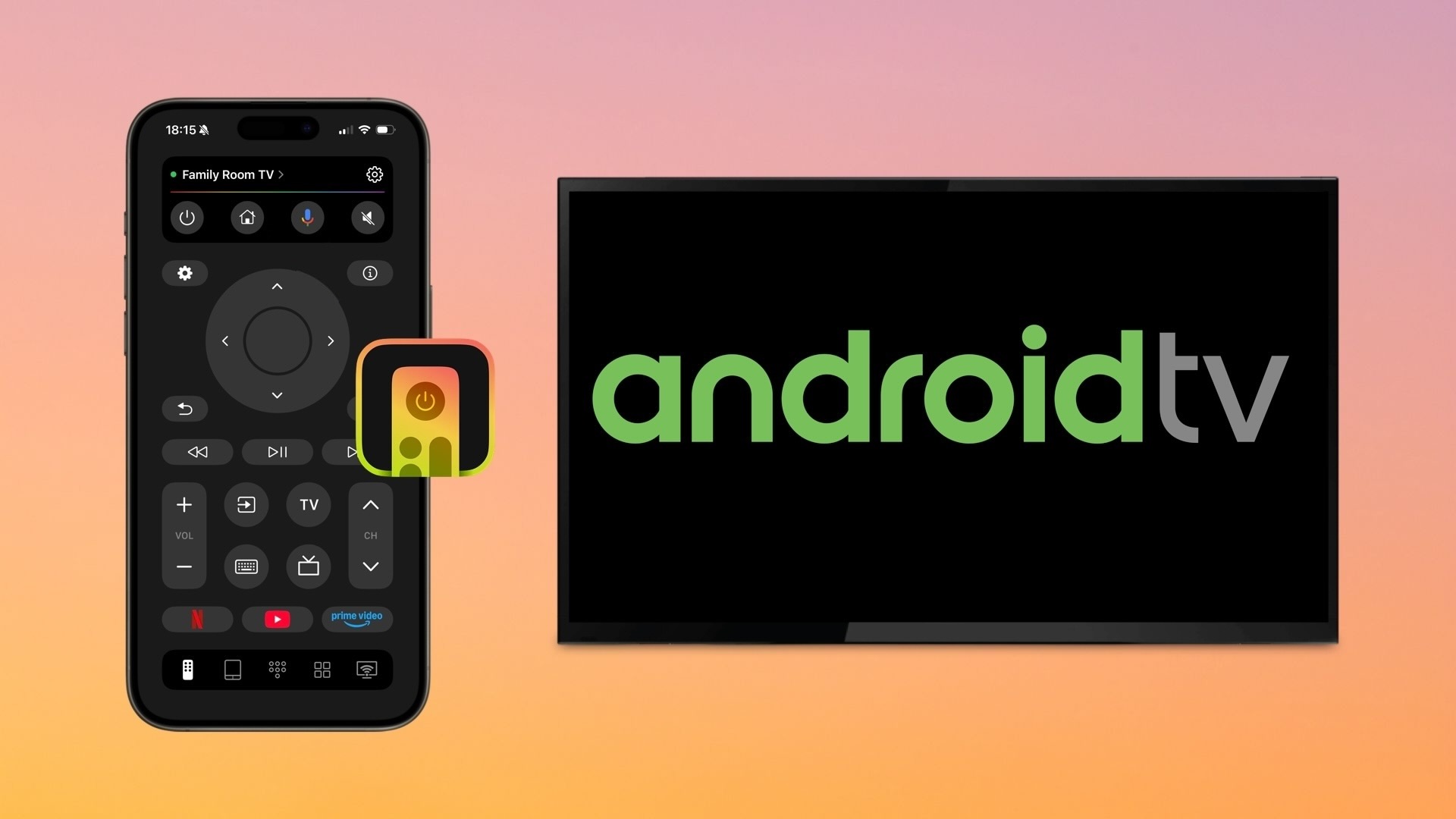
How to Use the Android TV Remote App for iPhone to Control Your TV

You can stop worrying about a missing, broken, or disconnected physical remote for your Android TV. Using a mobile app, you always have control of your TV at your fingertips. Here are the best Android TV remote apps for iPhone, along with their features and how to connect them.
Why Use an Android TV Remote Control App for iPhone
Although you have a physical remote, there are times when an Android TV remote app for iOS makes sense. If you misplace your remote control or don’t have replacement batteries on hand, a mobile app gives you back control of your TV in just minutes.
You can also consider downloading a free Android TV remote app as a backup or to take advantage of extra features that your physical remote doesn’t offer.
1. TVRem Universal Remote App
The TVRem app is a universal remote for iPhone that allows you to connect to various TV brands, along with Android TV. You can also use it for Roku and streaming players, Amazon Smart TVs and those with Fire TV built in, Google TV Streamers, Samsung TVs, LG TVs, and many more.
You can use the buttons, touchpad, or voice controls for flexible navigation options. Adjust the volume, change channels, control playback, and search for shows with your iPhone keyboard. You can also use the quick app launch for viewing Netflix, YouTube, or Prime Video.
To connect the TVRem app to your TV:
Step-by-step guide
1. Download TVRem to your iPhone and power on your TV.
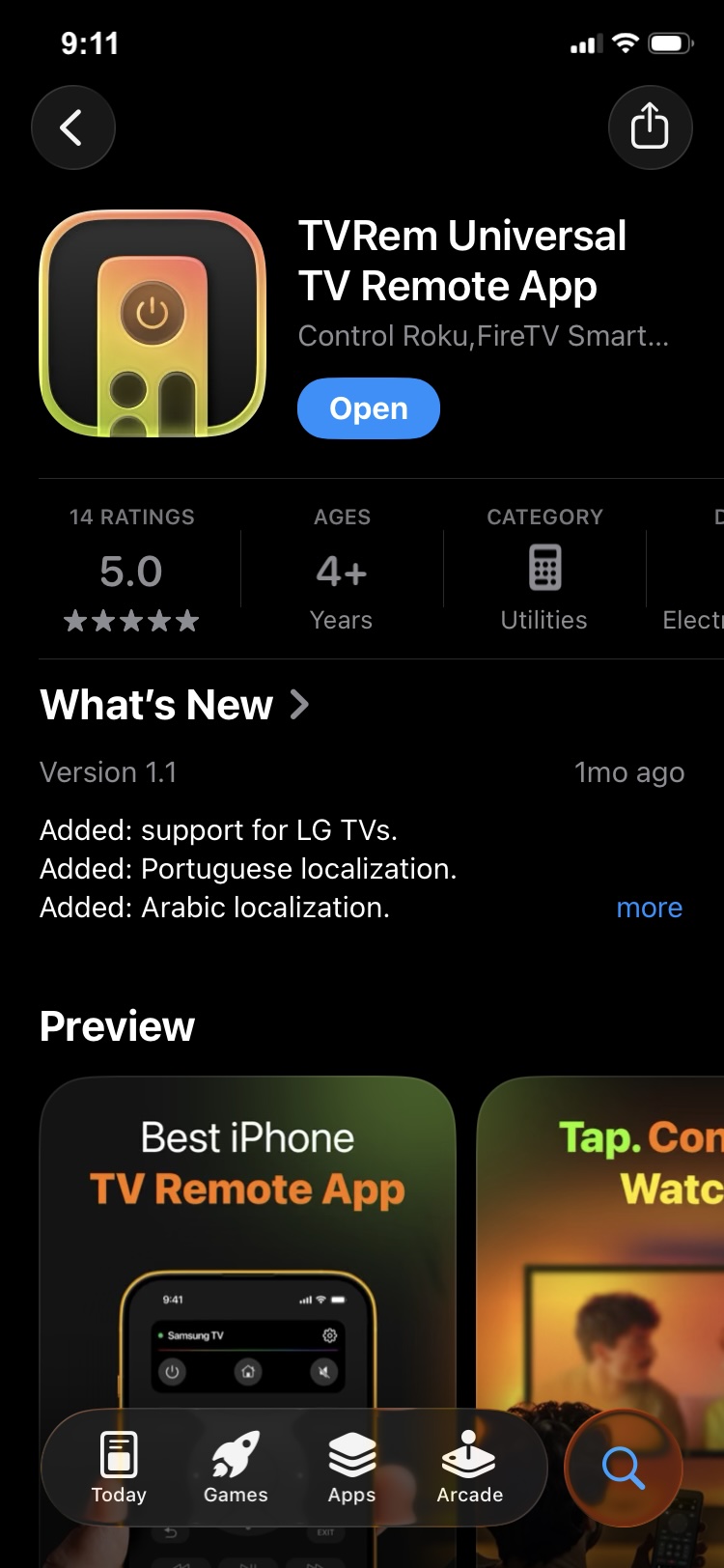
2. Open the app and connect it to the same Wi-Fi network as your TV.
3. When prompted, grant the necessary permissions.
4. Tap Choose a TV.
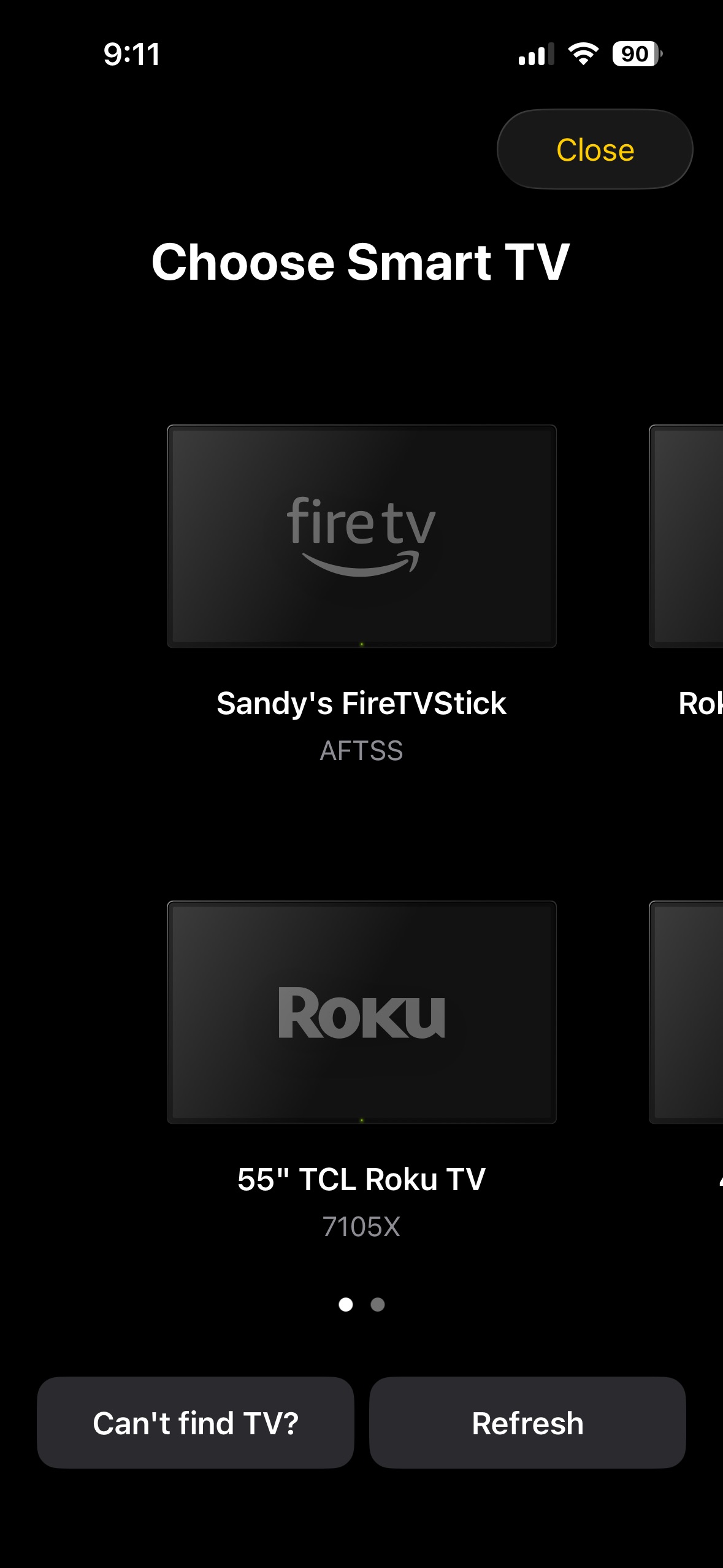
5. Select your Android TV from the device list.
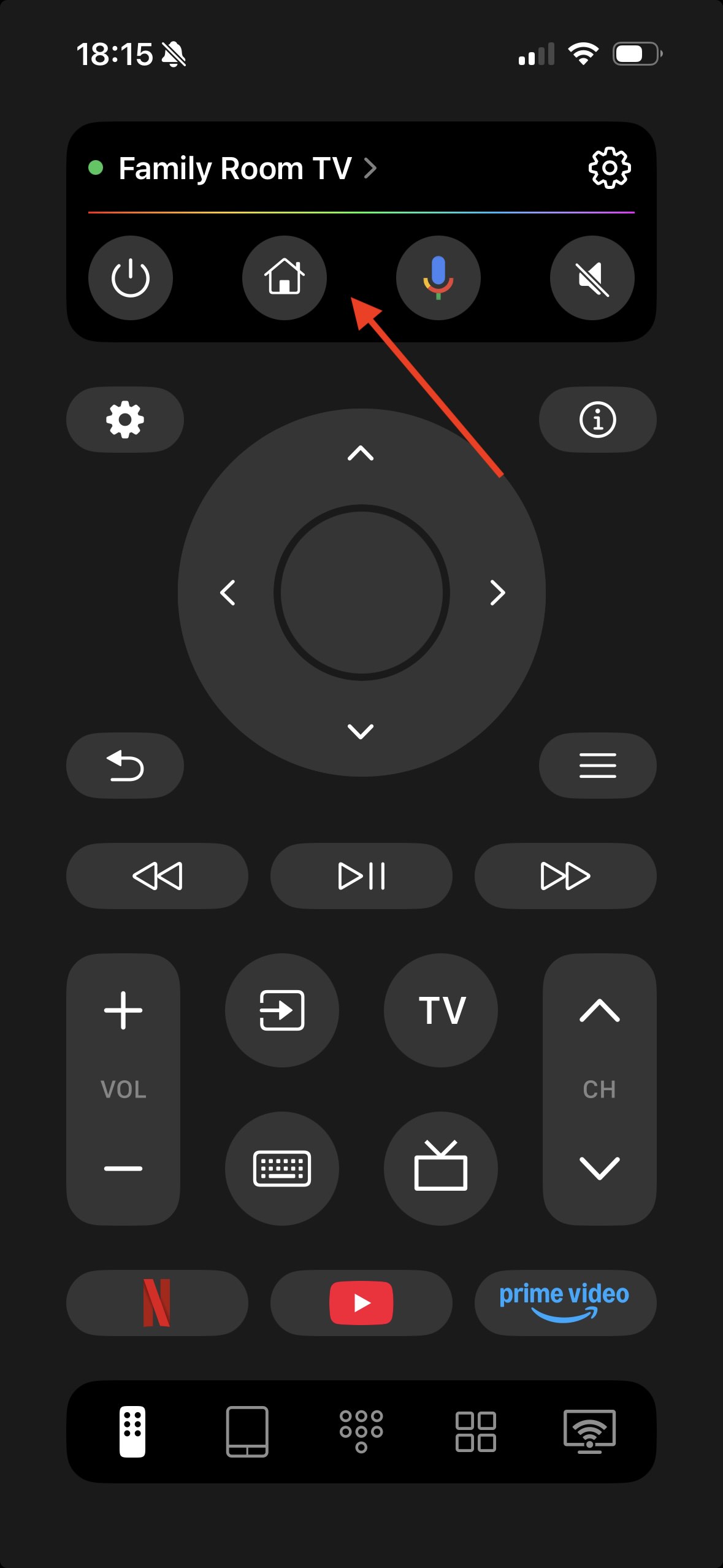
6. You can then check out your favorite shows and channels on your Android TV.
TVRem is completely free and available for both iPhone and iPad without subscriptions or in-app purchases.
2. Google TV App
The Google TV app (formerly, Play Movies & TV) lets you control your Android TV from the palm of your hand. This option provides additional features such as finding shows across streaming apps, creating a Watchlist, and accessing a Library of recommendations and downloads.
You can also use your iPhone keyboard to easily search for movies and TV shows or enter your passwords on Android TV and Google TV.
To connect the Google TV app to your TV:
Step-by-step guide
1. Download Google TV to your iPhone and power on your TV.
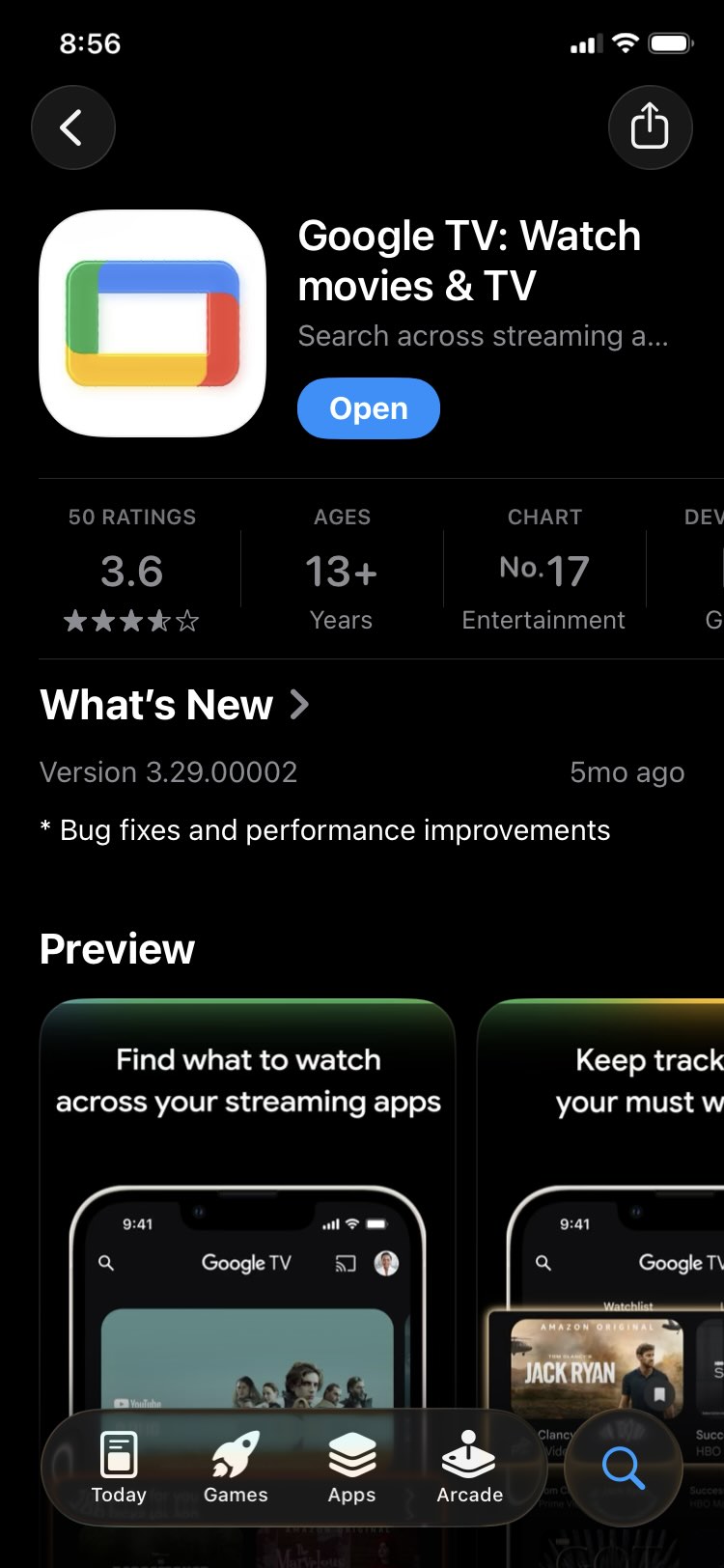
2. Open the app and connect it to the same Wi-Fi network as your TV.
3. Tap Connect TV near the bottom.
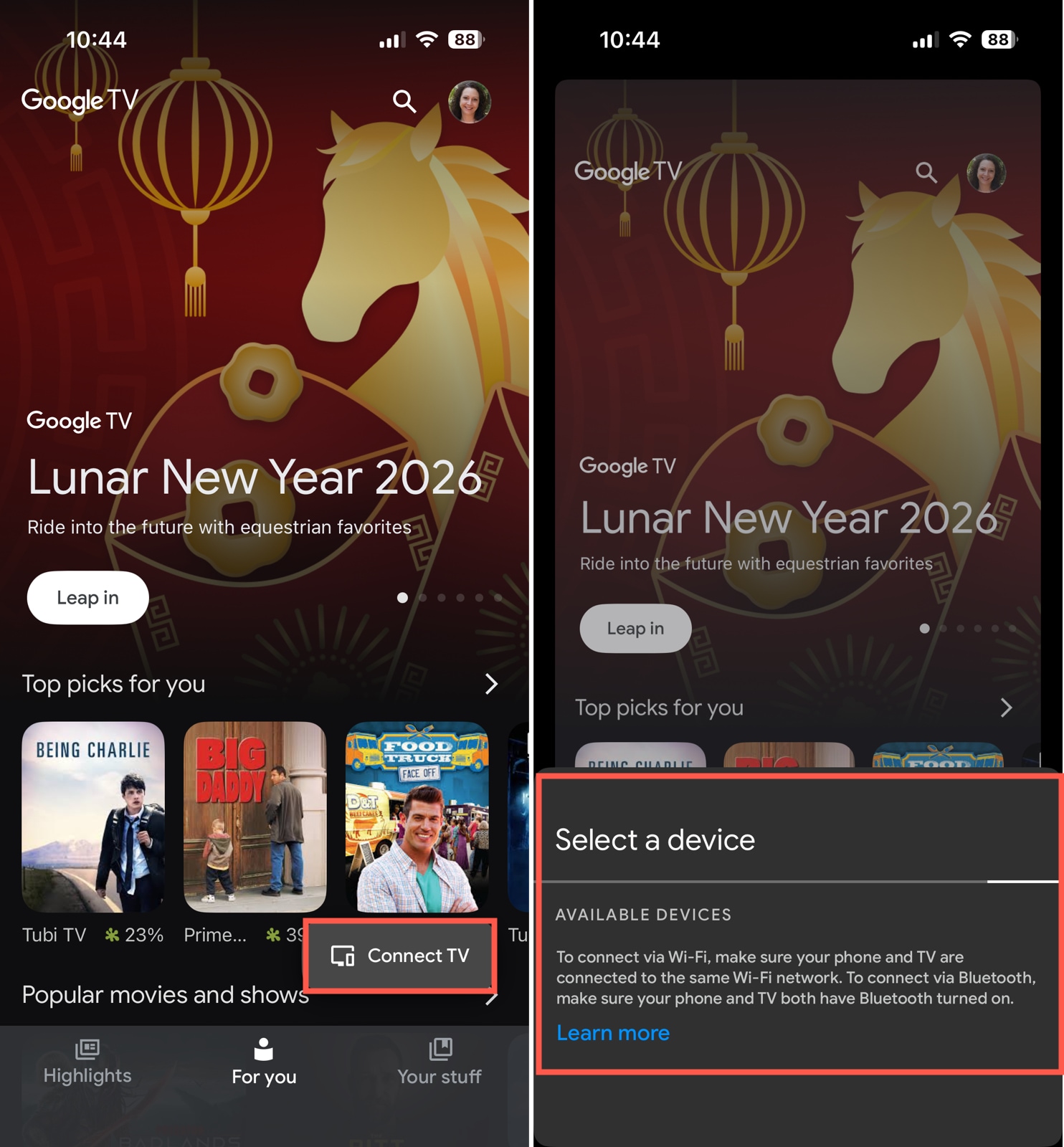
4. Choose your Android TV from the device list.
5. Enter the code from your TV screen and tap Pair.
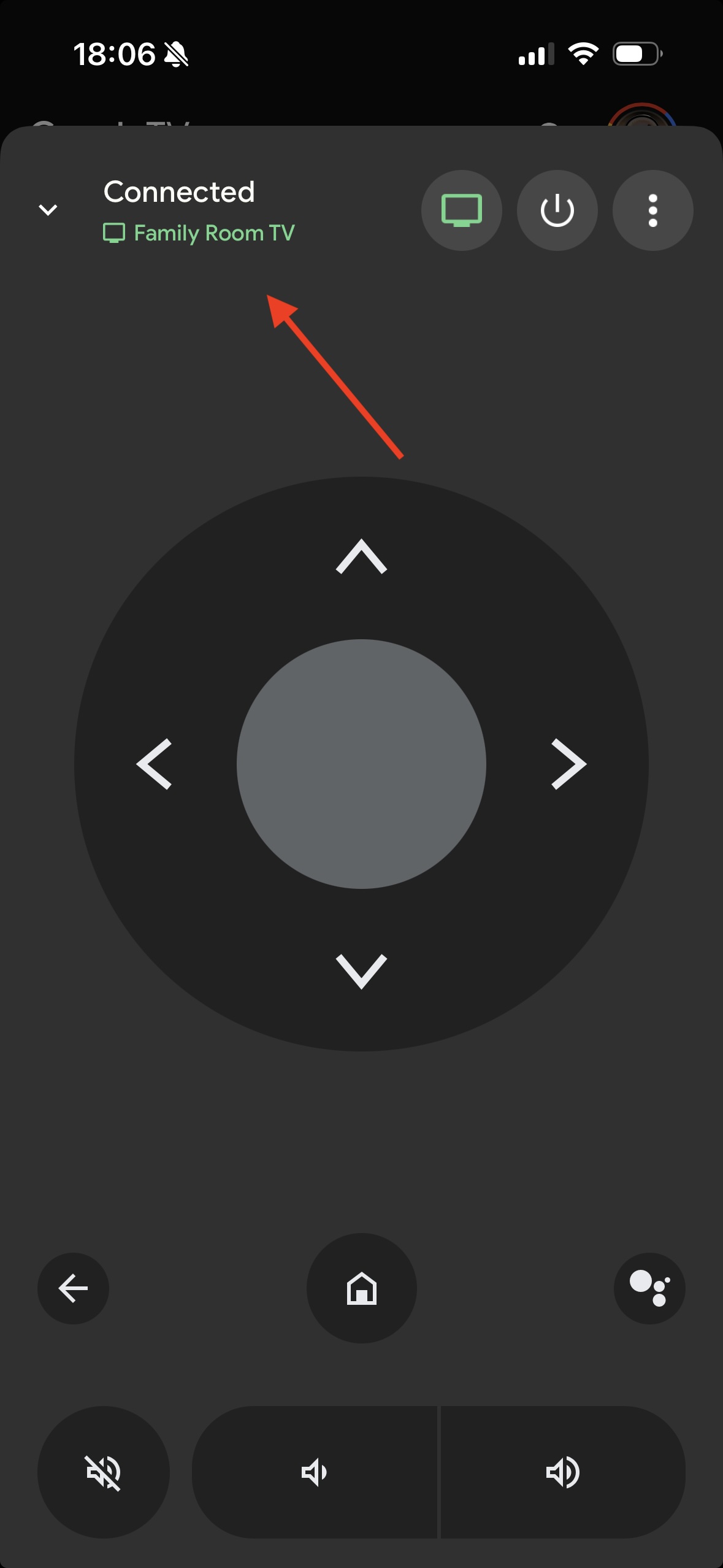
6. You’re then ready to use the Google TV app as the remote for your Android TV.
Google TV is available for free on both iPhone and iPad without in-app purchases for extra features.
Which is the Best Android TV Remote App?
From the options above, you might be wondering which is the best Android TV remote control app. Let’s look at the pros and cons of the free TVRem and Google TV apps for iPhone.
TVRem is a universal app that works with many TV brands. This allows you to use it for your Android TV along with other TVs and streaming players in your home for an inclusive remote-control solution. It provides an intuitive interface for easily navigating, searching, and controlling playback for your preferred shows and channels.
- This is the ideal option if you’re looking for a reliable remote control without unnecessary or distracting features.
Google TV is a solid remote app for your Android TV. It lets you browse shows and genres across your streaming apps, with how/where to watch and ratings from IMDb and Rotten Tomatoes. You also have a dedicated tab for your Watchlist and Library for quick access and simple controls for navigating your TV and adjusting the volume.
- This is a good option if you want a guide and a Watchlist with the remote control as a secondary tool.
While both apps provide control of your Android TV, their differences are apparent.
TVRem provides a true remote experience and is universal to work with most any TV in your home, while Google TV is more of a streaming platform offering its remote-control option as an additional feature, not its purpose, for Android TV and Google TV.
Conclusion
Going without a remote for your TV is frustrating when you’re ready to binge-watch that highly-anticipated drama or gather the family around the TV for movie night. With an Android TV remote control iOS app, those must-watch shows are only a few taps away.
Even though the Google TV app is a sensible choice, it’s not intended to be a dedicated remote control, but instead, an Android TV guide and show organizer.
If you’re looking for a replacement or backup for your Android TV remote, then TVRem is definitely the way to go. You don’t have to fish through tools or tabs to arrive at the control features and can use it for most any other TV in your home, giving you features that you do need rather than those you don’t.
Frequently Asked Questions
To control your Android TV, you can look at the Google TV or TVRem mobile app. With Google TV, you can find shows and use basic navigation features for control. With TVRem, you can enjoy an intuitive remote-control experience for all major TV brands and streaming players.
Yes, Android TV works with iPhone for streaming, casting, mirroring, and navigation using apps and Wi-Fi. While not specifically designed to integrate with each other, you’ll find many mobile apps to assist with what you need.
Yes, you can control a Sony Android TV using a universal remote app, such as TVRem, offering dedicated control features and functionality for other TVs and players in your home.
A remote app for your mobile device is beneficial as both a backup and a replacement. You won’t lose it, break it, or need batteries for it. Plus, remote control apps often provide extra features that many physical remotes do not, such as voice input with a smart keyword.