TCL TV Remote App: Choose the Best App to Control Your TV

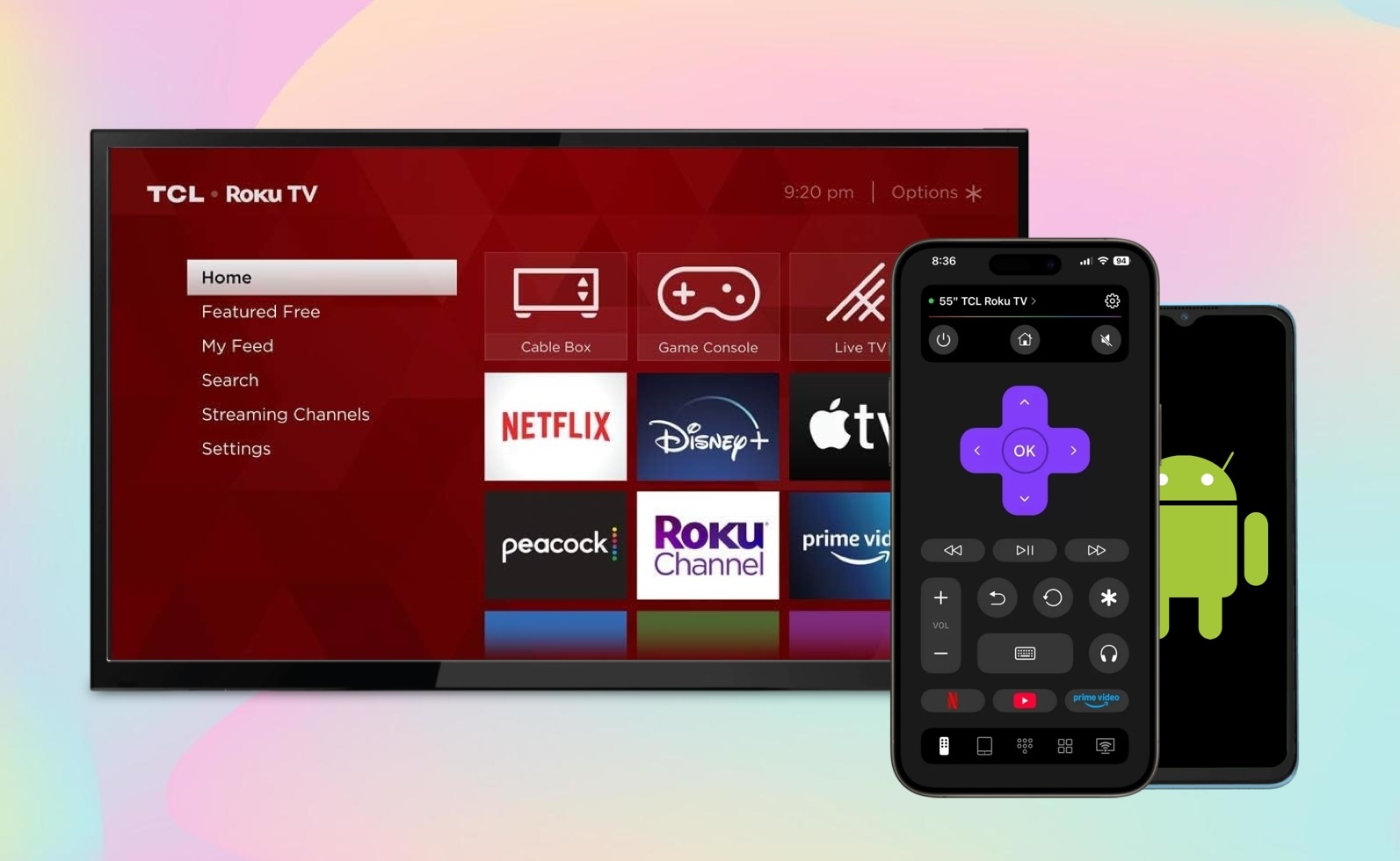
If you’ve misplaced your traditional remote or simply want a backup, a remote app for your mobile device is the way to go. We’ve assembled the best options for iPhone and Android, along with how to choose the best TCL remote app for you.
Before Choosing a Remote App
When selecting a remote app for your TCL TV, it’s important to know which operating system your TV uses. Modern TCL TVs use either Android TV OS (Google TV) or Roku OS, with older models using the proprietary TCL OS.
Here are the TCL TV series available by operating system for 2026. Note that TCL may offer additional models not listed here.
| Operating System | TCL Series |
| Google TV / Android TV | X11L Series RM9L Series QM9K / QM8K / QM7K Series QM6K Series P7L Series |
| Roku TV | S4 Series S3 Series |
If you don’t see your TCL TV series above, you can check the operating system and version for your TCL TV by going to Settings > System > About.
Once you have the operating system that your TCL TV uses, you can move forward in selecting a remote app.
TCL TV Remote Control Apps for iPhone
Whether you want a completely free TCL remote app for iPhone or one that provides extra features with affordable in-app purchases, these are the best TCL remote apps for iOS.
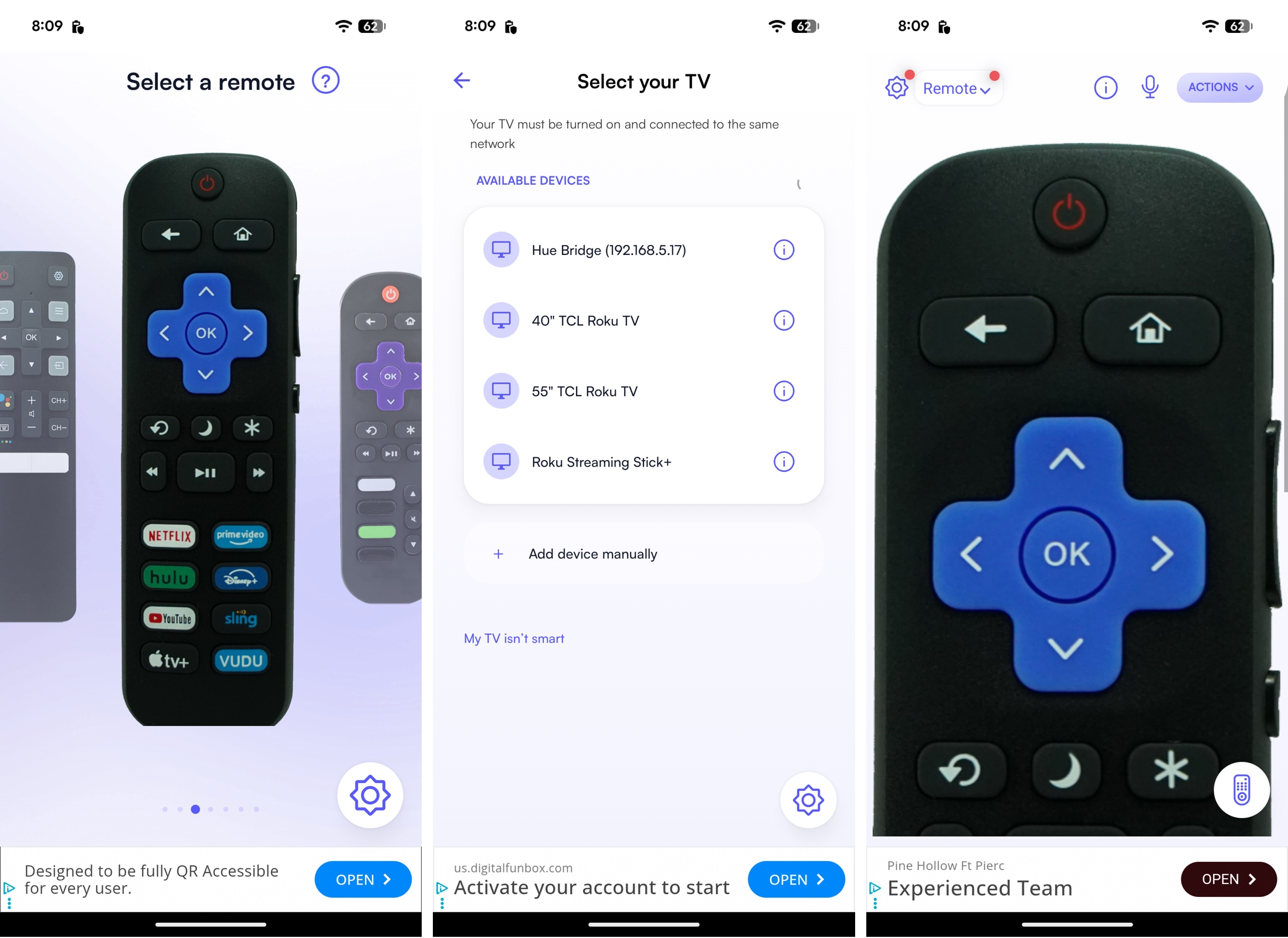
1. TVRem Universal Remote App

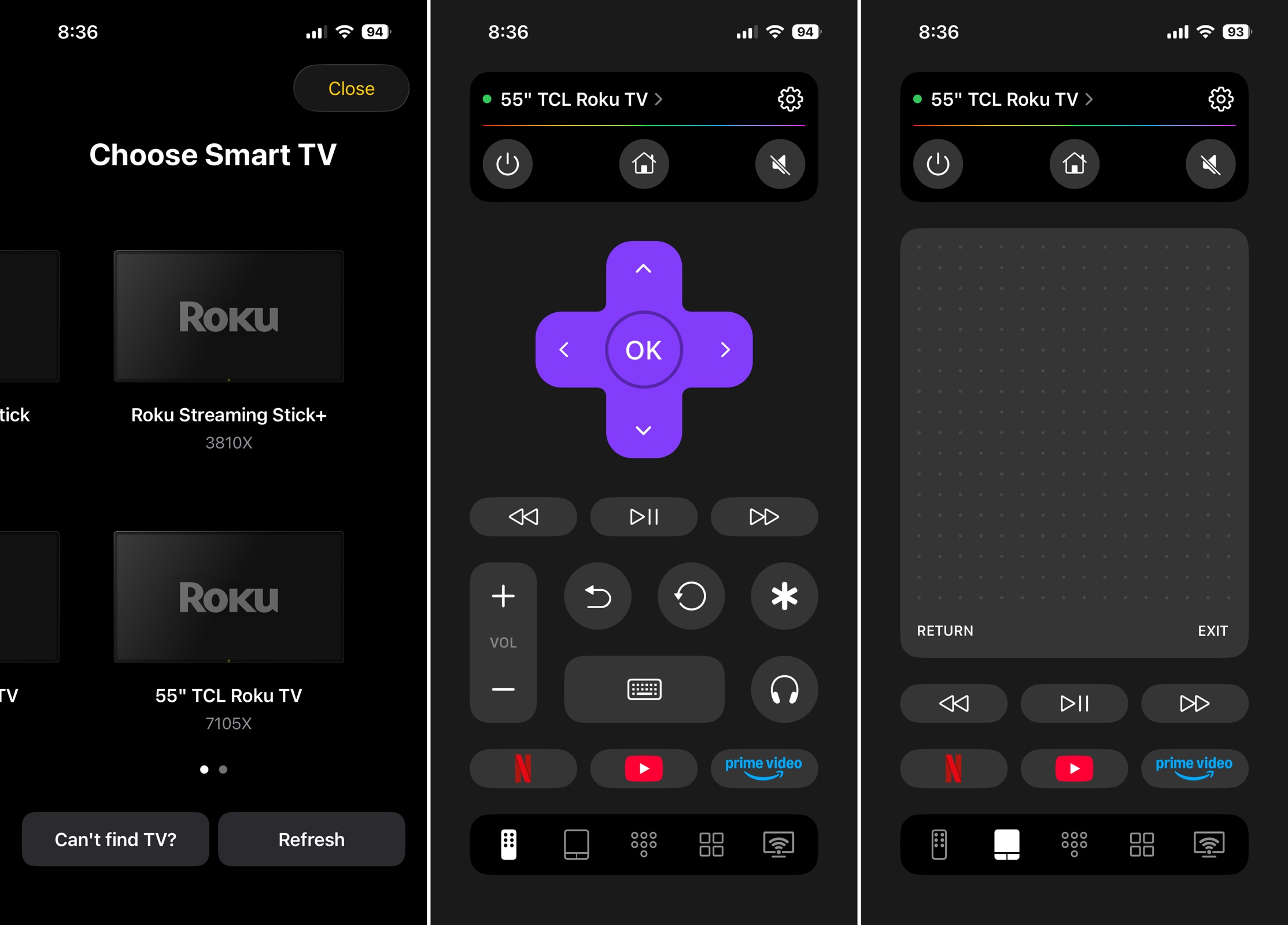
TVRem is a free TCL remote app for iPhone that works effortlessly with TCL TVs, whether yours uses Android TV OS or Roku OS. Additionally, you use it for multiple smart TVs in your home without the need for other remotes or apps – it supports Fire TV, Samsung TV, LG TV, and other popular brands as well as streaming players.
📌 Key features:
- Easily adjust the volume, change channels, and control playback.
- Select from flexible input options, including buttons, a touchpad, or your iPhone keyboard.
- Use voice search and control with Google Assistant or Alexa (supported devices).
- Quickly launch Netflix, YouTube, or Prime Video with a simple button.
Pros
- Free without in-app purchases or subscriptions
- Supports most TV brands, models, and streaming players
- Simple setup and intuitive interface
Cons
- Limited customization options
💵 Pricing: Free
2. Google TV App

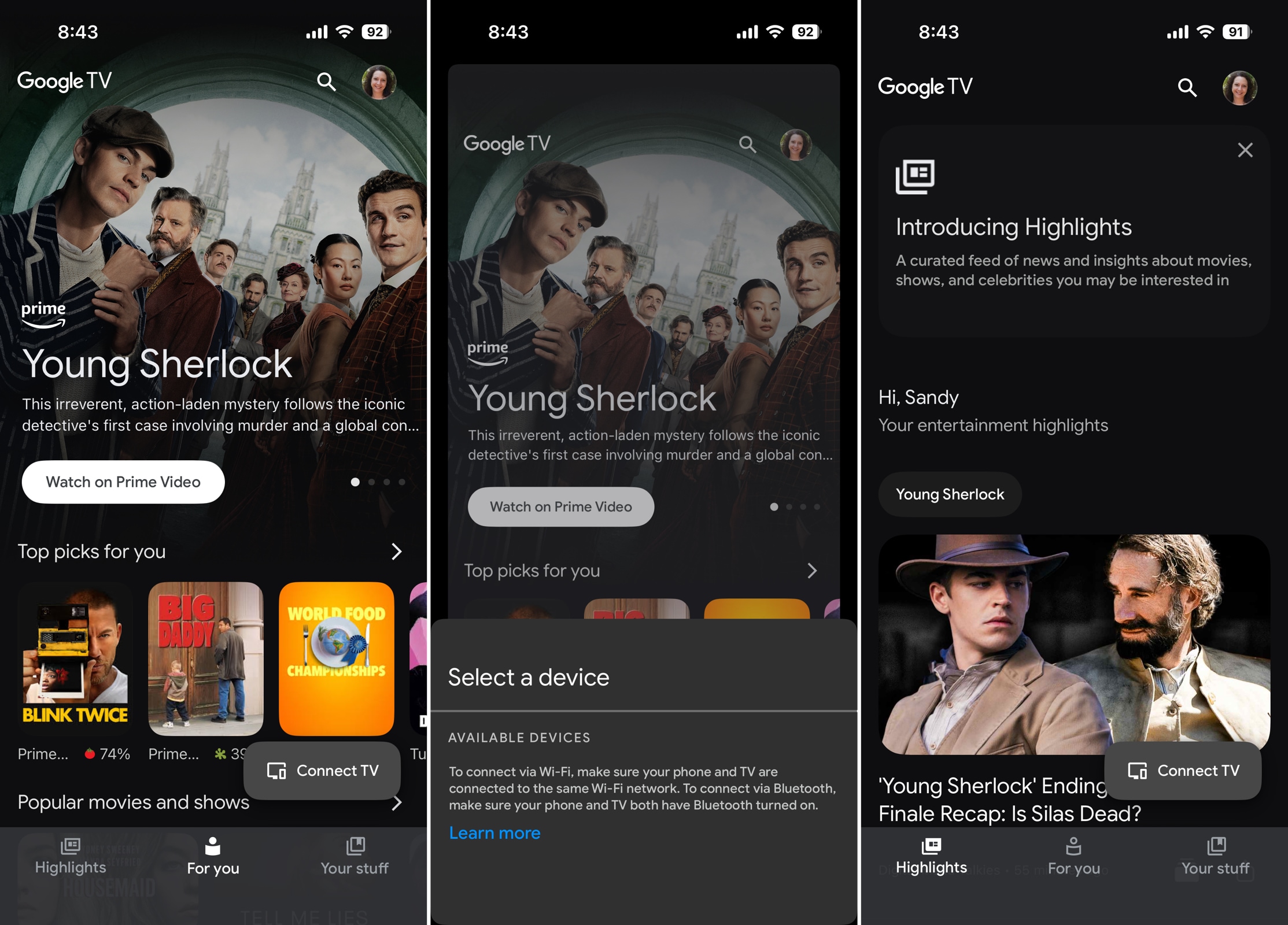
For TVs using Android TV OS, consider Google TV as your TCL remote app. This option lets you control your viewing experience, search for shows across streaming apps, and access recommendations and downloads in the Library. The Google TV app is available for iPhone, iPad, and Android.
📌 Key features:
- Control the volume, switch channels, and manage playback.
- Organize movies and episodes into topics and genres.
- Stream shows directly from the app or on your TV.
- Search for titles, names, and keywords with your iPhone keyboard.
Pros
- Free without in-app purchases or subscriptions
- Dedicated Shop tab to buy or rent shows
- Editable Watchlist that syncs across devices
Cons
- Only works with Google TV and Android TV OS devices
- Built-in remote is a secondary feature, not the app’s purpose
💵 Pricing: Free
3. TCL Remote Control: Home & TV

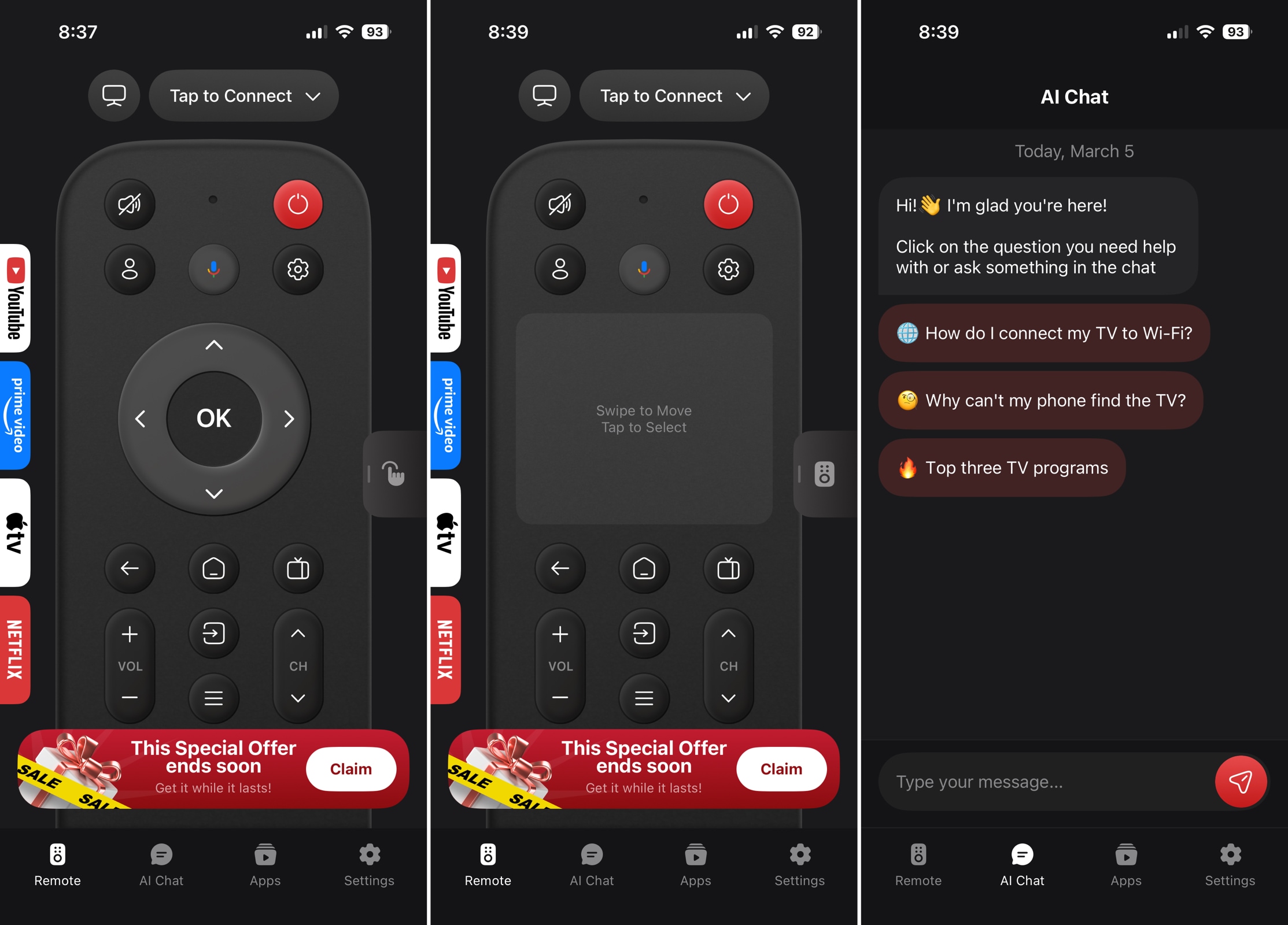
One more option to consider for controlling your TCL TV from an iPhone is TCL Remote Control: Home & TV. This app lets you easily connect via Wi-Fi, use intuitive controls, and open your favorite TV apps right from your mobile device.
📌 Key features:
- Power your TV on and off, change channels, adjust the volume, and control playback.
- Launch app shortcuts for your preferred TV apps.
- Type search terms or enter text using the keyboard.
- Get help from the built-in AI assistant.
Pros
- Responsive interface
- Clean design
- Button and touchpad input options
Cons
- Only works with TCL brand TVs
- Many basic features are only available with a subscription
💵 Pricing: Free with subscriptions starting at $5.99
TCL TV Remote Control Apps for Android
If you’re an Android user, there are options for you too! Here are the top TCL TV remote apps for Android.
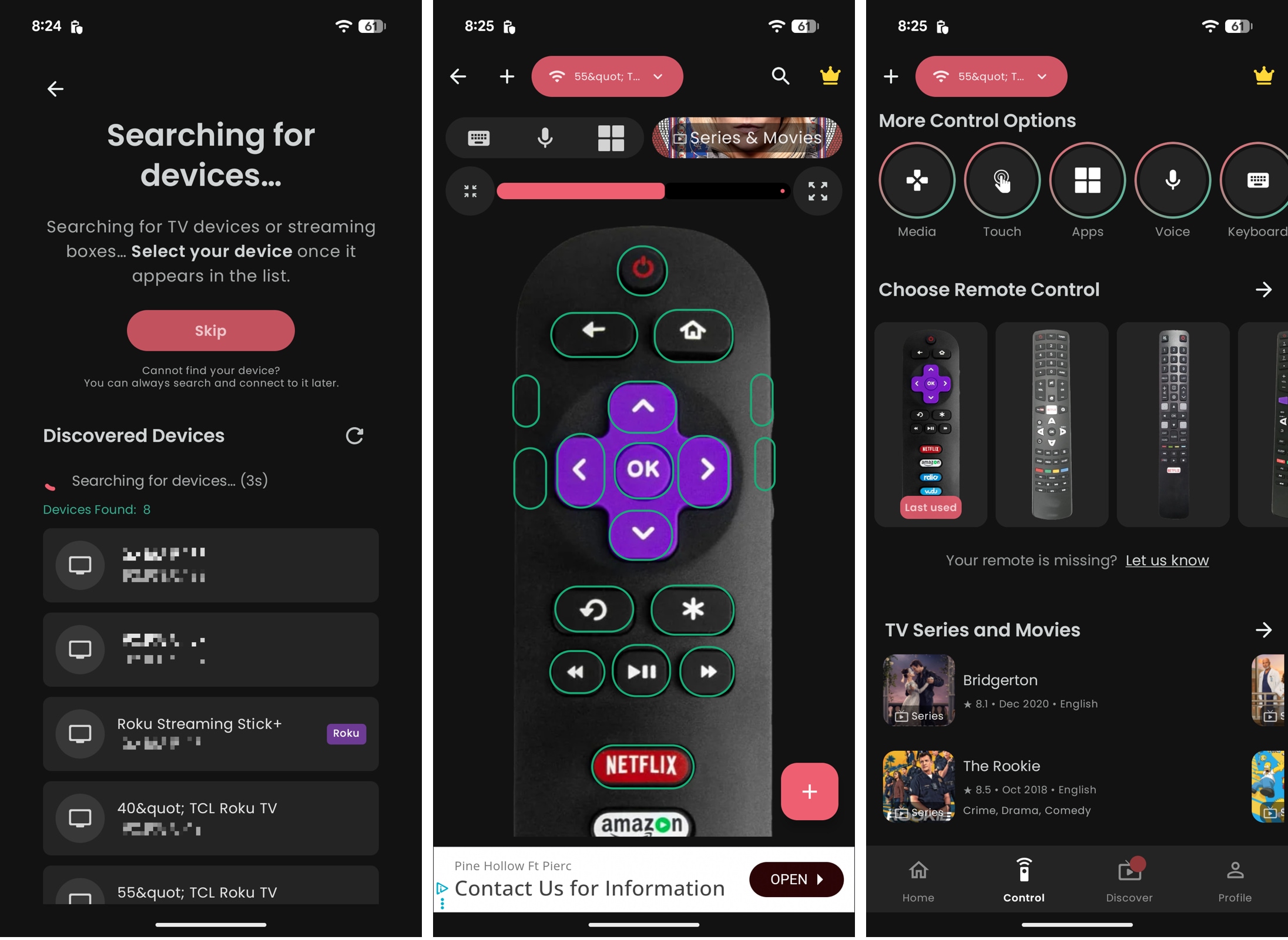
1. Remote Control for TCL TVs

For an Android TCL TV remote app that looks like your physical remote, check out Remote Control for TCL TVs. With this tool, you can choose your TV from the list of detected devices or connect it manually, use the media-specific control screen for photos, and select any of your TV apps with a tap.
📌 Key features:
- Change the volume, switch channels, and control playback.
- Add your favorite buttons to the top of the touchpad for easy navigation.
- Choose the interface you want to use: remote control, touchpad, apps, or media.
- Cast media like photos and slideshows to your TV.
Pros
- Works without Wi-Fi for older TCL TVs using Infra-Red
- Supports Roku and Android TCL TV systems
- Ability to manually add devices
Cons
- Contains ads
- Interface requires scrolling to see and use the entire remote control
💵 Pricing: Free with ad-removal for $4.49
2. TCL TV Remote

Another good remote app for Android is TCL TV Remote. With this remote app, you can also choose the appearance of your digital remote to match your traditional one, but can zoom in to keep scrolling at a minimum. The app offers a list of shows to pick from, fast app switching, and TV power on/off capability.
📌 Key features:
- Select from customizable remote skins for an attractive appearance.
- Choose from different input options, touchpad, keyboard, voice, or mouse-style navigation.
- Quickly launch apps like Netflix, Amazon Prime, YouTube, and others.
- Track your content so you can quickly resume a movie or episode later.
Pros
- Ability to control multiple TCL smart TVs
- Dark and light modes
- Bluetooth control support
Cons
- Contains ads
- Must watch a video to use certain features, like keyboard or voice input
- Pricey subscription plans
💵 Pricing: Free trial with subscriptions starting at $7.99
Remote App Comparison
For a quick rundown of the apps you see here, review this comparison table.
| App Name | TVRem | Google TV | TCL Remote Control: Home & TV | Remote Control for TCL TVs | TCL TV Remote |
| iOS / Android | iOS | iOS / Android | iOS | Android | Android |
| Universal Remote | ✅ | ❌ | ❌ | ❌ | ❌ |
| Supported Devices | TCL TVs, Roku (streaming players, branded TVs), Fire TV (streaming players, Amazon Smart TVs, and other TVs with Fire TV built in), Android TV, Chromecast with Google TV, Google TV Streamers, Samsung TVs, LG TVs | TCL TVs with Google TV, Chromecast with Google TV, Android TV OS | TCL TVs with Android or Roku TV OS | TCL TVs with Android or Roku TV OS | TCL TVs with Android or Roku TV OS, Fire TV Stick |
| Price | Free | Free | Free with in-app purchases | Free with in-app purchases | Free with in-app purchases |
| Ease of Use | ⭐️⭐️⭐️⭐️⭐️ | ⭐️⭐️⭐️⭐️ | ⭐️⭐️⭐️ | ⭐️⭐️⭐️ | ⭐️⭐️⭐️ |
| Built-in Keyboard | ✅ | ❌ | ✅ | ✅ | ✅ |
Choosing the Perfect Remote App: Why Switch to Digital?
While physical TV remote controls have been around for many years, they do have their disadvantages. A traditional remote can get lost or broken, and requires batteries. On the other hand, mobile remote apps have none of these drawbacks. In fact, a remote app can make controlling your TV even better with extra features and easier with the convenience of always being at your fingertips.
So, when it comes to selecting the perfect remote app for your iPhone or Android device, consider these common factors.
- ⚠️ Features: With any remote app, you want the basics for volume, channels, and playback – ideally for free. But you should also look at useful extra features such as power on/off, quick app launch, and flexible input options.
- ⚠️ Compatibility: Choosing an app that works with both your mobile device and your TV is key. This not only includes the brand or model but also the operating system. Be sure to read the specs, description, and even visit the developer’s website to confirm compatibility for the remote app you pick.
- ⚠️ Price: While “free” is always attractive, there are many mobile apps that are free to download but come with limited features. This is fine for trying the app before you spend money on in-app purchases or subscription plans, but make sure that you’re getting value for your money and that the purchases are within your budget.
Conclusion
It’s never fun when your physical TV remote control gets lost or stops working. But with mobile apps, you can get back to watching movies and TV shows in no time.
For iPhone, TVRem is a solid, reliable, and completely free app for TCL TVs. Along with features like quick app launch and flexible input options, you can control almost any TV in your home with it.
For Android, both apps on our list are decent. However, if you want a free option, Remote Control for TCL TVs gives you the basics you need without a huge price tag.
Regardless of your mobile device, make sure to review the factors you should look for when picking a TCL TV remote app that fits both your needs and your budget.
Frequently Asked Questions
If you lose your physical remote control, you can search for a replacement with online retailers such as Amazon or eBay. Alternatively, you can download a remote app for your mobile device, such as TVRem and start controlling your TCL TV in just minutes.
Yes, most TCL TVs are compatible with Apple products. This includes screen mirroring with AirPlay 2, smart home control with HomeKit, and streaming with the Apple TV app. You can also use remote apps like TVRem for iPhone and iPad to easily control your TCL TV.
Yes, TCL TVs allow screen mirroring with technologies like Apple AirPlay, Google Chromecast, and Roku/Miracast. You can also look at third-party apps for additional options and support.
To enable this feature on your TCL TV, go to Settings > System or Connected Devices and turn ON Screen Mirroring. Then, connect your device to begin mirroring to your TV screen.