Can’t Find Your Samsung TV Remote? Here Are a Few Things to Try

thumbnail

If you’ve lost your Samsung TV remote, don’t worry, you’re not stuck forever on one channel. There are plenty of ways to control your TV without the original remote. From using smartphone apps to the buttons on the TV itself, you can still adjust the volume, change channels, and even navigate menus with ease.

Many modern Samsung TVs are designed to work with alternative control methods. In this guide, we’ll look at five ways to control your TV. If you’ve ever thought, “I lost my Samsung TV remote, and now I don’t know what to do”, then this guide is for you.

5 Best Alternatives for a Lost Samsung TV Remote

Having a lost Samsung TV remote doesn’t mean you have to miss out on your favorite shows until a replacement arrives. Depending on your TV model and setup, you can still power it on, change inputs, adjust volume, and even browse apps without a physical Samsung remote. 

Here are some methods you can use to control your TV:

1. Use the TV’s Physical Buttons

The TV’s physical buttons are your quickest backup for a lost Samsung smart TV remote. Every Samsung TV has at least one built-in control button. You’ll usually find it under the screen near the Samsung logo, on the back of the TV, or along one of the lower side edges.

The button functions like a mini remote. Press it once to turn the TV on or off. When the TV is on, pressing it brings up the menu at the bottom of the screen, allowing you to adjust the volume, change channels, and switch between input sources.

Some models use a single multi-directional button, while others have separate buttons for each function. Keep in mind that the layout and number of buttons can differ depending on the model.

2. Use HDMI-CEC

If you have a console or streaming device connected to your Samsung TV, HDMI-CEC may solve the problem instantly. Samsung’s version of HDMI-CEC is called Anynet+, and it lets you control your TV with the remote from another device connected via HDMI.

Compatible devices include:

  • ✔️ Gaming consoles like PlayStation or Xbox
  • ✔️ Streaming devices, such as Apple TV or Roku
  • ✔️ Blu-ray players and some soundbars


Here’s how to enable Anynet+ on your Samsung TV using the TV’s physical button:

  1. Press the TV controller button to open the menu.
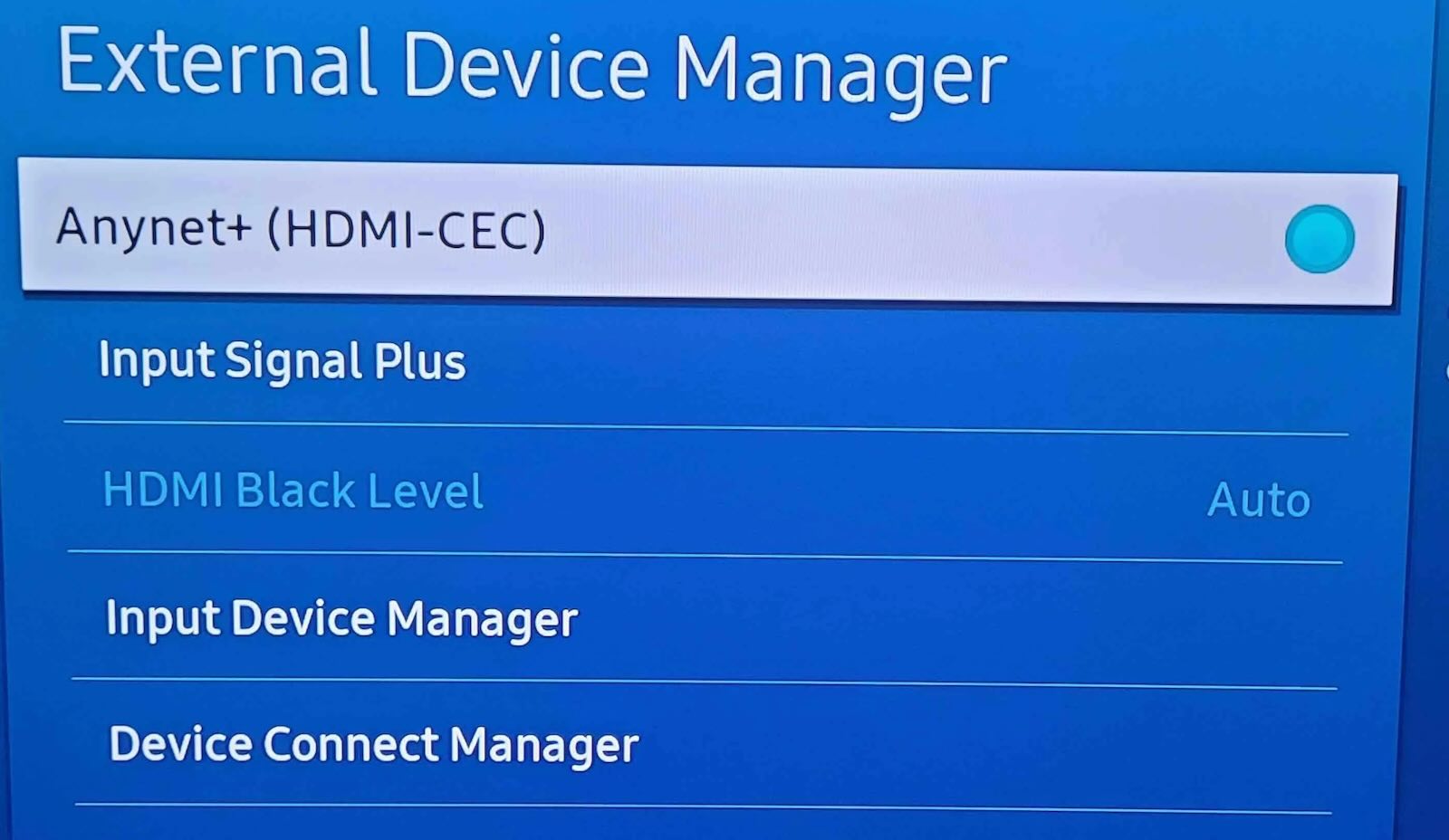
  2. Go to Settings > General > External Device Manager > Anynet+ (HDMI-CEC). Use short presses to move through the menu, and a long press to select.
  3. Turn Anynet+ on.Turn on the Anynet+ option on Samsung TV


Once enabled, connect your streaming device or console to the TV via HDMI and power it on. You can then use that device’s remote to navigate menus, adjust volume, and turn the TV on or off.

3. Use a Universal Remote App Like TVRem

How to Use Your iPhone as a Remote for Samsung TV: The Complete Guide

If you have an iPhone or iPad, you can turn it into a fully functional TV remote in just a few minutes.

TVRem is a free Samsung TV remote app for iOS users. It connects to your TV via Wi-Fi and allows you to manage everyday functions like volume, channels, menus, and app launches without any extra hardware.

The main features of this app include:

  • 📌 A clean, user-friendly interface for first-time users.
  • 📌 Touchpad navigation for smooth scrolling.
  • 📌 Built-in keyboard for fast typing.
  • 📌 Voice search for supported devices.
  • 📌 Dedicated buttons for Netflix and YouTube.
  • 📌 Full volume and channel control.


In addition to Samsung, TVRem is compatible with other popular smart TV brands, including LG, Sony, Philips, Toshiba, Panasonic, and others. You can also use it with Roku devices, Fire TV, and Android TV.

Follow the steps below to set it up:

Step-by-step guide

1. Download TVRem from the App Store on your iPhone or iPad.
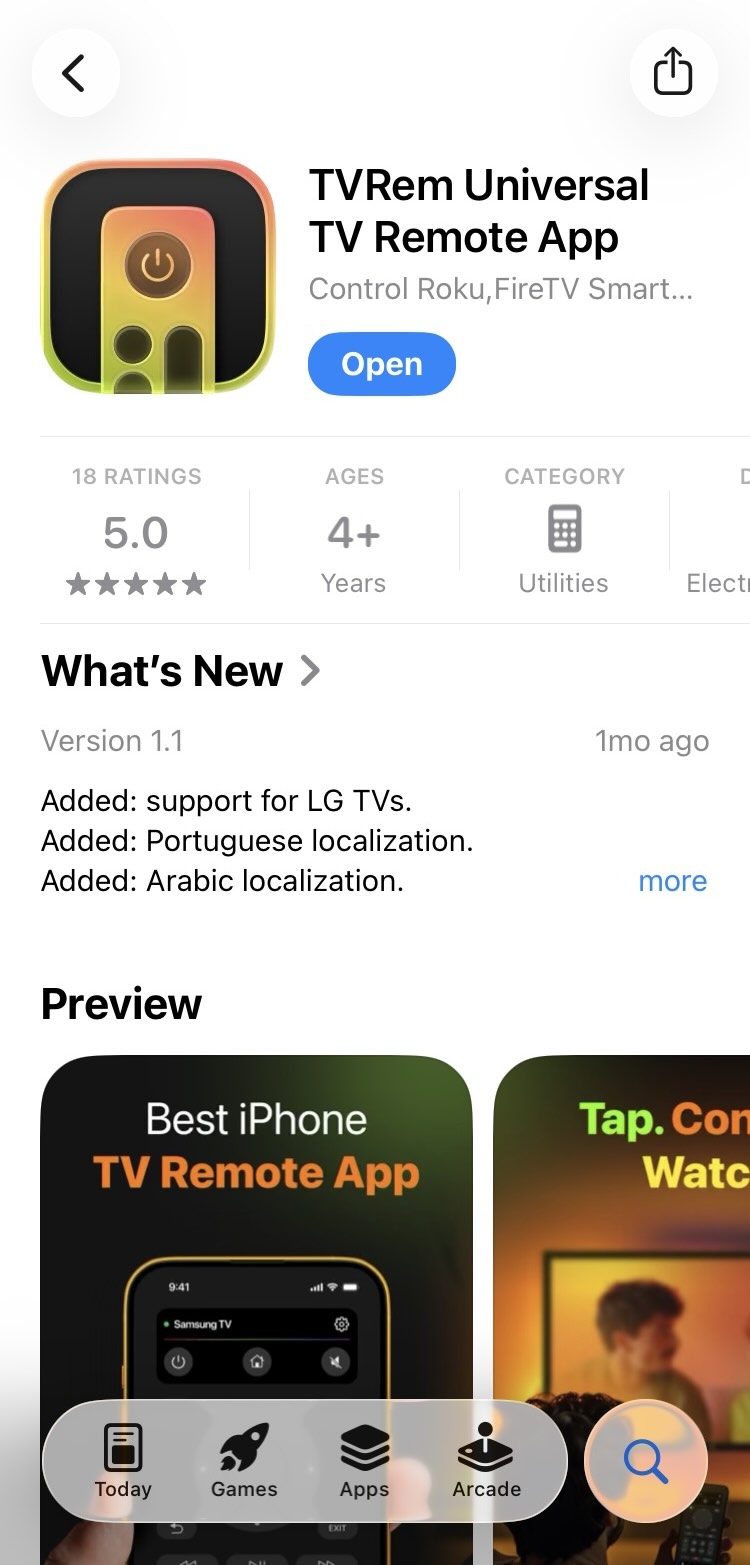
Download TVRem from the App Store

2. Make sure your TV and iOS device are connected to the same Wi-Fi network.

3. Open the app and choose your TV brand or device type.
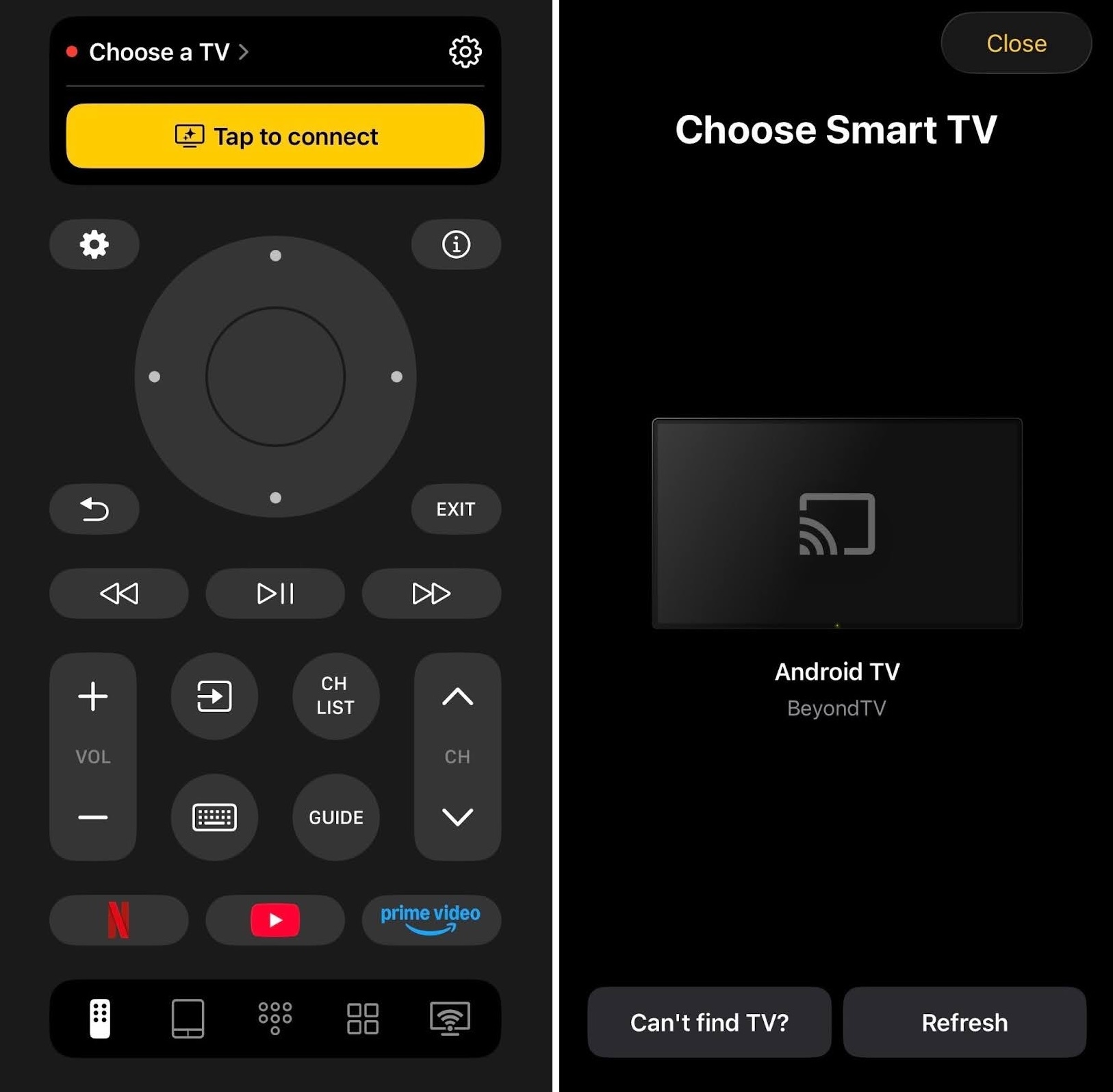
Select your TV device from the list of devices in TVRem

4. Follow the on-screen instructions to pair the app with your TV.
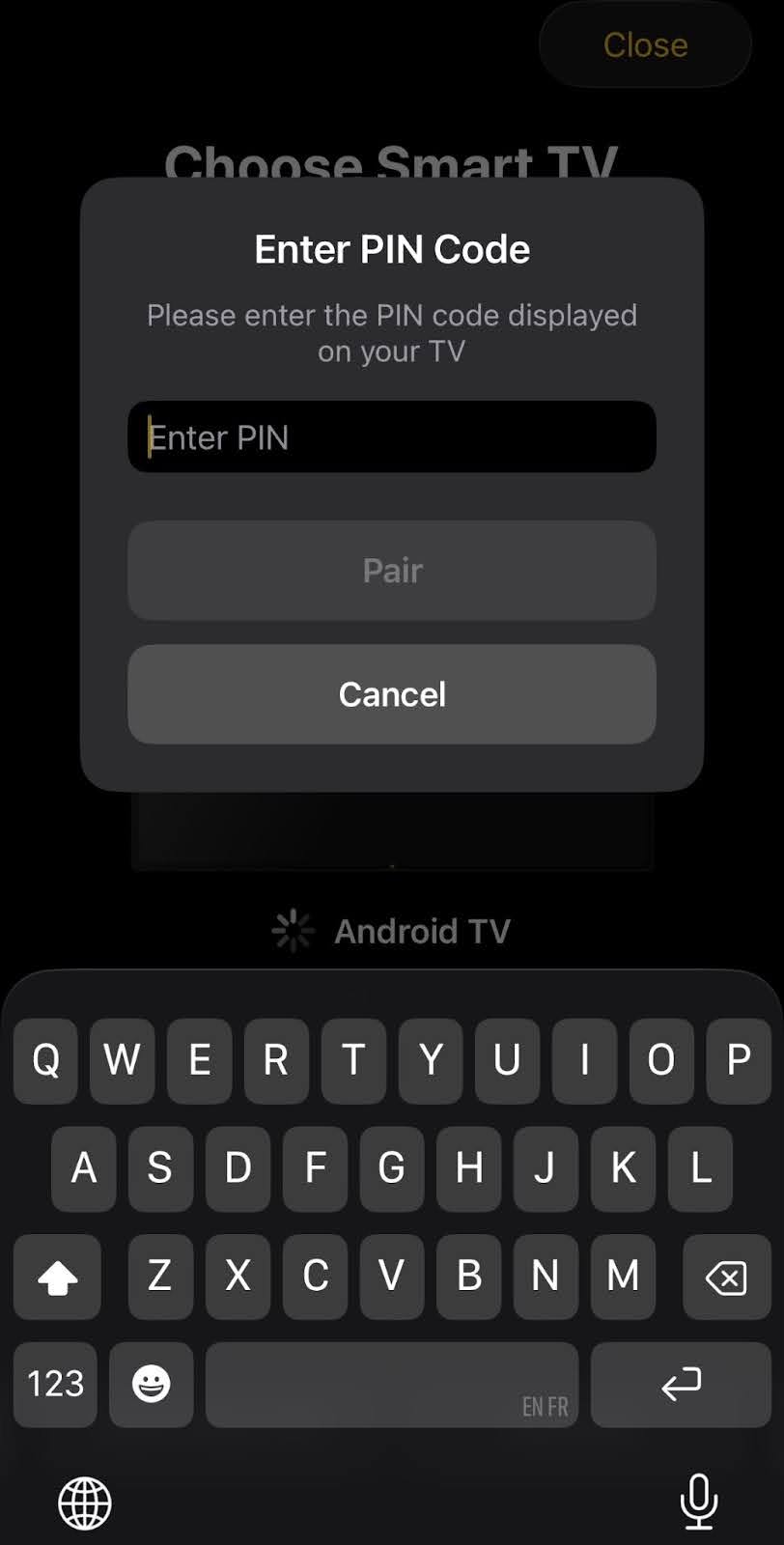
Pair TVRem with your TV device

5. You should now be able to control your TV with the app.
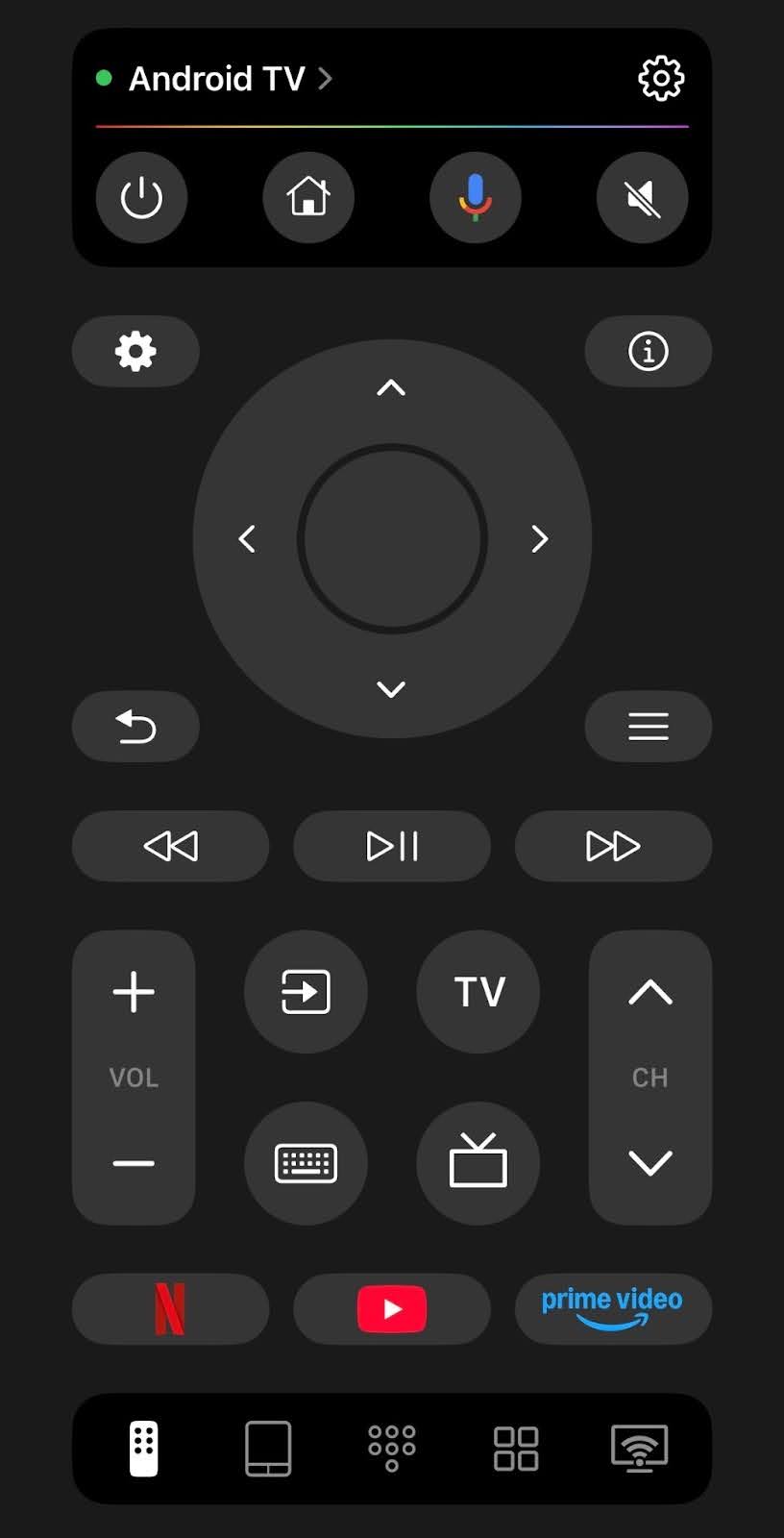
TVRem is connected to your TV device

4. Use a Replacement Remote

If you prefer a physical remote, consider getting a Samsung TV remote replacement. It’ll work just like the original and won’t require changing how you use your TV.

The safest option is to search for your exact TV model number on Samsung’s authorized spare parts website or on trusted online stores like Amazon. This way, all buttons and smart features will work as expected.

Alternatively, you can get a universal remote that works with multiple TV brands. This option is especially useful if you want one remote for multiple TVs or devices.

5. Use the Samsung SmartThings App

Another way to control your TV if you have a lost remote for Samsung TV is by using an app called SmartThings. It’s available on both Android and iOS devices. All you need is a Wi-Fi connection and a Samsung account to use it.

Here’s how it works:

Step-by-step guide

1. Download and open the SmartThings app on your phone.
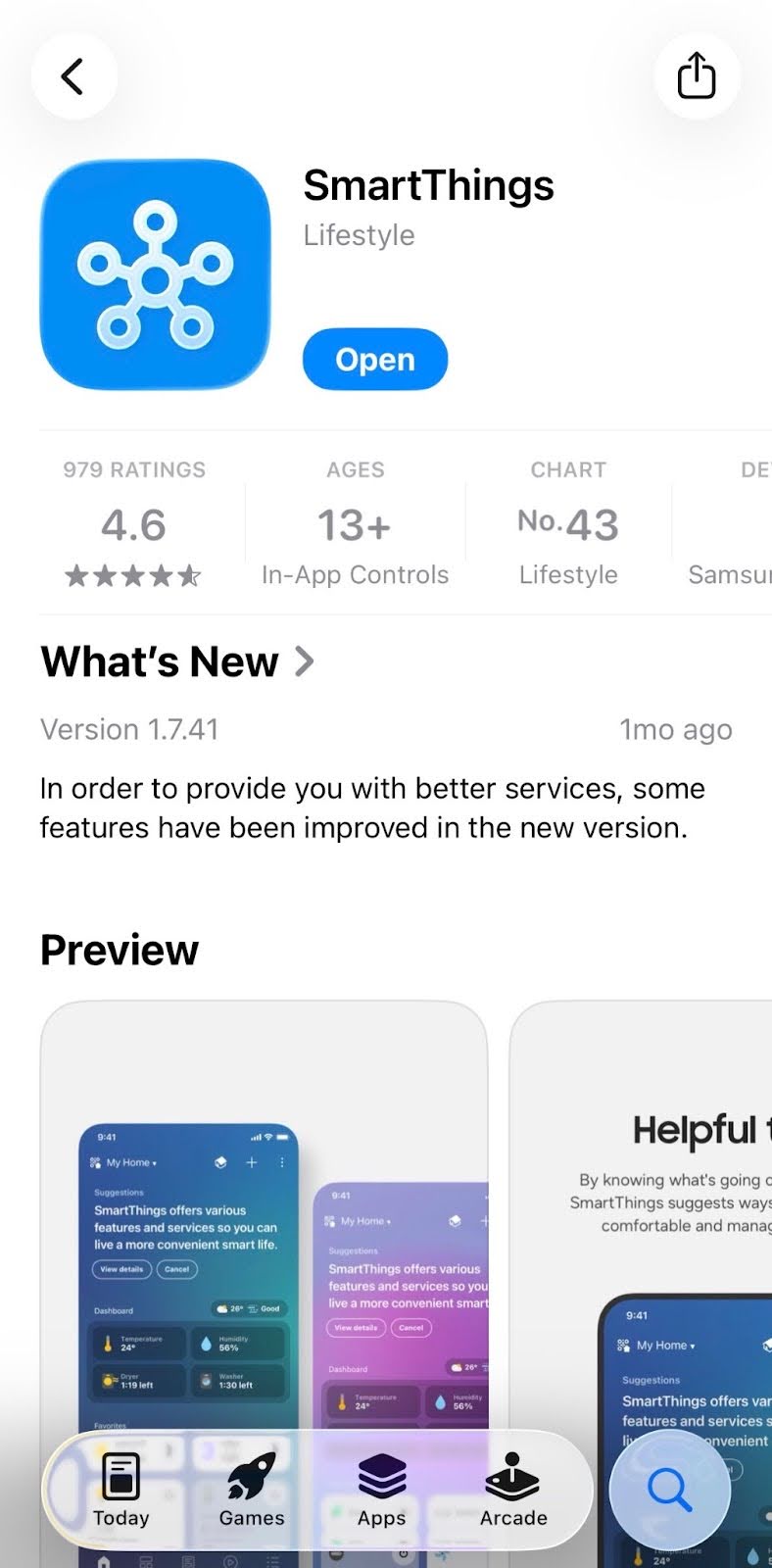
Download SmartThings app from the App Store

2. Tap your Samsung TV (make sure it’s already added to the app).
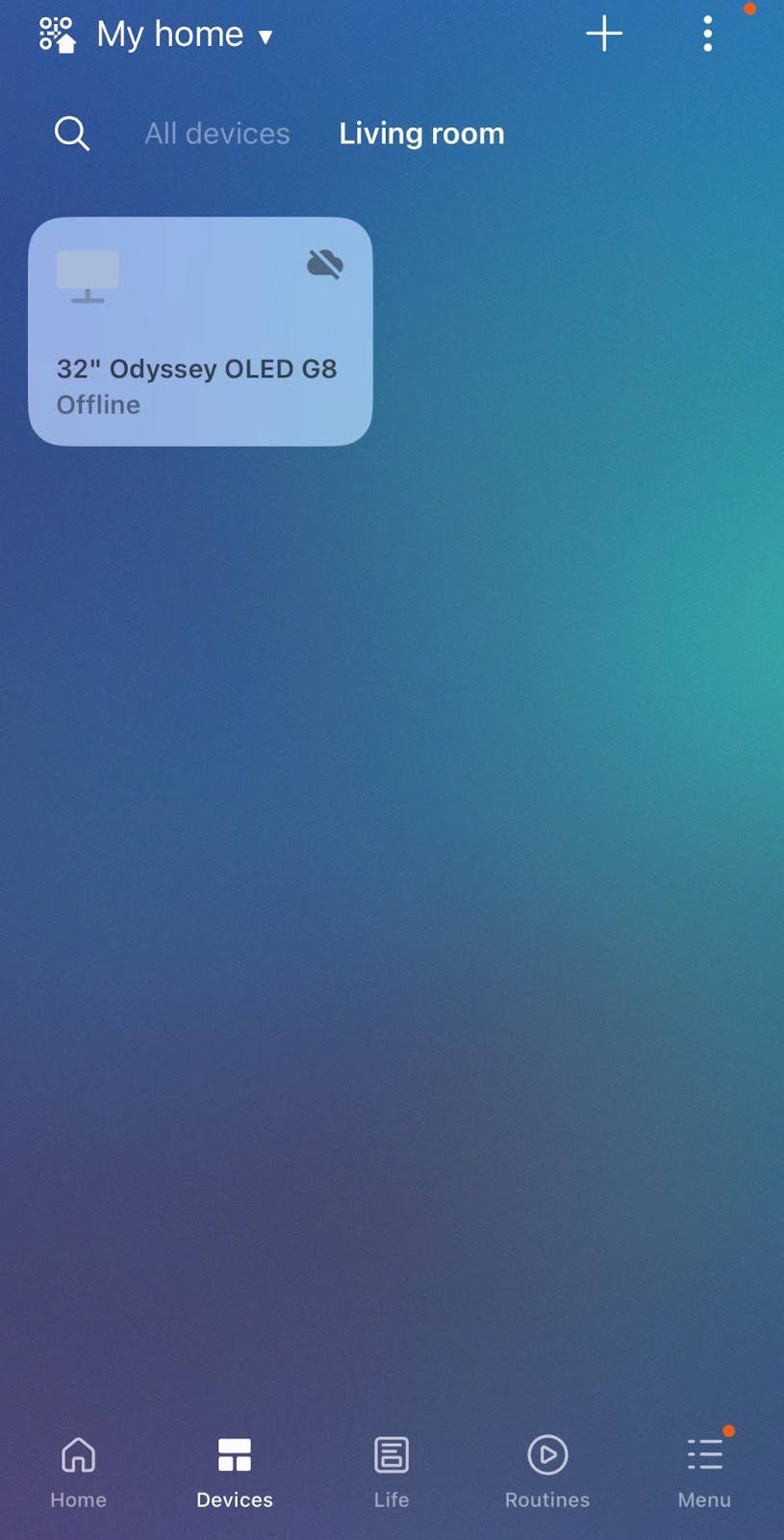
Select your Samsung TV from the list of devices in SmartThings

3. In the bottom panel, you’ll see options like Home, Ambient Mode, Featured, and Menu. Tap the Remote icon to open the on-screen remote control.
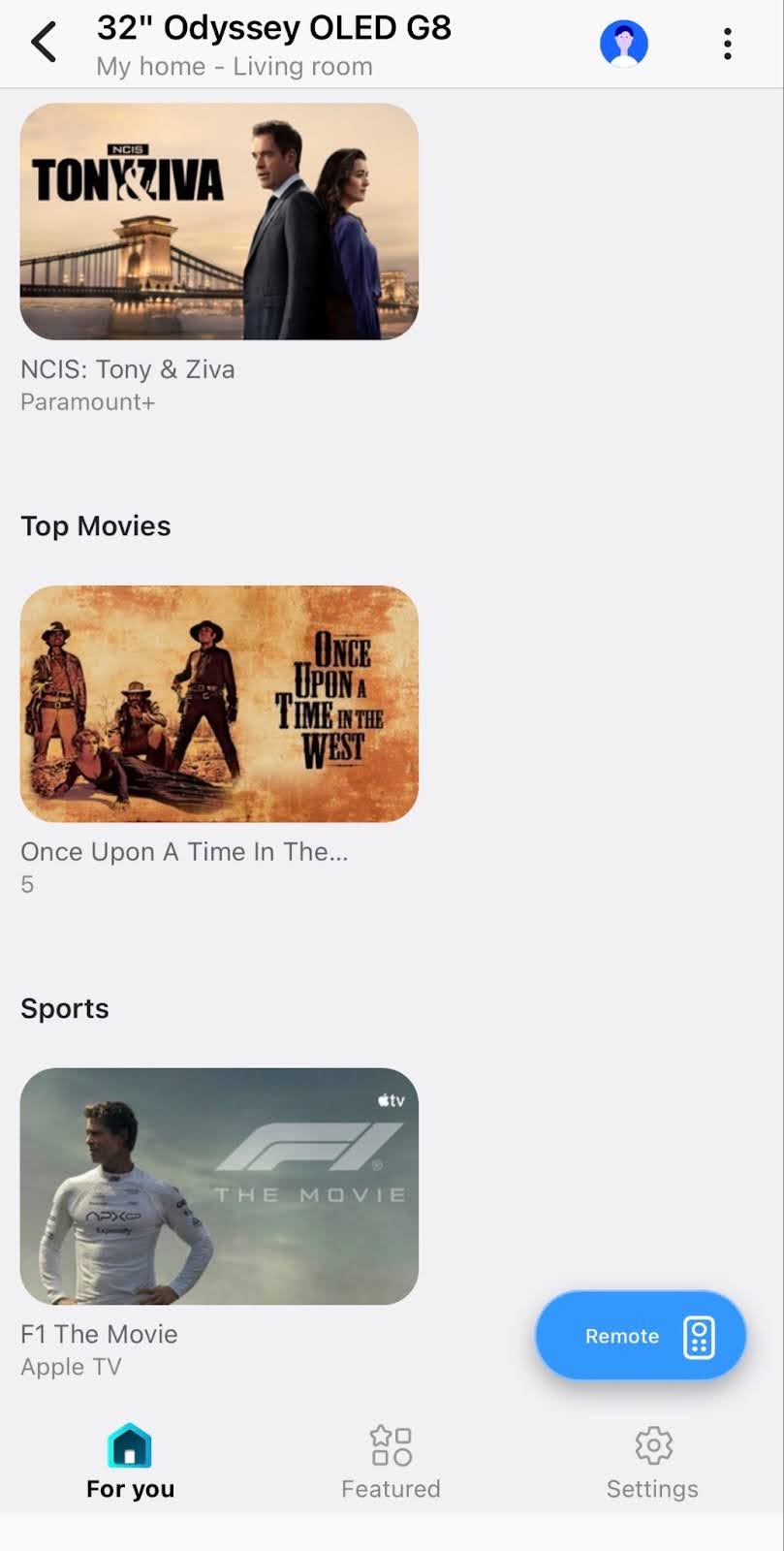
Tap on the Remote icon in SmartThings

4. Swipe left or right on the on-screen remote to access all the available buttons.

5. Use your phone’s volume buttons to raise or lower the TV volume.

Conclusion

A missing Samsung TV remote doesn’t have to ruin your day. Modern Samsung TVs offer multiple backup control options, many of which you can start using immediately.

If you’re an iOS user, we recommend trying out a universal remote app like TVRem. It lets you control your Samsung TV directly from your phone so you can get back to watching your favorite content quickly.

Frequently Asked Questions

You can buy an official Samsung replacement remote from authorized retailers or online stores. Many third-party remotes are also compatible and cost less. Some options are completely free, like the TVRem Universal TV Remote app, which lets you control your Samsung TV directly from your iPhone. Just make sure the model supports your specific Samsung TV.

Yes, both physical universal remotes and mobile apps work with Samsung smart TVs. Universal remote apps like TVRem are especially convenient if you already have a smartphone and don’t want to buy extra hardware. They connect over Wi-Fi and can fully replace a traditional remote in most cases.

Check the batteries first and make sure nothing is blocking the TV’s sensor. If it still doesn’t work, try a remote app, HDMI-CEC control, or reconnect the remote through the TV’s settings.

Most Samsung remotes pair automatically. If not, hold the Back and Play/Pause buttons together for a few seconds while pointing the remote at the TV until pairing is complete.