Top 10 LinkedIn Profile Picture Tips for a Professional Look

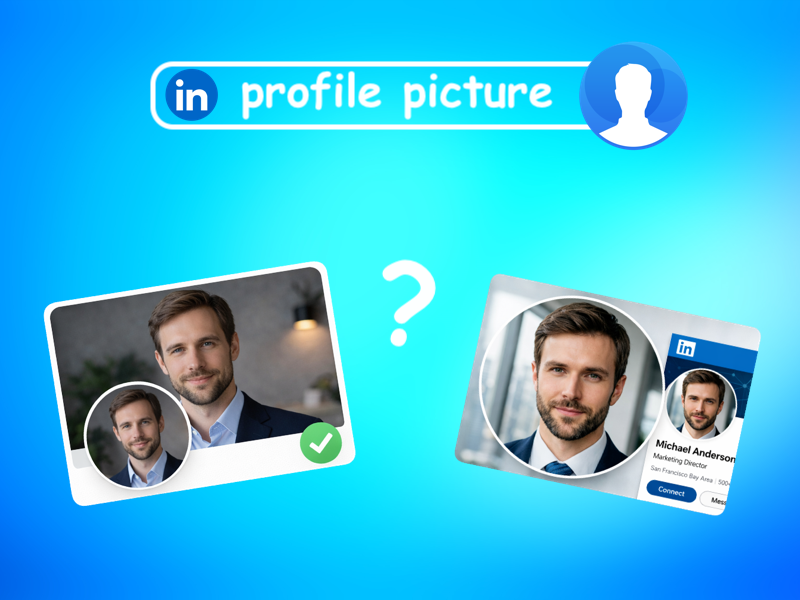
1. Use an AI Headshot Generator for a Professional Look
One of the easiest ways to create a polished AI-generated LinkedIn profile picture is by using tools like Eltima AI Headshot Generator. Instead of organizing a full photoshoot, choosing outfits, finding a location, and setting up proper lighting, AI tools allow you to generate professional-looking portraits in just a few steps. This is especially useful for professionals who need to update their profile quickly or want to test different visual styles without spending hours taking multiple photos.
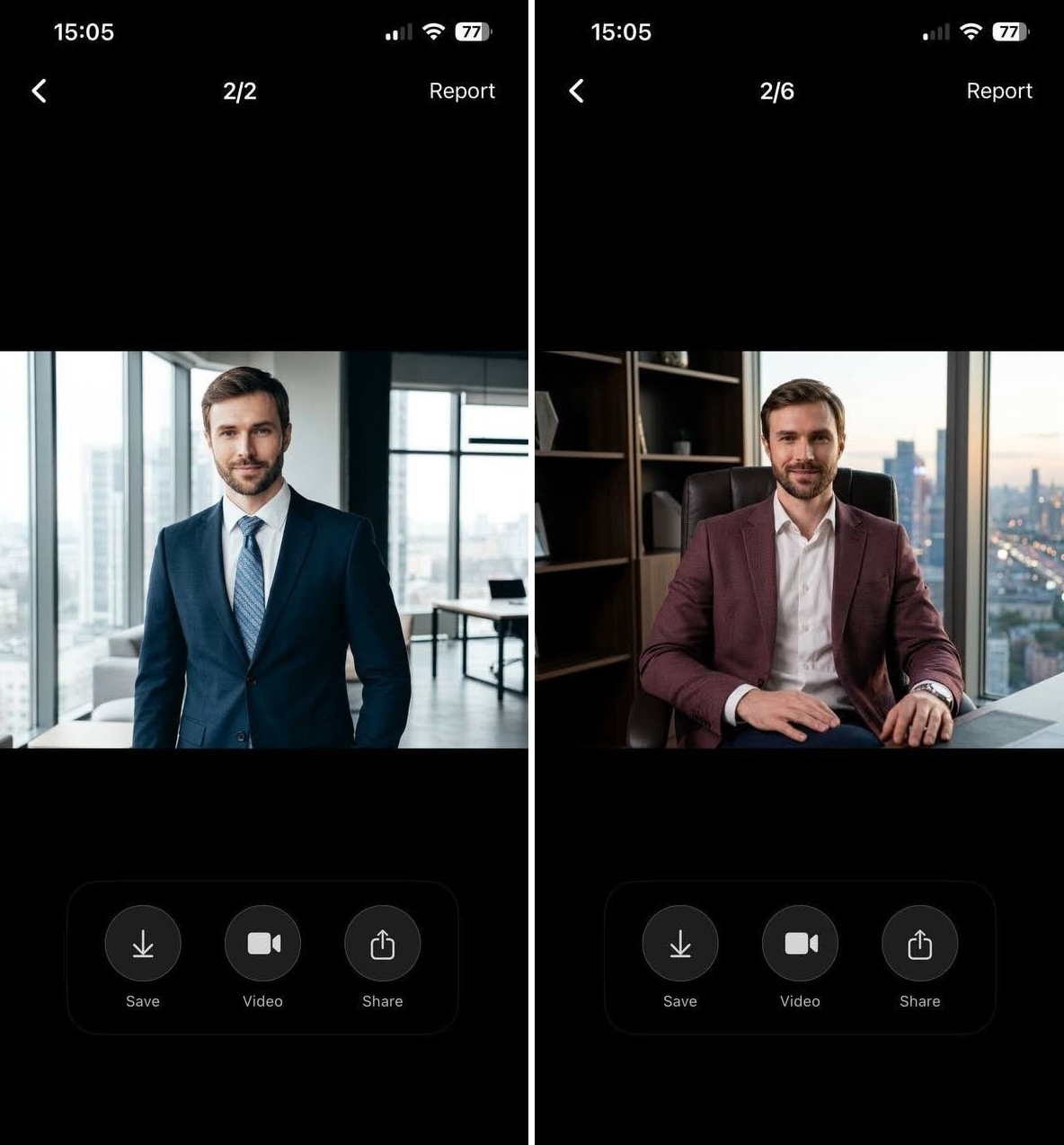
An AI profile picture can help you achieve a consistent and modern look that matches professional expectations on LinkedIn. Many users choose AI headshots because they provide balanced lighting, neutral backgrounds, and structured compositions that are typically recommended for professional portraits. This method is also helpful if you do not have access to professional photography equipment or feel unsure about how to position yourself for a traditional portrait.
Using an AI generator is usually straightforward and does not require technical skills. Most tools ask you to upload a few photos or choose a preferred style, such as business or smart casual. After that, the system automatically creates several portrait options with balanced lighting and professional backgrounds. You can then select the best version and upload it directly as your LinkedIn profile photo.
2. Make Your Face Clearly Visible
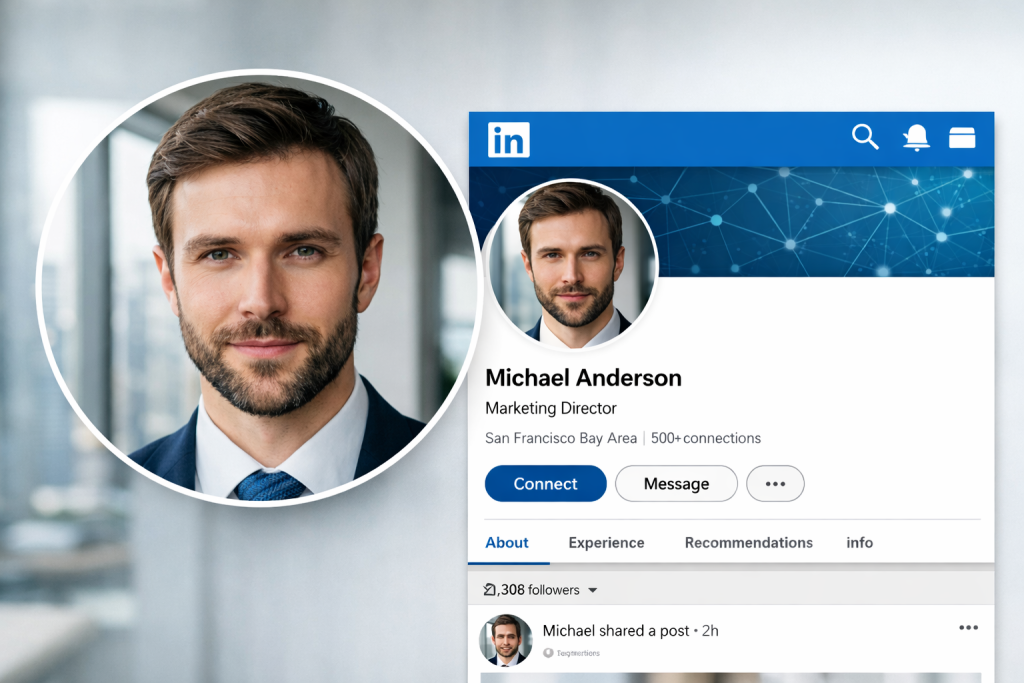
One of the most important professional LinkedIn profile picture tips is making sure your face is clearly visible and easy to recognize. Your face should take up most of the frame, ideally around 60-70% of the image. Avoid photos where your face looks small or distant, as they become difficult to see in search results or comments.
A good LinkedIn profile pic focuses on clarity and recognition. Keeping your face centered also helps prevent cropping issues when the image is displayed at smaller sizes. This simple adjustment can make a significant difference in how professional your profile appears to others, especially on mobile devices, where profile images appear as small icons.
3. Wear Professional or Smart Casual Clothing

Your outfit plays a major role in creating a professional impression. When considering tips for a professional LinkedIn profile picture, choose clothing that reflects your industry and role. In most cases, smart casual or business attire works best, such as a blazer, button-up shirt, or neutral top.
Avoid overly bright patterns or distracting accessories that draw attention away from your face. A well-chosen outfit helps your profile look polished and credible, especially if you use LinkedIn for job searching, networking, or building professional relationships. Even subtle color choices can influence how approachable and competent you appear to recruiters and colleagues.
4. Use a Simple and Clean Background

A simple background keeps the focus on you and improves the overall clarity of your photo. Many LinkedIn profile photo tips recommend neutral walls, office settings, or softly blurred backgrounds. Busy environments can distract viewers and make your photo look less professional.
Keeping the background minimal also helps your image look cleaner when viewed as a small icon. A structured background supports a strong visual identity and ensures that your face remains the main subject of the image. Neutral tones also complement most professional clothing choices and skin tones, helping your portrait look polished.
5. Use Natural Lighting Whenever Possible
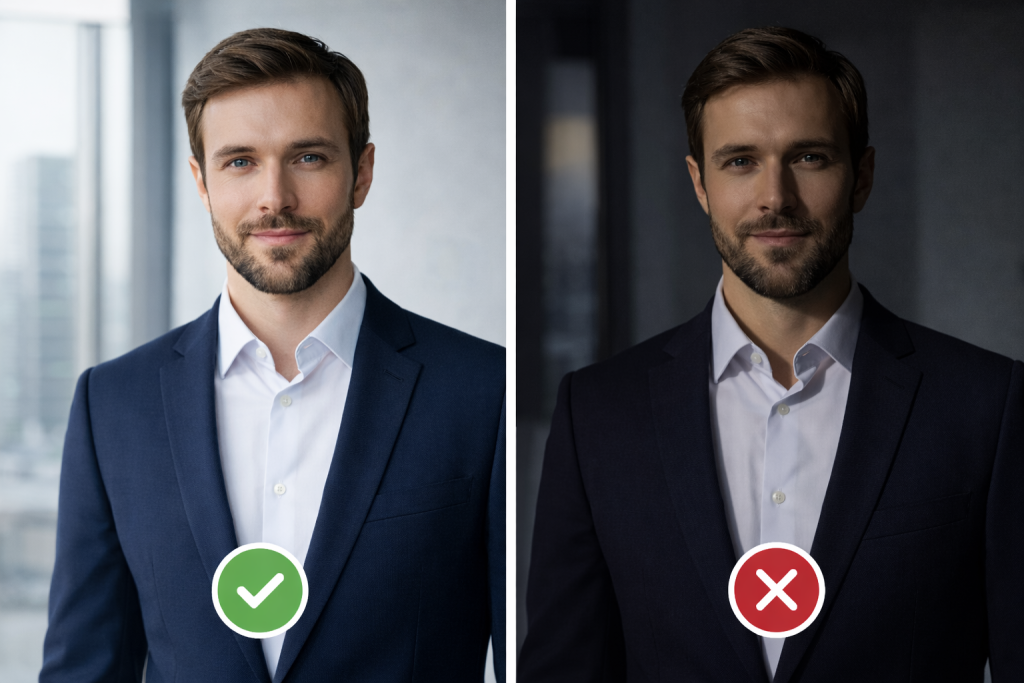
Lighting has a huge impact on how professional your photo looks. One of the most effective profile photo tips is to take your photo near a window, where natural light can illuminate your face evenly. Soft daylight helps reduce harsh shadows and improves skin tone accuracy.
Avoid overhead lighting that creates strong shadows under your eyes or chin. Good lighting enhances details and makes your photo appear more natural, even without professional equipment. Natural lighting also helps your eyes appear brighter and more approachable, improving the overall impression of your LinkedIn profile picture.
6. Choose a Friendly and Confident Expression
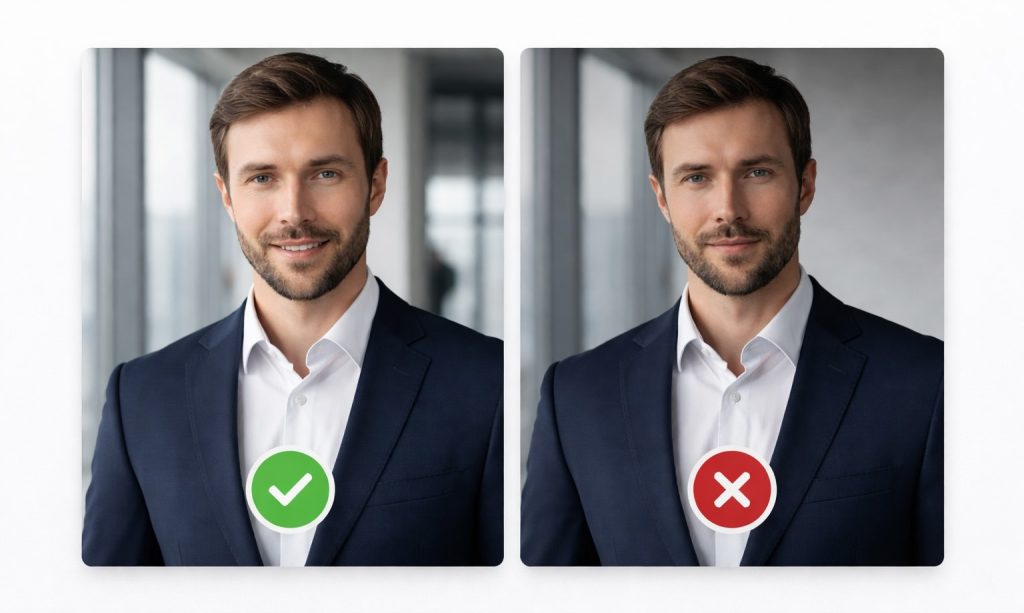
Your expression communicates personality and professionalism. A relaxed smile and confident posture help create a welcoming impression. Many professional LinkedIn profile tips suggest maintaining eye contact with the camera while keeping your expression natural.
Avoid overly serious expressions that may appear unapproachable. A friendly look helps others feel more comfortable reaching out, whether they are recruiters, colleagues, or potential business partners. Small adjustments, such as slightly tilting your head or softening your eyes, can noticeably improve approachability.
7. Use a Recent Photo That Looks Like You
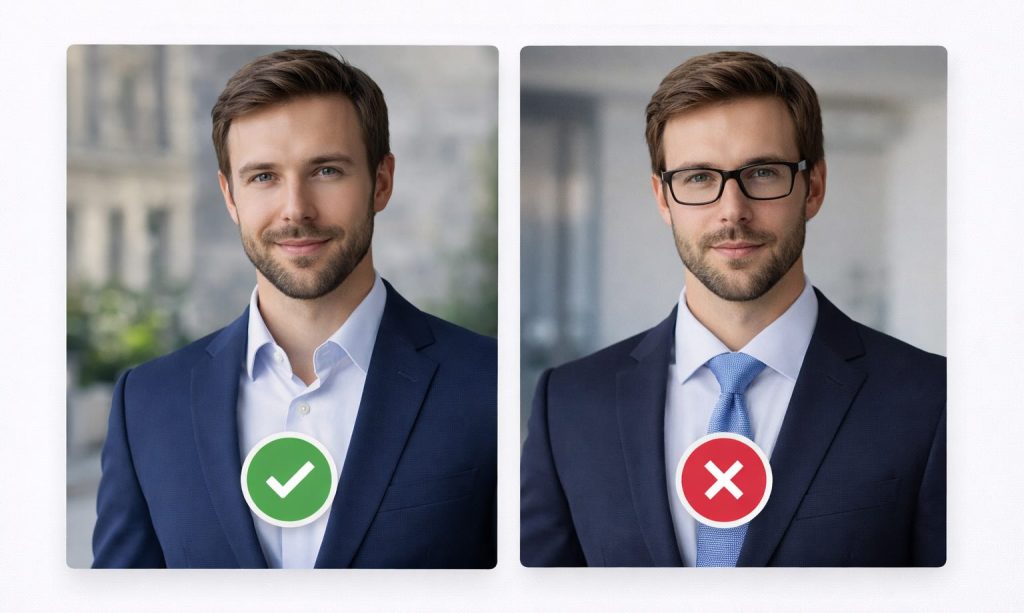
Always choose a recent image that reflects your current appearance. Using outdated photos can create confusion during interviews or meetings. Among the most common LinkedIn profile picture tips, keeping your photo up to date is one of the most important.
If your hairstyle, glasses, or overall appearance has changed significantly, consider updating your image. A recent photo helps keep your profile accurate and trustworthy, reinforces your professional credibility, and makes it easier for others to recognize you in real-life meetings.
8. Keep the Image High Quality
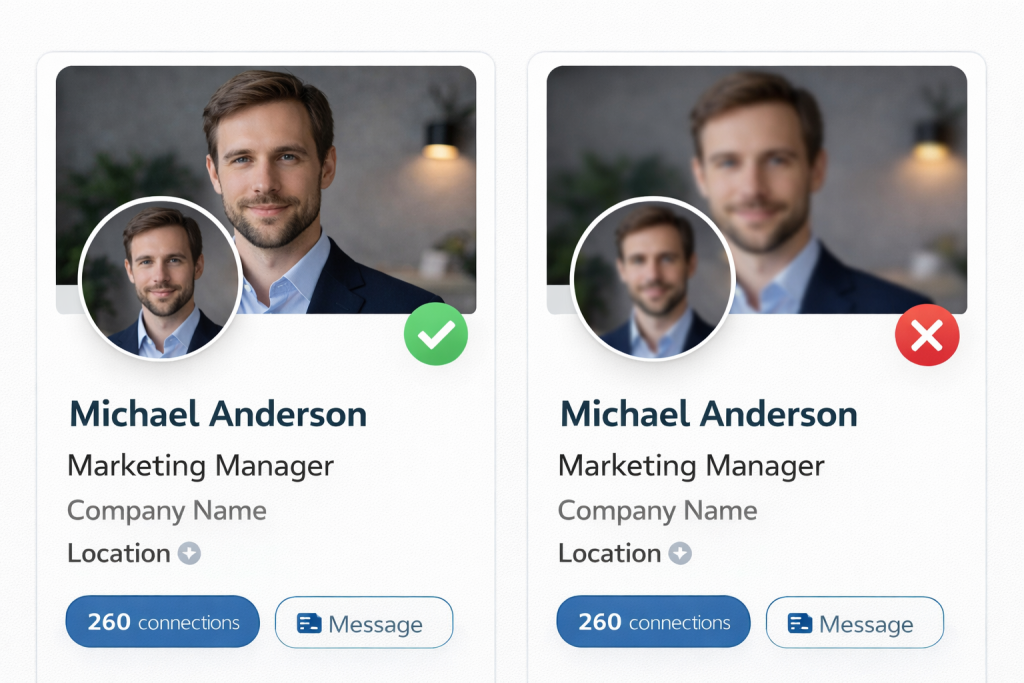
Blurry or pixelated images can make even strong profiles appear less professional. A high-resolution photo helps maintain clarity across different devices and screen sizes. When reviewing LinkedIn profile picture examples, you’ll notice that most successful profiles use sharp, well-defined images.
Always upload the original version of your photo rather than compressed copies. High-quality visuals create a stronger first impression and demonstrate attention to detail. A crisp image also enhances the perception of professionalism, showing that you care about how you present yourself online.
9. Center Your Face for Circular Cropping
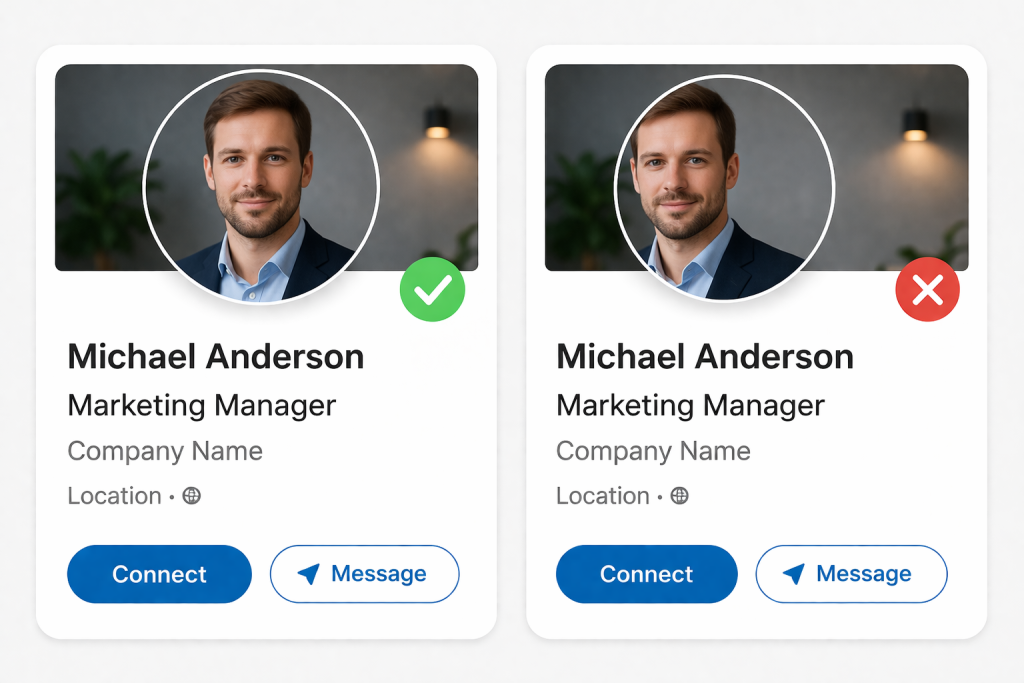
LinkedIn displays profile photos in a circular format, so centering your face is essential. When considering LinkedIn profile picture dimensions, leave enough space around your head to avoid cutting off important details.
Keep your face in the middle of the frame and avoid placing important elements near the edges. This helps ensure your photo looks balanced and properly framed on all devices, maintaining a neat and professional appearance.
10. Avoid Selfies and Group Photos
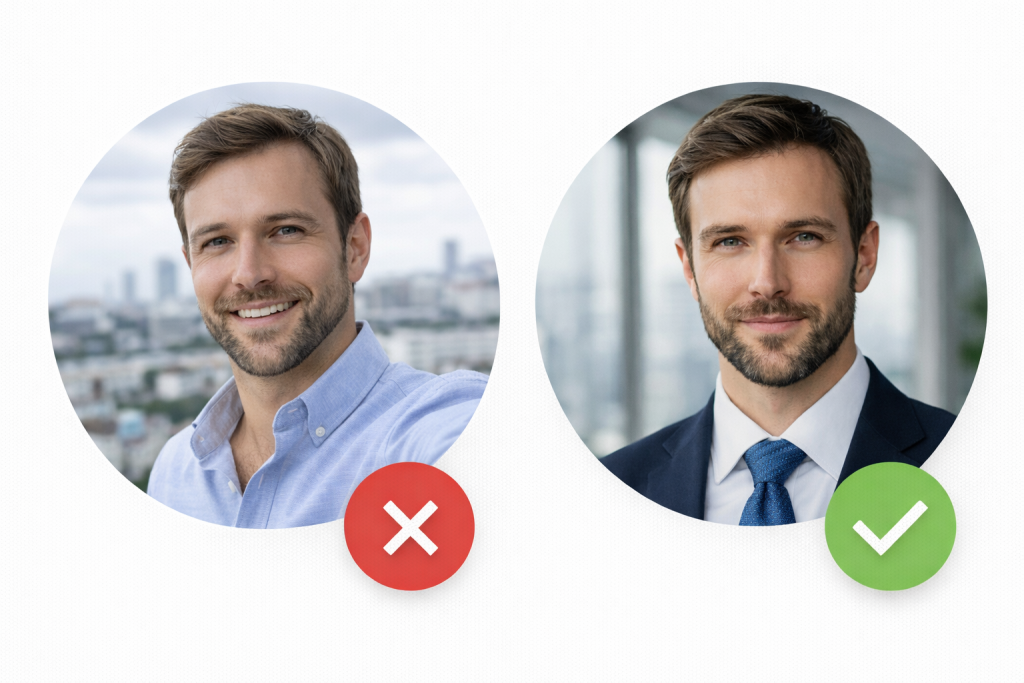
One of the most common mistakes is using selfies or cropped group photos. While they may seem convenient, they rarely create a professional impression. When reviewing different LinkedIn profile picture examples, you will notice that structured portraits usually perform much better than casual snapshots.
If possible, ask someone else to take your photo or use a tripod. A carefully taken portrait looks more intentional and aligns better with professional expectations. Selfies often distort perspective and can appear casual or rushed, which is not ideal for a platform focused on career growth and networking.