Hisense TV Remote App: The Best List for Your Needs

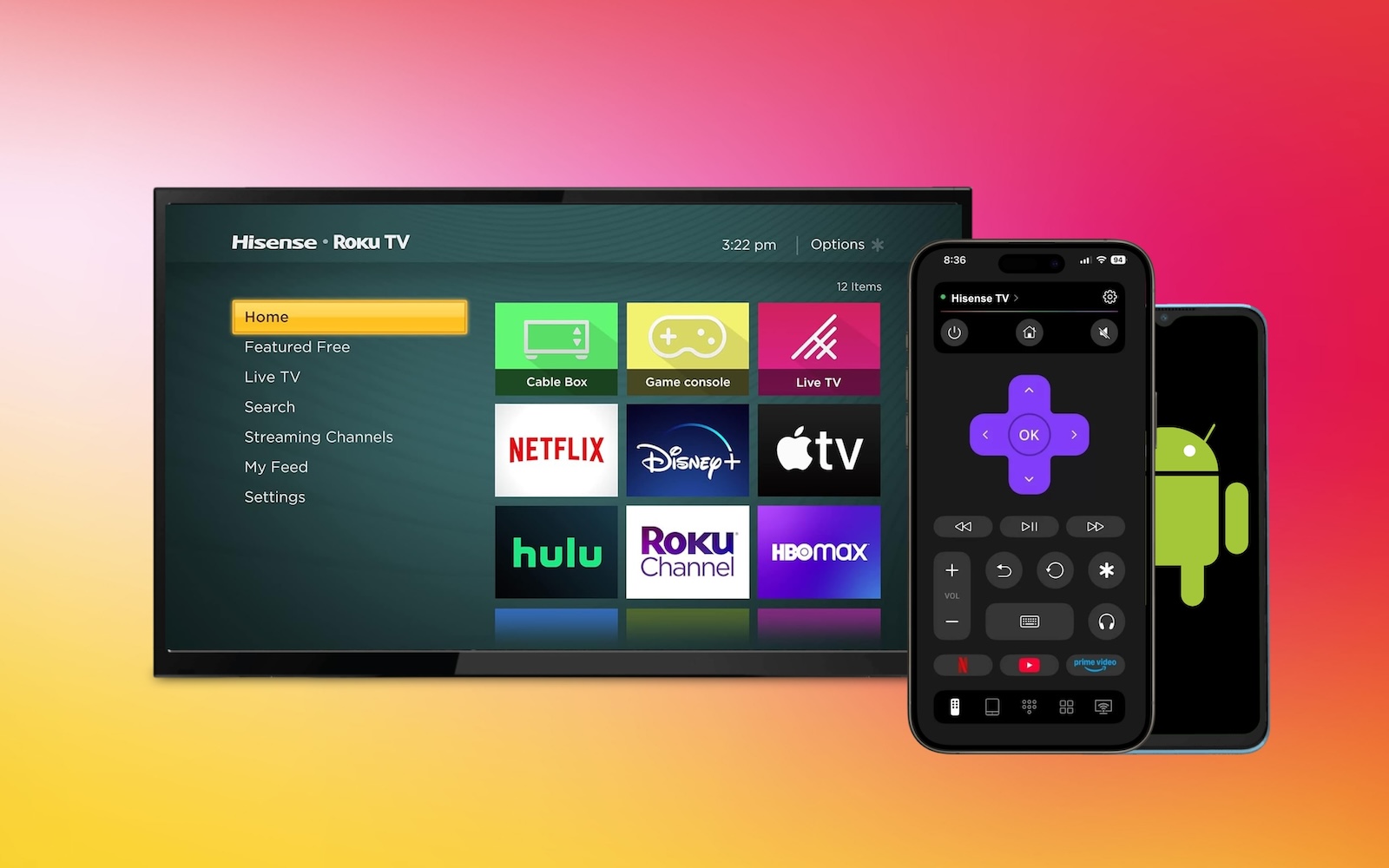
Traditional TV remote controls are quickly becoming a thing of the past. Why worry about losing it, breaking it, or having batteries for it when a mobile remote app gives you convenience and extra features? Here are the top Hisense TV remote apps along with how to pick the best one for you.
Before Choosing a Remote App for Hisense TV
Hisense TVs use a variety of operating systems, including Roku TV, Google TV/Android TV, and Fire TV, along with VIDAA OS and Xuma OS.
Before picking a TV remote app for iPhone or Android, be sure to check the operating system for your Hisense TV model to ensure compatibility.
| Operating System | Hisense TV Models |
| Roku TV | R6 Series R7 Series QD50R |
| Google TV / Android TV | U9 Series U8 Series U7 Series U6 Series M7 Series UX Series A7 Series A6 Series |
| Fire TV | U65QF QD7QF QD6QF A7 Series |
| VIDAA OS | A6/A6K/A6KV Series A4/A4KV Series E6QF/E8Q Series U7N/U7NQ Series A9H Series A7H Series |
| Xumo OS | A6 Series |
If you don’t see your model listed above, you can check on the TV itself by going to Settings > System or Device Preferences > About.
After you determine which system your Hisense TV uses, you can choose the remote app that will work best for you.
Hisense TV Remote Control Apps for iPhone
If you’re an iPhone user, a Hisense TV remote app for iOS is a no-brainer. Just grab your iPhone or iPad, pop open the app, and enjoy controlling your TV without the need for a traditional remote control.
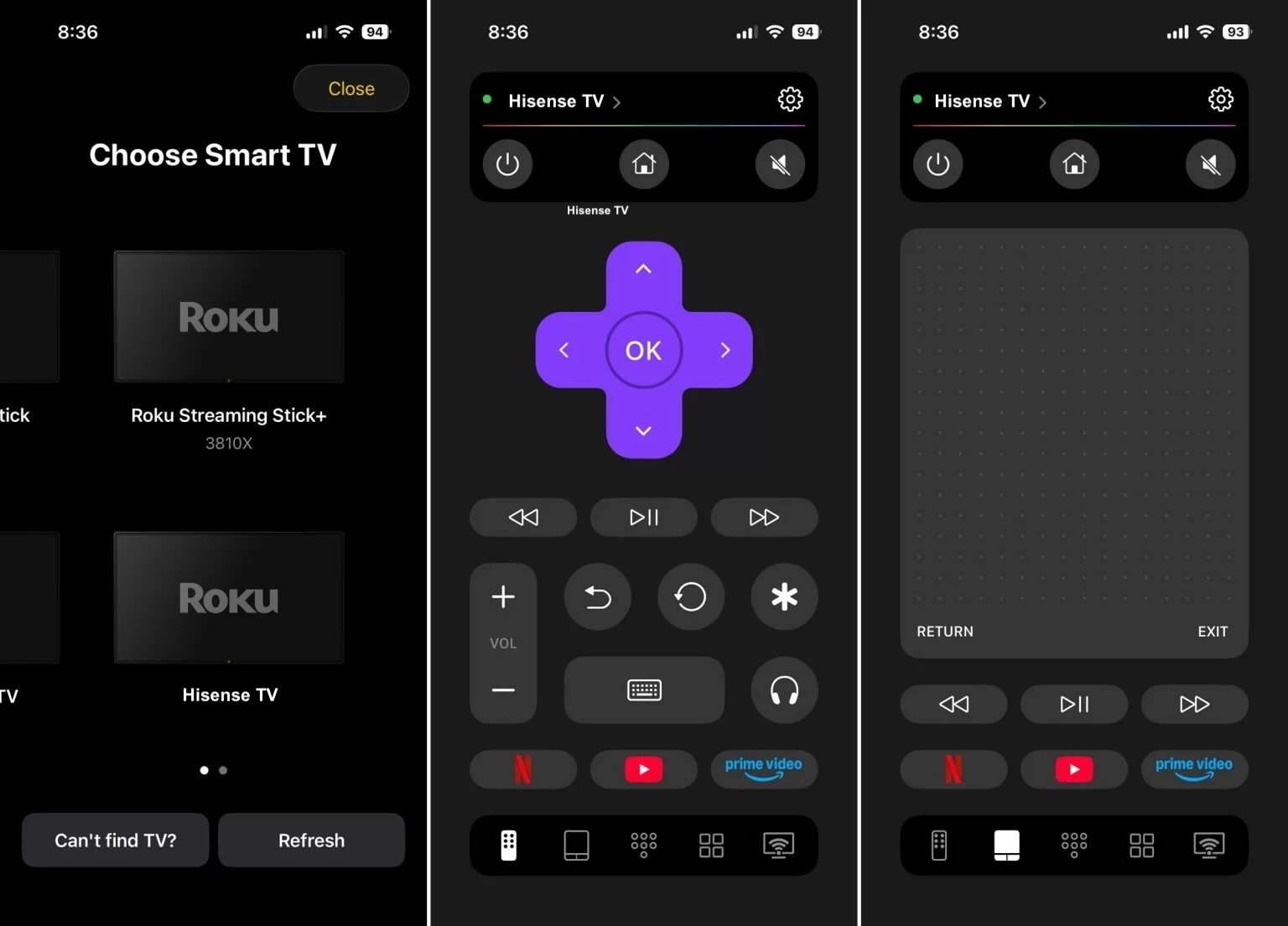
1. TVRem

For an all-encompassing tool that works with Hisense models using Roku TV, Google/Android TV, or Fire TV, look no further than TVRem – a free Hisense TV remote app for iPhone. Along with controlling your Hisense TV, you can use TVRem for TCL, Samsung, LG, Philips, Panasonic, and other major brands, along with streaming players for a simple whole-house remote solution.
📌 Key Features
- Use button, touchpad, and device keyboard inputs for flexibility.
- Control the volume, switch channels, and manage playback.
- Search with your voice using Google Assistant or Alexa (supported devices).
- Use quick app launch for Netflix, YouTube, and Prime Video.
Pros
- Available for free without ads
- Works on iPhone and iPad
- Simple setup and easy-to-use interface
- Connects quickly to most TV models and streaming players
Cons
- Limited customization options
💵 Price: Free
2. VIDAA

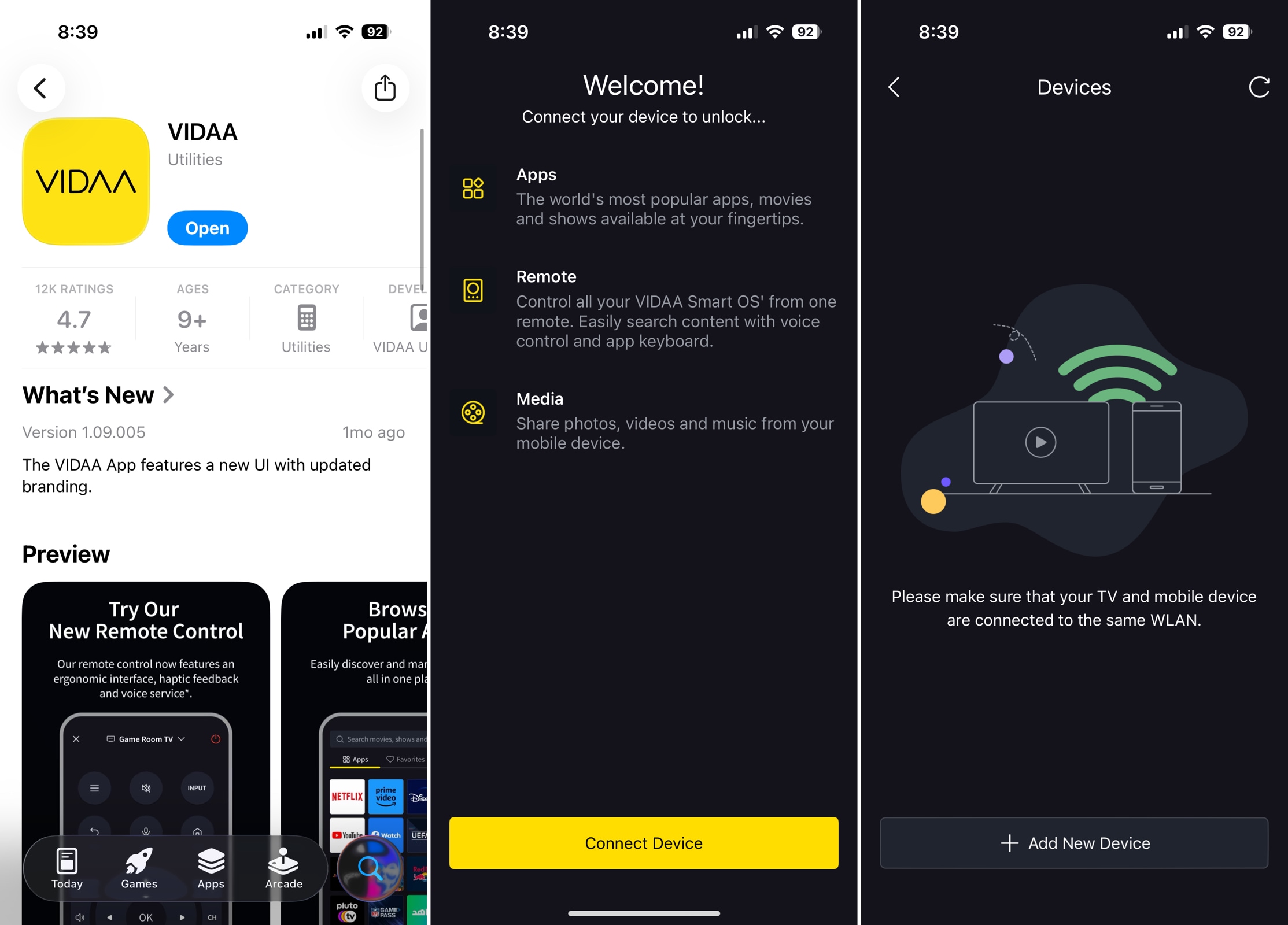
If your Hisense TV uses the VIDAA operating system, consider the official VIDAA app. With this app, you can control your smart TV with just the features you really need on iPhone or Android.
📌 Key Features
- Power your TV on and off.
- Adjust the volume, change channels, and use voice commands.
- Share media like music, photos, and videos.
- Search for content and add shows to your favorites.
Pros
- Available for free on iPhone, iPad, and Android
- Simple interface with tabs for Apps, Favorites, and Media
- Account section for managing subscriptions, payments, and notifications
Cons
- Only works with VIDAA OS devices
- Can’t explore the app without connecting a device
💵 Price: Free
3. Remote for Hisense TV

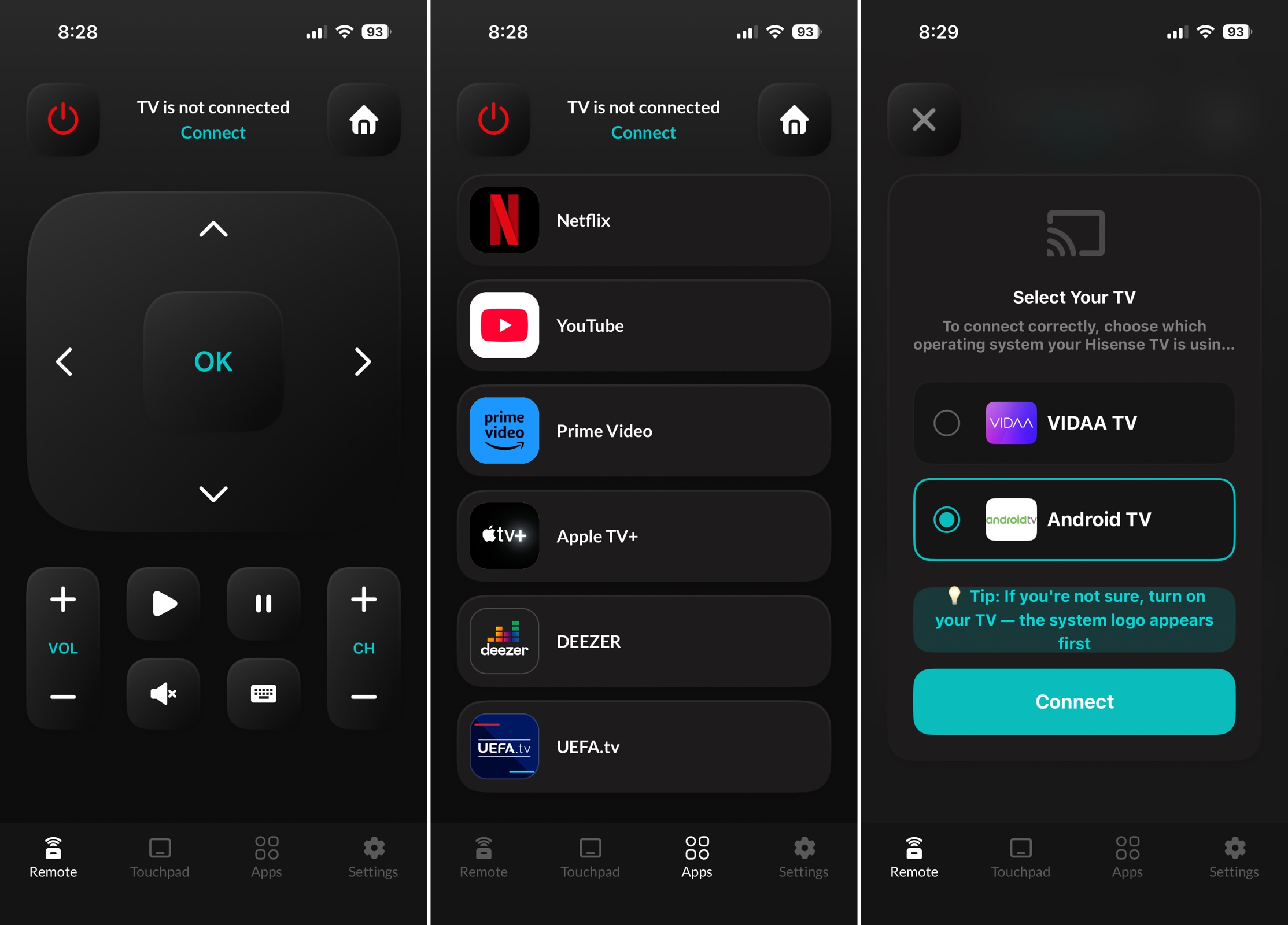
For Hisense TVs with either VIDAA or Android TV, look at the Remote for Hisense TV app. This option gives you large buttons on an easy-to-use screen with the option to power your TV on and off.
📌 Key Features
- Type with your device keyboard to search or browse for shows.
- Control the volume, switch channels, and access popular apps.
- Navigate using buttons or the touchpad.
- Use the app with either VIDAA TV or Android TV models.
Pros
- Works on iPhone and iPad
- Home screen icon selection
- Intuitive interface
Cons
- Doesn’t support Roku TV or Fire TV devices
- Some features, like keyboard and touchpad access, require a subscription
💵 Price: Free with subscriptions starting at $4.99
Hisense TV Remote Control Apps for Android
Maybe your preferred device is an Android phone. Not to worry, you can take advantage of digital remote apps for controlling your Hisense TV too.
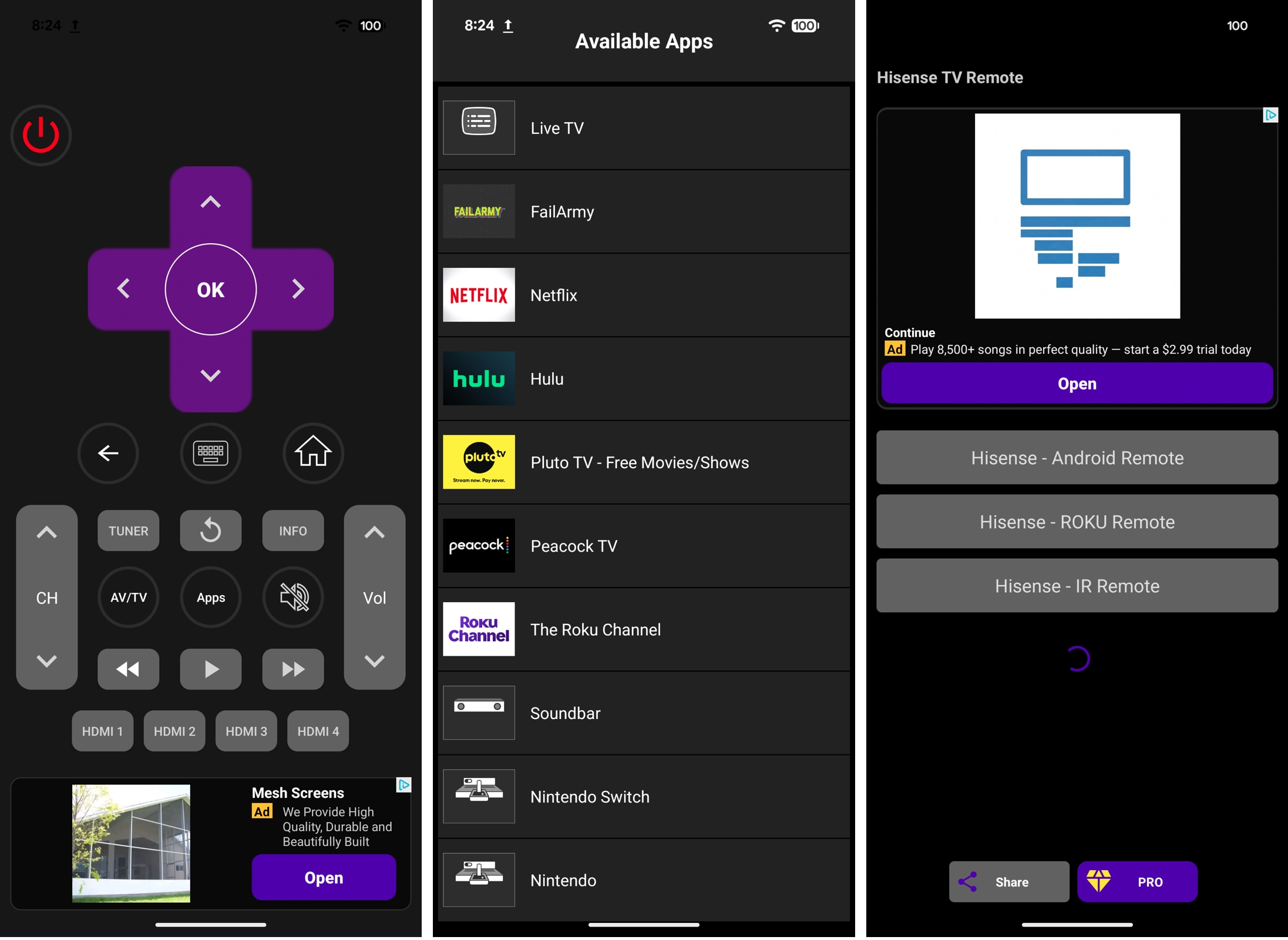
1. Hisense TV Remote

Whether your TV uses Android TV, Roku TV, or IR, consider the Hisense TV Remote. This app gives you the basics you need to easily navigate and control your Hisense TV right from your Android phone.
📌 Key Features
- Power your TV on and off.
- Use button, trackpad, or number pad input options.
- Adjust the volume, change channels, and open apps.
- Customize the interface by arranging buttons to your preference.
Pros
- Easy to connect
- Basic playback controls
Cons
- Contains many ads
- The Interface can be glitchy
💵 Price: Free with subscriptions starting at $1.99
Remote App Comparison
For a quick look at the apps on this list, review this comparison table.
| App Name | TVRem | VIDAA | Remote for Hisense TV | Hisense TV Remote Android |
| Platform | iOS | iOS / Android | iOS | Android |
| Universal Support | ✅ | ❌ | ❌ | ❌ |
| Price | Free | Free | Free/Subscription | Free/Subscription |
| Ease of Use | High | Medium | Medium | Low |
| Built-in Keyboard & Touchpad | ✅ | ❌ | ❌ | ❌ |
| Voice Control | ✅ | ✅ | ❌ | ❌ |
Why You Should Switch to a Digital Remote for Your Hisense TV
Along with the convenience of a mobile TV remote app always being within reach, a free remote app for Hisense TV won’t get lost or need fresh batteries. Whether you want to replace your physical remote control or download a mobile app as a backup, there are some things you should consider before deciding which app is best for you.
- ⚠️ Features: Remote apps offer features that physical remotes don’t. Consider tools that provide a built-in keyboard, touchpad navigation, and voice search for the most flexible control options. Also, look at bonus features like the ability to power your TV off and on or buttons for quickly launching apps.
- ⚠️ Compatibility: Make sure the app you choose works with both your TV and mobile device. Confirm your TV model and the operating system it uses before spending time connecting and exploring a remote app. You can confirm compatibility by viewing the app’s description and optionally visiting the developer’s website.
- ⚠️ Price / Value: Free apps are obvious choices, but be sure that the app gives you the essential features you need without in-app purchases or subscriptions. Many free apps also include ads, which can distract from the entire experience, so try to find an app that’s ad-free.
- ⚠️ Eco-friendly: Mobile apps don’t require batteries like traditional remote controls. Plus, using a mobile app means you don’t have to replace a physical remote either.
Conclusion
Whether you’ve lost your physical remote or don’t have replacement batteries for it, you can get back to the action using a mobile remote control app for your Hisense TV.
While all of the mobile apps on our list work fine, TVRem is the preferred option if you use an iPhone. Along with Hisense, you can control other TVs in your home and use all of its features without worries of pricey purchases or annoying ads.
Frequently Asked Questions
Yes, TVRem for iPhone and iPad is completely free without ads, subscriptions, or in-app purchases. You can use the entire feature set without worries – multiple input controls including touchpad and voice, voice search, and quick app launch. Plus, TVRem works with major TV brands along with streaming players.
Yes, you can replace a physical Hisense TV remote with options from retailers like Amazon and eBay. Alternatively, you can opt for a mobile remote app that’s always at your fingertips – like TVRem.
TVRem is a totally free universal remote app for Hisense TV that works with many other TV brands, along with streaming players. It provides an easy-to-use interface, quick app launch, variety of input options, and no ads or subscriptions.
There are a few possible reasons your Hisense TV isn’t responding to the remote, including dead batteries, a frozen TV system, or a disconnection from Bluetooth. Check/Replace the batteries, power cycle the TV, reset or re-pair the remote, and/or clean the IR sensor on the TV.
Many users have shared unsatisfactory experiences with the VIDAA remote. These include Bluetooth and pairing issues, lack of advanced features, no backlighting, poor quality for voice control, unchangeable dedicated app buttons, and missing basic shortcuts like easy app switching. So using remote apps is a great idea!