


TVRem
Free Universal
Remote App for iPhone


Universal TV
remote app
remote app
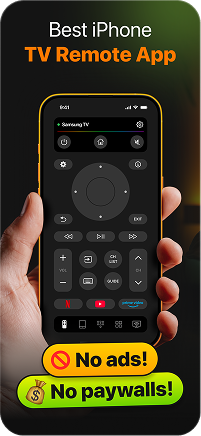
Meet TVRem — the app that turns your iPhone or iPad into the only remote you really need. No more digging between couch cushions or dealing with batteries. Just open the app, connect, and control your TV anytime. It’s not just control — it’s comfort in your hand.

Full control over
your Smart TV
your Smart TV
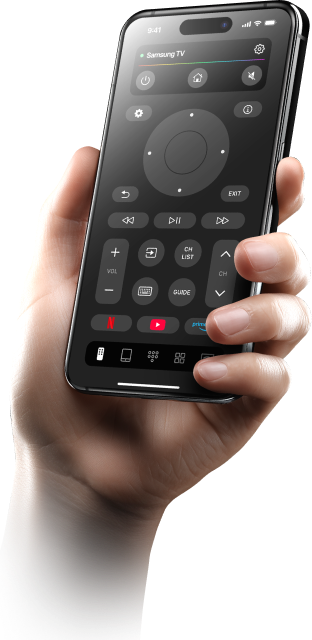
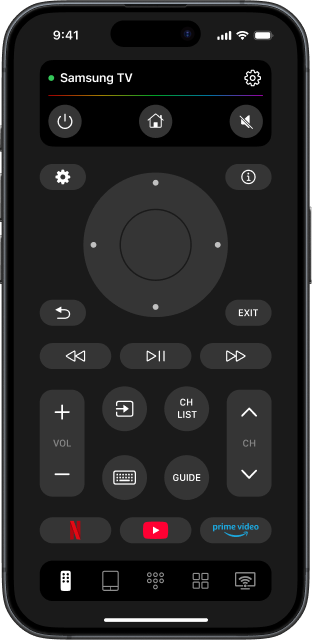
TVRem gives you everything you need to manage your TV in one place. With our TV remote app for iPhone you can easily launch your favorite streaming platforms, adjust volume, control video playback, and way more.


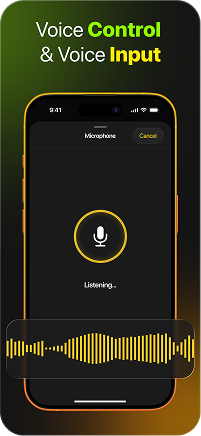
Voice control
& voice input
& voice input
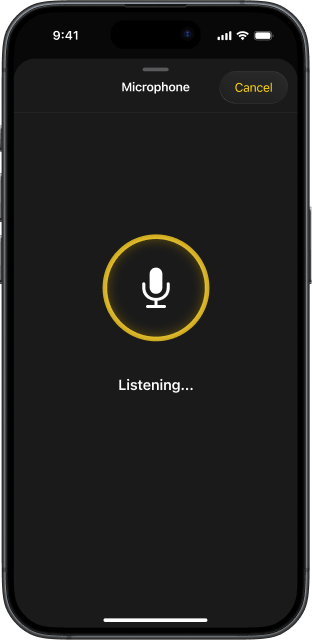
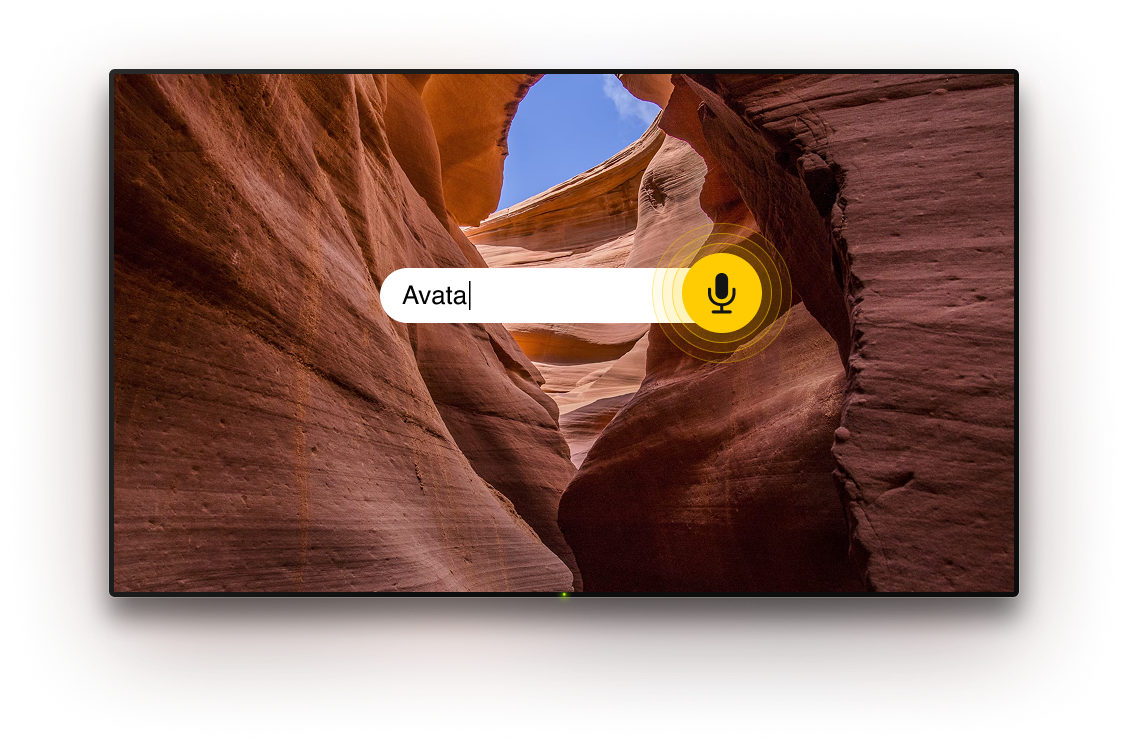
Control your TV hands-free with Google Assistant or Alexa on supported models. Need to type something? Skip the on-screen keyboard and use your phone’s voice input. Smart, fast, and effortless, that’s how our iPhone remote control app helps you interact with your TV.

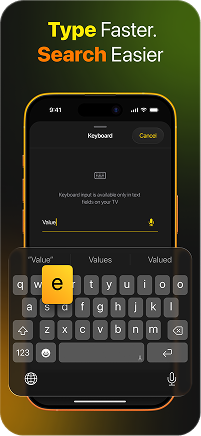
Smart keyboard
for quick search
for quick search
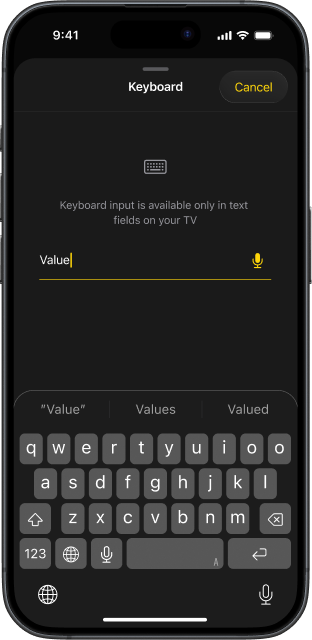
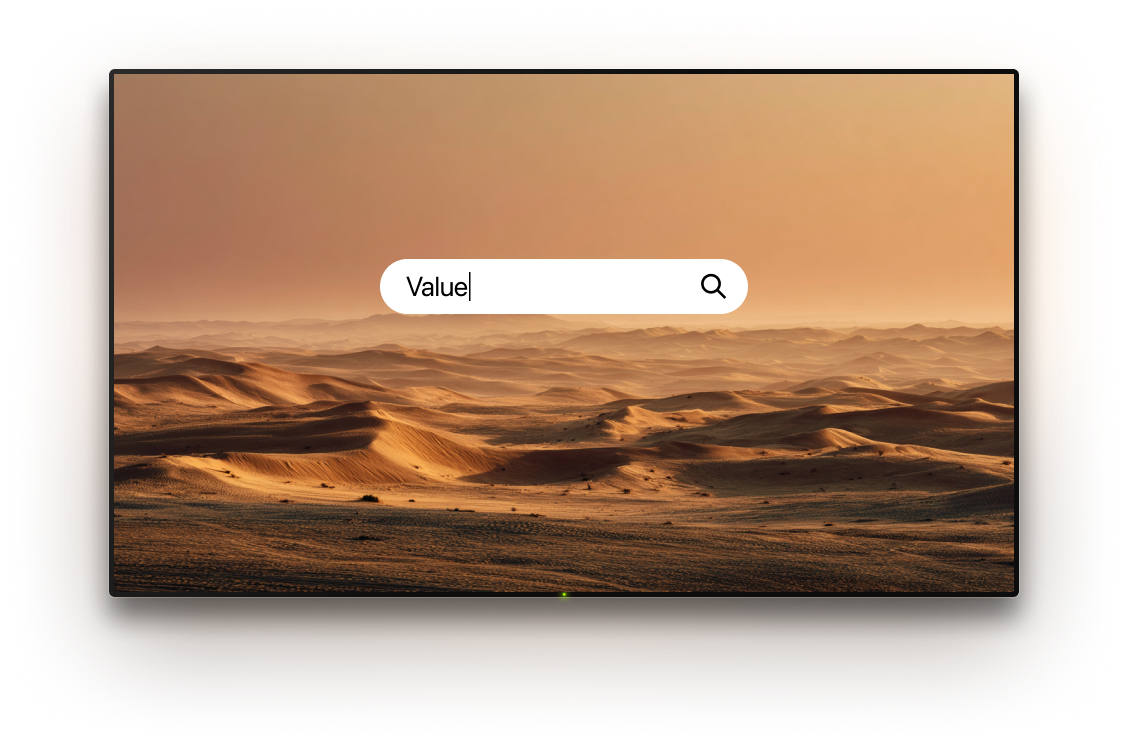
No more slow arrow-clicking or hunting for letters on your TV screen. With TVRem, you can enter movie, channel, and app titles directly from your phone’s keyboard — quick, familiar, and convenient. This free TV remote app for iPhone makes searching fast and stress-free.

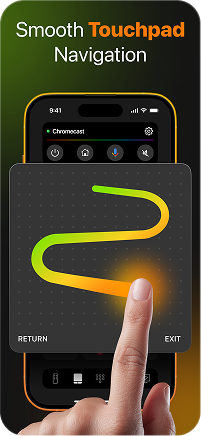
Smooth
touchpad control
touchpad control
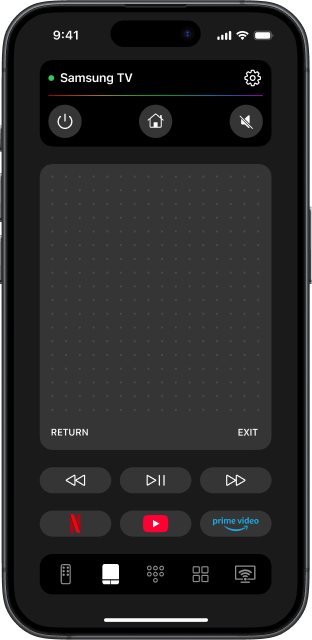
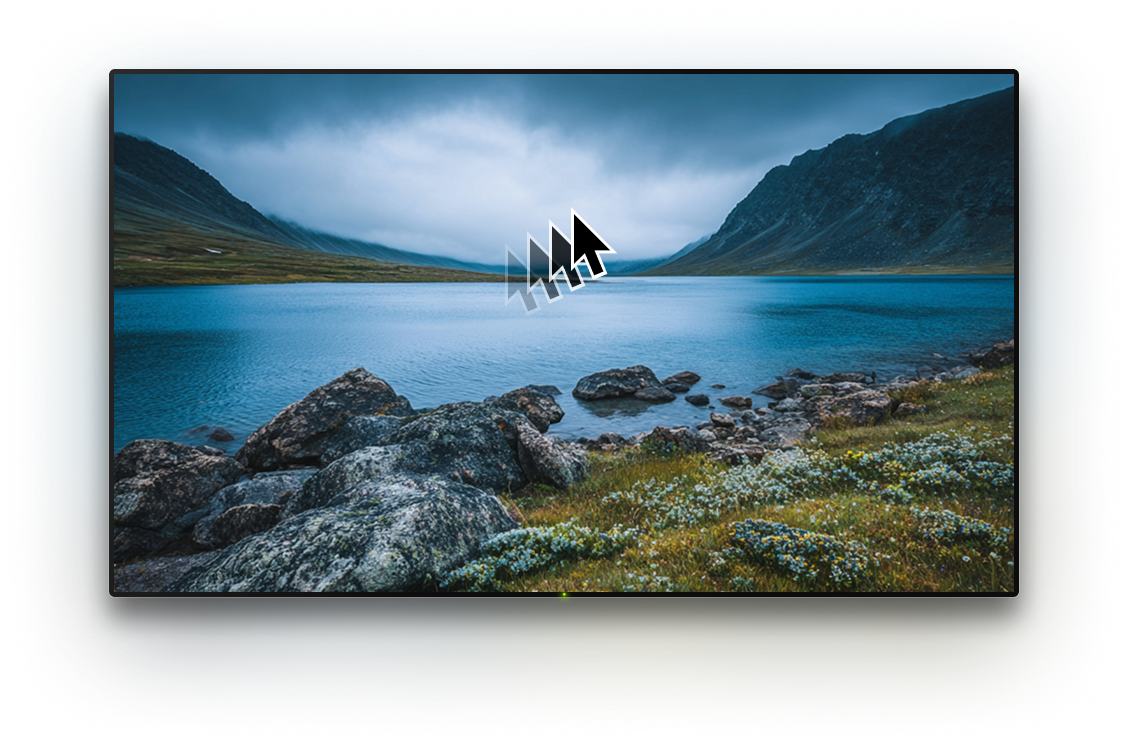
Say goodbye to confusing buttons and control your TV with familiar gestures. Swipe to move, tap to choose. TV navigation finally feels simple, smooth, and completely intuitive. TVRem turns your iPhone or iPad into a smart and modern TV controller.

One tap to
launch apps
launch apps
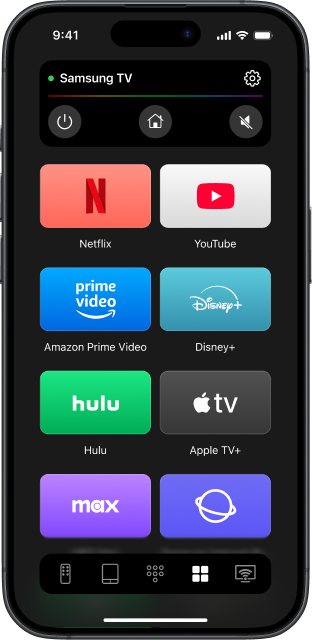
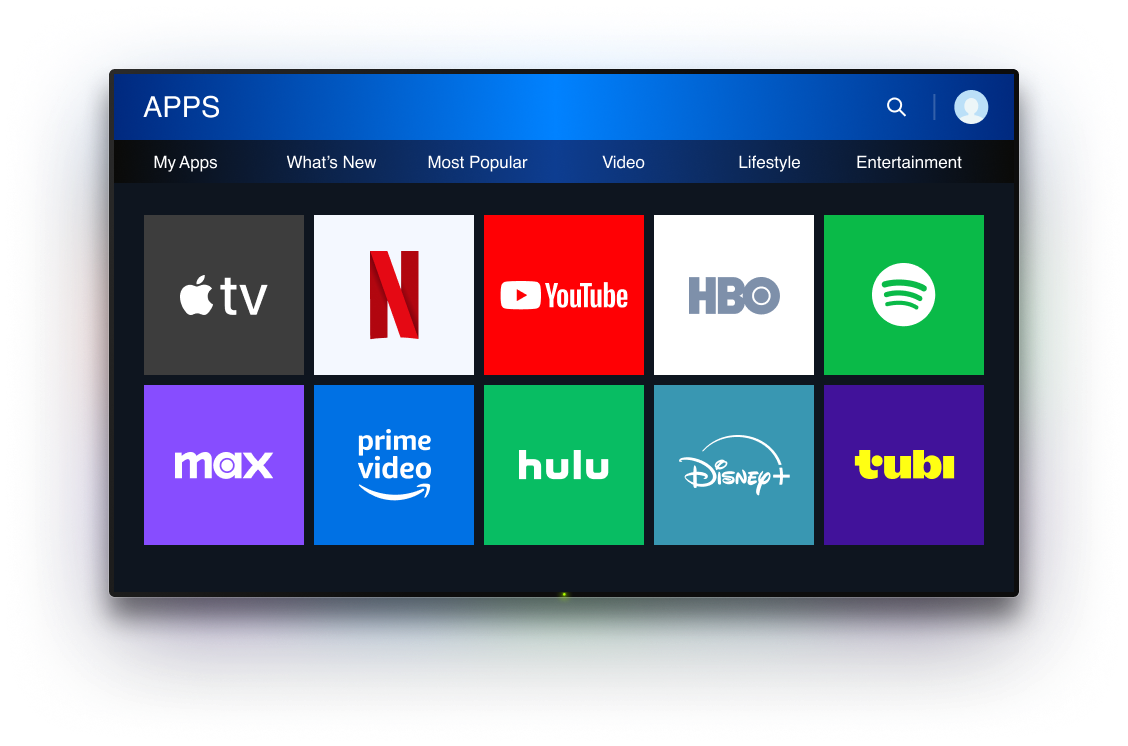
TVRem gives you access to all your Smart TV apps with a single tap. Open Netflix, YouTube, Prime Video, and other services directly from your iPhone or iPad. With our free remote control app for iPhone, everything is fast, simple, and at your fingertips.

Compatible with
most Smart TVs
most Smart TVs
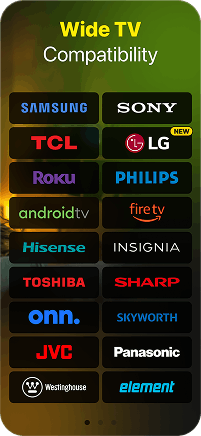
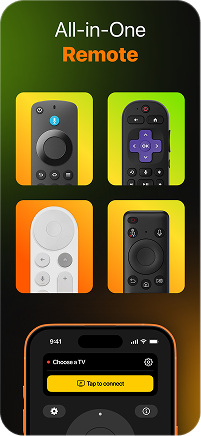
TVRem works with most Smart TV models without complicated setup or additional equipment. Our iPhone universal remote will free you from the hassle of multiple remotes and apps. Just install it and enjoy effortless control.
How to use TVRem
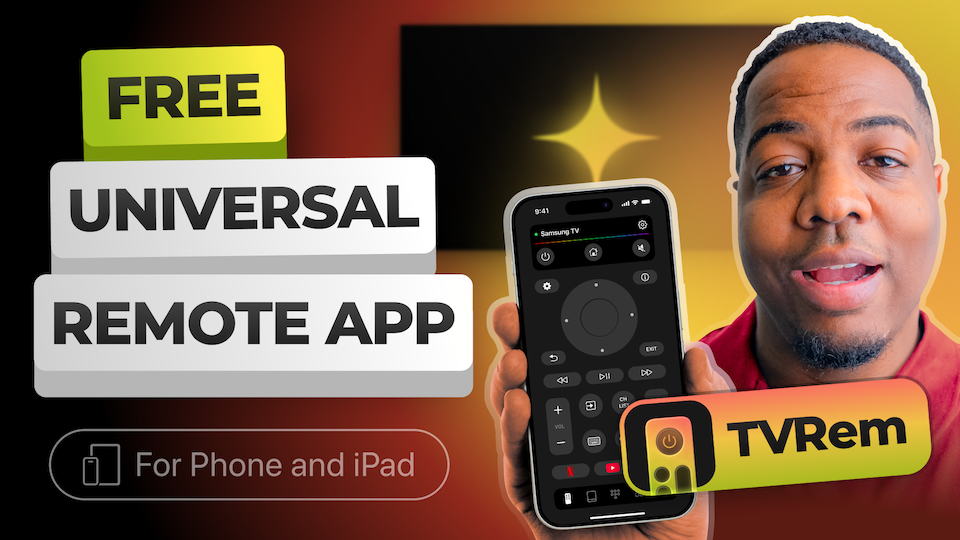
Watch a quick video on how to control your TV from your iPhone or iPad with TVRem.

Supports nearly all Smart TV models
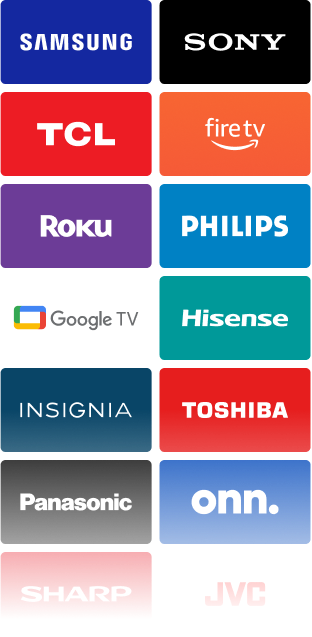
Compatible with Android TVs, Chromecast with Google TV, and Google TV Streamers — and even offers voice control via Google Assistant.




Supports Fire TV streaming players, Smart TVs by Amazon, and other TVs with Fire TV built in. Get full remote functionality on your iPhone or iPad.




Compatible with Roku streaming players, Roku-branded TVs, and other TVs with Roku built in. Control everything from one app without the original remote.



Works with Samsung and LG TVs running their own operating system. Easily switch channels, adjust volume, and launch apps from your iPhone or iPad.


Frequently asked questions
Yes, TVRem is completely free to download and use. It’s the best free universal remote app for iPhone because you don’t need to pay or sign up for a subscription. Just install the app on your iPhone, connect it to your TV, and enjoy full control without the original remote.
Yes, Wi-Fi is required. Your iPhone and TV need to be on the same Wi-Fi network. This is how the app finds your TV and connects to it.
Yes, you can. TVRem works with Samsung Smart TVs. Once connected, you’ll be able to change channels, adjust the volume, use the keyboard, and launch apps right from your iPhone.
Yes, you can. TVRem supports Fire TV streaming players, Smart TVs by Amazon, and other TVs with Fire TV built in. Connect your iPhone to the same Wi-Fi network as your Fire TV. During the first connection, you’ll need to enter a code shown on your TV screen. After that, you’ll have full control right from your iPhone — no original remote needed.
It’s simple and works the same way as with other TVs:
- Download TVRem on your iPhone.
- Connect both devices to the same Wi-Fi network.
- Open the app, find your Roku on the list, then tap it to connect.
- Now you can use your iPhone to control Roku.
If TVRem asks for permission, follow these steps on your Roku to allow mobile control:
- Press the Home button on your Roku remote.
- Go to Settings > System > Advanced system settings.
- Select Control by mobile apps.
- Select Network Access, then choose Enabled or Permissive.
The setup is quick and easy:
- Install TVRem on your iPhone.
- Connect your iPhone and Android TV to the same Wi-Fi.
- Open the app, tap on your TV on the list, and enter the code shown on your TV screen. Your iPhone is now your remote control.
Yes, it does. There is a built-in remote for Apple TV inside the Control Center on your iPhone. You can open it any time without installing extra apps. More details can be found here.
TVRem for iOS
A Free Universal Remote App to Control Your Smart TV
This iOS application is fully compatible with iOS 17+.
Latest version 1.2
released 18 Mar, 2026