
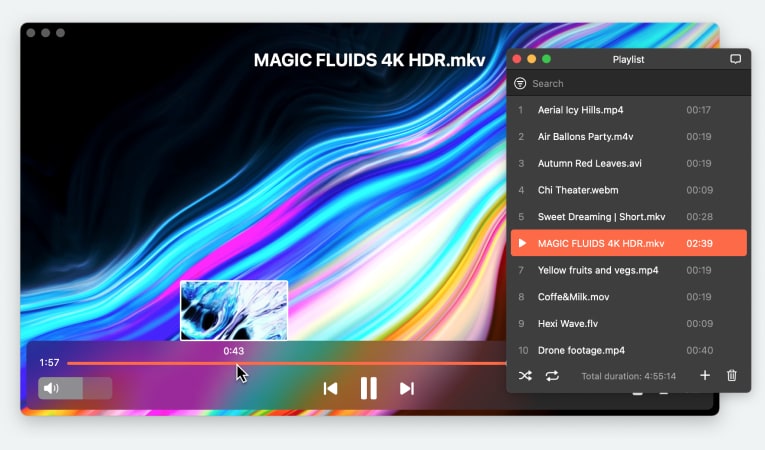
Choosing the right video editor can make a big difference in how professional and engaging your content looks. Whether you’re creating short social media clips, producing YouTube videos, or handling more advanced projects, the right tool helps you work faster and achieve better results. In this article, we highlight the 6 best video editors to help you find the one that perfectly fits your workflow and skill level.
Video Editing Software Explained
Video editing software is a digital tool used to create, edit, and refine video content. It lets you cut and merge clips, adjust audio, add transitions, effects, and text, and apply color correction. Finished videos can be exported in a variety of formats and resolutions. This software is ideal for creating everything from social media posts and personal projects to professional-quality videos. Some editors are designed for beginners with simple, intuitive interfaces, while others offer advanced tools for experienced or professional users.
How to choose the best video editing software
Here’s what to look for when selecting a video editing tool:
- Skill level: Beginners often benefit from a simple, intuitive interface with ready-made templates, while advanced users may need multi-track timelines and professional-grade features.
- Type of content: Make sure the software supports the formats and resolutions you need, whether you’re creating short social media clips, vlogs, tutorials, or full-length films.
- Performance: The editor should run smoothly on your system and support hardware acceleration for faster rendering and playback.
- Core features: Look for essential tools such as trimming, transitions, color correction, audio editing, and flexible export options.
- Pricing: Free versions work well for basic editing, while paid plans usually offer more effects and advanced tools. Trying a free trial is the best way to see if the software fits your workflow.
The Best Video Editing Software
Now that you understand what a video editor is and how to choose it, let’s take a closer look at the top video editors for Mac and other platforms available today.
PowerDirector 365
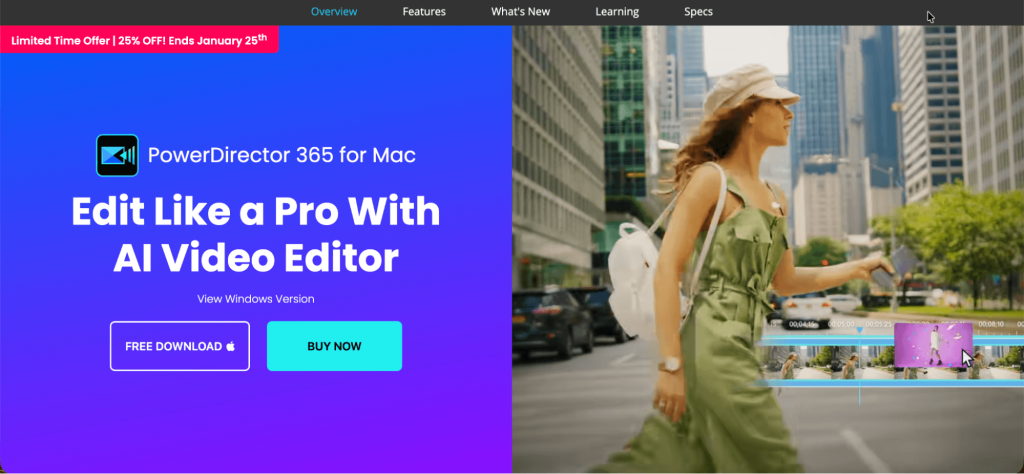
PowerDirector by CyberLink is a versatile video editing software designed for both beginners and advanced creators. It simplifies the editing process with smart, AI-powered tools that save time and effort. You can instantly generate subtitles from speech, apply effects that track moving objects, and remove backgrounds. One-click color correction helps you improve your footage in seconds, while drag-and-drop effects let you enhance videos with minimal effort.
With fast rendering and an intuitive interface, PowerDirector is ideal for creating YouTube videos, social media content, and professional projects. Available on Windows, macOS, Android, and iOS, it offers a flexible, cross-platform solution for creators on any device.
Key features:
- Multi-track timeline for precise clip arrangement and editing
- AI-powered tools like background removal, motion tracking, and smart video enhancements
- Large library of built-in effects, transitions
- Screen recording
- Access to stock content, including Getty Images and the Meta Sound Collection.
Pros
- Fast performance and rendering
- Well-organized interface
- Wide format and resolution support (including 4K)
- Cross-platform compatibility.
Cons
- Some AI-powered functions require extra credits
- Mac version may lack some features found on Windows.
Supported OS: macOS, Windows
Price:
- PowerDirector 365 for Mac/Windows: $79.99/year.
- Free version available with limited features and watermarks.
Actual prices may vary depending on available discounts.
Adobe Premiere Pro
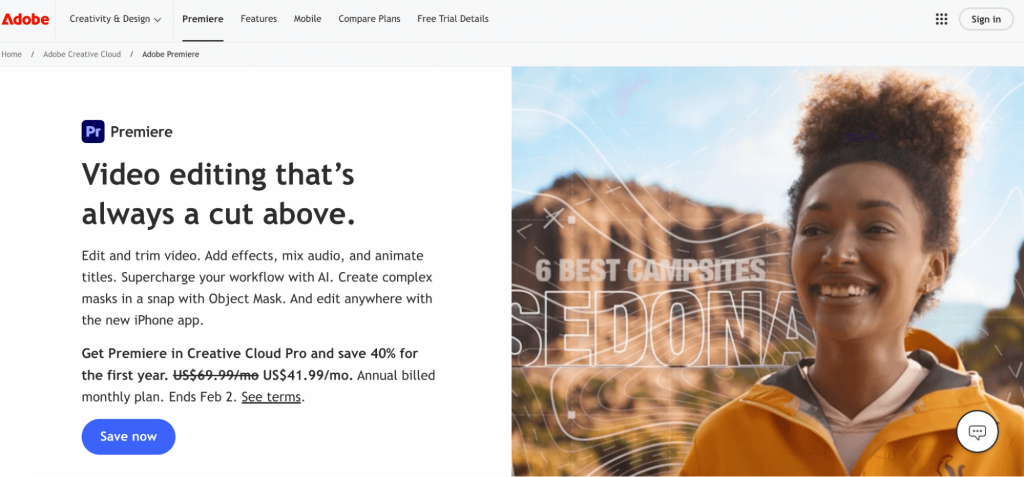
Adobe Premiere Pro is a professional video editing application developed by Adobe and included in the Adobe Creative Cloud suite. It is widely used across many industries to create high-quality video content. Along with core editing features such as trimming and cutting clips, adding transitions, effects, and audio adjustments, Premiere Pro offers powerful AI tools that speed up editing. These include Object Mask for easy object selection, automatic caption translation into 27 languages, and Speech to Text for one-click creation of captions and transcripts.
Premiere Pro supports a wide range of formats and resolutions, including 4K and 8K, making it suitable for complex and high-end projects. Available for Windows and macOS, Adobe Premiere Pro is subscription-based and ideal for experienced editors who need full creative control and industry-standard tools. Recently, Adobe released a mobile app for iOS, bringing pro‑level video editing tools to Apple’s mobile devices.
Key features:
- Advanced AI-powered editing tools for faster and smarter workflows
- Professional color grading with Lumetri Color
- Integrated audio editing tools, including essential sound effects and noise reduction
- Text-based editing and automatic caption generation
- Motion graphics and title tools.
Pros
- Comprehensive and industry-standard editing tools
- Strong integration within the Adobe Creative Cloud ecosystem
- Advanced color, audio, and effects tools
- Wide format and high-resolution support
- Regular updates and improvements.
Cons
- Subscription pricing can be costly
- Resource-intensive, requires a powerful system to run smoothly.
Supported OS: macOS, Windows
Price:
- Single App plan: $22.99/month (annual plan, billed monthly).
- Creative Cloud All Apps plan: $69.99/month (includes 20+ apps, including Premiere).
- Adobe also offers a 7-day free trial so you can test the software before subscribing.
Actual prices may vary depending on available discounts.
Wondershare Filmora
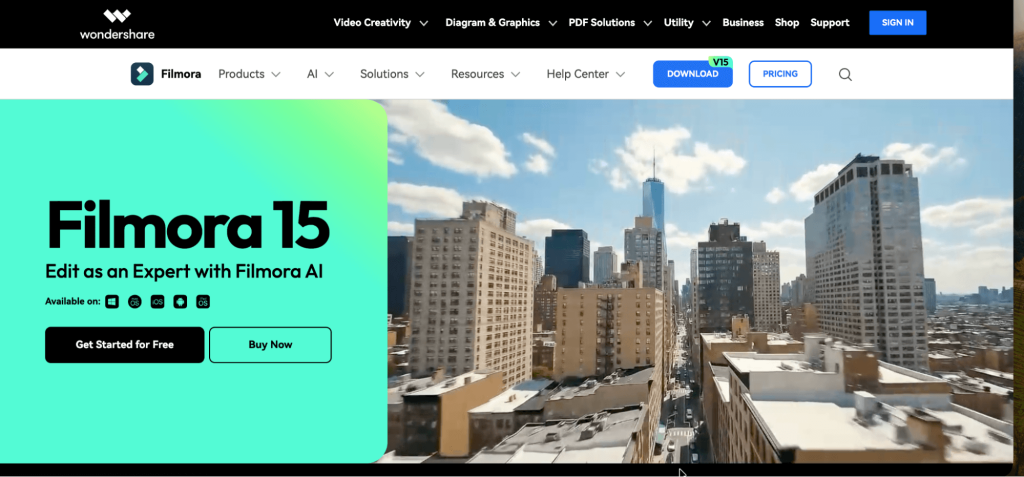
Wondershare Filmora is a user-friendly video editor for creators who want powerful tools without a steep learning curve. It features one-click drag-and-drop editing, a vast library of effects and transitions, and AI-powered tools like Motion Tracking, Audio Enhancement, and AI Portrait, as well as lets you export videos directly to YouTube. Ideal for YouTube content, social media, and personal projects, it offers both free and paid versions with different levels of functionality, along with mobile apps for Android and iOS for editing on the go.
Key features:
- Drag-and-drop editing
- AI-powered tools
- Wide selection of visual effects, overlays, and transitions
- Customizable titles, captions, and text animations
- Noise removal, audio mixing, and sound effects
- Direct export to YouTube and other platforms
- Edit and export videos in high resolution.
Pros
- Intuitive interface - great for beginners
- Fast rendering speed
- Rich collection of templates, transitions, and effects
- Cross-platform support.
Cons
- Free version exports videos with a watermark
- Performance may be slow when handling large projects.
Supported OS: macOS, Windows
Price:
- Free version
- Basic: $9.99/month
- Advanced: $34.99/year
- Perpetual: $49.99/one-time purchase.
Actual prices may vary depending on available discounts.
AVS Video Editor
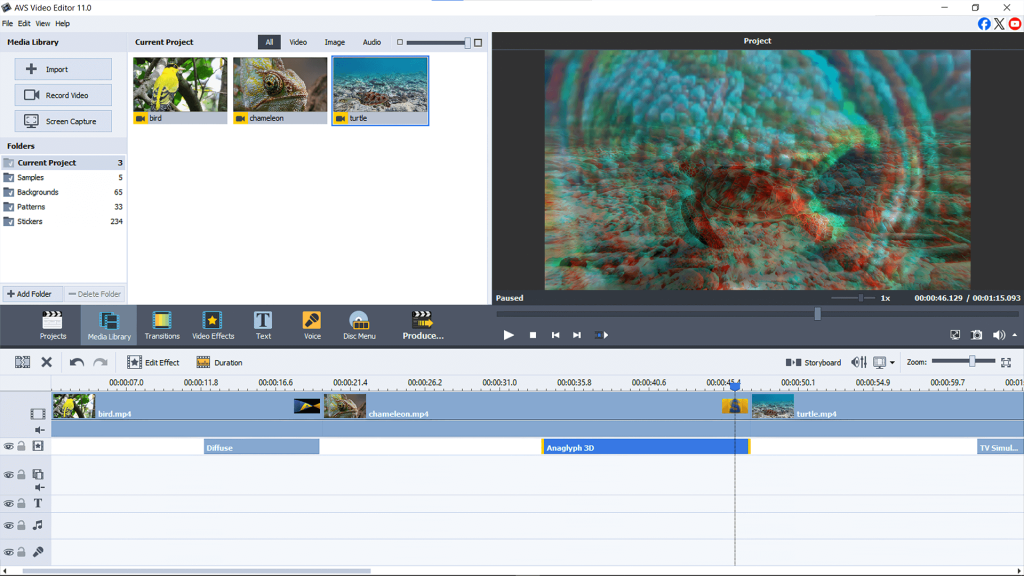
AVS Video Editor keeps things straightforward. You get real control over your videos without needing to spend hours figuring things out. The timeline layout is familiar – just drag, trim, cut, merge, or rearrange your clips however you like. You can also add audio tracks and effects. There’s enough depth here for bigger projects, not just quick edits. AVS also includes useful extras like screen and video capture, so you can record your desktop or import footage from external devices, then edit it all in one place.
The editor comes packed with over 300 transitions, effects, filters, and titles. You also get tools for color correction, video stabilization, and green screen (chroma key) work. When you’re ready to export, AVS makes it easy – just pick a preset for YouTube, social media, or your phone, and you’re done.
It’s true that you won’t find the latest AI tools or 360-degree video editing here. AVS focuses on the basics and does them well. For most creators who want something affordable and easy to use, it’s a solid balance of features and simplicity.
Key features:
- Timeline editing – trim, split, merge, arrange clips
- Color correction and video stabilization
- Green screen (chroma key)
- 300+ transitions, effects, and filters
- Screen and video capture – ideal for tutorials or desktop recordings
Pros
- User-friendly interface, perfect for beginners
- Editing tools and capture features in one application
- Supports all major formats and resolutions
- More affordable than many subscription-based editors
Cons
- No advanced AI or 360° video editing features
- Windows only
Supported OS: Windows
Price:
- Free Version
- 1-year subscription: $149.00/year
- Unlimited subscription: $279.00/year
Actual prices may vary depending on available discounts.
Apple iMovie
Apple iMovie is a free, easy-to-use, and one of the most popular apps for video editing on Mac, familiar to many casual creators. It comes pre-installed on most Macs, is user-friendly, and includes all the essential tools: trimming, transitions, color adjustments, and a selection of built-in effects.
iMovie allows you to quickly turn raw clips into refined videos for social media, school projects, or personal use. With its intuitive interface, it makes video editing accessible to anyone, requiring no prior experience, while still producing professional-looking results on Mac and iOS devices.
Key features:
- Basic but stylish transitions, filters, and visual effects
- Tools for adjusting color, brightness, and contrast
- Pre-made templates for quick, professional-looking videos
- Customizable aspect ratio cropping
- Easy-to-add titles, captions.
Pros
- Free to use
- Intuitive drag-and-drop interface
- Seamless integration with Apple ecosystem (Photos, iCloud, etc.)
- Optimized performance on Apple hardware with smooth playback and fast exports.
Cons
- Limited advanced features - lacks pro tools
- Less suited for complex or high-end projects.
Supported OS: macOS
Price: Free – iMovie comes preinstalled on new Macs, iPhones, and iPads, and can be downloaded at no cost from the App Store.
Conclusion
For creators of all levels, these video editing apps for Mac provide a perfect balance of powerful features and ease of use. From professional software like Adobe Premiere Pro to options like iMovie, there’s a tool to suit every skill level and project type. Explore these top video editing apps for Mac and other platforms to create polished, engaging videos efficiently.