- Send SMS from Mac
Tired of typing on device's small keyboard? Text from your Mac!
With SyncMate SMS Manager you can easily type and send your messages directly from your Mac, benefitting from its full-size convenience.
- Mount phone as disk
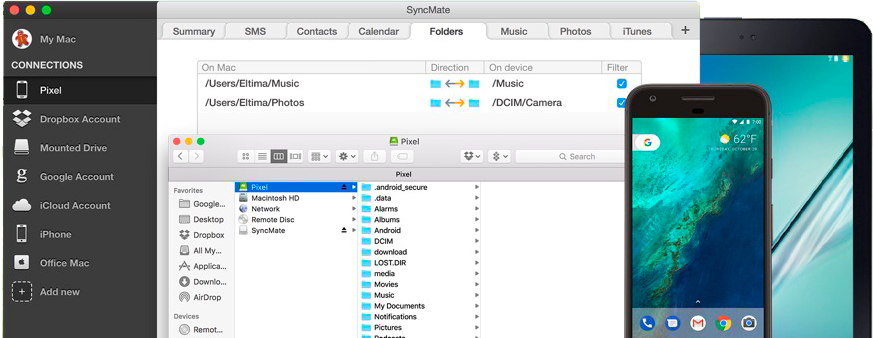
Mount your devices as additional Mac disk via USB, Wi-Fi or Bluetooth and browse its content on Mac!
- Conversion trick
Convert audio and video files into different formats while syncing. Resize images to fit your device's screen while syncing.
- Sync various models
SyncMate allows syncing data on Mac with any model of any manufacturer of mobile device (sync HTC Mac, sync Samsung Mac, sync LG Mac, sync Motorola Droid Mac, sync Galaxy Mac). The only condition - this device must run Android OS.
Step 1: Download SyncMate Free edition.
Firstly, download and install SyncMate Free edition on your Mac. You will also need to install Client app on your Android device (you can download APK file on Mac and install on your Android or download on your device directly from Android Market).
* Not sure if your device is supported? Check our Supported Devices List!
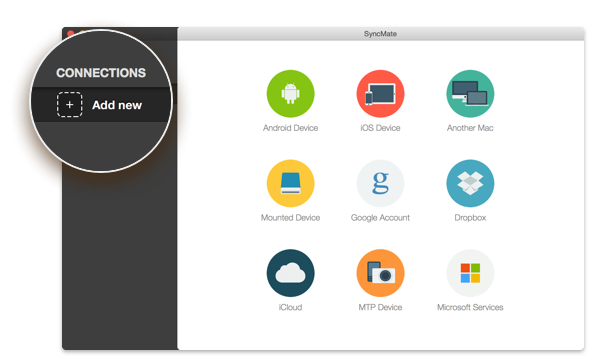
Step 2: Connect your Android and Mac.
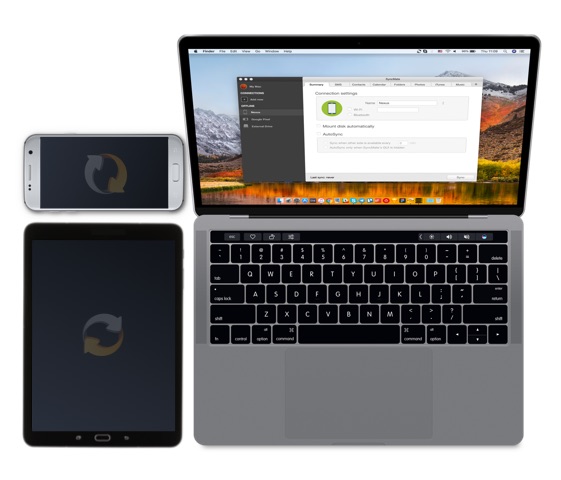
After launching SyncMate, you can choose the most preferable way of Mac and Android device connection. SyncMate offers you three options - connecting via USB, Wi-Fi or Bluetooth. Depending on type of connection you have chosen, follow the simple procedure to establish connection between Mac and Android phone or tablet.
*Have any questions? Read this article.
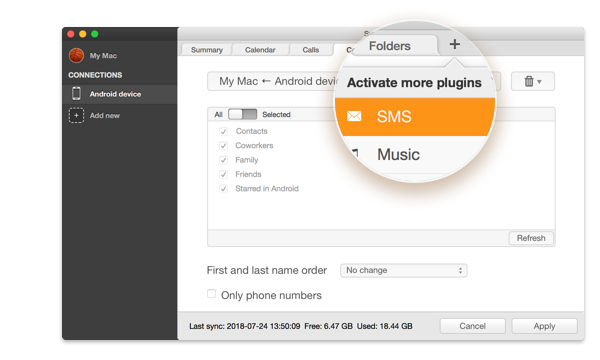
Step 3: Choose what to sync
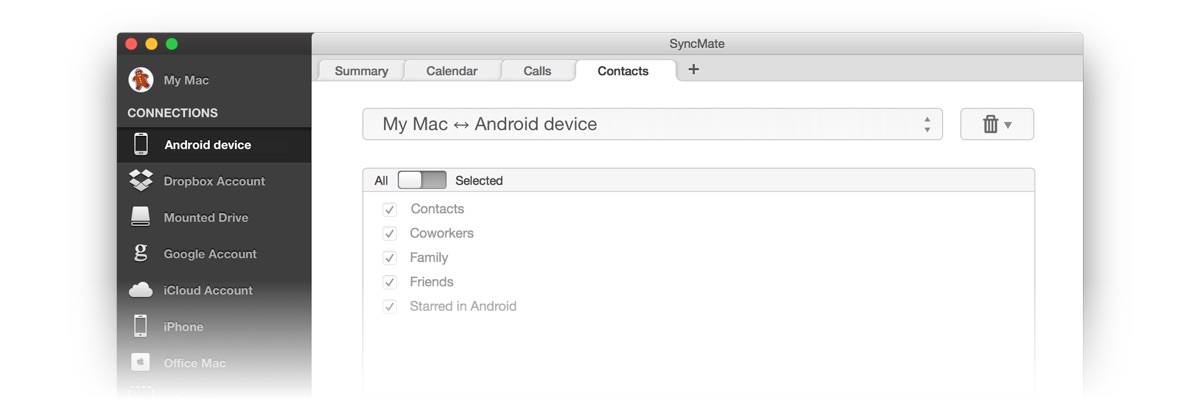
SyncMate Free edition allows you syncing contacts and calendar entries between your Mac and Android device. Just choose one of these plugins and go on!
*Read Step 6 to find what other sync options SyncMate has for you.
Step 4: Choose sync direction
With SyncMate you can sync Android with Mac in three directions - Mac to device (Mac data will be added to the existing entries on your Android device), device to Mac (device's data will be added to the existing Mac entries) and bi-directional - data will be mutually updated on both sides.
Contacts, calendars, folders and Safari bookmarks can be synced in three directions; music, images and video - in two - from Mac to Android and from Android to Mac.
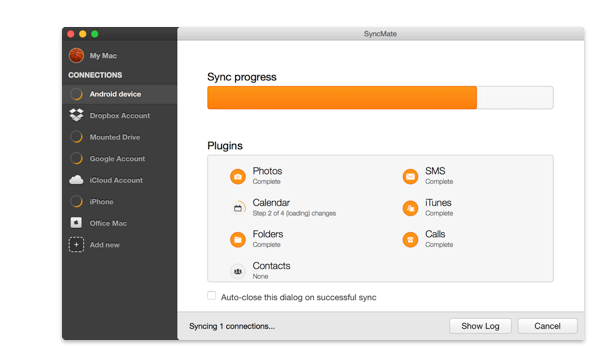
Step 5. Let it sync!
We're almost there! :) Now just click "Sync now" button and your data will be updated on both devices.
Step 6. SyncMate Free vs SyncMate Expert
When using free SyncMate you can sync Contacts and Calendars in your phone and Mac, read Android messages on your Mac (SMS Reader plugin).
With SyncMate Expert you can do even more. You can sync Safari bookmarks, favorite music and videos, photos, Folders and more. With Expert Edition you can create, delete, send and search through SMS messages right from your computer with SMS Manager plugin (messages can be exported to TXT, CSV or HTML) and sync Mac with Android phone automatically.
Moreover, you can mount your Android phones and tablets as additional Mac disks and browse their content on Mac directly. You can mount your Android device via USB, Wi-Fi or Bluetooth.
Step 7. Sync your Mac with even more devices!
Make all your devices work in sync! SyncMate can also sync your Mac with Windows Mobile, BlackBerry devices or Nokia S40 phones, other Macs and Windows PCs, Sony PSP, any mounted storage devices, MTP devices, Dropbox and Google accounts, iCloud, Yahoo!, iPhones, iPads, iPods Touch or Nano.